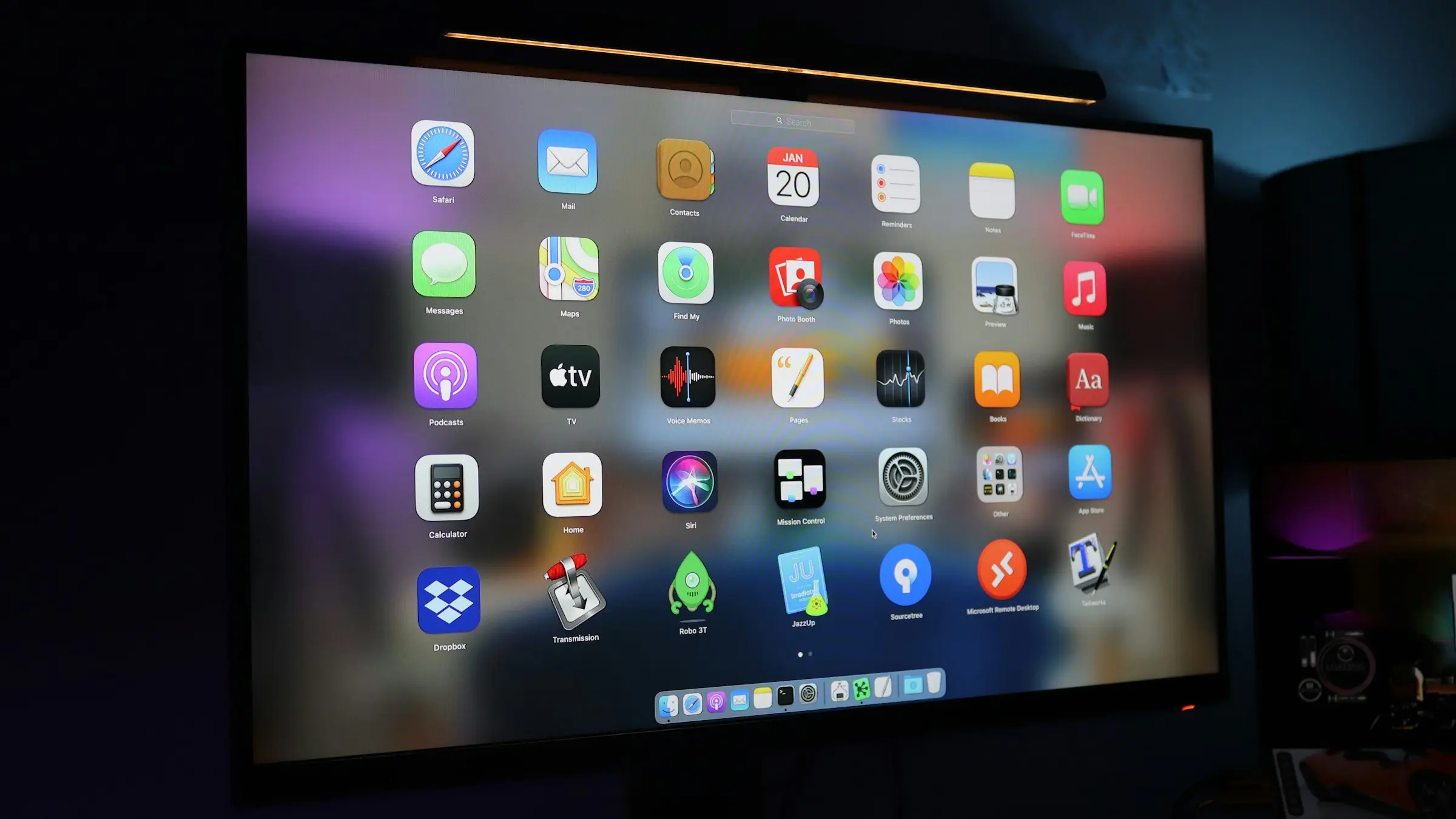
Uma das maiores críticas ao iPhone Duo nestes dias de pré-lançamento com certeza é o estado dos aplicativos disponíveis para o dobrável, que nem sempre apresentam uma experiência adaptada ao formato pouco convencional do aparelho.
Muitos desenvolvedores, no entanto, já lançaram atualizações para o dobrável, e a Apple está fazendo questão de destacar isso com novas coleções na App Store, as quais trazem apps e jogos que já foram adaptados para o iPhone Duo. Softwares otimizados para o aparelho também ostentarão o rótulo “Made for iPhone Duo” (“Feito para o iPhone Duo”, em tradução direta).
Susan Prescott, responsável global pelas relações com desenvolvedores da Apple, falou sobre a recepção que o dobrável tem recebido por parte de criadores de apps:
A resposta da nossa comunidade de desenvolvedores ao iPhone Duo tem sido incrível, e estamos inspirados pela rapidez com que eles adotaram a tela maior e as novas formas de interação. Desde assistir a programas e conteúdos populares na tela interna expansiva até realizar multitarefas em várias janelas ou jogar games com qualidade de console, desenvolvedores do mundo todo estão reinventando o que seus apps podem fazer. Mal podemos esperar para que os usuários descubram essas experiências a partir desta sexta-feira, com muitas outras novidades em apps a caminho.
Criadores de conteúdo, por sua vez, já podem aproveitar o Instagram e seu app irmão Edits no iPhone Duo, bem como o app de IA Detail e o editor de vídeos VLLO.
A Maçã também citou o SmartGym, o Flighty e o Tripsy, sobre os quais falamos ontem junto com o app Suporte da Apple, que também ganhou suporte ao iPhone Duo.
Mais apps
Além dos apps destacados acima, outros também já abraçaram o iPhone Duo, incluindo os desenvolvidos pela própria gigante de Cupertino, como o TestFlight e o GarageBand.
Como o iPhone Duo ainda está nos seus primeiros dias de vida, é possível que apps não otimizados continuem sendo um problema por mais algumas semanas. No entanto, como pudemos conferir, a situação parece estar melhorando num ritmo bastante interessante.
iPhone Duo
Cores: branco-estrela ou céu noturno Armazenamento: 256GB, 512GB, 1TB ou 2TB
NOTA DE TRANSPARÊNCIA: O MacMagazine recebe uma pequena comissão sobre vendas concluídas por meio de links deste post, mas você, como consumidor, não paga nada a mais pelos produtos/serviços ao usar os nossos links de afiliado.
Notas de rodapé
1
Role-playing game, ou jogo de interpretação de papéis.
The risks and rewards of removing Apple Intelligence to reclaim storage storage space space are debated, along with some experiences of performance problems following macOS upgrades. They investigate reports of iPhone 18 Pro Max failures on AT&T, debating whether hardware, software, or carrier networks are responsible. The conversation concludes with new, expanded iCloud+ email alias options, custom domains, and the advantages of owning a personal domain.
Full Disk Access largely sidesteps these controls in order to allow backup apps to function properly on the Mac. Some developers are using Full Disk Access in ways that could put users at risk, exposing everything on their systems—including files, mail, messages, and even browsing history—without users’ full knowledge and understanding.
[…]
Going forward, we will introduce additional controls to ensure that users who genuinely wish to grant an app this extraordinary level of access can only do so with very explicit user action. Addressing this is critical. As AI agents become increasingly capable and autonomous, the risks associated with this level of access will grow substantially.
What we have is just one noisy, confused journalist, Jason Aten. He granted FDA to Muse but refuses to admit it, to the public or even to himself.
I see several issues with the current Full Disk Access system:
Backup apps need FDA, but so do many other types of apps. Often, they don’t need full disk access but rather they need to work around a missing or broken API. All of my apps except ToothFairy use FDA, not because I want to or because it’s easier to code, but because without it the user experience would be much worse or key features wouldn’t work at all.
There is no API for apps to see whether they have FDA or to request it from the user. It’s not like, say, accessing the user’s Contacts where macOS pops up a standard dialog and the app supplies a “reason” string to specify why it wants access. Instead, each app presents its own set of instructions for how to enable it deep in System Settings. It requires the confusing maneuver of first adding the app to the list; it doesn’t automatically show up with a slider switch next to it, like with other privacy settings. This adds an obstacle for users to get up and running with an app but doesn’t really provide additional security, just obscurity.
FDA is not granular. There’s no way for apps to request only the permissions they actually need. For example, SpamSieve wants to be able to access the user’s mail, but it doesn’t need or want to see their iMessages or browser history. This is bad for users because they may be exposing more information than they want to and bad for developers because some users will think your app isn’t worth the risks.
There is no way for the user to see what the app actually did. If it tells me that it wants FDA to access my mail but actually it mucked around with my Time Machine backup, how would I know?
Apple’s wording in System Settings is not very clear. I don’t think most users really understand what FDA is doing.
The previous items combine to create opportunities for malfeasance. It’s normalized that many apps that seem like they wouldn’t need full disk access do need FDA, so this makes it easier for apps to trick the user into granting it under false pretenses. Apple requires that apps coach the user through the process, so it’s normal that users mostly see text from the app (which might not be trustworthy) rather than standard text from Apple, as with other permissions prompts.
But the problem in the Muse case was not malfeasance. Rather, it seems that Muse asked Aten to enable FDA, but he doesn’t remember doing so or didn’t understand what he was doing. It sounds like Apple wants to make this consent more clear, which is good, but other issues would remain. As with the recent keychain story, this feels like a bandaid rather than a thoughtful solution to the real problem. The issues with FDA were clear when it was introduced 8 years ago, and many Radars were filed, but it’s been virtually unchanged since.
Apple seems to think that by making a scarier warning they can convince more users not to grant FDA—or at least perhaps deflect blame from Apple to the user if they later regret it. Maybe that solves Apple’s problem, but it doesn’t really solve the user’s problem. The user is installing Muse because it’s more capable than Siri. They probably do want it to access some protected data, e.g. so it can find information in their mail or messages. So they actually do need to give it FDA. Aside from deterrence, Apple is not actually protecting the user. And the deterrence is kind of sketchy. Rather than providing a safe way for users to choose what to share with a competing product, Apple is saying the only option is to share everything, and then discouraging that. Meanwhile, there’s no switch to turn off Apple Intelligence. It’s like they expect you to stay on eWorld and not download Netscape. I actually really liked eWorld, and the broad Internet wasn’t totally safe (though neither was eWorld), but that doesn’t seem like much of a strategy.
Below I’ve embedded […] a screen recording of a macOS Virtual Machine showing the first run experience of the Meta Muse app.
[…]
It’s important to note that macOS has no API for an app to request or acquire Full Disk Access. The only way for an app to receive Full Disk Access is via the Full Disk Access pane of System Settings, as shown in the video. Thus, the only thing an app can do is open the System Settings pane for the user, as also shown in the video. Once the user is in System Settings, it’s up to the user to manually grant Full Disk Access.
Without Full Disk Access, Muse cannot access the user’s Messages database. If it could, that would be a macOS zero day vulnerability.
[…]
Aten oddly writes as if the “if you give it Full Disk Access” earlier in the article were counterfactual, merely hypothetical, still insisting that he did not give Full Disk Access to Muse.
I really worry about just how much Apple is going to lock Full Disk Access down. I use it with several apps that couldn’t function properly without it, and would be severely hampered if I needed to authorize it manually every time they do something.
However, what Apple absolutely must not do is to make the mistake it made with macOS Sequoia over screen recording. Sure, this is also incredibly dangerous and very strong warnings are appropriate, but what Apple did then was to force us all to confirm these permissions on a weekly basis, as well as after every restart.
Is Apple suggesting this capability could be limited in the future to backup applications alone? I do not like that.
[…]
Because of the lack of information available at present, I do not want to get too far ahead of myself, but I am concerned that it could be a significant curtailing of application permissions. It has the potential for further self-preferencing, as Apple will surely exempt Siri from the kinds of permissions requests it requires of third-party apps, even as it is updated with additional capabilities.
[…]
Call me a naïve little baby if you want, but I do not think preserving Siri’s dominance on Apple’s devices is the company’s reason for locking down Full Disk Access. But Apple’s existing restrictions are part of the reason Siri was awful for a decade. If it had the opportunity to compete with third-party replacements, I doubt it would have languished in a miserable state for as long as it did.
[Only] a handful of apps to which I’ve granted Full Disk Access are backup apps. Others include the Finder replacement Bloom, launchers like Alfred, the wonderful selection utility PopClip, Apple’s own Pixelmator Pro, Setapp, TestFlight, Supercharge, Madden NFL 27 Arcade Edition, Hazel, and many others. It’s a diverse selection of apps covering everything from Apple’s own apps to Mac utilities that are longtime favorites of MacStories readers, and even one Apple Arcade game.
[…]
On the one hand, it seems to suggest that users will simply have to jump through additional explicit hoops to grant Full Disk Access to their agents and other apps. On the other hand, claiming that Full Disk Access was designed solely for backup apps raises red flags that could signal that the company intends to restrict the kinds of apps that can use Full Disk Access. I sure hope not.
But there are plenty of legit uses for Full Disk Access. Just looking at my MacBook Air this morning, I’ve given that permission to three apps: Terminal, BBEdit, and SuperDuper. All apps that I trust with that level of power because of their long history and because in order to do what they do best (or at all), they need that access. (Interestingly, on my Mac mini, that list also includes SpamSieve, KnockKnock, and Shortcuts—though not BBEdit, for whatever reason.)
[…]
I think there is a good argument for protecting Full Disk Access further, but there’s also only so much you can do to protect a user from themselves. Ultimately, this is a cat-and-mouse game, and while I don’t want my data purloined or misused, I also don’t want my computer locked down to the point that I can’t use it for all the things I want to do.
To say that I’m nervous about what Apple’s solution will entail is a massive understatement. There is one aspect in which the Mac is the perfect agent host: Apple has, for decades, invested in a combination of scriptability, automation, and accessibility APIs (these are very often the same thing) that makes it remarkably well-suited to computer use. Then there is the fact that macOS is a certified Unix system; this means that agents — which are perfectly suited to the command line — have access to the entire universe of tooling built for Unix systems. And, of course, Mac hardware is amazing.
The problem is that for my particular use case — a headless, always-on Mac Mini that I primarily access from other computers and my phone through the ChatGPT and Claude apps — macOS is incredibly hostile. The biggest issue is GUI-only permission prompts that are invisible to software running on said computer, including agents.
[…]
This system is annoying but manageable on your primary Mac; it’s a disaster on a headless Mac running agents, for two reasons. First, agents write new programs all of the time, and in my case, those programs need access to devices on my network (SMB shares, for example, trigger a TCC warning). What I need is a permission layer for agents, not the programs they create; TCC is operating at the wrong level of abstraction.
Second, the TCC subsystem exposes its prompt in a protected space that no program can see; that means that programs silently fail and the agents don’t know why; what I have to do is remember that there is probably a permissions prompt on screen, log into the Mac Mini with screen-sharing software, and click OK.
Apple’d get a long way by just renaming the privilege. How many laypeople understand what a “disk” even is? Regular people just talk vaguely about how much “memory” their computer has - if they think about it at all other than when they run out of disk space - at which point, how many just think that means they have to buy a new computer? So, how about just “Full Access to All Your Data”? Call it what it basically is.
If Apple has time (or is especially motivated), it might also add more granular options to control what data apps can access. For example, instead of today’s single toggle that grants an app access to the broadly defined “data like Mail, Messages, Safari, Home, Time Machine backups, and certain administrative settings,” it might instead allow you to enable access to specific data on a per-app basis. This would allow, for example, Muse to access Mail and Safari, but not Messages or Time Machine.
With all the levels of entitlements and crap they added, I find it ironic that SIP is “only” implemented as “open up every damned thing to everyone” without more refined levels.
I was frankly surprised when I learned FDA was for a machine, across user accounts, rather than for a single user. It seems like granting root, something the *nix community has tried to reduce and lock down for decades.
I certainly don’t trust anyone’s AI with root, and creating a weak, non-admin, user for AI experiments should be a safe path.
While [Gruber sees] this as a “why we can’t have nice things” moment, I see it as another case of Apple using privacy to limit competition in areas it currently lag behind.
I’d prefer to decouple trust in how my personal data is handled from trust in a particular platform or software vendor. That’s what I personally value about EU’s approach: give people rights over their information, make mishandling it a legal liability, and severely punish companies that break those rules.
Apple getting unique privileges to access sensitive data simply because they own the platform, and thus there is an implicit trust in their handling of it, feels like a brittle long-term strategy. If this works without causing anti-trust issues, it only makes Apple more dominant while locking out potentially useful software.
Whether or not you would ever want to unleash AI agents on your Mac, Apple does need to refine Full Disk Access as a matter of urgency. But its design and engineering cannot be rushed. Merely adding to the complexity of current Privacy settings wouldn’t help users, many of whom already find privacy protection confusing and opaque.
it’s clear there’s consumer demand for automated access to iMessages, and instead of offering a proper API with audit trails and fine-grained controls Apple would rather force users to FDA then cry fowl when they grant FDA.
63% of the more than 200 people who voted said they had granted Full Disk Access to 6 or more apps, with over half of those people saying they had given 11 or more apps that level of access. In short, Full Disk Access is essential to how many of us use our Macs.
At the same time, Full Disk Access feels a bit like a Band-Aid, partly because Apple hasn’t put enough thought into more granular permissions, forcing many apps to rely on Full Disk Access even when they don’t need all its capabilities.
[…]
Given that Apple’s statement about Full Disk Access seems to have been prompted by the release of Meta’s Muse AI agent, I would suggest Apple think more carefully about how such agents should be handled. They may legitimately need Full Disk Access, along with numerous other permissions, but beyond what would appear in an App Privacy Report, I would like to see them maintain complete logs of every permission-enabled action they take on your computer. Preferably in human-readable form.
macOS 27 broke several things with drag and drop out of Apple Mail. Simply trying to read a URL from the pasteboard will cause a hang while it waits forever for the pasteboard server (FB24803817). The same thing happens when using PasteboardSetPasteLocation() and reading kPasteboardTypeFileURLPromise directly, which I was doing (instead of using newer API) to work around bugs in older versions of macOS. EagleFiler now uses NSFilePromiseReceiver for drags from Mail on macOS 27, which works better, but I also had to work around a bug where Mail would promise superfluous files for which the reader callback was never invoked at all.
macOS 27 also seems to include various regressions when reading PDF and Word files, producing invalid strings containing NUL characters. Also, displaying certain PDF files worked fine on macOS 26 but now crashes.
I also ran into (and worked around) a bug where macOS 27’s NSTextView would get into an infinite layout loop when displaying an attributed string that included images.
Drag and drop from Airmail is still an issue. When using the newer drag APIs, it will often hang Airmail or not produce a file, and this also happens with other apps like Finder as the destination. EagleFiler works around this using older APIs with Airmail and tries to report a helpful error when there’s trouble. Single-message drags work best.
I’ve also been investigating a problem where saving a file with a colored tag in iCloud Drive will, a few seconds later, change the color to gray, but I don’t have a solution for this.
Today, Apple sent me an e-mail about the Airmail Mac e-mail client:
Thank you for subscribing to Airmail Pro Yearly. We wanted to let you know about an upcoming change to this subscription.
The developer, Bloop S.R.L, is raising the price of this subscription from $9.99 per year to $49.99 per year.
This is a big increase in percentage terms, but the new price is actually not out of line with subscriptions for other e-mail clients these days. There remains a free version that supports a single mail account.
Airmail now connects to AI assistants like Claude, Codex, and other compatible chatbots — so you can manage your email just by asking, in plain language.
Ask your assistant to find messages, summarize long threads, draft replies, tidy up your inbox, and organize folders. Airmail stays in control: everything runs on your Mac, and you decide what the assistant is allowed to do.
Most relevant to recent discussions here: does Airmail access Exchange accounts via the moribund EWS or the newer Graph API? They told me that it does not currently support Graph but that they will add that in a future update.
SpamSieve 3.3.2 is an update of my Mac e-mail spam filter that improves remote training, can export more rule information, and improves uninstallation, help, and more. The most significant news is that Microsoft has changed plans again. They will no longer be preventing users from continuing to use Legacy Outlook and in fact will keep it available for download as part of the combined Outlook app. This gives more time to adapt to their change in plans for AppleScript. Exchange (EWS) support remains an issue. Microsoft is still planning to cut off Legacy Outlook users, and Apple has yet to announce when Mail will support Graph. So far, I’ve not heard that it’s enabled in the macOS 27.2 beta.
We’re participating in a seasonal festival of artisanal software called SummerFest. For a limited time, you can get a 25% discount on new purchases of SpamSieve, EagleFiler, and other top Mac apps from our indie developer friends.
Some interesting engineering issues were:
Updating NSWorkspace APIs introduced a problem because with the old launchApplication(at:options:), the .withErrorPresentation option is off by default, whereas with the newer openApplication(at:configuration:completionHandler:), the promptsUserIfNeeded option is on by default.
Previously, Core Data would strip leading BOMs from NSStrings when saving to a SQLite database. With macOS 27, this happens for Swift Strings, too.
I have lots of unit tests that check for memory leaks. These caught a change where addPersistentStore(type:configuration:at:options:) now seems to return an autoreleased store. Without adding a pool, it looked like there was a leak.
Also, the tests were finding lots of “leaks” because KVO was retaining NSTabView, which retains a controller. Previously, XCTestCase.waitForExpectations(timeout:) would spin the run loop, and everything would get cleaned up. With Xcode 27 and macOS 27, I need to manually spin the run loop before waiting for the expectations.
During a software update, macOS may decide to reload the Dock icon. The application package no longer exists because it’s been replaced with a new version. This wasn’t a problem before because SpamSieve had been drawing to an image in memory and setting that as the Dock icon. Now, with the Liquid Glass–imposed removal of custom Dock icons, macOS tries to load the icon from disk, and rather than handling errors gracefully it will crash. I fixed this by setting an image with a memory representation before starting a software update.
SpamSieve 3.3.1 introduced a crash affecting a small but significant number of users when doing a Core Data fetch of a large number of objects. The private [_PFManagedObjectReferenceQueue _processReferenceQueue:] method was seemingly releasing an object that had already been released. What’s odd is that, as far as I can tell, none of the related app code had changed since the previous version, yet suddenly crashes started happening all the way from macOS 12 through macOS 27. If I had to guess, this was triggered by upgrading from Xcode 26.2 to Xcode 26.6. Maybe Swift’s ARC optimizations are doing something subtly different?
The crash was triggered by an autorelease pool that I had inserted to promptly clean up any temporary objects after a fetch. (The actual fetched objects were returned and used outside of the pool.) Interestingly, both Gemini and ChatGPT were convinced that this is a well-known exception to standard memory management rules. They said it’s never safe to use managed objects outside of a pool they were fetched in because they depend on internal Core Data objects that the pool will have released. I was not able to find any basis for this “belief,” but it was easy enough to test. As expected, removing the pools (during the beta cycle) just made the same crashes happen slightly later.
I think there’s probably something wrong in Core Data’s internal bookkeeping, but this does not seem to be a popular crash (and I’ve never seen it on any of my Macs), so my code must be doing something uncommon to trigger it. My current best guess is that it was related to calling refreshAllObjects() after saving. (I bet there’s some fancy bookkeeping to make that efficient.) I was doing this throughout the app to break retain cycles so that unused objects could be deallocated. But it wasn’t necessary in this particular case because the entity being fetched has no relationships. So far, removing the refresh seems to have stopped the crashes, but I won’t know for sure until more people have been using this version for a while.
No mês passado, falamos sobre o Hybrid Compute, uma ferramenta do app da Perplexity que permite dividir uma tarefa entre um modelo de ponta baseado na nuvem e um LLM 1Large language models, ou grandes modelos de linguagem. executado no Mac.
Hoje, a companhia de inteligência artificial anunciou uma outra novidade nessa linha: um modo totalmente local que elimina qualquer dependência do Computer de modelos na nuvem e possibilita sessões de trabalho 100% offline.
Perplexity Computer can now run fully local on your Mac.
Work with your native Mac apps and local files, and run tasks without sending sensitive data to the cloud. The model and the agent both run on your Mac.
Quando ativado, esse modo processa localmente, no seu computador, tanto o modelo de IA quanto o agente, o que inclui tarefas como planejamento, raciocínio e processamento de arquivos (que só são enviados para a nuvem com a devida permissão, caso o usuário opte por isso).
Caso o usuário conceda os acessos necessários, o Perplexity Computer pode trabalhar com arquivos locais e apps suportados no Mac, como o Notas (Notes), o Mensagens (Messages), o Mail e o Numbers.
Segundo a Perplexity, esse novo modo está disponível para assinantes dos planos Pro, Max e Enterprise, os quais podem baixar e configurar os modelos Qwen 3.6 e PPLX Pro. Para isso, porém, é necessário ter um Mac com Apple Silicon e pelo menos 36GB de memória unificada.
On iOS 27, your iPhone can turn a voicemail into a to-do. With Apple Intelligence, the Phone app shows what Apple calls “Siri suggested actions” based on the voicemail transcript, such as adding a reminder or creating a calendar event. Apple’s iOS 27 guide documents the feature and its off switch, Suggestions in Voicemail, at […]
Muse, Meta’s new A.I. agent, acts as a personal digital assistant that connects to Facebook and Instagram, as well as third-party apps such as Spotify and OpenTable.
Nearly twenty-five years ago I registered neil.fraser.name to provide a stable presence on the Internet. It has been the home of this website, my email address, and a server for APIs.
One of my original reasons for choosing ‘.name’ was that it was run by Global Name Registry -- more specifically, it was not run by Verisign. I had history with Verisign and did not trust them. Unfortunately, Verisign acquired Global Name Registry a few years later.
He’s going to lose his site and e-mail address, and someone else could potentially register the domain and hijack his accounts.
So, you’ve got email, you say? Lots of it? More than you can possibly manage without losing the few metaphorical marbles still sloshing around in that soggy ol’ brain of yours?
I hear ya. In fact, I think we all can relate (even those of us whose brains are, erm, slightly less soggy). And I’m here to tell you: It doesn’t have to be so difficult.
Gmail has a variety of built-in tools for making your messages more manageable. Some of ’em are a little bit different from what you might be accustomed to using in more traditional email clients (here’s lookin’ at you, Outlook) — but if you take the time to figure out how they work, you might just be surprised at how effective they can be.
There’s no better example than Gmail’s label system. It’s a strange concept to wrap your head around at first, especially if you’re used to the more typical folder-based method of inbox organization, but here’s a little secret: Labels actually are folders, in a sense. That, however, is just one small part of their inbox-organizing power.
Think through these nine label-centric possibilities and get ready to see Gmail’s labels in a whole new light.
1. Use Gmail labels like super-folders for categorizing your email
First, the most basic Gmail label mindset to master: You can think of a label like a folder — but with an important twist: Instead of a message being placed into a label, the label is placed onto the message.
That subtle-seeming distinction is actually quite significant. What it means is that a message doesn’t have to be associated with only one label, as is typically the case with folders; rather, you can apply as many labels as you want to any message, and each one ends up acting like a sticker — a label, one might even say! — that sits atop the email along with any other labels you’ve applied.
Any labels associated with an email will show up both in your inbox and when viewing the message in full.
JR Raphael / Foundry
So, for instance, if you keep tabs on stats for your company’s website, you might label all incoming emails from Google Analytics as “Web Reports.” But maybe you also have your own personal website for which you receive Analytics updates. You could label the reports from your personal website as “Web Reports,” too, and then add a second label of either “Work” or “Personal” onto every message to create a distinction between the two types.
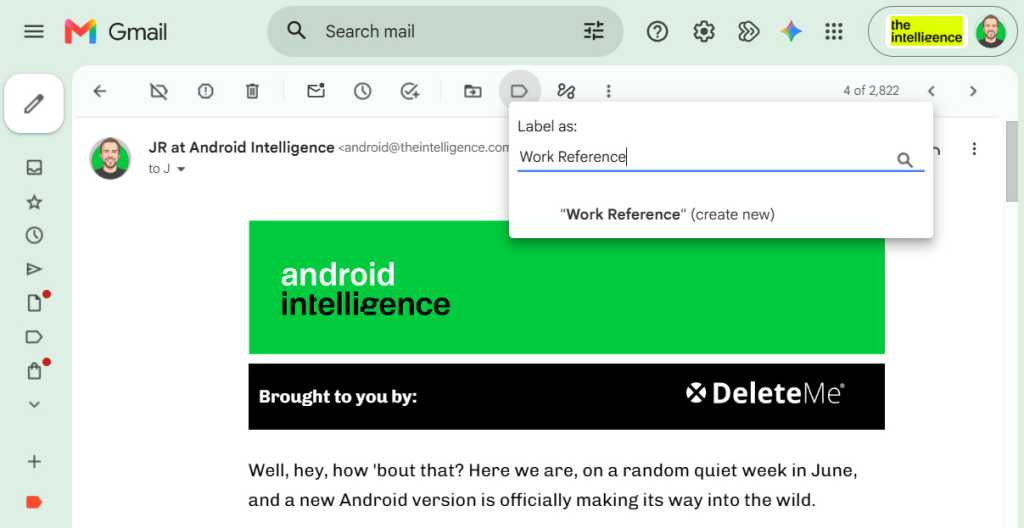
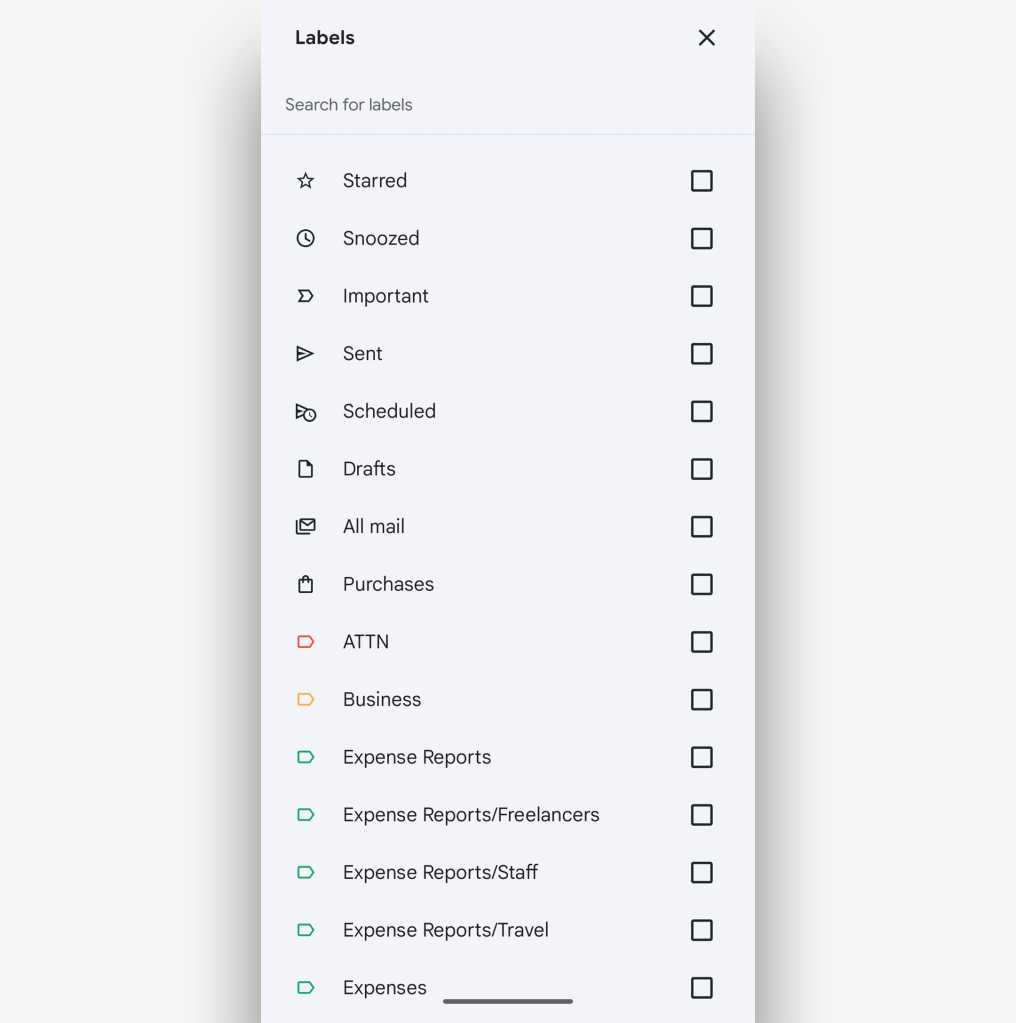
On the Gmail desktop website, the easiest way to create a label is to click the label icon in the toolbar at the top of the screen when you’re viewing a message or when you’ve selected something from a message list — then start typing whatever name you want to use for the label. Once you’re done, simply hit Enter, and Gmail will create the label for you and apply it to the message.
Once you create a new label within Gmail, it’ll always show up as an option in the future.
JR Raphael / Foundry
The next time you click the label command, you’ll see your newly created label as an option.
You can also perform the same action by using the keyboard shortcut L while an email is open or selected, provided you’ve enabled Gmail’s keyboard shortcuts system.
On the mobile front, you can create a new label within the Gmail app for Android or iOS by tapping the three-line menu icon in the upper-left corner of the screen and then looking for the “Create label” option before the list of existing labels (on Android) or the “Create new” option directly after that list. You can apply an existing label onto a message, meanwhile, by looking for the “Label” (on Android) or “Label as” (on iOS) option in the main three-dot menu anytime an email is open or selected.
2. Save yourself a step and label while archiving
Here’s a handy command to remember: If you want to add a label to a message and simultaneously dismiss the message from your inbox, use Gmail’s “Move to” option.
On the desktop website, that’s the icon showing an arrow inside a folder, directly to the left of the regular label icon. On both Android and iOS, you can find the same command within the three-dot menu icon while any email is open or selected. You’ll see a list of options that include your labels; just select the label you want to assign to the message.
Whatever platform you’re using, that’ll handle all the steps for you in one fell swoop. And if you’re a fan of shortcuts like this, by the way, I’ve got a whole story dedicated to time-saving Gmail tips just like ’em.
3. Apply labels while you’re composing an email
Gmail labels aren’t only for incoming messages; you can also proactively apply them to a new message you’re composing and then know that that email and any replies associated with it will remain properly organized and present in all the right places.
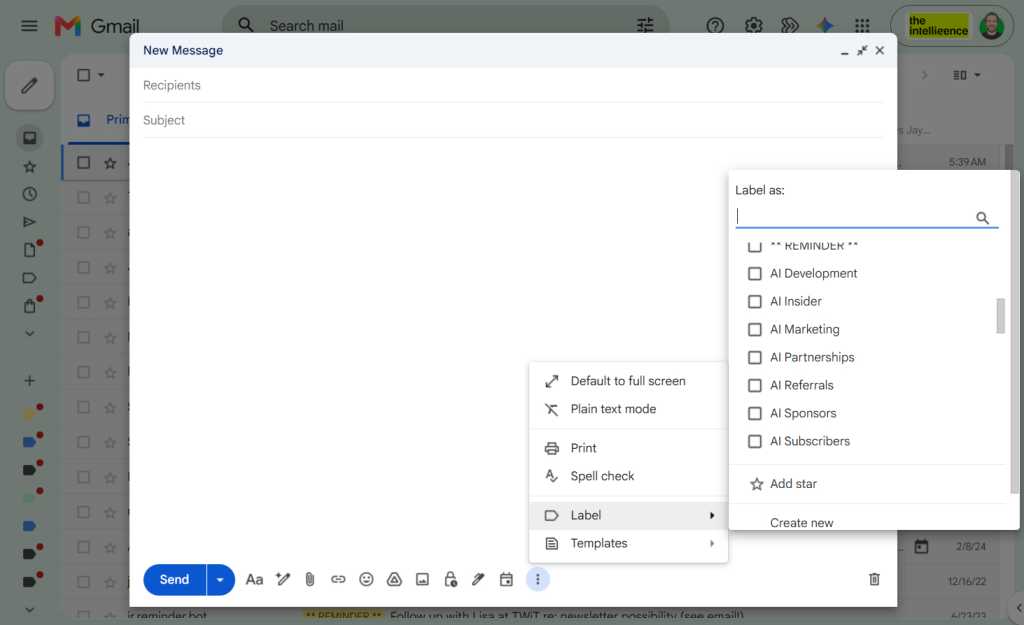
On the Gmail desktop website, all you’ve gotta do is hit the three-dot menu icon in the service’s compose window and look for the “Label” option in the list that appears — then create a new label right then and there or select any existing label to apply it.
You can proactively apply a label while composing a new message.
JR Raphael / Foundry
The mid-composing label-adding option isn’t present in the Gmail mobile apps, unfortunately, but you can accomplish the same thing in a roundabout way by heading into your Sent messages (from the app’s main three-line menu) and then selecting or opening an email to add a label onto it right after you’ve sent it.
4. Organize your label lists
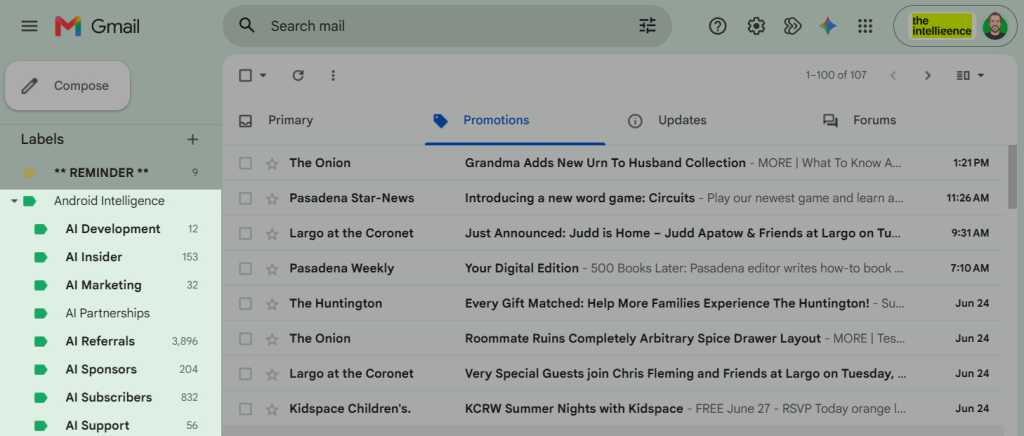
All right, so you’ve got your messages labeled — now what? Well, first, you can always browse through your labels to find something you need. Gmail keeps your list of labels (in alphabetical order) in its left sidebar, on the desktop website. You can collapse or expand that sidebar by clicking the three-line menu icon in the upper-left corner of the screen, and you can click on any label in the list to see all of the messages associated with it.
By default, though, that list is probably quite the unruly mess. So let’s get it organized:
First, if you see a line in the list of labels that says “More,” with a downward-facing arrow alongside it, click it to expand your full list of existing labels.
Now, click the three-dot menu icon next to each one of your labels. (The three-dot icon appears only when you hover over a label.) Assign each label a color, if you’d like; that’ll make it more visually distinctive and give it more or less emphasis (depending on the color you choose) when it appears in your inbox.
In that same three-dot menu, look at the “In label list” section and consider if you want the label to always appear in your label list, to remain permanently hidden beneath that “More” divider, or to appear in the list only when unread messages are present within it. The less unnecessary clutter you have visible, the easier it’ll be to find the labels you actually use often.
Next, look at the “In message list” section and think about whether you want the label to show up as an option when you’re adding a label onto a message. If it isn’t a label you ever actively apply to messages, you might consider hiding it to reduce clutter and increase your efficiency in that area.
On Android or iOS, you can find your labels and browse through any of ’em by looking inside the Gmail app’s main three-line menu. On Android, a third-party app called eLabels can also let you make more advanced label modifications from your phone or tablet — but in general, those sorts of adjustments are most easily managed from the Gmail desktop website.
5. Combine related labels into groups
While we’re getting your labels organized, take a moment to mull over whether any of your labels would make more sense as sublabels within a broader category. Maybe, for instance, you’d have one label called “Expense Reports” and then sublabels within it for “Staff,” “Freelancers,” and “Travel.”
This is an adjustment you’ll absolutely want to make on the Gmail desktop website, where the full selection of label customization commands is readily available. You can find the option to create a sublabel by clicking the three-dot menu icon next to any label name within the site and then selecting “Add sublabel” from the list that appears.
Grouped sublabels are a great way to keep your Gmail labels list tidy.
JR Raphael / Foundry
Just note: Somewhat confusingly, sublabels and parent labels are treated as separate but related entities — so if you were to add a message to “Staff” in our previous example, its label would show up as being “Expense Reports/Staff.” The message wouldn’t, however, show up when you click “Expense Reports” in the left-of-screen label list; it’d appear only when you clicked “Staff” in that same section. If you wanted it to appear within the results for both the parent label and the sublabel, you’d have to add both of them onto the message.
6. Use labels for smarter searches
Gmail’s labels aren’t just for browsing; you can also use them as variables to narrow down a search and make it faster to find a message you need. To include a label as a variable in a search, just click or tap the Gmail search box at the top of the website or mobile app, type label:work (using the name of your actual label name in place of “work,” of course), and then type in any other term or variable you want.
If you were trying to find a travel-related expense report from Tim Cook’s trip to Chicago, for instance, you could type label:travel from:tim@apple.com chicago into the search box. Including the label would narrow down your search considerably — skipping over messages from Tim Cook that might’ve just mentioned Chicago in some other context — and let you get to what you need more efficiently.
You can even narrow down your search further and search for messages that contain multiple specific labels — like label:travel label:work, which would show you a list of all messages that have both of those labels in place.
And on the mobile front, you can make your life easier yet by tapping the “Labels” dropdown within the app’s search area. That’ll let you simply select from a list of available options and save yourself the trouble of manually typing anything in.
In the Gmail mobile apps, you can select from a list of existing labels instead of typing in a search.
JR Raphael / Foundry
Gmail actually treats many of its own built-in message designations as labels, too — so in addition to searching for your own custom labels, you can search for (and in some cases also find within the mobile app dropdown menu) things like:
label:inbox
label:unread
label:promotions
label:social
label:starred
label:muted
Beyond that, you’d never know it, but Google also supports a hidden series of advanced Gmail labels for automatically identifying emails related to areas like travel, purchases, and finance.
And finally, any recent past searches you’ve conducted will show up as suggestions whenever you tap or click in the search box, which makes it especially convenient to revisit any frequently accessed label-related explorations in the future.
7. Let Gmail apply labels for you
Here’s where things really start to get interesting: In addition to manually applying labels to messages as you see fit, you can train Gmail to automatically categorize and process messages for you.
The first step is to think about what factors would make an incoming message fit into a particular label — whether it’s the sender’s email address or domain name, a specific word or phrase in the subject line, or maybe even the address to which the message was sent.
In my own inbox, for example, Gmail applies a red “VIP” label to emails that arrive from editors or other contacts whose messages tend to be timely and important. And it applies a green “Invoices” label to messages that come in from a specific address and with certain subject lines that my accounting software uses for carbon copies of new invoices.
In some cases, like with the “VIP” label, the messages remain in my primary inbox. But in others, they end up moving to less attention-demanding places — like the invoice copies, which skip over my inbox entirely (since I’m keeping them mostly as records and don’t need to be bothered dealing with them every time they come in).
Once you decide what factors should apply to what label — and what else should happen once the label is applied — a Gmail filter is the key to making the magic happen. I outlined the exact steps to setting one up in my separate Gmail filters guide. Go have at it!
8. Let your labels limit your notifications
Last but not least, instead of getting distracting alerts for every new message that lands in your inbox — or going to the opposite extreme and not getting any email notifications whatsoever — use your Gmail labels as a way to control which messages alert you.
You can pick any label that seems notification-worthy and then limit your notifications only to messages with that label attached. You can even set up label-driven notifications to function on your desktop computer and on your mobile device. (Provided you use Android, that is. Sorry, iPhone folks, but Apple’s garden doesn’t allow this level of customization to fly.)
That’s exactly what I do with my aforementioned “VIP” label, in fact. And it’s actually quite easy to set up. I put together a step-by-step guide here.
And with that, my inbox-dwelling comrade, your label education is complete. Go ahead: Label yourself organized. You’ve earned it.
This article was originally published in November 2019 and most recently updated in September 2026.
As one card recently sold for £12m, opportunistic thefts have surged – envelopes are being opened en route, costing small businesses thousands
Pokémon’s success over the last 30 years has seen it grow from a much-loved Game Boy classic, to a world-dominating brand with TV shows, spin-off games, toys and even a theme park. The trading card game is a huge part of that, with more than 85bn cards printed over its lifetime, and the appetite for them shows no signs of slowing down. Packs get snapped up after release so quickly it’s now almost impossible to find them in shops, and a booming resale market is driving the hobby into murky waters.
One card recently sold for an eye-watering £12m, and an increasing number of people have gotten into the collecting business on the hunt for huge profits, leading to a rise in thefts targeting card shops. More recently though, some small businesses have reported that their sales have been hit by thieves targeting envelopes within Royal Mail, leading to thousands in lost revenue.
Datacentres should generate their own power and control their emissions, writes Richard Lamming, while Michael McClelland says we should reduce our digital communication. Plus a letter from Malcolm Fraser
One solution would be to make each datacentre responsible for generating all its own electricity and for reducing its CO2 emissions to zero. These installations will have vast areas of roofing and car parks that could be covered in solar panels, space for wind generation and battery storage, and for emissions scrubbers.
Is CarPlay really a key factor in car buyers choices? At least one statistic supports that position, raising questions about automakers ignoring customer preferences. The panel also examines Gmail’s upcoming changes, Apple’s evolving iPhone purchasing strategy, and a troubling article about advertising and tracking on computer monitors and smart displays.
Apple Mail is the first app open every day and the one I find hardest to defend, and I’ve been defending it for twenty years (longer if you remember the original NeXT mail client).
The broader story is one of abandonment.
[…]
Apple deprecated that API, replaced it with a (much more restrictive) MailKit surface in 2021, and proceeded to lock MailKit down so hard that barely anyone shipped an extension.
[…]
In particular, in this age of desktop AI agents, I come time and again across the fact that AppleScript support in Mail has been left to rot.
[…]
And searching for messages is such a mockery of a user experience that I’m not even sure how to describe it[…]
The last email program I truly loved was Bare Bones’ Mailsmith.
[…]
Now, I’ve tried a lot, like, a lot, of “modern” email clients. The built-in Apple email client is extremely straightforward, but underpowered. Thunderbird is too lumbering and heavyweight for what I want. Hipster ones like Spark are pretty, but focus on things I don’t care about. Mimestream is solid, but it’s Gmail-only. Microsoft Outlook is, unfortunately, Microsoft Outlook. MailMate is nerdy and, in some ways, the most obvious spiritual descendant of Mailsmith, but I find some of its UX inscrutable. Yes, I am aware of the irony of saying this just before describing an Emacs-based client.
And increasingly, commercial email clients are expensive and/or subscription-only.
I almost never use Mail on iOS 26. I just tried to insert an image from my photo library, and I could not figure out how to get back to seeing a keyboard. What a bizarre workflow. Still shocked some of this stuff shipped.
I haven’t been able to use Mail on macOS since macOS 15.4. It hangs on launch if any accounts are enabled. It feels like it’s been so many years since I filed feedback with sample logs and still Apple hasn’t fixed the hang.
I wonder whether I will ever see a time where Mail clients report accurate unread counts (spoiler: clicking on Inbox shows no new mall)
Well, I guess most other mail clients, Thunderbird or Outlook, get this right. But it never worked in any of the Apple mail clients. Like for decades now 🙃
Rishi Ó summarizes the promises for Mail later this year:
iOS 27 has an overhauled search system that extends to the Mail app. Instead of surfacing results based on keywords and recency, Mail app search ranks results by relevance and intent.
I never found the problem to be relevance ranking but rather that it simply didn’t find certain messages at all.
Long press on any email and you can ask Siri to summarize, find an item in the email, track a package, get a flight number, save a photo, and more.
I guess that’s fine, but as Carmo notes there’s just a whole list of basics that need attention in iOS Mail.
Messages in Mail load faster, search indexing is more reliable, and unread badges between platforms like iOS and macOS sync more reliably.
Exchange Web Services (EWS) is approaching end of service in Exchange Online. We first announced this change was coming in 2018, when we announced that Exchange Web Services (EWS) will no longer receive functionality updates. In 2023, we announced that EWS will be disabled in Exchange Online in October 2026.
Today we’re announcing we will use a phased, admin controllable disablement plan that starts in October 2026 and concludes with a complete shutdown of EWS in 2027.
Microsoft announced the upcoming end of service for Exchange Web Services (EWS) in Exchange Online. Apple is actively working with Microsoft to update Mail, Calendar, Contacts, Notes, and Reminders to use the Graph API in a future update to macOS 27, including a declarative configuration for device management services.
I’ve been eagerly awaiting Apple’s migration to Microsoft’s newer Graph API because EWS support in Apple Mail has long been buggy. It seems to have gotten worse in recent months, presumably due to server side changes as Microsoft prepares to shut it all down. Unfortunately, Apple is not as far along in the transition as I’d expected.
What made a Mac feel like a Mac at work was the software that came with it. Mail that you could actually scan. A Calendar that was a separate application, so it could live permanently on a second screen instead of hiding behind a tab. Quick Look. Smart mailboxes. Spotlight that found things. Share sheets that worked everywhere. The system behaving as one coherent thing rather than a collection of vendor silos.
[…]
iOS and iPadOS Mail no longer depend on EWS. macOS Mail still does. Same company, same deadline, same protocol, and only one of the two platforms got the work done in time. Microsoft ended up writing the guidance Apple should have written, telling administrators in February that Apple Mail for Mac users would have to switch to Outlook until the applications were updated. […] Apple had years. It had a public deadline. It had, by Microsoft’s own account, one of the most widely used EWS applications in existence. And it let the clock run out.
[…]
Somewhere in every one of these migrations is a line in a change log that reads “users to move to Outlook”, as though a mail client were a fungible commodity, like swapping a stapler. […] This is not the death of the Mac at work. […] It is the death of the Mac experience at work.
Outlook for Mac feels very different from Apple Mail, and users are being squeezed from the Microsoft side, too. Microsoft will be ending the transition to New Outlook in October, but the new version is still missing many features that were present in Legacy Outlook (as well as Apple Mail). Microsoft had long promised that it would implement AppleScript in New Outlook before dropping support for the old version, but last week it changed course:
AppleScript workflows vary widely across organizations and often depend on behaviors from the classic app that don’t exist in the New Outlook. Because these patterns can’t be standardized, full compatibility isn’t feasible. We have decided not to move forward with this feature. We apologize for the inconvenience.
Access only ratchets one way. Mail was allowed because it worked, quietly, for years, over a protocol nobody was auditing. It has now been formally removed under a named cybersecurity policy. Getting it back would require someone in a security function to write a positive case for re-admitting a broad-permission third-party client to the corporate mail estate, and then put their name on it. Nobody’s career improves by doing that. Saying no costs nothing and is never wrong in hindsight.
So if Apple ships Graph support in Mail next year, the people who lost it will not get it back. The door didn’t swing shut. It was bolted, and the reason it was bolted is now written down in a policy document that will outlive the protocol that prompted it.
Apple has no leverage to change that, either. The organisations deploying Macs by the tens of thousands are not Apple partners in any meaningful sense. They are customers who buy boxes. There is no relationship to call on, no joint roadmap, no account team, nobody at Apple whose job it is to notice that a hundred thousand people just lost Mail.
October is when administrators will have to opt back into allowing EWS for a few more months, but some (like Harbourne’s) will be switching off support sooner.
Apple Mail and Outlook aren’t the only options, though. MailMaven supports both Graph and AppleScript.
AI is taking on a growing role in cybersecurity (whether we like it or not), from vulnerability discovery to faster exploit development. Chuck Joiner, David Ginsburg, Eric Bolden, Web Bixby, Jim Rea, Brian Flanigan-Arthurs, Jeff Gamet, and Marty Jencius look at both sides oof the issue and push back on “Bugmageddon” hype. The discussion also covers X post limits, Microsoft Teams retiring the misguided Together Mode, safer login practices, AI-run radio chaos, Google’s Apple-like naming choices, and free storage tied to phone numbers.
Cory Solovewicz receives more unwanted emails than you. Seriously—it’s a lot more. Since December 2024, one of the domains at which the security researcher receives email has registered 401,796 messages—by his calculations that’s an average of 699.99 pings per day.
This deluge isn’t the regular flood of spam, newsletters, and unwanted deals that fill many people’s inboxes. Instead, companies and other organizations are inadvertently sending Solovewicz other people’s private information and company secrets. Over the last few years, he’s received injury reports from a city government, confirmation of people’s pizza orders, and account setup emails from a school platform. “I get service orders for people that need repairs. I get lots of test platform credentials,” says Solovewicz, a security researcher and consultant.
Solovewicz is receiving the avalanche of messages as he’s the owner of the domains noreply.us and noreply.net, which he purchased in 2020 and 2024, respectively. After originally planning to use the noreply.us domain as a catch-all email—which receives mail sent to any @ address on that domain—to filter messages and enhance his privacy, the researcher quickly noticed that other systems were sending mail to @noreply.us addresses. “I created an accidental honeypot,” Solovewicz tells WIRED. “I had no idea it was going to turn into this.”

 Login
Login