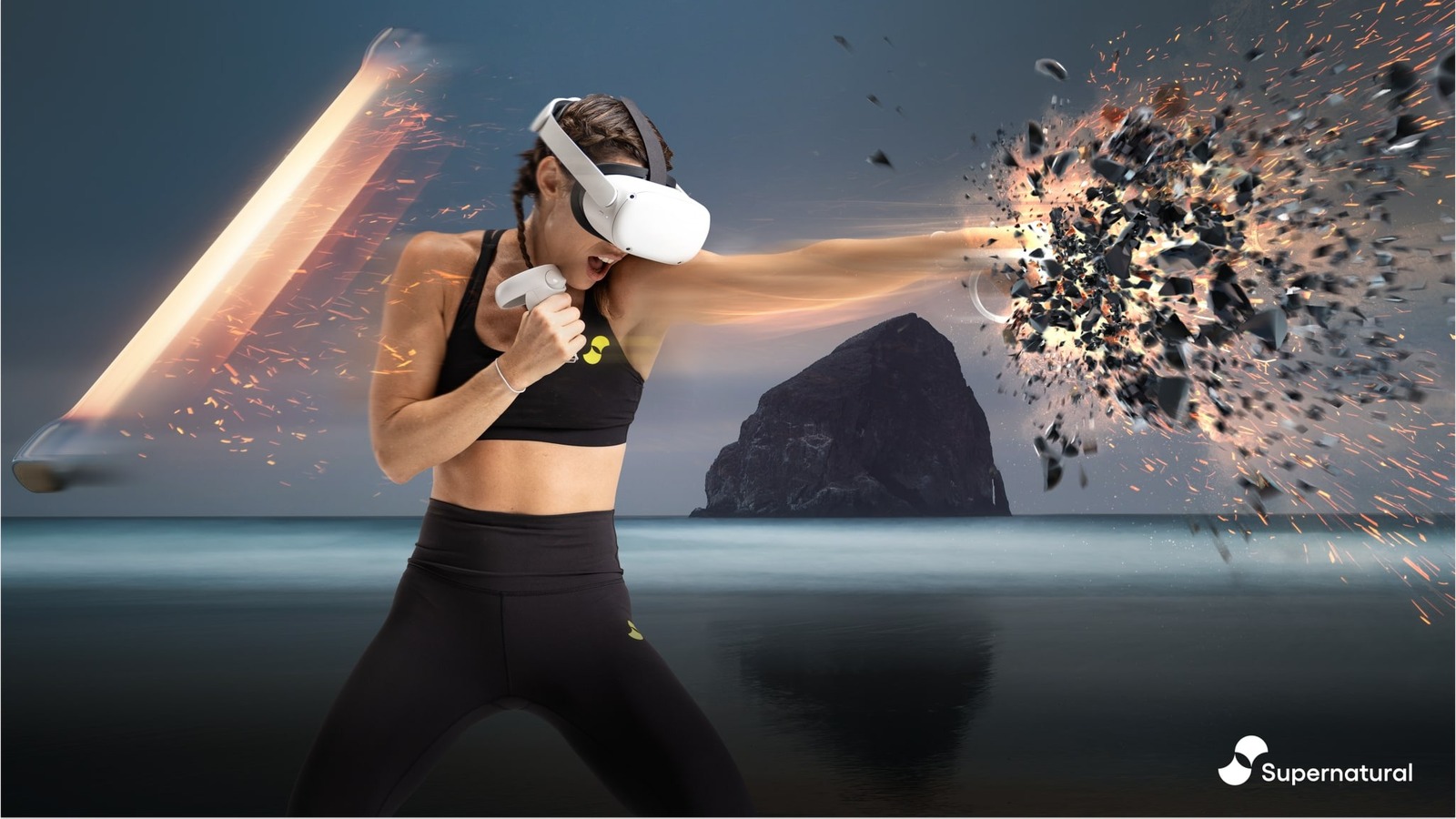
Da organização das tarefas ao acompanhamento dos treinos, passando por resumos de livros e uma proposta para ajudar a gerir a exposição solar, a equipa do TEK Notícias reuniu um novo conjunto de apps para Android e iOS, todas com opções gratuitas.
The online advice appears to be consistent : you can't edit images in Notes, only in Photos. However, I have a note with a lot of images, and on one of them (I don't remember HOW!) I clicked something that gave me edit options, one of which was to isolate the subject from the background, then resize options.
Now someone may say that I somehow was able to move to Photos from within Notes, and automatically return to Notes once the edits were done. However, if I now go to that note and click...
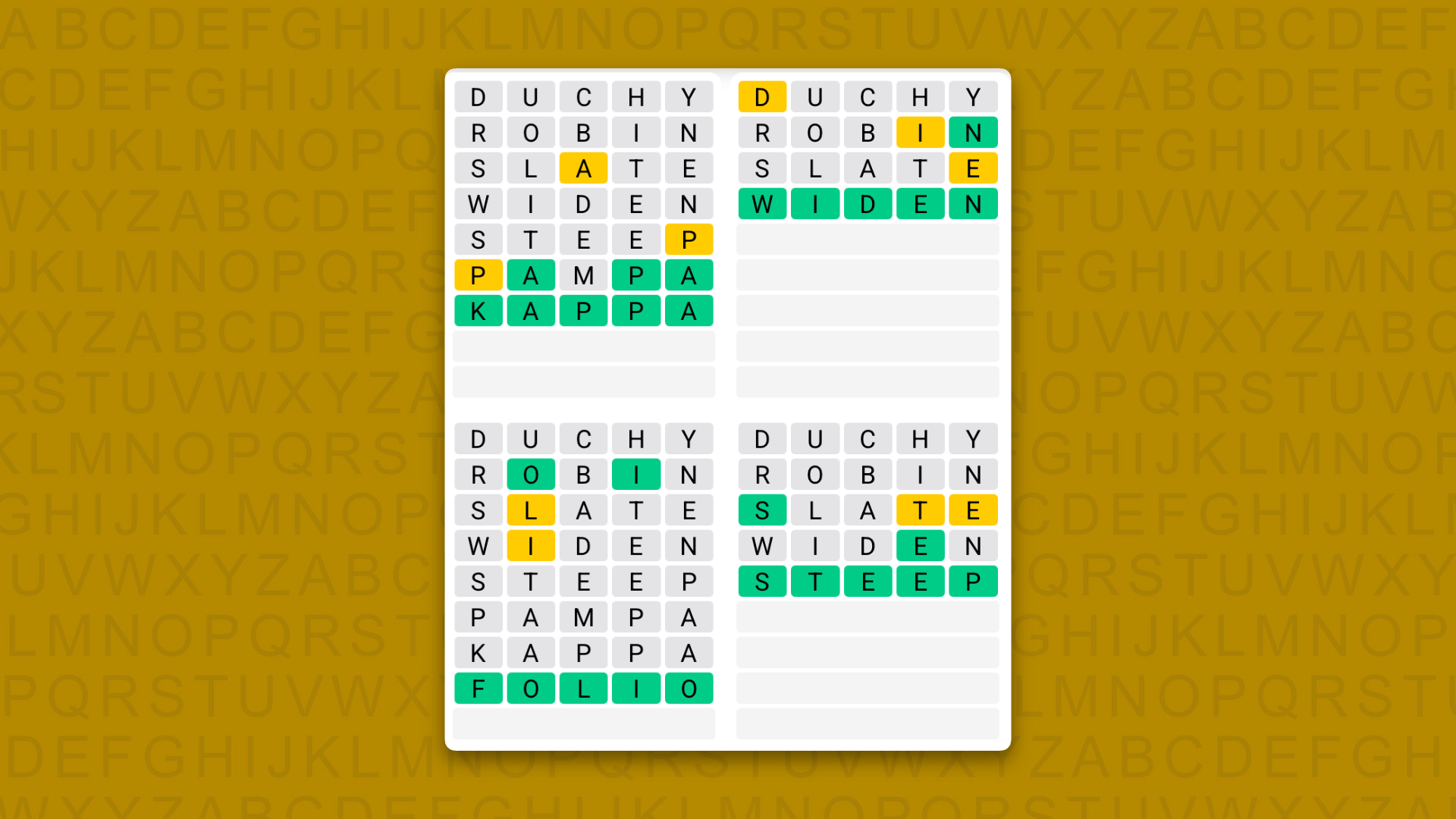
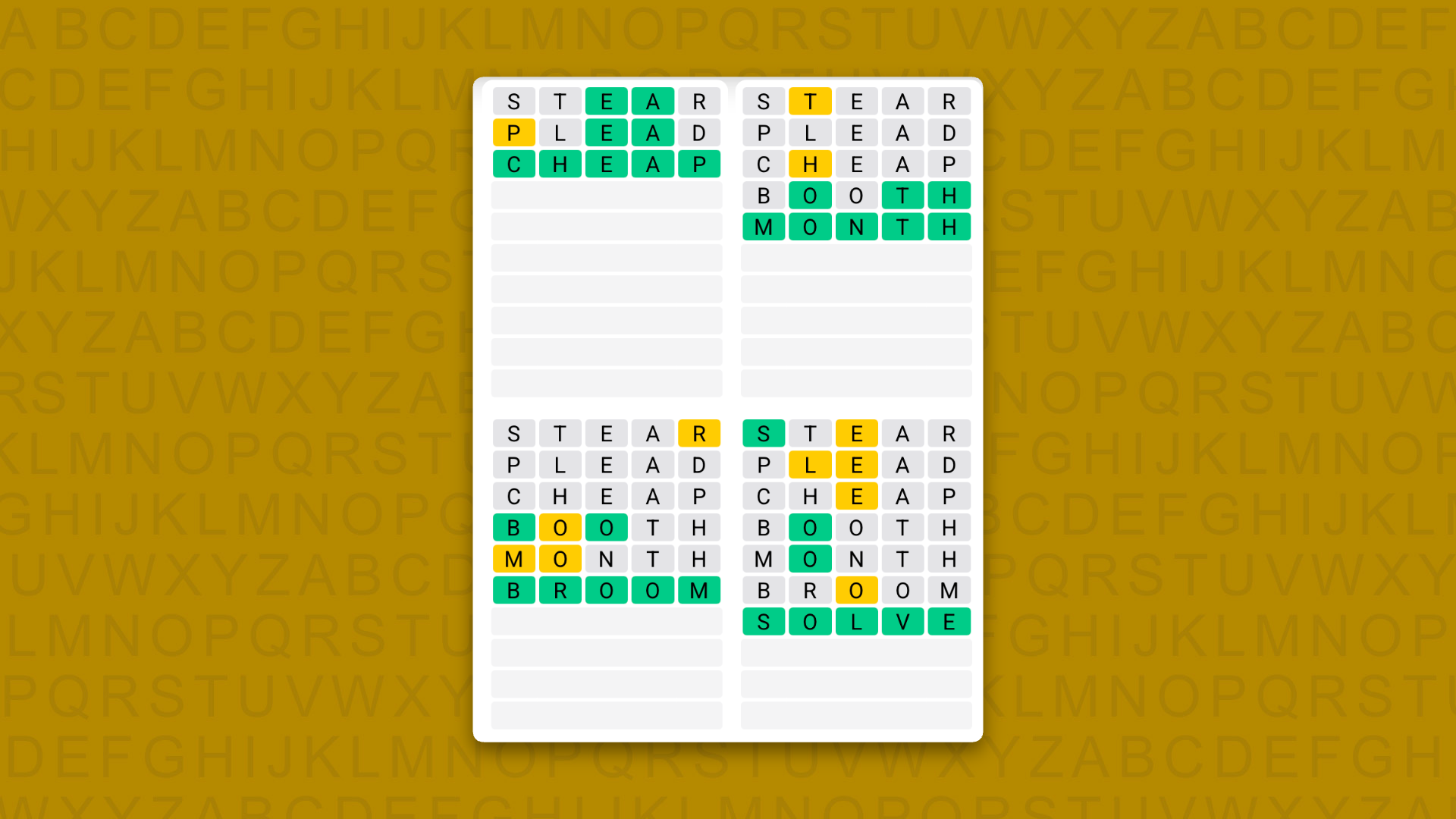
A new Quordle puzzle appears at midnight each day for your time zone – which means that some people are always playing 'today's game' while others are playing 'yesterday's'. If you're looking for Saturday's puzzle instead then click here: Quordle hints and answers for Saturday, August 8 (game #1657).
Quordle was one of the original Wordle alternatives and is still going strong now more than 1,500 games later. It offers a genuine challenge, though, so read on if you need some Quordle hints today — or scroll down further for the answers.
Enjoy playing word games? You can also check out my NYT Connections today and NYT Strands today pages for hints and answers for those puzzles, while Marc's Wordle today column covers the original viral word game.
SPOILER WARNING: Information about Quordle today is below, so don't read on if you don't want to know the answers.
Quordle today (game #1658) — hint #1 — Vowels
How many different vowels are in Quordle today?
• The number of different vowels in Quordle today is 4*.
* Note that by vowel we mean the five standard vowels (A, E, I, O, U), not Y (which is sometimes counted as a vowel too).
Quordle today (game #1658) — hint #2 — repeated letters
Do any of today's Quordle answers contain repeated letters?
• The number of Quordle answers containing a repeated letter today is 3.
Quordle today (game #1658) — hint #3 — uncommon letters
Do the letters Q, Z, X or J appear in Quordle today?
• No. None of Q, Z, X or J appear among today's Quordle answers.
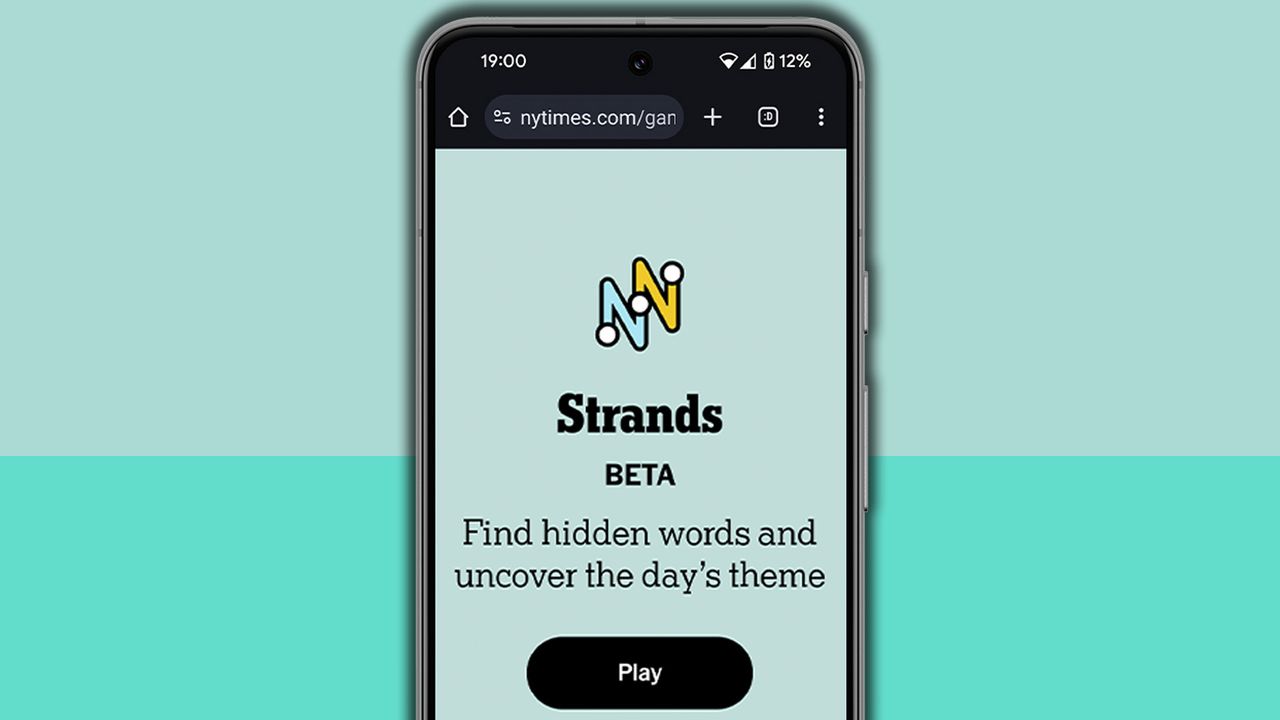
A new NYT Strands puzzle appears at midnight each day for your time zone – which means that some people are always playing 'today's game' while others are playing 'yesterday's'. If you're looking for Saturday's puzzle instead then click here: NYT Strands hints and answers for Saturday, August 8 (game #888).
Strands is the NYT's latest word game after the likes of Wordle, Spelling Bee and Connections – and it's great fun. It can be difficult, though, so read on for my Strands hints.
Want more word-based fun? Then check out my NYT Connections today and Quordle today pages for hints and answers for those games, and Marc's Wordle today page for the original viral word game.
SPOILER WARNING: Information about NYT Strands today is below, so don't read on if you don't want to know the answers.
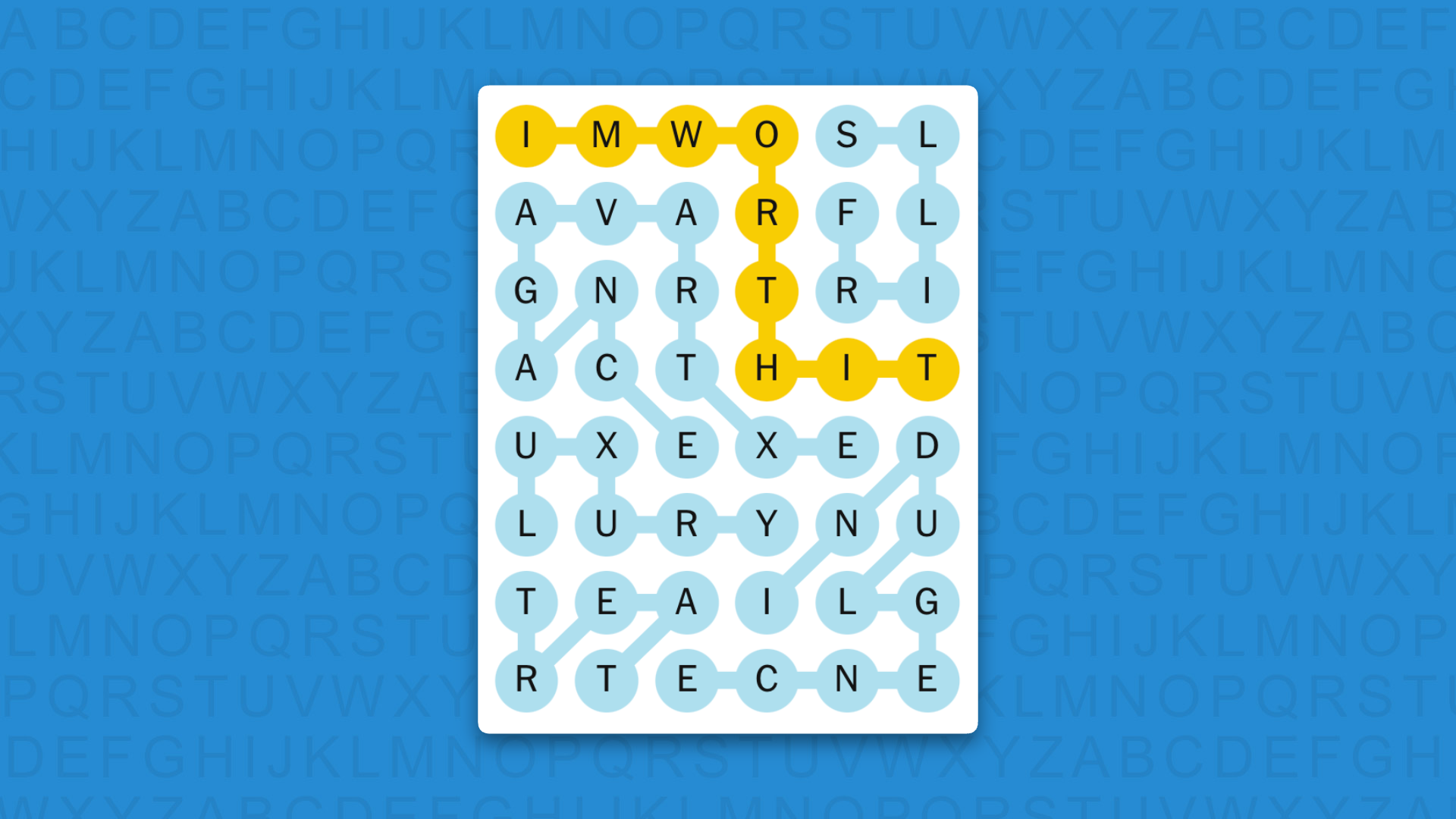
NYT Strands today (game #889) - hint #1 - today's theme
What is the theme of today's NYT Strands?
• Today's NYT Strands theme is… Isn’t that a bit much
NYT Strands today (game #889) - hint #2 - clue words
Play any of these words to unlock the in-game hints system.
RANG
WRATH
FRIED
RULER
FLIRTED
THERE
NYT Strands today (game #889) - hint #3 - spangram letters
How many letters are in today's spangram?
• Spangram has 9 letters
NYT Strands today (game #889) - hint #4 - spangram position
What are two sides of the board that today's spangram touches?
• First side: left, 1st row
• Last side: right, 4th row
Right, the answers are below, so DO NOT SCROLL ANY FURTHER IF YOU DON'T WANT TO SEE THEM.
NYT Strands today (game #889) - the answers
(Image credit: New York Times)
The answers to today's Strands, game #889, are…
LUXURY
EXTRAVAGANCE
TREAT
INDULGENCE
FRILLS
SPANGRAM: IMWORTHIT
My rating: Hard
My score: 1 hint
It was hard to ignore the two Xs on the board, so that’s where I began first — spying LUXURY and then EXTRAVAGANCE, although I did manage to start the latter with the wrong letter E, quite a drag for a 12-letter word.
After this burst I ground to a halt and busied myself with finding some interesting non-game words. A hint gave me TREAT, but I had to spend a good couple of minutes staring at these five letters before I connected them in the right order.
After all this, I think I’m going to pamper myself with a scoop of vegan ice cream.
Yesterday's NYT Strands answers (Saturday, August 8, game #888)
TRACK
DROP
LOOP
CUTBACK
TUNNEL
CORKSCREW
SPANGRAM: ROLLERCOASTER
What is NYT Strands?
Strands is the NYT's not-so-new-any-more word game, following Wordle and Connections. It's now a fully fledged member of the NYT's games stable that has been running for a year and which can be played on the NYT Games site on desktop or mobile.
I've got a full guide to how to play NYT Strands, complete with tips for solving it, so check that out if you're struggling to beat it each day.
I have a contact that keeps showing as blocked on my iPhone 13 Pro with iOS 26.5. It will block itself any where between 10 minutes to a day or 2. Any thoughts on why it does this? It's always the same contact.
Desenvolvida por um programador independente, a Helys usa uma fórmula científica que considera o seu tipo de pele, localização, hora do dia, condições meteorológicas e índice UV para calcular, em tempo real, quanto tempo de exposição solar é seguro e suficiente. Disponível gratuitamente apenas para iOS.
Hi, friends! Welcome to Installer No. 139, your guide to the best and Verge-iest stuff in the world. (If you're new here, welcome, barbecue sauce, and also you can read all the old editions at the Installer homepage.)
The mission of the Flock app is quietly subversive: to encourage users to ditch their screens and explore the wonderful world of birding
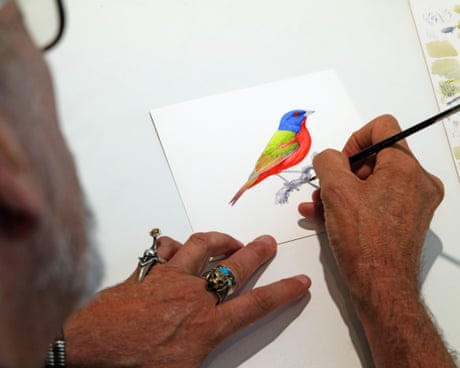
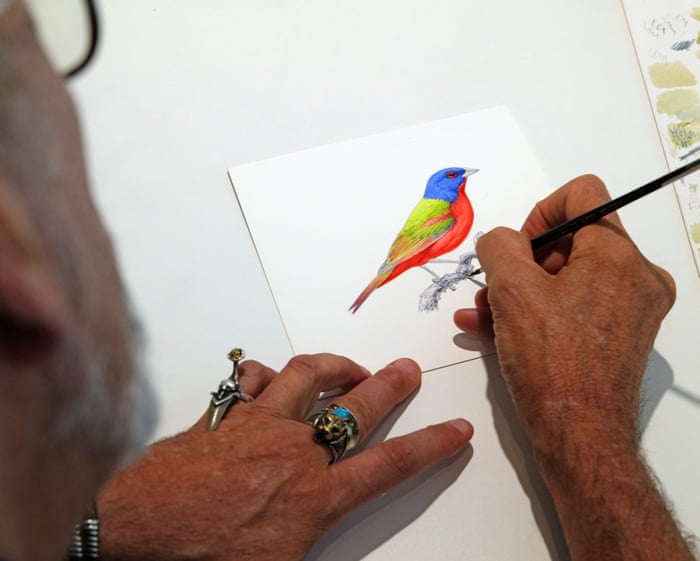
On a brilliantly bright afternoon in his gallery and studio in Bolinas, a small town on the northern California coast, Keith Hansen was putting the finishing touches on a watercolor of an almost improbably flamboyant painted bunting.
With an ultra-fine sable brush, he made a few intricate additions to the cobalt blue plumage on the bunting’s head, and, satisfied with his work, slipped the watercolor into a stout binder that every few days welcomes a new addition.
Kitesurf is a cloud-hosted browser designed for AI agents instead of people. It uses less computing power than Chromium for common automation tasks, helping developers build browser-based AI agents more efficiently.
Apple Health data can now move between the Health app and Google Health on an iPhone. The connection lets Google Health import supported information recorded by an iPhone, Apple Watch, and compatible apps. The latest Google Health update can also send supported Fitbit information to Apple Health.
This two-way connection is useful for people who wear a Fitbit but prefer Apple’s Health app as the central place for viewing activity, sleep, steps, and other wellness information. It also reduces the need for third-party synchronization apps.
The feature requires a recent version of Google Health. Google began introducing support for sending data back to Apple Health with Google Health version 5.05. Because app updates can roll out gradually, the new sharing options may not appear until the latest version reaches your account.
Update Google Health Before Starting
The Fitbit app became Google Health in 2026. Existing Fitbit users should find that the installed app has changed its name and design after updating. Fitbit accounts must also be moved to an adult Google Account to use the redesigned service.
Google says the Apple Health connection requires iOS 16.4 or later. The iPhone must have internet access while the connection is being created.
To check the iOS version installed on your iPhone:
Settings > General > About > iOS Version
Install the latest compatible iOS update if the phone is running an older release.
To look for an available iPhone software update:
Settings > General > Software Update
Next, confirm that Google Health is current. Version 5.05 or later is required for the newer option that sends supported Google Health and Fitbit information to Apple Health.
To update Google Health from the App Store:
App Store > Profile Picture > Available Updates > Google Health > Update
If Google Health does not appear under Available Updates, search for the app manually. The App Store page may show an Update button if a newer release is available.
To find the app directly:
App Store > Search > Enter Google Health > Google Health (Fitbit)
People who previously used Fitbit should sign in with the Google Account connected to their Fitbit information. Creating a different account may produce an empty Google Health profile.
Image Credit: Google
Connect Apple Health Data to Google Health
Connecting the apps allows Google Health to read supported information from Apple Health. This can include data collected by the iPhone, Apple Watch, and other apps that already share information with Apple Health.
To start the Apple Health connection:
Google Health > Connections > Apps and Services > Apple Health > Get Started
Depending on the Google Health version and interface shown on the iPhone, Connections may appear behind the profile icon.
To find Apple Health through the alternative menu:
Google Health > Profile Icon > Partner Apps > Apple Health
Google Health will display a consent screen explaining the connection. Read the information before continuing.
To approve the initial connection:
Sync Google Health With Apple Health > Agree
The iPhone will then display Apple’s health permission screen. This screen lets you decide which information Google Health can read.
To give Google Health access to every supported category:
Apple Health Permission Screen > Turn All Categories On > Allow
You do not have to share every available category. Selecting individual permissions provides more control over sensitive health information.
To share only selected categories:
Apple Health Permission Screen > Select Each Health Category > Allow
Google Health can import supported information such as steps, distance, active energy, exercise records, routes, sleep sessions, sleep stages, heart rate, resting heart rate, heart rate variability, blood oxygen, respiratory rate, body temperature, weight, body fat percentage, water, nutrition information, and some cycle-tracking data.
Available categories depend on the devices and apps connected to Apple Health. An iPhone may provide steps and walking information, while an Apple Watch can contribute heart rate, workouts, sleep, and other measurements supported by the model.
After the permissions are approved, Google Health should confirm that the connection is complete.
To finish the connection:
Google Health Confirmation Screen > Done
New Apple Health information should begin appearing automatically in Google Health. Google has said that imported data can be used across relevant Google Health metrics, although not every external data type is used for every calculation.
To find imported health information:
Google Health > Health > Select a Metric
Google Health may display information from several connected sources together. Its value for a metric can differ slightly from the number shown by Apple Health because the apps may process available data differently.
Send Fitbit Data to Apple Health
Google Health version 5.05 adds the reverse direction that many iPhone and Fitbit users previously lacked. Supported information recorded through Fitbit can now be written into Apple Health.
Before enabling this option, make sure the Fitbit is properly connected to Google Health. Fitbit devices normally synchronize automatically throughout the day when Bluetooth is available and the wearable is near the iPhone.
To check the connected Fitbit:
Google Health > Profile Icon > Devices > Select Your Fitbit
The device page should show the wearable, its battery level, and its most recent synchronization time. Opening Google Health can also prompt a nearby Fitbit to transfer recently collected information.
Once the wearable is updating Google Health correctly, open the Apple Health connection settings.
To open the sharing controls for Apple Health:
Google Health > Profile Icon > Partner Apps > Apple Health
The interface may use Apps and Services instead of Partner Apps on some versions.
To reach the same connection through Apps and Services:
Google Health > Connections > Apps and Services > Apple Health
Follow the prompts for sharing Google Health information with Apple Health. The iPhone may display separate permissions for data that Google Health can read and data that it can write.
To allow supported Fitbit information to appear in Apple Health:
Apple Health Permission Screen > Allow Google Health to Write > Select Health Categories > Allow
Google says supported information can include exercise records, steps, sleep, vitals, and other health data. The exact selection can vary according to the Fitbit model, region, Google Health version, and information stored in the account.
Selecting every category is convenient, but it can create overlapping sources when an iPhone, Apple Watch, and Fitbit record the same type of activity. Choose only the categories you want Google Health to add.
A person who uses a Fitbit mainly for sleep, for example, can allow sleep information while leaving steps disabled. Someone who wears a Fitbit instead of an Apple Watch may prefer to enable steps, workouts, heart rate, sleep, and other supported categories.
Image Credit: AppleMagazine
Check Google Health Permissions
Apple Health keeps permission controls on the iPhone. You can change them after the first connection without deleting either app.
To review Google Health access from Apple Health:
Health > Profile Picture > Privacy > Apps > Google Health
The page shows the categories Google Health is permitted to read or update. Turn off any category you no longer want to share.
Some iOS versions provide the same controls through the Sharing tab.
To find Google Health through the Sharing tab:
Health > Sharing > Apps and Services > Google Health
Turning off a permission stops future sharing for that category. It does not necessarily remove information that has already been written to Google Health or Apple Health.
The Google Health app also provides controls for the connection.
To review Apple Health inside Google Health:
Google Health > Connections > Apps and Services > Connected > Apple Health
If Google Health displays a message that new data types are available, open the connection and approve the additional categories you want to use. Newly supported information is not automatically shared without permission.
Manage Duplicate Health Information
An iPhone, Apple Watch, and Fitbit can record similar information at the same time. Apple Health keeps each source attached to its data and uses a priority order when presenting combined measurements.
You can inspect the sources contributing to a category and choose which one Apple Health should prefer.
To review the sources used for step information:
Health > Search > Activity > Steps > Data Sources and Access
The screen shows the apps and devices that provide step records. If Google Health, an Apple Watch, and the iPhone all appear, you can adjust their priority.
To change the order of step sources:
Health > Search > Activity > Steps > Data Sources and Access > Edit > Drag Sources Into the Preferred Order > Done
Move the source you trust most toward the top. Apple Health generally gives higher priority to sources placed above others when similar records overlap.
Repeat the same process for other categories if their totals do not look right. Exercise, sleep, active energy, and distance can each have their own sources and permissions.
Image Credit: Google
Fix Missing or Delayed Data
Synchronization is not always immediate. A Fitbit first sends its information to Google Health, and Google Health then writes supported records to Apple Health. Bluetooth availability, Background App Refresh, internet access, and battery-saving behavior can affect this process.
Begin by opening Google Health with the Fitbit close to the iPhone. Wait for the device to complete its normal synchronization before checking Apple Health.
If Apple Health information is missing from Google Health, confirm that the connection remains active.
To check the connection status:
Google Health > Connections > Apps and Services > Apple Health
If Google Health displays an error or a request for new permissions, follow the message shown on the screen.
Background App Refresh can help Google Health update when the app is not open.
To allow Google Health to refresh in the background:
Settings > General > Background App Refresh > Google Health > On
Bluetooth must remain available for a Fitbit to communicate with the iPhone.
To confirm that Bluetooth is enabled:
Settings > Bluetooth > Bluetooth On
If the connection continues to fail, disconnecting and reconnecting Apple Health may restore the permission request.
To disconnect Apple Health from Google Health:
Google Health > Connections > Apps and Services > Apple Health > Disconnect > Confirm Disconnect
Disconnecting the service does not automatically remove every permission already stored by Apple Health. Review the Google Health entry in the Health app if you want to remove those permissions as well.
To remove the remaining Apple Health permissions:
Health > Profile Picture > Privacy > Apps > Google Health > Turn Off All
After reconnecting the apps, allow time for new records to appear. Previously stored information may not transfer in exactly the same way as activity recorded after the connection was enabled.
You can inspect an individual entry to confirm whether it came from Google Health, a Fitbit, an Apple Watch, or the iPhone.
To check the source and time of a synced record:
Health > Search > Select a Health Category > Show All Data > Select the Latest Entry
TL;DR:MacMagic unlocks the useful tools macOS hides, and a lifetime license is only $30 (reg. $99.99).
macOS hides a surprising number of useful tools behind menus most people never open, and it leaves out a few features you’d expect to find on any modern machine. MacMagic is a new tool that unlocks all those hidden features, and a lifetime license is on sale for $29.99 (reg. $99.99) right now.
MacMagic finds and purges oversized app caches and logs, force-deletes stubborn files, and clears recent activity to free up disk space. From there, you can batch-rename files by date or metadata, convert images across more than 100 formats, and merge or compress PDFs in a few clicks.
MacMagic also surfaces buried system utilities like Screen Sharing and Certificate Utility. It can even show or hide invisible Finder files, and lock whole folders with a single click. A lightweight text editor, a QR code generator, and a database browser are also included.
Stop hunting through menus and hidden settings to get more out of your Mac.
Com mais de 1.500 títulos de não-ficção condensados em cartões de leitura e clipes de áudio, a Headway é a aplicação mais popular para quem quer aprender mais mas tem pouco tempo para ler.
The App Store is evolving at a breakneck pace not seen since its earliest days. We saw the first glimmers of what was to come early in 2025, but it wasn’t until late last year that the tsunami of apps developed with the help of AI agents really took hold.
How these forces play out long-term is anyone’s guess, but it’s worth examining because, just as Federico’s link to Bryan Irace’s post about agentic coding tools foreshadowed the rise of tools like Codex and Claude Code, today’s trends are sparks that have the potential to become tomorrow’s App Store wildfires or simply fizzle out.
Utility apps are on the front lines of this change. The TechCrunch story I linked in April picked up on this trend:
Another interesting tidbit from Appfigures is that the Utilities app category moved up the top five chart.
If anything, the trend has accelerated in the months since.
It’s not surprising at all that utility apps have taken off. They’ve been a staple of new developers since long before agents came along. That’s because many are UI wrappers around command line tools. That isn’t a knock against the developers of those apps; most users don’t want to open Terminal to convert a video or audio file to another format using ffmpeg, for example. By building a great UI around command line tools, developers have made them far easier to use.
However, the relative simplicity and narrow scope of many utility apps have made them a natural fit for AI agents, too. That’s why the App Store (and my inbox) is deluged with Mac menu bar and single-screen iPhone and iPad utility apps.
On the one hand, the abundance of utilities has been great for users. More choice means you’re more likely to find the app that perfectly fits your needs.
On the other hand, though, I don’t think what’s happening in the category is sustainable and expect to see it dramatically shift again in the coming months. As we’ve seen from reporting by The New York Times, app supply is outstripping demand by orders of magnitude, which will drive down prices. That alone is likely to cause the utility app market to shrink. But there’s more to it than that.
Remember, the demand shifts that The New York Times reported, based on Sensor Tower numbers, are for the entire App Store, where download numbers have grown 2-3% this year and last. I expect utility downloads to actually shrink in the coming months – again, because of agents. Utilities, especially simple ones, are exactly the sorts of apps that are becoming trivially easy for power users – the very users these utilities are made for – to create themselves. From frontier labs‘ model improvements to a growing number of app-building tools from those same labs and third parties, it’s never been easier to build a web or native app yourself.
And although I agree with people, like Nilay Patel, who say the notion that everyone will build their own software is overblown, the utility market is different. Your average person is not downloading apps to adjust the frame rate and file format of a video or downloading YouTube videos to watch later. But those are exactly the sort of things that people who are using agents are doing with them, whether they’re having an agent do those things directly via a command line tool in an app like Codex or Claude Code or building an app to do the same thing. That’s going to put even more pressure on the category.
That said, I think there will always be a cohort of users who would rather pay for an app than build it themselves, so I’m not predicting the demise of utilities in general – just the end of today’s frothy market. I also think there remains a place for simple utilities that solve hard problems with clever solutions. Not every utility is a UI wrapper for a terminal command. Plenty of apps feature original solutions or thoughtful and unconventional remixes of disparate tools.
Utilities aren’t going away, but just like other App Store deluges, the trend will recede. It’s just that this time, it’s likely to flip faster than usual.
TickerNotch transforms your MacBook’s notch or external display into a live dashboard for market data, news, and alerts. Find out how it performed during weeks of real-world testing.
I spend a lot of my day in front of my Mac, whether I’m writing, editing photos, responding to emails, or researching products for reviews. Like many people, I also like to keep an eye on what’s happening in the news and financial markets every so often. The problem is that doing so usually means leaving a browser tab open, checking a trading platform throughout the day, or constantly switching between apps. While none of those things are difficult, they do interrupt my workflow. That’s what caught my attention about TickerNotch. Rather than requiring another window or taking up valuable desktop space, it displays market information in an area that’s normally unused.
What is TickerNotch?
TickerNotch is a native macOS application designed to keep financial market information visible while you work by turning the otherwise unused space around your MacBook’s display notch into a live information hub. On Macs without a notch or when using an external display, the app can create a simulated island that provides the same experience. Rather than relying on a browser tab, menu bar utility, or a dedicated trading platform that consumes valuable desktop space, TickerNotch keeps your watchlist, portfolio performance, news headlines, and alerts in constant view so you can stay informed without interrupting your workflow.
Built by a Trader, for Traders
The app was created by an independent developer whose background is in materials engineering and advanced informatics. After spending nearly a decade trading the financial markets, they found themselves constantly monitoring charts, news feeds, and market data throughout the day. What began as small personal software projects to solve their own workflow challenges eventually led to the development of TickerNotch. Before creating the app, they built HyperBot, a private automated trading system used to manage their own investment accounts. While HyperBot has never been released publicly, the experience of developing software responsible for trading real money around the clock shaped the reliability and production mindset that carried over into TickerNotch.
The concept behind TickerNotch was inspired by both software and hardware. The developer cites boring.notch and the TickrMeter desktop ticker among their biggest influences, along with Apple’s philosophy of transforming hardware limitations into useful features, much like the Dynamic Island on the iPhone. Instead of treating the MacBook’s notch as wasted space, TickerNotch turns the surrounding black areas into a persistent source of useful information. The developer is also expanding this concept beyond the Mac with an upcoming companion iPhone app.
Designed to Keep Market Information in View
TickerNotch is designed primarily for anyone who follows the financial markets while working on a Mac, whether that’s active traders, long-term investors, or users who simply want financial headlines and market information available at a glance. Its centerpiece is the customizable live ticker, which can display a watchlist, portfolio profit and loss, and continuously scrolling RSS news feeds simultaneously. Users can configure native macOS price alerts, and selecting a ticker opens an interactive candlestick chart complete with technical indicators such as RSI, MACD, and Bollinger Bands. Multiple chart windows can remain open at the same time, and nearly every aspect of the interface, including fonts, colors, scrolling behavior, and animated shader backgrounds, can be customized.
Unlike many competing market applications that either occupy the menu bar or require users to switch into a full trading platform, TickerNotch focuses on keeping information permanently visible while remaining unobtrusive. It uses screen space that would otherwise go unused, allowing users to monitor multiple symbols at once without sacrificing valuable workspace.
Native Performance with a Privacy-First Approach
TickerNotch is built exclusively for macOS 14 Sonoma or later and is written entirely in Swift, SwiftUI, and AppKit without relying on Electron or web-based interfaces. Charts are rendered using SwiftUI Canvas, while market data is delivered through WebSocket connections for cryptocurrency, HTTP polling for stock quotes, and RSS feeds for news. Automatic updates are handled through Sparkle, and despite its capabilities, the entire application is only about 6.5 MB in size.
Privacy is another area where the developer intentionally keeps things simple. TickerNotch does not require an account or collect personal data. The app includes optional anonymous usage statistics, which can be disabled in the Settings menu. According to the developer, these statistics only report high-level feature usage, such as how many ticker slots or weather widgets are enabled, without collecting the contents of that information or any personally identifiable data. Watchlists, settings, and other app data remain stored locally on the user’s Mac, and the application only requests notification permissions for price alerts and internet access to retrieve market data. It does not require screen recording, accessibility, location, or file system permissions. The app is Developer ID signed, notarized, and uses cryptographically signed updates to help ensure a secure installation and update process.
Pricing, Support, and What’s Next
The app is available with a seven-day free trial that doesn’t require a credit card. After the trial, users can continue using a permanent free version that supports one ticker, one news channel, and one alert. Those who need additional functionality can upgrade to Pro, which unlocks unlimited watchlists, chart windows, portfolio tracking, and alerts through monthly or lifetime licensing options. One license can be transferred between Macs, although it may only be active on one machine at a time.
TickerNotch Pro is available for $5 per month or a $40 lifetime license. With a permanent free tier, flexible upgrade options, and a lifetime purchase option, TickerNotch provides users with multiple ways to access the features that best fit their workflow.
As a solo developer, they handle every aspect of the project, from development and testing to customer support and marketing. They also embrace the use of AI coding assistants during development, describing them as collaborative programming tools that accelerate implementation while emphasizing that the architecture, design decisions, testing, and final review of every shipped line of code remain their responsibility.
Looking ahead, the roadmap includes a Focus Mode that expands a single ticker across the entire strip for improved concentration during earnings or other important events, smarter percentage-based alerts that trigger over rolling time windows, support for additional market data providers and broker integrations, a future Mac App Store release, and the launch of TickerNotch for iOS, which brings the same concept to the iPhone.
Main Features
Live Tickers
Weather Slots
Social Counters
System Metrics
News, one side or both
Menu bar pins
Candlestick charts
One search box
No account required
Privacy-focused design
Optional anonymous usage statistics (can be disabled)
User Experience
I’ve been using TickerNotch throughout my workday for the past couple of weeks, and it has become one of those utilities that quietly does its job without demanding attention. Despite displaying a constant stream of information, the interface never felt cluttered or distracting. Instead, it strikes a nice balance between keeping important market data, computer specs, and news visible and staying out of the way while I’m writing, editing, or working on other projects.
One of the first things that stood out to me was just how clean the interface is. Everything is easy to read, and I really like that I can decide exactly what information is displayed. Whether it’s stocks, cryptocurrency, weather, news, or other data, it’s simple to tailor the ticker to match my workflow. Even better, any changes I made in the settings were reflected immediately in the ticker, so I could experiment with different layouts without waiting for the app to refresh or restarting it.
Getting started was equally straightforward. Installation only took a few moments, and once the app was up and running, the hardest part was deciding what information I wanted to include in the ticker. The settings are well organized, making it easy to customize the experience without feeling overwhelmed.
Since I spend much of my day working on an external monitor, I was especially happy to see support for the simulated notch on displays without a physical notch. After enabling the feature, TickerNotch worked well on my LG UltraGear monitor, allowing me to keep using the app even when my MacBook Pro was connected to an external display. I also experimented with different display resolutions and found that the simulated notch scaled properly every time, which was reassuring since display scaling can sometimes create unexpected issues.
Over the course of my testing, TickerNotch proved to be reliable. I left it running all day, every day, for a couple of weeks and never experienced a crash or found myself needing to restart the application. It also had no noticeable impact on my Mac’s performance. CPU and memory usage remained low enough that I often forgot the app was running in the background until I glanced up at the ticker for an update.
Overall, I think TickerNotch succeeds because it focuses on doing one job well. It makes excellent use of screen space that would otherwise go unused and provides a convenient way to keep market information and news within view without interrupting my workflow. For anyone who spends long hours at their Mac, especially those who regularly follow the financial markets, it’s a thoughtful utility that quickly becomes part of your daily routine.
I also want to note that this is a fairly new app and the developer has been very responsive to feedback. We suggested a few things that would make the app more useful and he rolled out those features quickly. If you decide to give it a try, and think of something that would make it better, don’t hesitate to reach out as he’s very responsive and open to suggestions.
Conclusion
TickerNotch is one of those utilities that solves a problem you may not have realized you had until you start using it. By transforming the unused space around your MacBook’s notch, or creating a simulated notch on external displays, it keeps market data, news, and other information readily available without cluttering your desktop or interrupting your workflow.
While the app is clearly geared toward investors and traders, anyone who wants glanceable information available throughout the day may find it useful. Combined with a generous free tier and reasonably priced Pro options, TickerNotch delivers an experience that feels polished and genuinely useful. If you spend most of your day working on a Mac and regularly monitor the financial markets, TickerNotch is an easy recommendation.
Calendar and contacts management apps updated with user interface improvements and bug fixes. ($49.99 new for each, free update, various sizes, macOS 12.4+)

 Login
Login