Reading view
Locked Down Passkey and Keychain Backups
I remain unhappy with Apple’s passkey backup story. There’s little documentation about this, but from what I can tell:
There are no automatic versioned backups. (Syncing is not backup because it doesn’t protect you against human error, bugs, or attacks.)
Even if you have a Time Machine backup, it’s not possible to restore it to the same Mac without logging into iCloud. This could be a problem if your account is locked or compromised.
Restoring it to a different Mac is impossible because the decryption key is stored in the other Mac’s Secure Enclave. Apple is protecting you from accessing your own backup, even though the keychain is already an encrypted file, protected by the password that you set. (And the Time Machine or clone drive that it’s stored on is probably encrypted, too.)
The Passwords app can now export passkeys, but you cannot create an export file that you can import back into Passwords on another Mac. You can only export to a third-party password manager that’s installed on the same Mac (which may require a working Apple account). Even then, this does not include passkeys for Apple services; they don’t show up in the Passwords app. There are also some other restrictions around shared items and Sign In with Apple.
The above is last year’s news, but I don’t think I had written it all in one place before. The new bad news is that, as of macOS 26.4, these problems now affect regular passwords, not just passkeys. (You do have more flexibility to export passwords, though.)
Historically, you could copy the login keychain file from one Mac to another and be able to open it on the destination Mac by providing the password to that keychain. As of macOS Tahoe, this does not appear to work for Macs which use Secure Enclave.
[…]
From that, it appears that unlocking the login keychain requires more than the password because the keys it unlocks are tied to the Secure Enclave of the Mac where the keychain was created. With the decryption keys stored in the source Mac’s Secure Enclave, manually copying the keychain to another Mac and then unlocking it won’t work. The password you have for the keychain may be correct, but the actual keys needed to decrypt its contents won’t be available on the destination Mac.
According to Apple, all Apple silicon Macs, as well as some Intel Mac models, have the secure enclave processor, so the issue affects millions of Mac users.
[…]
If anything happens to your Mac, if it’s stolen or becomes inoperable, your login keychain is also lost, unrecoverable, even if you have a copy of the login keychain file! This is a stunning development that has left me bewildered and irate. WTF was Apple thinking? To my knowledge, Apple did not even publicize the change in Tahoe.
[…]
How does Migration Assistant handle the situation on Tahoe? I don’t know. I would guess that since Migration Assistant still has access to the old Mac, it simply decrypts the old login keychain and copies the login keychain entries to the new login keychain on the new Mac, rather than transferring the keychain files directly.
[…]
I recommend that you open your login keychain with the Keychain Access app (now located in
/System/Library/CoreServices/Applications) and check what’s in there, the data that you’re in danger of losing. Whether you realize or it not, many apps use the login keychain. For example, Google Chrome and other Chromium browsers store passwords in the login keychain. MailMate stores email account passwords in the login keychain. The open source RSS reader Vienna stores website passwords in the login keychain. The Zoom app also uses the login keychain. My Developer ID code signing certificate is stored in the login keychain; if I’m not mistaken, I believe that Apple’s own Xcode put it there. And of course, any items that you’ve manually added to the login keychain would be lost if the keychain file could not be unlocked.
I have confirmed that a login.keychain-db copied from my Mac mini M4 Pro to a virtual machine (VM) running macOS Tahoe 26.6.2 cannot reveal any of its secrets to the Keychain Access app on the VM, as it refuses to accept the valid password. Not only that, but Keychain Access running in a VM cannot access the login.keychain-db keychain copied from another Tahoe VM, although neither has been anywhere near a Secure Enclave.
If you intend migrating manually between Macs, don’t waste time trying to copy across the login keychain, as it’s not likely to work, and its secrets will remain.
[…]
I performed test migrations between VMs, and demonstrated that Migration Assistant does copy the contents of the login keychain successfully to the destination Mac.
I think this only happens if you migrate over a network, with the old Mac acting as a server. I prefer to connect the old Mac using Target Disk Mode, but in that case Migration Assistant wouldn’t be running on the old Mac so the special sauce wouldn’t work. Likewise if I were trying to do the migration using a third-party cloning app.
- Loss of physical access to a Mac running 26.4 or later prevents access to any items stored in its login keychain.
- Hardware failure requiring logic board replacement may have the same effect on restoring the contents of its login keychain (assuming that migration from a backup doesn’t work).
- Restoring an Apple silicon Mac in DFU mode may be similar in effect.
What I don’t know yet is whether you can unlock and access any login keychain written by macOS 26.4 or later and migrated from a backup accessed directly from a different Mac. This would occur in one-Mac migration, when Migration Assistant uses a backup of a Mac not acting as a Migration server. This would only be possible if the backup also stored the additional secret required to access the login keychain, which seems unlikely.
[…]
Apple’s documentation for macOS Tahoe and the copying of keychains makes no mention of this change, in spite of its serious consequences and the change being made almost six months ago.
It there states “If you didn’t use Setup Assistant, the best way to copy your keychains to a new computer is to export and then import them using Keychain Access”. However, Keychain Access can only export some keychain items including certificates and keys, but not passwords. And to do that, the Mac must be able to unlock and access those items in the source keychain. Thus, Apple’s recommendations are out of date and will now fail.
rsUSA0 (via Jeff Johnson):
When upgrading to macos 27 Golden Gate, I erased my system through recovery to do a clean install. I planned to manually migrate data back to the computer from an external drive clone of Macintosh HD and a Time Machine backup. This has worked well in the past and eliminated system bloat.
When I manually migrated my login keychain, it opened, showed entries, but it wouldn’t accept my password to reveal any actual passwords. The window shakes like I’m using the wrong password. I’m 100% sure I’m using the correct password. I also tried every password I’ve ever used and I’m certain it’s not a password issue.
Perhaps even restoring to the same Mac failed because the clean install wiped the key stored in the Secure Enclave. [Update (2026-10-01): See update below.]
Some people who read my previous blog post misunderstood the issue, because they didn’t know that the macOS login keychain is distinct from iCloud Keychain.
[…]
In the Keychain Access app, you can see two separate default keychains, one of which is the login keychain. The other default keychain is named “iCloud” if you’ve enabled iCloud Keychain, “Local Items” if not. There’s actually a longstanding issue with this keychain analogous to the newer issue with the login keychain.
[…]
Mac users like myself who forsake iCloud Keychain face the prospect of no disaster recovery for the Local Items keychain. My habit is to manually create a new password item in the login keychain and only then supply the credentials to an app, for example, Safari AutoFill. Ironically, the login keychain change brought by macOS 26.4 sabotages my password backup procedure[…]
Today, I got my new Mac mini M6. When I started setting up the new machine, it asked me to update to macOS 27, so I followed the instructions.
[…]
After signing in to iCloud, it asked me to enter the passcode of one of my Apple devices. I entered the correct passcode and even tried the passcodes for all of my devices, but I keep getting the same message:
Verification Failed
There was an error verifying the passcode of your iPhone
I don’t like having to rely on iCloud.
Previously:
- SuperDuper’s “Follow-Up”
- macOS 26.4
- 2025 Six Colors Apple Report Card
- Locked Out of Apple Account Due to Gift Card
- Downloading Xcode With a Passkey
- iOS and iCloud Keychain Are Hostile to Backups
- Passkeys Credential Exchange
- Passkeys: A Loss of User Control?
- Fixing iCloud Keychains, and Backing Them Up
Update (2026-10-01): TN3137 has been updated for macOS 26.4:
Historically each file-based keychain was a standalone file. You could, for example, copy a keychain file from one Mac to another and still use it, as long as you knew the keychain password.
In macOS 26.4 and later that’s no longer the case. A keychain file might reference a protected entropy file. To unlock such a keychain you need both the keychain password and the protected entropy file.
[…]
These protected entropy files are stored in /var/db/SystemKeys. If you’re creating a backup product, make sure to back up that directory. Without it, the keychain files that you back up might be useless.
[…]
The /var/db/SystemKeys directory is not directly accessible, even when running as root, so you can’t copy a protected entropy file in the normal way. To access it, disable System Integrity Protection (SIP).
First things first: I don’t think turning off SIP every time you make a backup is a real solution. And I don’t understand what problem Apple is really trying to solve with protecting the entropy file; it seems like they don’t trust their own encryption. Lastly, it’s not explicitly stated, but I don’t think copying the entropy file helps with backing up passkeys.
That aside, I find the details both illuminating and confusing. This probably explains the rsUSA0 case above, where restoring to the same Mac didn’t work. The key wasn’t stored in the Secure Enclave but rather in the entropy file on the SSD, which had been wiped. This also suggests a simpler way for Migration Assistant to work; it could have special access to copy the entropy file without having to actually open the keychain.
It also seems to be saying that, if you turn off SIP and copy the entropy file, you can then access your keychain backup from another Mac. But I’m not sure how to square that with Apple’s keychain documentation:
Keychain items are encrypted using two different AES-256-GCM keys: a table key (metadata) and a per-row key (secret key). Keychain metadata (all attributes other than kSecValue) is encrypted with the metadata key to speed searches, and the secret value (kSecValueData) is encrypted with the secret key. The metadata key is protected by the Secure Enclave but is cached in the Application Processor to allow fast queries of the keychain. The secret key always requires a round trip through the Secure Enclave.
How can copying the entropy file work if the Secure Enclave is required? My guess is that the entropy file itself is encrypted (NSFileProtection) using the Secure Enclave. So accessing it on the original Mac does require going through the Secure Enclave. But when you make a backup, the entropy file gets decrypted. Maybe accessing the keychain on the second Mac causes file protection to be re-applied to the contents of /var/db/SystemKeys, so then it becomes protected by that Mac’s Secure Enclave.
Previously:
Update (2026-10-02): Dave Nanian (Mastodon):
This is obviously not a good user solution, because no one is going to boot to Recovery, turn off SIP, back up, boot back to Recovery, and turn SIP back on. Thinking they would do so is kind of crazy.
[…]
SuperDuper handles this situation. When you make a bootable copy, the required keys are copied without requiring any special steps.
SuperDuper itself can’t read the entropy file, but it uses Apple’s asr tool to make bootable backups, and that has special access. (Unfortunately, it can’t update the entropy file without making a fresh bootable backup, but in practice I don’t expect it to need updating.) I had not been bothering to make most of my backups bootable, since in most cases I just want to restore to an internal SSD, not actually boot from the backup. But I now think it makes sense to choose bootable backups as the default.
I won’t expand on my feelings any further than by saying that in my 37 years as an Apple developer, I have never come across anything so shameful.
Unfortunately, it seems like the keychain stuff was just the warm-up act.
Update (2026-10-05): Howard Oakley:
[macOS 26.4] Added the protected directory at /var/db/SystemKeys to backups of Data volumes, and protects them in backups.
So Time Machine does back up the entropy file. I missed this because I didn’t see /var/db in my backups, but it turns out that they do have /private/var/db/SystemKeys and are just missing the /var symlink.
Update (2026-10-07): Jeff Johnson:
The
-soption to thesecurity show-keychain-infois not yet documented inman security, not even on the latest version of macOS Golden Gate. Moreover, the-soption does not work on macOS Sequoia and earlier. In general, thesecurity show-keychain-infocommand reveals no information unless the specified keychain is unlocked, which makes it impossible to discover the salt of a keychain file that you can’t currently unlock. However, as long as you already have the entire contents of the /var/db/SystemKeys directory from the macOS volume on which a keychain file was created, the inability to determine the keychain file’s salt beforehand shouldn’t be much of a problem, because in practice there are typically only a few salt files, so you can simply copy them all to another macOS volume.[…]
You don’t actually have to disable SIP to add files to the /var/db/SystemKeys directory, because you can do so from another boot volume. You have to boot into recovery anyway in order to disable SIP, so you could simply edit /var/db/SystemKeys from recovery rather than disabling SIP on the non-recovery volume.
The
security unlock-keychaincommand lacks an option to specify the location of an entropy file or to provide the file data directly, so unfortunately a login keychain can’t be unlocked from the recovery volume, only from a volume where you can add files to the /var/db/SystemKeys directory.

iPhone Handoff
iPhone Handoff lets you use one phone number between two devices, so you can switch between them whenever you want. It makes it easy to move back and forth between devices optimized for the moment — like weekday business or weekend adventures.
[…]
After iPhone Handoff is set up, one iPhone becomes the main iPhone and the other iPhone becomes the secondary iPhone that shares the number. Your main iPhone should be the one you use most often. Some carrier services, like Call Forwarding and Caller ID, and carrier account management can only be managed on your main iPhone. Contact your carrier for more details.
To move between your main iPhone and secondary iPhone, simply unlock the device that you want to start using — your phone number will automatically become active on that device.
[…]
iPhone Handoff works with Dual SIM as long as both eSIMs are from carriers that support iPhone Handoff. Once set up, both eSIMs switch together simultaneously when you unlock your iPhone.
They say you need to have Messages in iCloud enabled.
In addition to needing two iPhones running iOS 27, “iPhone Handoff” will seemingly require carrier support. The forum post mentions that T-Mobile in the U.S. and Deutsche Telekom in Germany might be among the first carriers to offer the feature.
T‑Mobile is introducing the feature at $5/month.
This seems like a ridiculous thing to charge for. It’s not adding a separate device to your plan, like adding a cellular iPad or even an Apple Watch. It’s just switching your active eSIM between two iPhones. You can do this for free, now, on any carrier via Settings → Cellular — but it takes a bunch of taps, confirmation on both iPhones, and a few minutes for the carrier to register the eSIM transfer. iPhone Handoff just eliminates all the annoying friction and waiting.
As reported by CNET, AT&T seemingly has no plans to support iPhone Handoff.
Previously:
Two-Tier Encryption in the UK
The Post reported that UK security officials had issued such a TCN, in secret, in January 2025, requesting that Apple create a way to access encrypted iCloud data belonging not just to UK users, but to Apple users worldwide. The chutzpah of it all was astonishing.
Apple’s position (privately, since they were prohibited from commenting publicly on the reported TCN) showed fidelity to its previous stance: deliberately weakening end-to-end encryption, for whatever purpose or for whomever the intended beneficiary, would make every user less secure. So the dispute became the UK government saying it needed access, Apple saying it couldn’t decrypt the data, and the UK effectively replying: then change the system so that you can.
[…]
Faced with a legal order that would have required it to change the security architecture on which ADP depended, Apple found a third option: stop offering the feature that made this dilemma exist in the first place. It reverted affected UK iCloud data to Standard Data Protection, where Apple does hold the keys and can respond to lawful legal process (except the baseline categories that stay end-to-end encrypted either way). This satisfied the underlying legal requirement without ever building a ‘backdoor’.
Apple said the decision to withdraw ADP in the UK left them “gravely disappointed”. There was, however, an important disclaimer. Apple only stopped allowing new UK users to turn on Advanced Data Protection.
For users in the UK who have already enabled Advanced Data Protection, Apple will soon provide additional guidance. Apple cannot disable ADP automatically for these users. Instead, UK users will be given a period of time to disable the feature themselves to keep using their iCloud account.
I wonder whether Apple will actually lock users out of their accounts if they don’t turn off ADP or whether they’ll quietly not enforce it like with Emergency SOS via satellite.
In July 2026, Apple lodged a fresh complaint at the Investigatory Powers Tribunal, which became public the following month. Then, on the 11th of September 2026, U.S. Senator Ron Wyden (a Democrat) and Republican Congressman Warren Davidson called on the UK’s Investigatory Powers Tribunal to open up its proceedings concerning Apple’s encrypted-data dispute.
[…]
On the 17th of September The Daily Telegraph reported that Apple had asked the Investigatory Powers Tribunal to remove restrictions that gag them from confirming the existence of the reported TCN.
Previously:
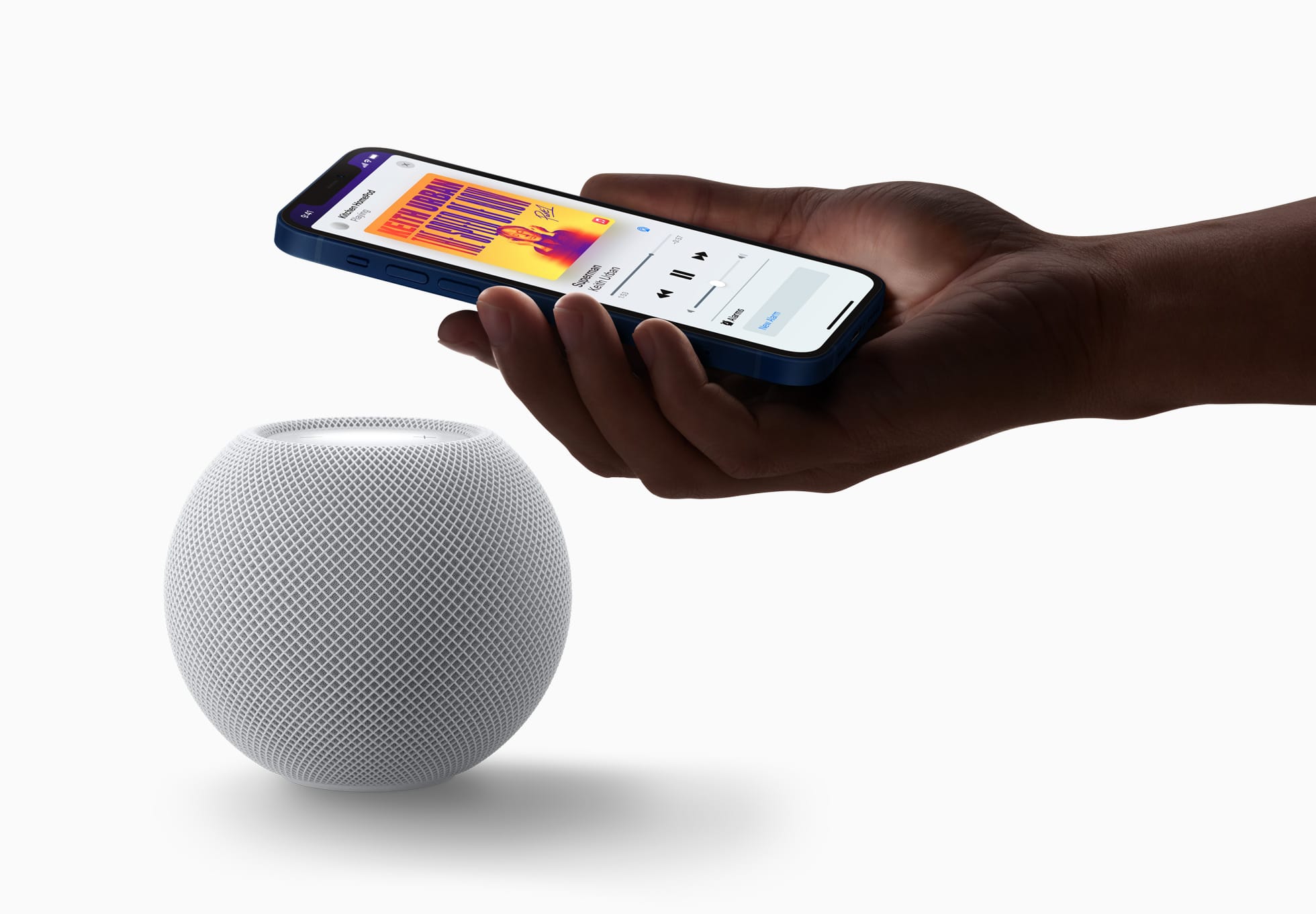
As diferenças entre o HomePod mini 2 e o modelo original
Anunciado na semana passada, o HomePod mini 2 traz algumas novidades bastante interessantes, como o suporte à Siri AI e um processador atualizado. Ainda assim, como ele se parece bastante com o seu antecessor (principalmente em termos de design), é possível que algumas pessoas ainda estejam confusas quanto às melhorias promovidas pela Apple.
Se você é uma delas, saiba que está no artigo certo! A seguir, vamos passar por todas as diferenças entre o HomePod mini de primeira geração e o HomePod mini 2 — assim, você poderá decidir qual dos dois modelos comprar ou se vale a pena trocar o seu.
Design e dimensões
Aqui você vai encontrar mais semelhanças do que diferenças entre as duas gerações da caixa de som inteligente, que contam com o mesmo visual geral, introduzido em 2020, com novas cores adicionadas em 2021 e posteriormente em 2024.

Com um corpo esférico envolto por uma malha colorida, ambos os modelos têm 84,33mm de altura e 97,9mm de largura, com diferença apenas no peso, menor no HomePod mini 2: 335g (ante os 345g do modelo de primeira geração).
Como dito, as cores do HomePod mini de primeira geração já foram atualizadas algumas vezes, e o modelo chegou a ser vendido nas opções branca, amarela, laranja, azul e meia-noite. O HomePod mini 2, por sua vez, pode ser adquirido nas cores branca, rosa, verde, azul e meia-noite.
Ambos os modelos seguem vindo com uma superfície circular retroiluminada com botões de “+” e “-” para ajuste rápido de volume.
A Apple disponibilizará o recurso Brilho do Som (Sound Glow), que faz essa superfície pulsar e brilhar em tempo real de acordo com a música que está tocando, para todos os modelos do HomePod mini e para o HomePod de segunda geração.
Tecnologia de áudio
Nesse quesito temos algumas mudanças bem curiosas de uma geração para a outra, embora pouco tenha mudado do ponto de vista de hardware.
O que ambos os modelos têm:
- Driver de alcance completo e dois radiadores passivos para graves profundos e frequências altas nítidas;
- Guia de onda acústica personalizada para um campo sonoro de 360º;
- Tecido acusticamente transparente;
- Áudio computacional para ajustes em tempo real;
- Reconhecimento de Som para alarmes de fumaça e monóxido de carbono;
- Áudio multiambiente com AirPlay;
- Compatibilidade com setups de áudio estéreo.
O que apenas o HomePod mini 2 tem:
- Compatibilidade com som surround quando emparelhado a uma Apple TV 4K;
- Pode ser usado como caixa de som para Macs;
- Chip S10.


Em termos de hardware de áudio, o HomePod mini de primeira geração leva vantagem em apenas um item: o número de microfones. Enquanto o modelo mais antigo vem com quatro microfones embutidos “para Siri em distâncias grandes”, o HomePod mini 2 vem com “apenas” três.
É possível, no entanto, que a Apple esteja compensando a ausência de um microfone no novo modelo com as novas capacidades de software viabilizadas pelo chip S10, bem mais moderno do que o S5 do HomePod mini de primeira geração.
Fontes e controles de áudio
Aqui, nada mudou. Ambos os modelos podem reproduzir áudio das seguintes fontes:
- Apple Music;
- Compras do iTunes;
- Biblioteca de Música do iCloud com uma assinatura do Apple Music ou do iTunes Match;
- Serviços de música de terceiros;
- Estações do Apple Music Radio ou episódios sob demanda;
- Estações de rádio do TuneIn, do iHeartRadio ou do Audacy;
- Apple Podcasts;
- Resumos de notícias;
- AirPlay (iPhone, iPad, iPod touch, Apple TV 4K ou Mac).
Também é possível controlar a reprodução ao:
- Tocar uma vez na parte superior para reproduzir/pausar;
- Tocar duas vezes seguidas para pular;
- Tocar três vezes seguidas para voltar;
- Tocar e segurar para invocar a Siri;
- Tocar nos botões de “+” e “-” para aumentar ou diminuir o volume.

Siri
O HomePod mini 2 vence com facilidade nesse quesito: é o único compatível com a versão “turbinada” da assistente virtual da Apple, a Siri AI.
De acordo com a Apple, além de ajudar em tarefas mais simples como enviar mensagens, controlar a reprodução e configurar lembretes, a Siri AI também pode conversar mais naturalmente, responder dúvidas sobre o mundo real com base em buscas na web e recomendar músicas de maneira mais precisa. Ela ainda leva mais o contexto em conta e processa a maioria das solicitações no próprio dispositivo.
O HomePod mini de primeira geração segue com a versão antiga da Siri, capaz de lidar com comandos mais básicos.
Conectividade e sensores
Tanto o HomePod mini de primeira geração quanto o HomePod mini 2 são compatíveis com descoberta ponto a ponto, para acesso fácil de convidados, e com redes Thread, além de contarem com um chip de banda ultralarga para recursos que dependem da proximidade de outros aparelhos, como iPhones.

Já o modelo mais antigo tem Wi-Fi 4 (802.11n) e Bluetooth 5, enquanto a nova versão conta com Wi-Fi 6E (802.11ax) e Bluetooth 6. Ambos os modelos vêm com sensores de temperatura e umidade.
Preço e disponibilidade
Já disponível em pré-venda, o HomePod mini 2 será lançado em 30 de outubro por US$150 (US$20 a mais do que o modelo anterior) nos Estados Unidos e em outros países selecionados.
Assim como seu antecessor, o novo HomePod mini também segue sem uma previsão de lançamento no Brasil ou em Portugal — quem sabe isso mude com o lançamento dos sistemas 27.2 e com a chegada da Siri AI em português.

Ambos os HomePods mini vêm com um cabo USB-C e um adaptador bivolt de 20W na caixa, além da documentação regulamentar, é claro.
Cores: meia-noite, branco, rosa, azul ou verde
NOTA DE TRANSPARÊNCIA: O MacMagazine recebe uma pequena comissão sobre vendas concluídas por meio de links deste post, mas você, como consumidor, não paga nada a mais pelos produtos/serviços ao usar os nossos links de afiliado.


MacVoices #26261: Live! – CarPlay and AI, Apple Rethinks Training Data, and WordPress Drama
Como alterar a lista do web app Lembretes exibida na tela inicial do iCloud.com
Com o site do iCloud, os usuários de dispositivos da Apple podem acessar diversos dados da sua Conta Apple (Apple Account), como suas fotos, vídeos e arquivos.
No caso do app Lembretes (Reminders), é possível escolher qual lista será exibida na tela inicial do site — para visualizar aqueles que considera mais importantes sem precisar abrir o web app.
Veja como escolher! 😉
Posts relacionados
- Abra o iCloud.com no seu navegador preferido;
- Localize o quadro do Lembretes;
- Clique nos três pontinhos;
- Marque a lista que deseja que seja exibida.

Simples, não?! 😄


How to stop Siri AI from keeping your conversations forever

John Ternus Is CEO
Apple’s former hardware engineering chief John Ternus officially became CEO of the company today, with the change now reflected on Apple’s leadership page.
[…]
Tim Cook is now executive chairman of Apple’s board of directors, after a 15-year run as CEO.
John joined Apple’s product design team in 2001 and became a vice president of Hardware Engineering in 2013. He joined the executive team in 2021 as senior vice president of Hardware Engineering. Throughout his tenure at Apple, John has overseen hardware engineering work on a variety of groundbreaking products and was instrumental in the introduction of multiple new product lines, including iPad and AirPods, as well as many generations of products across iPhone, Mac, and Apple Watch.
John has led much of the company’s focus in areas like reliability and durability, introducing new techniques that have made Apple products remarkably resilient. He has also driven much of Apple’s innovation in materials and hardware design that have reduced the carbon footprint of its products, including the creation of a new recycled aluminum compound that has been introduced across multiple product lines, the use of 3D-printed titanium in Apple Watch Ultra, and advancements in reparability that have increased the life spans of several Apple products.
Prior to Apple, John worked as a mechanical engineer at Virtual Research Systems. He holds a bachelor’s degree in Mechanical Engineering from the University of Pennsylvania.
This feels like Apple really trying to remind us of a previous product-focused CEO.
[…]
I would not have predicted this [reliability and durability] angle being so prominent, so I can only assume it’s something that’s important to Ternus.
[…]
One of the key tenets of the Cook era was Apple making a series of environmental pledges. I am very happy to see this called out as something Ternus is interested in.
There’s no mention of software.
Ternus sent his first memo as CEO to employees this morning, praising Cook and sharing his excitement for Apple’s future.
The 5 GB free iCloud tier lasted Tim Cook’s entire career as CEO, how will Ternus stack up?
Previously:
- App Store Moves From Phil Schiller to Eddy Cue
- John Ternus Replaces Tim Cook
- A Letter to John Ternus
- Apple Succession Planning
Update (2026-09-02): Juli Clover:
Apple has set new CEO John Ternus’ target compensation at $58 million, according to an updated SEC filing [PDF]. Tim Cook’s target compensation is $47 million in his new role as executive chairman.
Update (2026-09-07): Ryan Christoffel:
But a new profile published today at the Financial Times adds fresh details and insights to the story.
Regarding Ternus’s reputation inside Apple, it says he “is known within the company for being both highly competent and unshowy.”
It doesn’t seem like there was actually much insight, but I’m linking to this for completeness.
Previously:
MacVoices #26233: Live! – Facial Recognition, Biometric Privacy, and Bending Spoons’ Buying Spree
MacVoices #26209: Apple Stock Recovers, iCloud Is Required, and More iPhone Foldables
MacVoices #26182: Road to Macstock – Mike Schmitz
MacVoices #26181: Flip The Script – MacPaw’s Post-Keynote Perspective and AI-First App Development Strategy
“Apple’s next move: AI, Siri, privacy, and software | WWDC 2026” Discussion with MacPaw
MacVoices #26154: Live! – The Steve Jobs Coin, The MacBook Neo, A Wide-Reaching Hack, and Digg’s Return…Again
Mail Attempting to Sync Previous Recipients Despite Setting
Nonetheless, when I send an email in Mail app, from a non-iCloud account to an non-iCloud account, Mail immediately triggers an iCloud connection, as revealed by Little Snitch.
[…]
What could Mail be querying and saving in CloudKit when I’ve disabled Mail in iCloud?
[…]
As you can see in my screenshot at the beginning of this blog post, I have Contacts turned off in iCloud settings, so my Previous Recipients list should not be synced to iCloud. Nonetheless, I followed the commenter’s suggestion of logging in Terminal. I saw log messages that referred to
com.apple.mail.recents, which might indicate Previous Recipients and would certainly explain why this happens when I send an email.[…]
I do object to notifying Apple that I’ve just sent an email. That in itself seems like a violation of my privacy.
The settings are confusing, even more so than with System Preferences. If you go to System Settings ‣ Apple Account, it shows a round rect that says Mail and shows the Mail icon. If you click this, it lets you uncheck Sync this Mac for iCloud Mail. This mirrors the iCloud Mail checkbox that you get when you click See All to see the full list of apps. I don’t like how the top-level name and icon suggest that you’re going to a settings sheet for the Mail app, but then it actually gives you iCloud settings.
Importantly, there’s also another Mail checkbox in that list. It’s easy to miss because, first, why would you expect to see two Mail checkboxes?
And, second, it’s not obvious that there are actually three lists: a bunch of “favorite” system apps, in non-alphabetical order, for some reason including lesser ones like Freeform and Image Playground; followed by a second list of system apps in alphabetical order; and then a third list of alphabetical third-party apps.
Mail is in the second list, along with (to me) other top-tier apps like Books and Maps. Anyway, this second Mail checkbox controls the syncing of non-mail Mail data such as rules and smart mailboxes. But not, apparently, according to Apple, the previous recipients.
Previously:
Confidential Apple Files in iCloud
The way Apple combines work and personal iCloud accounts left some employees able to access confidential documents after departing the company, reports The Information. The site spoke to more than half a dozen former Apple employees who were unknowingly left with access to sensitive content.
[…]
Apple told The Information that the OpenAI lawsuit is unrelated to any files left available on iCloud and that it does not pursue legal claims against former employees who accidentally have Apple documents in their personal iCloud accounts.
[…]
In a now-settled legal dispute, chip company Rivos claimed Apple intentionally lets former employees retain access to files “as part of a planned effort to generate a pretextual basis to sue the employees and their new employer for ‘stealing’ Apple material.” In the Rivos case, an employee was targeted for keeping work files in his personal iCloud account.
The documents included confidential material such as plans for product launch events. The former employees said they made no effort to retain access and unexpectedly found the files mixed with their personal iCloud data.
The problem reportedly grew from Apple’s practice of encouraging employees to connect their personal Apple IDs to company-funded iCloud storage.
[…]
Apple also relied heavily on iMessage for workplace conversations and file sharing before rolling out Slack around 2019. Former employees could retain old iMessage conversations and attachments, while Apple could terminate their Slack access when they left.
If you use your personal Apple ID, you get a magic “Apple Work” folder in iCloud Drive. When you leave Apple, that “Apple Work” folder disappears. But any other files or folders that were shared with you that were outside that magic folder are still in your iCloud Drive, because it’s still your personal iCloud account.
[…]
You still have the same Apple ID account, even though you no longer have an employee @apple.com email account. Overall, this is a humane way of dealing with digital identity. Your Apple ID account is you, the person, not “example@icloud.com”, one specific unique email address. And you, the person, may well have multiple email addresses — all of which can be associated with your one Apple ID account. That makes Apple IDs more nuanced and complicated than a simple mapping of one email address = one account. And it obviously makes access restrictions more complicated.
Yesterday, OpenAI released messages to show that Apple employees (with permission) retained access to the departing employee’s personal iCloud account so that they could access work files that were stored there. It’s just a mess that both the software and corporate policy encourage mixing everything in one account.
As many things I know about Apple, this whole thing both makes perfect sense and feels absolutely bonkers.
Previously:
Today in Apple history: Steve Jobs acknowledges MobileMe failure

On August 4, 2008, Apple CEO Steve Jobs sent an email to staffers addressing the massive mistakes made with the disastrous MobileMe launch.
(via Cult of Mac - Your source for the latest Apple news, rumors, analysis, reviews, how-tos and deals.)

Apple hints at higher iCloud+ storage tiers for AI power users
Apple doesn’t make formal product announcements or discuss future product plans during its quarterly financial results announcements. But every once in a while, it shares some details that offer a peek at what’s coming.
During Thursday’s Q3 2026 financial call, Apple indicated the higher iCloud+ tiers could be on the way. While it has already said it will offer some kind of iCloud+ tie-in to accommodate heavy AI usage, when Goldman Sachs’ Michael Ng asked about Apple Intelligence and “compute costs and the ability to recover some of those costs through iCloud+,” Apple CEO Tim Cook had this response:
In terms of what it means for compute cost, it’s obviously early going for us, and so I don’t want to say that we have a complete plan for that. We do believe there will be people that want to use it a lot, and so we will have some kind of upgrade possibilities on iCloud+ where people can buy up the stack on iCloud+, and we’ll see how the pickup for that is. But we could not be more excited about where the product is.
Details about the “upgrade possibilities” weren’t provided, but Apple’s plans aren’t a surprise. At WWDC26 last June, Apple demonstrated several AI features and noted that there would be daily usage limits, which expanded access available through iCloud+. But at that time, no further details were provided.
Apple is expected to officially release iOS 27 in September, around the same time the company unveils the iPhone 18 Pro and iPhone Ultra. Apple will likely announce these new iCloud+ plans at the same time. It’s unclear as to what Apple will offer to accommodate AI usage; iCloud+ currently offers 5GB of free storage, with upgrade plans up to 12TB, though other AI companies offer storage up to 100GB. It sounds like Apple will explore these higher storage options for iCloud+ plans primarily built for AI use.

Here’s how much you’ll save with Apple One bundles [Updated]

Find out how much Apple's subscription bundles will save you. See Apple One pricing on three configurations: Individual, Family and Premier.
(via Cult of Mac - Your source for the latest Apple news, rumors, analysis, reviews, how-tos and deals.)