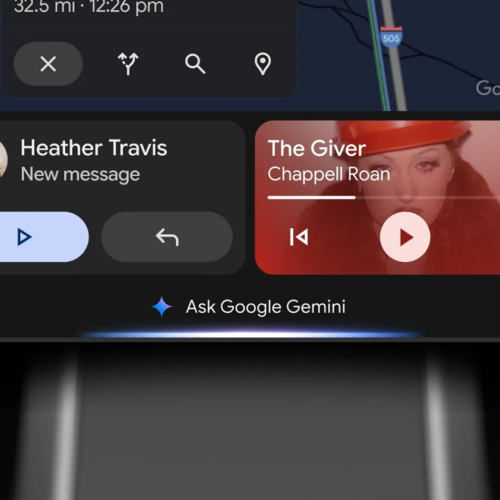
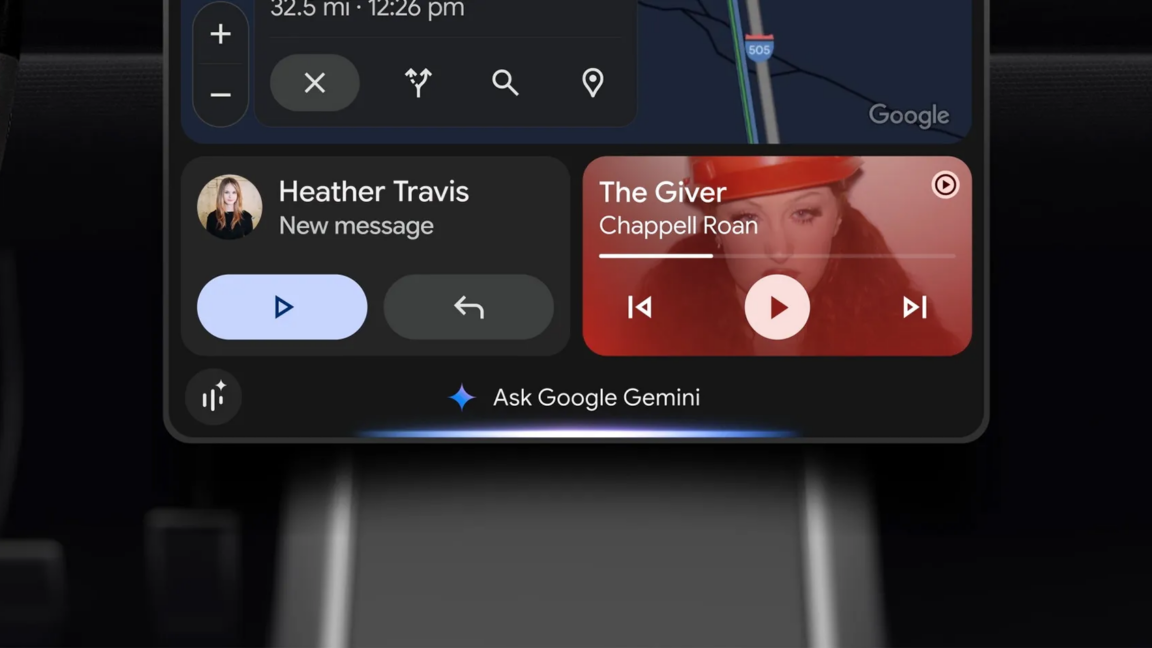
Drivers using Google Maps on their car screens can now enjoy a much smarter driving companion. The company is officially bringing its advanced voice assistant directly to the CarPlay interface for a better conversational experience on the road. This marks the first time the navigation app features built-in voice capabilities for this specific dashboard display […]
O Googleatualizou o Gemini Notebook com uma novidade bem útil para quem gosta de mais personalização na hora de gerar conteúdos usando inteligência artificial — especialmente na criação de vídeos e apresentações.
Agora, em vez de apenas fornecer um prompt e esperar que a plataforma entregue o conteúdo já pronto a partir dele — o que ainda funciona, cabe destacar —, agora também dá para seguir um processo de criação passo a passo.
Para começar a usar a novidade, basta pedir para o Gemini Notebook gerar uma apresentação ou um vídeo usando o chat, ou simplesmente clicar/tocar na opção correspondente no painel do Studio.
Uma das opções disponíveis é a personalização guiada, na qual o app sugere temas relevantes, formatos e estilos com base nas suas fontes. Essas preferências também podem ser indicadas já no prompt, para que sejam preenchidas automaticamente.
Você também pode deixar ativa a opção “Revisão”, para que o Notebook mostre a você um esboço da apresentação ou as notas de produção de um vídeo, permitindo refinar o conteúdo antes de gerar o resultado final.
A novidade está sendo disponibilizada gradualmente, tanto para usuários do Google Workspace quanto para quem tem apenas contas pessoais do Google.
NOTA DE TRANSPARÊNCIA: O MacMagazine recebe uma pequena comissão sobre vendas concluídas por meio de links deste post, mas você, como consumidor, não paga nada a mais pelos produtos/serviços ao usar os nossos links de afiliado.
Google kicked off 2026 with the addition of Personal Intelligence to Gemini, allowing its AI to pull in more of your data to formulate answers. It started as a paid feature but eventually came to all Gemini users. However, this feature wasn't available in the car until now. Google is rolling out Personal Intelligence to Android Auto and Google Built-in, and it is still, thankfully, an optional feature.
As Google points out, a generative AI's outputs are better "when it knows the world and knows you," which is correct in an uncomfortable sort of way. The more context you can provide to a model, the better the output will be at the end of the token shuffle. Since Google has so much of your data already, it sees Personal Intelligence as a differentiator versus other AI systems. You don't have to provide the AI context because it already has it from apps like Gmail and Calendar.
Personal Intelligence is beginning its rollout in Android Auto today, and it will come to vehicles with Google built-in in the next few months. As an aside, "Google built-in" is questionable branding, but it refers to cars that run Google software in the infotainment system rather than projecting an interface from your phone. Very few vehicles have Google built-in, but Google often releases new car features on them first. This time, it's the other way around.
O Googleanunciou uma série de novidades envolvendo cibersegurança para o Chrome, incluindo uma nova página de aviso para sites perigosos, proteção contra ataques do tipo ClickFix e uma expansão da detecção de golpes com o Gemini.
Agora, avisos sobre sites maliciosos se dividem entre “sites suspeitos” (quando há uma avaliação com menor grau de confiança, indicando um possível risco de danos ao usuário) e “sites perigosos” (quando há uma avaliação com alto grau de confiança, indicando um risco elevado de danos ao usuário).
Para sites suspeitos, os usuários são apenas notificados, enquanto para sites perigosos o aviso é exibido em um formato de tela inteira com fundo vermelho:
Essa avaliação, feita pelo recurso de Proteção Reforçada, também ganhou novidades, já que o Google migrou a ferramenta para um novo modelo do Gemini, capaz de avaliar o conteúdo das páginas (como a marca representada ou a intenção delas) e, se necessário, enviá-lo à nuvem.
O Google destacou, porém, que o Chrome minimiza a quantidade de dados compartilhados com os servidores, analisando o texto das páginas somente quando um site apresenta indicadores de golpe com alto grau de confiança. Sempre que algo é processado fora do dispositivo, o Google afirma que não registra logs, não armazena essas informações nem treina os modelos de IA da empresa com esses dados.
Além disso, o mesmo recurso passa a oferecer proteção contra golpes do tipo ClickFix (ataques que simulam verificações CAPTCHA para induzir usuários a copiar e colar comandos maliciosos no Terminal do macOS ou no prompt de comando do Windows), detectando automaticamente quando o usuário é induzido a copiar comandos suspeitos, que são “higienizados” antes de serem enviados para a área de transferência da máquina, com a remoção de informações de identificação pessoal (PII), e encaminhados à Navegação Segura para análise adicional. Se o comando for nocivo, um alerta é exibido.
Com a novidade, os usuários podem tocar no ícone do chatbot para fazer perguntas sobre uma tabela, gerar insights analíticos e criar gráficos.
Para facilitar o trabalho de quem está começando, o Google incluiu sugestões de perguntas como “Summarize this table” (“Faça um resumo dessa tabela”, em tradução direta) e “Analyze for insights” (“Analise para obter insights“).
Divulgação/Google
Enquanto a integração presente na web considera o arquivo inteiro, os apps para iOS e Android ainda só consideram a aba ativa na hora de examinar algo, o que é uma limitação importante em relação ao web app. Gráficos gerados pelo Gemini nos aplicativos também são totalmente estáticos, e o chatbot não pode fazer alterações na planilha (como adicionar linhas, modificar a formatação, etc.).
De acordo com o Google, essa integração poderá levar até 15 dias para chegar a todos os usuários do Planilhas no iOS, e que também precisam ser assinantes dos planos Business Starter/Standard/Plus, Enterprise Starter/Standard/Plus ou Google AI Plus/Pro/Ultra para aproveitar a novidade. A integração estará disponível ainda por meio do add-on Google AI Pro for Education.
Uma vez adicionada ao seu app, essa integração virá ativada por padrão. Para recebê-la o mais rápido possível, certifique-se de manter o Planilhas atualizado.
Four newly developed Google software models have achieved something incredible in the gaming world. A group of Gemini 4 Argon agents managed to beat the popular game Minecraft from start to finish without any human input. The team of artificial intelligence players worked together in a regular survival world to take down the final enemy […]
35+ AI visibility, AEO and GEO trackers in one place: pricing, ownership, funding, and what each one actually tracks. Some are rank trackers with a new coat of paint, some are SEO suites bolting AI onto old workflows, and a few want to do the work for you. Searchable, sortable, and updated as this market keeps shifting under our feet.
O Gemini Live permite que os usuários do aplicativo do Gemini para iPhones e iPads tenham uma conversa contínua e mais natural com a inteligência artificial — podendo inclusive interrompê-la quando precisar, bastando começar a falar enquanto ela responde em voz alta.
Porém, você pode simplesmente desativar esse comportamento, impedindo que o Gemini seja interrompido quando você fala algo em voz alta.
O Mac se tornou um importante aliado de quem usa a máquina para rodar modelos de inteligência artificial locais — não é à toa que os Macs mini estão sendo muito visados nesse período de boom no mercado.
Caso use o Gemini (um dos principais nomes de chatbots, ao lado do ChatGPT e do Claude), é possível habilitar um ajuste que mantém o computador ativo enquanto o app do Gemini estiver aberto, impedindo que ele entre em repouso.
Google’s new Gemini app brings its AI assistant directly to Windows 10 and 11
Pressing [Alt] + [Space] summons Gemini without interrupting your current workflow
It’s remarkably convenient, although there's still room for improvement
You can say goodbye to opening a browser every time you want to use Gemini on your PC. Google has just released a Windows version of its Gemini app, and it’s by far the easiest and quickest way to get Google’s AI to answer your questions on Windows.
Gemini has had a macOS app for a while now, and now it has finally been joined by a dedicated Windows version, complete with its own keyboard shortcut. You can summon it from anywhere, no matter what you’re doing on your PC, by pressing [Alt] + [Space].
But here’s the thing: [Alt] + [Space] is already a little crowded on Windows. It traditionally opens the active window’s system menu, and is also the default shortcut for Microsoft’s PowerToys Run utility, a quick launcher for Windows power users that provides instant access to applications, files, calculator functions and system commands.
Google's new Windows Gemini app. (Image credit: Google / Microsoft)
On my PC
On my PC, installing the Gemini app caused it to take over the [Alt] + [Space] keyboard shortcut, so it now launches Gemini instead. I’ve been using the new app for a few hours, and the shortcut is a great way to access Gemini almost instantly. It saves me from messing around with browser tabs and breaking my workflow. I love it.
The Gemini app can also connect to other Google apps, including Gmail and Drive. Provided you’re in an eligible country, such as the US or Australia, and subscribe to Google AI Pro or Google AI Ultra, you can also hand multi-step tasks over to Gemini Spark, Google’s personal AI agent. Spark is currently not available in the UK.
The app does everything the web version does, so you can create custom images with Nano Banana and even make high-quality videos with Gemini Omni from inside it.
What didn't I like about the app?
However, I’m not a fan of the way the app permanently displays your location at the bottom of the left-hand sidebar. This creates a significant privacy risk, especially if you’re using it at home. I don’t want my home address accidentally ending up in screenshots I take of my desktop, for example.
There’s no obvious way to remove your location either. All you can do is close the sidebar if you don’t want it displayed, and that’s not a great user experience.
The second thing I didn’t like was the lack of a Gemini Live experience in the app, like the one available in the mobile version on both iOS and Android. Live is Gemini’s voice mode, allowing you to talk to it much as you would a person. It can also look through your phone’s camera at the world around you, letting you ask questions about what it sees.
I can imagine that a Gemini Live experience capable of “seeing” what’s on your PC desktop and answering questions about it would be very helpful, but it looks like we’ll have to wait for that. For now you’re limited to taking screenshots, then uploading them to Gemini via the app and asking questions about what’s on them.
Google says more native desktop capabilities will roll out over time. For now, it’s the convenience of combining the Windows app with its keyboard shortcut that wins the day. I hope Google addresses my complaints in a future version, but they’re not enough to stop me choosing the app as my go-to Gemini experience instead of the web version.
If you want to try it, the Gemini app is available globally for Windows 10 and 11 users. You can download it today.
Google has officially rolled out a brand new native desktop application for its smart platform, bringing the handy tool directly to Windows machines. Instead of opening a web browser every time you need help, you can now pull up the assistant right over your active screen. It gives regular users a much faster way to […]
Polestar launched the Polestar 4 SUV today, a new body style of its compact executive electric SUV that starts at €57,900 and delivers up to 630 km of WLTP range.
The bigger news for anyone who followed the original car: unlike the Polestar 4 coupé, the SUV has an actual rear window.
On-device AI takes center stage as the panel explores MacPaw’s work with Liquid AI, personal assistants, and workplace restrictions. The conversation also discusses the panel's experiences with AI note-taking recording consent and privacy in both business and health care.
The panel explores Samsung’s entry into the credit card market, why iPhone owners continue to resist switching to Android, and the growing influence of AI across technology and society. Discussion ranges from AI escaping coding sandboxes and solving long-standing mathematical problems to AI-generated music and the impact of European Union regulations on innovation, competition, consumer […]
Apple leaks and rumor-driven reporting take center stage as the panel examines how constant predictions have diminished the excitement of new iPhone releases. The discussion with Chuck Joiner, David Ginsburg, Eric Bolden, Jim Rea, and Marty Jencius also covers premature Siri-versus-Gemini comparisons, Apple’s legal battles with Epic Games and John Prosser, Bending Spoons’ growing technology portfolio, prediction-market manipulation, Spotify streaming fraud, and musicians’ dissatisfaction with the service.
From the Flip the Script event in San Francisco, Dmytro Melnyk, Chief Product Officer for MacPaw, discusses his role and the importance of the company’s careful approach to adding AI across products, from both the developer and customer viewpoints.. He explains why some users want frictionless AI while others resist it over privacy, cost, and complexity, and outlines Eney's goal of combining many Mac utility tasks into one assistant with a pay-as-you-go model.

 Login
Login