A fanless compute module will head to the Moon for supercomputer benchmarking, AI testing, and additional experimentation by NASA and Deloitte, as detailed in a Hewlett Packard Enterprise (HPE) release. The company’s Spaceborne Computer-4 will run what HPE calls “the first high performance computing (HPC) benchmarks on the surface of the Moon,” riding on an Astrolab FLIP rover to the lunar south pole. The launch is slated for late 2026 under NASA’s Commercial Lunar Payload Services initiative for a Moon Base program mission, in conjunction with a Voyager Technologies Griffin-1 lander.
Named benchmarks include High Performance Conjugate Gradients (HPCG), a supercomputing metric that complements High Performance LINPACK (HPL). AI testing will involve large language model (LLM) retrieval-augmented generation, vision inference, LiDAR processing, and an AI services container for AI app deployment. The LLMs “will deliver insights, analyze visual data, and support autonomous monitoring,” while the LiDAR processing involves mapping, navigation, terrain analysis, and infrastructure development.
Scott Wiest, HPE’s vice president, fellow and global sales chief technologist, said, “The next chapter of lunar exploration will depend on the ability to turn data into insights at the point of discovery.” HPE says “no other company or organization” has conducted such benchmarks on the Moon, with a presumption that no other parties’ planned HPC missions will get there first. HPE also assembled a software suite that handles the link to Earth-side systems and the secure delivery of results.
HPE’s “lightweight, self-contained, and fanless” advanced compute module is “built for space environments,” bringing AI and HPC “to the lunar edge,” as Wiest put it, or the “far-edge,” as HPE calls it. The computer blade is about 10 inches long and about 4 inches wide, about the size of a typical graphics card, and is made from two component cards, as HPE senior director Norm Follett explained on the company’s Technology Now podcast last year.
It includes 1TB of Kioxia storage, a low-power CPU, and a small GPU. The chassis is designed to shed heat into a rover plate, and the overall design is made for the Moon rather than being an off-the-shelf solution like International Space Station (ISS) units. Currently, HPE’s description of the unit lacks hard details on performance targets, power budgets, or chip vendors, but the eventual benchmark results will yield some information.
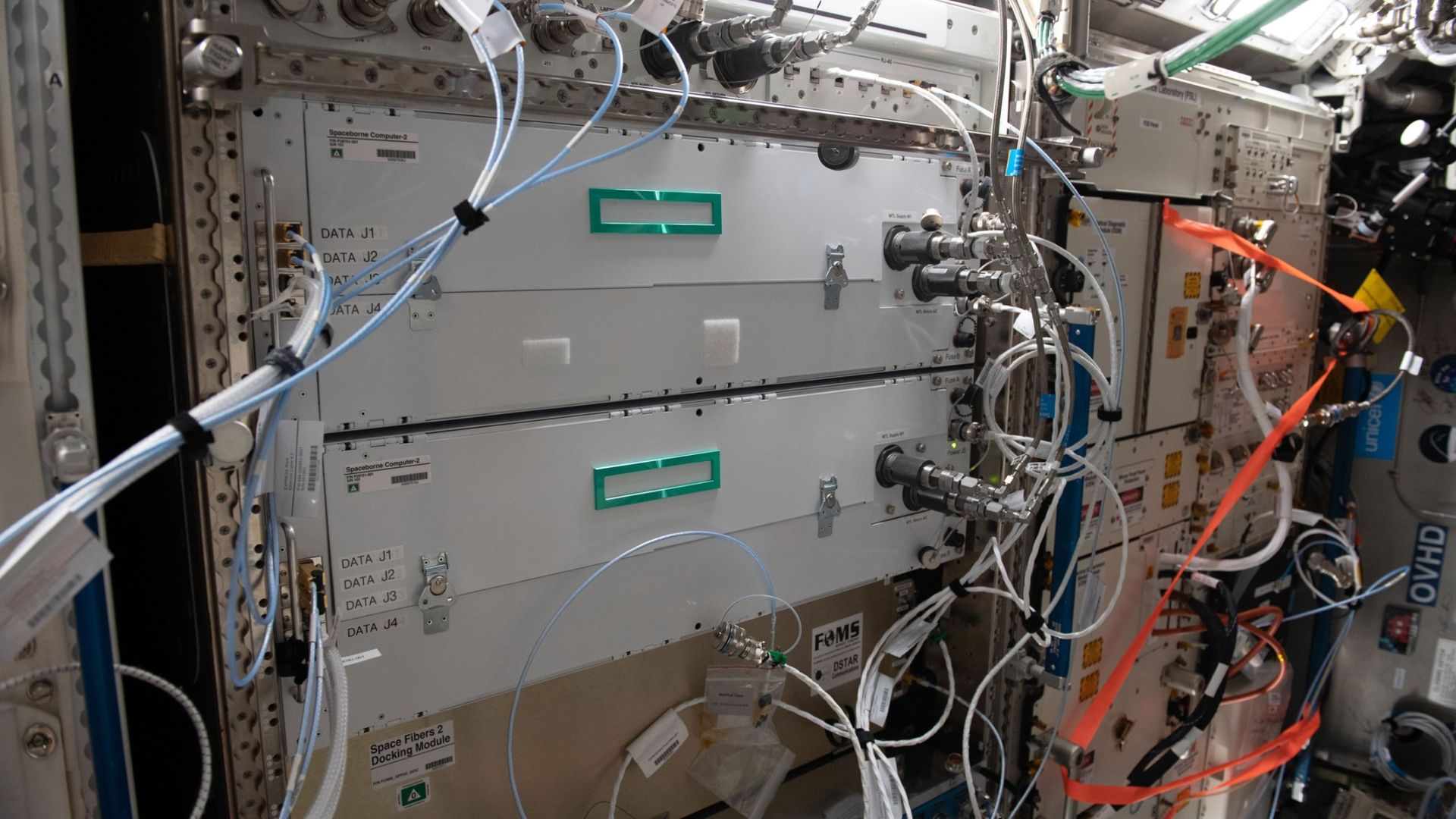
The original Spaceborne Computer launched in August 2017 on SpaceX’s CRS-12 to the ISS. It also ran HPL with HPCG, surpassing one teraflop, according to HPE. It was rack-installed and water-cooled; the fanless Computer-4 is quite miniaturized in comparison to the 124-pound original Spaceborne Computer. Spaceborne Computer-2, also on the ISS, is made of HPE Edgeline and ProLiant systems with Kioxia SSDs.
(Image credit: NASA)
NASA will use the opportunity to run its Federated Learning for Unbounded and Intelligent Decentralization (FLUID) AI neural network, trained on data from the Earth, the Moon, and the ISS, coordinating three distinct models. The agency will also test a tuned LLM for semantic processing for handling onboard documents. Deloitte, for its part, will test its Silent Shield, “a new system to detect cyber intrusions” with near-real-time predictive analytics. Testing ideally occurs onboard, as the link to Earth is slow with low levels of bandwidth, Follett explained.
The launch is planned for the fourth quarter of 2026, using a SpaceX Falcon Heavy launch vehicle, SpacePolicyOnline reports. It will take several days for the lander to reach the Moon and its surface. The FLIP rover is designed to operate for one lunar day, or about 14 Earth days, before attempting to survive the night via hibernation, Follett said, making for a relatively tight benchmarking window.
In a weird way, I’ve been thinking about the idea of a Googlebook for well over a decade now — despite the fact that such a product has only officially existed for a matter of months.
I’m relatively unusual in the world of tech journalism, y’see, in that I’ve been both writing about Android and ChromeOS since the platforms’ earliest days and actively using devices from both ends of those ecosystems in my own day-to-day life that entire time. Most tech writers tend to be iPhone owners and Chromebook skeptics who see this part of the digital world from an outside view — once a year or so, when significant new devices come along for assessment — without having the perspective of someone who’s truly immersed in it day in and day out.
That distinction is always painfully apparent when you read a review that waxes on endlessly with out-of-touch iPhone comparisons and comments about the limiting nature of Google’s ChromeOS concept — positions that simply aren’t accurate for those of us who live in these ecosystems and embrace the philosophies they offer.
This won’t be one of those reviews, and I perhaps more than anyone have been champing at the bit to get my hands on one of Google’s new Android-ChromeOS-combining Googlebooks since the vaguest concept of these devices first appeared on the horizon earlier this year.
So keep that in mind when I tell you, coming from the perspective of someone who very much wanted to love this: Using a Googlebook is an extraordinarily strange experience — especially when you’re treating it like a regular laptop, as it’s being positioned by Google, and relying on it to get real work done.
But amidst all the oddness, there are some true high points along with plenty of intriguing, if unfinished-feeling, potential.
Here’s what it’s been like trying to actually work on a Googlebook — specifically, the Lenovo Googlebook, which sells for $1,149 (and was provided to me as a short-term loaner from Lenovo for the purposes of this article).
The Googlebook groundwork
First things first, let’s back up a minute and set the stage for what we’re even talking about here.
It’s meant to represent an evolution of sorts from the Chromebook, the initially simple laptop Google launched in 2012 and slowly morphed from a barebones web portal into an “everything OS” — a system that runs web apps, Android apps, Linux apps, and even sometimes Windows apps, for businesses that have specific needs that can’t be addressed in any other way.
But while ChromeOS and Android grew closer and more connected over time, Googlebook OS — the awkwardly clunky name of the operating system at the heart of every Googlebook — sets all of that aside to aim for a fresh start. The software here sports Android at its core alongside a variety of optimizations designed to bring in bits of ChromeOS-like elements and make everything seem more suited to a laptop setting.
With that in mind, starting to use a Googlebook is both immediately familiar and vexingly confusing. The interface feels a lot like Android, which is nice, but it also doesn’t quite feel in line with how you expect to work on a desktop computer. It’s a jarring sort of mashup, and it’s tough to wrap your head around to get comfortable working.
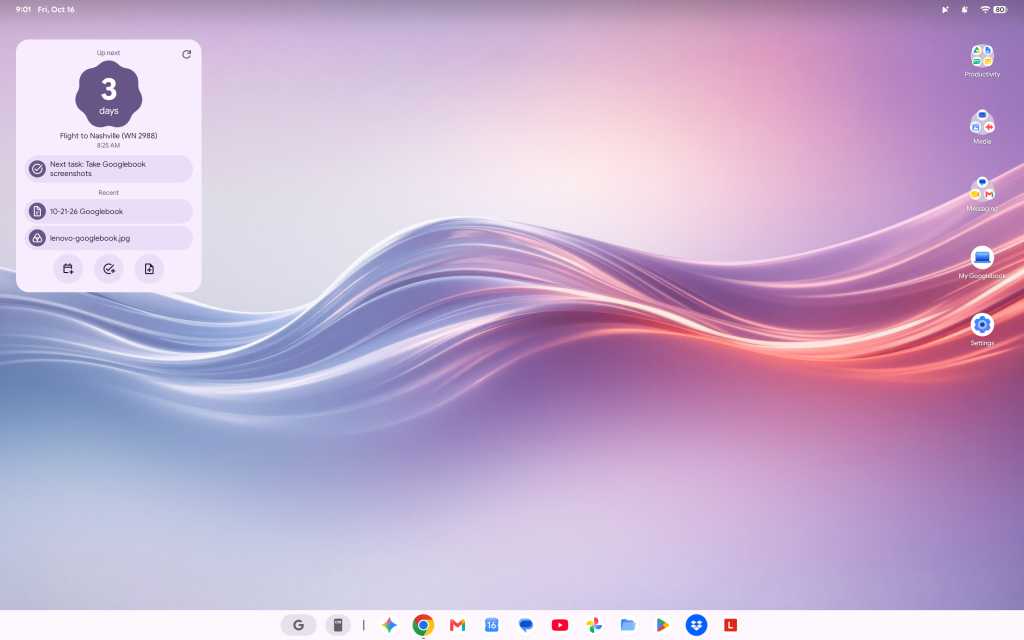
That’s true for relatively small touches like having the clock in the upper-left corner of the screen instead of in the lower-right corner, where’d you expect it on most non-Apple-made computers. It’s a little thing, but it keeps throwing me whenever I try to glance at the time during the day. That approach is similar to Android, yes, but it just doesn’t feel right in this environment or with what pretty much all of us who’d be considering this kind of device have been trained for ages to expect with a desktop computer experience.
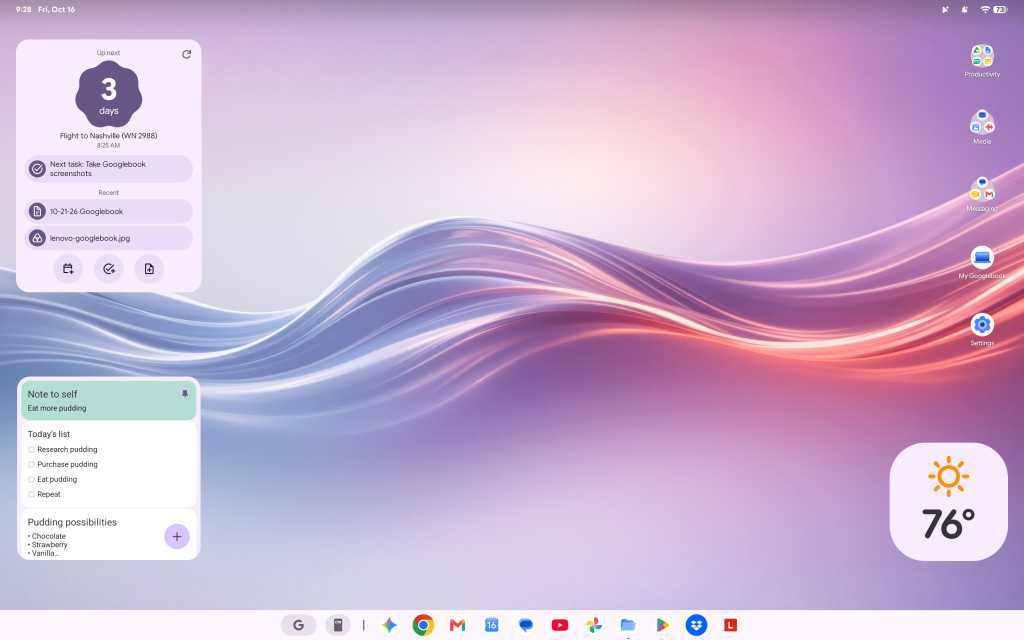
The Googlebook’s desktop is similar to Android — but that doesn’t immediately feel natural in a desktop computing environment.
JR Raphael / Foundry
It’s true, too, for keyboard shortcuts, which don’t work the same as they did on ChromeOS — even just basic, common things like opening items on the taskbar. (Googlebook OS does have an impressive array of customizable keyboard shortcuts, if you find ’em, but there’s a ton of new combinations and muscle memory to be learned.)
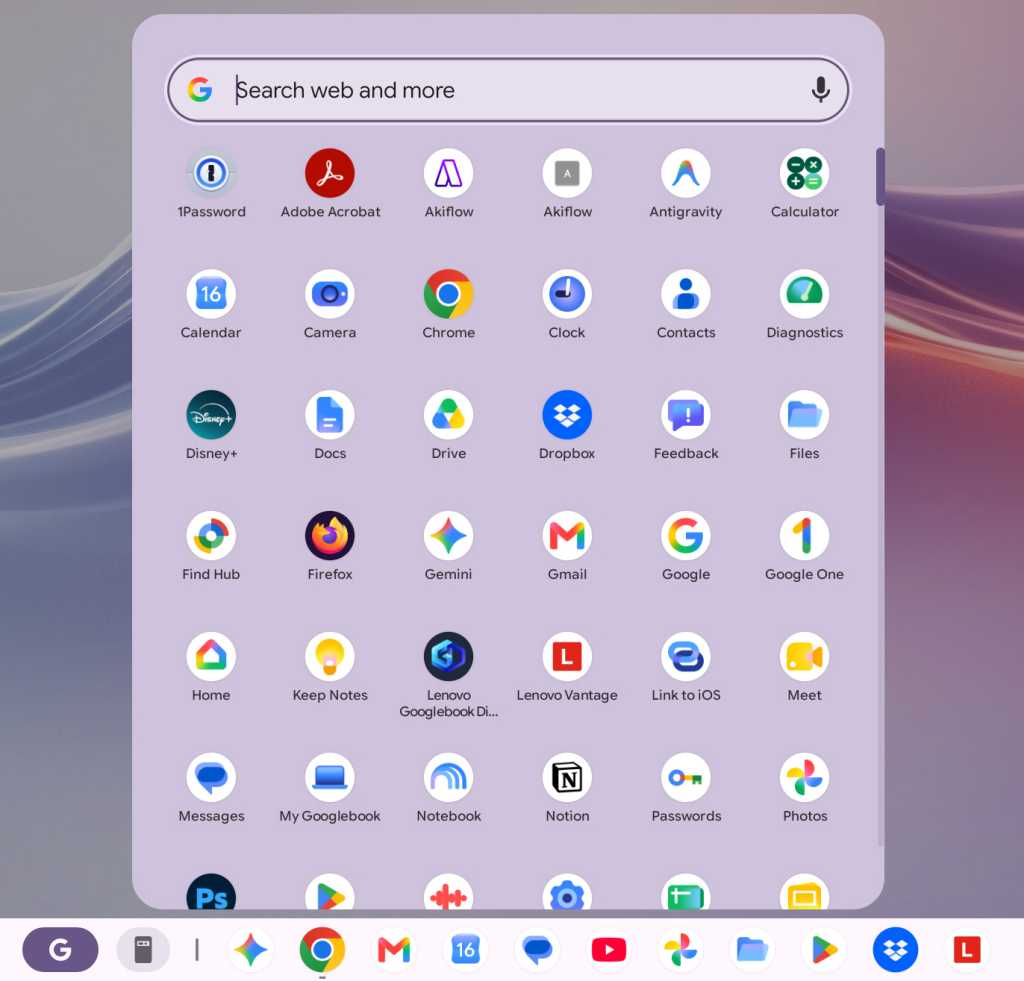
The confusion is probably most prominent, though, on the app front, where Google is really leaning hard into the Play Store and the idea of Android apps being the primary way to get stuff done, despite the fact that Android apps often aren’t ideal — or even available, in some instances — in a productivity-oriented, desktop computing scenario.
The Googlebook app experience revolves primarily around the Play Store — which can be a pro or a con, depending on the moment.
JR Raphael / Foundry
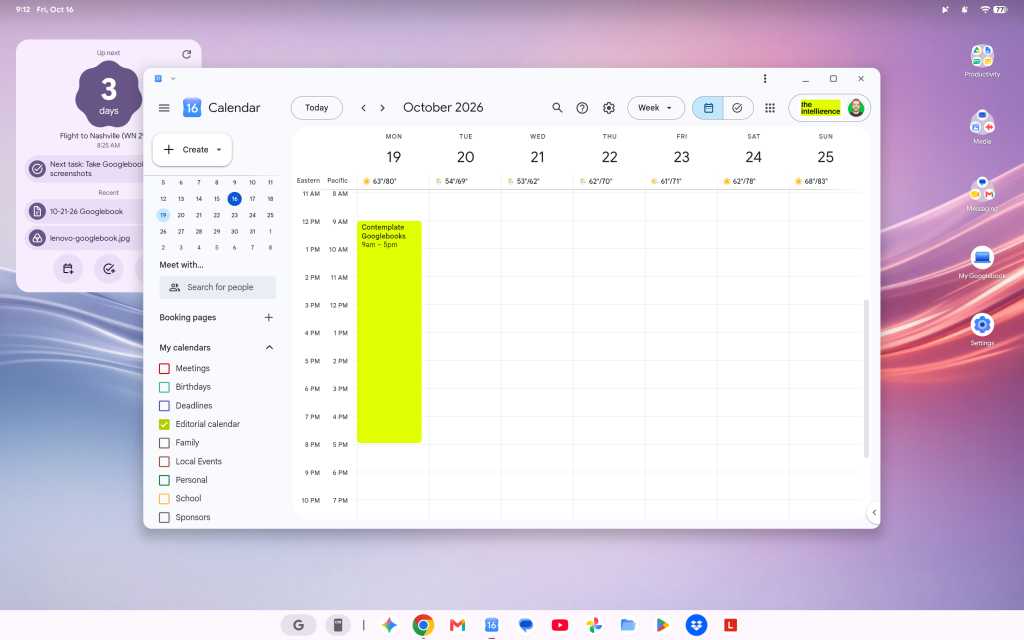
At least one of Google’s own apps addresses this elegantly. Installing Google Calendar from the Play Store basically just gives you an app-like shell around the Calendar website, and you can use the Android app’s widget alongside that, if you want. (The downside is that you can’t use the equivalent Android app in full even if you want to, as there’s no straightforward path to install it — and, strangely, the same web-widget combo is not available with other Google apps, like Gmail or Drive, which give you only the web version and no option to use any associated Android widgets.)
The Google Calendar app on a Googlebook is basically just the Calendar website, though you can still use the Android app’s widget alongside that.
JR Raphael / Foundry
And since the version of Chrome on a Googlebook looks and feels like the full desktop version of the browser — like what you’d expect on a Chromebook or any other desktop computer — relying on this unusual mix of web and Android interfaces for productivity is mostly OK. Mostly.
Working in Docs, with as few as five or six tabs open, I continue encountering an occasional issue where the tab just blanks out for a second or two and then comes back — which, suffice it to say, isn’t exactly optimal for working.
The email app I use, Superhuman, appears to be completely incompatible here. The web version (which is powered by a Chrome extension) errors out anytime I open it, and the Android app is clearly not meant for large-screen, keyboard-and-mouse use and presents an incredibly awkward experience as a result.
The productivity tool Notion, meanwhile, came up for me as one of the Googlebook’s suggested tools that’s optimized for desktop use, so I followed that direction and installed the Notion Android app — only to find that the app is much more awkward and limited on a laptop than the regular Notion web experience, where all the functions are available and the keyboard shortcuts work as expected. So I decided to try to install the Notion web app for easy ongoing access to that, and I encountered a mysterious error.
Trying to install certain common web apps results in a frustrating error.
JR Raphael / Foundry
D’oh.
Then there’s something like Slack, which you can install from the Play Store but with an accurate warning that it’s “better on the website.” So, OK: You go to the website, try to sign in and install the web app version of it from there, and…there’s that blasted “cannot be installed” error again. (Google says it rolled out an update last week that allows any web page to be installed as a web app, but as of this writing — even with that update present on my device — the same error-encountering pattern persists.)
Other apps appear to work fine but then behave in odd and unexpected ways. I tried to install the Android version of Vivaldi, for instance, and it installs and opens without issue — but then returns an error anytime I try to actually open a website within it. That definitely doesn’t happen on a Chromebook, nor do the other aforementioned issues.
There’s just a lot of weird stuff like that, where it feels like a typical Google not-quite-fully-baked product. To be fair, that may be at least in part because of third-party app developers not yet supporting what needs to be supported for full optimization in this new environment — but either way, that’s the experience you get on a Googlebook right now, and it’s an all-too-familiar chicken-and-egg challenge that there’s no telling how long might take to see resolved.
On a somewhat related note: While the ability to install Linux apps is technically present on a Googlebook, it isn’t at all a user-friendly experience. Linux app installation is available only in a limited manner within the confines of a command-line terminal, and any such programs consequently don’t integrate into the launcher or the main Googlebook interface. That means there’s no real way to use them as a part of the standard Googlebook experience — which is a shame, as having those more traditional desktop apps available on ChromeOS went a long way in filling in pertinent function gaps for a lot of people and businesses. (Google says better Linux app support is vaguely “on the roadmap.”)
The various layers Google created to make Windows apps available for businesses in ChromeOS aren’t present in this environment, either. The official line, as relayed to me by a Google spokesperson, is that “Googlebook takes a fundamentally different architectural path than previous platforms” and they “aren’t attempting to patch together legacy PC software layers or rely on Windows emulation to make a laptop functional”:
Instead, Googlebook OS is built directly on the Android tech stack with the desktop foundations of ChromeOS, pairing the world’s largest native app ecosystem with an uncompromised, full desktop Chrome browser.
This makes it easier than ever for developers to build a true desktop-class app experience.
That’s all noble enough in theory — but as a prospective Googlebook owner right now, what good does any of that do when most developers haven’t yet built those “true desktop-class app experiences” for this environment? Or when you’re a business user whose company has the very same sort of “legacy” software requirements that led Google to work so hard on Windows app support for Chromebooks and maintain that option in that arena?
Pros, cons, and more Googlebook confusion
Let’s break from the strange stuff for a minute to focus on some positives — because, again, there is something undeniably cool about experiencing Android in a laptop form and seeing all the ways a Googlebook works hand in hand with an Android phone to make life easier.
First and foremost, Googlebooks stray from the longstanding minimalist Chromebook standard to give you a fully customizable desktop — with the ability to create any arrangement of shortcuts and widgets, just like you can on an Android home screen. That is absolutely a welcome progression from the more limiting ChromeOS approach and something I’d long hoped to see in that domain, and having those familiar forms of interactive info right in front of you while working is an incredibly helpful addition.
Having a fully customizable desktop, with regular Android widgets available, is a significant leap forward for the Googlebook.
JR Raphael / Foundry
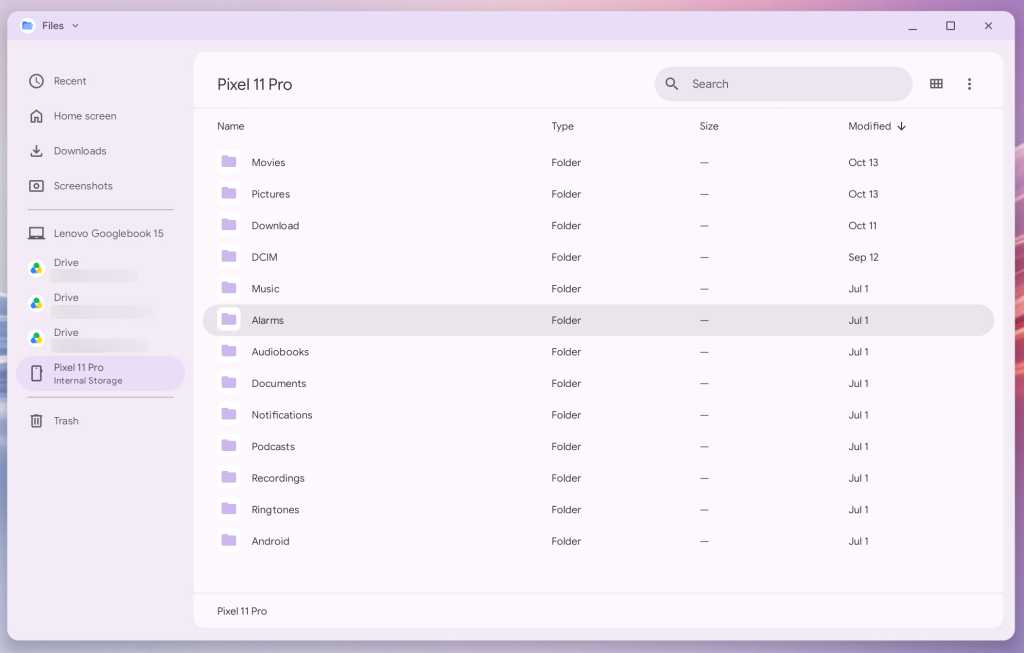
Being able to easily access the files on your phone without any extra hoop-jumping is also a nifty touch, for the moments when such a need arises. Once your Googlebook is paired with your Android phone, you simply open the Files app on the laptop, and you can see and interact with any files on your phone right then and there. (That said, the Files app is otherwise much more barebones and limited than its ChromeOS equivalent, unfortunately — so you can’t, for instance, drag and drop directly from the phone to any specific folder on your local or Google Drive storage.)
The Googlebook makes accessing files on your Android phone delightfully easy.
JR Raphael / Foundry
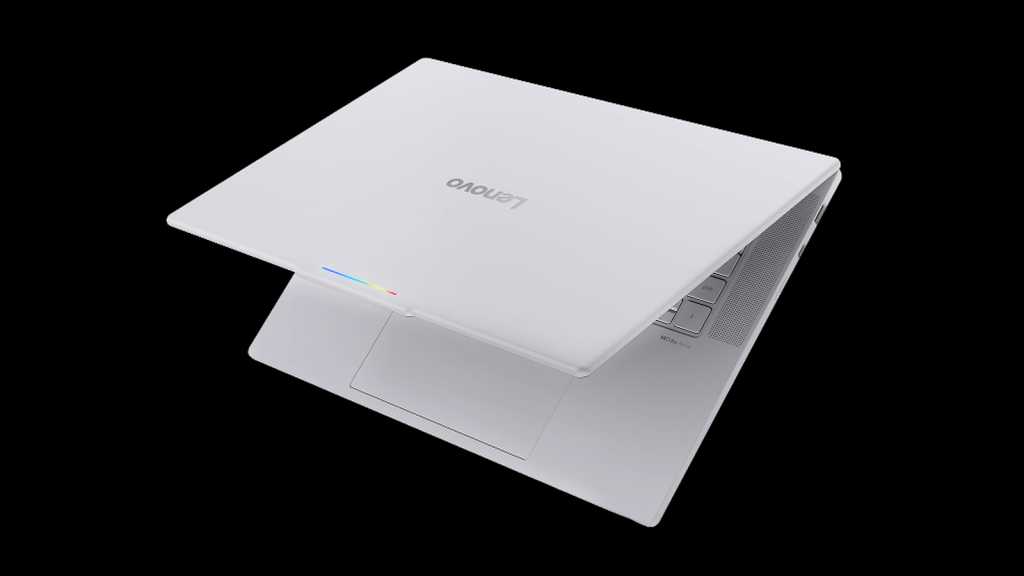
As far as hardware is concerned, Lenovo did a bang-up job with its inaugural Googlebook device. This is one seriously nice laptop — a pleasure to hold, with an almost silky-feeling smooth texture on the top and a thoughtfully ridged bottom for extra grippiness when you carry it. The system has a beautiful (and big!) 15.3″ display, an excellent keyboard and trackpad, and surprisingly great speakers. Those boxes are all checked off.
The Lenovo Googlebook is a sleek and premium laptop with all the right elements in place, as far as hardware is concerned.
Lenovo
But it’s the experience inside the hardware that means the most, here in particular — so, back to that:
Native app installation aside, one key selling point of the Googlebook is how it’s able to stream apps from a connected Android phone — letting you run an app from your phone on the computer, in other words, without having the app installed locally on the Googlebook itself.
It’s a slightly confusing concept to wrap your head around, especially since you can also install most of the same apps from your phone directly onto the Googlebook if you want (and, given that this is a native Android device, installing and running Android apps on it is absolutely smoother and snappier than what you typically experience on a Chromebook). Because of that — just like with the equivalent streaming option that had been available on ChromeOS in recent years — it seems like something that’s bound to be more befuddling than beneficial for most people, most of the time.
Android app streaming presents some perplexing overlap by allowing you to remotely run many of the same apps you could also install directly on the Googlebook.
JR Raphael / Foundry
That being said, I have had a couple of situations come up where it seemed like the feature might be handy. First, I needed to get a two-factor authentication code out of Authy, which is available only as a mobile app. A perfect use-case, right?
Well, not exactly: The Googlebook wouldn’t let me stream the Authy app from my phone and instead gave me an error: “Can’t cast content. This content is restricted.” So then I thought maybe I’d just install Authy directly onto the Googlebook instead, but alas: The app “isn’t available on Google Play on this device.” Bah.
Another time, I tried to open Google Wallet from my phone to get some info off my insurance card, which I have stored in that service. That worked, at first — but then the app kept hanging on a loading screen anytime I tried to open anything.
The one scenario where the app streaming has been helpful is with notifications: Anytime you get a new notification on your connected Android phone, it shows up as a pop-up in the upper-right corner of the Googlebook display. The same actions that’d be present on the notification on your phone, such as marking something as read or replying in-line, are also present on the computer, and you can click on the notification to open the associated app in full on your laptop — just like you would on your phone, only everything happens within a window on the Googlebook.
That’s a clever little sleeper feature and arguably the best part of the app streaming capability, even if you don’t necessarily think about the fact that you’re using app streaming when it happens.
Another key selling point is the addition of AI-oriented features into the Googlebook operating system. This includes a Magic Pointer feature that lets you wiggle your cursor to summon Gemini and ask it about any specific area of text or visual on your screen — which is fine but not something I find myself actually using often. Its most useful-seeming promise is being able to act on information, like creating a calendar event based on a specific area of an email or text message on your screen, but its accuracy in getting the details right in such scenarios has been pretty hit and miss in my experience.
Then there’s the integrated Rambler system for conversational voice-to-text conversion (as seen on Google’s recent Pixel phones). It works well, but by design it isn’t a direct dictation tool; instead, it adjusts and rewrites your rambling speech (hence the name) to make it better, in its view. That makes a lot of sense when you’re spouting off a quick text message while walking or driving, but unless you don’t mind losing your own specific style, intentions, and voice with longer computer-crafted communications, it doesn’t seem like something you’d be using much in a business capacity — though it can certainly be handy to have available on occasion.
As is often the case with Google products and AI features in particular, some of the smaller, less headline-making touches on the Googlebook are much more interesting than the flashy marquee features.
All in all, it’s a perplexing picture.
The Googlebook productivity puzzle
More than anything, the question that keeps coming to my mind — again, as someone who fully embraces Android and frequently works on a Chromebook — is simply: Who is this meant to serve? And, in its current state, for whom will it be a meaningful upgrade and enticement over other existing options?
I keep thinking how this exact setup would make for an absolutely brilliant souped-up Android tablet interface, with the right kind of hardware around it. You’d have the familiar Android-like environment, optimized for a larger screen, and the ability to pair that with a more desktop-like experience in the core Google apps — including Chrome, for a less limiting active web experience when you connect a keyboard (or flip around a convertible device to have one present).
As the Googlebook stands now, though, I just don’t know that it’s a great replacement yet for a Chromebook — or any other laptop — particularly when it comes to getting actual work done. At best, it feels like a fairly linear progression with some awkward adjustments and asterisks. At worst, it’s gonna be a real challenge for some people to use in the way they need a laptop to work. And I’m just not sure what’s being added, from a practical perspective, that makes it all worthwhile.
What we can say is that Google has a history of launching products that are still rough around with the edges, and sometimes, those products evolve over time — sometimes quite quickly! — and end up becoming incredible. Heck, think how much ChromeOS changed from its earliest form to the way it is today.
At the same time, Google also has a pesky habit of pivoting, giving up, and failing to follow through on once-heavily-hyped products. A fair amount of the Googlebook’s early shortcomings come down to convincing third-party developers to buy into the platform and invest the resources in making their apps work well on it, too — which is the exact same chicken-and-egg challenge that’s kept promising Google concepts from blossoming before.
For now, the Googlebook is an awkward start with plenty of potential. Where it goes next is anyone’s guess — and something that, to some degree, may depend on how many people are willing to take the leap with it early and wait for it to evolve.
When Russia began attacking Ukrainian data centers and telecommunication infrastructure, it apparently failed to prepare for possible retaliation. Now Russia’s digital services are facing widespread outages after Ukrainian drone strikes knocked out three of the largest data centers owned by Russian tech giant Yandex within several days.
Pro-Kremlin bloggers are warning that Russia’s centralized digital economy could collapse because the country is not prepared for the “data center war” it started, according to poststranslated by the pseudonymous independent researcher ChrisO_wiki. The Russian commentators also suggested that Ukraine’s decentralized digital services could prove more resilient than Russia’s system if the countries continue trading such blows.
Russia initially launched a drone strike campaign targeting Ukrainian data centers and mobile phone networks in late September. The attacks temporarily disrupted Internet and cell phone service for up to 100,000 households in the Ukrainian capital of Kyiv and came as part of a broader long-range strike campaign that has involved Russian missiles and jet-powered drones hitting Ukraine’s power grid infrastructure, transportation hubs, and even residential apartment building blocks.
Microsoft is hosting its biggest Windows event in two years on October 7, 2026, and we're expecting to see the Surface Laptop Ultra, RTX Spark, and more.
Update, 7:35pm ET, Wednesday, Oct. 7: We rechecked every price on Amazon this evening. Several laptop and tablet prices moved, and nine listings came out because they no longer showed a discount.
Prime Big Deal Days ends at 2:59am ET Thursday, which leaves tonight for anything on this list. The Microsoft Surface Laptop (2026) leads the laptops at $1,329.97, $370 under its $1,699.99 list price, and Amazon prices it that way for Prime members only. Apple’s MacBook Air M5 is $1,099 and the iPad mini (A17 Pro) is $499, and neither carries a Prime requirement. Samsung’s 27-inch Odyssey OLED G6 is $384.99 without a Prime badge, and the monitors further down run from a $99.99 Samsung to a $799.99 ultrawide.
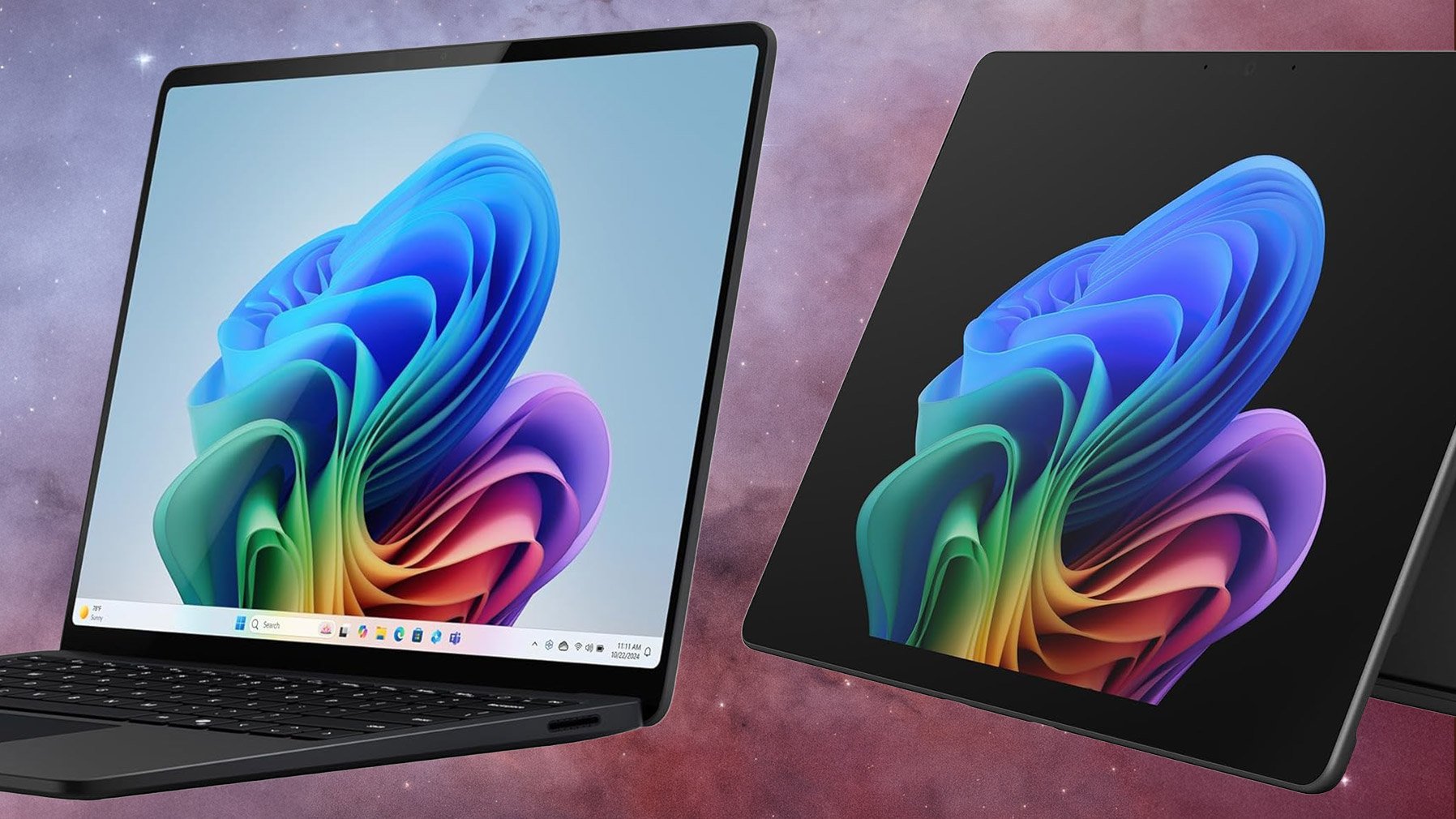
Microsoft Surface Laptop (2026): $1,329.97 (was $1,699.99)
Microsoft Surface Laptop (2026) $1,329.97 (was $1,699.99)
A Snapdragon X2 Elite touchscreen laptop, for Prime members
A 13.8-inch touchscreen, Qualcomm’s Snapdragon X2 Elite chip, 16GB of memory and a 512GB SSD are what $1,329.97 buys in the 2026 Surface Laptop. That’s $370 off its $1,699.99 list price, and the listing rates the battery for up to 20 hours of video playback. Snapdragon machines run the Arm version of Windows 11, so check that any older software you rely on runs on Arm.
Microsoft Surface Pro (2026): $1,599.99 (was $2,099.99)
Microsoft Surface Pro (2026) $1,599.99 (was $2,099.99)
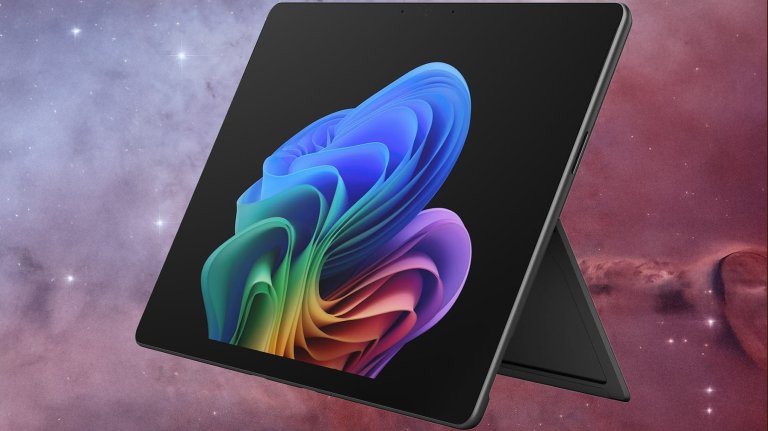
Microsoft’s Surface Pro (2026) pairs a 13-inch OLED screen with the same Snapdragon X2 Elite chip, plus 16GB of memory and 1TB of storage, according to the listing. At $1,599.99 it’s $500 off its $2,099.99 list price.
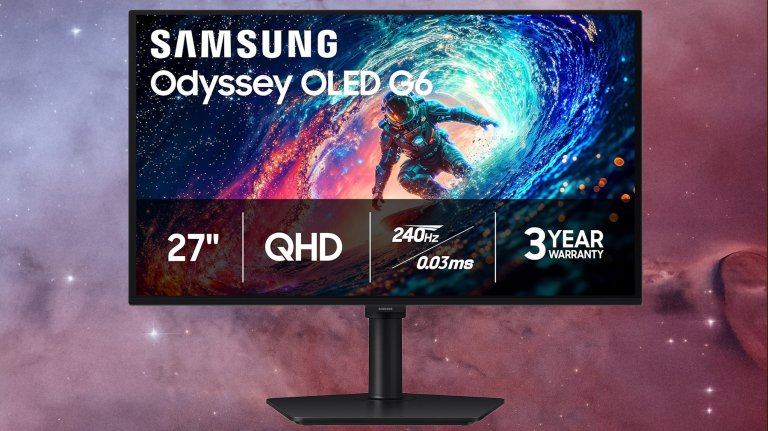
OLED pixels switch off completely to create intense black levels, which is the reason to pick the Samsung 27-inch Odyssey OLED G6 (G61SH) over the IPS monitors further down. It’s $384.99, $215 under its list price, and Amazon’s listing flags it as the lowest price in 30 days. Samsung’s listing calls it a QD-OLED panel at QHD (1440p) with a 240Hz refresh rate.
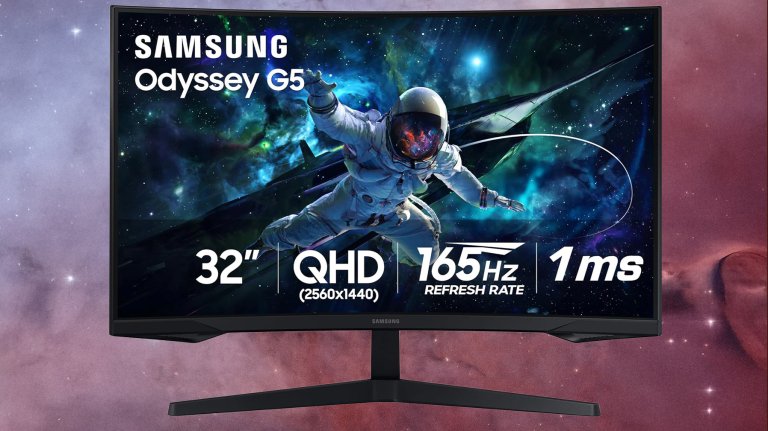
A 32-inch QHD gaming screen for under $200 is a solid deal. The Samsung 32-inch Odyssey G55C fits that description at $189.99, $140 under its list price. Samsung lists a 1000R curve, so the edges of a screen this wide turn back toward your eyes at desk distance. QHD is 2560 x 1440, a real step up in sharpness from a 1080p panel at 32 inches.
Laptop deals
The Lenovo Slim 7i Aura Edition is $999.99 with a 14-inch OLED screen and Intel’s Core Ultra 7 256V, and the Acer Predator Helios Neo 14 is $1,699.99 with an RTX 5070 and 32GB of memory. The MSI Cyborg 17 listing shows a delivery window of Oct. 20 to Nov. 4.
When do the Prime Big Deal Days laptop and monitor deals end?
Prime Big Deal Days ends at 2:59am ET on Thursday, October 8. The Surface Laptop (2026) and most of the other deals here carried an Amazon countdown timer when we checked Wednesday evening, but the Samsung Odyssey OLED G6 listing showed no end time.
Should I buy a laptop now or wait for Black Friday?
The Surface Laptop (2026) is $1,329.97 on Amazon right now, $370 under its $1,699.99 list price, and that Prime member price runs only through the end of Prime Big Deal Days at 2:59am ET Thursday.
Whenever the time comes around to upgrade your phone, tablet, or laptop, you don’t necessarily have to go for the latest (and most expensive) model. You can take the refurbished route instead.
Refurbished tech sits somewhere between brand new and used, although the exact definition depends on where you’re buying from. Typically, these devices will have been returned after a certain period of use, though the length of that period and the extent of the use can vary from gadget to gadget.
What you always get with refurbished devices is a guarantee that they’ve been professionally inspected, cleaned up, and (where necessary) repaired. They’ll come with a warranty of sorts too, so you can be confident they’re not going to fail out of the box. They are often a year or two (at least) behind the latest gadget releases as well.
Crucially, these items will cost you significantly less than buying new, and there’s a good chance they’ll last almost as long too. At the very least, it’s worth looking around to check out current models and prices—here’s how to do it.
The best refurbished tech you can buy
Phones are pretty much the perfect gadget if you’re wanting to take the refurbished route. A constant, annual cycle of new models hitting the market means old models being sold on, and lots of different places to buy from. Any refurbished marketplace you come across will likely have a phones section. You can throw in tablets here too, which are again regularly updated and widely available.
What’s more, year-on-year phone and tablet upgrades are more iterative than they used to be. You’re not really missing out too much by having a phone design or a tablet spec that’s a year or two old—these devices are well supported with software updates for many years by Apple, Google, Samsung, and other manufacturers. That means you don’t need to worry about your refurbished bargain becoming obsolete soon after you’ve bought it.
Laptops are another product category well suited to being refurbished. There’s an even greater choice than with phones and tablets when it comes to specs, designs, and screen sizes, which means you’re likely to be able to find something that fits your requirements without too much searching.
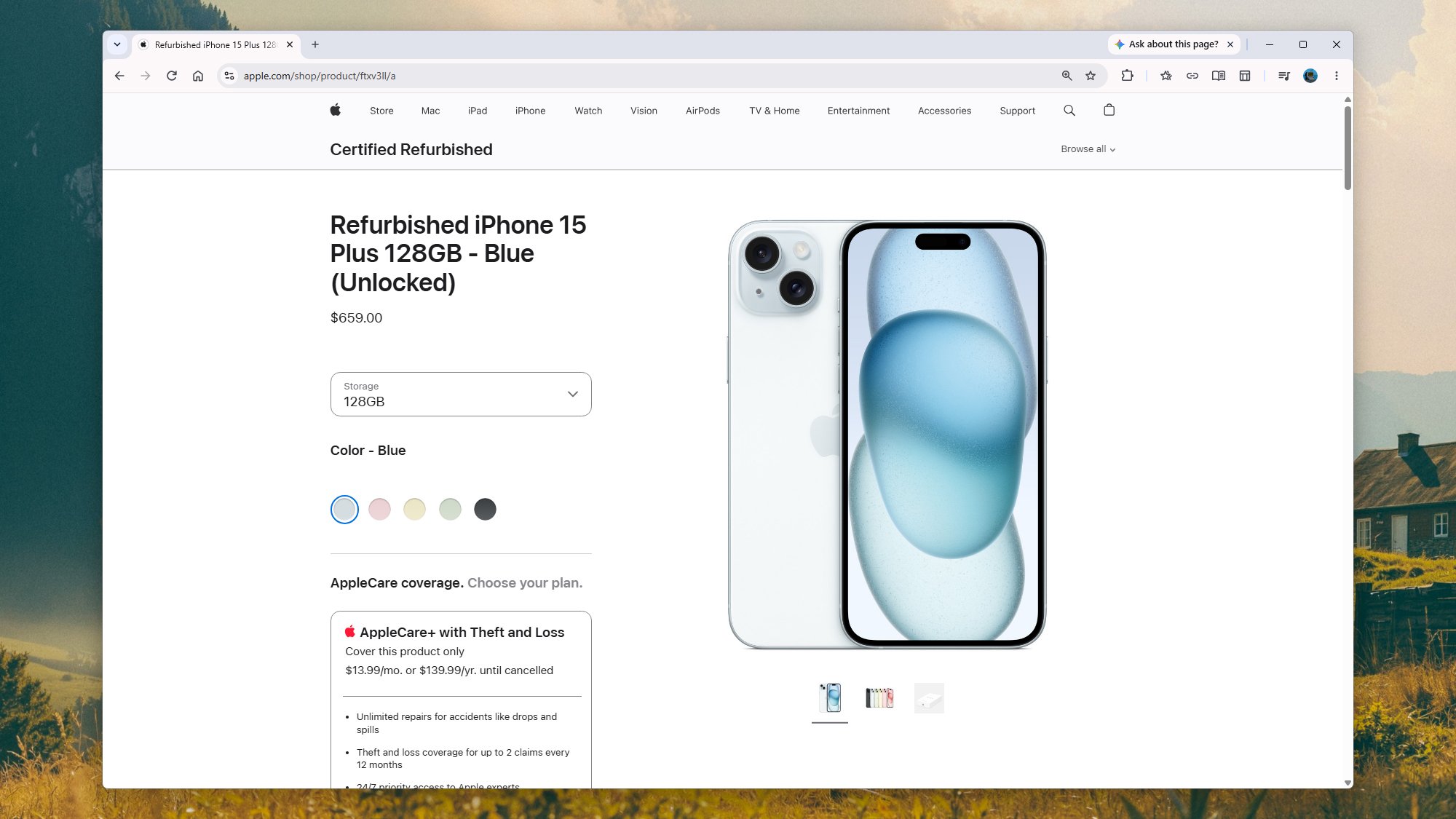
Apple will sell you refurbished iPhones directly. Screenshot: Apple
Games consoles can be bought refurbished too. Here the refresh cycle is much slower—there were seven years between the PS4 and the PS5, and we’re still waiting for the PS6—so you’re not really buying outdated tech, just pre-owned. Older consoles often show up on refurb portals as well, if you want to do some retro gaming.
The tricks to finding a good refurbished gadget deal are all common sense: Buy from a reputable outlet (see below), look particularly closely at the details given for the item condition and the included warranty, and shop around several sites for the best deal.
Give some thought to timing as well. Phones in particular are usually released on a predictable schedule—Google, Samsung, Apple, and others all tend to launch new handsets at the same time each year. So if you’re hearing rumors about product refreshes, you might want to wait until they’ve arrived. It’s always going to have a knock-on effect on the refurbished market, and you might be able to get a later model.
Where to find the best refurbished tech
There are plenty of places to find refurbished tech online, which tells you that plenty of shoppers see the appeal—and gives you the chance to compare prices and save as much money as you can. To begin with, Apple, Google, and Samsung all have official stores for refurbished tech, with one-year warranties as standard.
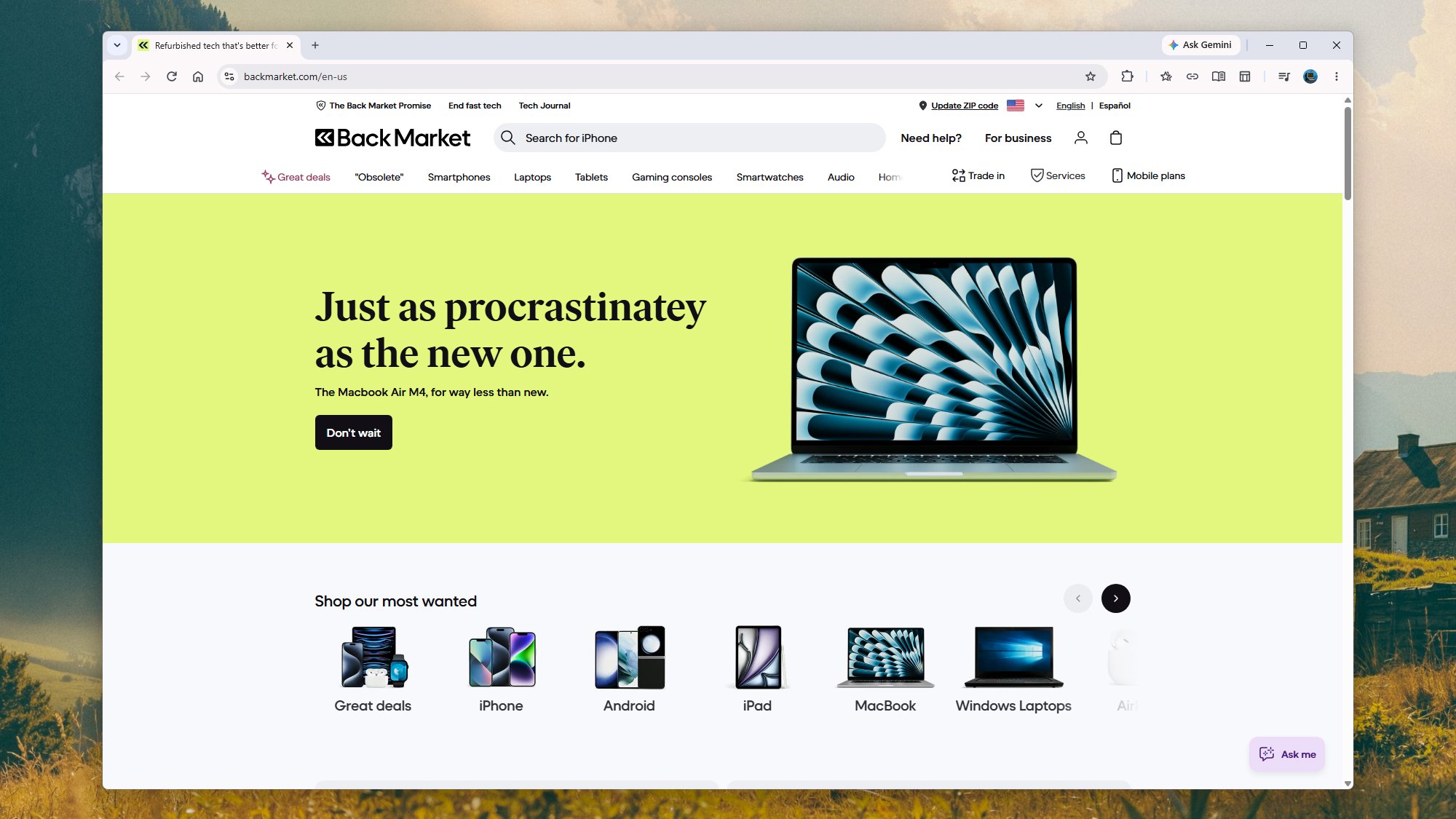
If you’re looking at third-party refurbished tech stores, BackMarket has one of the widest range of gadgets. You’ll find phones, tablets, laptops, consoles, speakers, headphones, smartwatches and more here, and some significant discounts too. As well as a one-year warranty as standard, the site also has a free 30-day returns policy, in case you change your mind about what you’ve bought.
Don’t discount eBay from your searches either. Yes, there are lots of individuals selling old tech here that’s way past its best, but there are also real manufacturers and reliable third-party stores selling refurbished kit through the portal too, covering every category you can imagine—one way to get started on your refurb search is to click the Brand Outlet link at the top, though you can also run a general search.
BackMarket offers a wide range of refurbished tech. Screenshot: Backmarket
Then there’s Swappa, which is another well-respected source of refurbished gadgets. It has a mix of used and refurbished items, and a mix of individuals and professional tech sellers, so be sure to read the listings carefully to know what you’re getting. Reassuringly, all the listings are reviewed by Swappa staff, and the condition of gadgets (plus details of any warranty) have to be clearly stated.
Also worth a look is Amazon Renewed, especially if you’re already used to the Amazon shopping experience, because everything works in the same way. The condition of items and the warranties attached to them can vary, but everything comes with a 90-day guarantee window for returning items if you need to.
Ideally, it’s best to be checking multiple different sites in your search for the best refurbished tech—there isn’t the same consistency of pricing as you’ll find on something that’s brand new, so you can compare different offers against each other (just be sure to check on what else you get for the price, in terms of returns policies and extras).
Auf YouTube findest du die angesagtesten Videos und Tracks. Außerdem kannst du eigene Inhalte hochladen und mit Freunden oder gleich der ganzen Welt teilen.
Nvidia has released a free tool that will enable users to build an AI inferencing cluster from disparate PCs on the same network, accessible from a single interface.
Released as a beta, Nvidia Personal AI router (PAIR) connects devices running Windows, macOS or Linux to process AI inferencing workloads privately.
While the system is aimed primarily at home users, it could find favour with enterprises looking to put idle desktop compute capacity to use.
PAIR works with DGX Spark desktop supercomputers, PCs containing RTX GPUs, and some MacOS devices. The systems in the cluster run tasks in parallel, but PAIR does not turn them into a virtual GPU, Nvidia said.
David Pogue’s authoring style turns Apple: The First 50 Years turns what could have been names and dates into a richly illustrated journey through Apple’s successes, failures, products, personalities, and untold stories. The print edition combines rare photos with approachable narratives and clever sidebars, while David’s audiobook narration, musical touches, and energetic performance add a different dimension to the story, making the audio edition a must-listen. Get both to have the full experience.
This edition of Foreshadowing Tech considers how so many AI speculations from Colossus: The Forbin Project have come true in both surprising and subtle ways. Regular panelists Chuck Joiner, Marty Jencius, Jeff Gamet, are joined by guest AI enthusiast Jill McKinley to look at how the film predicted things like machine autonomy, surveillance, privacy and self-improving systems. Wrapped in a thriller that is as much political as it is tech, there are questions about freedom and security that we have yet to address today. The panel mixes film trivia, tech analysis, and unsettling parallels to today’s AI debates in a thoughtful discussion.
A modder has taken the innards of a Steam Deck and put them into a Game Boy-style case
The end result is the 'SteamBoy', although it's not quite finished (the screen doesn't yet work)
There's a lot of excitement about this DIY project, and some gamers have even said they'd be keen to buy a retro handheld like this
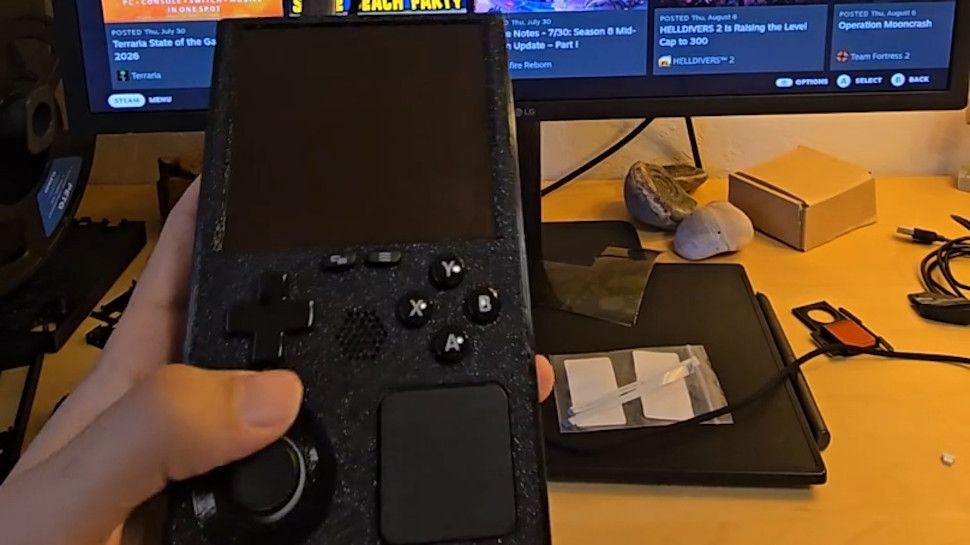
Ever wished the Steam Deck looked a bit more retro — or indeed a lot more retro? Meet the 'SteamBoy', which takes the innards of Valve's handheld and transplants them into a case styled on the Game Boy.
The SteamBoy uses the motherboard, controller, buttons, speakers, and battery from the Steam Deck, fitting the components into a case which the maker says is the same dimensions as an original Game Boy, with a thickness of 32mm (yes, it's thick).
PhyFawkes explains: "The battery is the original battery, and it basically takes up the whole width of the device on the inside. It's sandwiched between the motherboard and the display. The motherboard and controller boards are completely intact as well."
The only element that isn't functional yet is the screen, so this device is still a work in progress. The Redditor has demonstrated it working on an external monitor, though.
Analysis: next stop Kickstarter?
(Image credit: PhyFawkes on Reddit)
The snag with getting the screen going is that the motherboard firmware reports the display properties directly to SteamOS, and so the firmware details must be updated with the info for the new screen. The Redditor says it hopefully it won't take too long to sort this out.
Another part of the recipe that's missing is the triggers, but PhyFawkes says that they might be able to add them eventually, but that space constraints with the case could make this too tricky a proposition.
Apparently the handheld runs cool enough with some slight under-volting. All in all, this a very smart-looking project, and I'm seriously impressed. The case itself is 3D-printed, with the Redditor noting that they're going to provide the details on how to make one for those who might want to try their hand at this enterprising piece of handheld DIY.
Of course, constructing something like this is well beyond the scope of your average gamer, and there are fans of this concept out there who'd be willing to pay money for a SteamBoy of their own. Plenty of them, in fact, as the reception for this project has been nothing short of glowing.
As someone on Reddit put it: "This is legitimately so cool. I would totally back something like this on Kickstarter."

 Login
Login