❌

Reading view

ChatGPT Dots Gain Widget and New Shortcuts Actions
Late Friday, OpenAI updated the ChatGPT app on iOS and iPadOS with a new widget for your Dot and Shortcuts actions that let you control it three ways. The implementation is really well done and adds automation options worth considering.

First of all, the Dot widget is about as simple as it gets, but also very useful. I have the ChatGPT app set up to drop me into its Codex view because that’s typically how I use the app. I open Codex, check on a long-running project, and provide whatever input is necessary to keep things moving.

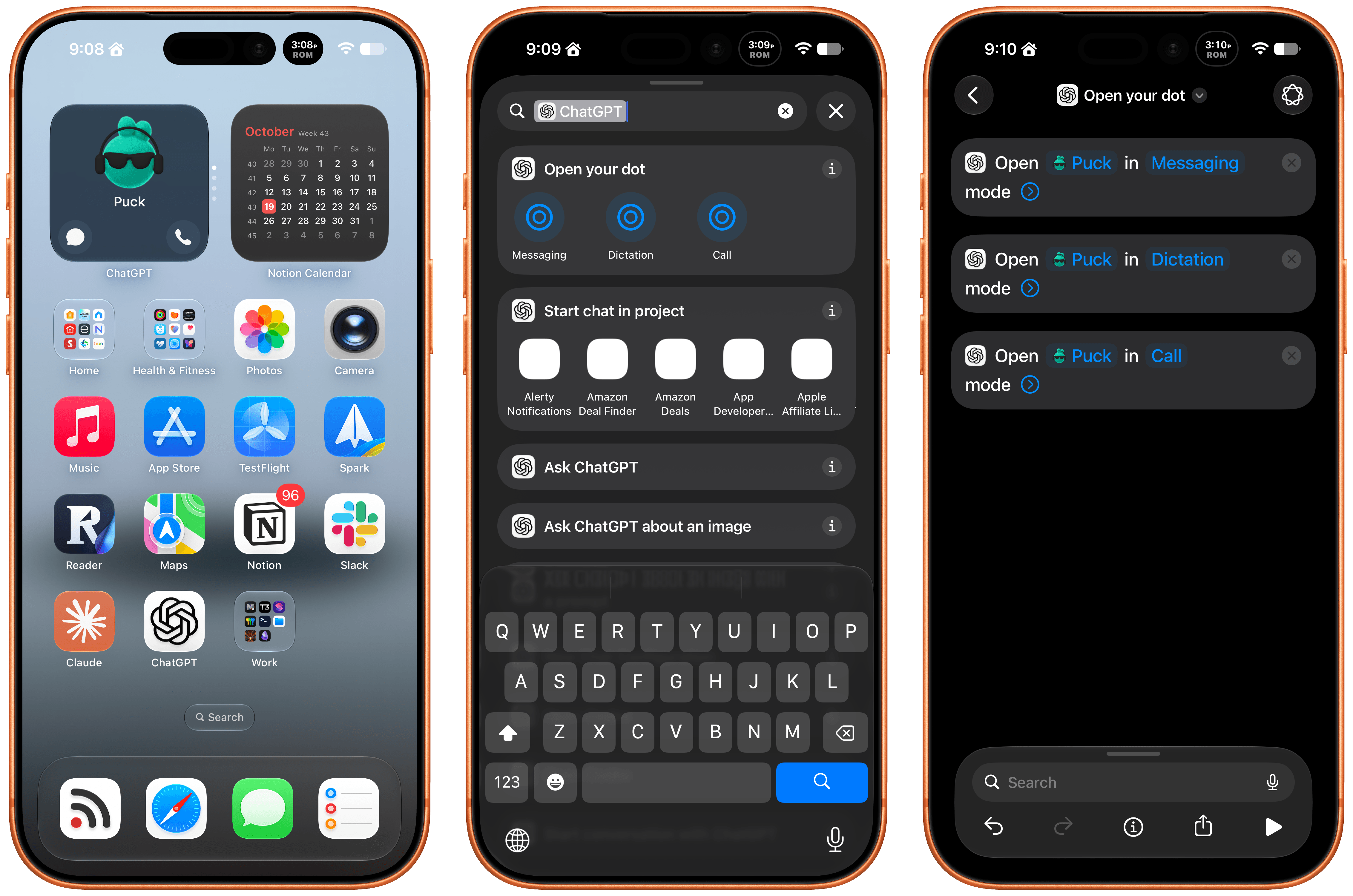
The problem I’ve run into is that I’ve been using my Dot, Puck, more and more to kick off research, ask one-off questions and check in on things like my email. Landing in Codex means tapping around more, which I can avoid now with ChatGPT’s new small-sized widget. The widget has two modes. The first simply shows your Dot’s avatar, and tapping on it opens your Dot’s message thread. However, if you edit the Dot, you can toggle on the “Show shortcut button” to display messaging and voice buttons beneath your Dot, adding the option to start a voice call with your Dot. As simple as this is, it’s been great to have the option to start in Codex via the ChatGPT app or check in with my Dot thread using the widget.

The other interesting feature is a trio of Shortcuts actions to message, dictate, or call your Dot. Each action has two parameters: the name of your Dot and how you want to communicate with it. That first parameter is an interesting one because tapping on it opens a list with your sole Dot in it because currently, you can only have one Dot. However, it also strongly suggests that the ability to set up multiple Dots is on the horizon, which OpenAI clearly telegraphed during its DevDay. After all, why have a parameter that opens a list unless there’s more than one choice?
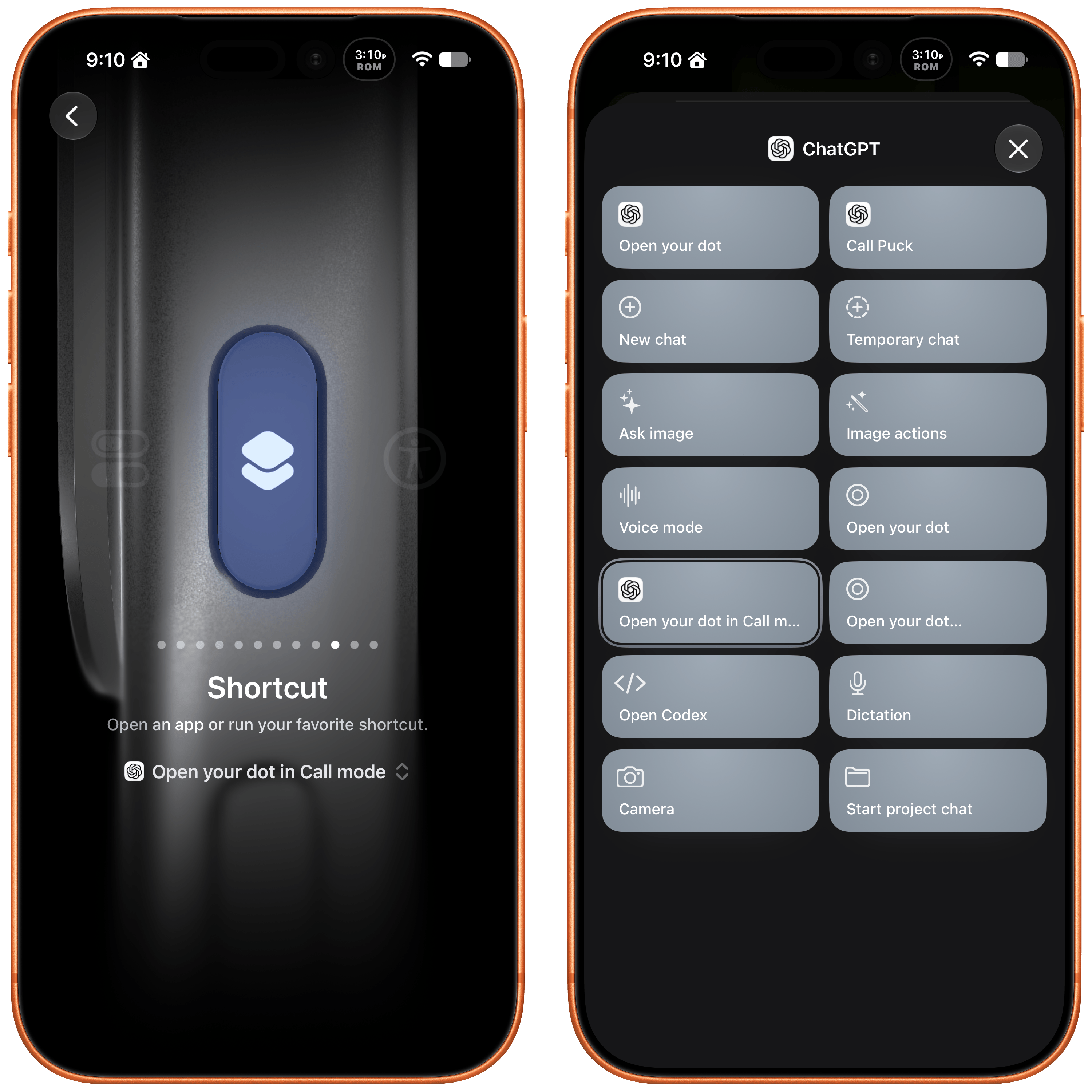
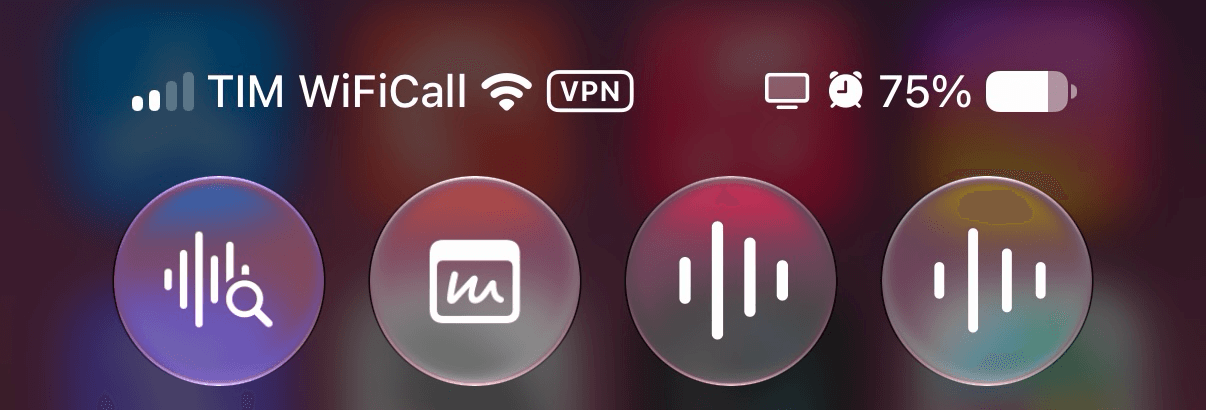
I've set my Action button up to call my Dot.

I’ve set my Action button up to call my Dot.

The actions can be used in your shortcuts, are accessible from Spotlight Search, and most interestingly can be tied to an iPhone’s Action button, allowing you to visit your Dot’s thread in any of three ways. I’ve set my Action button up to start a Dot call. I often think of tasks and have ideas for research topics when I’m out for a walk, and I want to see if having brief calls with my Dot is an effective way to get a jump on those ideas, so they’re waiting for me in ChatGPT when I get home.

These actions and widgets are an excellent addition to OpenAI’s app and a cut above Anthropic’s more barebones approach to widgets and Shortcuts. I would, however, like to see Dots integrated even deeper into Shortcuts. The Shortcuts actions only open your Dot thread in one of the three modes. I’d love to be able to connect Dots to other apps with actions that accept input from other sources and produce outputs that can be used in other actions.

While I’m making requests, I still think multiple Dots need to be supported sooner rather than later, and OpenAI needs to provide a better mechanism for switching between Macs if you use a Dot with multiple computers. Plus, Dots are still a little buggy, with scheduled tasks failing too often and for reasons that aren’t always clear.

That said, the latest update is worth checking out if you’ve found Dots helpful. The strength of Dots is that they’re everywhere you can access ChatGPT, and now with widgets and Shortcuts actions, getting to your Dot in each of those places is easier than ever.
  •  

HomeView Points to Siri AI as the Next Developer Platform

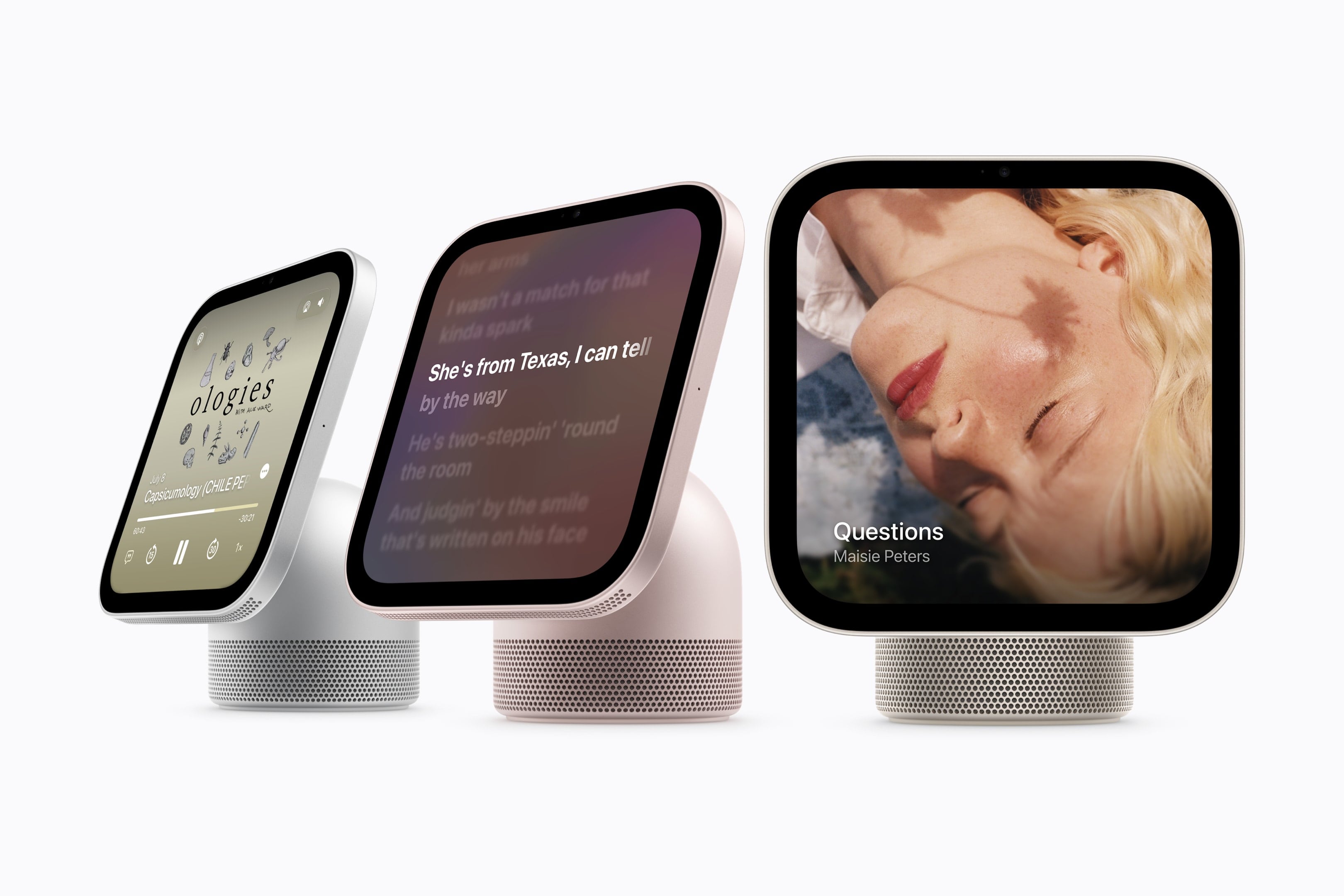
Source: Apple.

Source: Apple.

Yesterday, Wired reported that third-party apps with CarPlay functionality would be available on Apple’s new HomeView device. That struck me as odd. I was expecting, and I think many others were at least hoping, that the HomeView would be a new platform for building apps. And while strictly speaking that doesn’t seem to be the case, in an entirely different way it is. Here’s what’s going on.

Apple’s original press release caused some confusion because it doesn’t spell out the CarPlay angle. Instead, it simply says that the HomeView supports “compatible third-party audio and video apps,” and “[s]elect apps require a paired and compatible iPhone nearby,” which is also a CarPlay requirement. That press release also mentioned the HomeView’s ability to use widgets and access personal context without ever mentioning whether that applies to third-party apps.

Well, now we have some answers to most of these questions. First of all, Apple documents out-of-the-box support for audio and video apps, rather than the full range of CarPlay categories. That’s further supported by Katarina Mogus’ interview with Apple’s Cecilia Dantas, which draws a straight line between third-party video apps and CarPlay support.

Second, the Human Interface Guidelines have been updated to address which widgets can be used with the HomeView:

On Apple HomeView, people can place widgets on the Modular face and the Home Screen. Widgets on HomeView are from the small system family, and share the appearance of iPhone widgets. A person chooses widgets from among those already installed on HomeView, like Weather or World Clock, or from their individually connected iPad or iPhone.

As for whether Siri can access third-party data and actions, I suspect the answer is yes. Apple’s press release called out personal context specifically, which was confirmed by Apple’s Kaiann Drance and Lilian Rincon in an interview with Reuters. So, for example, you can presumably use the HomeView to retrieve an old message from the Messages app on your iPhone. The Q&A section on the HomeView product page also mentions taking action across apps with Siri. That strongly suggests that the HomeView’s functionality will be the same as the new HomePod mini 2’s when it gains Siri AI capabilities, even though I haven’t seen anything from Apple that addresses whether that sort of Siri integration extends to third-party apps directly.

So, as of today, Apple has documented support for CarPlay audio and video apps and small widgets. I suspect Siri AI will provide another route, too. That limited app model may disappoint some, but I think it points to where personal assistants are heading. Apps aren’t going away, but the need for a separate app on every device is.

Siri, with apps integrated through App Intents, is emerging as a new UI. Developers who have adopted that technology already give users ways to interact with their apps beyond the apps themselves. I expect HomeView will extend that opportunity even further without requiring developers to build for an entirely new device. If it does, that’s a win for developers and users alike, and perhaps just the tip of the iceberg in a world where computing extends beyond apps.

  •  

MacVoices #26278: Live! – Apple HomeView: First Impressions, Features, and Buying Decisions

Apple’s new HomeView takes center stage (no pun intended) as the panel examines its design, features, pricing, and potential role in the smart home. From tabletop and wall-mounted models to HomeKit integration, FaceTime, calendars, and home automation, the discussion explores practical uses and limitations. Panelists who have already ordered HomeView share their buying decisions, while […]

💾

  •  

OpenAI Updates ChatGPT for iOS with Customizable Widgets for ChatGPT Work and Codex Remote

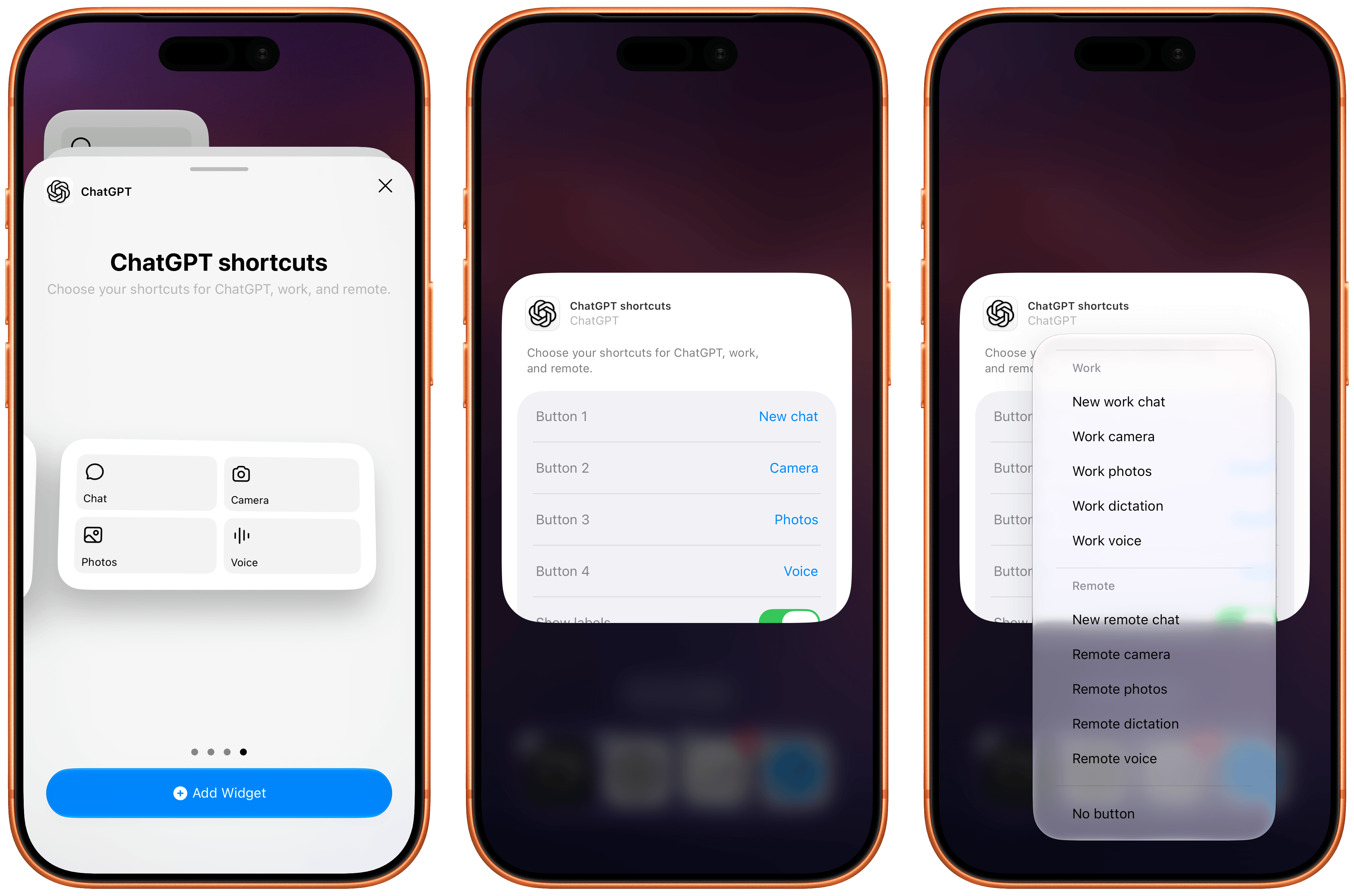
The new ChatGPT widget for iOS.

The new ChatGPT widget for iOS.

The most recent update to the ChatGPT app for iOS has introduced a new feature that will make those who rely on the company’s AI assistant for work-related tasks quite happy: a customizable widget that lets you control which shortcuts can be placed for convenient access on the Home Screen.

The new widget is called ‘ChatGPT shortcuts’, and it comes in two sizes – small and medium. Alas, the company didn’t add support for large widgets on iPhone yet, nor did they roll out an XL widget for iPad users. I hope more sizes will be coming soon. Unlike the existing ‘ChatGPT’ widget, the new one allows you to personalize which shortcuts are visible on the Home Screen. Once added, long-press the widget, select ‘Edit Widget’, and you’ll be presented with options to choose which buttons you want to show and whether labels should be displayed underneath them or not.

What’s especially nice about these widgets is that they cover the full spectrum of “ChatGPT surfaces” now offered by OpenAI: Chat, Work, and Codex Remote. For each, you can swap default buttons for the following ones:

  • Chat
    • New chat
    • Camera
    • Photos
    • Dictation
    • Voice
  • Work
    • New work chat
    • Work camera
    • Work photos
    • Work dictation
    • Work voice
  • Remote
    • New remote chat
    • Remote camera
    • Remote photos
    • Remote dictation
    • Remote voice

I’m a huge fan of Codex Remote for iOS and iPadOS: as things stand right now in the AI industry, OpenAI’s Remote “app inside an app” for iPhone and iPad is the only intuitive, full-featured solution to start new chats in a remote agent running on macOS directly from iOS and iPadOS. (I am as surprised as everyone else that Anthropic, who were first to the “remote control” space, haven’t shipped a comparable experience in Claude for iOS. Supposedly, that is coming “soon”.)

What do you want to open – Voice or Voice?

What do you want to open – Voice or Voice?

Even more impressively, Remote voice (a version of ChatGPT Voice that runs in Codex on the Mac and lets you have bidirectional conversations from the iPhone while the agent is running on the Mac and orchestrating threads there) can now also be accessed from Control Center and the Lock Screen via a dedicated control. Unfortunately, this control has the same icon as regular ChatGPT Voice (which runs in the cloud, not on your Mac). I know: it can all be very confusing, and I hope OpenAI brings some clarity to these icons soon. On a similar note, I wish OpenAI’s iOS team also offered the widgets’ new shortcuts as proper actions in the Shortcuts app. Right now, these launchers are only available from the Home Screen.

The new customizable widgets are the latest entries in a larger push by OpenAI to improve the performance of Codex Remote on iOS and other design changes for iPhone and iPad users. The ChatGPT app recently received a redesigned ‘latest photos’ picker in Chat and Work modes (long-press the + button in the text box, and you’ll see), a tweaked reasoning selector, and the cloud browser we covered earlier this week on MacStories.

  •  

Lock Launcher Introduces “No Redirect” Launchers, XL Widgets for iOS 27

My Home Screen setup with Liquid Glass widgets powered by Lock Launcher.

My Home Screen setup with Liquid Glass widgets powered by Lock Launcher.

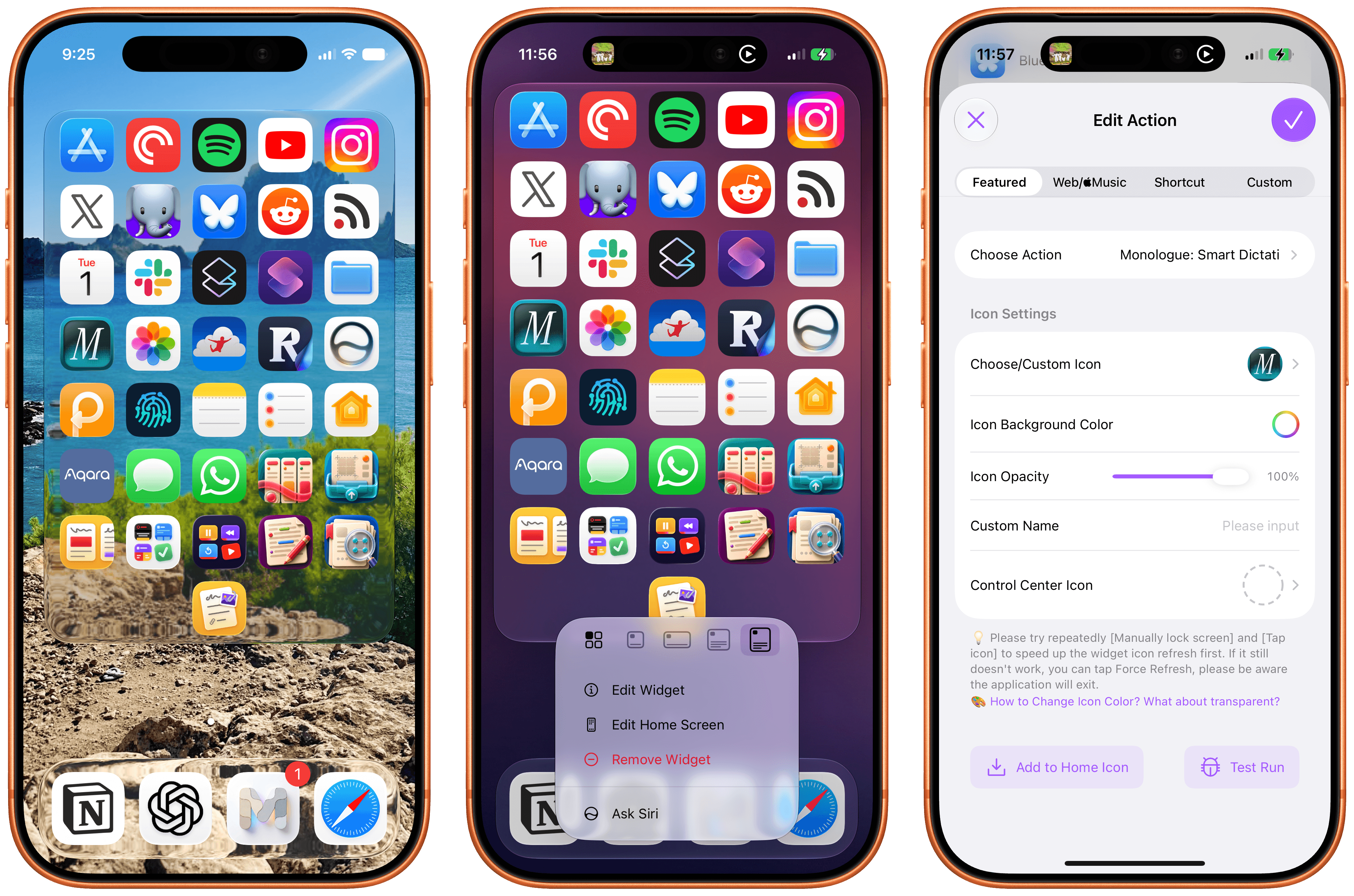
I don’t think I ever mentioned it on MacStories (although I probably did at some point on AppStories or Unwind), but my favorite “launcher” app for iOS is a utility called Lock Launcher, which I’ve been using on and off for the last couple of years. Lock Launcher started as an app for adding URL schemes to the Lock Screen a few years back, and it gradually evolved into a comprehensive “widget studio” app to design launcher widgets of all kinds for the Home Screen, Lock Screen, Dynamic Island, Live Activities, and more.

Anyway, I’m covering the app on the site today because it was updated with two features that I didn’t think were possible or allowed on the App Store, and I want to highlight them for our readers. I’m not really sure how the developers were able to add these features to the app; you may want to download it from the App Store quickly, just in case.

For starters, Lock Launcher now lets you create launcher shortcuts that open apps directly and immediately, rather than redirecting you to the Lock Launcher app first.

For years now, launcher apps on the iPhone have had to employ this workaround: you’d tap on a shortcut that opened, say, Ivory, but you would see the launcher app flash onscreen briefly before redirecting you to the actual destination app you selected. Somehow, Lock Launcher is now circumventing this limitation with a ‘Direct Open’ mode that I haven’t seen in other launcher apps for iOS. That sequence of widget, host app, and destination app was, ultimately, the reason why I always stopped using third-party launcher apps, and I love that it’s been removed by Lock Launcher.

Launching apps without redirects via Lock Launcher.

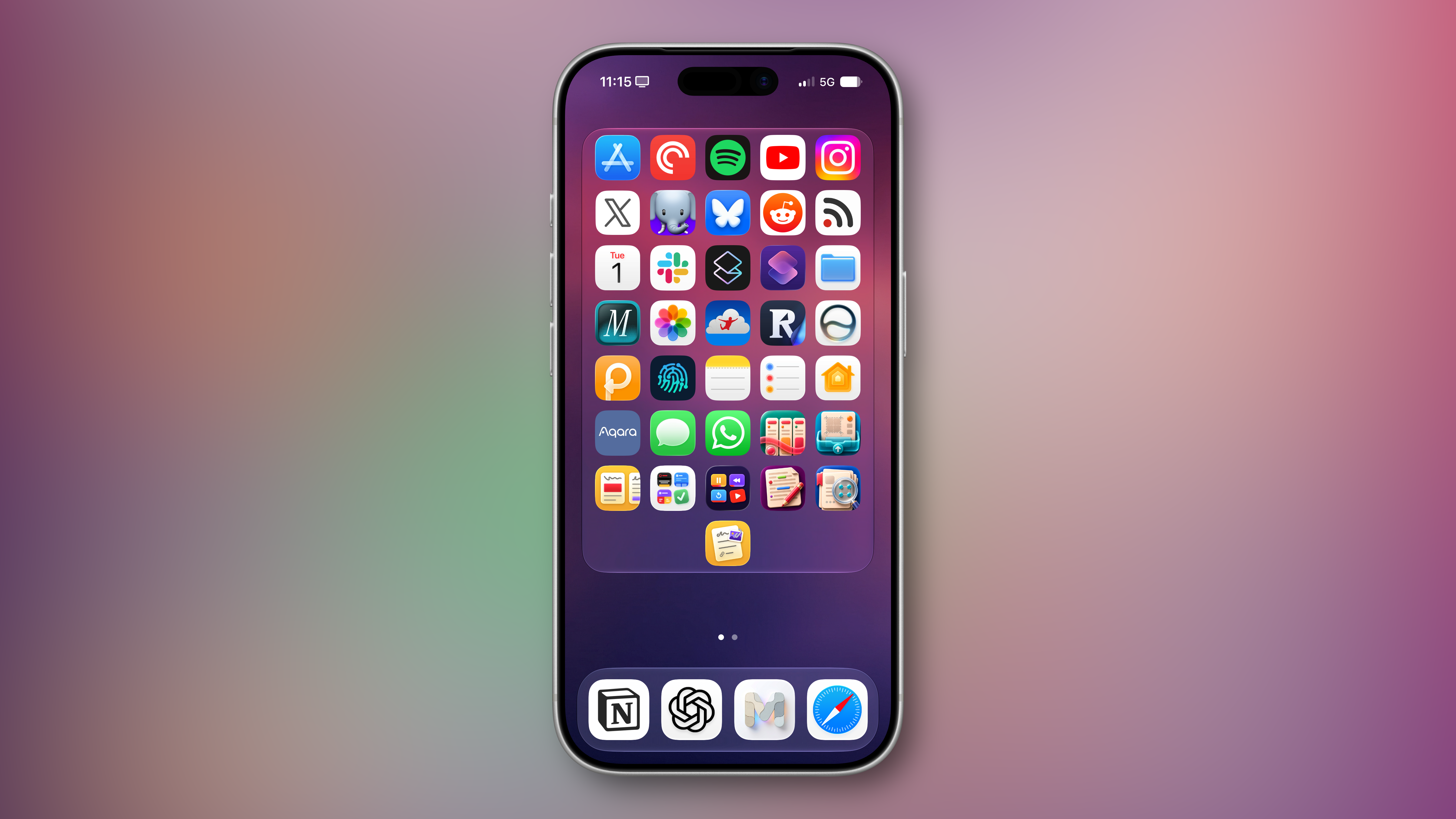
At long last, I’ve been able to create a dense Home Screen with 40 icons (36 in the widget plus 4 in the dock), and they all launch directly when tapped.

My new Home Screen powered by Lock Launcher.

My new Home Screen powered by Lock Launcher.

The screenshot above brings me to the second feature added in the version of Lock Launcher currently available on the App Store: XL widgets on iPhone in iOS 27.

Now, as far as I know, if an app wants to adopt an API exclusive to a future version of iOS, it typically needs to be built against that version’s SDK using the corresponding Xcode beta. However, the App Store isn’t currently accepting apps built with the iOS 27 SDK. And yet, the Lock Launcher developers must have figured out a way to support the new systemExtraLargePortrait widget size and make it work on devices running iOS 27 even though the app was built with the iOS 26 SDK. My best guess: they’re using a workaround that involves visionOS 26 APIs, since the Vision Pro received support for that family of widgets last year. (I’d love to know more about this.)

These two features, combined with the ability to apply the Liquid Glass material to widgets for beautiful refractions of the system wallpaper, make Lock Launcher the most powerful and customizable launcher utility on iOS to date. I hope writing about it doesn’t get the developers in trouble.

Lock Launcher is available for free on the App Store, with advanced features available through an optional Pro in-app purchase.

  •  
❌