Como muita gente, mesmo acordando bem cedo na sexta-feira passada, nós do MacMagazine só conseguimos comprar os nossos iPhones Duo com previsão de entrega para o fim de novembro. Isso significava que, hoje (23/10), dia de início das vendas, não teríamos os aparelhos em mãos para fazer o nosso tradicional vídeo de unboxing e hands-on.
A solução foi atípica: fomos à GMS-Store, no Centro Comercial Colombo (em Lisboa), para gravar o vídeo com a unidade de demonstração da loja. A GMS é uma Apple Premium Partner e, sem dúvida, a maior especialista na marca em Portugal. Agradecemos à GMS pela oportunidade e por abrir as portas da loja para a gente!
Aqui está, portanto, o nosso contato inicial completo com o iPhone Duo — um hands-on detalhado e as nossas primeiras impressões:
Na loja havia apenas o modelo branco-estrela (branco estelar, em Portugal), então desta vez não deu para mostrar o céu noturno. Em compensação, conseguimos apresentar brevemente também as duas capas oficiais disponíveis para o iPhone Duo.
Ainda pretendemos trazer mais conteúdo sobre o aparelho para o canal assim que possível. Fiquem ligados! 😊
iPhone Duo
Cores: branco-estrela ou céu noturno Armazenamento: 256GB, 512GB, 1TB ou 2TB
NOTA DE TRANSPARÊNCIA: O MacMagazine recebe uma pequena comissão sobre vendas concluídas por meio de links deste post, mas você, como consumidor, não paga nada a mais pelos produtos/serviços ao usar os nossos links de afiliado.
A Assistência de Conectividade (Connectivity Assist) chegou aos iPhones e iPads com o iOS/iPadOS 27 — uma evolução do antigo recurso Assistência Wi-Fi.
Como o próprio nome indica, esse recurso ajuda você quando a rede Wi-Fi está instável ou lenta, usando dados celulares para melhorar a conexão.
Caso você se preocupe com o uso de dados celulares, talvez seja interessante desativar esse recurso. Mas, ainda que esse ajuste possa ser ativado e desativado para todo o sistema, a Apple também permite configurá-lo individualmente para cada rede — ou seja, você pode mantê-la habilitada em uma e desabilitada em outra.
O iOS/iPadOS 27 trouxe algumas novidades pequenas, mas muito interessantes para quem utiliza iPhones ou iPads diariamente.
Uma delas é que, na tela de informações sobre a rede Wi-Fi conectada no momento, é possível visualizar qual o tipo dessa conexão sem fio (Wi-Fi 5, Wi-Fi 6 ou até o avançado Wi-Fi 7).
Apple’s iPhone User Guide for iOS 27 explains how to record a phone call when you are talking to one other person, with the recording saved to the Notes app. Apple also lists where call recording is not available: Azerbaijan, Bahrain, Egypt, the European Union, Iran, Iraq, Jordan, Kuwait, Morocco, Nigeria, Oman, Pakistan, Qatar, Russia, […]
Apple’s iPhone User Guide explains how to share your screen, ask to see someone else’s screen, or remotely control it during a call in the Phone app. Apple says both you and the other participant need iOS 26 or later, and that remote control is not currently available in the European Union. The feature is […]
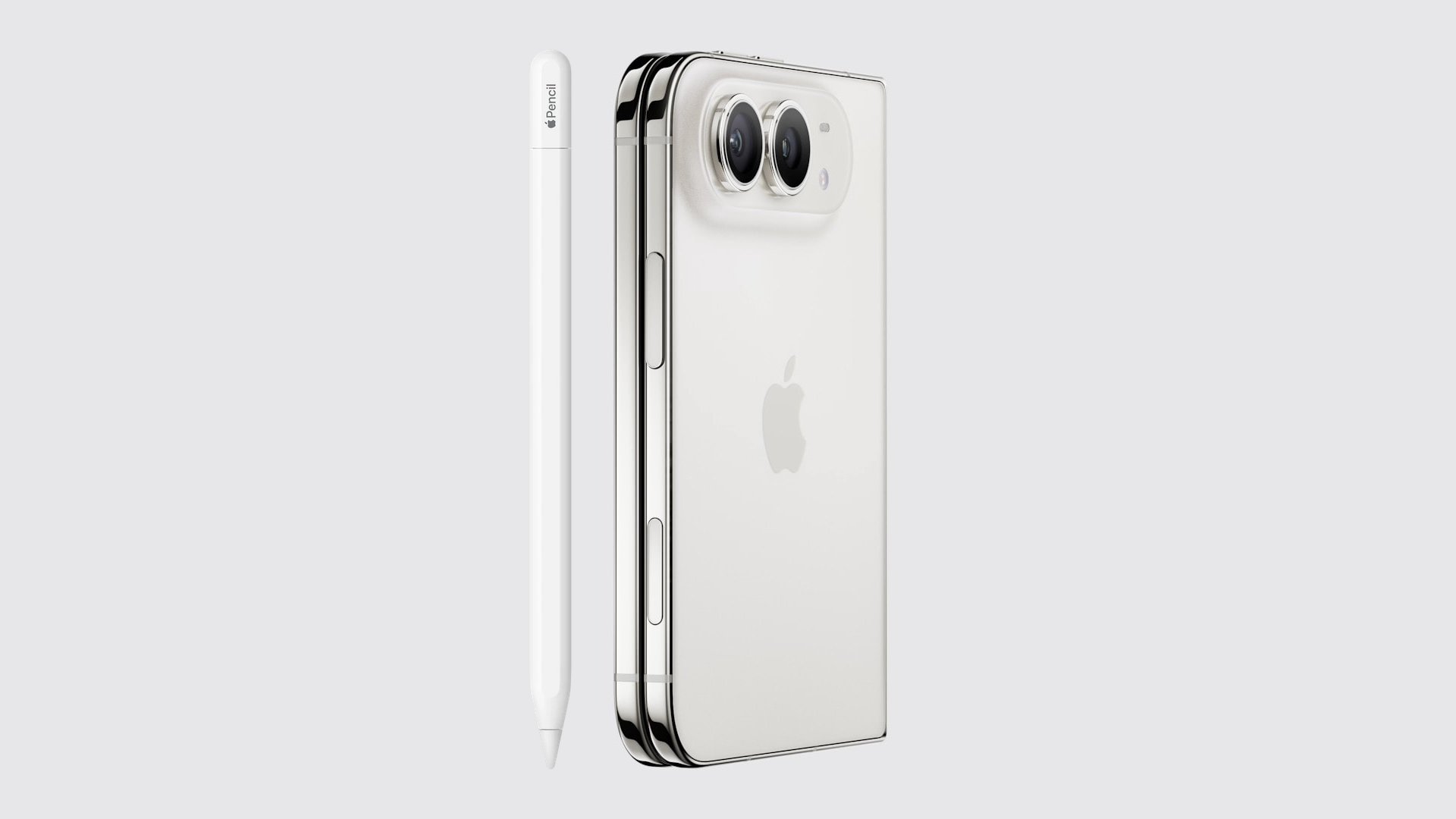
As noted by Creative Strategies analyst Max Weinbach, the iPhone Duo is gaining Apple Pencil support with iOS 27.2, which is expected to be released to the public next week. You can use the USB-C version of the Apple Pencil to draw, annotate, and scroll within supported apps on the iPhone Duo's inner and outer displays.
In a post on X, Weinbach confirmed that Apple Pencil support was enabled on his iPhone Duo once he installed the iOS 27.2 Release Candidate version.
Apple’s iPhone User Guide for iOS 27 explains how to use Live Translation during a call in the Phone app, so you can hear and read a spoken and text translation in your preferred language. Apple says the feature is powered by Apple Intelligence and works on one-on-one calls in the languages Apple lists, on […]
Apple’s iPhone User Guide for iOS 27 explains how to export your passwords for websites and accounts to a CSV file, which you can then import into another password manager. The option sits in the Settings app under Apps, then Safari, and Apple warns that the exported file is not encrypted. That makes the export […]
iPhone Preview brings everyday PDF tasks into one built-in app, from rearranging pages to preparing a smaller attachment. Introduced with iOS 26, it remains available in iOS 27, whose user guide provides the instructions used here.
Apple’s Preview app can open PDFs directly, reorganize their pages, rotate or crop individual sheets, delete unwanted pages, insert new ones, complete forms, add signatures, protect documents with passwords and export smaller copies for sharing.
It can also scan paper documents directly into a PDF and combine multiple pages into one file.
That makes Preview surprisingly capable for common workflows such as signing a contract, cleaning up a scanned document, reducing an attachment before emailing it or rearranging pages in a report.
Start with the task your document requires. Rearranging pages, adding a signature and preparing an attachment are different from rewriting an existing paragraph or meeting a publisher’s production requirements. Preview’s documented tools cover many routine changes, while more specialized work may require a separate editor.
Image Credit: AppleMagazine
iPhone Preview Lets You Reorder, Delete and Crop PDF Pages
Page management is particularly useful for scanned documents. A report may contain a sideways sheet, an attachment in the wrong position or an empty page that needs removing before the file is shared.
Open a document in Preview and tap the page count to reveal its thumbnail view.
From there, a page can be moved simply by touching and holding its thumbnail and dragging it above or below another page.
That makes fixing a scanned contract or report straightforward when pages were captured in the wrong order.
To reorganize a document:
Preview > open PDF > tap page count > touch and hold a page thumbnail > drag it into position
The same thumbnail menu can delete a page entirely.
Touch and hold the unwanted thumbnail, then choose Delete Page.
Preview can also insert material into an existing document. The thumbnail menu offers options to add a blank page, import a PDF or image from Files, or scan additional paper pages with the iPhone camera.
That means a form missing one attachment can be repaired without recreating the complete PDF.
Rotation is equally direct.
Open the relevant page, tap the More button and choose Rotate Left or Rotate Right.
Cropping works on a page-by-page basis:
Preview > open PDF > select page > Crop > adjust the blue handles > Crop
This is particularly useful for scanned pages with oversized borders, desk surfaces or other material around the document.
Apple also provides Undo through the More menu, making these edits less intimidating when working on an original file. For documents that cannot easily be replaced, creating a duplicate first remains the safer approach.
Image Credit: AppleMagazine
Fill Forms, Add Signatures and Lock the Finished PDF
Preview also consolidates several document tasks that iPhone users may already recognize from Markup.
Fillable PDF forms can be completed directly inside the app. Text fields, checkboxes and other supported form elements can be selected and edited without converting the file into another format.
Signatures use Apple’s familiar Markup system.
Open the document’s signature controls and choose Add Signature. When using Markup, tap the Add (+) button first, then select Add Signature. Choose a saved signature or draw a new one with your finger; rotating the iPhone gives you more room.
A saved signature can then be positioned and resized on the document.
For recurring paperwork, that makes Preview useful for forms that arrive through Mail or Files and need to be returned quickly.
Preview > open PDF > Actions menu beside filename > Lock
Enter the same password in the Password and Verify fields, then confirm the change.
Apple automatically enables the password requirement when the file is locked.
This protection prevents someone without the password from opening the PDF normally and helps protect completed work from unauthorized access.
There is an important practical step before doing this: duplicate the document if you want to preserve an unprotected copy.
Preview > Actions menu > Duplicate
A password-protected PDF is only useful if the password itself can be recovered later. Losing it can make the document inaccessible, so the credential should be stored somewhere secure.
Preview Can Compress a PDF Before You Send It
Large PDFs are another problem Preview addresses without requiring a separate compression website.
Open the document, tap the Actions menu beside its filename and choose Export.
When PDF is selected as the output format, iOS 27 offers several options that can reduce file size.
Optimize Images for Screen lowers image resolution for documents intended primarily for display rather than high-quality printing.
Save Images as JPEG can reduce the size of embedded images further by using JPEG compression.
Two other export options serve different purposes. Create Linearized PDF optimizes a document for faster web loading, while Embed Text applies optical character recognition, or OCR, to make image-based content searchable.
Choose those options for loading behavior or searchability, rather than assuming they will produce the smallest attachment. For file-size reduction, the image optimization settings are the relevant controls.
The practical workflow for a smaller email attachment is:
Preview > open PDF > Actions menu > Export > PDF > Optimize Images for Screen > Save
Adding Save Images as JPEG can shrink image-heavy files further when maximum image fidelity is unnecessary.
These image-reduction options can sacrifice detail. Lowering resolution or using JPEG compression may affect small text, fine lines and photographs, so compare the exported copy with the original before sending it.
A document containing mostly text may shrink only modestly. A scan filled with high-resolution photographs can show a much larger reduction.
Preview also exports files into formats including HEIC, JPEG, PNG and TIFF when a PDF needs to become an image instead.
When exporting a PDF to an image format, resolution can be selected manually, giving users additional control over the balance between detail and file size.
Image Credit: AppleMagazine
Where Preview Still Falls Short of Adobe Acrobat
Reopen the exported file before sending it. Check the page order, orientation, completed fields and signature placement. Zoom in on small text and diagrams, especially if you reduced image resolution. The useful result is a document that remains readable and complete, not simply the smallest file you can create.
Keep the original under a different filename so you can produce another version if needed. A copy prepared for email may not be the best version for printing or archiving. Names such as “Application — Original” and “Application — Email Copy” help distinguish the files when they appear together in Recents.
If the task involves changing existing document text or satisfying a specific submission requirement, confirm that your chosen tool supports it before proceeding. For routine page organization, form completion and sharing, a checked Preview export may be all you need.
… which simply returns tool, because the URL returned is relative to a base URL.
[…]
I’ve always found it not-completely-obvious to newcomers how to get a standard file path string from a file URL and this only makes it more confusing.
There are at least three issues here:
url.path returns an absolute path, but url.path(percentEncoded: false) returned a relative path as of his writing. I tested this on macOS 26, and now it returns an absolute path. The documentation now says, “This function will resolve against the base URL.” It seems the behavior of the method changed without it being documented when, so be careful if you’re deploying to a mix of OS versions.
percentEncoded has a default value of true, whereas path did not return an encoded string. In other words, url.path() and url.path are completely different. So this is another case where Apple updated the API but flipped the default—a good way to introduce bugs.
It’s not obvious how to get the full file system path out of a URL. With NSURL, url.path was natural and did the right thing. Now, the URL equivalent is deprecated.
The natural replacement, url.path(), is wrong. So is Xcode’s recommendation of url.(percentEncoded: false).
url.absoluteURL.path(percentEncoded: false) is correct but verbose.
url.absoluteURL.standardizedFileURL.path(percentEncoded: false) is possibly better but even more verbose.
FilePath(url)?.string uses a newer API but gives you an optional, even though for a file URL it should never fail.
This seems like such basic functionality, but there’s no API that’s the obvious right choice, concise, and ergonomic.
Seven years later, Apple Arcade hasn’t gone anywhere, and Apple itself hasn’t slowed its broader gaming efforts either. Between courting major publishers like Capcom to release their games on Mac to launching a proper gaming app, it’s clear that Apple still has its sights set on being a major player.
The latest example of that came this week as Apple launched an App Store event dubbed Indie Games Week. The week-long initiative saw Apple welcoming games like Vampire Crawlers to iOS and announcing an ambitious mobile version of No Man’s Sky. At the center of that push was Carson Oliver, the new head of App Store Worldwide following Phil Schiller’s sudden departure from the role this past August. The fact that one of his first acts in the role was spearheading an indie gaming showcase hints at where Oliver’s priorities might lie.
[…]
While Oliver sells the narrative with carefully worded precision, questions still linger around Apple’s wider gaming efforts. Continued investment in mixed reality gaming is uncertain given that Apple has reportedly cut down production of its Vision Pro headset due to underwhelming sales. And though Apple continues to court publishers and get games on iOS, we haven’t seen the full-throated support from major players like Capcom and Ubisoft in 2026 that was crucial to raising Apple’s gaming profile in 2023.
Get to know Apple’s Photos app and how best to use it to import, manage, edit, sync, and share your photos in macOS 27 Golden Gate and iOS 27/iPadOS 27! Following the expert advice of Jason Snell, publisher of Six Colors and former lead editor at Macworld, you’ll learn how to navigate Photos like a pro!
The biggest updates this year were about the three new AI-based photo-editing tools, as you might expect.
The ebook is $19.99. Upgrades are $10 for people with editions 1-3, or $5 for Take Control Premium members. While the book has been updated for the 27 operating systems, book buyers also get access to last year’s edition, which is devoted to version 26 OSes.
The odds of this change in standards causing a security breach and your messages being exposed seem unlikely, at least right now. But after scrolling through conversations and seeing what’s going on, I feel Apple has omitted important signals for users when iMessage suddenly stops being used during a conversation.
[…]
The impact of that hit me while revising my book: when iMessage isn’t available, Apple tells you only inline. Despite all the information Messages displays about iMessage being encrypted, the inverse state is faint. This kind of negative knowledge, or information about something not happening, can often be as important as something that does happen. A warning about a fuel tank approaching empty is the kind of information every driver (or pilot) needs, for instance. If you think end-to-end encryption—or Apple-based encryption—is critical for you, then a pop-up message or other warning is what you would expect.
[…]
If you’d like to prevent Messages from downgrading security, you have options, although they may not be fully desirable. All of these are managed on an iPhone at Settings: Apps: Messages. You can’t control these message settings from an iPad or Mac.
This recently happened to my mother, and it was very confusing for her. For unknown reasons, while at home on Wi-Fi, she got signed out of iMessage. But it was not clear to her that this had happened or that she should try to sign back in. She was not aware that the Messages app supports multiple protocols or what the different bubble colors mean. All she noticed was that certain messages (e.g. ones sharing files) would no longer send and that she was not receiving some of the messages that people were sending to her. She saw the inline warning about encryption and interpreted it as that the sender was using a newer form of encryption that her phone didn’t support, so maybe she needed to upgrade.
I went over to take a look and quickly figured out that she was signed out of iMessage, but I couldn’t fix it. I kept getting errors that iMessage couldn’t be activated, even after rebooting the phone. Eventually, much later and again for unknown reasons, activation succeeded.
My concern is that the Retry as Text Message toggle no longer exist. Just a couple of weeks ago my sister sent me an iMessage while I was flying. I was not reachable. Later she told me that messages turned from blue to green.
Like the Trojan Horse, passkeys are legitimately elegant on the surface, but there is something troubling inside.
What’s important to know is that unlike with any other kind of login credential, you do not have ultimate control over your passkeys. With passwords, you can choose where to write them down; with authenticator apps, you can decide for yourself which ones to use (they’re pretty interchangeable); and with physical security keys you can hand them to your colleague if you really trust them. But with passkeys come a hidden dial that lets the websites you use them on gradually remove your ability to do as you please with them.
[…]
This is the feature that means you no longer get to make the calls about your passkeys. Fortunately, attested passkeys are not yet required on most websites. But the FIDO Alliance standard makes attestation a part of the passkey ecosystem, whether you want it or not. And even if the website doesn’t require attestation now, simply by using passkeys you indicate to the website that your setup supports the FIDO Alliance’s passkey standard and that you as a user are capable of using passkeys. This means that once Twitter (formally X) is satisfied that the overwhelming majority of its users would be unaffected, they can flip the switch – perhaps not all at once, perhaps just for ten thousand users at a time so as not to cause a fuss – and start rejecting non-attested passkeys.
[…]
My expectation is that the industry will start off with very few constraints on your passkeys, and gradually add more and more, not all at the same time, but staggered on different sites, and then in a few years people will forget that they were ever offered a choice in which security measures they want to enable on their passkeys (if they even knew there were different kinds of passkeys at all).
[…]
Remote attestation can allow them to verify that your device is not capable of, say, sending and receiving encrypted messages, or running a competitor’s app, or using social media without verifying your ID.
Attestation was designed to attest to a specific device, exclusively at the point of creation, with a specific set of security properties. It doesn’t make sense for synced credentials for a number of reasons, including syncing to devices with different security properties, changes in security properties that happen after key creation, security properties of the sync fabric, sharing the passkey, or exporting to other passkey providers. We’re working hard with W3C and FIDO to solve these problems.
The post is predicated on the idea that a feature of WebAuthn called “attestation”, which is only used in high-assurance and usually corporate scenarios, and usually with physical hardware security keys, will be leveraged to hurt people, somehow.
The post posits that a website like X will bait and switch users: first, you get a passkey. Then, later, scary “attested” passkeys! This simply isn’t possible to do because attestation isn’t supported on the web for mass market, consumer authentication.
Attestation for passkeys (software-based, syncable credentials) is antithetical to their mass market goals, and would freeze out independent, non-corporate-backed credential managers. It’s an explicit non-goal of the designers of passkeys, who work together in a forum anyone can join.
And trust me, websites and apps like banks repeatedly asked for attestation at the beginning of the industry’s passkey journey. The platforms, browsers, and credential management apps have held firm that the goal of passkeys is reducing phishing and not some kind of trusted computing scheme. (And I will note: over my dead body!)
I believe this is not the goal of Mondello and some of the others working on this, but so far I’ve not been convinced that they will be able to control it. It sounds like Apple is working on it, and once the technology is out there, what’s to prevent key sites from forcing it on users? It seems like all this would take is the cooperation of a few big credential managers. This would be to their benefit in the sense that it would make their products required. Smaller credential managers who resisted would be frozen out.
The fact that websites and apps have been asking for attestation just reinforces the main point of the passkeys post! Sure, browsers aren’t supporting it yet, but that’s the sort of thing that can change, and the sort of thing that has changed in the past. See the footnote on Widevine and Firefox. (“Currently not supported” is also very subject to change.)
And we already have sites and apps allowlisting passkey vendors. That’s no theoretical, slippery slope fear -- it’s a real restriction on user freedoms that’s already happening right now.
I don’t think that a couple of bad points (e.g. the TOTP thing) invalidate the main point of the post, because the post wasn’t an argument from authority. The author makes some good points that stand on their own.
To be clear, the websites have stopped asking for attestation. Or at least, they’ve stopped asking me. Why? Because they know there’s no use in asking — that the OS vendors, browsers, and passkey managers are unified on this front. And now they’ve seen firsthand that passkeys without attestation are awesome and a big step forward.
This is antithetical to users, as the types of authenticators that can pull this off are difficult to use (security keys). Companies with IT departments who can do account recovery for the user can handle this, an average user cannot. Synced passkeys are the answer to this for consumers and therefore attestation does not belong in the consumer space. Which is why password managers are in the spec groups pushing back against this every time it comes up.
If a consumer website decided tomorrow that it would only accept attested passkeys, it would lock out almost all of its own users, instantly. What website is going to do that?
[…]
If you’re worried about attestation creeping into consumer logins, then that’s worth pushing back on, loudly (if it ever happens). But it hasn’t happened, the biggest providers don’t support it, and avoiding passkeys today while you wait for it won’t protect you from anything, it just leaves you open to phishing.
It seems like rejecting passkeys is the only way the average user has to push back. The main thing protecting us is that sites don’t want to lock out their users who rely on passwords and 2FA. Once most people have adopted passkeys, if Apple and Google sell us out, I don’t think it matters much what the rest of the alliance thinks. Sites would be able to require attestation with the assurance that users could easily comply. Safari would probably opt everyone into attested passkeys, as it currently opts you into passkeys in general (unless you uncheck “Allow Automatic Passkey Upgrades”).
In the [EU age verification] README, the following is listed:
App and device verification based on Google Play Integrity API and Apple App Attestation
I would like to strongly urge to abandon this plan. Requiring a dependency on American tech giants for age verification further deepens the EU’s dependency on America and the USA’s control over the internet.
The European Union’s open-source age-verification project has drawn criticism after a maintainer confirmed that hardware-bound attestation is a mandatory architectural requirement, raising concerns about Linux, custom Android ROMs, and independently compiled applications.
[…]
The solution lets users prove they are over a certain age without revealing their name, exact birth date, or full identity document. To prevent credentials from being copied, cloned, or reused by modified clients, the project relies on keys stored in protected hardware like Android TEE, StrongBox, or Apple’s Secure Enclave.
However, critics claim that this approach endangers the system by making it dependent on a small number of approved devices, operating systems, and attestation providers.
Cloudflare’s new “signed agents” pitch sounds like safety but it’s a wolf in sheep’s clothing. They’ve built an allowlist for the open web and told builders to apply for permission. That’s not how the internet works. An application form is not a standard.
Apple and Google are gradually expanding their use of hardware-based attestation. They’re convincing a growing number of services to adopt it. Google’s Play Integrity API and Apple’s App Attest API are very similar. Apple brought it to the web via Privacy Pass, which Google intends on doing too.
Google’s Play Integrity API requires hardware attestation for the strong integrity level and is gradually phasing in requiring it for the more commonly used device integrity level. Apple already has it as a requirement. Over the long term, this will increasingly lock out hardware and OS competition.
The purpose of these systems is disallowing people from using hardware and software not approved by Apple or Google. This is wrongly presented as being a security feature. Banks and government services are the main ones adopting it but Apple and Google are encouraging every service to use it.
When issuing the PID, the WB confirms to the PP (via OpenID4VCI Key Attestation) that the
keys to which a PID is to be bound are controlled by an authentication means that meets certain security requirements with regard to resistance against attackers with a certain attack potential (see ISO/IEC 18045).
It’s great that App Attest is coming to Mac with macOS 27. It means I can ship Canvases’ intelligence and sharing features with much more confidence, knowing I can protect the endpoints with App Attest.
Of all the privacy protections in macOS, those for local networking are among the most recent and the least understood.
[…]
All non-exempted apps and other processes start without any privilege. Those that try to make a local network connection result in the user being prompted to allow or deny their access. Your decision is then recorded in that app’s new entry in the Local Network section, and you can then set that to allow or deny its future access. For that to happen, the responsible app needs an additional item in its property list to explain to you why it requires that access, something that should appear in any prompt for access.
[…]
A process with a short life that immediately fails if it can’t complete a local network operation may not trigger a user prompt, and can continue to fail repeatedly as it can’t be granted the privilege. Apple recommends changing the code so that it doesn’t exit immediately after failure, to allow the prompt to be displayed and access granted.
Another clue came in the statement in that note that “on macOS there’s no way to reset your program’s Local Network privilege to the undetermined state”. This contrasts with pretty well every other category of privacy protection, which are handled by the dreaded TCC, Transparency Consent and Control.
During testing, you might want to reset your program’s Local Network privilege to the undetermined state. Your options for this vary by platform.
On iOS, the easiest option is to delete your app.
Alternatively, if you don’t want to delete your app for some reason, reset the entire privacy subsystem using Settings > General > Transfer or Reset > Reset > Reset Location & Privacy.
On macOS, the list in System Settings > Privacy & Security > Local Network has add (+) and remove (-) buttons. To reset your program’s Local Network privilege, select it in the list and click the remove button.

 Login
Login







 As noted