Microsoft just announced an overhauled Photos app for Windows 11, but that's for viewing images and videos. If you're interested in capturing content, you'll want to catch up on everything new in the Camera app.
A wave of changes to the Camera app recently shipped to Windows Insiders. They include several small improvements as well as some quality-of-life changes.
The Camera app can now zoom digitally when hardware zoom is unavailable. Microsoft has focused on the zoom experience in several updates this year. In June, the company started testing expanded support for more cameras.
Microsoft lists all the changes that are available for Windows Insiders:
Improved the camera zoom experience and added support for software zoom when hardware zoom is unavailable. Software zoom isn't available for Living Images, scanning, panorama, spherical preview, or other specialized modes.
Improved support for copying to your clipboard with Ctrl+C after capture.
Added a new Copy path action after capturing a photo or video, allowing you to easily copy the file path.
Delayed capture now shows the remaining seconds inside the timer ring.
Recorded video playback now shows the remaining time beside the seek bar.
Camera is more responsive and accurate when starting video.
Fixed an issue where a white flash would sometimes appear when opening the app with Windows in light theme.
While changes to software zoom are the headline additions, some users may appreciate the new Copy path option and improved clipboard support more. Both features make it easier to move captured images and videos into apps and documents.
Those improvements first entered testing for Insiders in the Experimental, Experimental (26H1), and Experimental (Future Platforms) channels on October 2. They have since shipped to Beta and Release Preview Insiders as well.
With the feature progressing through Windows Insider channels, it should make its way to general users in the near future.
The Camera app improvements arrive for Windows Insiders shortly after Microsoft announced a major redesign of the Photos app. Together, the updates show Microsoft's commitment to improving Windows 11's built-in apps.
Join us on Reddit at r/WindowsCentral to share your insights and discuss our latest news, reviews, and more.
PowerToys just added several new utilities and added new features for existing tools.
Two of the new utilities improve mouse use. Mouse Button Lock allows you to press and hold your mouse button down for a moment and then have your PC treat the input as if you've kept that button down. The tool improves accessibility for those who struggle to hold a mouse button down as they drag an item across the screen.
CursorHide is a smaller utility that hides the mouse pointer on your screen after a brief period of inactivity.
The quick-access shelf in Command Palette is an optional feature that shows pins below the search box.
This collection of utilities includes a large library of features to enhance the Windows experience. PowerToys is designed with power users in mind, but it has handy features for people who just use their PC for everyday computing too.
Here are the highlights from the latest build of PowerToys, as shared by Microsoft:
Mouse Button Lock and CursorHide
Holding a mouse button down during a long drag or selection can be tiring. With Mouse Button Lock, press and hold a button for a moment, then let go. Windows keeps treating it as held, so you can continue dragging or selecting until you click any button. This is especially useful for gaming, working in professional applications that require extensive dragging and selection, and improving accessibility for users who find it difficult to hold down a mouse button for extended periods.
CursorHide is the second new mouse utility. It hides the mouse pointer while you type, after a period of inactivity, or both, and shows it again as soon as you move the mouse.
Command Palette gets a quick-access shelf
Compact mode in 0.101 kept Command Palette out of the way until you needed results. Now your favorite commands can be one keystroke away too. Turn on the quick-access shelf in Settings > Appearance > Compact mode to show your pins below the search box while the palette is collapsed. Press Alt+1 through Alt+9 to launch them, or Alt+Shift+number to select one without running it. Drag to reorder, right-click for more actions, and optionally show recent commands and apps next to your pins.
The shelf is just one part of a big Command Palette update:
Settings search: Fuzzy search finds options, extensions, commands, aliases, and assigned shortcuts, then takes you straight to them.
Keyboard-first Dock: Press Win+Alt+J to focus the dock and move between its items from the keyboard.
Copilot key support: Choose Command Palette as the Copilot key app in Windows Settings, and press the key again to toggle the palette.
Multiple clocks: Pin several dock clocks, each with its own time zone and format.
Language and links: Pick an app language for Command Palette, and copy links that open a page, run a command, or jump to a specific setting.
Polish: Sharper app icons, faster grid and gallery browsing, results that keep loading at the end of a list, and clearer nested menus.
ZoomIt adds snip dictation
ZoomIt can now capture what you say along with what you snip. Turn on Snip with dictation in the ZoomIt settings, then press Space while you drag out a snip and describe what you're capturing. ZoomIt transcribes your speech on your device, and a single paste delivers both the screenshot and your text. Dictation uses the microphone selected under Record.
ZoomIt also gets smooth zoom transitions, better audio pacing in recordings, and a fix for silent recordings on multichannel and spatial-audio devices.
New command-line tools
More of PowerToys can now be scripted from the terminal:
Advanced Paste: Run built-in and custom actions without opening the UI, using files, stdin/stdout, or the clipboard. AI actions use your configured providers and policies.
Light Switch: Check status, set or toggle the theme, and manage schedules, with JSON output.
Settings: See which utilities are enabled, and turn them on or off even while PowerToys isn't running.
Peek: Preview multiple files and folders from the command line.
PowerDisplay: JSON Lines output makes results and errors easy to consume from scripts.
On your PATH: FancyZones, Image Resizer, File Locksmith, and PowerDisplay commands now work from any terminal folder.
Keyboard Manager adds tap-alone remaps and easier editing
Keyboard Manager now supports tap-alone remaps. Tap a key by itself to trigger a different action, while the key keeps working normally in shortcuts and mouse combinations. Large remapping lists are easier to manage too, with search, modifier and app filters, and bulk deletion.
The new editor also gets a searchable key picker, so you can select any key, including media keys or keys your keyboard doesn't have, and build a full shortcut with just the mouse. Recording now only listens while the editor is in focus, and Tab moves you out of the recording field. IT admins can also deploy and export remapping profiles with DSC v3.
Other notable changes
Color Picker and Text Extractor: Both move to WinUI 3, with a new overlay, editor, and magnifier for Color Picker. Your existing shortcuts and settings carry over.
FancyZones: Scroll the mouse wheel while dragging a window to switch layouts, with an optional indicator showing the selected layout's name.
Peek: Added read-only SQLite previews, file and subfolder counts with scanning progress for folders, a plain-text fallback, and Alt+Left/Alt+Right navigation between files.
Screen Ruler: Measure in device-independent pixels to account for each monitor's scaling, with improved edge detection.
Environment Variables: A new Remove duplicates action cleans up PATH while keeping the original order.
Quick Accent: A searchable character reference in Settings lets you browse language sets and copy characters directly.
Grab and Move: Exclude specific apps so they keep their normal modifier-key behavior.
Shortcut Guide: Added shortcuts for Claude Desktop and Ableton Live, and made indexing more resilient to malformed manifests.
Workspaces: Now asks for confirmation before launching an unverified app configured to run as administrator.
Awake: Windows can now turn off the display while the PC is locked, without ending your keep-awake session.
New+: Fixed a File Explorer memory leak and improved long-path handling.
Settings: Added an interactive animated welcome scene, fixed a memory leak when switching pages, and kept module on/off preferences when a utility fails to load.
PowerToys has been one of my favorite Windows apps for a long time, and it is also a favorite of several members of our team at Windows Central. The app has a massive library of utilities that can be enabled or disabled, making it a great choice for casual PC users and power users.
PowerToys is also interesting to follow because it inspires the development of Windows 11. The newly announced Search experience for Windows 11 clearly takes some cues from PowerToys run and Command Palette.
Join us on Reddit at r/WindowsCentral to share your insights and discuss our latest news, reviews, and more.
During its OneDrive and Copilot event, Microsoft announced a massive number of changes to its cloud storage platform. Many of the improvements center around using Copilot to find items and generate new content, but there is also a feature for sharing OneDrive links.
Now, when you share a file in OneDrive, you can continue to use the same link even after you change access or permissions to that file. Previously, you'd need to create a new link after changing those settings. Old links would continue to work, but over time you'd accumulate a bunch of different links to the same file.
With so many different links to the same file, it would be easy to accidentally share one with the wrong permissions. The new method of sharing, which relies on "hero links," can update access and permission settings while retaining the same link.
Support for hero links is rolling out now. In the future, Microsoft will add support for expiring hero links. With those, you can set an organization's hero links to expire automatically on a schedule.
Copilot and OneDrive
It may not have received the fanfare of the Windows and Surface event held earlier this month, Microsoft just held a OneDrive and Copilot event. The event highlighted several new capabilities to Copilot, such as analyzing files, organizing projects, and turning files into interactive HTML reports.
Custom skills in Copilot let you capture a process and save that process as a Markdown file, which helps ensure Copilot runs the same way every time when performing that process.
Copilot also makes it possible to use natural language to find a photo in OneDrive.
Microsoft also highlighted its refreshed Photos app for Windows. That app shocked me due to its responsiveness and quick loading times. It also has several new features, such as Map View that lets you browse photos based on their geographic location.
Microsoft's blog post about Copilot and OneDrive is almost 3,500 words, so I won't rehash all of it here. The change that I'm most excited about is the addition of hero links. I share a lot of files through OneDrive and send links across several group chats. Reducing that clutter will reduce my stress immensely when it comes to sorting access and permissions.
Join us on Reddit at r/WindowsCentral to share your insights and discuss our latest news, reviews, and more.
ShareX has been around for almost two decades, but in its 19 years as a screen capture app, it has never received an update as large as the one that just shipped to testers. ShareX version 22.0.0 brings a massive number of changes to a completely overhauled app.
The update adds native screen recording, a new screen recorder bar, and support for recording content at 120 FPS. It also brings a number of quality-of-life changes, such as a restart button for screen recordings and the option to show or hide the screen recorder timer and recording button labels.
Screenshot functionality has also expanded. Several preexisting tools have been redesigned, and new tools have been added as well.
Added an always on top toggle to the main window title bar.
Added a theme toggle to the main window title bar. ShareX
Added cursor centered zoom support to image viewer with Ctrl + Mouse wheel.
Reset image viewer zoom with Middle click.
Added PNG compression level option.
Added PNG filter option.
Added JPEG chroma subsampling option.
Added adaptive quantizer GIF quality option.
Added BMP bit depth option.
If you've only used the Snipping Tool on Windows 11, you may be a bit overwhelmed by all of the options within ShareX. But the defaults in ShareX make it easy to start using the app. I've been using CTRL+Print Screen all morning to grab screenshots.
The revamped ShareX is impressive, but the main reason I love the app is that it lets you save screenshots as a JPEG. That's a small feature that's been around for ages, but it still remains unavailable in Snipping Tool.
I've only had ShareX version 22.0.0 for a few hours, but in that time the app has performed quickly. It's so snappy that it feels native to Windows 11. If you take a few minutes to customize ShareX's settings and shortcuts, it can become a powerful tool that justifies running at startup.
ShareX is a free Windows app for screenshots, screen recording, and image editing. It packs dozens of tools for capturing, annotating, organizing, and sharing content from your PC.View Deal
Join us on Reddit at r/WindowsCentral to share your insights and discuss our latest news, reviews, and more.
Microsoft's Photos app is about to get a major upgrade. Microsoft recently highlighted how the app is faster, more efficient, and full of new features. The upgraded Photos app will feature a new Gallery, Editor, and Viewer.
Details about the new Photos app were shared in a Microsoft blog post, but images and videos have since shown off the level of improvement we can expect.
Based on early impressions of the app, the new Photos experience could be a go-to way to view and edit images on Windows 11 rather than an app you scroll past after right-clicking and selecting "Open with."
New features
The three main additions to the Photos app are the new Gallery, Editor, and Viewer. Those experiences are designed to, "help you rediscover and organize your collection, give you more capable tools for your favorite shots, and make the everyday experience faster," according to Microsoft.
The new Gallery gathers together photos from your PC, OneDrive, and iCloud into a single space. You can then search for images using text, filter photos to see specific people, or browse Moments created by the app or albums you've organized.
You can use natural language to find images in your gallery, such as searching "sunset at the beach." That saves you the hassle of searching for specific file names.
The new Editor loads 25 percent faster, according to Microsoft. It includes tools to crop, enhance, repair, and stylize photos.
Super excited to ship the new Photo Viewer and Editor! Faster launch times, nearly 50% less RAM used by the Editor, and tons of new features!One detail worth showing off: Photo Viewer is now edge-to-edge. Zoom into a photo and watch it take over the entire window! https://t.co/5mKMO87PVlOctober 15, 2026
Microsoft rebuilt the new Editor from the ground up with WinUI 3, which is the modern framework used to create apps. Notably, only certain parts of the new Photos app are built with WinUI 3.
On top of the normal features you'd expect from an editor, such as cropping an image, the new Photos app has some advanced features like Relight. With that tool, you can add up to three light sources to an image and dynamically adjust lighting in the photo.
Microsoft added support for editing and saving HEIC and WebP images as well as the ability to preserve the color and contrast of HDR photos throughout the editing process.
The new Viewer in the Photos app is also called "native" by Microsoft, though the blog post does not specify that it is built with WinUI 3. It now has better support for HDR viewing and supports more file types, including SVG files.
Speed improvements
I'm excited to try the new features in the Photos app, but the speed of the app is what has stood out to me the most. Diego Baca, Microsoft's Vice President of Design for Windows, shared a video showing the new gallery.
Baca scrolls within the Photos gallery and hundreds of photo previews load instantly. Even when pausing the video, there is only one instance of stuttering or the app having to take a moment to load images.
Photos gallery super fast 👀 🖼️ https://t.co/g4k9W9yhG6October 16, 2026
I thought for a moment I may have been judging the old Photos gallery too harshly, but a quick test put that concern to rest. Scrolling through my gallery on my main PC, which does not have the improved Photos app yet, I can watch thumbnails load one at a time. It's like switching from dial-up internet to broadband.
If I scroll through the old Photos app quickly, I can get an entire page of unloaded thumbnails. (Image credit: Future)
Several parts of the app have been sped up, such as Viewer launching 15 percent faster on average and up to 30 percent faster for HEIC images.
Earlier this year, we covered Microsoft's Rudy Huyn assembling a team to work on Windows apps. We've seen some of the fruits of that team already, but the new Photos app is by far the biggest improvement connected to them.
Join us on Reddit at r/WindowsCentral to share your insights and discuss our latest news, reviews, and more.
Microsoft Edge may not have a Favorites bar after a future update. The browser may instead feature a collection of bookmarks instead. The change would bring Edge more in line with Chrome, which could help people transitioning from Google's browser to Microsoft's.
The change appears now in the Canary version of Microsoft Edge, which suggests it will make its way to the stable version of the browser at some point in the future. Leo Varela, who tracks changes to Edge and Chrome, spotted the change and highlighted it on X.
Varela also noted that the switch could be made to make Edge appear more like Chrome.
Microsoft might rename "Favorites" to "Bookmarks" in Edge. I suppose this aims to make the browser feel more familiar to users switching from Chrome to Edge. This change is already being tested in Canary: https://t.co/DmBSVj4IQPOctober 15, 2026
I'm curious if people are even aware that Edge has Favorites rather than bookmarks. Even if you click the star icon in Edge to add a site as a favorite and then place that site in the Favorites bar, the user interface looks almost identical to bookmarks in Chrome or other Chromium browsers.
Edge still has a poor reputation
Many people assume Microsoft Edge is a worse browser than Chrome and do not try Edge themselves. (Image credit: Getty Images | SOPA)
This week I was speaking with a friend about Microsoft Edge and was somewhat surprised to hear them say it was a bad browser. I was actually more surprised that they had an opinion of the browser at all.
If you hop into our comment section or into subreddits full of tech enthusiasts, you'll often see people say something to the effect of "Edge is a fine browser; it's basically Chrome with a Microsoft paintjob."
But in my experience, that opinion is not held by non-techy users. In the rare instances that browser preferences come up in my everyday conversations, most people I speak with still connect Edge to Internet Explorer or just assume Edge is worse than Chrome.
I know Chrome gets a lot of hate around these parts, but the reality is that it's the world's most-used browser. Statcounter shows Chrome at a 66.36% market share right now. That tramples second-place Safari, which sits at 18.27%. Edge is in third place with a 6.04% market share.
That picture changes when exclusively looking at mobile devices. Chrome is even more dominant and Edge has essentially no mobile market share.
With Chrome being the de-facto standard for browsing, it's wise to make Edge look similar to Chrome. Microsoft needs to differentiate Edge in some ways, but Favorites versus Bookmarks is not one of them.
Join us on Reddit at r/WindowsCentral to share your insights and discuss our latest news, reviews, and more.
Microsoft Edge appears to have an AI tool on the way that will fix common issues within the browser. A page within the browser's settings app was spotted recently, though only for those using Edge Canary (a preview version of the app).
The feature was first spotted by Leo Varela, who keeps track of changes to Edge and Chrome. Varela noted that the icon for "Fix an issue" is a magic wand, which suggests it could be an AI tool. Microsoft often uses a similar icon to denote AI features.
Early hints of the feature appeared back in May. The latest version of Edge Canary shows a basic interface for the tool, but the feature is not functional yet.
The interface has a text box for describing an issue and also shows a list of four suggestions, such as "Fix videos that won't play" and "Help me sign in."
Edge's new "Fix an issue" settings page now displays a prompt box where you can type what you need help with. There are also four suggestion chips at the top that automatically fill the text field with prewritten prompts. Currently, clicking "Get help" throws an error: https://t.co/DUunhc4FZpSeptember 12, 2026
Earlier this year, Varela discovered the same feature in a different section of Edge's settings. That listing noted that the feature would use AI to analyze relevant diagnostic data to identify an issue and suggest a solution.
It's normal to see features like this bump along through various preview channels, but it's a bit odd that "Fix an issue" does not appear in the AI at Work Roadmap (previously known as the Microsoft 365 Roadmap).
For example, watermarking protection is on the way to Edge and is not expected to ship to the browser for months, but it is already on the AI at Work Roadmap.
Microsoft has a new competitor, and it's not a big name like Google or Apple. A developer named Brandon Thomas has created open-source replications of Microsoft Word, Excel, and PowerPoint using AI. Thomas made headlines recently for using AI to replicate the Adobe suite, and he has now pointed his AI agents at Microsoft 365.
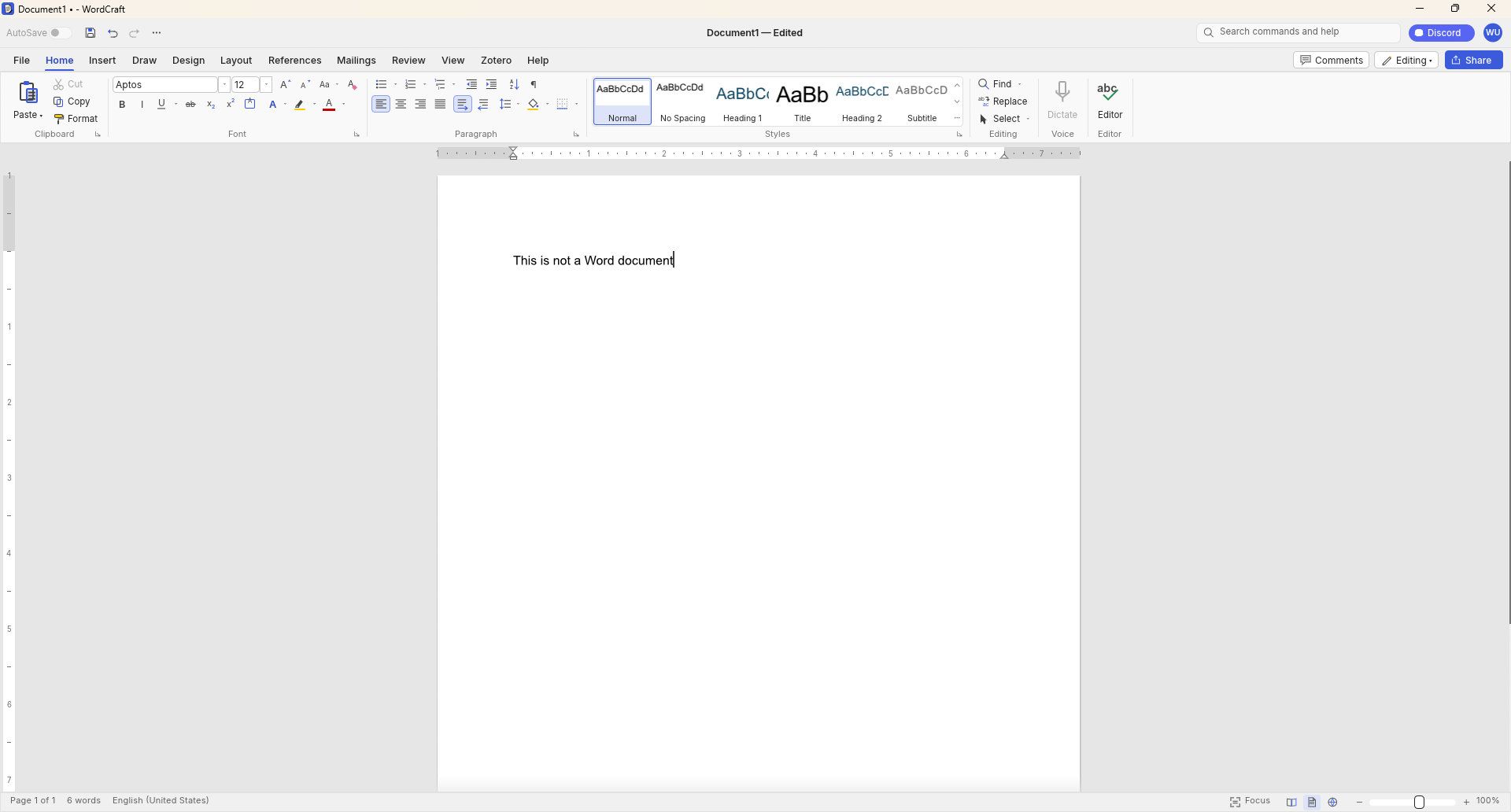
GridCraft (Excel clone), DeckCraft (PowerPoint clone), and WordCraft (Word clone) are made using Claude. They're free to download and you can read more about their development through the ArtCraft GitHub page.
WordCraft uses a familiar ribbon interface and document layout that closely resembles Microsoft Word. (Image credit: Future)
Thomas now has a growing suite of app clones that aim to replicate the functionality and design of the popular suites from Adobe and Microsoft. The situation was summed up brilliantly by Reddit user "EngFL92" who said, "Begun, the clone wars have."
Windows Central take: Proving a point
The concept of replicating apps is nothing new. LibreOffice has been available for years and there are a plethora of apps similar to Word, PowerPoint, Excel, and other Microsoft 365 applications.
WordCraft and other applications made by Thomas are important because they ask the question, "Can AI be used to replace paid industry-leading software suites."
At the moment, I'd say the answer to that question is "no." But the replica Office apps are in the alpha stage of development. We could see the feature gap close and bugs get squashed before general release, assuming Thomas decides to continue the project.
Shut your yap.Open Office / Libre Office sucks.It ate my 40 page essay during finals week.I'm paying back a grudge that has been years in the making.Stop dragging along shitty OSS software and venerating it like it's some holy relic. Let it die.October 13, 2026
Projects like this often gain notoriety quickly as they get shared online. Microsoft and Adobe are tech giants that charge a lot of money to access software. They're easy targets and I believe some of the passion against the companies is justified.
Thomas said on X that they're "paying back a grudge that has been years in the making," so there seems to be some history there.
Quite the media frenzy has formed around these apps. I suppose I'm a part of that, but I think some outlets have gone too far and argued that the AI-coded clones of the Adobe and Microsoft 365 suites are further along than they really are.
I appreciate the dedication to create apps that compete with some of the best-known software around. Projects like this can demonstrate that some people don't need to pay monthly subscriptions for their entire lives to get work done. But I'd suggest pumping the brakes on narratives along the lines of "vibe coding takes down tech giants in a month."
Join us on Reddit at r/WindowsCentral to share your insights and discuss our latest news, reviews, and more.
Microsoft's blueprint for making Windows 11 apps has received an update that allows developers to try more experimental features. WinUI Gallery just received a bump to version 3.0, and with that update comes a new approach to experimental features.
WinUI Gallery is Microsoft's sample app for developers, showing how Windows UI components work and helping app makers build software that looks and behaves like a native Windows 11 application. It's available through the Microsoft Store.
WinUI Gallery used to receive new controls after those controls had reached a stable Windows App SDK release. Because of that, Microsoft was limited in how much it could change those controls based on feedback. WinUI Gallery now includes the experimental Windows App SDK so developers can play with new controls earlier and provide feedback to Microsoft in time to drive changes.
🚀 WinUI Gallery 3.0 is here!Starting with this release, we're embracing Experimental versions of the Windows App SDK, giving you earlier access to new control/API samples so you can try them out more easily, share feedback, and help shape what's next!And this release is packed with new controls! 🚀✒️ Inking in WinUI!!📑 TableView📊 Charts🔢 Pagination control🪟 Simpler windowing APIs🎁 WrapPanel and StackLayout✨ And much more!Learn more👇:https://t.co/srgiSPUI29October 13, 2026
WinUI Gallery 3.0 also adds some quality of life changes that are outlined by Niels Laute, a Senior Product Manager at Microsoft:
Mouse back and forward buttons now navigate through the Gallery, just like in your browser (#2195), thanks @hoshiizumiya!
Search finds more. Every control page now has search tags, so searching for terms like “context menu”, “carousel”, or “WCAG” finds the right page even when the query doesn’t match the control’s name (#2185).
No more dead ends. When a search has no results, you now see your query, a few search tips, and a button to view all samples (#2255), thanks @Zakariathr22!
Since experimental controls are now in WinUI Gallery 3.0, there are several new samples available in the app, including TableView, Charts, and Wrap Panel and LayoutPanel. Those controls allow apps to present data in a way that's easier to digest.
WinUI Gallery is an app that everyday PC users will likely never download or even see. But it's an important tool for developers who want to create modern applications. The latest update should lead to more quality apps being available on Windows 11.
What is WinUI Gallery?
WinUI Gallery is a developer tool that acts as a digital showroom for Windows app development. Developers can see what UI elements look like on a PC by using the app and see relevant code samples to help create applications that align with Microsoft's design framework and guidelines.
Microsoft has had some form of a digital showroom since 2018, but the app has gone through a few name changes. Its current name is a bit confusing because of similar terms being used in different settings.
The latest update to WinUI Gallery brings that app to version 3.0, so it's referred to as WinUI Gallery 3.0. But despite the similar name, that is different than WinUI 3, which is the framework developers currently use.
Regardless of its slightly confusing name, WinUI Gallery is a useful tool for app development and helps push developers toward making apps that perform well and appear natural on Windows 11 PCs.
Join us on Reddit at r/WindowsCentral to share your insights and discuss our latest news, reviews, and more.
Windows and Windows Phone users struggled with the app gap for years, often leading to frustration when their favorite app was unavailable. But recent advances in AI have led to a different kind of problem: an explosion of development. Microsoft recently shared the challenges caused by AI accelerating the development of extensions for the Edge browser.
"How do we keep up with the pace at which the ecosystem is growing, while maintaining a high bar for quality?" asked Microsoft's Edge team.
Microsoft approves extensions that appear in the Edge Add-ons site. Since AI can speed up the process of developing or updating apps, Microsoft has more submissions to take care of. To better handle the workload, Microsoft has automated some validation checks for extensions.
The company emphasizes that it still has the same standards for an extension to pass. The automation centers around common problems so humans can focus on more complex cases.
If an extension passes enough quality checks, it will earn a "Featured" badge in the Edge Add-ons site. Microsoft now refreshes Featured badges every 15 days.
"With this more frequent cadence, high-quality extensions can earn recognition sooner, and developers receive faster feedback on their investments in quality," said Microsoft. "At the same time, users benefit from a more up-to-date view of the extensions that meet our quality standards."
The Edge Add-on site is receiving more submissions and updates due to AI, but uBlock Origin is still going away. (Image credit: Future)
Edge extensions have come a long way. The browser first required developers to put in a lot of work that was exclusive to Edge. That changed when Edge was relaunched as a Chromium browser. That switch greatly improved compatibility and resulted in more extensions being in the Edge Add-ons site.
Being based on Chromium also comes with some downsides, however. Microsoft is following in the footsteps of Google by moving from Manifest V2 to Manifest V3. There are a variety of effects of that change, but the one many care about the most is it means uBlock Origin will no longer work on Edge (it already does not work on Chrome).
Microsoft revamped the Edge Add-ons site with a better browsing experience and new categories last year. The new site shows better suggestions as you type and lets you install extensions without having to jump to a different page.
With that refresh and the recent uptick in extension submissions, it should be easier than ever to find a quality extension.
Join us on Reddit at r/WindowsCentral to share your insights and discuss our latest news, reviews, and more.
Windows 11 will soon feature a Battery Status widget that you can pin to the Widget Board or your PC's lock screen. The feature is still in the works at the moment, but you don't have to wait for it to be finished. Third-party app "Battery Flyout" already supports a Battery Status widget and is available right now.
Just like Microsoft's widget that's in progress, Battery Flyout's widget shows the battery status of your PC and connected devices. It's a quick way to check if your keyboard, mouse, or other accessories are charged.
The Widget Board has been underutilized since it launched in 2021. There are fewer than 100 widgets available, many of which are tremendously niche. I hope the existence of the Battery Status widget indicates that Microsoft is going to invest the time needed to grow the library of Windows 11 widgets.
Microsoft has made some other improvements to the Widget Board lately, such as turning off the MSN feed by default. I hope this is a turning point for the feature. If not, at least we can rely on third-party developers to use the space.
Battery Flyout already has it 😉 https://t.co/hxFqHSJJxJSeptember 8, 2026
If you had a previous version of Battery Flyout installed, you may need to update the app before being able to use the widget.
As a built-in feature of Windows 11, the Battery Status widget will be available for free. Battery Flyout costs $3.19 (on sale from $3.99). But some lucky Windows Central readers will be able to get Battery Flyout for free. The app's developer shared a code for a giveaway and I'll run that on the r/windowscentral subreddit. Make sure to subscribe there and keep an eye out.
Battery Flyout lets you monitor the battery life of your Windows 11 PC and connected Bluetooth accessories, including mice, keyboards, and pens. It features a dedicated widget for the Widgets Board, native ARM64 support, and detailed power usage insights.
Join us on Reddit at r/WindowsCentral to share your insights and discuss our latest news, reviews, and more.
A new Windows app that aims to replicate the Dynamic Island of macOS just got a major update. Notchify now performs better and has new features like a built-in Clipboard history. It's a promising continuation of the app's development.
It's always interesting to pit Windows 11 against macOS. The two operating systems overlap but approach so many challenges in different ways.
While many are passionate defenders of a specific operating system, I think if we're all honest there are features and elements across the aisle worth envying. But it was a bit surprising to see that some Windows 11 users want a macOS-esque notch on the top of their screen.
The notch along the top of certain Macs came out of hardware limitations, not Apple deciding a black cutout of a screen was a brilliant design. But as Apple often does, the company found a way to turn a limitation into a feature that could be marketed. The Dynamic Island is a genuinely useful feature that provides quick access to information, notifications, and quick actions.
Notchify brings that part of the Dynamic Island to Windows 11. You don't need to permanently carve out part of your screen to use it though, which is nice.
Here is the change log for the latest update to Notchify, as shared by the app's developer on Reddit:
Performance and rendering
Optional GPU (hardware) rendering for much smoother animations
Large drop in idle CPU and memory use
Fixed a system-wide keyboard lag some people were hitting
Better fullscreen detection so it stays out of the way in games
Selectable frame rate from 60 to 240 Hz, so it can match a high refresh rate monitor
Clipboard and Tray
Clipboard history built into the island: pin, delete, clear
Drag items straight out into Discord, WhatsApp, Paint, or Explorer, or click one to copy it
The file tray now supports drag and drop: drop files in to stash them, drag them out into any app
Notifications
An in-app notifications panel with swipe to dismiss
Click a notification to jump straight to the app
Stacking, like the real thing
New widgets
To-do and Notes, now with a proper calendar date picker
Quick System Actions: lock, sleep, mute, dark/light toggle, screenshot, settings
App Shortcuts: pin apps, folders, or links
Calendar with your next event
Bluetooth and media
Connected device card with a battery ring, now including BLE devices
Media player with scrubbing, shuffle, repeat, and an album-colored visualizer
Quality of life
Optional hover to reveal: the island appears when your cursor reaches the top edge, even in fullscreen
Redesigned settings
10 languages
Multi-monitor and high-DPI fixes
Our Editor-in-Chief Daniel Rubino took a closer look at Notchify recently. He used a massive 52-inch Dell Ultrasharp monitor, so he can afford to give up a bit of space for convenience.
"I still don’t love the idea of a notch (it’s not my aesthetic), but I can’t deny how practical it is," said Rubino. "Having a small, centralized hub for quick info saves me from scanning the corners of my display. It’s one of those things that quietly improves workflow without demanding attention."
One of the biggest limitations of Notchify is that it's a third-party app, meaning Windows 11 does not cater to it the way macOS does to the Dynamic Island. Apps do not wrap around Notchify, which can result in content being covered.
Notchify costs $1.99. There is a free trial available, so there's no harm in giving it a try.
Join us on Reddit at r/WindowsCentral to share your insights and discuss our latest news, reviews, and more.
I love tiny utilities. If I find a useful flyout, widget, or Taskbar tweak, I'm likely to install it right away. A recent update to Battery Flyout brings power management and tracking to the Taskbar, and it even supports a new widget!
Battery Flyout is a third-party app made by Michał Łeptuch. It lets you switch power modes easily and provides charts about your PC's battery usage.
Some of the features in Battery Flyout are already in Windows 11, but they are spread out across the Settings app and other areas. Battery Flyout brings those options together and makes information and shortcuts easily accessible.
Michał ŁeptuchMichał ŁeptuchMichał ŁeptuchMichał ŁeptuchMichał ŁeptuchMichał Łeptuch
Łeptuch develops several apps that improve the overall Windows 11 experience, including Calendar Flyout. I spoke with him about the major update to Battery Flyout ahead of its release. Here's the full change log:
Migrated the app from UWP to Windows App SDK (WinUI 3) on .NET 10 with Native AOT
Added a full native ARM64 build
Switched the app to run in Efficiency mode by default
Removed third-party dependencies in favor of a custom-built system for handling power and battery events
Added support for multiple batteries
Added a more detailed chart style for battery levels
Added the ability to switch chart colors between the default theme and your system accent color
Added detailed technical information for each installed battery to the flyout
Added a view of the apps consuming the most power to the flyout
Replaced the old battery report with the new Power report, covering battery and system summary, per-battery details, app trends, recommendations, and resource usage
Added the option to choose the units used in reports, including energy and temperature
Added a new Actions module to automate tasks triggered by specific battery or power events
Added a widget for the Windows Widgets board showing battery level and charging status
Expanded support for Apple and Samsung devices, with more of them now reporting battery status
Added the option to hide the device list when it's empty
Updated the Bluetooth device icons shown in the flyout's device list
Added the option to completely disable Bluetooth device scanning
Added a keyboard shortcut to open the flyout
Added the ability to change where the flyout appears on your desktop
Added automatic flyout and context menu positioning for the taskbar layout options introduced in the Windows 11 August 2026 update
Added the ability to set notifications for any battery level, for both the device and connected Bluetooth devices
Added the option to set how long notifications stay on screen
Added support for the Polish language
Made various minor visual refinements
Updated the tray icon font and improved its rendering
Made general stability and performance improvements
A significant change that will affect all Battery Flyout users is that the app has been migrated from UWP to WinUI 3. That change brings better performance and taps into improvements Microsoft is making to WinUI 3 on Windows 11.
Battery Flyout should also use less battery than before since it now runs in Efficiency mode by default.
Similar to iOS and Android, Battery Flyout now has a dedicated page for viewing which apps are consuming the most power.
Some of the improvements will only affect a subset of users but are welcome additions. Battery Flyout now supports multiple batteries, which is useful for the small group of devices with multiple batteries.
The update also brings some under-the-hood improvements, such as switching away from third-party dependencies.
Perhaps the change aimed at the smallest niche is the addition of a Battery Flyout widget for the Windows 11 Widgets panel. That panel, which is built into every single Windows 11 PC, infamously features far fewer than 100 widgets. Battery Flyout will fit nicely between the barely functional Spotify widget and the Tic-Tac-Toe widget.
A recent update to this app improves performance, adds native ARM64 support, and shows more information about the power usage of your PC and apps.
Join us on Reddit at r/WindowsCentral to share your insights and discuss our latest news, reviews, and more.
Microsoft Edge may soon let you sign in with an Apple account. The latest Canary build of Edge includes flags that, if enabled, let you sign into the browser with your Apple account.
Using your Apple account within Edge will make it easier to keep your bookmarks, history, and other content synced across your phone and your PC. Many people, including myself, use a computer running Windows 11 and an iPhone.
The change was spotted by Leo Varela, who often leaks or highlights features in Edge and other browsers.
In Edge Canary for desktop there are a couple of new flags to enable support for signing in with an Apple account. Microsoft added support for Google accounts some time ago and has now added support for Apple accounts: https://t.co/34BBm0b3Wi pic.twitter.com/BNMrpB8pkOAugust 10, 2026
Microsoft did not initially plan to support non-Microsoft accounts within Edge. Google account support rolled out recently and now support for Apple accounts appears to be on the way.
Of course, you could use Edge without any account at all. The browser works without requiring signing in. But syncing data and some other features require using some sort of account to sign in.
Windows Central take
Microsoft once pushed its apps aggressively on iOS and Android. Since 2015, the company has shut down several apps and left others in maintenance mode. (Image credit: Windows Central)
It's interesting to see how Microsoft's cross-platform app strategy has shifted over the years. Some apps have been available on other platforms for over a decade, but Microsoft increased its efforts to have a presence on iOS and Android after shutting down Windows Phone.
With no phone operating system of its own, Microsoft aimed to provide a premier experience for its services on Android and iOS to meet people where they are. Microsoft bought up popular apps like Wunderlist and SwiftKey to make a Microsoft experience on mobile platforms made by Google and Apple.
These days, several Microsoft apps feel like abandonware and others lag behind the competition. The glory days of the "iPhone Pro" are over.
I do appreciate flexibility when it comes to signing in to Edge, but I can't help but wonder if adding support for Google and Apple accounts is an admission that Microsoft can't even get people to use a Microsoft account in Microsoft Edge.
Rather than trying to force users into the Microsoft umbrella, the company seems to be accepting its mobile reality. It is finally conceding that to keep PC users on Edge, it has to let them live inside Google and Apple's account ecosystems instead.
Join us on Reddit at r/WindowsCentral to share your insights and discuss our latest news, reviews, and more.
Microsoft PowerToys will soon add on-device support for Phi Silica. Microsoft called that small language model (SLM) "small but mighty" when announcing it in 2024. Now, that model is available for Advanced Paste in the latest PowerToys preview.
Advanced Paste is a utility in PowerToys that formats content from your clipboard. It supports several formats, including plain text, markdown, and JSON. You can also use it to extract text from images using OCR and transcode audio and video files.
When first launched, Advanced Paste required an OpenAI API key, but PowerToys later added support for other models. Azure OpenAI, OpenAI, Gemini, and Mistral are cloud services that work with Advanced Paste. Foundry Local and Ollama both work with the feature locally.
Phi Silica is now available as an option for local AI processing in the latest preview.
While you may not have heard of Phi Silica, you've likely heard of tools it powers if you have a Copilot+ PC. Click to Do and on-device rewriting in Word and Outlook are powered by Phi Silica.
Phi Silica uses the NPU of a device, which helps with efficiency.
The GitHub page for PowerToys lists all the changes in the latest preview. Here are the highlights from the same page:
View the changelog ↴
PowerToys v0.101.2211.0 Highlights
Advanced Paste: Added an on-device Phi Silica provider and more per-action AI customization options.
Command Palette: Improved dialog handling, icon loading, memory cleanup, theme behavior, and dock performance monitoring.
Window management: Improved shutdown behavior across FancyZones, Grab And Move, and Always On Top, and made Always On Top borders render solidly at full opacity.
Keyboard Manager: Fixed the elevated Run Program browse flow in the new editor.
Mouse Jump: Moved Mouse Jump to the newer WinUI app architecture and packaged its new binaries into signed release builds.
Settings: Added an update channel selector and a guided Bug Report flow with progress and a GitHub shortcut.
Quick Accent: Made press-and-hold activation cancel cleanly so the picker appears only when intended.
Preview releases: Added dedicated preview-release versioning and update-channel support so preview builds can be published and tested independently from stable releases.
PowerToys has a growing library of utilities, so there's a lot to look at in the latest preview even if you do not care about AI. Command Palette will perform better and Window management has been improved across FancyZones, Grab And Move, and Always On Top.
This collection of utilities includes a large library of features to enhance the Windows experience. PowerToys is designed with power users in mind, but it has handy features for people who just use their PC for everyday computing too.
Join us on Reddit at r/WindowsCentral to share your insights and discuss our latest news, reviews, and more.
Like millions of other people, I have a Windows 11 PC and an iPhone. I'm envious of some of the ways Macs and iPhones connect, but I still rely on Windows 11 for everyday work and my hobbies.
AirDrop is one of the features I want the most when looking over the digital fence at my friends who are fully in the Apple ecosystem. While you cannot use AirDrop on a PC, there are some great alternatives.
"Does anyone actually have a good way to transfer files between an iPhone and a Windows PC?" asked Reddit user Palunath in the r/Windows11 subreddit. Users responded with several options, but two stood out: Blip and LocalSend.
Reddit delivered with both those recommendations. I downloaded both and have used them over the last week. I'm hardly the first person to highlight these apps, but if people are asking for AirDrop alternatives on Windows 11, they likely haven't heard of Blip and LocalSend.
Top pick: Blip
Transferring files is quicker and easier if both of your devices are on the same network, but Blip works when on different networks as well.
Blip is my top pick. It's easy to use, has an interface that feels familiar, and it's extremely fast. It's similar to AirDrop but without the Apple exclusivity.
Blip supports sending files and folders without any size limits (Blip's website says "99TB? Game on").
Not having to zip folders is a big plus, as is being able to send large photo files.
Blip is free for non-commercial use. If you're a business user or want priority speed, you can subscribe for $25 per user per month.
Signing up for Blip is easy and just requires entering your email and confirming the code you're sent.
Connecting an iPhone and a PC can be awkward unless you have the right apps. (Image credit: Future)
LocalSend works very well, but its structure has some pros and cons. Because it works through your network, it works without the internet. It's also incredibly fast, assuming your Wi-Fi network has quick speeds.
LocalSend doesn't require an account or logging in. Your devices from the network just appear within the app. You can mark devices as favorites to streamline sharing as well.
You can send files to a single recipient or multiple recipients as well, which makes LocalSend feel a bit more like AirDrop.
LocalSend is open-source, fully offline, and peer-to-peer, so it's a great choice for people who value privacy.
The obvious drawback is that LocalSend is for sending files locally. If you just need to send files at home or work when devices are on the same network, LocalSend provides a seamless experience.
OneDrive and iCloud
Blip and LocalSend are made for sharing files on demand. If you want to sync entire folders or all of your files, you can use apps like OneDrive or iCloud.
In my experience, these apps are much slower at syncing and sending files, but they're a great way to back up content.
Join us on Reddit at r/WindowsCentral to share your insights and discuss our latest news, reviews, and more.
Microsoft accidentally shipped the new OneDrive Photos app to millions of PCs recently. Microsoft EVP of Apps and Agents Jeff Teper explained that the app was shipped earlier than intended.
We now have more details about the OneDrive Photos app, courtesy of the Microsoft 365 Roadmap. While the app was rolled out to PCs accidentally, Microsoft plans to release it in the future. When the app does ship (on purpose), there will be options to manage it or uninstall it.
"OneDrive is adding administrative controls for the Photos experience on Windows. Organizations can manage whether users sign in with personal Microsoft accounts. These controls help IT teams align OneDrive Photos with their access, data governance, and device-management requirements."
That feature should start rolling out this month. Considering that the OneDrive Photos app was accidentally installed on some managed PCs that were unable to use the app, these administrative controls should be a welcome addition.
"OneDrive is giving people more control over their Windows experience by allowing them to uninstall the OneDrive Photos experience independently. Removing the Photos experience does not uninstall the OneDrive app, interrupt file sync, or delete photos and files. This provides a clear removal option for people who prefer to manage their photos with another app."
That feature is expected to roll out next month. As always, roadmap dates are estimates and subject to shift.
Those entries, which were first spotted by Neowin, were only added to the Microsoft 365 Roadmap after the accidental rollout and following backlash. We may see more details on the roadmap about OneDrive Photos soon.
The main question surrounding the OneDrive Photos app is why it needs to exist at all. Microsoft's Photos app for Windows already integrates with OneDrive. The OneDrive Photos app is a web-based experience that is less native and seemingly against the current goals Microsoft has set to improve its first-party apps.
Join us on Reddit at r/WindowsCentral to share your insights and discuss our latest news, reviews, and more.
I’ll be honest: I’ve never liked Apple’s notch design. I find it intrusive, and the whole “Dynamic Island” thing always felt like a marketing trick to justify a hardware compromise.
So when I saw Notchify pop up on Reddit, my first thought was, why would anyone want that on Windows?
That said, if you're a bit horrified at the idea, I mean, I totally get it. But hear me out.
What Notchify does
At its core, Notchify is pretty simple. The app creates a “fake” notch or “island” at the top of your screen. And yes, its functionality is what actually saves it. You can use it to display notifications, media playback controls, weather, battery, timers, microphone indicators, and more.
There's even a built-in clipboard for copied content and quick access.
You can see some of it in action in the above embedded video.
The settings are straightforward. You can toggle between Island (disconnected) and Notch (connected) modes, pick which monitor it appears on, and decide if it should launch at startup.
The Appearance tab lets you adjust the theme, blur, and popup behavior for volume or brightness changes. The Widgets section is where the fun begins, as you can mix and match small widgets like battery display, time, and microphone indicators, or go big with calendar, weather, and media playback.
The notch lives on your PC as "always on top," and when you mouse over it, it expands with whatever info you chose it to display. The animations are a bit janky, but it works.
It’s clean, modern, and surprisingly polished for an indie project. The dark theme looks great.
Why I ended up liking it (mostly)
Some of the settings and options for Notchify. (Image credit: Daniel Rubino)
I use a massive 52-inch Dell Ultrasharp monitor, and one of the downsides of that much screen real estate is that my eyes are constantly darting around for notifications, time, or playback controls.
Notchify fixes that by putting everything in one place.
I still don’t love the idea of a notch (it’s not my aesthetic), but I can’t deny how practical it is. Having a small, centralized hub for quick info saves me from scanning the corners of my display. It’s one of those things that quietly improves workflow without demanding attention.
And if you've listened to me on our podcast, you know my big beef with Windows 11 is how I can't adjust where notifications appear from, which seems dumb in 2026.
For anyone switching from macOS to Windows 11, Notchify might even make the transition easier. It brings a familiar visual cue while adding more flexibility than Apple’s version ever offered, and that's kinda cool.
Probably the most obvious issue is that Windows 11 doesn't "wrap" around the app, so when running apps full screen (like your web browser), you may end up blocking access to some features. And no, you can't move it around, which was a bit surprising.
The best part of this story isn’t just the app; it’s the community that helped shape it. On Reddit, user GuppyFarmer posted a detailed breakdown of Notchify’s CPU usage, pointing out that it was higher than expected. Instead of brushing it off, the developer responded, thanked them, and used the data to fix the issue.
That kind of interaction is what makes indie development fun. Constructive feedback, not just complaints, helps these projects grow. GuppyFarmer’s analysis gave the dev exactly what they needed to optimize performance, and the result is a smoother, more efficient app for everyone.
Too often, feedback online turns into negativity. Here, it turned into progress.
My takeaway
More options for theme and design in Notchify. (Image credit: Daniel Rubino)
The app costs $1.99 after the free trial, which feels completely fair for what it offers. It’s not bloated, it’s not subscription-based, and it’s updated based on real user input. That’s the kind of indie pricing model I’ll always support.
I still don’t want a notch on my laptop or desktop, but Notchify convinced me that the idea can be useful when done right. It’s a small, clever utility that adds genuine functionality to Windows, and maybe it'll inspire some other creations to solve some problems.
And hey, it proves what many of us already know: good ideas don’t have to come from big companies. Sometimes, a single developer with a Reddit post can create something that feels fresh and helpful.
If you’re curious, give the free trial a spin. You might find yourself liking it more than you expect.
Join us on Reddit at r/WindowsCentral to share your insights and discuss our latest news, reviews, and more.
If you use uBlock Origin on Microsoft Edge, it's time to start looking at alternatives. Microsoft has shared a timeline for the transition away from Manifest Version 2 (MV2) extensions. That transition will end support for uBlock Origin on Edge, alongside a small group of other extensions.
Microsoft aims to fully transition consumers away from MV2 extensions by the end of 2026. Some users will start seeing notices about the change this month (August 2026). Microsoft will then gradually turn off MV2 extensions by default over the coming months.
Enterprise users will be transitioned away from MV2 extensions in 2027.
It's not a surprise that MV2 support is being discontinued. In fact, the surprise is that we finally have a confirmed date for the end of support. Microsoft has had MV2 support on the chopping block for ages but had not committed to a firm cutoff date.
MV2 and its replacement Manifest Version 3 (MV3) are extension platforms that developers can build upon. There are technical differences between the two, the most notable is that MV3 limits the WebRequest API, which allows ad blockers to dynamically intercept and block network requests before they load.
Since Edge is built on Chromium, which is Google's open-source engine, Google pushing MV3 affects Microsoft Edge.
This shift to MV3 is not arbitrary; there are practical benefits to the switch. MV3 is more secure and provides better performance than MV2. Some believe the transition to MV3 is being pushed to give Google more control over ads on the web, though that is up for debate.
The end of MV2 support will affect several extensions, but the biggest one is uBlock Origin. I suspect few would care about the end of MV2 support if uBlock Origin were unaffected.
Microsoft states that 95% of the top MV2 extensions in the Edge Add-ons store have been moved to MV3. There are only 58 MV2-based extensions in the Edge Add-on Store at all. Only three of those MV2-based extensions do not have MV3-based equivalents available.
There is a version of uBlock Origin that works with MV3, though it's uBlock Origin Lite. That extension lacks some of the granular controls of the full version. It also works differently in the background, hiding most content rather than preventing items from loading.
Many people could replace uBlock Origin with uBlock Origin Lite without issue, but power users could struggle with the change. Some people plan to switch browsers before changing ad blockers.
Microsoft Outlook has a handful of changes in the works that will make it easier to stay on top of emails and events. Some of the upgrades, such as drag and drop support for rescheduling events, will change how you interact with Outlook, while others are smaller upgrades.
All of the improvements are detailed on the Microsoft 365 Roadmap. I've taken five of the most exciting entries from that roadmap and gathered them in the chart below.
Feature
Description
Rollout Start
Platform
Filter messages by events
You can now filter your messages for calendar invitations. Simply go to the filter and select Events from the drop down.
August 2026
Android and iOS
Copilot Chat pop-out for Outlook for Mac and iPad
Copilot Chat remains accessible within an Outlook app window but now can also be popped out to float over the main Outlook app window. Popping out Copilot Chat allows people to switch contexts or have more space for what they are working on in Outlook and control the space and form that Copilot Chat takes on screen. When you open Copilot chat and click the pop-out button, Copilot will open separately over the main Outlook window.
August 2026
iPad and Mac
Drag and drop
You can now reschedule events by dragging them to a new time slot in your calendar. This feature is available in day and multi day views.
August 2026
Android and iOS
Insert signature image from OneDrive
Users can now insert images into their email signature directly from OneDrive, in addition to the device photo library.
August 2026
Android and iOS
All day events to show up more clearly in the Mail module calendar preview
We're making it easier to tell when receiving meeting invites that conflict with scheduled Out of Office time or Busy All Day events, on Outlook Web and Outlook for Windows.
August 2026
Desktop and web
Being able to filter messages to only show those with calendar invitations will save me a lot of time. I get a lot of calendar invites from my wife to coordinate our schedules, but I also get a lot of emails from my wife about other things.
After finding those events, I'll be able to move them around in Outlook by dragging and dropping them. Since we have a young child, we often need to move things to different times of the day to align with naptime. I wish drag and drop support was on the way to the web version of Outlook as well, but the roadmap entry only mentions iOS and Android.
Which features would you like to see added to Outlook? Are there any improvements on the way that you're especially excited about? Let us know in the comments!
Join us on Reddit at r/WindowsCentral to share your insights and discuss our latest news, reviews, and more.

 Login
Login