 Login
Login
Mozilla updates GPG signing key for Firefox releases after exposure
Mozilla announced today that it updated the GPG key used to sign Firefox and Thunderbird releases after it was accidentally exposed on GitHub. [...]

Many of the recent supply-chain attacks could have been caught earlier if defenders looked closely at the telemetry GitHub already provides, researchers said.
At their Black Hat USA 2026 presentation, researchers Yossi Weizman of Microsoft and Mor Weinberger of Echo argued the case, saying, “GitHub can tell you’re being hacked. You’re just not listening.”
The duo described an EDR-style detection approach built from GitHub’s own event stream rather than relying solely on conventional endpoint or network telemetry.
After studying recent supply-chain attacks, including Shai-Hulud, Trivy, and Megalodon, the researchers found that seemingly different incidents repeatedly used the same techniques, from forged commit identities and poisoned tags to workflow abuse, OpenID Connect (OIDC) theft, and attempts to erase evidence.
They said they turned those recurring techniques into behavioral detections, combining GitHub webhooks, API data, and Git repository inspection to build a historical view of activity.
Their new open-source tool, dubbed “GitHub Threat Detector,” reportedly includes 22 production detection rules and 12 beta rules, with compound detections designed to correlate individually weaker signals into high-confidence alerts.
The central observation in Weizman and Weinberger’s research is that supply-chain attacks often repeat the same patterns even when the targeted projects are unrelated.
A compromised identity, for example, may not be obvious from the commit itself because Git metadata can be forged. An attacker can set the author name, email, timestamp, parent, and other metadata to make a malicious commit appear legitimate.
But GitHub separately records the authenticated user who pushed the commit.
When the commit author does not match the authenticated pusher, defenders have something worth investigating, they explained. Added to this, their analysis revealed that attackers sometimes reuse the same forged identities across multiple victims. Searching GitHub for the same author’s email can therefore help connect seemingly unrelated incidents into a broader campaign.
“Forged identities in the repo which appear in other repos as well-is a strong indication of compromise,” they said.
The research found “forged maintainer’s identity” used across many attacks, including Trivy, tj-actions, Megalodon, TanStack, and Red Hat.
Another detection pitched on the same principle included tracking “Mass tag poisoning.” Mass tag poisoning involves force-moving numerous release tags onto a malicious commit so that workflows using a version such as @v1 execute attacker-controlled code. Researchers recommended adding tracking GitHub tag history through the GitHub API and comparing old and new commit references to catch this out.
OIDC offers another signal. Attackers can modify workflows to generate short-lived identities for cloud or package registries instead of stealing long-lived credentials. Watching for new or modified workflows that enable OIDC token issuance can help, the researchers said.
GitHub Threat Detector follows an EDR-like pipeline: collect activity, enrich it with context, detect suspicious behavior, and then investigate or respond. The signals it ingests include live GitHub webhooks, API events, commits, tags, and Actions activity, while Git inspection provides additional context such as tag provenance.
Additionally, a PostgreSQL-backed activity store keeps the history needed to correlate events over time.
The tool took over 30 detection rules and tested them against 52 attack simulations, including reproduction of Trivy, TanStack, Megalodon, and Bitwarden CLI incidents. A separate “noise lab” helped researchers measure detection prevalence and recall, while tuning rules through allowlisting and severity adjustments.
The system, however, is not without drawbacks. Some of the trade-offs it carries include possibly disabled webhooks, rate-limited APIs, and Git inspection not being real-time.
The article originally appeared on CSO.

If your iPhone or iPad is misbehaving and initial solutions are not working, a full reset may be necessary. Taking your device back to how it was out of the box can often help resolve issues like constant crashing, freezing or other serious problems.
It’s something of a nuclear option, though, so before you take this route we’d recommend restarting or force-restarting your iPhone or iPad, as that will leave your data and settings intact. Another option is to ensure that the version of iOS or iPadOS on your device is up to date, as the problem might be caused by an issue that has since been patched by Apple. We explain how to do this in our how to update iOS guide.
Of course, if you’re selling your iPhone (or passing it down to a family member or friend) it’s absolutely vital that you delete all the sensitive data stored on it. If not, an unscrupulous buyer could gain access to your social media profiles, financial information and even your personal photos and videos.
As with any activity that deletes data, we’d recommend that you back up your iPhone or iPad before you attempt resetting the device. After your device has been wiped you will be able to download your data from your backup.
We’ll concentrate on iPhone for this tutorial, but the steps will be more or less the same for iPad. There are two ways to erase your iPhone or iPad, one is useful if you just want to erase everything and then recover the data from a backup, the other is useful if you are moving to a new device and selling or passing on the one you are erasing. There’s also a basic Reset option that might be all you need to do in order to fix a troublesome issue.
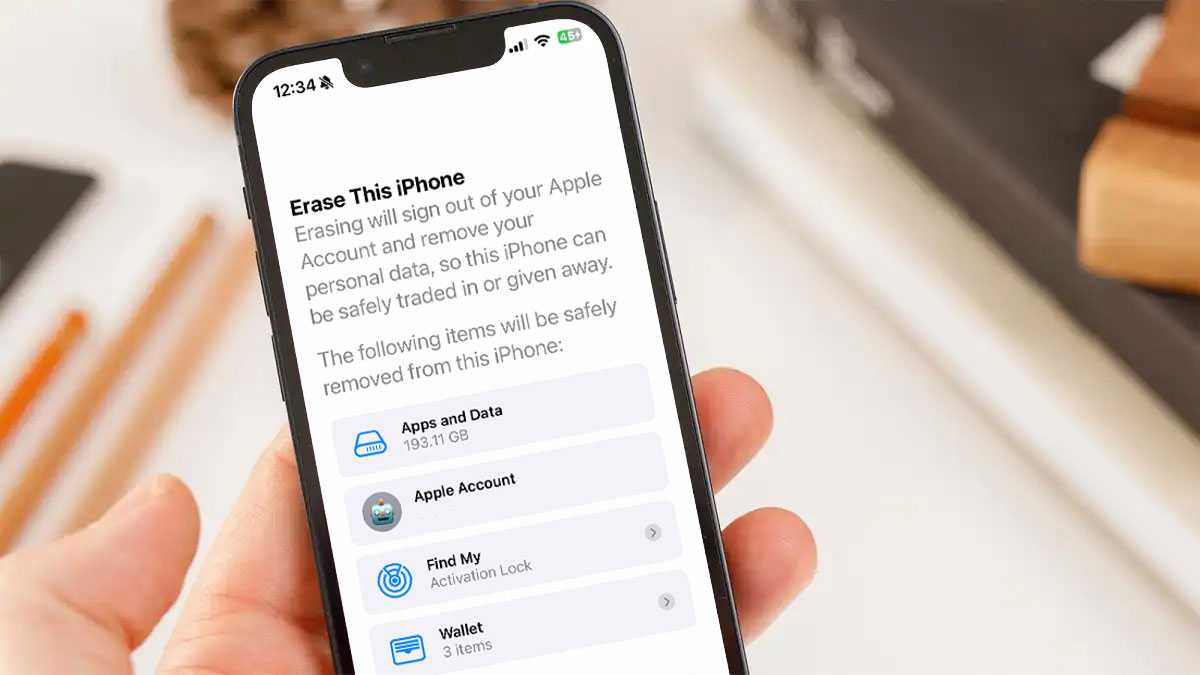
Foundry
To factory-reset an iPhone follow these steps (after backing up your device).
You may need to remove your device from Find My before you begin. You will also need to be connected to Wi-Fi or cellular for this process to work.
If you want help backing your data up to iCloud and want to make sure you cover all the important steps that you should make when selling your old device, you can make use of the Prepare for New iPhone instructions, which will walk you through the process.
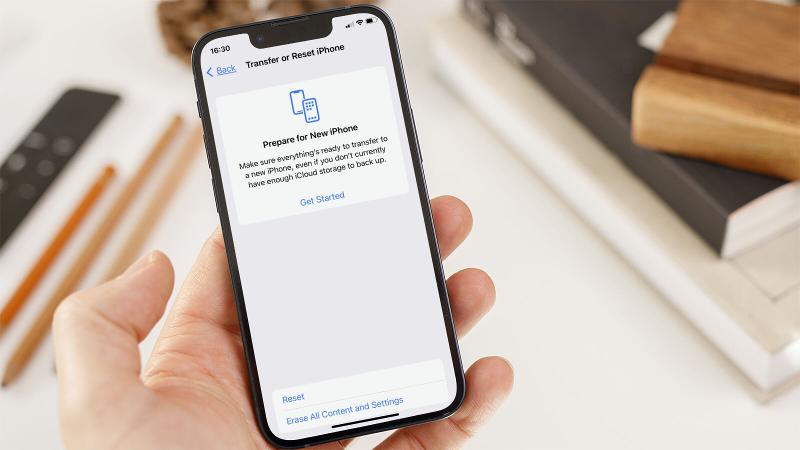
During the process for resetting you iPhone your passcode will be requested, you may also need to use the password associated with your Apple ID. This is a problem if you have forgotten it.
There is a workaround if you have forgotten your passcode but remember your Apple ID password:
After a few minutes, your iPhone or iPad will restart and you’ll be at the setup screen, as if it was a new device you just took out of the box. For obvious security reasons, there’s no way to reset your iPhone after a lost passcode without erasing all your apps and data. It would provide an exploitable loop for bad actors to get around the passcode timeouts and such. But as long as you back up your iPhone regularly (either via iCloud or with a connection to your computer) it shouldn’t be too onerous to start over.
Resetting without a password used to require plugging into a computer via USB, entering iPhone recovery mode…it was a whole process. The good news is, Apple made this a lot easier as of iOS 15.2 (and iPadOS 15.2). So, if your device is running that version or later you can follow the steps below (otherwise click on the link above to reset via a computer). If you have forgotten your Apple ID password read this for help: How to reset Apple ID if you forgot the password.
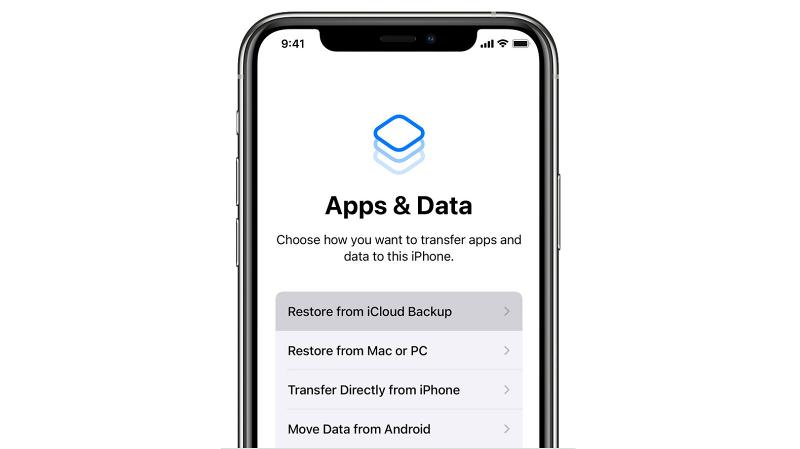
If, having erased the content of the phone, you intend to keep using it, you can restore the content to your phone from your backup – assuming you have one, if not check out the section below. Here’s to recover your iPhone or iPad data:
With the factory reset completed you’ll need to go through the setup of your iPhone again from the beginning:
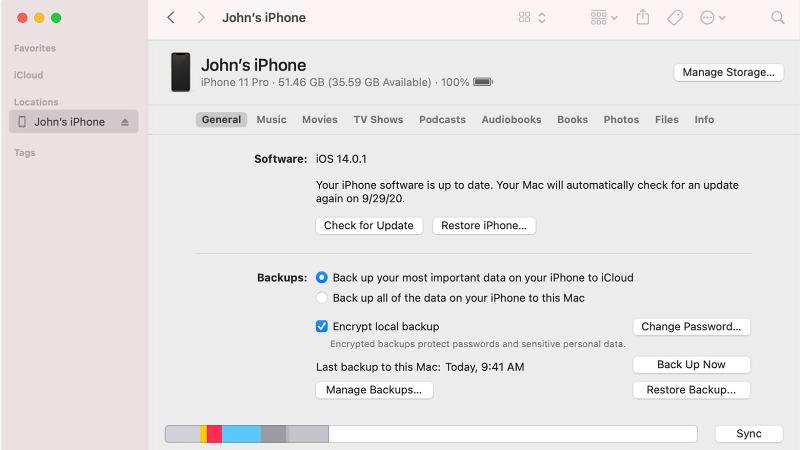
Depending on the version of macOS you’re running, you’ll either be able to use Finder (macOS Mojave and later) or iTunes (macOS Catalina or earlier) to restore a backup.
If you didn’t backup your iPhone or iPad first, it’s likely that you won’t be able to retrieve data once you have deleted it.
The data on an iOS device is automatically encrypted, and wiping the device destroys the encryption key, making it more or less impossible to get anything back when it’s been fully erased and reset without access to a backup.
In an emergency you could try speaking to someone at an Apple Genius Bar, but it’s a long shot to say the least. (This applies to a full erase/reset, mind you – in other circumstances, such as data corruption, a malfunctioning device and so on, the experts may be able to help.) This also reinforces our frequent advice to back up regularly.
If you’re worried that your iPhone or iPad wasn’t backed up, don’t give up hope: there’s a chance there may be a backup of which you’re unaware.
To find out if you’re backing up to iCloud follow these steps:
One of the backups should say that it is This iPhone or This iPad. Tap on that and you can see what is, and isn’t being backed up. You can basically turn things on and off so that they don’t take up your full free 5GB iCloud allocation, or you can pay a few dollars/pounds a month for more storage.
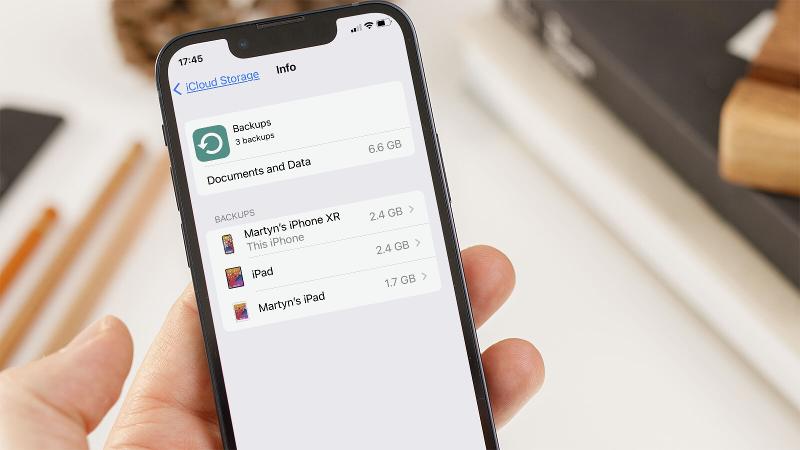
If you don’t see a backup from the device you were hoping to recover, but you do have backups of other devices (perhaps you have an iPad backup, but not an iPhone backup) you should be able to recover some of your data simply because once you link your iPhone to your iCloud account the shared data should be available on your iPhone.
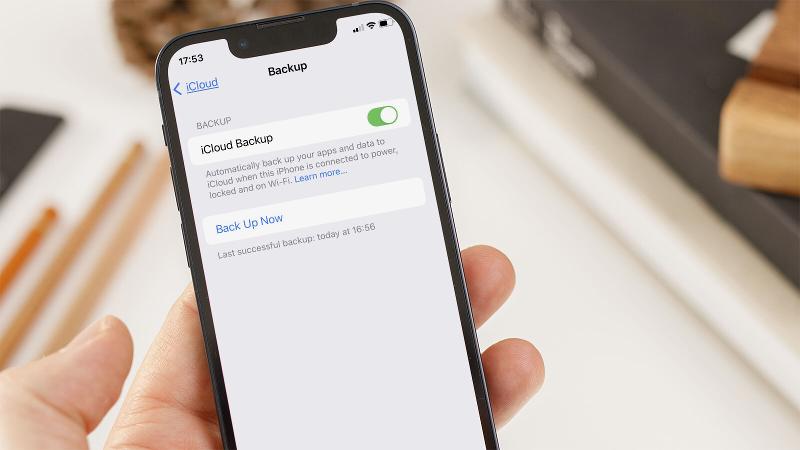
If you weren’t backing you iPhone up to iCloud we suggest you do! Read How to back up an iPhone or iPad or follow the steps below.
If the backup is going to take ages you can reduce the amount of data being backed up. For example, you may think that some of the apps don’t need to be backed up; after all, you will be able to download them again from the App Store as you already own them. But note that the data may include saved data for games, and other settings and preferences you would prefer not to lose.
There you have it. A quick guide on resetting your iPhone and then restoring it once more. Of course, if you’re moving on from that older device and fancy something newer, be sure to read our best iPhone deals roundup to see if you can save some money in the process.

xfwl4, compositor Wayland do Xfce, ganha recursos de gestão de janelas e aprimora a interação com dispositivos de entrada.
O post xfwl4 4.21.1: Xfce lança segunda prévia do compositor Wayland com melhorias em janelas e entrada apareceu primeiro em Blog do Edivaldo - Informações e Notícias sobre Linux.
Wear OS ganha atualização do Google Play Services para rotas de treino mais precisas e melhorias para apps e tablets Android.
O post Atualização do Google Play Services aprimora rotas de treino no Wear OS apareceu primeiro em Blog do Edivaldo - Informações e Notícias sobre Linux.
Conheça o SparkyLinux 8.4, que retorna com suporte 32-bit para PCs antigos e traz atualizações baseadas no Debian 13.
O post SparkyLinux 8.4: volta do suporte 32-bit para PCs antigos com Debian 13 apareceu primeiro em Blog do Edivaldo - Informações e Notícias sobre Linux.
CompartilharO GNOME Disks está sendo atualizado para GTK4 e libadwaita e o GNOME Disks com GTK4 e libadwaita muda completamente de visual. Veja as principais …
O post GNOME Disks com GTK4 e libadwaita muda completamente de visual; veja como ficou apareceu primeiro em Blog do Edivaldo - Informações e Notícias sobre Linux.
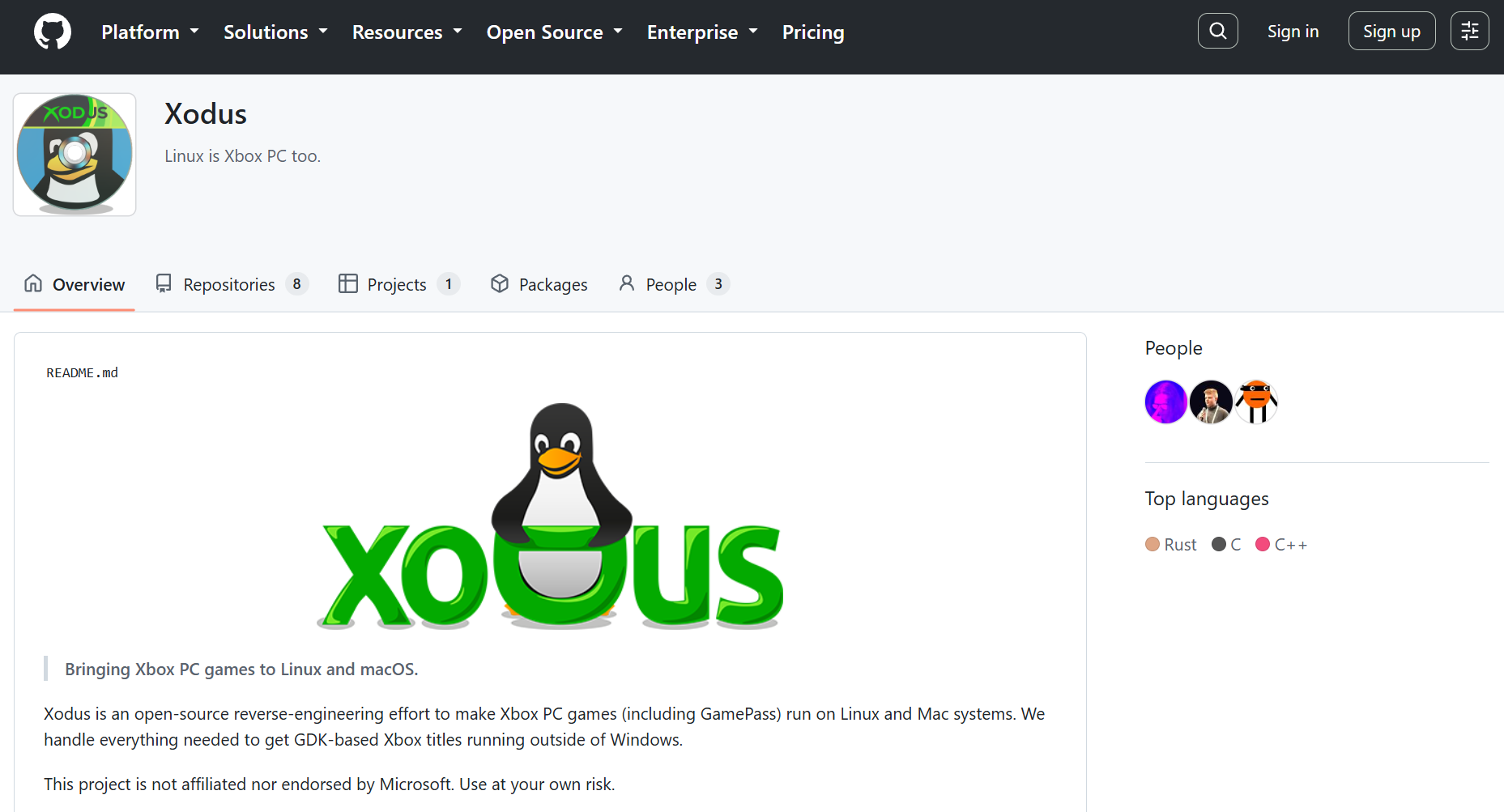
Xbox PC games, distributed through the Xbox app, fail to run on Linux because of Microsoft's proprietary GDK runtime environment. This also breaks Game Pass even though the company supports cloud streaming Game Pass titles. A new open-source project from the developers of Heroic Launcher, called "Xodus," is aiming to fix this by reverse engineering and emulating the necessary components required for Xbox PC games on Linux.
Xodus primarily targets modern, GDK-based Xbox PC titles and their MSIXVC packages; not older, UWP-based releases like Gears of War 4 and early Forza Horizon games. The problem with those isn't the DirectX API or x86 instructions; Proton and DXVK/VKD3D can already translate those. That's also the reason why you can still run Xbox PC games on Linux if you somehow get your hands on the DRM-free executables.
The real issue is the trifecta of Microsoft's proprietary GDK (Game Development Kit), Xbox identify services, and encrypted MSIXVC packages. This framework is responsible for verifying licenses for the games you own through the Xbox app. Without it running in the background, the games will simply crash right as you try to open them, or not launch at all. This is where Xodus comes into play.
The Xodus team says the project can already log into Xbox services, download game packages and obtain game licenses. It includes its own open-source implementation of the xgameruntime.dll and custom forks of both Wine and Proton, along with xal-rs, which is an Xbox authentication library for Rust. Xodus uses proxy libraries to interface with GDK games and intercepts API calls to transmit valid Xbox Live tokens.
Commentfrom r/linux_gaming
For now, efforts are focused on emulating the Xbox Gaming Runtime from the Xbox GDK through Wine, then the project will move on to actually launching and playing Xbox PC titles locally. Considering they've already solved the Xbox/Microsoft authentication, license check, and package decryption hurdles, it shouldn't be long before we see PC Game Pass running natively on Linux.
BedrockonLinux 2.0, another open-source project that brings Minecraft Bedrock to the platform, already relies on similar reverse-engineering tech to handle these components since Microsoft migrated the game to GDK. This allows the game to talk to Xbox Live in real-time through a secure doorway to authenticate tokens despite the game running in a sandboxed environment like SteamOS (Linux).
Microsoft itself brought four original Xbox titles to PC last month and it says more are coming, along with leaked documents suggesting Xbox 360 titles also releasing on PC next year. These games come with a baked-in Xbox 360 emulator. It's not clear if these games use the same GDK stack as native Xbox PC titles, however.

Pixel source code enfrenta atraso e burocracia, atrasando atualizações de custom ROMs como GrapheneOS.
O post Google dificulta acesso ao código fonte do Pixel, prejudicando custom ROMs apareceu primeiro em Blog do Edivaldo - Informações e Notícias sobre Linux.
Linux Mint 22.3 chega com ISOs HWE usando kernel 7.0, trazendo melhorias no gerenciador de kernels e no ambiente Cinnamon.
O post Linux Mint 22.3 lança novas ISOs HWE com kernel Linux 7.0 e melhorias no Cinnamon apareceu primeiro em Blog do Edivaldo - Informações e Notícias sobre Linux.
CompartilharO Ubuntu 24.04 LTS já recebe o kernel Linux 7.0 pelo HWE. Veja quem recebe a atualização, o que muda e a relação com o …
O post Ubuntu 24.04 LTS recebe Linux 7.0 antes do 24.04.5 — veja o que muda apareceu primeiro em Blog do Edivaldo - Informações e Notícias sobre Linux.
Compartilhar A DebConf27 será realizada em Asahikawa, no Japão, em setembro de 2027. Veja as datas, o local e o que esperar da conferência do …
O post DebConf27: Debian levará sua conferência mundial ao Japão pela primeira vez apareceu primeiro em Blog do Edivaldo - Informações e Notícias sobre Linux.
Descubra as melhorias do Apache NetBeans 31 para desenvolvimento Java, incluindo lambda breakpoints e integração aprimorada com Maven e Gradle.
O post Apache NetBeans 31: Novidades em Lambda, Maven e Code Completion para Java apareceu primeiro em Blog do Edivaldo - Informações e Notícias sobre Linux.
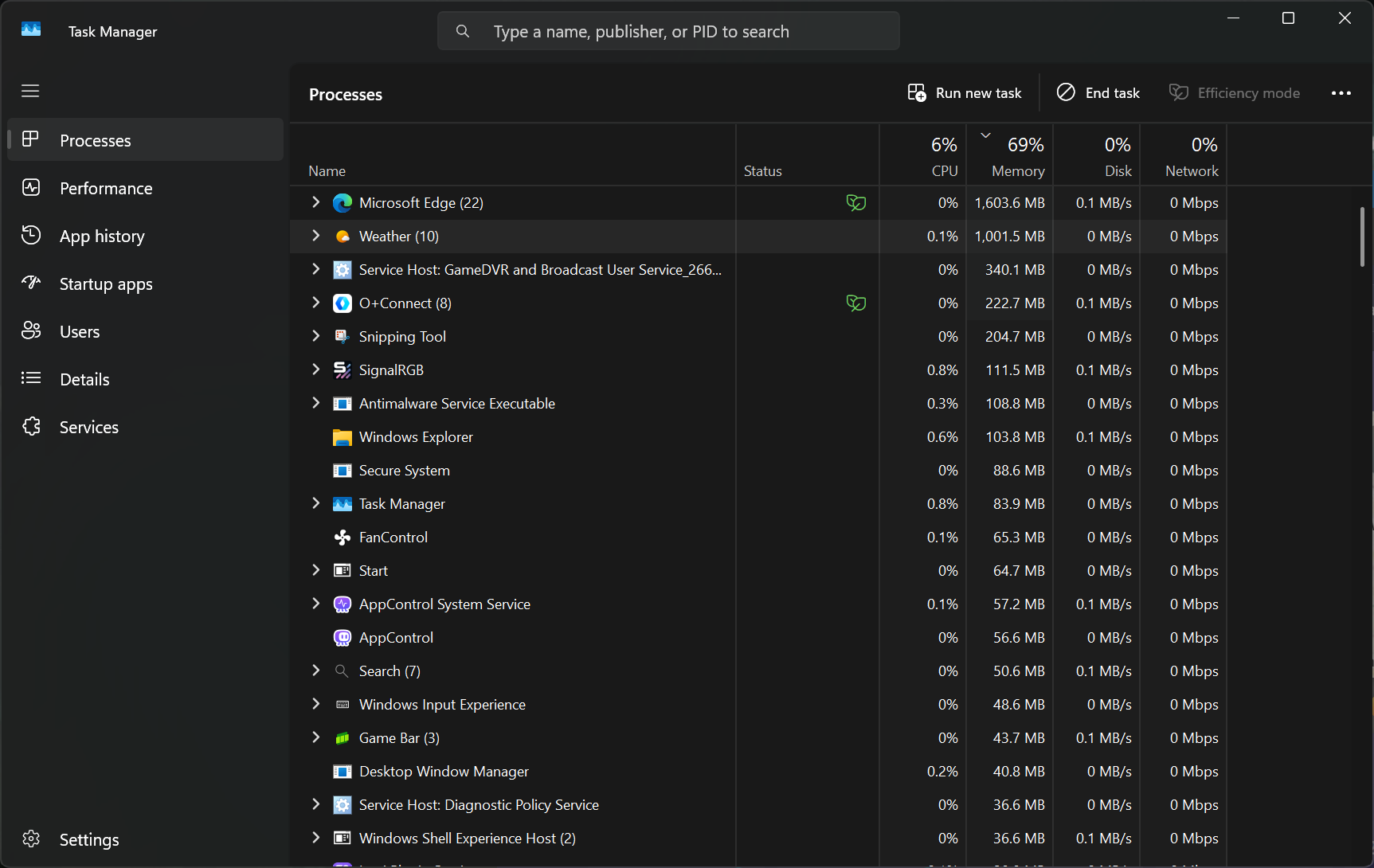
Windows is in a tough spot right now, with years of neglect and stagnation reaching a boiling point with customers. Lack of optimization, bloat, ads, forced AI slop, and persistent tracking have forced Microsoft to admit its missteps and commit to fixing the OS at large. Windows Latest's new testing shows that the built-in weather app is a perfect representation of the state of Windows. The "app" consumes up to 1.2GB of RAM while idling, and it serves up a bunch of ads while you check the temperature.
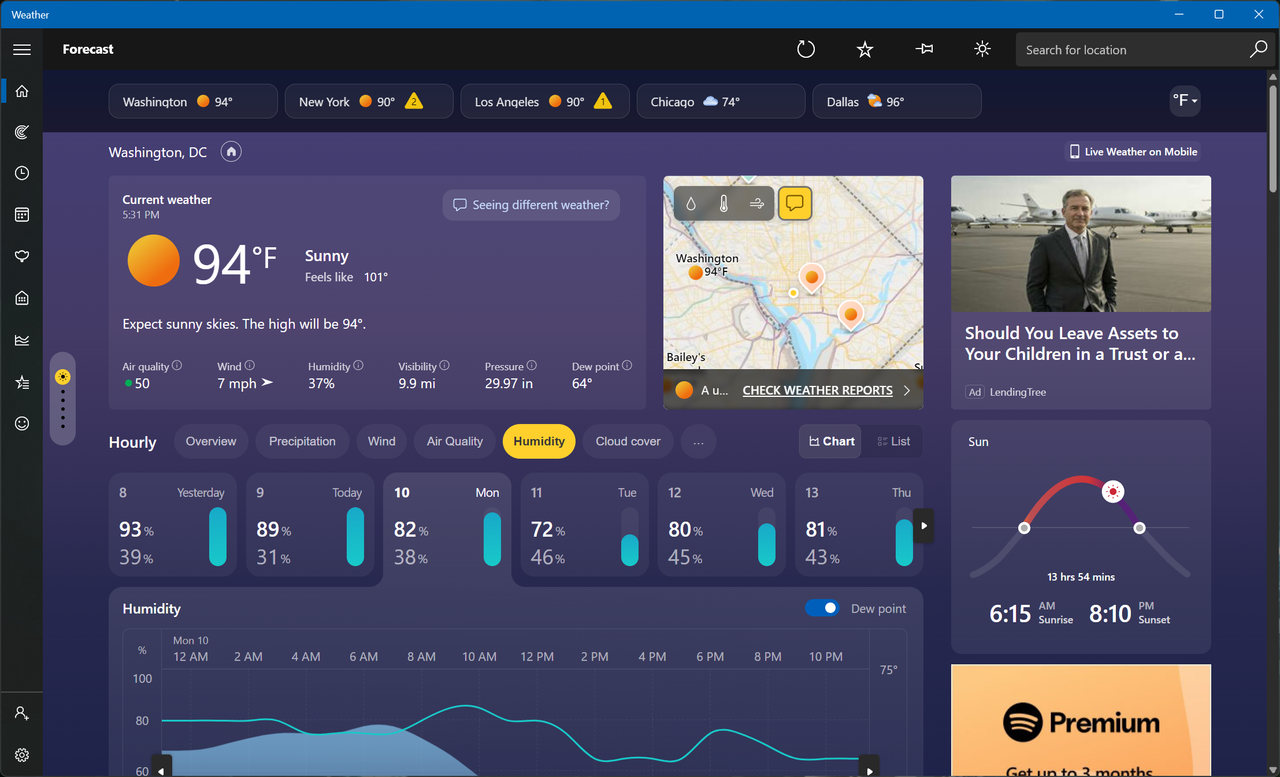
MSN Weather is the default weather app that ships with Windows, which explains why it's filled with promotions throughout, despite being part of a paid OS. To be clear, the app looks very modern and has all the data you could ask for, such as live radar overlays, hourly wind and precipitation breakdowns, air quality index, and moon phases. It's also accurate because the data is sourced from a bunch of different providers across the world, but mostly Foreca.
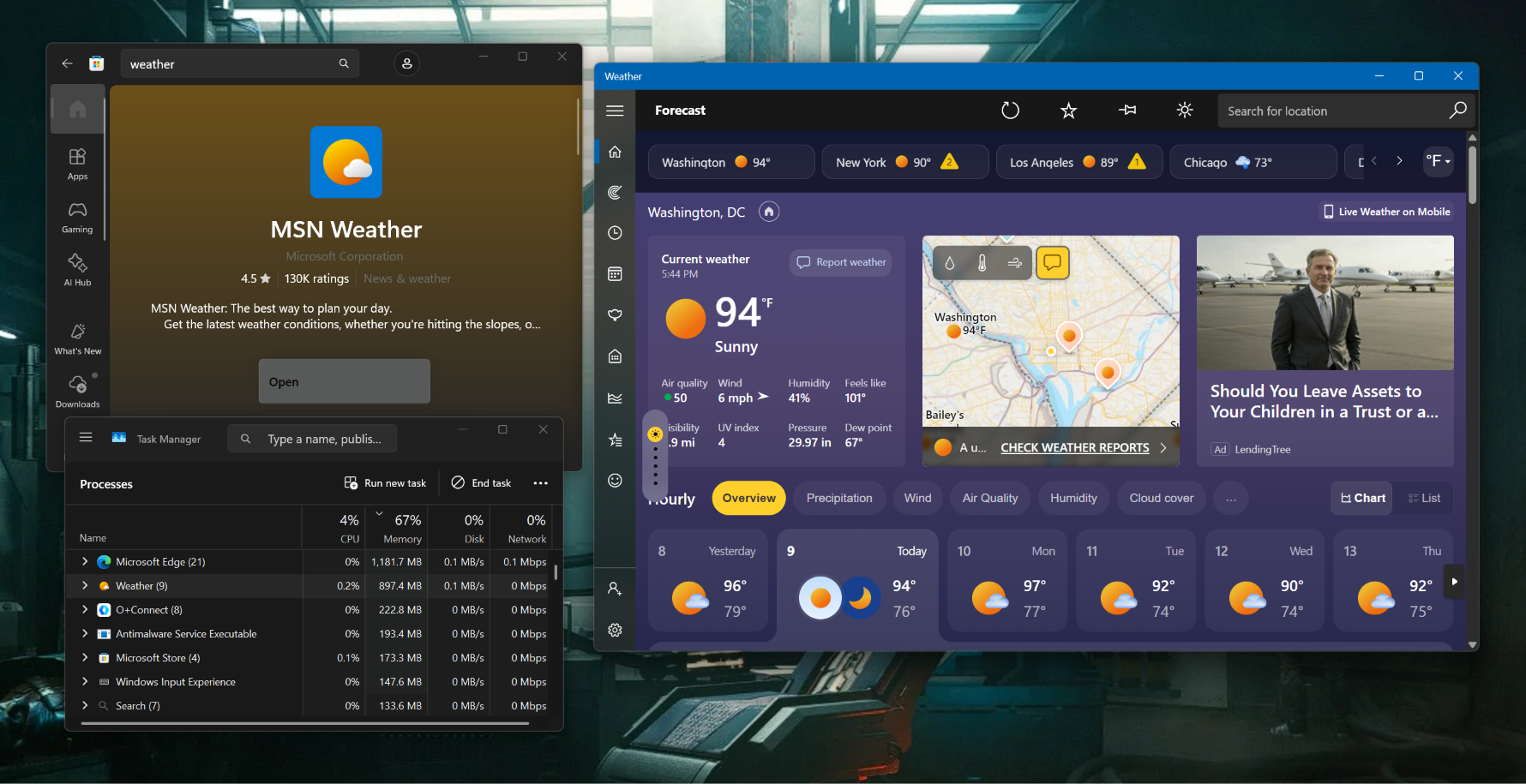
The author explains that getting accurate forecasts is not a cheap endeavor, so it's not like Microsoft is running a charity. But the comparison falls apart when you look at what the competition is offering. Apple's native weather app on macOS is just as beautiful, detailed, and accurate, yet it's free of ads. It also only consumes about 250MB of memory to show all that data, so 5x less than Windows. This is because MSN Weather is technically not even an app to begin with; it's a web wrapper that's pinging a bunch of browser tabs in real-time.
When the author clicked on the Task Manager entry for MSN Weather, they saw 8 Chromium-based subprocesses, confirming that they're just looking at a website being rendered via WebView 2. For context, native Windows apps are supposed to adhere to the WinUI framework, which the company is slowly adopting over Win32 and UWP. Microsoft is committed to updating all the native apps Windows ships with to Win32, which should significantly improve their optimization, but we don't know if the ads will suddenly disappear as well.
The author saw Adobe Acrobat ads while checking the forecast, and we saw two ads — one for LendingTree and another for Spotify. Apart from that, scrolling around the app and clicking on the different menus and boxes was fast enough. We have to emphasize that the app really is granular and well-built from an aesthetic point of view; Microsoft gets full points for that, or is it MSN? That distinction is another issue that makes the weather app conundrum a bit more confusing.
When Microsoft promised to rebuild all native Windows 11 apps, it didn't explicitly say those would include MSN-branded services too, like MSN Weather and MSN News. Seeing as though they're simply called by their utilitarian names in the OS, there's a strong chance that these memory hoggers will also be eventually upgraded. For now, just stick to your phone, especially if you were among those who immediately Googled how to remove the weather widget from your taskbar that fateful day.
TL;DR: Get Word, Excel, PowerPoint, and more when you get a lifetime license for Microsoft Office, on sale for $43 through August 16.
Microsoft 365 is no longer the best way to get apps like Word, Excel, and PowerPoint. Instead of paying a $99.99/year subscription, you can buy the whole set outright with a Microsoft Office Lifetime License, and it’s on sale for $42.97 (reg. $219).
Your license unlocks Word, Excel, PowerPoint, Outlook, Teams, and OneNote, all installed natively on your Mac with no virtual machine or workaround needed.
To download your apps, just check your inbox after making your purcahse. Delivery is instant, so you won’t have to wait long.
Microsoft Office works on the three most recent macOS versions, meaning Sonoma, Sequoia, and Tahoe all run it without a hitch, and updates are included the whole time. One thing to keep in mind: this is the standalone 2021 suite, not Microsoft 365, and it won’t run inside Parallels or another virtual machine. This version also doesn’t include the new AI integrations, but for those who want a clean, reliable set of apps to work on, that may be a welcome change.
Get a Microsoft Office Lifetime License on sale for $42.97.
Sale ends August 16 at 11:59 p.m. PT.
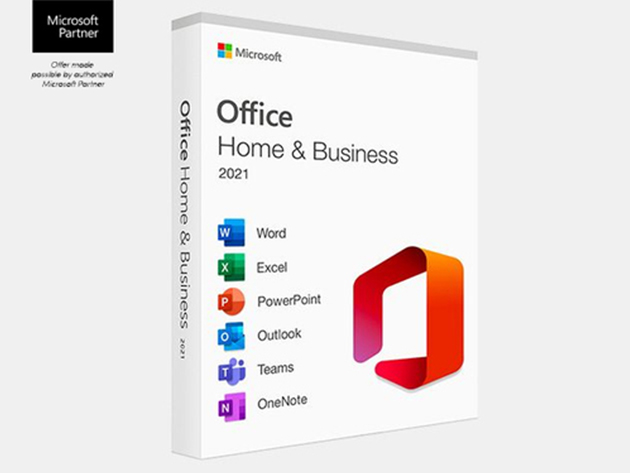
Microsoft Office Home & Business for Mac 2021: Lifetime LicenseSee Deal
StackSocial prices subject to change.

Precisa de substituir uma aplicação paga, um programa descontinuado ou simplesmente procura uma opção open-source? O AlternativeTo ajuda-o a encontrar as melhores alternativas com base nas recomendações da comunidade.
The post AlternativeTo ajuda a encontrar as melhores alternativas de software para PC, ferramentas online e apps appeared first on Tek Notícias.
ReTransmission surge como fork do Transmission após divergência entre mantenedores, prometendo continuidade e inovação no BitTorrent.
O post Transmission é desmembrado em ReTransmission após disputa entre mantenedores apareceu primeiro em Blog do Edivaldo - Informações e Notícias sobre Linux.
