Apple’s next generation of Apple Intelligence and Siri are truly helpful AI that’s centered around you and your needs. Integrated into your apps, grounded in your context, and private at every step; coming later this year.
Apple’s long-awaited overhaul of its voice assistant, now branded Siri AI, is set to arrive this fall alongside iOS 27, iPadOS 27, macOS updates, and related system software. The upgraded assistant promises deeper personal context awareness, on-screen understanding, more natural conversations, and the ability to take actions across apps. But there’s a clear hardware cutoff: only devices that already support Apple Intelligence will receive the full experience at launch.
iPhone Models That Make the Cut
Siri AI requires an A17 Pro chip or newer (with sufficient RAM for on-device processing). Supported iPhones include:
• iPhone 17 Pro and Pro Max
• iPhone Air
• iPhone 17 and 17e
• iPhone 16 Pro and Pro Max
• iPhone 16, 16 Plus, and 16e
• iPhone 15 Pro and Pro Max
Older models, including the standard iPhone 15 and anything earlier, will get the broader iOS 27 update (interface changes, security fixes, and non-AI features), but miss out on the new Siri capabilities.
A subset of these devices — primarily the iPhone 17 Pro, Pro Max, and iPhone Air — will also unlock Apple’s most powerful on-device AI model. That unlocks extras such as more expressive customizable voices, improved speech recognition, and higher-accuracy dictation.
iPads, Macs, Watches, and Vision Pro
Compatibility extends across the rest of the ecosystem with similar requirements:iPad: iPad Pro (M1 chip and later), iPad Air (M1 and later), and iPad mini with the A17 Pro chip.
• Mac: All models with Apple silicon (M1 and later), including the MacBook Neo with its A18 Pro chip.
• Apple Watch (must be paired with a nearby supported iPhone): Series 9 and later, Ultra 2 and later, and SE (3rd generation).
• Apple Vision Pro: All models.
The highest-tier on-device model is further restricted on tablets and computers to those with newer chips (M4 or later on iPad, M3 or later on Mac) plus at least 12 GB of unified memory.
Timeline and Limitations
Developer betas began around the June 2026 WWDC announcements, with a public beta expected in the following months and a stable consumer release targeted for fall 2026 (September timeframe). Siri AI will initially roll out in English (with Spanish support also noted in some documentation), and regional restrictions apply: it will not launch at the outset on iOS or iPadOS in the European Union due to regulatory considerations around the Digital Markets Act, though macOS and visionOS users in the EU will be able to access it. Availability in China is also delayed pending regulatory clearance.
Those without supported hardware will keep the classic Siri experience for now while still receiving the rest of the 2026 software updates. Apple continues to emphasize on-device processing and Private Cloud Compute for privacy, so the hardware bar reflects the computational demands of the more capable models.
MacDailyNews Note: More info about Apple Intelligence and Siri here.
Please help support MacDailyNews — and enjoy subscriber-only articles, comments, chat, and more — by subscribing to our Substack: macdailynews.substack.com. Thank you!
You can delete stickers on iPhone without removing your entire collection, but the correct procedure depends on whether you want to erase a custom sticker, remove a Genmoji, hide keyboard stickers, or detach a sticker from a conversation.
For custom photo stickers and Live Stickers, iOS provides an individual Remove command. This lets you clean the sticker drawer while leaving every other saved sticker untouched.
Apple does not provide a protected Favorites folder inside the system sticker drawer. The Frequently Used section is created automatically from your activity and should not be treated as a permanent collection. If you have stickers you cannot afford to lose, save recoverable copies before beginning the cleanup.
Save Your Favorite Stickers First
The safest backup is to send your favorite stickers to a conversation with yourself. The sent copies remain inside the conversation even if you later remove the reusable versions from your sticker collection.
Adding Stickers:
Messages > New Message > Your Contact > Add > Stickers
Select each favorite sticker and send it as a separate message. You can also create a private conversation with a trusted contact, but messaging yourself keeps the backup separate from ordinary conversations.
If you accidentally delete one of these stickers from the drawer, return to the self-conversation and restore it.
Messages > Your Self-Conversation > Touch and Hold Sticker > Save to Stickers
For a sticker attached to the corner of a message bubble, open its details before saving it.
Messages > Your Self-Conversation > Touch and Hold Sticker > Sticker Details > Save
This procedure is especially useful for stickers received from other people. A photo sticker you created yourself can usually be recreated from the original image, but a saved sticker from another person may be difficult to replace if the original conversation is deleted.
Image Credit: AppleMagazine
How to Delete Stickers on iPhone
The easiest way to remove an individual custom sticker is through the Messages app. You can open any existing conversation because you do not need to send a message.
Removing individual stickers:
Messages > Conversation > Add > Stickers > Live Stickers
The Live Stickers tab uses an icon resembling a sticker being peeled from a surface. It contains stickers created from your photos, animated Live Stickers, and compatible stickers saved from conversations.
Touch and hold the unwanted sticker until the contextual menu appears, then release your finger and select Remove. Do not drag the sticker toward the conversation because that action may attach it to a message instead of opening the menu.
Touch and Hold Sticker > Remove
Only the selected sticker is deleted. Other photo stickers, saved designs, and favorite items remain in the collection.
Some iOS versions also display a Rearrange command after you touch and hold a sticker. This mode allows you to move the stickers you use most often toward the beginning of the collection.
Messages > Conversation > Add > Stickers > Live Stickers > Touch and Hold > Rearrange
Drag the stickers you want to preserve toward the first positions. You may also see a removal control beside each sticker while rearranging. Use it carefully because iOS may remove the sticker immediately without presenting a second confirmation.
A selective cleanup is safer than trying to reset the complete keyboard or sticker database. Removing and reinstalling the Emoji keyboard is unnecessary and may alter frequently used emoji without providing better sticker controls.
Delete Stickers Through the Emoji Keyboard
The same sticker collection is accessible from the system keyboard in Messages, Notes, Mail, and other supported apps.
Using system keyboard in Messages:
Any Text Field > Emoji Keyboard > Stickers > Live Stickers
Touch and hold the sticker you want to erase, then tap Remove. If the menu does not appear, confirm that you are viewing the Live Stickers collection rather than Frequently Used.
Frequently Used combines recently selected emoji, Memoji, Genmoji, and stickers. Items shown there are shortcuts to content stored in another section. Opening the Live Stickers tab gives iOS the correct context for managing your custom collection.
If the keyboard is compressed or several categories are hidden, swipe across the sticker controls until the Live Stickers icon becomes visible. The exact position can change as Apple adjusts the keyboard, but the touch-and-hold removal gesture remains the same.
Image Credit: Apple Inc.
Use Photos When the Sticker Menu Does Not Respond
You can also access the system sticker drawer through the Markup tools in Photos. This is useful when Messages tries to drag a sticker rather than displaying its menu.
Touch and hold the unwanted sticker, then tap Remove. You are managing the same synchronized collection, so a sticker deleted through Photos also disappears from Messages and the system keyboard.
Removing a sticker does not delete the source photograph. If you created the sticker by lifting a person, pet, or object from an image, the original photo remains in your library unless you delete it separately.
To recreate the sticker later, open the original image and lift its subject again.
Photos > Open Photo > Touch and Hold Subject > Add Sticker
You can then apply an effect such as Outline, Comic, Puffy, or Shiny. Live Photos can produce animated Live Stickers when the isolated subject contains usable motion.
Delete a Genmoji Without Removing Other Stickers
Genmoji created with Apple Intelligence are stored with the stickers accessible through the emoji keyboard. They can be removed individually without affecting your photo stickers or other generated designs.
Any Text Field > Emoji Keyboard > Stickers > Genmoji
Touch and hold the Genmoji you no longer want, then tap Remove. You can perform the same procedure from Messages.
Messages > Conversation > Add > Stickers > Genmoji > Touch and Hold > Remove
Removing one Genmoji does not disable Apple Intelligence or erase the other Genmoji you created. If you later want a similar design, open the Genmoji creator and enter the description again, although the generated image may not be identical.
Image Credit: AppleMagazine
Be More Careful With Memoji Stickers
Memoji stickers operate differently because iOS automatically creates a complete sticker pack from each custom Memoji character. You cannot normally delete one expression while keeping the remaining expressions from the same character.
Deleting the underlying Memoji removes its generated sticker pack. Before selecting Delete, confirm that you do not want any of that character’s poses or expressions.
Any Text Field > Emoji Keyboard > Memoji > More > Delete
If you only want Memoji and other stickers to stop appearing in the keyboard, use the keyboard setting instead of deleting the character.
Settings > General > Keyboard > Stickers
Turning off Stickers hides sticker content from the emoji keyboard. It does not provide a selective cleanup and should not be used as a substitute for removing individual items. Your saved stickers remain available when the setting is enabled again.
Remove a Sticker From a Message Without Deleting It
A sticker attached to a message bubble is separate from the reusable copy stored in your collection. Deleting it from the conversation does not erase the sticker from your drawer.
Messages > Conversation > Touch and Hold Message Bubble > Sticker Details
Find the sticker you want to detach, swipe left across it, and tap Delete. This removes that placement from the conversation on your iPhone.
Use this procedure when a sticker covers text, was attached accidentally, or no longer belongs in the conversation. If you instead open the sticker drawer and select Remove, you erase the reusable sticker while leaving previously sent copies in their conversations.
Understand What Happens Through iCloud
Custom stickers sync through iCloud to supported Apple devices using the same Apple Account. Removing a sticker from the iPhone can therefore remove it from the sticker drawers on an iPad, Mac, or Apple Vision Pro.
There is no Recently Deleted album for the system sticker collection. Keep the original source photo or send valuable stickers to yourself before removing anything.
After a deletion, another Apple device may continue displaying the sticker briefly while synchronization completes. Closing and reopening the sticker drawer usually refreshes the collection. A favorite preserved in your self-conversation can be restored at any time through Touch and Hold Sticker > Save to Stickers.
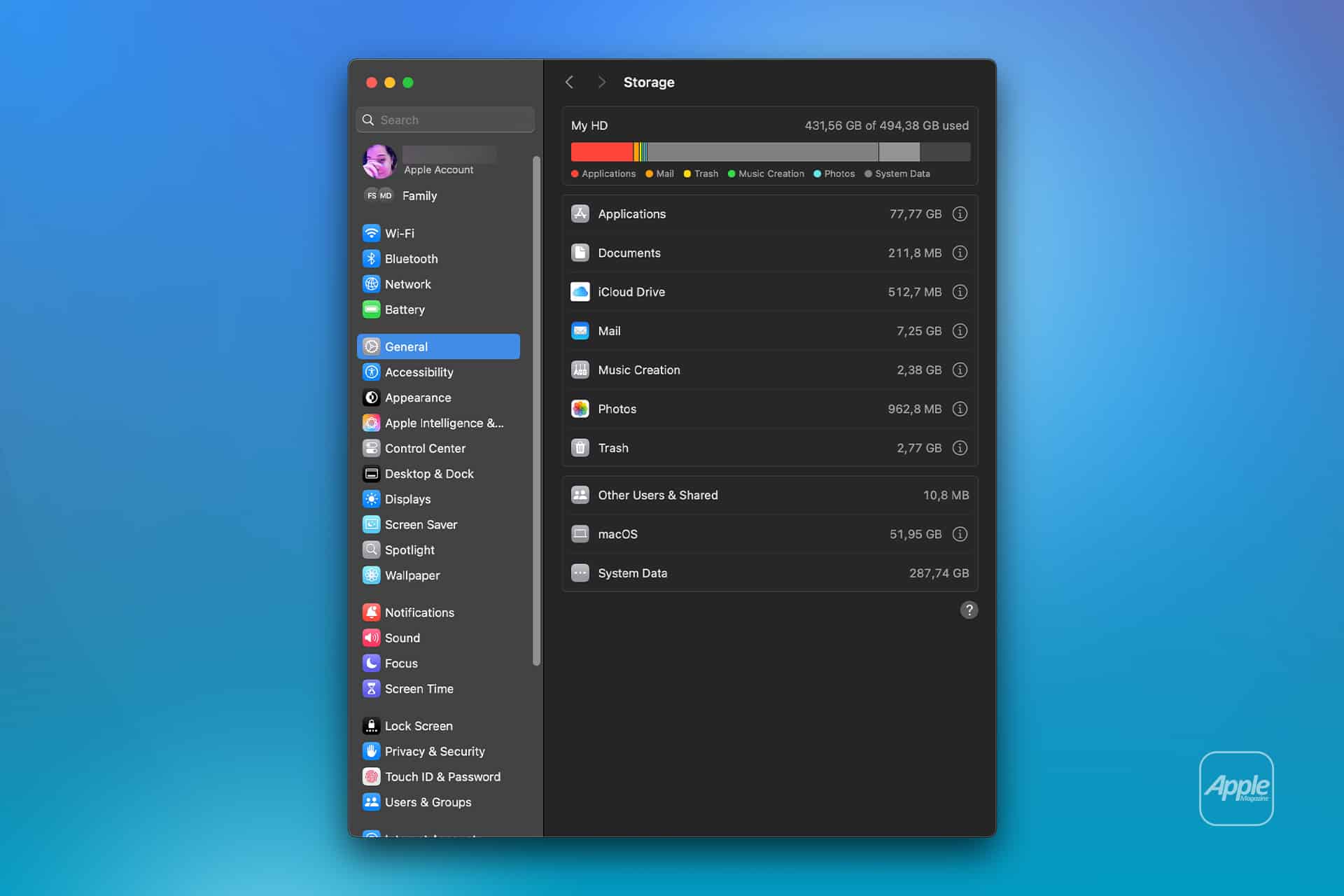
Apple Intelligence files can occupy several gigabytes of Mac storage because locally downloaded models power text generation, summaries, image creation, Siri requests, and other on-device features. Removing these files can recover valuable space when Apple Intelligence is no longer needed.
Apple lists 7GB of available device storage among the requirements for Apple Intelligence, but the amount displayed on a Mac can be higher. Additional languages, image-generation resources, updated models, and temporary assets can increase the total over time.
The files are managed by macOS and do not appear as ordinary documents that can be moved to the Trash. Apple provides a supported removal method through System Settings: turning off Apple Intelligence causes macOS to remove the downloaded on-device models.
This also disables features that depend on Apple Intelligence. Writing Tools, summaries, Image Playground, Genmoji, intelligent Shortcuts actions, and Apple Intelligence functions inside Siri may become unavailable. Regular Mac applications and the rest of macOS continue working normally.
Check Apple Intelligence Files on Your Mac
Recording the available storage before removing the files makes it easier to confirm how much space macOS recovered afterward.
To see the current storage allocation:
Apple menu > System Settings > General > Storage
Allow the Storage page to finish calculating its categories. The process may take a moment when the Mac contains many applications, local files, connected volumes, or several user accounts.
Apple Intelligence may appear as a separate item within the macOS storage category. Depending on the installed macOS version, some related assets may instead be counted under macOS or System Data.
Note the amount of available storage displayed near the storage graph. Comparing the total free space before and after the procedure is usually more reliable than watching one category because macOS can reclassify system-managed files while deleting them.
To inspect the complete internal storage container:
Apple menu > System Settings > General > Storage > All Volumes
This view is useful when the internal drive contains several APFS volumes sharing the same physical storage. The available capacity belongs to the shared container rather than remaining permanently assigned to one volume.
The storage used by Apple Intelligence is different from the memory, or RAM, used while features are running. Closing applications may reduce RAM consumption, but it does not delete the models stored on the internal SSD.
Image Credit: AppleMagazine
Remove Local Apple Intelligence Files
Apple Intelligence is available on compatible Macs with Apple silicon. Intel-based Macs do not support the complete Apple Intelligence system and should not contain the same downloadable model collection.
To turn off Apple Intelligence and request the removal of its on-device models:
Apple menu > System Settings > Apple Intelligence & Siri > Turn off Apple Intelligence > Turn Off Apple Intelligence
The second Turn Off Apple Intelligence command confirms the change. The exact appearance may vary between macOS versions, with the first control presented as either a switch or a button.
Apple says that turning off Apple Intelligence removes the on-device models. There is no separate model manager, Delete Models button, or supported Finder location from which users must remove the files manually.
Keep the Mac connected to power while macOS completes its background storage work. The Apple Intelligence setting changes immediately, but the Storage page may not display the recovered capacity at once.
macOS manages these models through its system asset service. The operating system must identify the associated packages, release them, and recalculate the storage categories. The process can therefore continue after the Apple Intelligence switch has already moved to the off position.
Turning off only individual features does not remove the complete model collection. Disabling notification summaries, Writing Tools, ChatGPT access, or Siri suggestions leaves Apple Intelligence itself active.
A Screen Time restriction also serves a different purpose. It can prevent access to image generation, Writing Tools, and other functions without turning off the underlying intelligence system. Use the Apple Intelligence control inside Apple Intelligence & Siri when the objective is recovering storage.
Confirm That the Space Was Recovered
After macOS has had time to process the removal, return to the Storage page.
To check the available capacity again:
Apple menu > System Settings > General > Storage
Wait for the storage graph and categories to finish updating. Compare the new amount of available space with the figure recorded before Apple Intelligence was turned off.
The Apple Intelligence entry may disappear completely, display a smaller amount, or become part of an adjusted macOS or System Data category. The increase in total available storage provides the better indication that the local models were removed.
If the figures have not changed, restart the Mac to refresh its system services and storage calculation.
To restart macOS:
Apple menu > Restart > Restart
Sign back in, allow the Mac to remain idle for a while, and open the Storage page again.
Apple menu > System Settings > General > Storage
Restarting does not delete the models by itself. Apple Intelligence must remain disabled while macOS completes the removal.
Emptying the Trash is not part of this procedure because macOS does not place Apple Intelligence models there. The Trash affects only files that a user or application has already marked for deletion.
Image Credit: Apple Inc.
What to Do When the Files Remain
First, verify that the complete Apple Intelligence system is off rather than one related feature.
To confirm its status:
Apple menu > System Settings > Apple Intelligence & Siri > Apple Intelligence
The control should display Apple Intelligence as disabled. If macOS presents another confirmation request, complete it and leave the feature off.
Storage information can take time to settle because macOS also manages caches, local snapshots, temporary update packages, and purgeable files. These categories can change while the Mac is idle, making an immediate before-and-after comparison misleading.
Installing the latest stable macOS update can correct storage reporting or asset-management problems.
To check for an available update:
Apple menu > System Settings > General > Software Update
Save current work before installing an update. The Mac may need to restart, and the installation temporarily requires additional free storage.
Beta versions of macOS require extra caution. Development releases may download experimental models, retain previous model revisions, or temporarily change the Apple Intelligence controls. A procedure confirmed for the public version of macOS may not produce the same storage behavior in a beta.
Avoid following online instructions that require starting in macOS Recovery, disabling System Integrity Protection, mounting protected volumes, and deleting folders with names referring to MobileAsset or generative models.
System Integrity Protection prevents applications and administrator accounts from modifying protected parts of macOS. Disabling it weakens that protection and creates the possibility of deleting the wrong asset, leaving macOS with an incomplete model installation, or causing the system database to disagree with the files present on the drive.
A storage utility can help identify how much space system files occupy, but it should not require disabling macOS security to remove Apple Intelligence. If the documented switch leaves a large allocation after a restart and sufficient processing time, Apple Support can investigate the asset database without exposing the Mac to an unsupported system modification.
Turning Apple Intelligence on again reverses the storage saving.
To restore its features:
Apple menu > System Settings > Apple Intelligence & Siri > Turn On Apple Intelligence
The Mac will download the required local models again. Apple recommends leaving the device connected to Wi-Fi and power while the model download completes.
Imagine slipping in a pair of AirPods that don’t just play your music or take your calls, they help you see the world. Not by recording it, but by understanding it. According to the latest rumors from reliable sources, Apple may be ready to deliver exactly that sooner than many expected.
Reports indicate Apple has been internally testing two versions of camera-equipped AirPods. One carries the codename B798, which has been on the radar for some time. The other, B790, appears newer and is advancing more quickly. References to the B790 model have already shown up in iOS 27 beta code, a strong signal that development is well underway, Bloomberg News‘ Mark Gurman reports.
This timeline points to a possible launch as early as this year. Apple often pairs new AirPods with its September iPhone event. Last year’s AirPods Pro 3 debuted alongside the iPhone 17 on September 9. A similar window this fall, potentially with the iPhone 18, would fit the pattern. And, given how little of 2026 remains, “soon” is a realistic possibility.
Rumors also suggest these advanced models could arrive under a name like AirPods Pro Ultra, positioning them as a premium, AI-focused offering above the standard lineup. Importantly, Apple is expected to continue selling conventional AirPods for those who simply want excellent audio.
What the Cameras Are Actually For
Forget the idea of Google Glass-style recording or constant content capture. The cameras in these AirPods are not designed to take photos or videos. Instead, they would analyze the wearer’s surroundings to power an onboard AI assistant—think an enhanced, more context-aware Siri. This approach aims to create a true wearable AI companion rather than a surveillance or creator tool.
Privacy remains a key consideration. A small LED indicator would light up when the cameras are active, similar to the approach used in smart glasses, giving nearby people a clear visual cue. This design choice reflects broader industry caution: Apple has reportedly considered delaying its own smart glasses amid backlash over privacy issues and misuse of devices like Meta’s Ray-Ban glasses.
Why This Matters
If these rumors hold, camera-equipped AirPods would mark a significant step in Apple’s wearable strategy. They would extend the company’s AI ambitions beyond phones and computers into everyday, always-on, wearable accessories that can interpret the environment in real time. For users, that could mean more natural, hands-free assistance — whether identifying objects, providing contextual help, or enhancing accessibility features — without the bulk or social friction of glasses.
Of course, these remain unconfirmed reports based on internal testing and code references. Apple has not officially announced any such product. Still, the combination of dual prototypes, software breadcrumbs, and an accelerating development path for the newer model makes this one of the more concrete AirPods rumors in recent memory.
As we head toward the traditional September reveal window, the prospect of AirPods that can “see” enough to assist—without turning every wearer into a walking camera—feels both futuristic and characteristically Apple: ambitious, privacy-conscious, and focused on making technology disappear into daily life. Whether they arrive this fall or a bit later, the era of AI-powered earbuds appears to be approaching fast.
MacDailyNews Take: We prefer the name “AirPods AI, but given the friction AI poses in some circle, “AirPods Ultra” may be the better marketing choice. Regardless, we’ll be first in line for these!
Please help support MacDailyNews — and enjoy subscriber-only articles, comments, chat, and more — by subscribing to our Substack: macdailynews.substack.com. Thank you!

 Login
Login