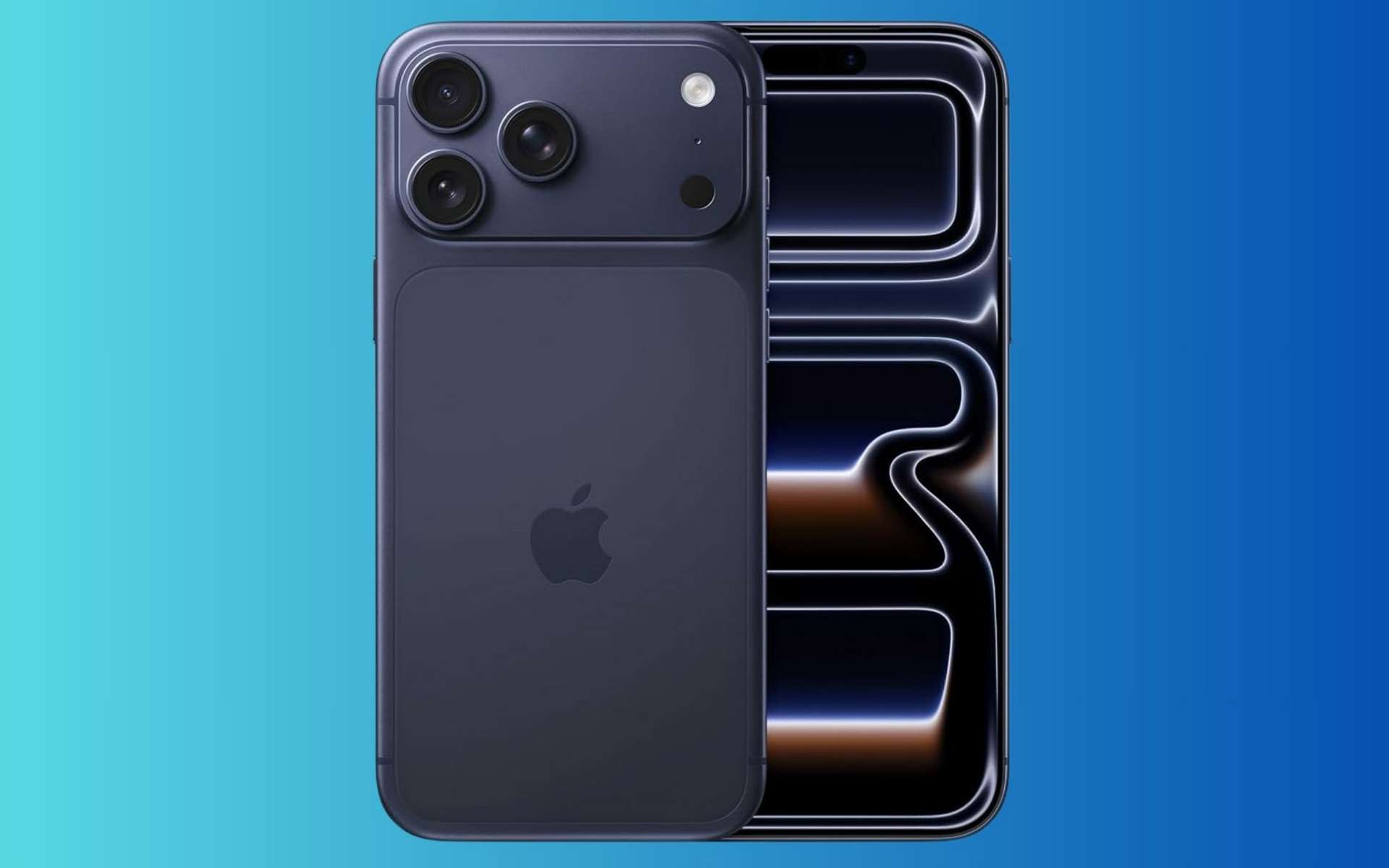
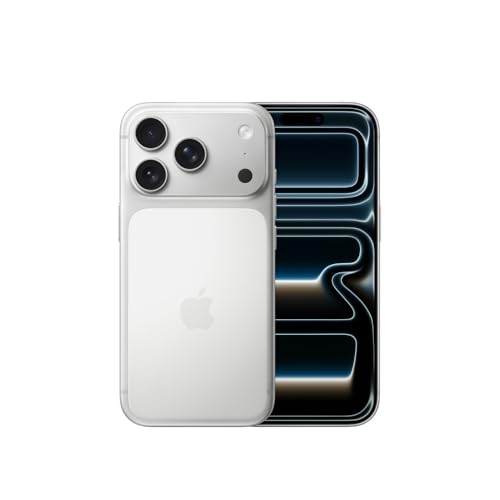
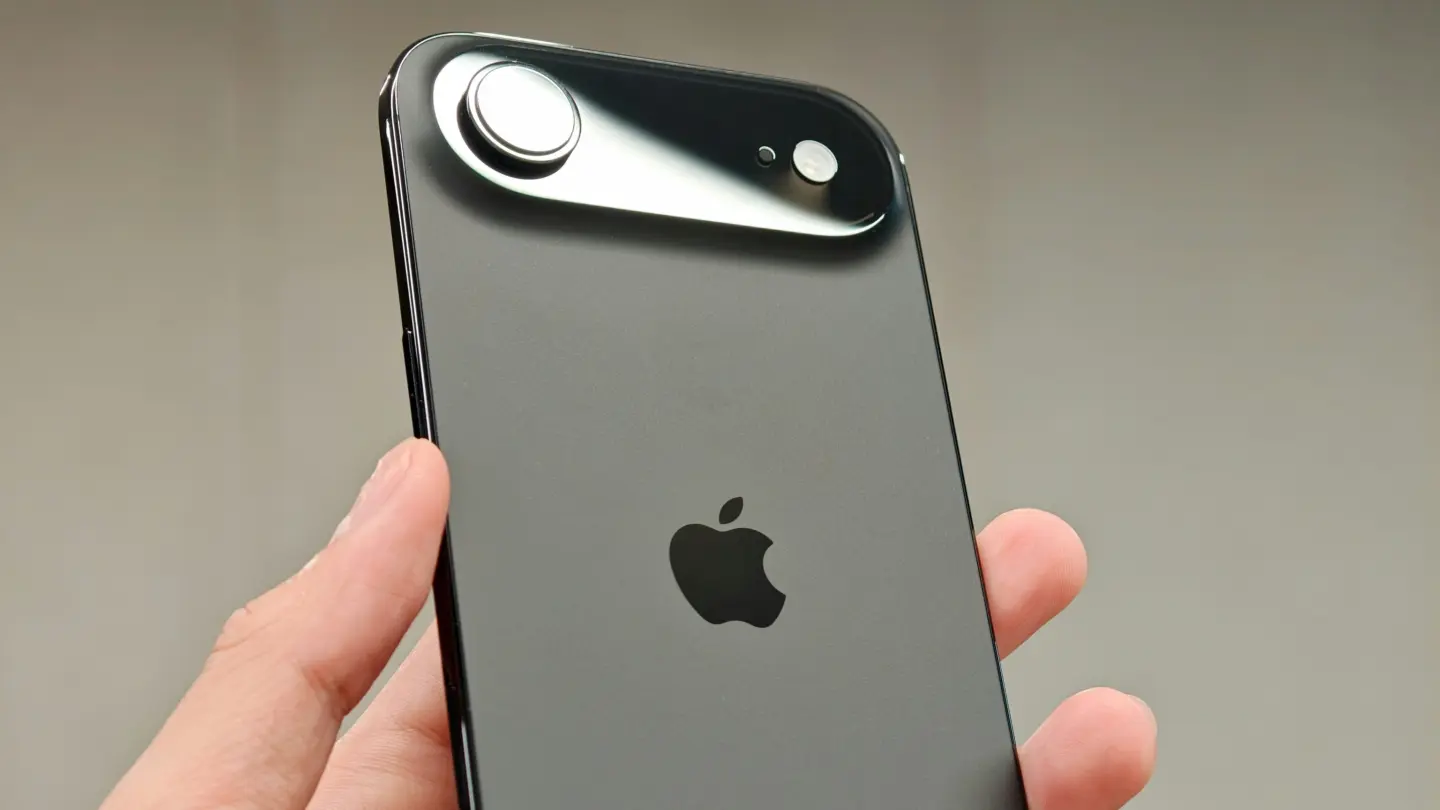
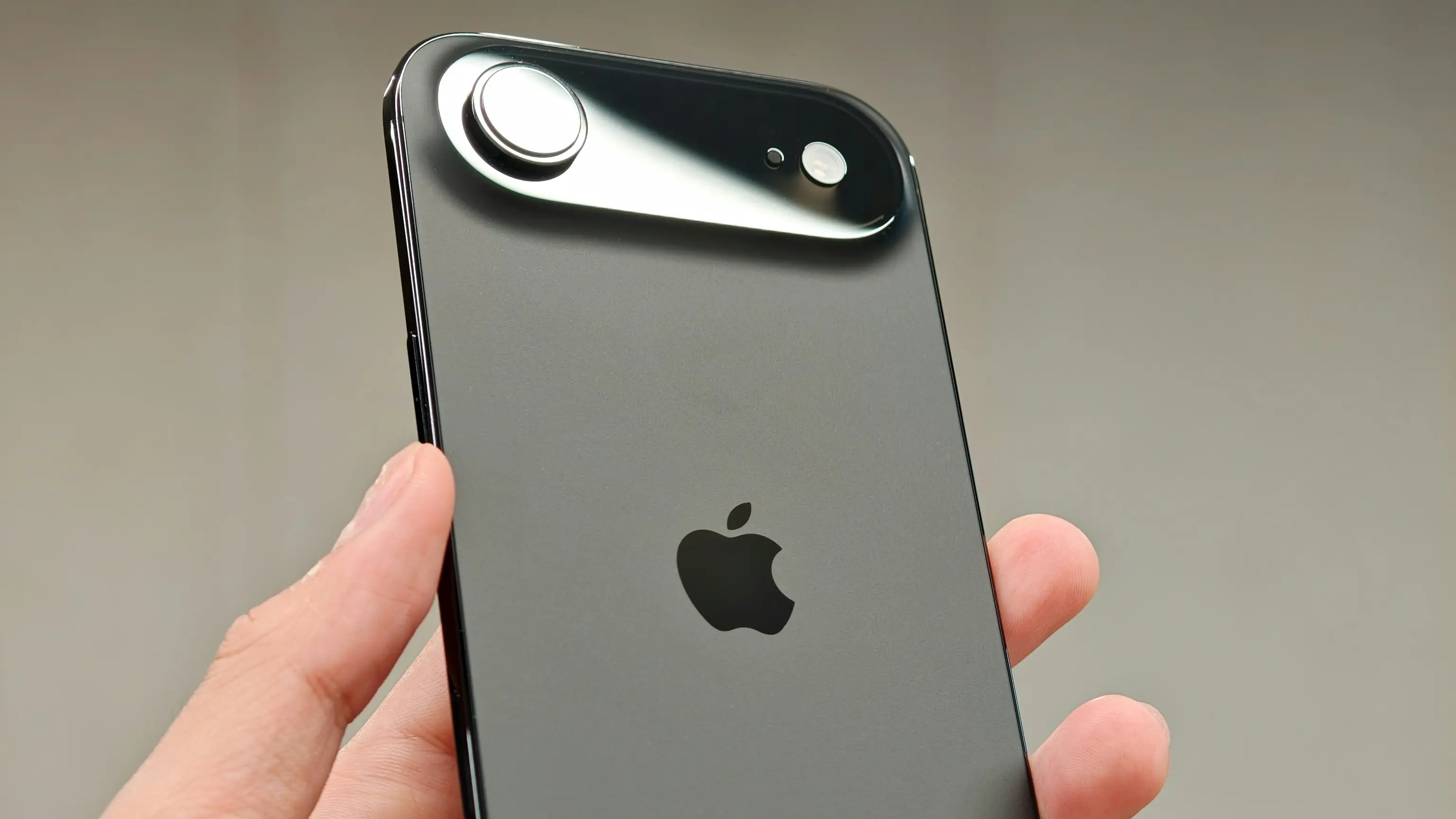
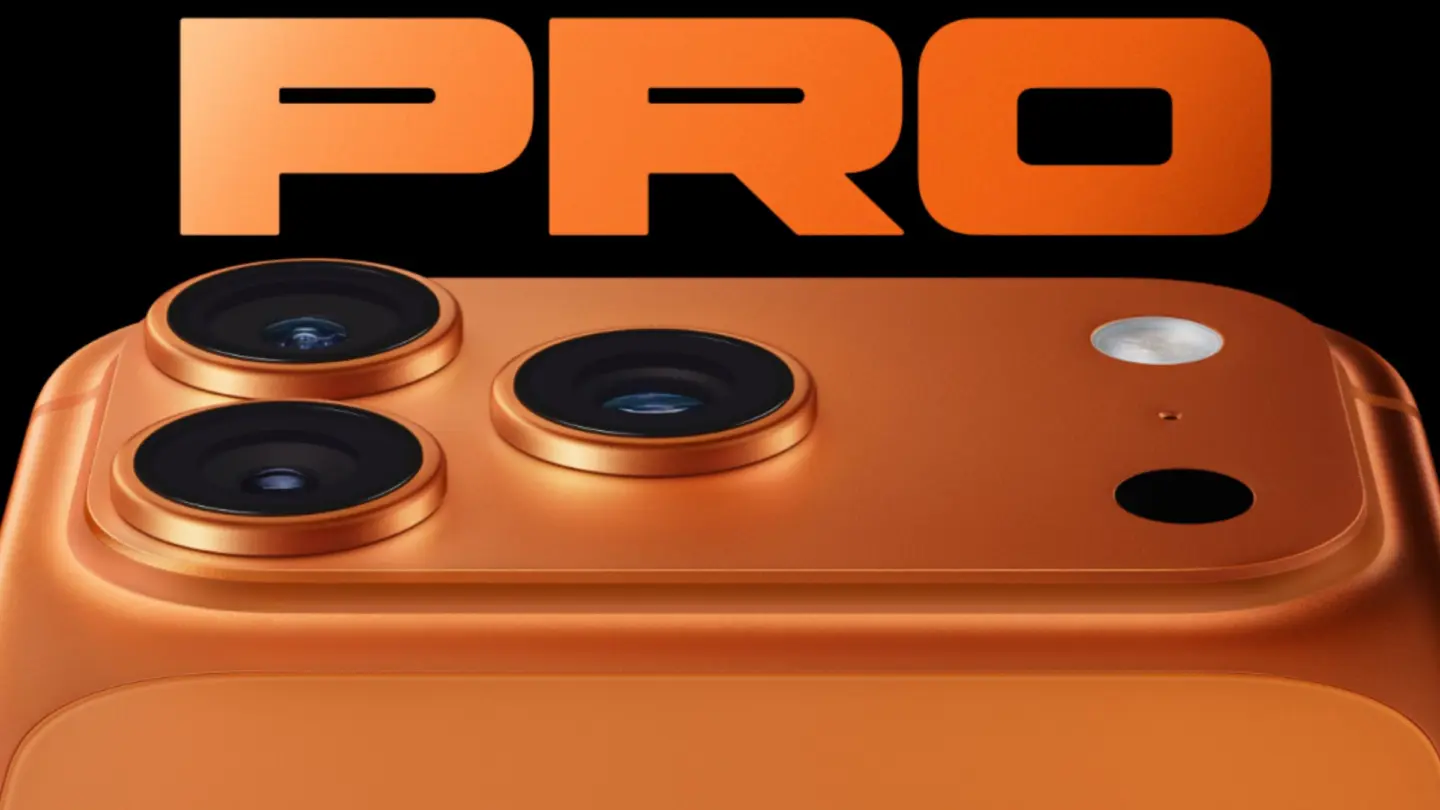
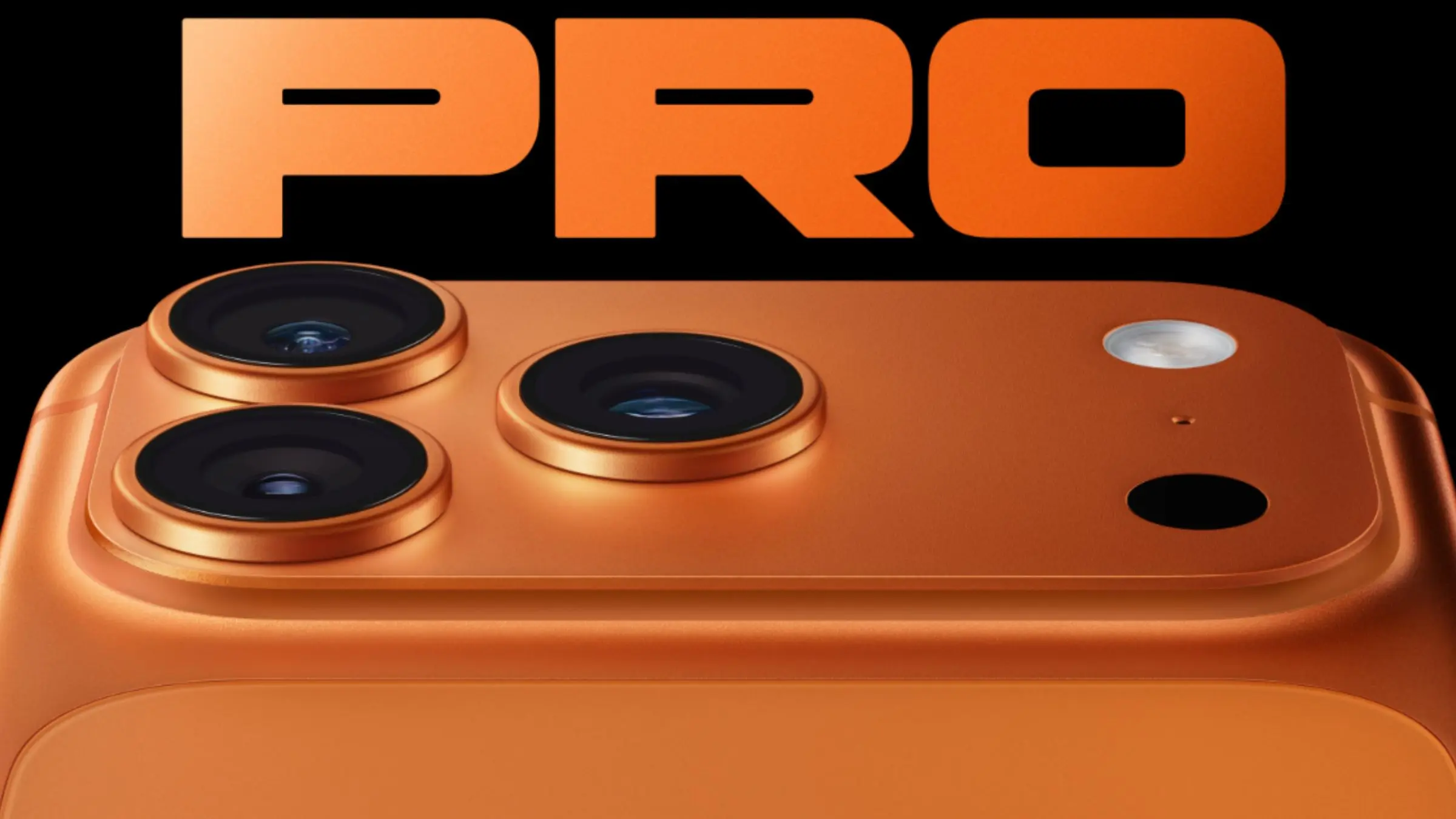
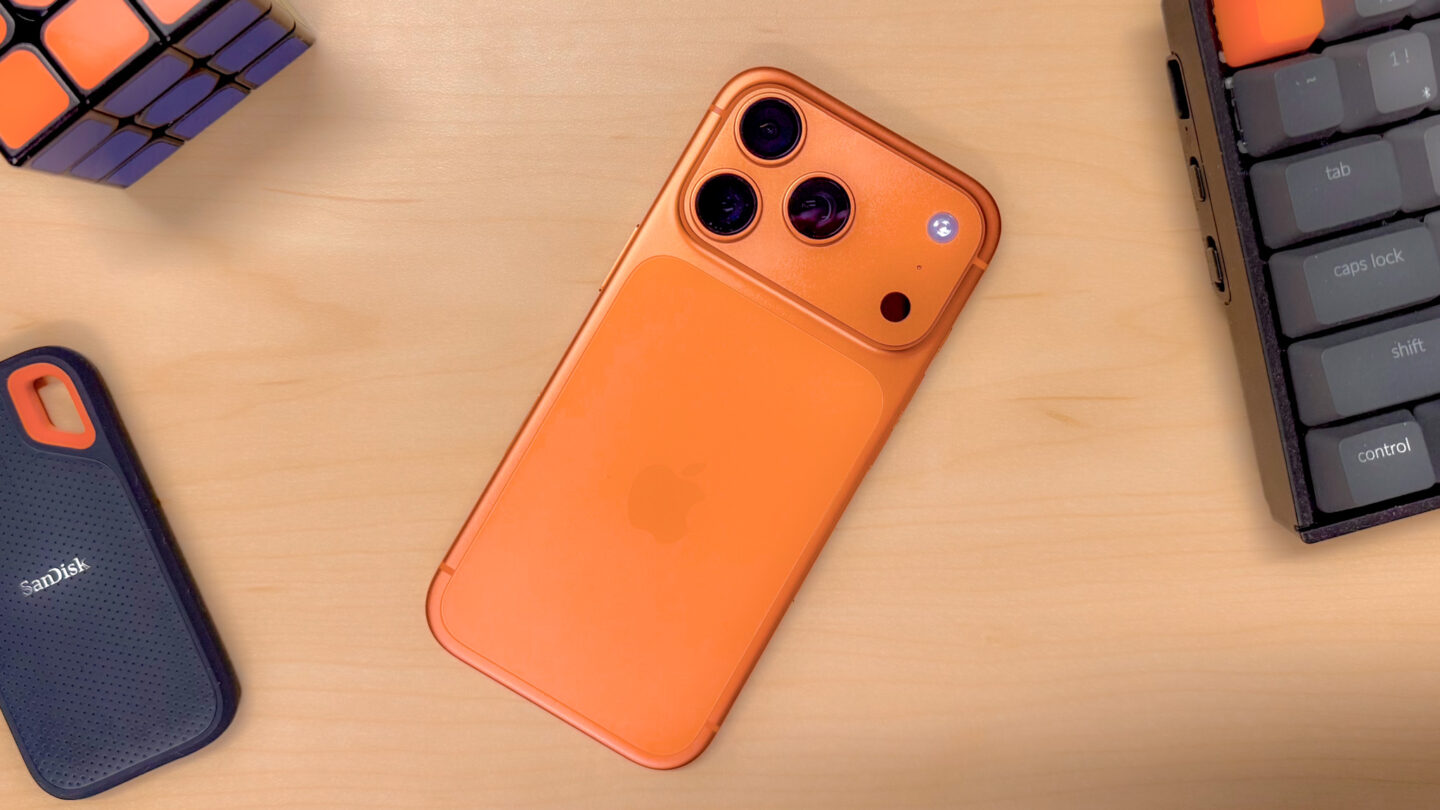
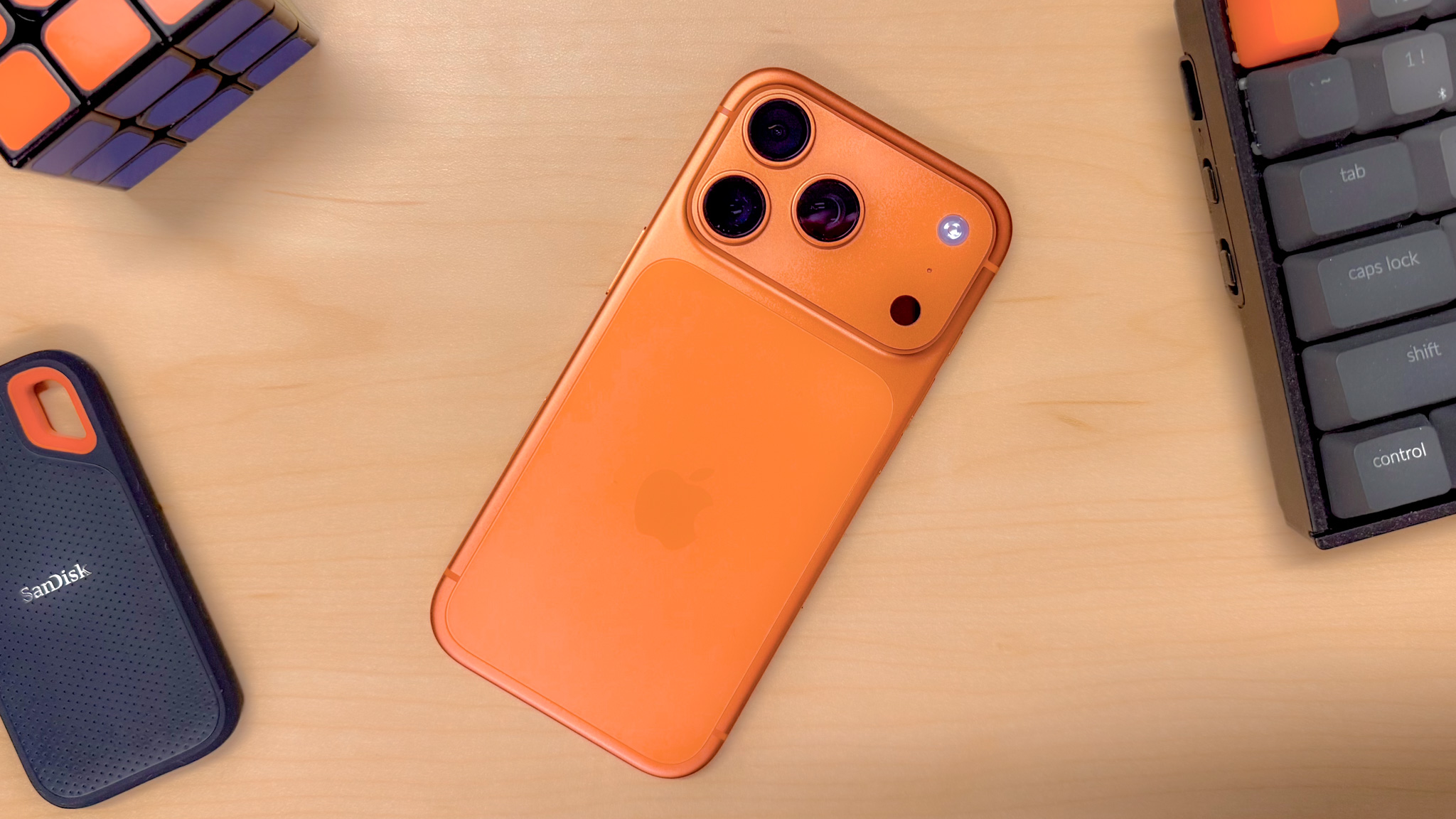
L’iPhone 18 est là, mais ce 17 Pro Max contre-attaque avec 170 € de remise


The iPhone 17 price hike many had expected just arrived. Understand why it was unavoidable — not a cash grab by Apple.
(via Cult of Mac - Your source for the latest Apple news, rumors, analysis, reviews, how-tos and deals.)

É, meus amigos… A crise causada pelo aumento dos custos de chips de memória e armazenamento atingiu o produto mais consolidado da Apple, o iPhone.
A empresa atualizou, há pouco, a Apple Store Online com os novos valores praticados para os smartphones que já estavam em linha antes da chegada dos iPhones 18 Pro/18 Pro Max e Duo. E sim, nem o 17e escapou!
Posts relacionados
Como já era de se esperar, esses aumentos se refletiram em vários outros países onde a Apple atua, como o Brasil.
Confira as tabelas com os preços antigos e os novos! 🤑
| Modelo | Preço anterior | Preço novo | Variação |
|---|---|---|---|
| 16 de 128GB | US$700 | US$800 | +14,3% |
| 16 Plus de 128GB | US$800 | — | — |
| 16 Plus de 256GB | US$900 | — | — |
Como podemos observar, apenas uma configuração do iPhone 16 está disponível. O 16 Plus foi descontinuado.
| Modelo | Preço anterior | Preço novo | Variação |
|---|---|---|---|
| 256GB | US$600 | US$700 | +16,7% |
| 512GB | US$800 | US$900 | +12,5% |
| Modelo | Preço anterior | Preço novo | Variação |
|---|---|---|---|
| 256GB | US$800 | US$900 | +12,5% |
| 512GB | US$1.000 | US$1.100 | +10% |
| Modelo | Preço anterior | Preço novo | Variação |
|---|---|---|---|
| 256GB | US$1.000 | US$1.100 | +10% |
| 512GB | US$1.200 | US$1.300 | +8,3% |
| 1TB | US$1.400 | US$1.700 | +21,4% |
| Modelo | Preço | Modelo | Preço | Variação |
|---|---|---|---|---|
| 17 Pro de 256GB | US$1.100 | 18 Pro de 256GB | US$1.200 | +9% |
| 17 Pro de 512GB | US$1.300 | 18 Pro de 512GB | US$1.400 | +7,6% |
| 17 Pro de 1TB | US$1.500 | 18 Pro de 1TB | US$1.800 | +20% |
| — | — | 18 Pro de 2TB | US$2.400 | — |
| 17 Pro Max de 256GB | US$1.200 | 18 Pro Max de 256GB | US$1.300 | +8,3% |
| 17 Pro Max de 512GB | US$1.400 | 18 Pro Max de 512GB | US$1.500 | +7,1% |
| 17 Pro Max de 1TB | US$1.600 | 18 Pro Max de 1TB | US$1.900 | +18,8% |
| 17 Pro Max de 2TB | US$2.000 | 18 Pro Max de 2TB | US$2.500 | +25% |
Curiosamente, a Apple mexeu apenas nas versões com as caixas maiores do Apple Watch Series 12 — ou seja, os modelos de 42mm seguem os mesmos preços. O SE 3 e o Ultra 4 seguem intactos.
| Modelo | Preço | Modelo | Preço | Variação |
|---|---|---|---|---|
| Series 11 (GPS, alumínio de 46mm) | US$430 | Series 12 (alumínio de 46mm) | US$450 | +4,6% |
| Series 11 (GPS + Cellular, alumínio de 46mm) | US$530 | Series 12 (GPS + Cellular, alumínio de 46mm) | US$550 | +3,8% |
| Modelo | Preço anterior | Preço novo | Variação |
|---|---|---|---|
| 16 de 128GB | R$6.800 | R$7.000 | +2,9% |
| 16 Plus de 128GB | R$8.500 | — | — |
| 16 Plus de 256GB | R$9.300 | — | — |
| Modelo | Preço anterior | Preço novo | Variação |
|---|---|---|---|
| 256GB | R$5.800 | R$6.000 | +3,4% |
| 512GB | R$7.300 | R$7.500 | +2,7% |
| Modelo | Preço anterior | Preço novo | Variação |
|---|---|---|---|
| 256GB | R$8.000 | R$8.300 | +3,7% |
| 512GB | R$9.500 | R$9.800 | +3,1% |
| Modelo | Preço anterior | Preço novo | Variação |
|---|---|---|---|
| 256GB | R$10.500 | R$11.000 | +4,7% |
| 512GB | R$12.000 | R$12.500 | +4,1% |
| 1TB | R$13.500 | R$15.500 | +14,8% |
| Modelo | Preço | Modelo | Preço | Variação |
|---|---|---|---|---|
| 17 Pro de 256GB | R$11.500 | 18 Pro de 256GB | R$12.000 | +4,3% |
| 17 Pro de 512GB | R$13.000 | 18 Pro de 512GB | R$13.500 | +3,8% |
| 17 Pro de 1TB | R$14.500 | 18 Pro de 1TB | R$16.500 | +13,7% |
| — | — | 18 Pro de 2TB | R$21.000 | — |
| 17 Pro Max de 256GB | R$12.500 | 18 Pro Max de 256GB | R$13.000 | +4% |
| 17 Pro Max de 512GB | R$14.000 | 18 Pro Max de 512GB | R$14.500 | +3,5% |
| 17 Pro Max de 1TB | R$15.500 | 18 Pro Max de 1TB | R$17.500 | +12,9% |
| 17 Pro Max de 2TB | R$18.500 | 18 Pro Max de 2TB | R$22.000 | +18,9% |
| Modelo | Preço | Modelo | Preço | Variação |
|---|---|---|---|---|
| Series 11 (GPS, alumínio de 46mm) | R$5.899 | Series 12 (GPS, alumínio de 46mm) | R$6.099 | +3,4% |
| Series 11 (GPS + Cellular, alumínio de 46mm) | R$6.799 | Series 12 (GPS + Cellular, alumínio de 46mm) | R$7.399 | +8,8% |
Não está nada fácil, infelizmente… 😭
NOTA DE TRANSPARÊNCIA: O MacMagazine recebe uma pequena comissão sobre vendas concluídas por meio de links deste post, mas você, como consumidor, não paga nada mais pelos produtos/serviços usando os nossos links de afiliado.


A new iPhone 17 can feel surprisingly messy after only a few days of downloading apps. Social media, shopping apps, games, work tools, streaming services and utilities can quickly turn the Home Screen into a collection of icons that takes longer to navigate than it should.
The good news is that you do not have to accept Apple’s default arrangement. You can move app icons, create folders, place apps on different Home Screen pages, hide pages you rarely use and decide where newly downloaded apps should appear.
More importantly, a well-organized iPhone 17 does not need to follow a complicated visual system. The best layout is the one that matches how you actually use your phone.
Before moving anything, think about which apps you open without searching for them.
For many people, these might include Messages, Phone, Safari, Camera, Maps, Photos, Music, Mail or a frequently used social media app. These are the apps that deserve the easiest positions to reach.
Instead of arranging every icon alphabetically, consider giving your most-used apps the most convenient locations.
A simple approach is to keep essential apps on the first Home Screen and move less frequently used apps to later pages. This reduces visual clutter while keeping important functions immediately accessible.
Apple allows apps and widgets to be placed in different positions on a Home Screen, including along the top, bottom or sides of the display.
Moving an app is straightforward, but you can use the process to completely redesign your Home Screen.
Touch and hold an empty area of the Home Screen until the app icons begin to jiggle. You can then drag an app to a new position on the same page.
If you drag an app toward the edge of the display, you can move it to another Home Screen page. When you have finished arranging everything, tap the Home Screen background to exit editing mode.
Do not feel that every available space has to be filled.
You can deliberately leave areas open to make a wallpaper photo more visible or create a cleaner visual layout. Apple’s current Home Screen customization also allows users to change icon appearance, including light, dark, clear and tinted styles.
This means your iPhone 17 Home Screen can be both functional and visually organized.
Folders are useful when you have several apps that belong to the same category.
To create one, enter Home Screen editing mode and drag one app directly onto another. iPhone will create a folder that can hold additional apps. You can then give the folder a name that makes sense to you.
Instead of creating dozens of folders, keep the categories broad.
For example:
The goal is not to create a perfect filing system. It is to make an app easier to find when you cannot remember exactly where you placed it.
The Dock is valuable Home Screen space because it remains available while you move between Home Screen pages.
Think of it as your permanent quick-access area.
Rather than putting four apps there simply because they came with your previous phone, choose the apps you use repeatedly throughout the day.
For example, a practical setup could include:
Phone | Messages | Safari | Camera
Another user might prefer:
Messages | Maps | Music | Mail
There is no universal best Dock arrangement. Your usage habits should determine it.
If you have a large number of apps, forcing everything onto one screen can make the iPhone 17 harder to use.
A better strategy is to give each page a purpose.
For example:
Page 1 — Daily use
Communication, browser, camera, maps and other essential apps.
Page 2 — Work and productivity
Email, notes, cloud storage, office apps, calendars and task managers.
Page 3 — Entertainment
Streaming, music, games and social media.
Page 4 — Occasional apps
Travel, shopping, finance, utilities and apps you rarely open.
Apple lets you reorder complete Home Screen pages, so you can put your most useful page first rather than rebuilding the entire layout from scratch.
You may not need to delete apps simply because you do not want to see them every day.
If a page contains apps you rarely use, you can hide the entire Home Screen page while keeping the apps available through the App Library.
To manage your pages, touch and hold the Home Screen background, tap the page indicator near the bottom, and then select or deselect the pages you want visible.
Hidden pages can be brought back later.
This is particularly useful if you want a minimalist iPhone 17 Home Screen without removing apps you occasionally need.
The App Library can take over some of the organizational work.
Swipe left past your Home Screen pages to reach it. iPhone automatically organizes installed apps into categories, while frequently used apps are positioned for easier access. You can also search for an app by name.
This creates an important distinction:
Home Screen = apps you want to see.
App Library = apps you want to keep.
Once you adopt this approach, you do not need to give every installed app a permanent position on the Home Screen.
One of the easiest ways to keep your iPhone 17 organized is to control where new apps are installed.
Go to:
Settings → Home Screen & App Library
You can choose whether newly downloaded apps are added to the Home Screen or placed in the App Library only.
Choosing App Library Only can be useful if you regularly download apps but do not want every new installation to disturb your carefully arranged Home Screen.
You can still move an app from the App Library back to the Home Screen whenever you decide that it deserves a permanent place.
There is another detail that is easy to overlook: thumb reach.
If you usually operate your iPhone 17 with one hand, putting frequently used apps closer to the lower portion of the display can make them easier to reach.
You do not have to create a symmetrical Home Screen.
Place important apps where your thumb naturally lands. Put less important apps farther away or inside folders.
This approach is often more practical than copying a visually attractive Home Screen layout from someone else.
Widgets can provide useful information without opening an app, but adding too many can make the Home Screen harder to navigate.
Consider keeping only widgets that provide information you genuinely check.
Examples include:
Apple also allows Home Screen widgets and app icons to be customized together, including appearance and color options.
A useful rule is simple: if a widget does not save you time, remove it.
If you want a cleaner Home Screen, you do not need dozens of folders.
One minimalist setup could look like this:
First page:
Your essential daily apps plus one or two useful widgets.
Second page:
Work, productivity and communication tools.
Third page:
Entertainment and social apps.
Everything else:
App Library.
This arrangement keeps the first screen useful without requiring you to constantly reorganize icons.
You do not have to manually move hundreds of icons back into place.
iPhone includes an option to reset the Home Screen layout. According to Apple, resetting the Home Screen removes folders and places downloaded apps alphabetically after the apps that came with the iPhone.
You can find this option under:
Settings → General → Transfer or Reset iPhone → Reset → Reset Home Screen Layout
Use this carefully, because it is a reset rather than a temporary rearrangement.
There is no single perfect app arrangement for the iPhone 17.
The most useful setup is usually based on three principles:
Keep frequently used apps close.
Move occasional apps into folders or the App Library.
Keep the first Home Screen simple enough to navigate instantly.
Once your apps are arranged around your actual habits rather than their download order, the iPhone 17 becomes easier to use. You spend less time searching through pages and more time getting directly to the feature or app you need.
If your Home Screen starts becoming crowded again, do not reorganize everything from scratch. Move the apps you use most often back to the front, hide unnecessary pages and let the App Library handle everything else.
That makes Home Screen organization an ongoing system rather than a one-time cleanup job.
The post How to Arrange App Icons on iPhone 17: The Ultimate Home Screen Organization Guide appeared first on IGeeKphone China Phone, Tablet PC, VR, RC Drone News, Reviews.

Despite claims to the contrary, Apple’s ambitious curved-glass iPhone 20 remains on track to launch in 2027.
(via Cult of Mac - Your source for the latest Apple news, rumors, analysis, reviews, how-tos and deals.)


Rumors point to steep iPhone 18 Pro price hikes this September. Here’s why non-Pro buyers should shop now (and Pro buyers should think twice).
(via Cult of Mac - Your source for the latest Apple news, rumors, analysis, reviews, how-tos and deals.)


Apple could be forced to raise iPhone 17 prices very soon as soaring memory costs continue to squeeze the company.
(via Cult of Mac - Your source for the latest Apple news, rumors, analysis, reviews, how-tos and deals.)

People are mostly waiting for September to see what new phones cost, but a recent leak suggests Apple has different plans for its current lineup. According to a fresh rumor, the company might increase the cost of the iPhone 17 as soon as next week. This comes after it raised prices on several other products […]
The post Rumor Says Apple Could Increase The iPhone 17 Price Next Week appeared first on The Mac Observer.
The high-end smartphone market just reached a new milestone in the first half of 2026. Premium phones, defined as those priced at $600 and above, now account for a record 29% of all global smartphone sales. According to Counterpoint Research, Apple and Samsung continue to dominate this growing space. Together, these two tech giants captured […]
The post Apple Leads Premium Phone Market While Segment Hits Record High appeared first on The Mac Observer.
FaceTime Dual Capture is bringing simultaneous front-and-rear camera streaming to video calls in iOS 27, allowing compatible iPhones to show the caller and their surroundings without repeatedly switching between cameras.
The feature expands technology Apple introduced with the iPhone 17 family. Dual Capture already allows the Camera app to record through the Center Stage front camera and a rear camera at the same time. iOS 27 brings a similar capability directly into live FaceTime calls.
During a call, the front camera can continue showing the speaker while the rear camera displays whatever the iPhone is pointing toward. Someone attending a concert can share the performance and remain visible. A parent can show a child playing without disappearing from the conversation. A person asking for technical assistance can remain on screen while directing the rear camera toward the equipment causing the problem.
Dual Capture removes the awkward sequence of switching to the rear camera, showing something, and switching back to continue speaking face to face. Both perspectives remain available inside the same call.

The normal FaceTime camera control changes from a simple front-or-rear choice on supported iPhones. When the caller activates the rear camera, iOS 27 keeps the front camera visible by default.
The main view displays the rear camera feed while a smaller window contains the front camera image. This picture-in-picture arrangement gives the other participant a continuous view of the caller’s reaction, commentary, or explanation.
FaceTime > Start a video call > Tap the Flip button
Tapping the Flip button turns on the rear camera without immediately removing the front view. The other participant begins receiving both perspectives as part of the FaceTime stream.
The caller can disable the front view when it is no longer needed. This provides a conventional rear-camera presentation for situations where the surroundings should occupy the complete image.
FaceTime > Tap the camera view > Disable the front camera
The exact labels and placement may change before the public release of iOS 27 because the feature is still being tested in beta software. Its basic behavior is already established: the Flip control activates the rear camera while retaining the front camera feed.
Dual Capture does not create two independent FaceTime calls. Both images belong to one video stream, so the caller does not need a second account, device, or invitation.
The feature also differs from screen sharing. FaceTime screen sharing transmits applications and interface activity from the iPhone display. Dual Capture transmits live video from two physical cameras.

Apple has limited FaceTime Dual Capture transmission to the iPhone 17, iPhone 17 Pro, iPhone 17 Pro Max, and iPhone Air. Each model includes Apple’s 18MP Center Stage front camera and the Dual Capture capability introduced in the Camera app.
An older iPhone that supports iOS 27 cannot originate a Dual Capture stream. It continues to use the normal option of selecting either the front camera or a rear camera during a call.
Older models can still receive and display a Dual Capture feed when they are running iOS 27. This allows an iPhone 16 or another supported device to see both views transmitted from an iPhone 17, even though it cannot send the same presentation back.
Both participants need iOS 27 for the new FaceTime layout to work as intended. The transmitting device must also be one of the supported iPhone 17-generation models.
This limitation is based on Apple’s official feature support rather than the simple presence of front and rear cameras. Earlier iPhones have camera hardware capable of operating in several multi-camera applications, but Apple has not extended its native Dual Capture implementation to them.
Third-party applications have offered forms of simultaneous multi-camera recording for years through Apple’s developer frameworks. The difference is that iOS 27 integrates the experience into FaceTime, where users can activate it through the familiar camera-switching control.
Describing FaceTime Dual Capture as retro-compatible with the iPhone 17 does not fully explain its relationship with the hardware. The iPhone 17 family introduced Apple’s native Dual Capture recording in 2025, and iOS 27 now gives that existing camera system another purpose.
Inside the Camera app, Dual Capture produces a saved video containing front and rear views. Apple lists support for recording at up to 4K Dolby Vision at 30 frames per second on the iPhone 17.
FaceTime uses the camera pairing for live communication instead. Network quality, bandwidth, device temperature, and FaceTime processing can affect the transmitted resolution, so users should not assume that a call will preserve the Camera app’s maximum 4K recording specification.
The Center Stage front camera also contributes more than resolution. Its square sensor gives the iPhone greater freedom to adjust framing without requiring the device to be physically rotated. Center Stage can help keep the caller positioned inside the smaller front-camera view while the rear camera follows the subject being shared.
That combination makes Dual Capture more useful than placing two untreated camera feeds beside each other. FaceTime can preserve the speaker’s presence while directing most of the screen toward the event, object, or location being discussed.
The feature may require more processing power and energy than an ordinary single-camera call. Running two camera sensors while encoding and transmitting live video can increase battery consumption and device temperature, especially during long calls over cellular data.
Apple has not published separate battery estimates for Dual Capture FaceTime calls. Users planning extended sessions may want access to power and a stable Wi-Fi connection.

FaceTime Dual Capture arrives shortly before Apple’s expected iPhone 18 generation, making it likely to become part of how the company demonstrates the new phones’ camera and communication abilities.
Apple has not announced the iPhone 18 lineup or confirmed its final camera specifications. Compatibility with FaceTime Dual Capture is therefore expected from the software’s “iPhone 17 and newer” positioning, but individual iPhone 18 models should not be treated as confirmed until Apple presents them.
The software release gives existing iPhone 17 owners access without requiring another hardware purchase. That approach also provides Apple with a working FaceTime feature before the next iPhone launch rather than introducing the camera mode and communication interface at the same moment.
Future hardware could improve the experience through faster processors, stronger image stabilization, upgraded sensors, or more efficient video encoding. None of those additions is required for the supported iPhone 17 family, which already contains the camera system needed to transmit both views.
Dual Capture is only one part of the FaceTime update. Apple is also improving video-call quality when the network connection is weak, addressing a problem that becomes especially relevant when two live camera views require transmission. Traditional Chinese support is joining FaceTime Live Captions as well.
The weak-connection improvement may determine how dependable Dual Capture becomes away from Wi-Fi. A feature designed for travel, events, repairs, and outdoor calls needs to tolerate changes in cellular bandwidth without freezing both views or forcing the session to end.
FaceTime Dual Capture remains part of the iOS 27 beta as Apple prepares the public update for September. Apple can still adjust the interface, performance, device requirements, and picture-in-picture behavior before the completed software reaches iPhone 17 owners.
The post FaceTime Dual Capture: iOS 27’s Biggest Video Call Upgrade appeared first on AppleMagazine.

Robust iPhone 17 demand helped Apple grow its share of the global smartphone market even as most of its rivals struggled.
(via Cult of Mac - Your source for the latest Apple news, rumors, analysis, reviews, how-tos and deals.)

| Model | Previous Price | New Price | Increase |
|---|---|---|---|
| iPhone 17 Pro Max | ¥194,800 | ¥214,800 | 10.3% |
| iPhone 17 Pro | ¥179,800 | ¥194,800 | 8.3% |
| iPhone Air | ¥159,800 | ¥177,800 | 11.3% |
| iPhone 17 | ¥129,800 | ¥142,800 | 10% |
| iPhone 17e | ¥99,800 | ¥107,800 | 8% |
| iPhone 16 | ¥114,800 | ¥124,800 | 8.7% |