Macworld reports that iOS 27 beta 5, released to developers on Monday, contains hidden code revealing six unreleased iPhone models – although you've probably heard of them before.
The following references are said to have been found alongside references to existing iPhone models, in system files associated with the iPhone's battery drivers and Battery Intelligence features:
V62 — iPhone Air 2
V63 — iPhone 18 Pro
V64 — iPhone 18 Pro Max
V67 — iPhone 18
V68 — iPhone Ultra
V69 — iPhone 18e
It's the first time the full iPhone 18 lineup has been mentioned in code found in an iOS 27 beta. To be clear, the discovered references are the codes in bold, excluding the names (which are inferred) but these internal Apple identifiers have appeared in previous leaks or have been used by Bloomberg's Mark Gurman in his reporting, allowing them to be matched to the expected iPhone models.
Apple has not publicly confirmed the existence of any upcoming iPhone 18 models, but regular readers will know that they have been heavily rumored for several months now.
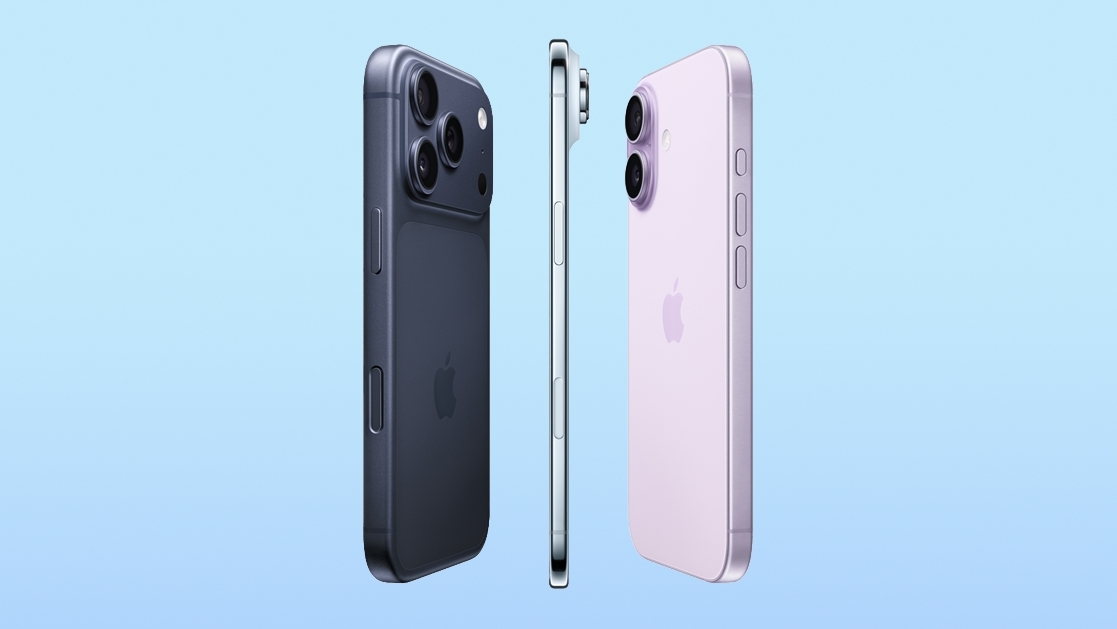
Apple is taking a different launch approach to the iPhone 18 series this time around, with a split-launch strategy that will see the iPhone 18 Pro, iPhone 18 Pro Max, and foldable iPhone Ultra unveiled in September. For the first time, the regular iPhone 18 will be launched in the spring of 2027 alongside the iPhone 18e and iPhone Air 2.
Apple is working on "Apple Reference Image," a photo provenance system that will verify if an image was captured with an iPhone. References to the feature were found in a privacy disclosure included in iOS 27 beta 5, but it is not live yet.
According to the text, there will be a "Reference" mode option in the Camera app that users can select. Using this mode will embed provenance data in the image's metadata.
Images captured with an opt-in Reference mode can be authenticated to confirm they were taken with an iPhone. Authenticating is done by tapping the Reference badge on the image, which sends the raw image, sensor signatures, capture time frame, and the unique hardware identifiers of the sensor to Apple's Private Cloud Compute (PCC) servers. PCC uses the information to determine whether the camera captured the photo, gives it a unique ID, and then returns an authenticated version to the user's device.
When authenticating a photo, Apple receives sensor data, a hash, and the assessment results, but not the raw photo. Apple can refuse to authenticate images from a sensor that might be compromised, and it can retroactively revoke a sensor's past authentications.
Authenticated photos can be viewed on an iPhone, iPad, or Mac, and the Reference badge can also be clicked on a Mac. Images have to be captured in Apple's specific Reference mode to be authenticated, which suggests it's a feature aimed at pro photographers, journalists, and others who need to verify images. There may also be a video component, since Apple's disclosure mentions "photos or videos" and "uncropped footage."
Reference mode offers hardware-backed evidence that an image was captured with a physical camera sensor, which is useful at a time when AI can generate realistic-looking images. AI images are often watermarked or labeled through metadata to make sure they can be identified as fake, including images from Image Playground.
Camera manufacturers like Leica, Sony, and Nikon use C2PA Content Credentials for authentication, and Google also adopted it for the Pixel 10 lineup. Apple's authentication system sounds like it serves a similar purpose.
We're a little over a month away from the launch of iOS 27, and Apple is continuing to make changes. The fifth beta of iOS 27 changes the look of some app icons and adjusts Liquid Glass, plus it adds some smaller features that make the iPhone just a little nicer to use.
App Icons
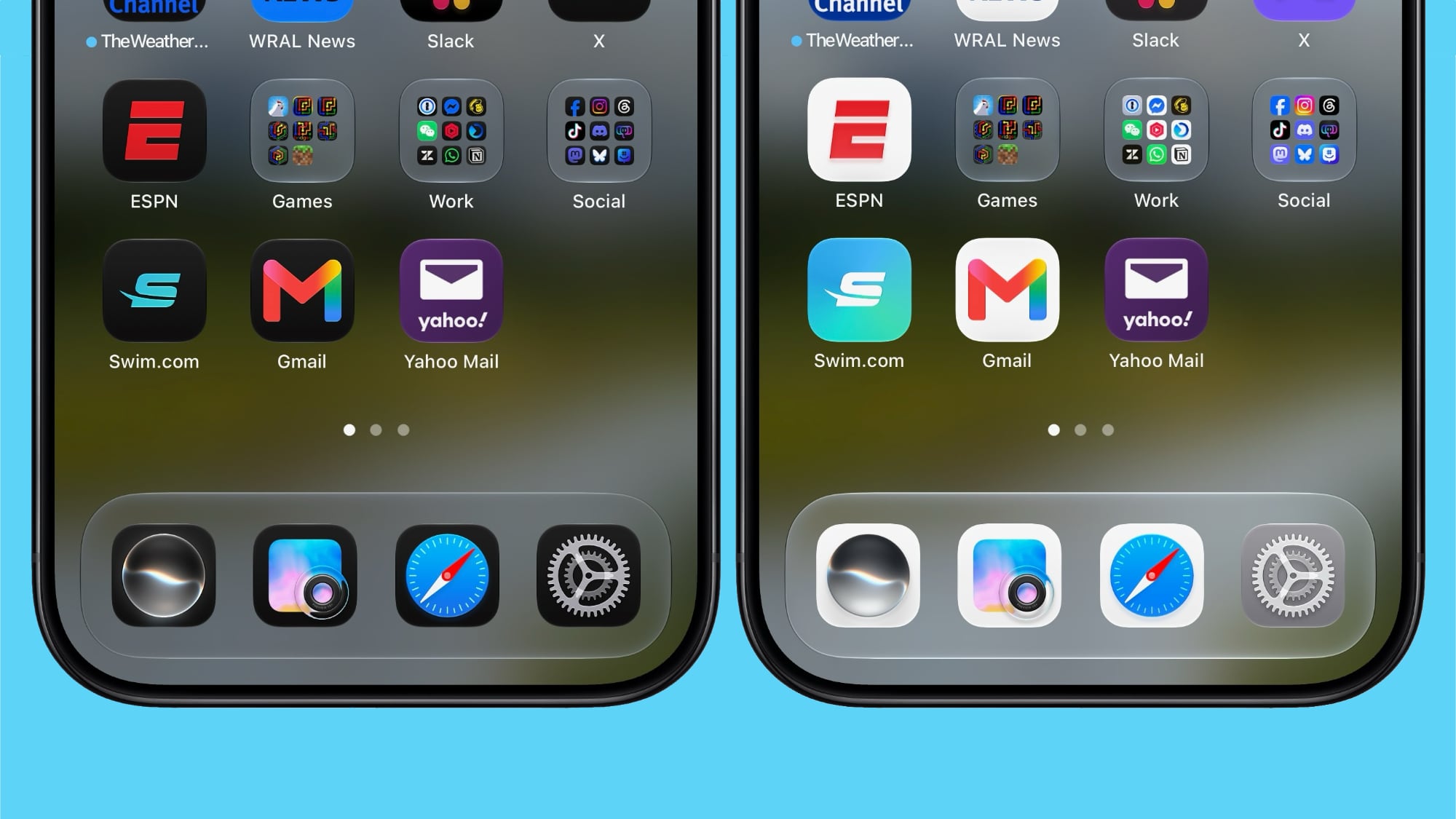
There are updated Liquid Glass icons for Safari, Siri, Settings, Remote, App Store, and Preview. Some of the icons have been entirely redesigned, while others feature more detail than before.
Siri AI Voice Customization
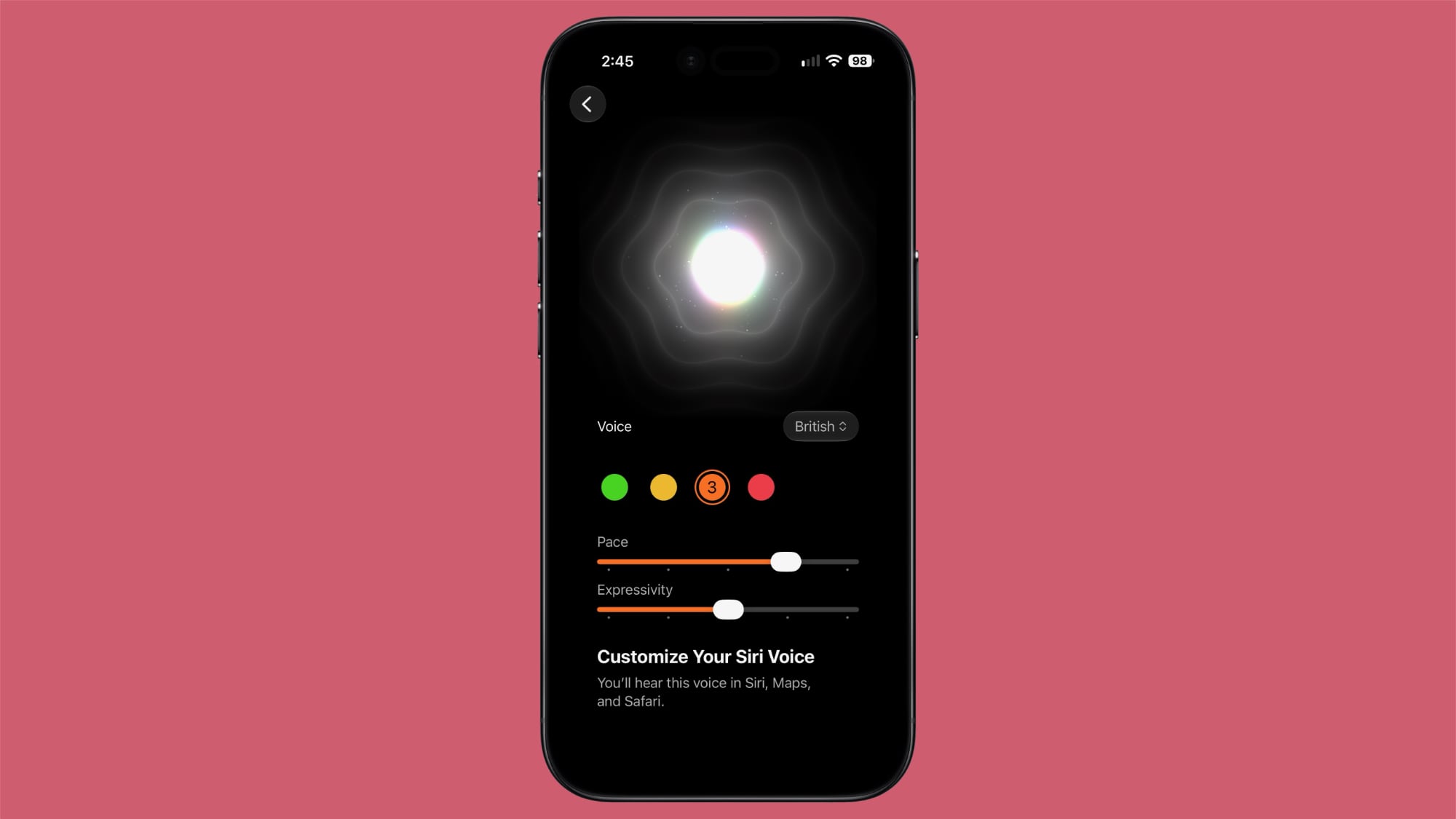
Voice customizations for Siri AI have been expanded, and Pace and Expressivity can be adjusted for all seven American voices and the four British voices.
Siri AI voice customization is done on-device, so the feature is limited the iPhone 17 Pro, iPhone 17 Pro Max, or iPhone Air.
Contacts
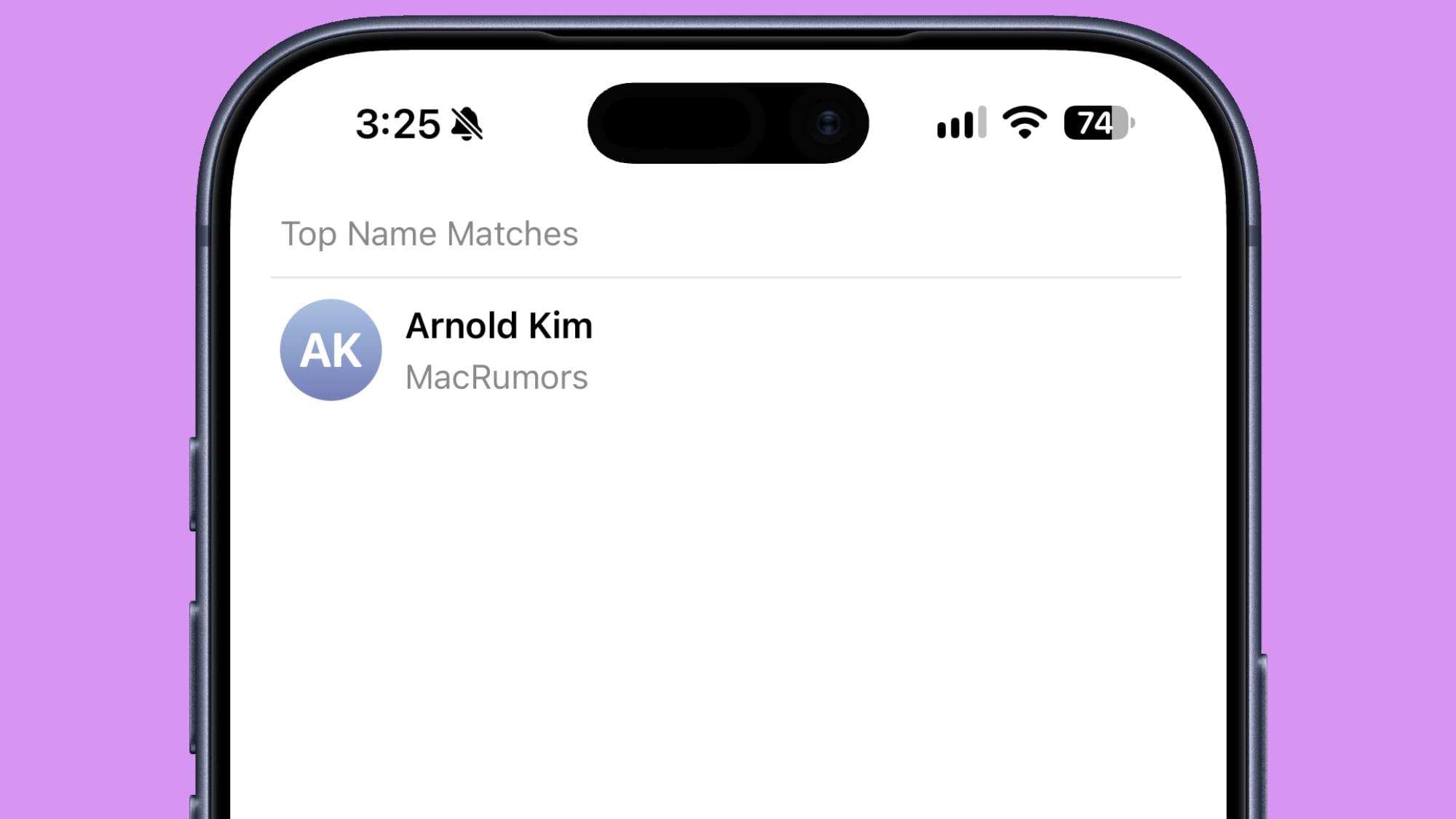
If a contact you've created has a company associated with it, the company name will show in the contact list under the name and in search. It makes it easier to see more information on a contact without having to tap into the contact card.
Create a Pass
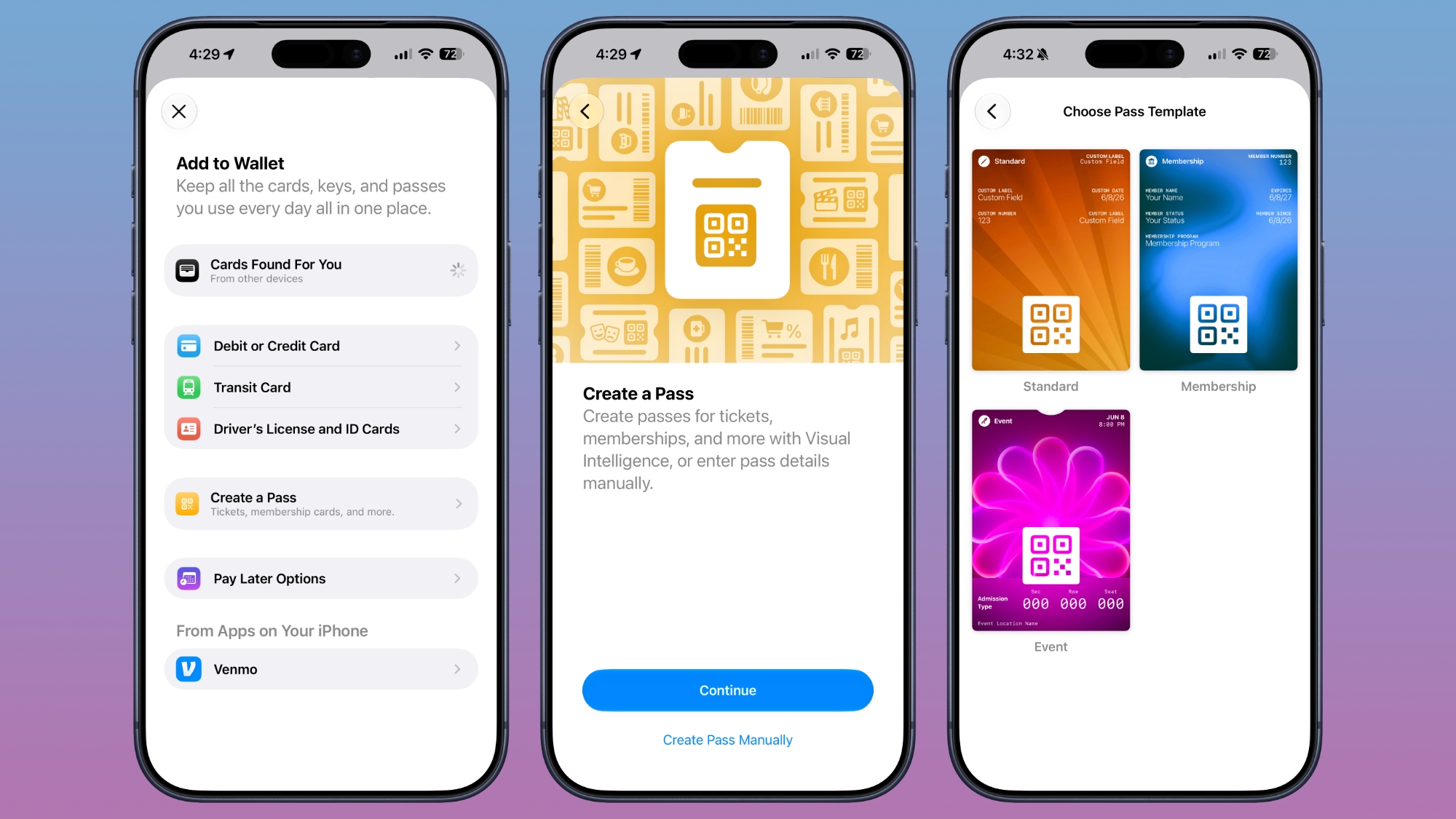
The Apple Wallet Create a Pass feature is now available outside of the U.S.
Splash Screens
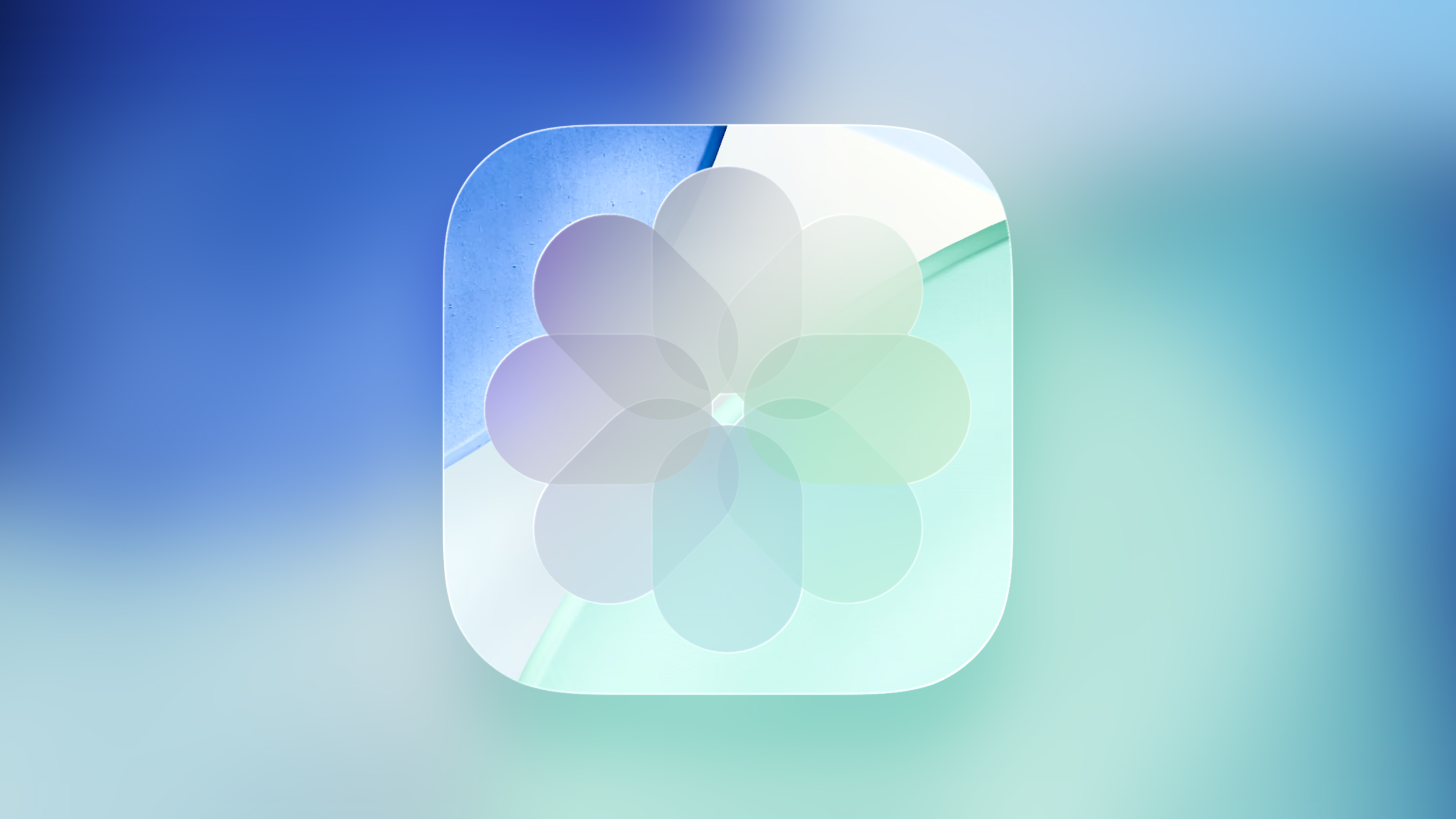
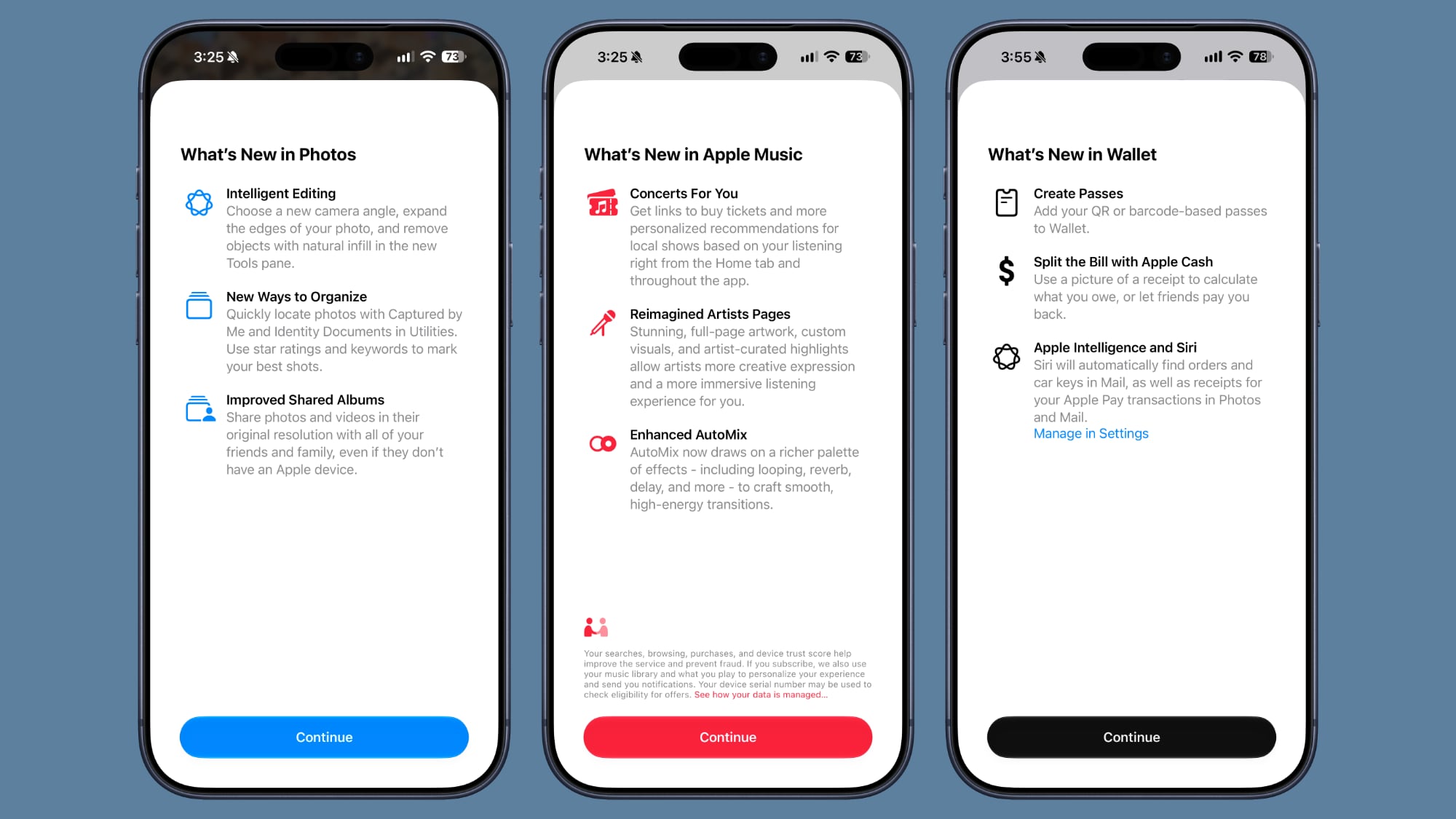
Apple added splash screens for the Photos, Wallet, and Music apps, explaining what's new in iOS 27.
Search and Ask
Apple made minor changes to the animation when bringing up Search or Ask. The suggestions interface now comes up as the search bar does rather than popping up slightly afterward.
The search interface also now has a "Search the Web" option at the bottom of results that was not there before.
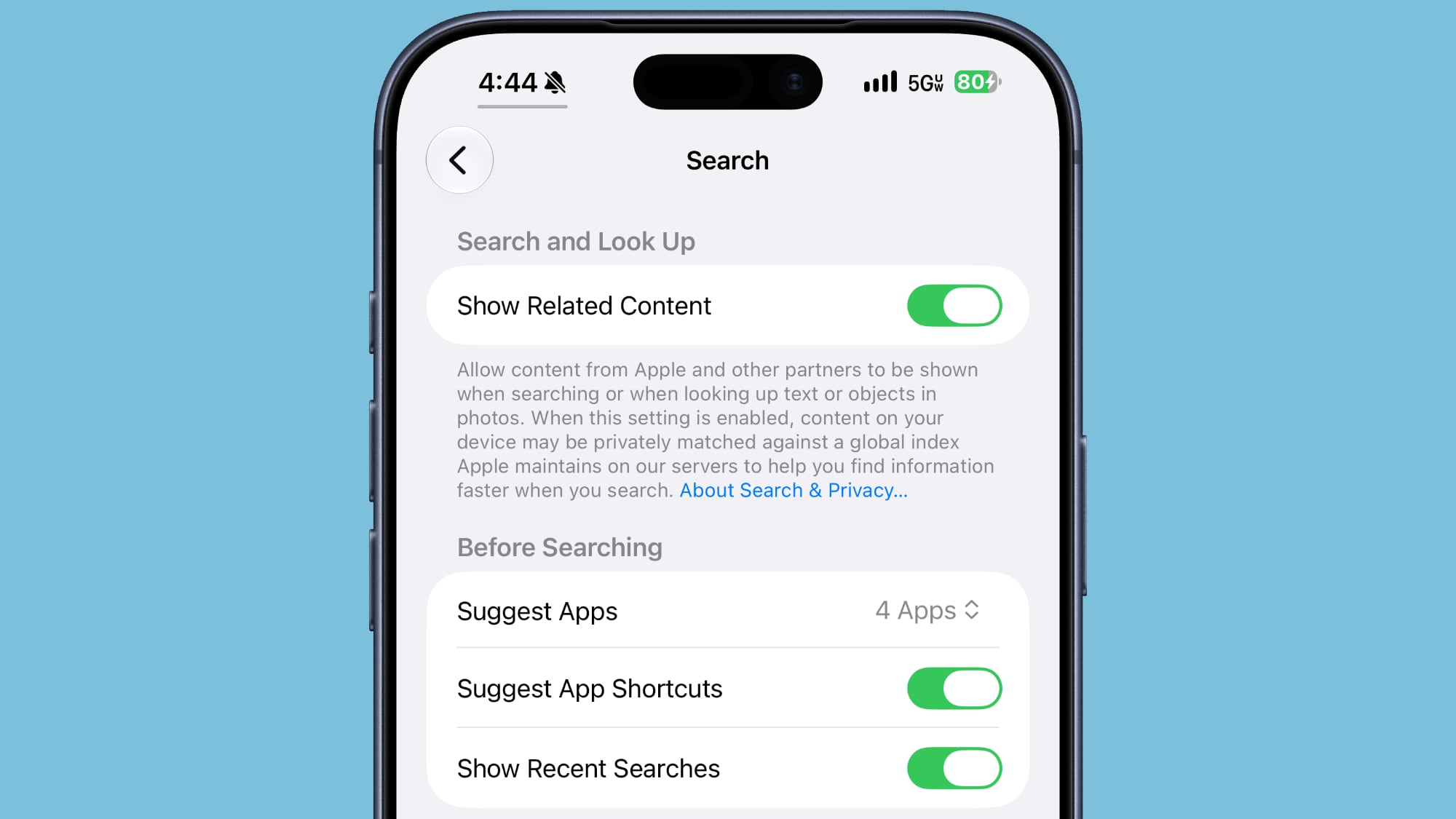
Apps in Search
You can now decide whether search should show app results, and if so, how many. You can turn off app results, have it show four apps, or have it show eight apps. There's also a toggle for showing app shortcuts.
Control Center
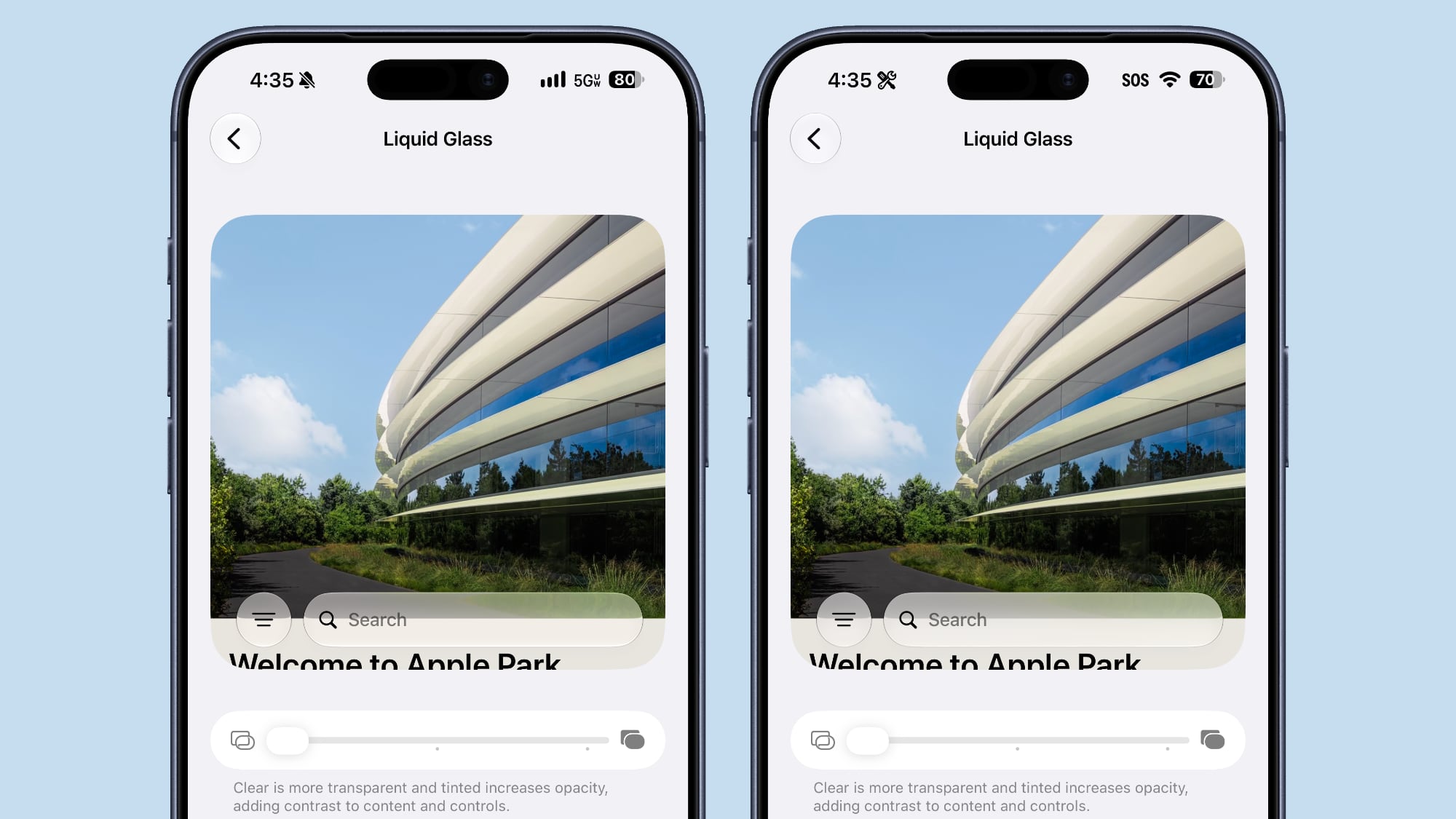
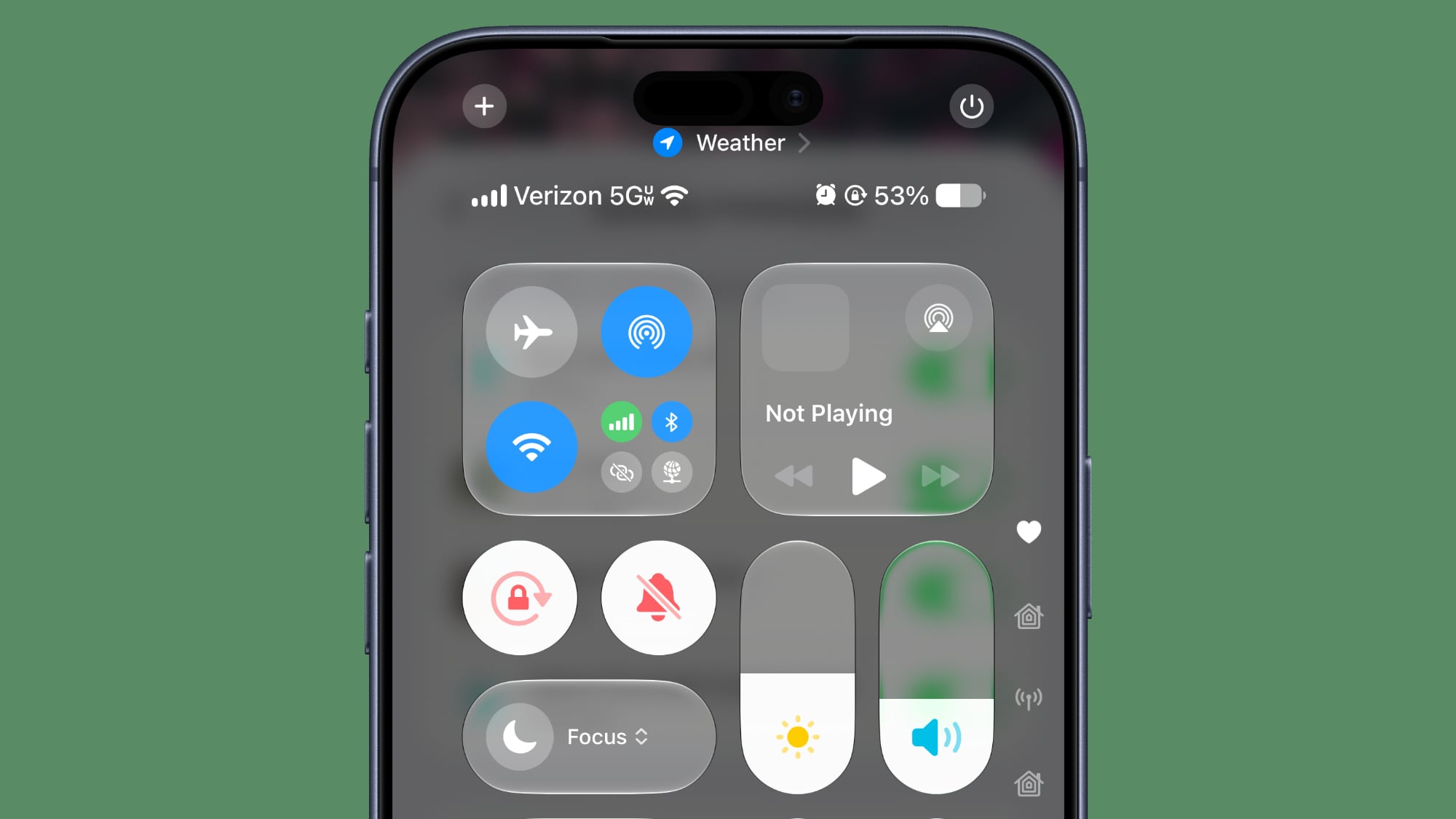
When connected to Wi-Fi, the Control Center no longer shows information on cellular connection.
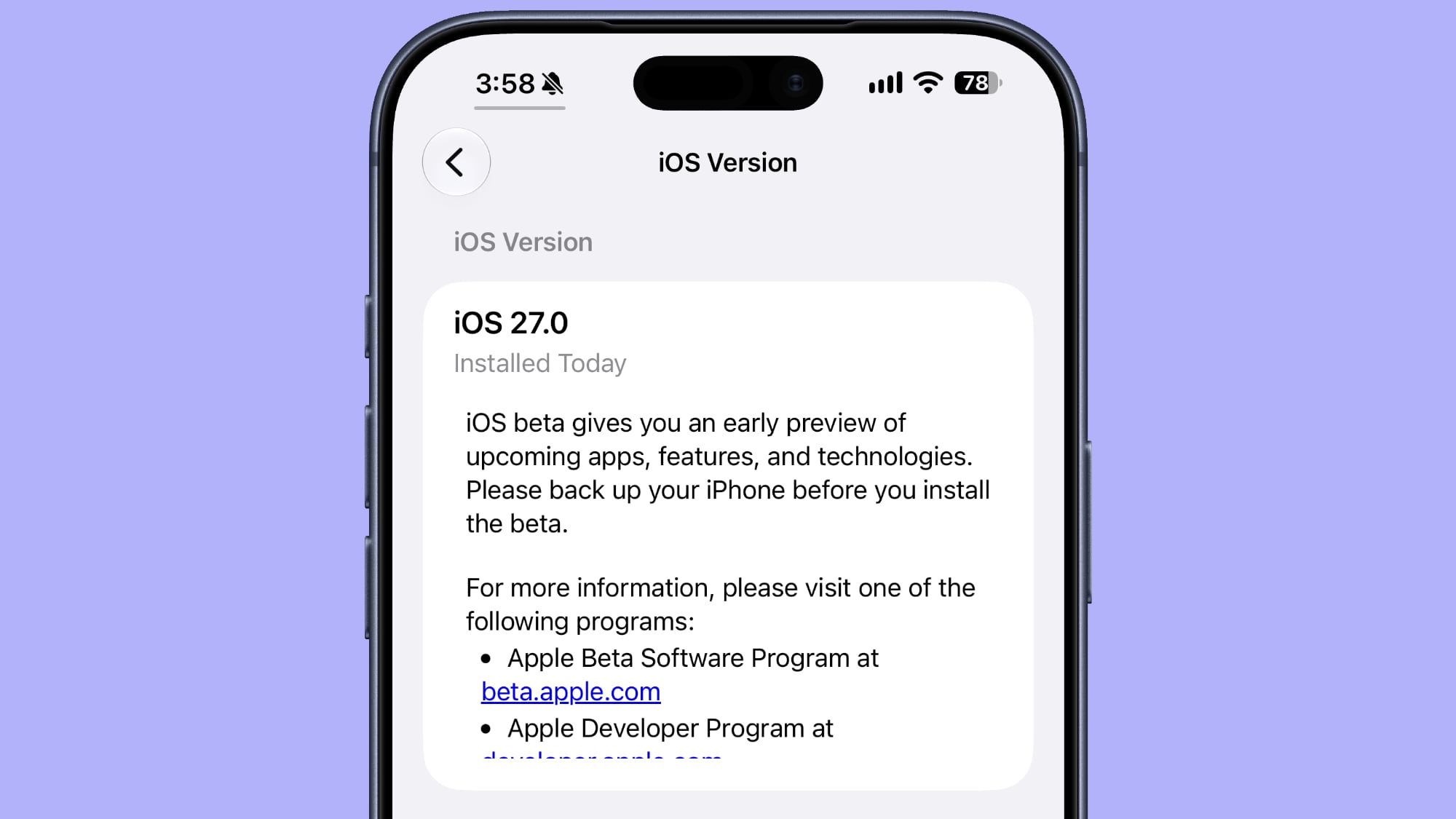
When you look at your software version in Settings > General > About, it now tells you when the last update was installed.
Clock
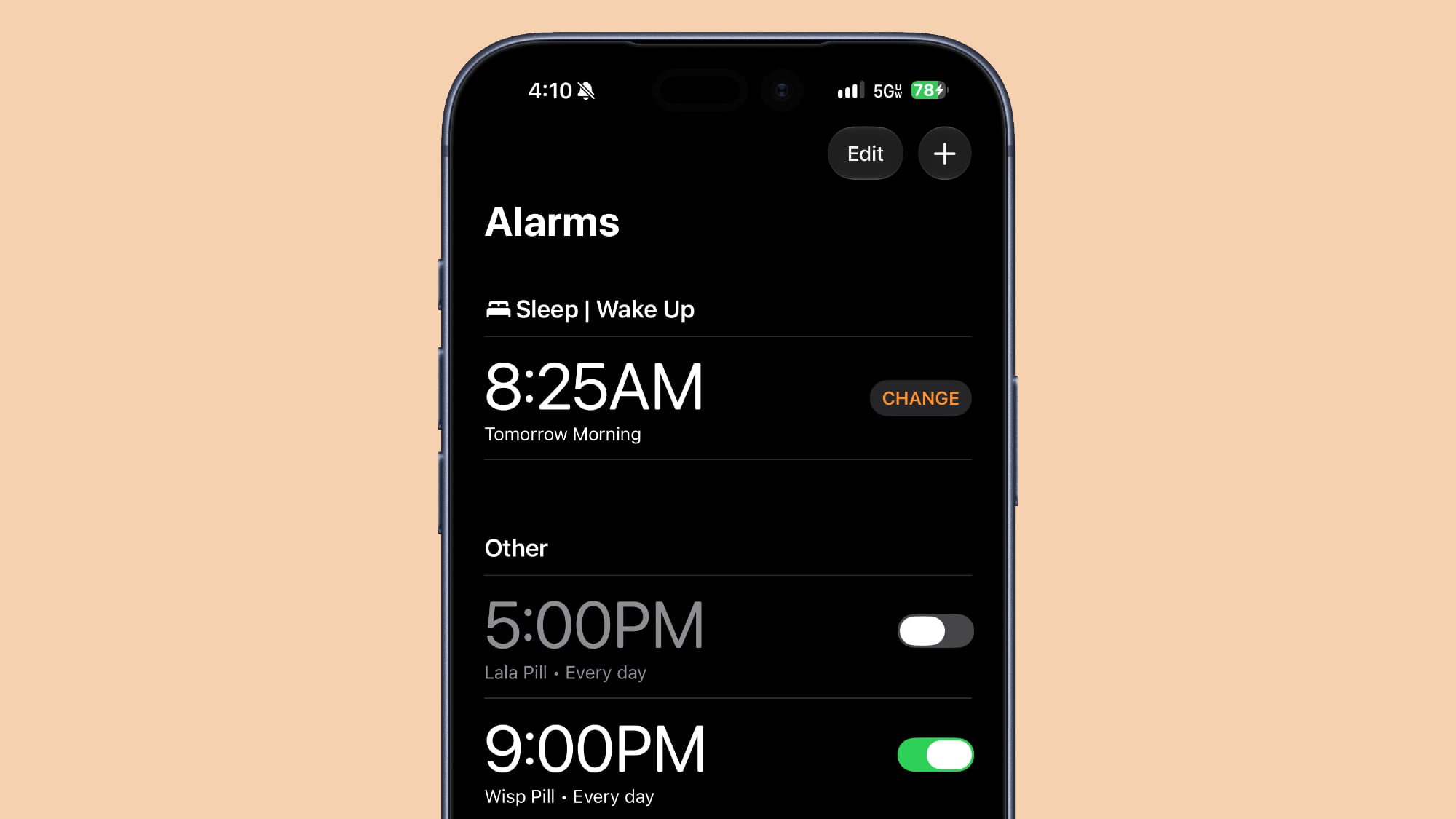
There is a thicker font for the Alarms and Timers section of the Clock app.
Liquid Glass
The clearest Liquid Glass setting is clearer than it was in the prior beta.
Mail
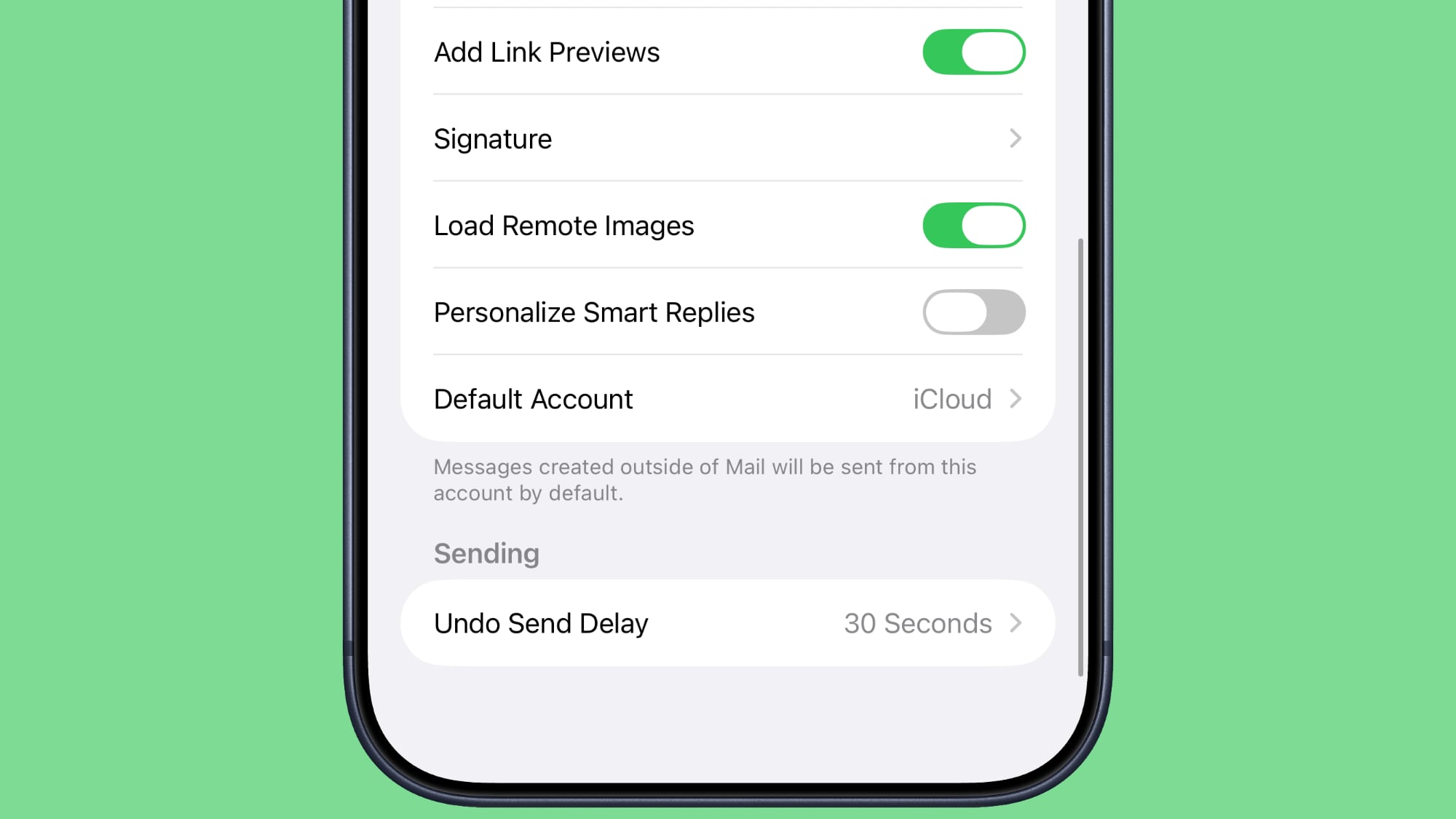
There's now a toggle for the Personalize Smart Replies feature in the Mail app. It's off by default and can be turned on in the Mail section of the Settings app.
Battery
The Battery section of the Settings app will now let you know if a poor cellular connection is causing battery drain.
Apple has released iOS 27 beta 5 for iPhone, along with iPadOS 27 beta 5 for iPad. If you’re currently running the developer beta you will find the latest update available right away, and typically public beta testers find the same build version available soon after as well. The emphasis of iOS 27 and iPadOS ... Read More
In the fifth beta of iOS 27, Apple is continuing to make design tweaks. There are updated Liquid Glass icons for Safari, the Siri app, Settings, Remote, App Store, and Preview.
The Safari icon is a brighter blue with more detailed compass lines and arrows, while the Siri icon looks more like the actual Siri bubble that's displayed when Siri is activated. The App Store app icon is more translucent so you can better see each line making up the A, Settings uses more translucency, and Preview has an entirely different look with a loupe over a colorful background. The Remote icon also has more detail and it's been updated with a gray background instead of black.
Some app icons were updated with the initial iOS 27 beta release, including Maps, Photos, and Weather, but others kept their iOS 26 look.
It's possible Apple will overhaul even more icons in upcoming betas, because the company said it was planning to give icons an updated layered look to better fit the Liquid Glass aesthetic.
With the fifth beta of iOS 27, Apple has expanded the voice customization options for Siri AI.
Pace and Expressivity can now be adjusted for more of the available voice options instead of just the two American voices.
There are seven American voice options and four British voices to choose from, all of which can be customized with different Pace and Expressivity settings. Pace changes talking speed, while expressivity changes emphasis.
Siri AI voice customization is done on-device, so the feature is limited to newer iPhones. You need an iPhone 17 Pro, iPhone 17 Pro Max, or iPhone Air to use voice customization on an iPhone.
It's available on Macs with an M3 chip or newer and at least 12GB RAM, and the M4 iPad Pro and newer, also with at least 12GB RAM.
Apple today seeded the fifth betas of iOS 27 and iPadOS 27 to developers for testing purposes, with the update coming two weeks after Apple released the fourth betas.
Registered developers can download the betas from the Settings app on the iPhone or iPad by going to the General section and selecting Software Update.
iOS 27 introduces Apple's smarter version of Siri, Siri AI. Siri AI is a chatbot similar to ChatGPT, incorporating general world knowledge, personal data from apps like Messages and Mail, and onscreen awareness to answer questions and find information for you.
There are new Apple Intelligence features in apps like Photos, Safari, Shortcuts, Wallet, and Passwords, plus Apple added a standalone Siri app that houses Siri conversations. Write with Siri is available systemwide for generating text or offering feedback on your writing, and Visual Intelligence has been relocated to the Camera app with a new Siri mode.
Apple improved the look of Liquid Glass and added a slider for customizing transparency. There are multiple performance improvements to speed up iOS, so everything feels faster, even on older iPhones. Apps launch quicker, AirDrop transfers are faster, the keyboard pops up more quickly, and devices are better at transitioning between Wi-Fi and Cellular to keep you connected.
Apple is making more of an effort to turn the iPhone into a physical wallet replacement in iOS 27, and there are several upgrades to the Wallet app.
Pass Upgrades
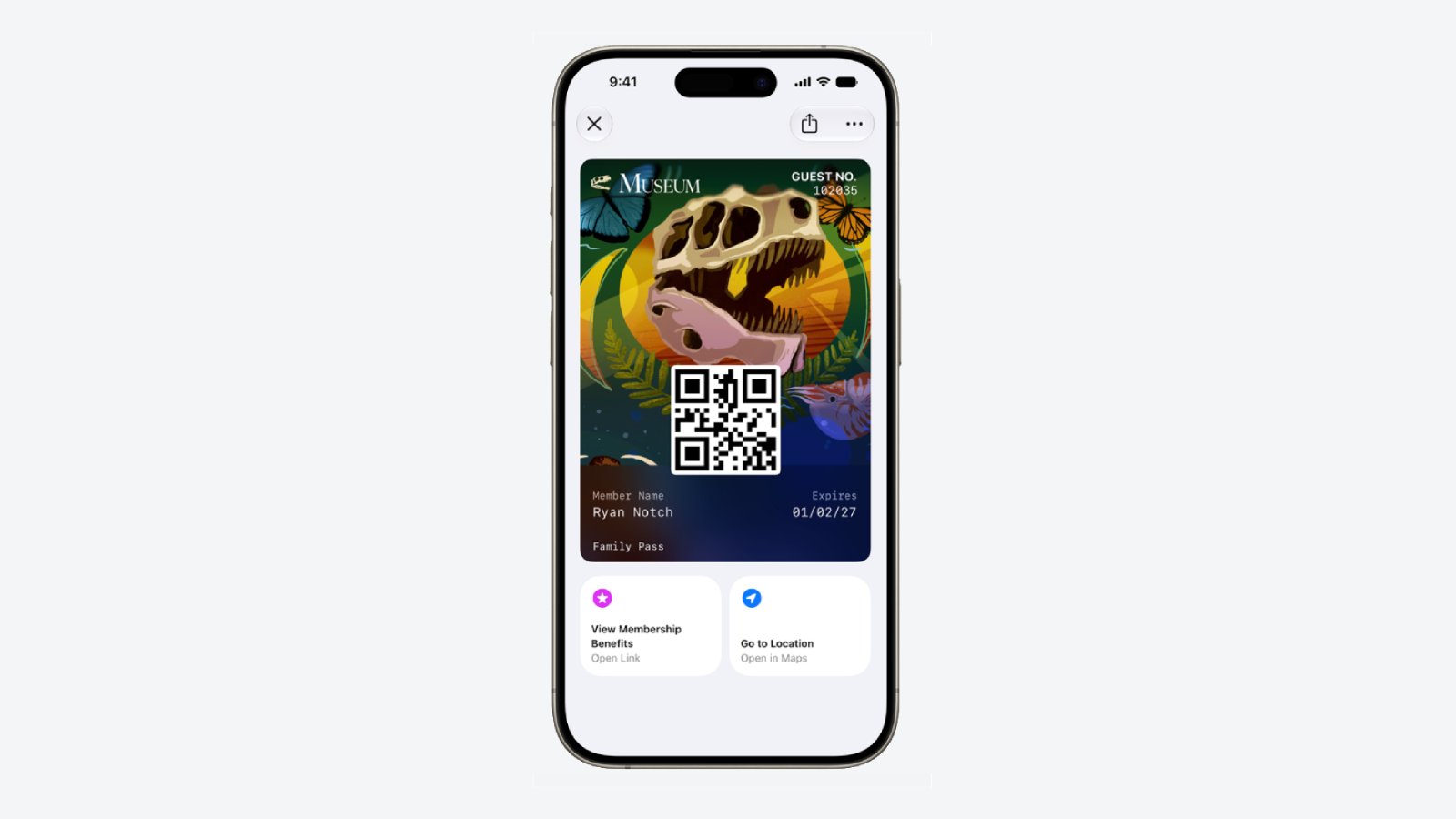
Apple upgraded airline boarding passes in the Wallet app with iOS 26, and in iOS 27, upgrades are coming to additional types of passes. Memberships, gift cards, loyalty cards, and rewards cards can use a bolder "Poster Generic" card style with full background images, primary logo, header fields, footer field, primary fields, and an optional barcode.
Each pass is able to include up to two actions that can be tapped from the bottom of the pass, such as getting directions to a venue or checking a rewards point balance.
Apple is also allowing users to check the pass issuer certificate to ensure that a digital pass is legitimate (not applicable to Create a Pass), and there are four new barcode types supported, including EAN–13, Code 39, Codabar, and ITF.
There is a new Pass Designer Mac app for developers that makes it easier to create a pass using a WYSIWYG editor.
Create a Pass
There's a "Create a Pass" feature in the Wallet app for adding tickets, memberships, and more using Visual Intelligence. If you have a ticket for an event and there's not a digital version available for the Wallet app already, you can create one using the physical pass.
You can scan a pass and add it with Visual Intelligence if there's a barcode or QR code, or a pass can be added manually. Pass templates include Standard, Membership, and Event.
Each type includes relevant information like name, location, or admission type, along with a scannable code drawn from an included barcode or QR code that you take a photo of. There are 12 background colors to choose from with different texture options, or seven custom backgrounds for categories like theater, music, sports, and movies.
Fields can be added or removed as needed when creating a custom pass, with options like label, date, membership, contact, coupon code, VIN, insurance, and more, so most physical cards are able to be stored digitally.
Hotel Keys
When you add a digital hotel key from a participating hotel to the Wallet app, you can now view more details about the trip. Hotels can provide updates on booked activities and allow access to different services.
AI Bill Splitting
Using the new Siri Mode in the Camera app, or a feature in the Messages and Wallet apps, you can take a photo of a bill and use Apple Intelligence to figure out what each person owes. Visual Intelligence scans the receipt and makes a digital copy of everything on the list, and each person can select what they consumed. Tax and tip portions are also calculated automatically.
Payments can be made using Apple Cash, which is a U.S.-only feature.
Insights
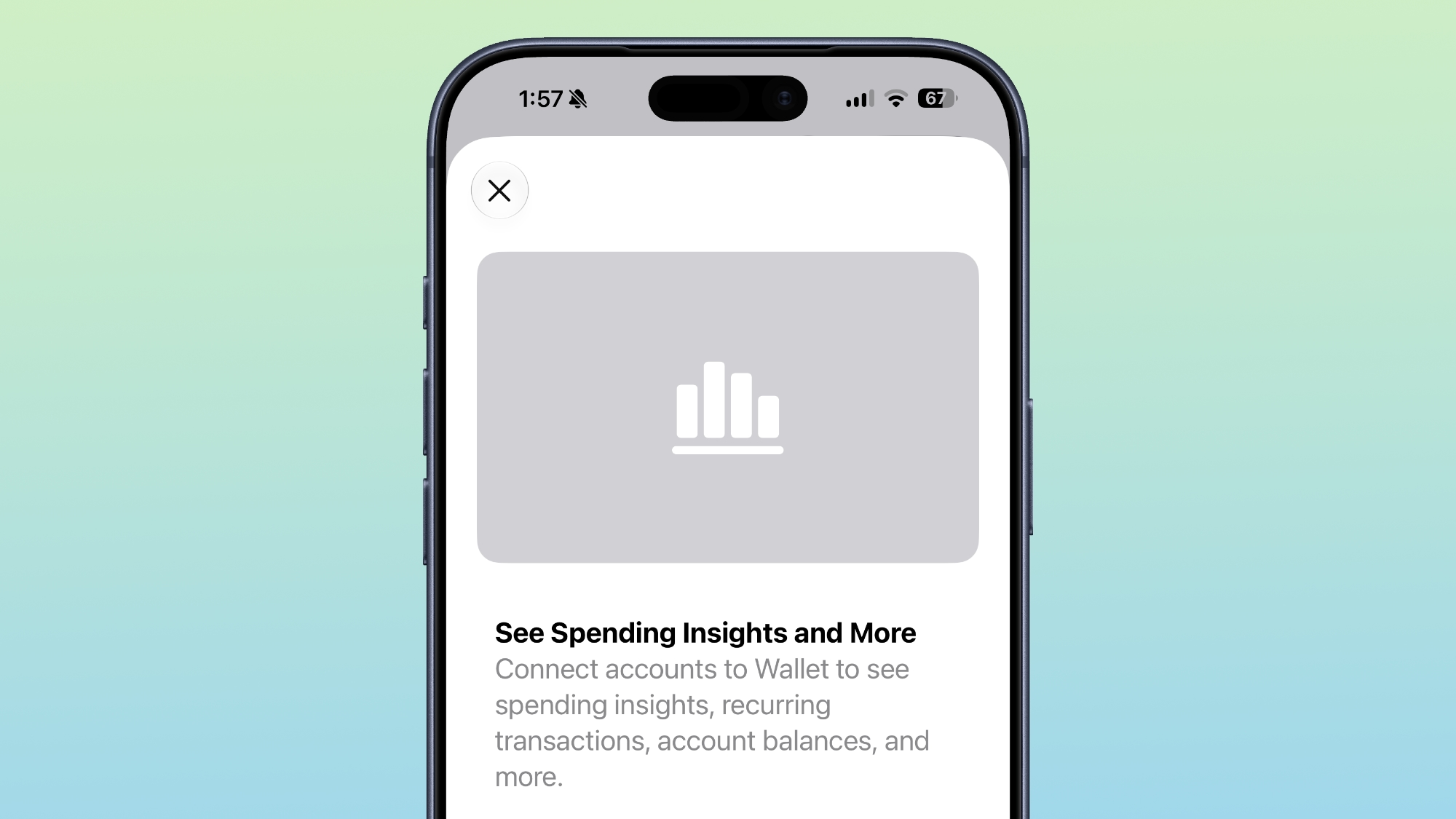
iOS 27 includes an "Insights" feature where you can add financial accounts to the Wallet app to monitor spending.
Insights is an expansion of the Connected Accounts feature in earlier versions of iOS, and it includes spending, recurring transactions, account balances, and more. It works for financial institutions that have implemented Connected Cards support, including several UK banks.
Order Tracking
Order tracking in the Wallet app is expanding to Australia and Canada in iOS 27. In iOS 26, it was limited to the United States and UK.
Tap to Share
Tap to Share is an iOS 27 feature that lets customers connect to a participating merchant's iPhone for quicker digital checkout.
Device Requirements
Visual Intelligence is an Apple Intelligence feature requiring an iPhone 15 Pro or newer. Many of the other features should work on all iPhones.
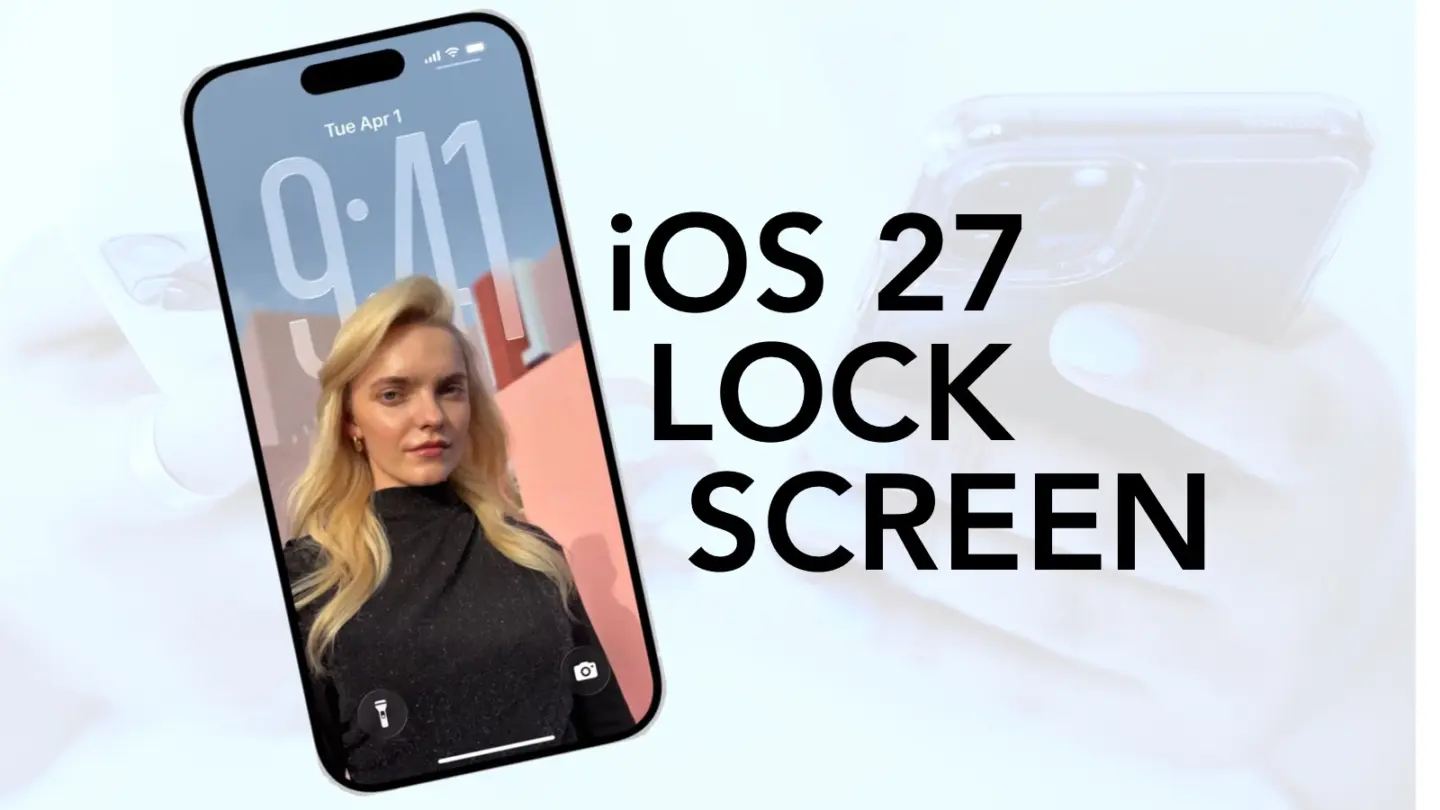
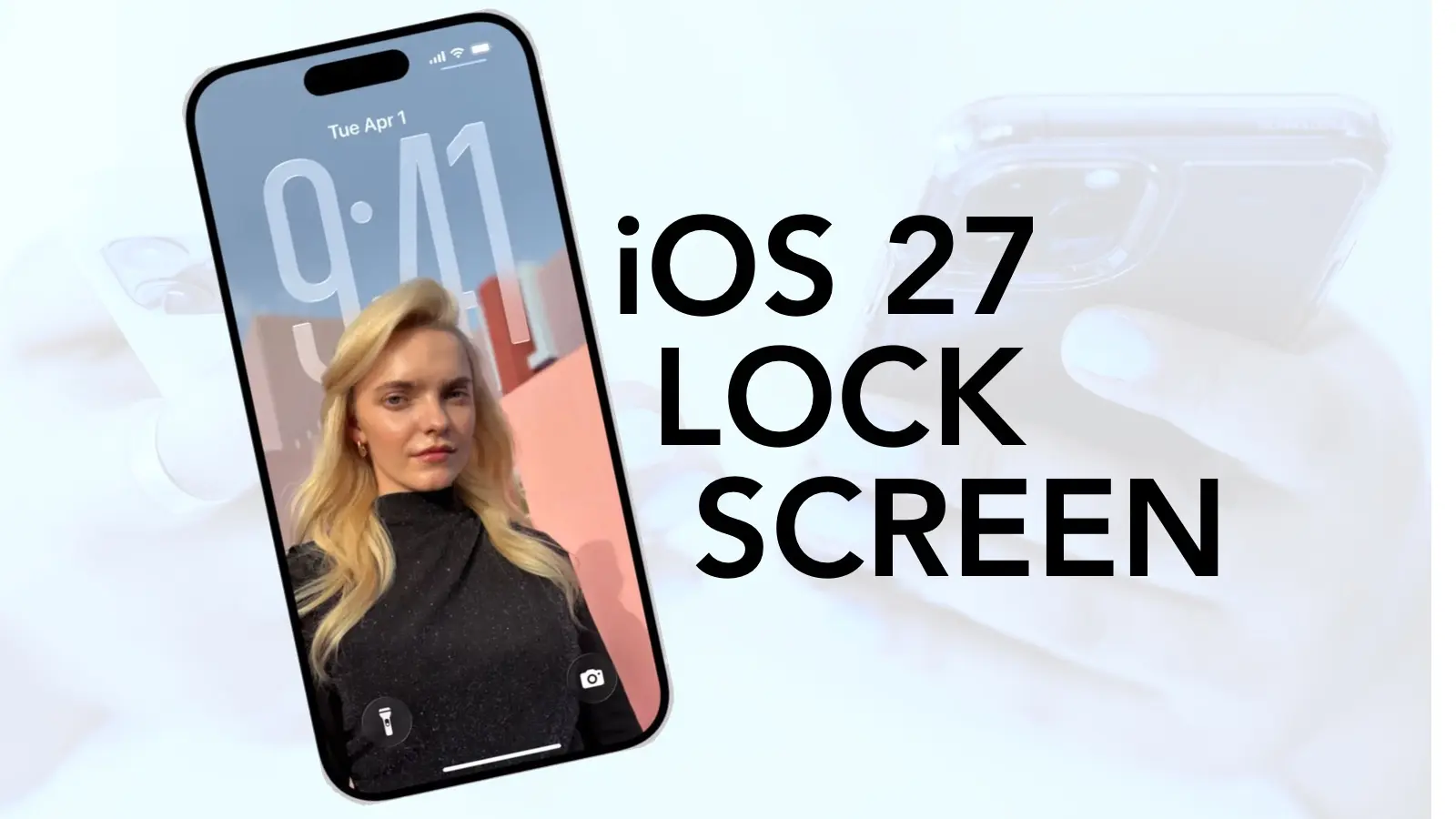
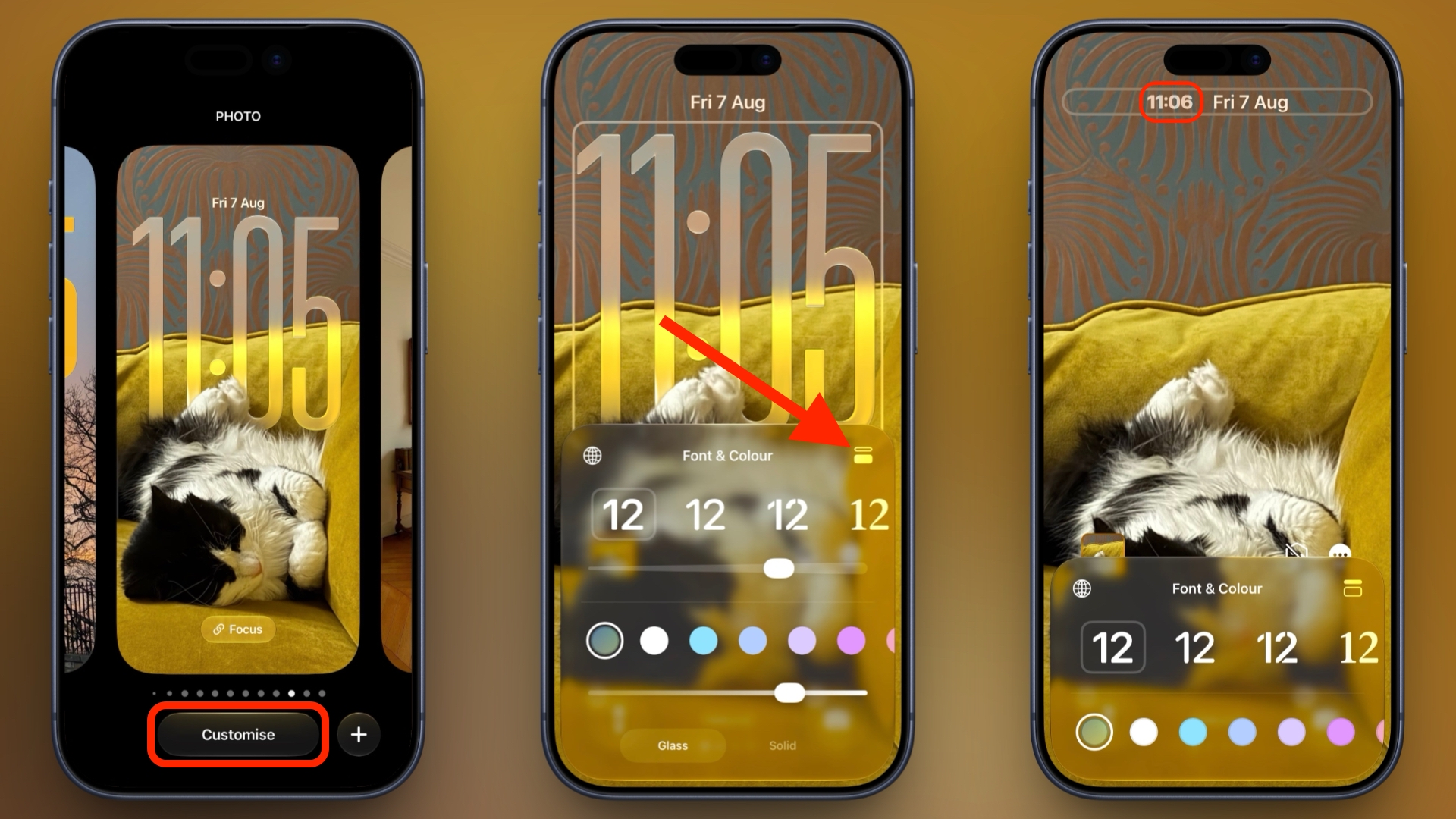
In iOS 26, Apple let you stretch the Lock Screen clock down your iPhone's display until it dwarfed everything else. In iOS 27, Apple has a new clock option that does the opposite, with the introduction of a compact mode that shrinks the time to roughly the size of the date and tucks it into the row at the top of the screen.
The result is a Lock Screen that genuinely shows off your wallpaper, while still displaying the time and date. If you picked a photo that looks better in its complete framing, this is the first time iOS gives you the opportunity to see more of it unobstructed.
How to Switch to the Compact Clock
The following steps show you how it's done.
Touch and hold the Lock Screen, then tap Customize.
Tap inside the currently set clock frame to open the Font & Color panel.
Tap the new icon made of two horizontal bars in the top-right corner of the panel to set the clock to compact mode.
If you're happy with the new look, tap anywhere else on the wallpaper, then tap Done in the top-right corner of the screen.
You'll see that the clock shrinks immediately and moves up beside the date, so you can judge the effect against your wallpaper before saving. To go back, simply tap the same icon in the Font & Color panel again. The clock will return to its previous position and size.
Customizations
The new compact clock keeps your existing clock customizations like font, weight, and color, and these can still be adjusted, but you do lose access to the Liquid Glass slider in compact mode.
Bear in mind that the option applies to individual Lock Screens rather than being a global setting, so you can have a compact clock on one wallpaper and a full-size one on another – for a Focus mode, for example. iOS 27 is currently in public beta with general availability expected in September.
FaceTime Dual Capture is bringing simultaneous front-and-rear camera streaming to video calls in iOS 27, allowing compatible iPhones to show the caller and their surroundings without repeatedly switching between cameras.
The feature expands technology Apple introduced with the iPhone 17 family. Dual Capture already allows the Camera app to record through the Center Stage front camera and a rear camera at the same time. iOS 27 brings a similar capability directly into live FaceTime calls.
During a call, the front camera can continue showing the speaker while the rear camera displays whatever the iPhone is pointing toward. Someone attending a concert can share the performance and remain visible. A parent can show a child playing without disappearing from the conversation. A person asking for technical assistance can remain on screen while directing the rear camera toward the equipment causing the problem.
Dual Capture removes the awkward sequence of switching to the rear camera, showing something, and switching back to continue speaking face to face. Both perspectives remain available inside the same call.
Image Credit: Thomas Trutschel Photothek/Getty Images
FaceTime Dual Capture Changes Camera Switching
The normal FaceTime camera control changes from a simple front-or-rear choice on supported iPhones. When the caller activates the rear camera, iOS 27 keeps the front camera visible by default.
The main view displays the rear camera feed while a smaller window contains the front camera image. This picture-in-picture arrangement gives the other participant a continuous view of the caller’s reaction, commentary, or explanation.
To activate both cameras during a supported FaceTime call:
FaceTime > Start a video call > Tap the Flip button
Tapping the Flip button turns on the rear camera without immediately removing the front view. The other participant begins receiving both perspectives as part of the FaceTime stream.
The caller can disable the front view when it is no longer needed. This provides a conventional rear-camera presentation for situations where the surroundings should occupy the complete image.
To return to a single camera view:
FaceTime > Tap the camera view > Disable the front camera
The exact labels and placement may change before the public release of iOS 27 because the feature is still being tested in beta software. Its basic behavior is already established: the Flip control activates the rear camera while retaining the front camera feed.
Dual Capture does not create two independent FaceTime calls. Both images belong to one video stream, so the caller does not need a second account, device, or invitation.
The feature also differs from screen sharing. FaceTime screen sharing transmits applications and interface activity from the iPhone display. Dual Capture transmits live video from two physical cameras.
Image Source: Google
Which iPhones Support Dual Capture
Apple has limited FaceTime Dual Capture transmission to the iPhone 17, iPhone 17 Pro, iPhone 17 Pro Max, and iPhone Air. Each model includes Apple’s 18MP Center Stage front camera and the Dual Capture capability introduced in the Camera app.
An older iPhone that supports iOS 27 cannot originate a Dual Capture stream. It continues to use the normal option of selecting either the front camera or a rear camera during a call.
Older models can still receive and display a Dual Capture feed when they are running iOS 27. This allows an iPhone 16 or another supported device to see both views transmitted from an iPhone 17, even though it cannot send the same presentation back.
Both participants need iOS 27 for the new FaceTime layout to work as intended. The transmitting device must also be one of the supported iPhone 17-generation models.
This limitation is based on Apple’s official feature support rather than the simple presence of front and rear cameras. Earlier iPhones have camera hardware capable of operating in several multi-camera applications, but Apple has not extended its native Dual Capture implementation to them.
Third-party applications have offered forms of simultaneous multi-camera recording for years through Apple’s developer frameworks. The difference is that iOS 27 integrates the experience into FaceTime, where users can activate it through the familiar camera-switching control.
iPhone 17 Owners Receive a Second Dual Capture Feature
Describing FaceTime Dual Capture as retro-compatible with the iPhone 17 does not fully explain its relationship with the hardware. The iPhone 17 family introduced Apple’s native Dual Capture recording in 2025, and iOS 27 now gives that existing camera system another purpose.
Inside the Camera app, Dual Capture produces a saved video containing front and rear views. Apple lists support for recording at up to 4K Dolby Vision at 30 frames per second on the iPhone 17.
FaceTime uses the camera pairing for live communication instead. Network quality, bandwidth, device temperature, and FaceTime processing can affect the transmitted resolution, so users should not assume that a call will preserve the Camera app’s maximum 4K recording specification.
The Center Stage front camera also contributes more than resolution. Its square sensor gives the iPhone greater freedom to adjust framing without requiring the device to be physically rotated. Center Stage can help keep the caller positioned inside the smaller front-camera view while the rear camera follows the subject being shared.
That combination makes Dual Capture more useful than placing two untreated camera feeds beside each other. FaceTime can preserve the speaker’s presence while directing most of the screen toward the event, object, or location being discussed.
The feature may require more processing power and energy than an ordinary single-camera call. Running two camera sensors while encoding and transmitting live video can increase battery consumption and device temperature, especially during long calls over cellular data.
Apple has not published separate battery estimates for Dual Capture FaceTime calls. Users planning extended sessions may want access to power and a stable Wi-Fi connection.
iOS 27 Prepares FaceTime for iPhone 18
FaceTime Dual Capture arrives shortly before Apple’s expected iPhone 18 generation, making it likely to become part of how the company demonstrates the new phones’ camera and communication abilities.
Apple has not announced the iPhone 18 lineup or confirmed its final camera specifications. Compatibility with FaceTime Dual Capture is therefore expected from the software’s “iPhone 17 and newer” positioning, but individual iPhone 18 models should not be treated as confirmed until Apple presents them.
The software release gives existing iPhone 17 owners access without requiring another hardware purchase. That approach also provides Apple with a working FaceTime feature before the next iPhone launch rather than introducing the camera mode and communication interface at the same moment.
Future hardware could improve the experience through faster processors, stronger image stabilization, upgraded sensors, or more efficient video encoding. None of those additions is required for the supported iPhone 17 family, which already contains the camera system needed to transmit both views.
Dual Capture is only one part of the FaceTime update. Apple is also improving video-call quality when the network connection is weak, addressing a problem that becomes especially relevant when two live camera views require transmission. Traditional Chinese support is joining FaceTime Live Captions as well.
The weak-connection improvement may determine how dependable Dual Capture becomes away from Wi-Fi. A feature designed for travel, events, repairs, and outdoor calls needs to tolerate changes in cellular bandwidth without freezing both views or forcing the session to end.
FaceTime Dual Capture remains part of the iOS 27 beta as Apple prepares the public update for September. Apple can still adjust the interface, performance, device requirements, and picture-in-picture behavior before the completed software reaches iPhone 17 owners.
Learn how to expand a photo by intelligently generating new content beyond its original boundaries using Apple AI in iOS 27, iPadOS 27, and macOS 27 Golden Gate.
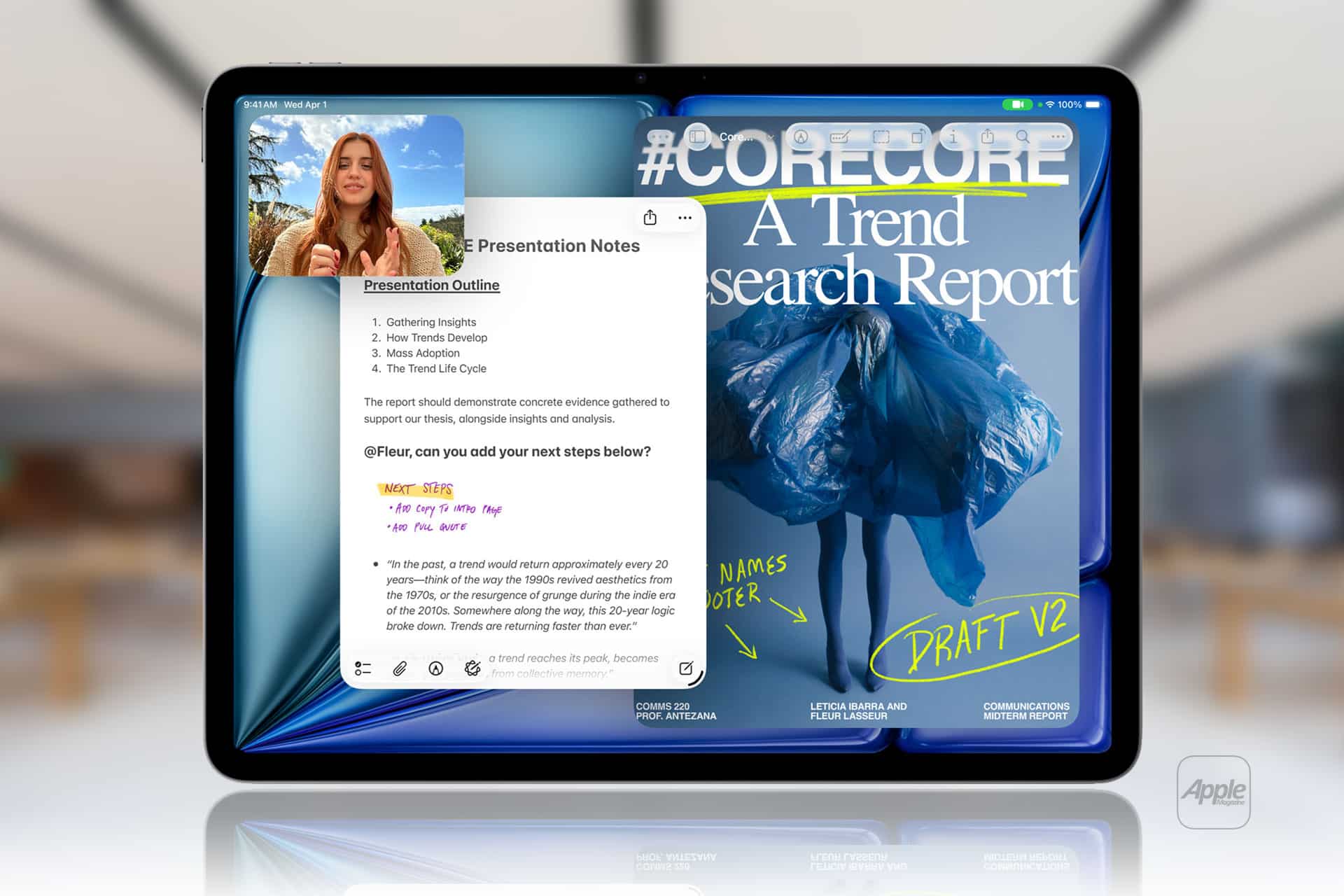
Apple Notes in iOS 27 receives a focused collection of upgrades designed to make long documents easier to navigate and information simpler to move between apps.
Section links allow users to jump directly to headings inside a note. Divider lines create clearer visual boundaries, while expanded Markdown support improves workflows involving websites, writing tools and plain-text editors.
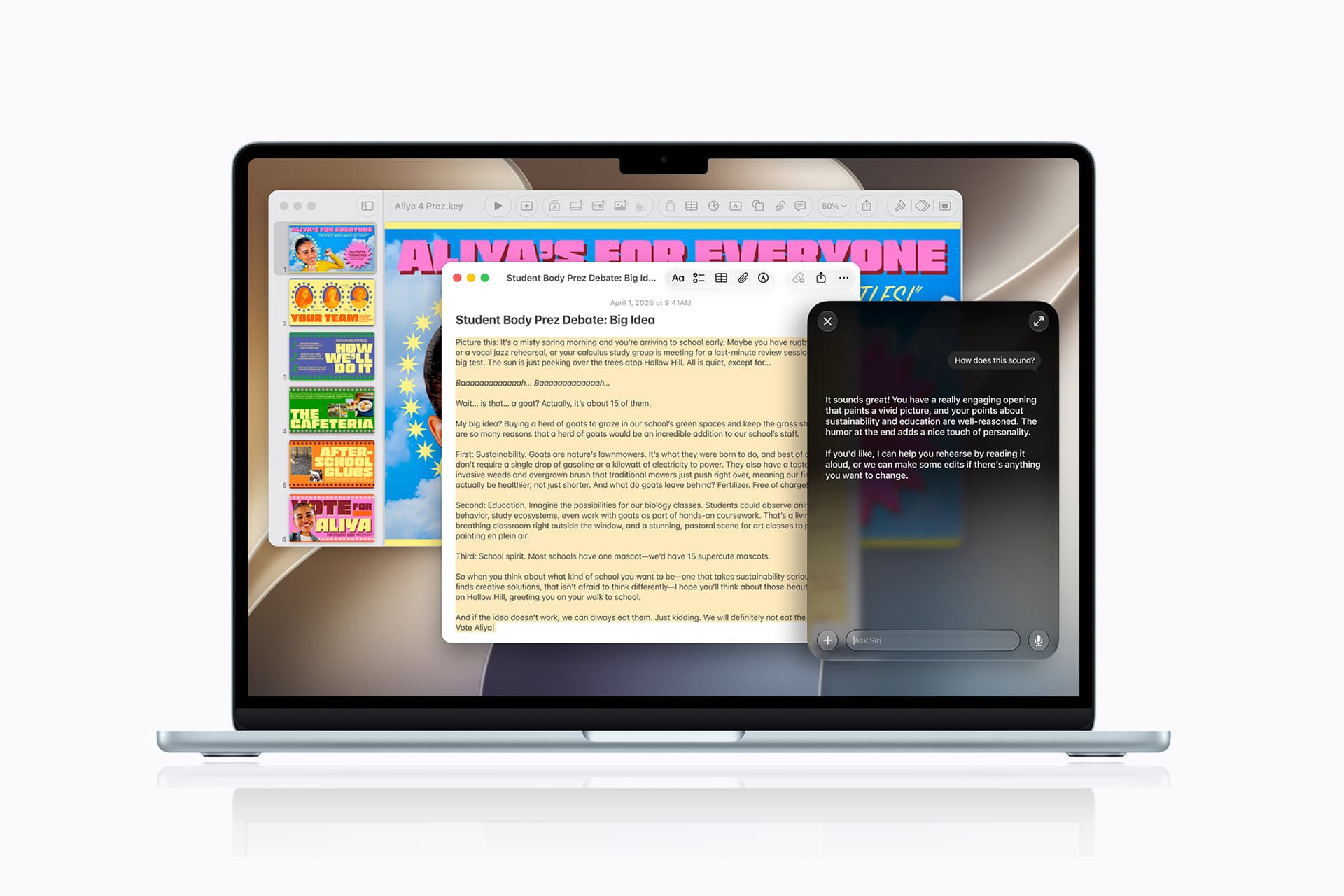
Siri AI introduces the most ambitious addition by creating notes, adding information to existing documents and transferring answers from a Siri conversation without requiring manual copying.
Image Playground also becomes more capable inside Notes, gaining additional visual styles and photorealistic image generation through Apple’s new cloud-based model.
Not every feature requires Apple Intelligence. Divider lines, section links, Markdown tools and the updated interface work on every iPhone compatible with iOS 27. Siri AI and advanced Image Playground capabilities need newer hardware and may have additional language or regional restrictions.
Image Credit: Apple Inc.
Apple Notes iOS 27 Adds Section Links
Section links solve one of the largest problems affecting long notes: reaching information located several screens below the beginning.
A user can now select text, choose Add Link and connect it to any heading or subheading inside the current note. Tapping that linked text immediately moves the reader to the selected section.
The feature can turn the opening of a document into a manual table of contents. A project note might contain links to its schedule, budget, participants, research and outstanding tasks without requiring separate documents.
To create a section link:
Select text > Add Link > Link to Section > Choose a heading
Notes displays the headings and subheadings already present in the document. Regular body paragraphs do not appear as destinations, so the note must use Apple’s title or heading formats before links can be created.
To format a destination:
Select the section title > Formatting > Heading or Subheading
The visible link text does not need to match the destination heading. A phrase such as “View the current budget” can link to a section titled “Financial Information.”
Section links differ from the existing ability to connect separate notes. Apple Notes already allows users to create internal links leading from one document to another. The new control moves within the same document instead.
That distinction is useful for meeting records, research files, travel plans and study material that become too long for ordinary scrolling but do not need to be divided into several notes.
Links should continue working when the document is shared through iCloud because they point to structural elements inside the note rather than fixed screen positions.
Renaming or deleting a destination heading may affect its link. Users maintaining complex documents should test their navigation after reorganizing major sections.
Divider Lines Improve Visual Structure
Apple Notes in iOS 27 adds horizontal divider lines as a native formatting element.
The line creates a visible separation across the document without requiring users to type repeated hyphens, underscores or other characters.
To add one:
Place the cursor > Open the edit menu > Insert Divider Line
The divider is inserted at the cursor position and moves with the surrounding content as the note changes.
A horizontal line can separate meeting notes by date, distinguish reference material from personal comments or divide a recipe into ingredients, preparation and serving information.
It also provides structure without making every section a heading. Headings define the hierarchy used by section links, while dividers create a visual break that does not become another navigation destination.
Typing a row of hyphens previously produced an inconsistent substitute. The characters could wrap on a narrow screen, change length after editing or become difficult to select. The native element maintains its appearance as the document moves among iPhone, iPad and Mac.
Divider lines should be used selectively. Adding one between every short paragraph can make the note look more fragmented rather than organized.
The strongest layout combines headings for major subjects, subheadings for smaller divisions and divider lines where one type of content clearly ends before another begins.
Markdown Moves More Easily Into Apple Notes
Apple Notes gained the ability to import and export Markdown files with iOS 26. The iOS 27 upgrade removes additional steps from copying content between Notes and Markdown-based tools.
Markdown uses plain-text characters to represent formatting. A hash symbol can identify a heading, pairs of asterisks can create bold text and square brackets can define a link.
The format is widely used by writers, developers, documentation systems and publishing platforms because it remains readable without requiring a proprietary editor.
When Markdown-formatted text is pasted into Apple Notes in iOS 27, the app automatically converts the syntax into rich text. Headings become formatted headings, links become clickable and emphasis appears as bold or italic text.
A pasted line such as Project Schedule appears as a formatted heading rather than displaying the two hash symbols.
Moving content in the opposite direction is also easier. Apple has added a Copy as Markdown command that converts selected rich text into Markdown syntax before placing it on the clipboard.
To use it:
Select the text > Open the edit menu > Copy as Markdown
The result can be pasted into a content-management system, code editor, Markdown document or another writing application while preserving supported formatting.
Copy as Markdown does not transform Apple Notes into a complete Markdown editor. Users continue writing through the familiar rich-text interface rather than viewing raw syntax throughout the document.
Complex attachments may not translate perfectly. Scanned documents, drawings, audio recordings, embedded files and some tables do not have universal Markdown equivalents.
Basic elements such as headings, links, emphasis and lists provide the most dependable transfer. Users preparing an important publication should review the pasted result before assuming every element survived the conversion.
Image Credit: AppleMagazine
Siri AI Can Create and Update Notes
Siri AI gives Apple Notes in iOS 27 a more direct connection with information generated or located through the assistant.
A user can ask Siri a question, refine the answer through conversation and save the result into a new note. The transfer happens without selecting the response, copying it and leaving Siri to open Notes manually.
A request could take the following form:
“Create a note called Kyoto Trip and add this itinerary.”
Siri can also target an existing document when the user identifies it clearly:
“Add these restaurant suggestions to my Kyoto Trip note.”
The integration extends beyond saving complete answers. Siri AI can reorganize poorly formatted information, convert text into a clearer structure and place the revised version inside Notes.
Someone collecting an unorganized group of tasks could ask Siri to separate them by priority before saving the result. A block of research could be converted into headings and shorter paragraphs.
Siri’s personal-context capabilities can help locate an existing note when the precise title is forgotten. The assistant is designed to search information across apps and understand requests using details connected to the user.
These actions remain subject to permissions. Siri should not silently place information into a document without recognizing the requested destination and action.
Users should review AI-generated material before treating it as authoritative. Reformatting supplied text carries less factual risk than asking Siri to generate research, dates, quotations or instructions from general knowledge.
Siri AI Requires Newer iPhone Hardware
The main Apple Notes iOS 27 update runs on iPhone 11 and later, as well as the second-generation iPhone SE and newer models.
Siri AI has a narrower hardware requirement. Apple lists iPhone 15 Pro, iPhone 15 Pro Max and every iPhone 16 or later model as compatible with the new Apple Intelligence architecture.
An iPhone 15, iPhone 15 Plus, iPhone 14 or iPhone 11 can receive section links, dividers, Markdown support and the redesigned Notes interface. Those devices cannot use the Siri AI note-writing actions.
This separation means two iPhones running the same operating system can display different Notes capabilities.
Siri AI is scheduled to reach users as a beta later in 2026, beginning in English. Apple plans to expand language availability, but individual capabilities may not arrive simultaneously in every supported language.
The assistant will not initially be available on iPhone or iPad in the European Union. Apple has also said its new Apple Intelligence features will remain unavailable in China while the company works through regulatory requirements.
Ordinary Siri controls may continue to perform basic actions on unsupported devices, such as creating a simple dictated note. They should not be confused with the new ability to hold a conversation, reorganize information and add the result to a chosen document.
Image Playground Expands Inside Notes
Image Playground remains integrated with Apple Notes in iOS 27 and receives a substantially more capable generation model.
The upgraded system can produce higher-quality images in a wider range of visual styles, including photorealistic results. Earlier Image Playground versions concentrated on illustration, animation and sketch-like appearances.
Users can describe an image and insert the generated result into the current note. A travel plan might receive a destination image, while a creative project could use generated concept art beside written ideas.
Photorealistic generation runs through Private Cloud Compute rather than entirely on the iPhone. Apple says requests processed through this architecture are not stored or made accessible to the company.
Generated images automatically include a hidden SynthID watermark identifying them as AI-created. The watermark does not appear as a visible label across the picture, but it provides a technical signal that compatible systems can detect.
Image generation may have daily usage limits because it depends on powerful server models. Apple says most iCloud+ plans will provide increased access, although the exact allowance can depend on the subscription and service conditions available at release.
The complete Image Playground experience may not appear in every early iOS 27 beta. Apple can activate or adjust cloud-dependent features separately while testing the operating system.
New Icons Clarify Shared Notes and Folders
Apple Notes adopts the wider iOS 27 design changes through refreshed buttons, menus and Liquid Glass interface elements.
The Notes app icon has been updated while preserving the familiar yellow-and-white paper design. The change keeps the app recognizable without leaving it visually disconnected from the new system icons.
Shared material receives clearer identification. The shared folder displayed near the top of the folder list now uses a blue icon, separating it more clearly from private iCloud and local folders.
Individual shared notes and folders also receive revised symbols. These indicators make it easier to understand whether another person can view or edit material before sensitive information is added.
The distinction matters because a collaborative note can look almost identical to a private document once it is open. A clearer icon in the list provides another warning before the user begins editing.
Liquid Glass changes the appearance of controls and menus but does not alter the underlying note format. Existing notes, scans, checklists, attachments and locked documents remain available after the update.
People using accessibility settings such as increased contrast, reduced transparency or reduced motion may see a modified version of the visual design.
Existing Notes Features Remain Available
The iOS 27 changes build on a much larger set of capabilities introduced during earlier releases.
Apple Notes can already scan documents, attach PDFs, record audio, generate transcripts, solve mathematical expressions, create checklists and collaborate through iCloud.
Users can link one note to another, place notes inside folders, apply tags and create Smart Folders that collect documents according to selected rules.
Locked notes can use a device passcode or separate password, while Face ID provides faster access on supported iPhones.
The app can also identify handwriting, search text inside scanned documents and recognize information contained in images.
None of those existing tools has been replaced by Siri AI or Markdown. The new version concentrates on moving through large notes and transferring information with less manual work.
Section links are particularly effective when combined with audio transcripts or lengthy scanned research. A user can create headings above important material and place navigation links at the beginning of the document.
Markdown support addresses another gap by making Notes more practical as the first stage of a publishing workflow rather than a closed destination for text.
Image Credit: Apple Inc.
What to Check Before Installing the iOS 27 Beta
Apple Notes in iOS 27 is available for testing through prerelease software, with the complete operating-system release scheduled for the fall.
Beta software can contain synchronization failures, interface problems and changes that Apple has not finished documenting. Notes is especially sensitive because its content may synchronize immediately across every device using the same Apple Account.
Before installing a beta on a primary iPhone, users should confirm that important notes have finished syncing and that another copy of critical information exists outside the beta device.
A Mac, iPad or iCloud.com can be used to verify whether recent documents have reached the server. Exporting especially important notes as PDFs or Markdown files provides an additional copy that does not depend on the Notes database.
Collaborative notes require more caution. People using older operating systems may not see every new formatting element exactly as intended, particularly while iOS 27 remains in testing.
The public release should resolve many compatibility issues, but Siri AI will follow its own beta schedule and regional limitations. Installing iOS 27 alone will not guarantee that every intelligent Notes action appears immediately.
Apple can still modify menu locations, visual elements and cloud-based features before the final version arrives. The safest time to reorganize a large Notes library around section links will be after every frequently used Apple device can install its corresponding fall update.
After over a month of testing iOS 27, on this week's episode of The MacRumors Show we circle back to the beta and talk through our experiences with Siri AI, Liquid Glass refinements, and more.
iOS 27 is expected to launch this fall, bringing sweeping performance work across the system. Apple has cited more than 80 speed and efficiency improvements, with app launches up to 30 percent faster and AirDrop transfers up to 80 percent faster than on iOS 26. Animations, keyboard responsiveness, Home Screen page swapping, and App Library loading have all been sped up, and Apple says the improvements extend even to older iPhones like the iPhone 11.
The centerpiece of iOS 27 is Siri AI, a substantially overhauled version of the assistant positioned as a rival to chatbots like Claude and ChatGPT. Siri AI can hold back-and-forth conversations, draw on personal context from Mail, Messages, Photos, and Files, and see what's on screen to answer follow-up questions. A new standalone Siri app houses ongoing conversations, while a "Search or Ask" interface, accessed via the Dynamic Island, has effectively replaced Spotlight as the default way to search the device and launch apps.
Liquid Glass, the translucent design language introduced in iOS 26, has also been reworked. iOS 27 adds a system-wide transparency slider in place of the binary "Clear" and "Tinted" toggle from iOS 26.1, letting users dial the effect anywhere between fully opaque and completely clear. Apple also improved how the material diffuses busy content behind it, addressing readability complaints that dogged the original rollout, and refreshed first-party app icons with additional Liquid Glass layering.
Elsewhere, Apple has leaned into contextual, on-device intelligence. For example, Call Context, a new Phone app feature, automatically surfaces relevant information, such as a flight confirmation number or order code pulled from Mail, when a user calls a business they've recently corresponded with. Apple says the feature works entirely on-device and looks only at who is being called, not at call audio, and it also appears on the Apple Watch during a call.
Calendar and Reminders now support natural language entry, letting users type something like "meeting at 2pm with Eric on July 14" and have the app suggest the date, time, and attendees automatically. Apple says Siri can handle more complex natural-language scheduling requests directly, including edits to recurring events.
The Photos app gains three generative editing tools grouped under an Apple Intelligence Tools section: an upgraded Clean Up, a new Extend tool, and Spatial Reframing. Clean Up now offers Fast, High Quality, and Auto modes for object removal and can reconstruct more complex backgrounds than before. Extend uses generative AI to fill in new content when a photo's borders are expanded, and is capped at a maximum of 25% per side. Spatial Reframing, which draws on the same spatial data used for Portrait mode, lets users shift a photo's apparent camera angle after it was taken.
The Shortcuts app has been rebuilt around a "Describe a Shortcut" interface, where Apple Intelligence assembles an entire automation from a plain-language description rather than requiring users to build workflows action by action manually. Safari picks up a similar natural-language approach with a new Create an Extension option for building custom browser extensions on the fly, automatic AI-driven tab organization by topic, and a "Notify Me" tool that monitors a webpage and alerts users when it changes, which is useful, Apple says, for tracking ticket sales or restocked products.
Image Playground has also been overhauled for iOS 27, adding support for photorealistic image generation, edits to existing images via text descriptions, and additional aspect ratio options for wallpapers and Contact Posters.
iOS 27 is available now to developers and public beta testers, and Apple plans to release the software officially in September. The MacRumors Show has its own YouTube channel, so make sure you're subscribed to keep up with new episodes and clips.
The MacRumors Show is on X @MacRumorsShow, so be sure to give us a follow to keep up with the podcast. You can also email us at podcast@macrumors.com or head over to The MacRumors Show forum thread. Remember to rate and review the podcast, and let us know what subjects and guests you would like to see in the future.
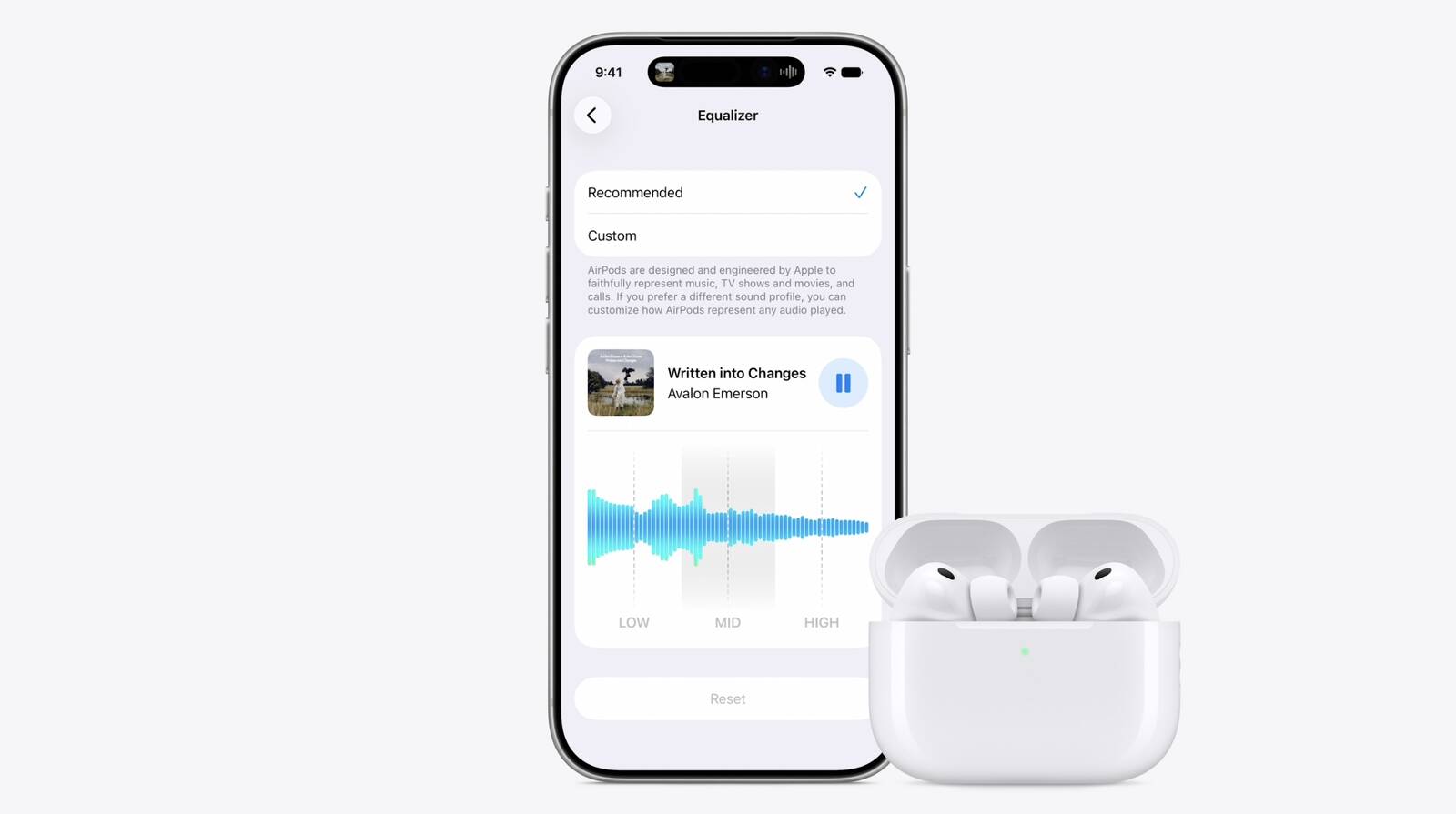
Sony, Bose, and Sennheiser owners have been able to adjust the audio frequency spectrum of their headphones for years, whereas AirPods owners have had to make do with Apple's default tuning. That's no longer the case in iOS 27, which adds a three-band equalizer to the AirPods settings screen.
It's worth noting that iOS has had an EQ setting for years – it's buried in Settings ➝ Apps ➝ Music, but it applies only to Apple Music playback, and works on any pair of headphones. In iOS 27, the new EQ is specifically tied to your AirPods, so it applies to everything you listen to. Your custom EQ profile also carries over to iPad and Mac when you pair your AirPods with them.
What You Need
Custom EQ requires Apple's H2 chip, so it supports AirPods Pro 2, AirPods Pro 3, AirPods 4, and AirPods Max 2. Earlier models, including the original AirPods Max, aren't compatible with the feature.
You'll also need current AirPods beta firmware. If the Equalizer option described below doesn't appear, pair your AirPods with your iPhone, tap your AirPods in Settings, then tap AirPods Beta Updates and toggle on the beta updates option. Afterwards, put your AirPods in the case, connect the case to power, and leave it near your unlocked iPhone to let the latest beta firmware install quietly in the background. It shouldn't take more than half an hour.
How to Adjust Your AirPods EQ
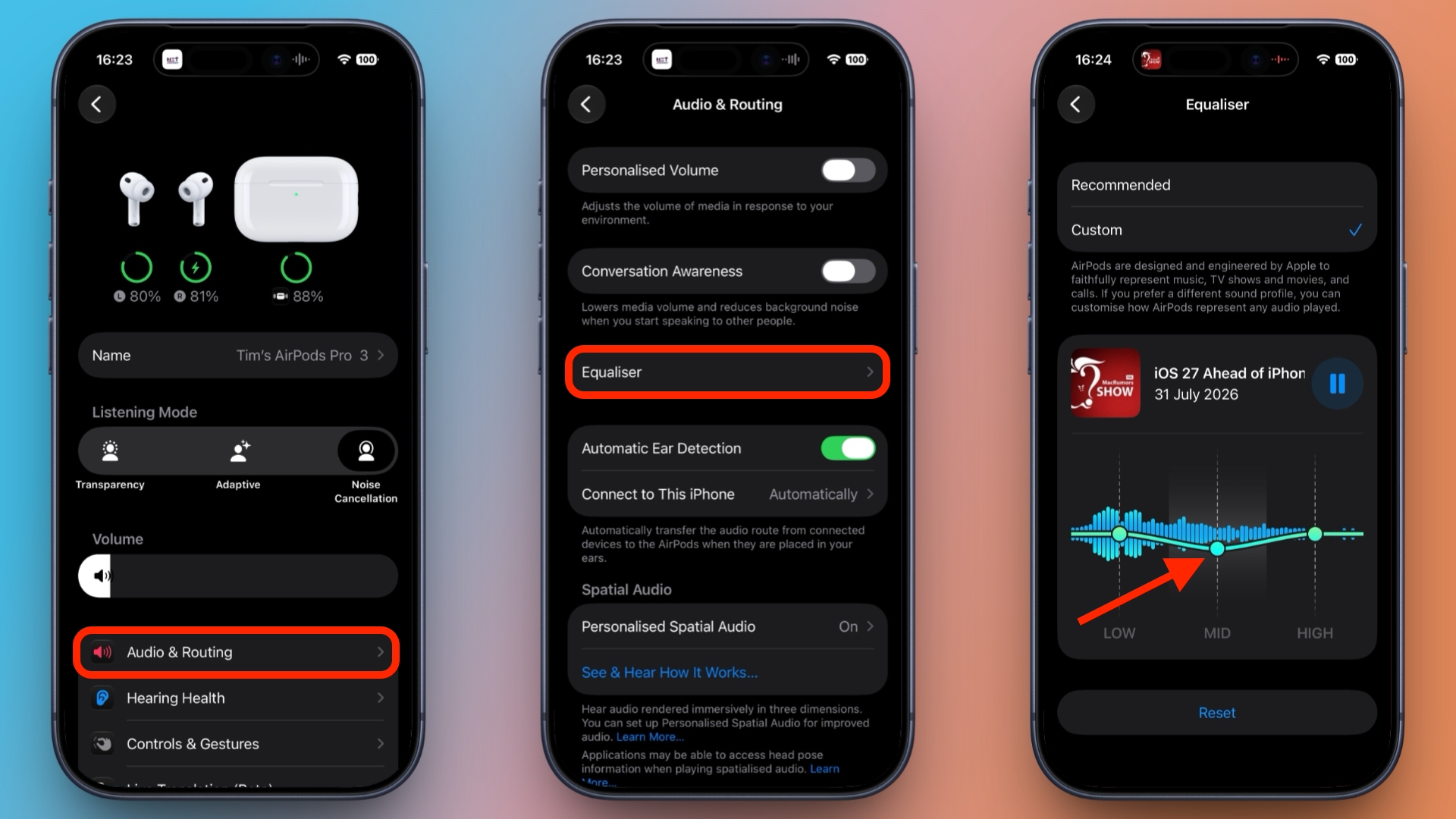
With your AirPods connected, open Settings on your iPhone.
Tap your AirPods at the top of the screen.
Tap Audio & Routing.
Tap Equalizer.
Tap Custom, then drag the low, mid, and high points up or down.
You should see a media playback control above the EQ showing the last thing you listened to, allowing you to hear how your adjustments sound in real time. Lows cover bass weight, mids carry vocals and most instruments, and highs handle treble detail and sibilance.
To undo your changes, simply tap Reset, or choose Recommended at the top to restore Apple's default profile. You'll find all the same options in iPadOS 27, as well as in macOS 27 Golden Gate (in System Settings).
iOS 27 and Apple's other upcoming software updates remain in public beta for now, with a general release expected sometime this September.

 Login
Login


 The iOS 27 Control Center in beta 4