 Login
Login
How to block sponsored website shortcuts on Firefox start page




Apple’s next iPad lineup refresh could begin this fall with a new iPad mini, followed by updates across the rest of the tablet family during 2027. The reported schedule would give Apple a rolling series of launches rather than one event covering every iPad at once.
Bloomberg’s Mark Gurman reports that Apple is preparing replacements for the iPad mini, entry-level iPad, iPad Air and iPad Pro. The compact model is expected to arrive first, potentially as early as October, while the remaining tablets would follow over the next several months.
Apple has not announced any of the devices, and release timing can change. The report nevertheless gives prospective buyers a clearer picture of where each current model sits in its cycle. The first update could also bring one of the most requested display improvements to Apple’s smallest tablet.
The iPad lineup refresh is expected to begin with the iPad mini, which has received fewer updates than Apple’s larger tablets. The current design remains popular because it offers an 8.3-inch screen in a device small enough to hold comfortably with one hand, place in a small bag or use as a portable reading and note-taking tool.
The next model is reportedly moving to an OLED display. That would give the iPad mini deeper black levels, stronger contrast and more vivid color than its current LCD panel. OLED would be particularly noticeable when reading in dark environments, watching video or working with images.
The new display is expected to measure approximately 8.4 inches without producing a major change to the overall design. Apple may retain a 60Hz refresh rate rather than bringing the 120Hz ProMotion technology used by the iPad Pro. That could disappoint buyers hoping the mini would become a compact Pro model, but OLED alone would represent a visible upgrade.
Reports have also pointed to an A19 Pro chip. That would give the smaller tablet more performance for games, creative apps, Apple Intelligence and longer-term software support. The current iPad mini already occupies an unusual position between a reading device and a compact professional tool. A stronger chip and OLED screen would push it further toward the second category.
Price may become the less attractive part of the update. Apple could raise the starting cost as display and memory expenses increase. Buyers interested mainly in portability may accept a higher price, but the iPad mini would need to avoid moving too close to the iPad Air.
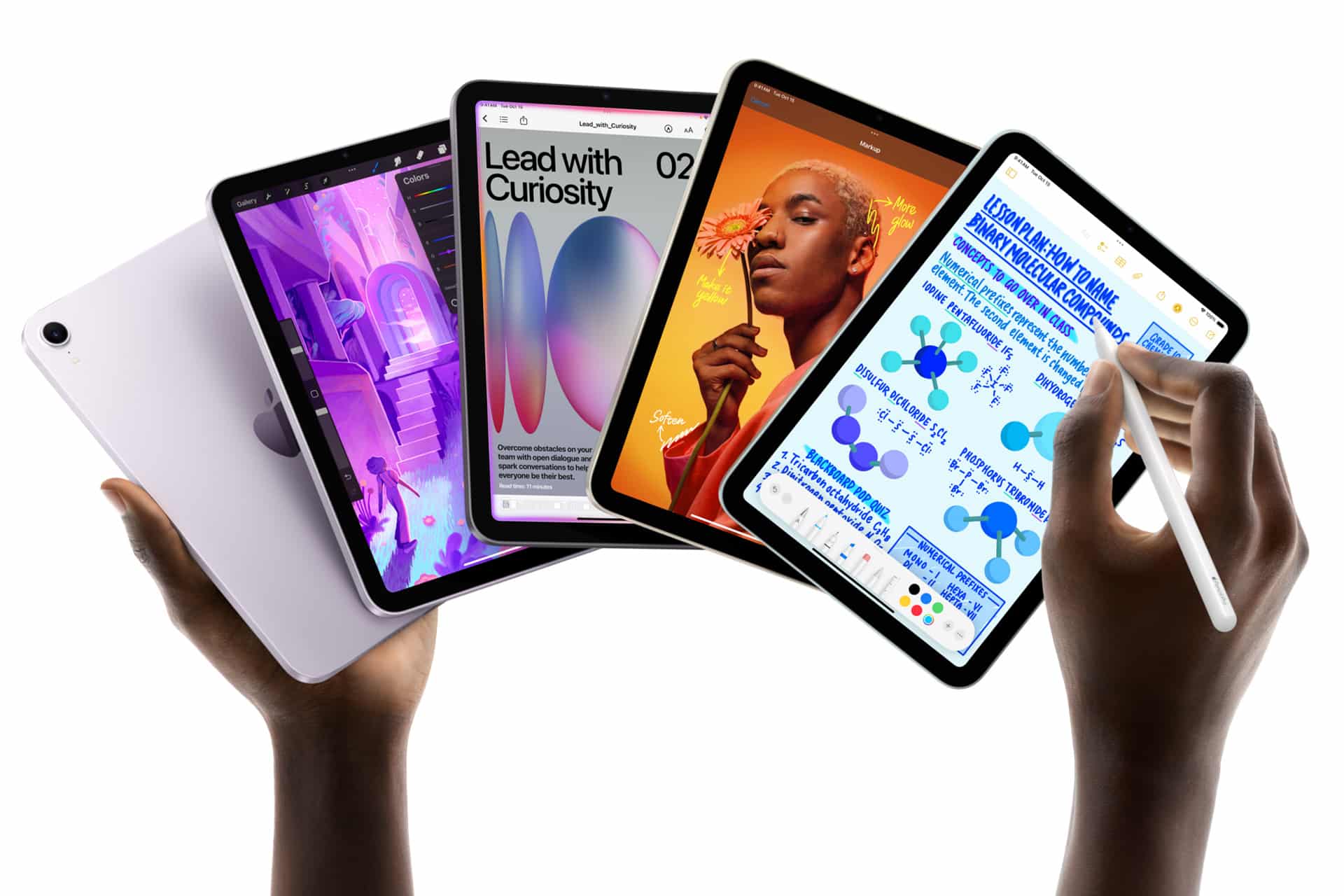
Apple’s least expensive iPad is expected to receive a more modest update in early 2027. The company reportedly plans to preserve the current design while replacing the processor with a newer chip.
That would fit the role of the entry-level model. Apple uses it for education, families, basic productivity, streaming, games and first-time tablet buyers. A dramatic redesign could increase the cost without improving the tasks most customers use it for.
The processor update could bring Apple Intelligence compatibility, depending on the chip and memory configuration Apple chooses. The current model’s position outside some advanced AI features creates an increasingly visible separation from the rest of the lineup.
A newer chip would also extend the useful life of the device. Entry-level iPads are often kept for several years, passed between family members or deployed in schools and businesses. Long software support can be more valuable in that segment than a thinner body or new camera arrangement.
Anyone considering the current base iPad should decide whether price or longevity has greater value. The current model remains suitable for ordinary use, particularly when discounted. Buyers who want the longest possible support window may prefer to wait.
The iPad Air is also expected to receive an update in 2027, with OLED display technology reportedly planned for the range. That would narrow one of the most obvious visual differences between the Air and the iPad Pro.
Apple currently positions the Air as the balanced choice: stronger than the entry model, less expensive than the Pro and available in 11-inch and 13-inch sizes. It supports Apple Pencil Pro and Magic Keyboard while offering M-series performance for demanding apps.
An OLED display would make that value proposition more aggressive. The Air could offer improved contrast and image quality without requiring buyers to move to the Pro tier. Apple would still have several ways to distinguish the Pro, including ProMotion, brighter displays, thinner hardware, advanced cameras and newer processors.
The processor is likely to receive another M-series upgrade as well, though the exact chip remains uncertain. For most users, the Air already has far more processing power than routine tablet work demands. The screen may provide the stronger reason to wait.
The risk for Apple is pricing. OLED panels could push the Air upward, especially in the 13-inch configuration. If the gap between Air and Pro becomes too narrow, buyers may move directly to the flagship. Apple will need to preserve a convincing middle tier.
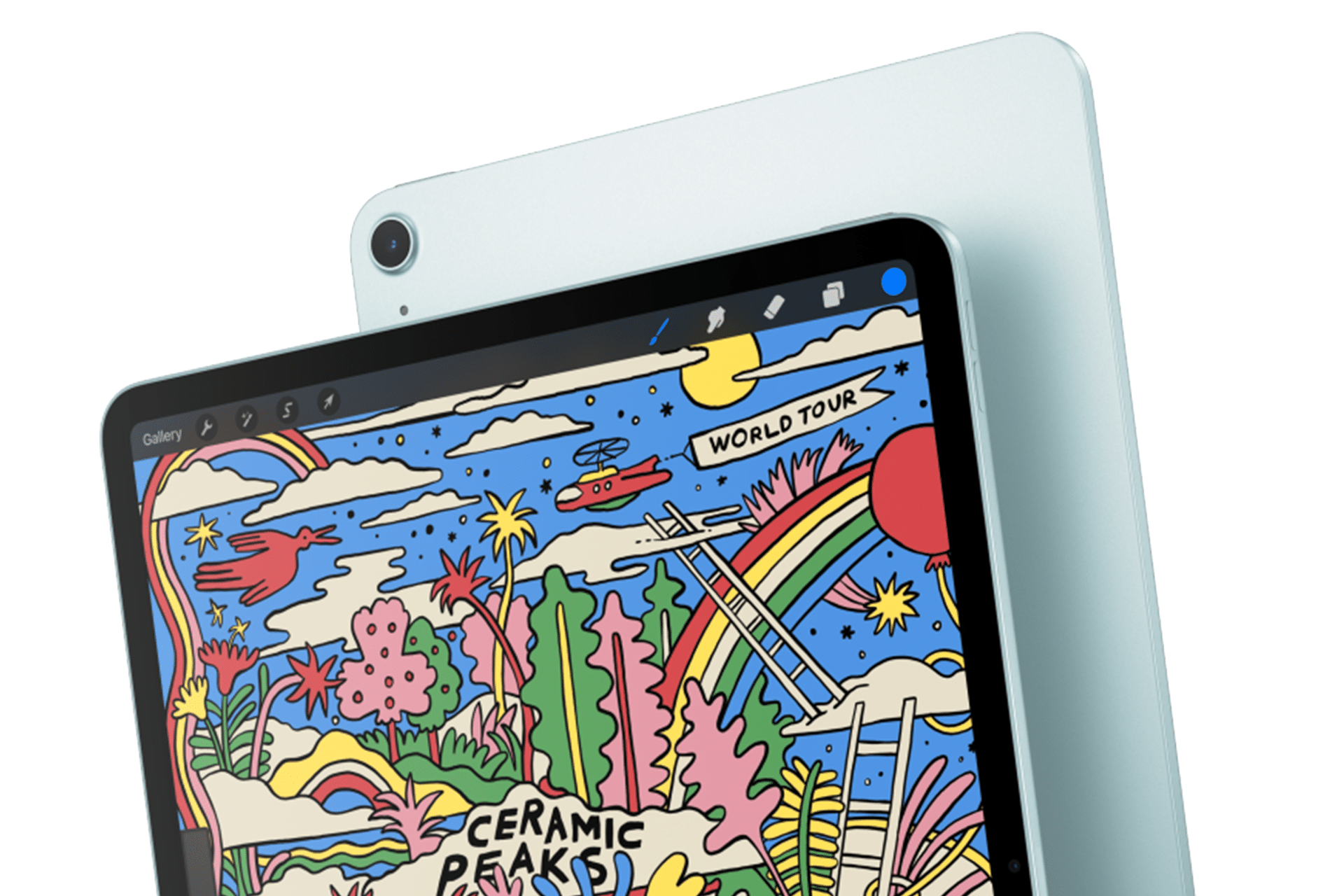
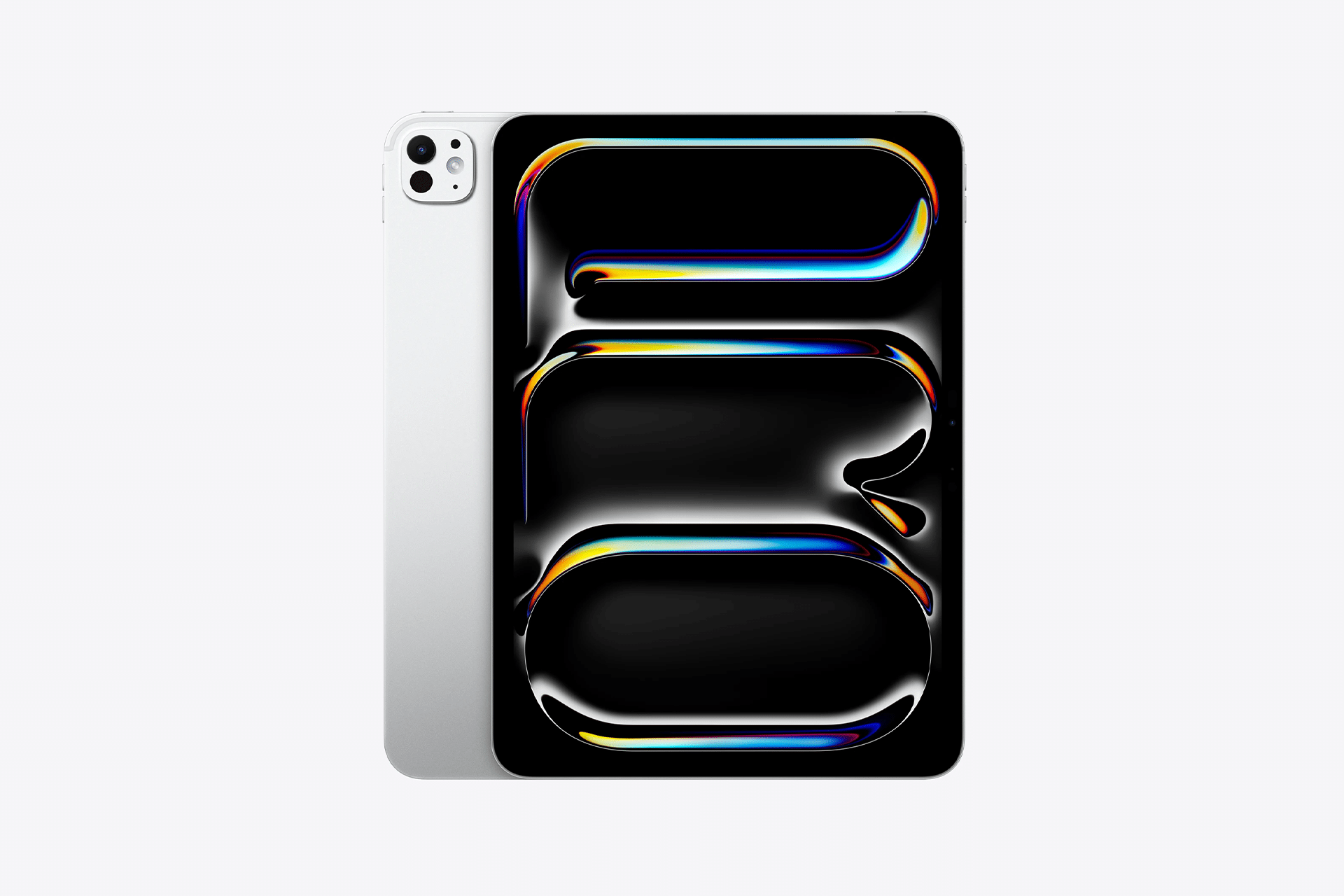
The next iPad Pro is reportedly planned for spring 2027. Apple may use a new M-series processor while leaving the current thin design largely intact.
That would make the Pro refresh more evolutionary than transformative. The current generation already includes OLED displays, high-end performance, Face ID, ProMotion and support for Apple Pencil Pro and Magic Keyboard.
Apple is also reportedly preparing two updated Apple Pencil models. Those accessories could arrive alongside the next iPad Pro, with changes potentially related to battery design and regulatory requirements.
The larger question is what additional processor power will do for the tablet. iPadOS 27 has expanded multitasking and window management, but buyers continue to evaluate the Pro against MacBook models at similar prices. A faster chip alone will not settle that comparison.
Apple may rely more heavily on AI, professional applications and accessory integration to justify the update. The Pro has become a platform for illustration, video editing, music production, 3D work and specialized enterprise apps. New hardware needs to strengthen those uses rather than simply win another benchmark.
The answer depends on the model. Prospective iPad mini buyers have the strongest reason to pause because the reported fall update could introduce a substantially better display within months.
Entry-level buyers can still consider the current iPad when pricing is attractive. Its expected replacement appears focused on performance rather than design. Waiting becomes more sensible for anyone who wants Apple Intelligence support or maximum longevity.
The current iPad Air remains a capable option, particularly for users who need a tablet now. OLED would improve the experience, but a 2027 release leaves a longer wait. The same logic applies to the iPad Pro. Its successor may be faster, though the existing model already covers demanding work comfortably.
Apple’s gradual schedule could keep the iPad in the hardware conversation from fall through spring. It also means there will be no single perfect moment when every model is equally new.
The iPad mini may open the cycle because it has the most obvious opportunity for visible improvement. After that, Apple can use the base iPad for reach, the Air for broader OLED adoption and the Pro for its latest silicon and accessories.
The tablet lineup is not expected to change all at once. It may instead evolve model by model, giving buyers repeated reasons to reconsider which iPad fits their needs.
The post iPad Lineup Refresh Could Start This Fall appeared first on AppleMagazine.


Roblox’s new AI game creation tool Build lets iPhone users turn a text prompt into a playable game. Give it a try!
(via Cult of Mac - Your source for the latest Apple news, rumors, analysis, reviews, how-tos and deals.)

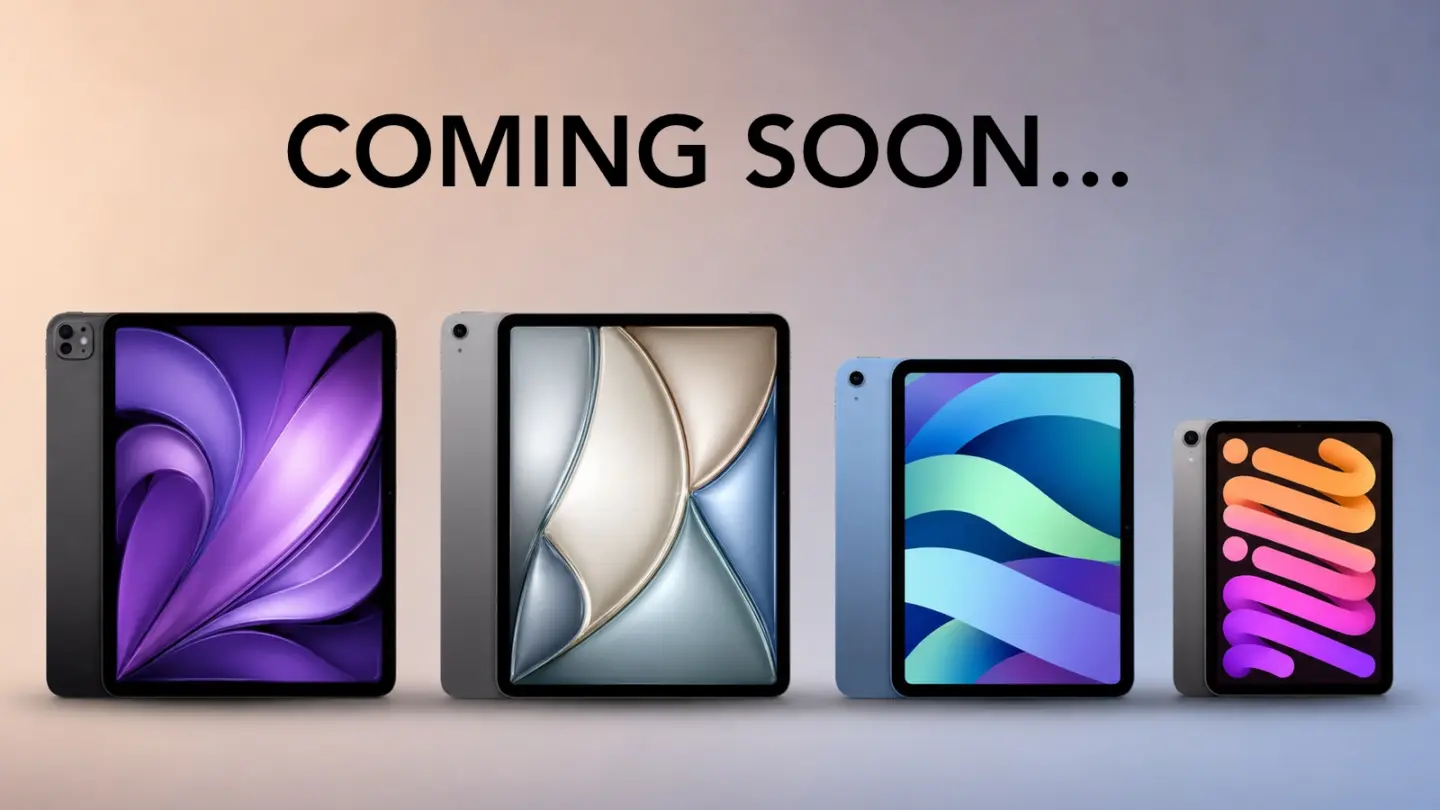
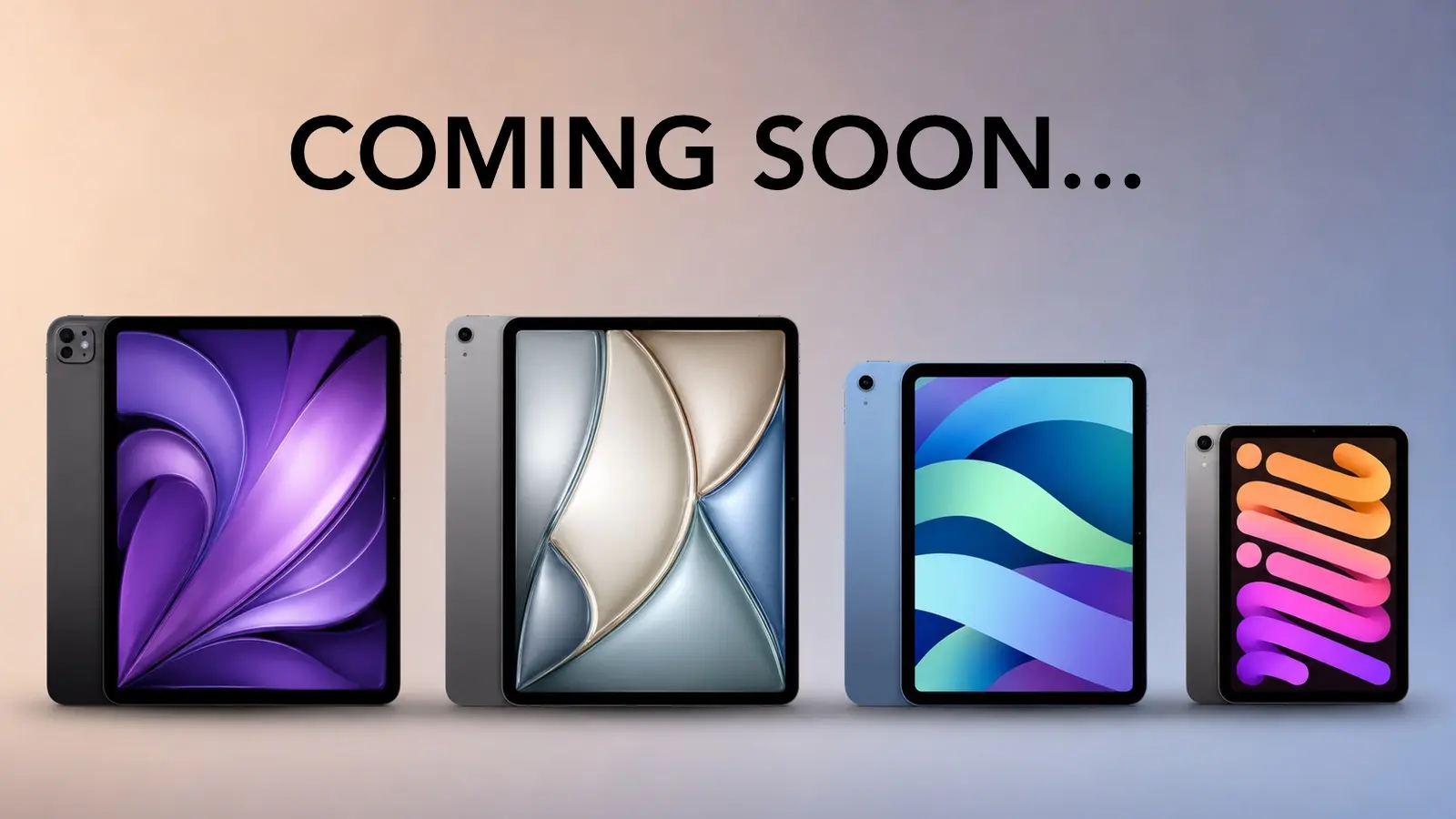
Every iPad is rumored to get an upgrade in the next year. It all starts with an OLED iPad mini, and here's what's coming across the lineup.
(via Cult of Mac - Your source for the latest Apple news, rumors, analysis, reviews, how-tos and deals.)

I had a simple task that involved Apple Home. If you use Apple Home, you know what happened next. Tears, frustration, the arrival of batteries, paperclips pushed into hard-to-reach holes, many online searches, and—if you are lucky, as I was—success.
My goal was straightforward: can I know if the garage door is open without going to look? Early in the pandemic, we occasionally forgot to close it. While there was a locked door between the garage and the house, it still felt like we were playing with fire, as someone could steal a bike or other lesser goodies from the garage.1 The garage is on our basement floor (ground level on one half of the house), and the last thing I enjoy doing at night is walking downstairs before bed to check the door.2
I purchased an Eve Door & Window Contact Sensor to have this capability reported by Apple Home, joining a growing set of HomeKit devices, including our front-door deadbolt. Because of our old-style single-piece swing-up garage door, I had a heck of a time finding the right place and right adhesive to stick the sensor where it was close enough for the two components to register.

I spent enough time on the vagaries of physics and materials that I was probably more frustrated than I needed to be when I tried to make a workflow with the danged thing. An Automation wouldn’t work because I wanted an alert, not for the sensor to trigger other Home devices. A Shortcut should have worked, but after many hours of trying over weeks, I was unable to get anything reliable to happen. The Automation was quite simple: at 9 p.m., check the state of the sensor, and send me a message if the sensor shows Open rather than Closed. I left it in place and walked away for literally years.
After recently installing a back-driveway camera, I was determined to get this sensor online.3 First, I replaced the battery, which had died during my period of disinterest. The Eve sensor uses a weird, tiny battery: a 3.6V 1/2 AA (ER14250). After that arrived, using some better adhesive—thin-film 3M 468MP—I positioned the sensor pieces in a better location and more securely.
Now it should work! Except that after adding it, I saw Characteristic in red text on a pink background in Shortcuts. Some online research led me to reset the sensor by inserting a paperclip into a hole I hadn’t noticed. After re-pairing the sensor, I was in business! Or was I?! The sensor wasn’t responding, despite recent status updates.

This led me to the next culprit: the garage is too far away (one floor and the other end of the house) from my Apple TV, which acts as a Matter controller, while the Eve sensor relies on Thread as its communication protocol. What’s a Matter controller?4 And what’s Thread?
Matter is an overarching standard, painstakingly developed even as low-power sensing devices and other equipment proliferated in silos. Matter enables Amazon Alexa, Apple Home, Google Home, and Samsung SmartThings devices to communicate across a network, regardless of the network transport medium (Ethernet, Thread, or Wi-Fi). This prevents you from needing ecosystem-specific hubs and lets manufacturers build to a common standard.
Thread fits into this mix as a low-power, wireless networking standard for sensors, allowing them to communicate their status without rapidly draining their batteries, as would happen with Wi-Fi.5 Apple initially supported Thread with a proprietary standard, HomeKit-over-Thread, and later added direct Matter support. The Eve sensor was just old enough that it was running on the older standard, but the Eve app allowed me to apply a firmware upgrade. I could then migrate the sensor to Matter, which seems to be more reliable.
Apple made things a little confusing here, too. The 1st-generation Apple TV 4K supports Matter, but lacks a Thread radio, so it can’t work with Thread-based devices. The 2nd generation added that radio, so you can do Matter over Thread. But then, with the 3rd generation, Apple bifurcated Thread hardware support: the 64 GB Wi-Fi only model lacks a Thread radio; you have to spend the now-whopping $249 for a 128 GB Wi-Fi + Ethernet version if you want to use Thread.
Failing an Apple TV 4K with Thread, you can use a Thread border router (TBR), which sometimes comes with sensor kits. This plugs into your network via Wi-Fi or Ethernet and bridges to the Thread network, allowing the Apple TV’s Matter controller to work with the Home app on your devices for automations, notifications, and so forth.
It’s that easy, folks. Sigh.
I do own a 3rd-generation Apple TV 4K with Wi-Fi + Ethernet, because I am a fancy man and a big spender, but I really wanted the reliability of plugging it into my Ethernet network. Yet, I couldn’t get the Eve sensor’s Thread radio to reach across my house to talk to the Apple TV. I bought a TBR, thinking it would solve the problem.
By the time the TBR was delivered, however, the garage door sensor magically connected via Thread to the Apple TV and has been rock solid. The TBR that arrived, on the other hand, I was unable to pair and get working, so back it goes for a refund.
Now my nightly Shortcut works! The only fly in that ointment is that the sensor status reports as Closed or Open in iOS and iPadOS, but as 0 (closed) or 1 (open) in the macOS Home app, in both macOS 26 and the beta of 27. I can live with running the Shortcut from my phone.

[Got a question for the column? You can email glenn@sixcolors.com or use /glenn in our subscriber-only Discord community.]
My beloved sister-in-law-in-law (my wife’s brother’s spouse) texted me with an important problem. Her mother had managed to delete the App Store from her Home Screen. How to restore it? While this is a common problem, I realized that the process is completely unintuitive.
For her mother’s particular situation, the answer felt like a cheat code for a video game: unlock, swipe left (once or more), search, touch and hold, drag. Done.

It’s worth a full review of how modern Home Screen management even works in iOS (and iPadOS), with the App Library view off some people’s radar entirely. Apple has, fortunately, not changed this process so far in the iOS 27/iPadOS 27 betas.
I don’t use the term baroque lightly. However, Apple’s flowchart for choices you can make when deleting an app and what happens next has added some curlicues and ornamentation that can confuse the best of us.
It works like this:
First, touch and hold an app. That’s the easy part.
Now we fork into various swirls and pathways. Choose either Remove App or Require Face ID.
Remove App: You can pick from two options (or tap Cancel):
Delete App: Deleting an app removes the app from your device and its data stored on the device. This shouldn’t affect iCloud-synced data if you use the app on other platforms or other identical devices.

Require Face ID: Enabling Require Face ID hides content within the app from Spotlight results. You can add Hide to Require Face ID and also hide the app itself from Spotlight searches. Here are the two Face ID variations:
Hide and Require Face ID: One step further, the app icon isn’t actually hidden! It remains in “obscured” fashion on the Home Screen, and appears in Hidden Apps in App Library. A hidden app that produces notifications, handles calls, or sends critical alerts has those suppressed as well. (Despite the statement that “This app will be obscured on your Home Screen,” it was simply removed for me.)

So, let me get this straight. If you remove the app from the Home Screen or Require Face ID, you can still search for it in Spotlight. If you delete it, it’s gone (though Spotlight may show it as a tap-to-download option from the App Store in results). If you Hide and Require Face ID, you can’t search for it or its contents, but you can find it in a Hidden folder in App Library. Got it, got it.
Despite the above, I have to throw in a big HOWEVER.1 If the app is one of a few made by Apple and preinstalled, you can only remove it from the Home Screen. For instance, touch and hold Settings, Camera, Safari, and a few others, and then choose Remove App: only Remove from Home Screen appears; you can’t delete it, and you can’t use Hide and Require Face ID. Other Apple apps, like Stocks or Weather, may be freely tossed. Perfectly consistent and clear.
Since you now have perfect knowledge of all of these states and interactions, let’s look next at App Library, your Home Screen away from Home Screen.
I have used a succession of apps that I call, with affection, my “junk-drawer” apps. If you don’t have a drawer in your kitchen that is full of miscellaneous crap that you nonetheless occasionally or regularly need, but which has no place in any other drawer or organizational system, congratulations: you’ve just outed yourself as an extraterrestrial and Earth’s First Contact Committee is on its way.
For example, I throw in every piece of text, PDF, photo of receipt, file, and other detritus that I need to keep handy and email or a folder isn’t accessible enough. Then I can search within the app—convenient since everything is now OCR’d by default, so I can find any word or phrase across all media in the app.2
App Library is the equivalent of this, but just for apps. Do you find Spotlight too effusive in its results? Want to have an organizational scheme for apps you don’t have to set up or maintain? Swipe left until you get to the App Library page. You can scroll through pseudo-folders, from which you can tap to launch apps with full-size icons or tap groups of tiny icons to open the pseudo-folder categorizing those apps. You can also use the search field at the top to search only for apps, as opposed to using Spotlight. At the very bottom of the library is where you find Hidden, the not-exactly hidden set of Hide and Require Face ID apps.
To reverse previous choices from an app, App Library, or via Spotlight if the app is searchable:
If you deleted an app, you can search for its name in Spotlight, and you may see it in a list with a cloud download icon; you can tap that to restore it, but not its data, which you might be able to recall via logging into an account or it syncing with iCloud. You can also tap Search App Store in Spotlight. Or, launch App Store, search for the app’s name, and tap the cloud download button.
Reader Peter wrote in with a related question I can answer briefly: “No.” I’m sad about that, though. His question? He has a weirdly undeletable app—he can delete it, but it always reappears immediately and persists across migrations and devices. He wondered whether, after he triggered Settings: General: Transfer or Reset Phone: Reset: Reset Home Screen Layout, he could restore his painstakingly set-up Home Screen layouts.
If you have a suggestion, write me, or post in the Six Colors Discord, available to members. Discord is also where you can send a question for the column directly by using /glenn.
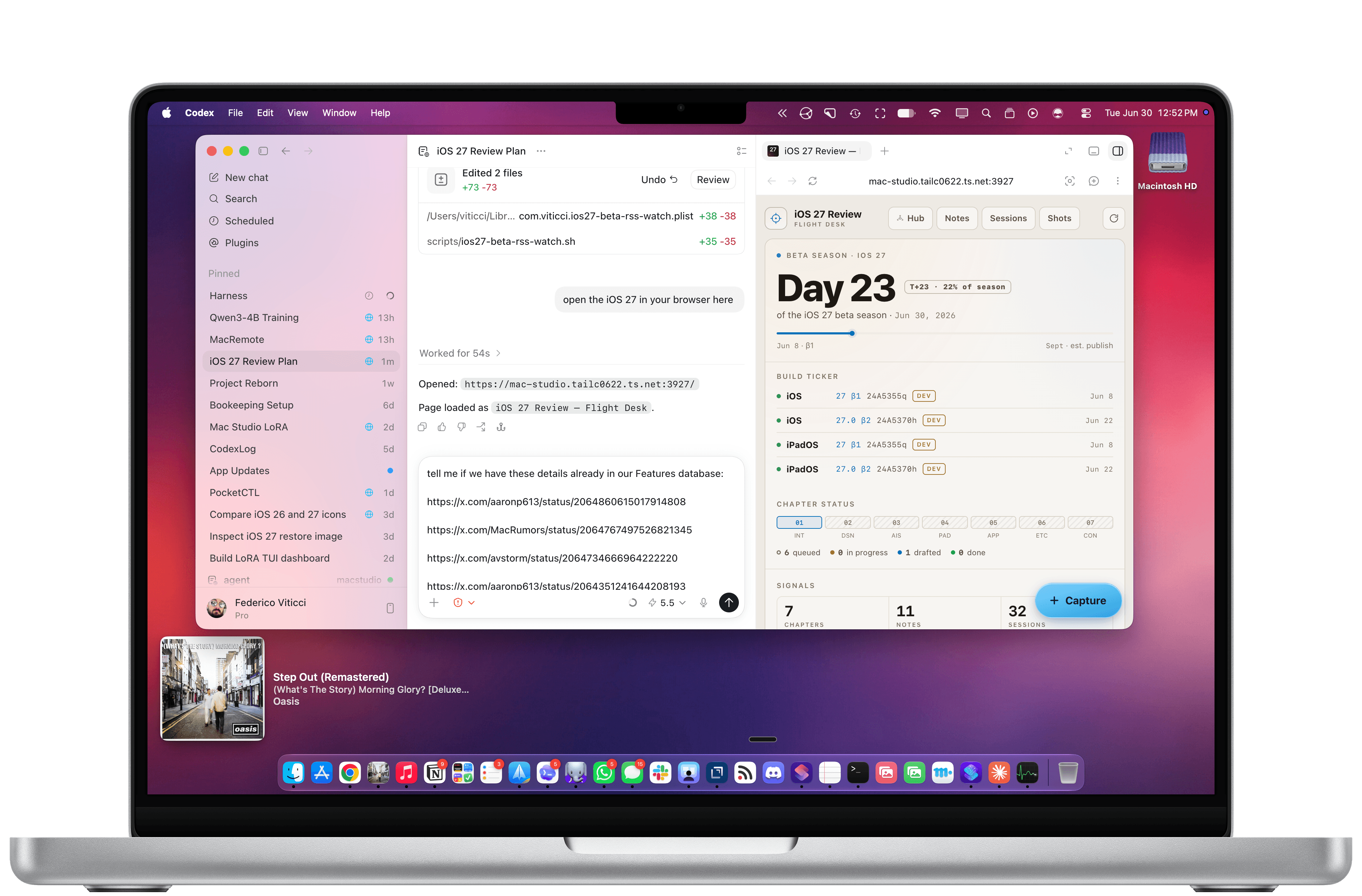
My Codex setup.
In the current era of coding agents becoming productivity assistants, iPadOS’ limitations are no longer defined by the lack of desktop-class multitasking or access to external peripherals. A new class of iPadOS shortcomings looms large on the horizon: the iPad’s app sandboxing and the absence of an open filesystem have relegated it to acting as a remote control for agents.
I’ve been ruminating on this thought for some time. I, of course, am very satisfied with the improvements Apple brought to the iPadOS platform throughout the 26 cycle: between new windowing, local capture, a menu bar, and the improved Files app, I can get most of my old-school work done on the iPad Pro without begrudging the experience like I used to a few years ago. What I’ve noticed this year, however, is that iPadOS 26 was an update designed to address the pre-existing low-hanging fruit of quasi-desktop efficiency; by design – and we have Craig Federighi on the record saying as much – it wasn’t intended to reinvent the wheel in any meaningful way.
That would have been fine a few years ago. The problem is that the productivity wheel is literally being reinvented by other companies as we speak. And in an unsurprising turn of events, the Mac is at the forefront of that reinvention, while the iPad is being left behind once again.
I’m writing this as someone who likes to be on the bleeding edge of AI tools. Since the release of Claude Code in early 2025, I (and, realistically, millions of other nerds whose taste aligns with mine) have increasingly moved a lot of my research, automation, coding, and other tasks considered “productivity” to desktop agents. These are powered by the same underlying technology as chatbots, but they’re considerably more powerful: Claude Code and Cowork, Codex, Perplexity’s Personal Computer, and self-hosted agents like OpenClaw and Hermes can understand intent and perform long-running tasks on your computer. They can write code, stay on a task for hours (or even days) at a time, analyze the contents of your screen, and even use a computer on their own. To believe that these AI tools are still a fad and chatbots are useless is misinformation at this point.
As of June 2026, I spend most of my days with two apps constantly open on my M4 Pro MacBook Pro: Codex and Notion. I’m a huge fan of what OpenAI has accomplished with Codex for Mac; their all-in-one package that combines thread-based chats with skills, plugins, connectors, computer use, memories, and system-wide filesystem access has genuinely allowed me to produce content for my audience that I wouldn’t have even dreamed of years ago. Since I started working with Codex, I’ve released a major update to Apple Frames, two CLIs (with two more coming soon), Shortcuts Playground, and a brand new MacStories Shortcuts Archive. These are actual products that are used by thousands of people and are generating real revenue for MacStories. I’ve also created an entire suite of MacStories-only internal apps (now used by our whole team) and am currently in the process of researching my iOS 27 review, creating an app for Shortcuts Playground, and brainstorming a different product altogether for MCP.
I’m doing all of this on a Mac because the true Codex experience isn’t even “desktop-only”: it’s Mac-only.
Let me give you some examples. To make the original version of Shortcuts Playground, I had Codex with Computer Use scrape my entire library on the old MacStories Shortcuts Archive, download over 300 shortcuts, and learn my coding style. Once I had a plugin, I also had Codex create over 1,000 shortcuts on its own, install them in the Shortcuts app for Mac, and debug them visually to find issues. For the new Shortcuts Playground plugin and app, I’m going even further: Codex created over 3,500 shortcuts spanning the entire library of Shortcuts actions while simultaneously coordinating with other Codex threads – some of which are running on my Mac Studio – to build an app, train a local model for Core AI, and constantly iterate on the new harness behind the app. Meanwhile, I’m also spending time in Codex organizing sources for my iOS 27 review, managing my tasks with Reminders and my own RemCTL, and performing general research on any topic I think of. The net result of all this is that I’m shipping more things, making more money for MacStories, saving money thanks to our new internal tools, and – most importantly – learning a lot and having fun.
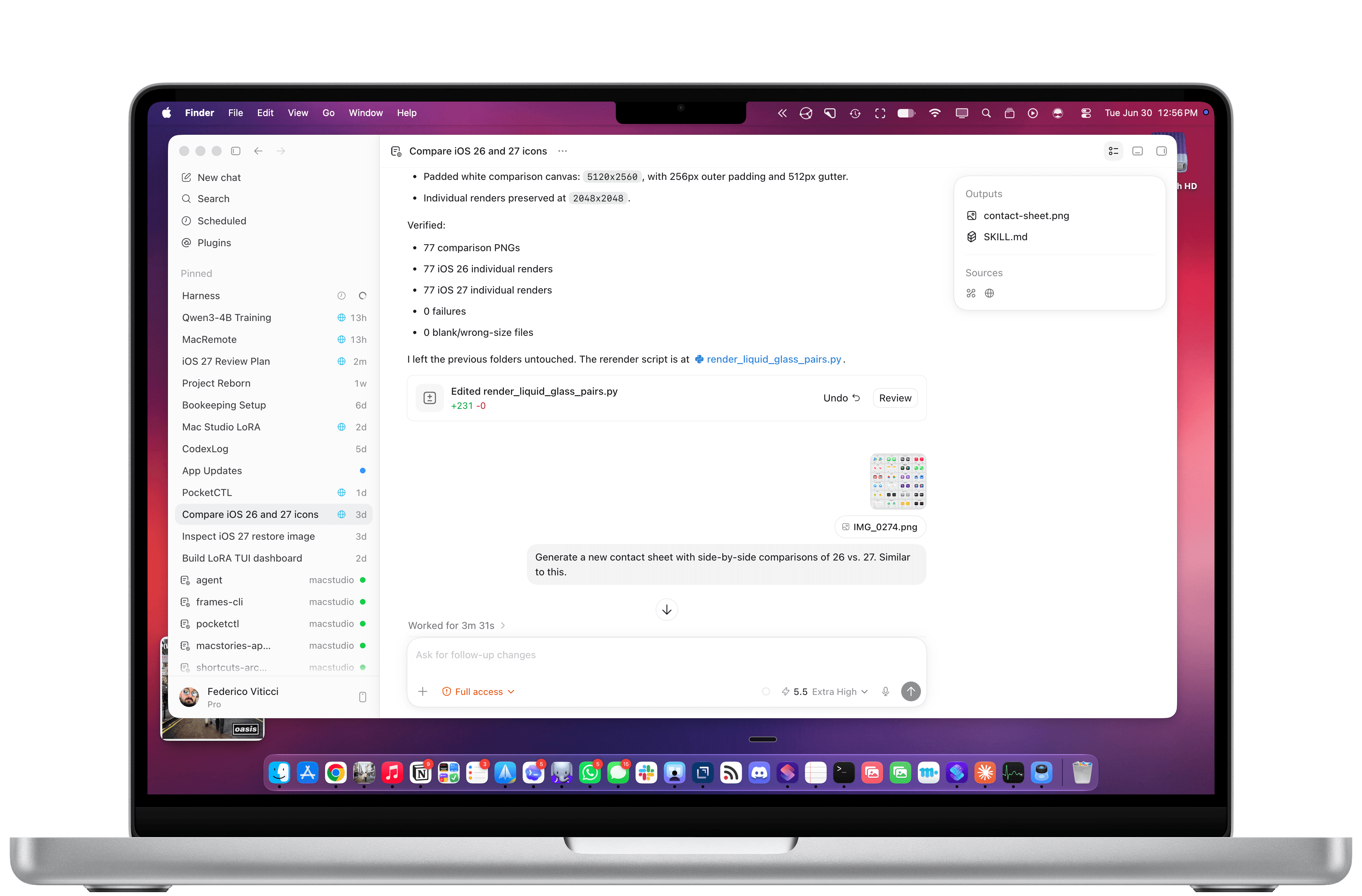
Working with Codex for Mac.
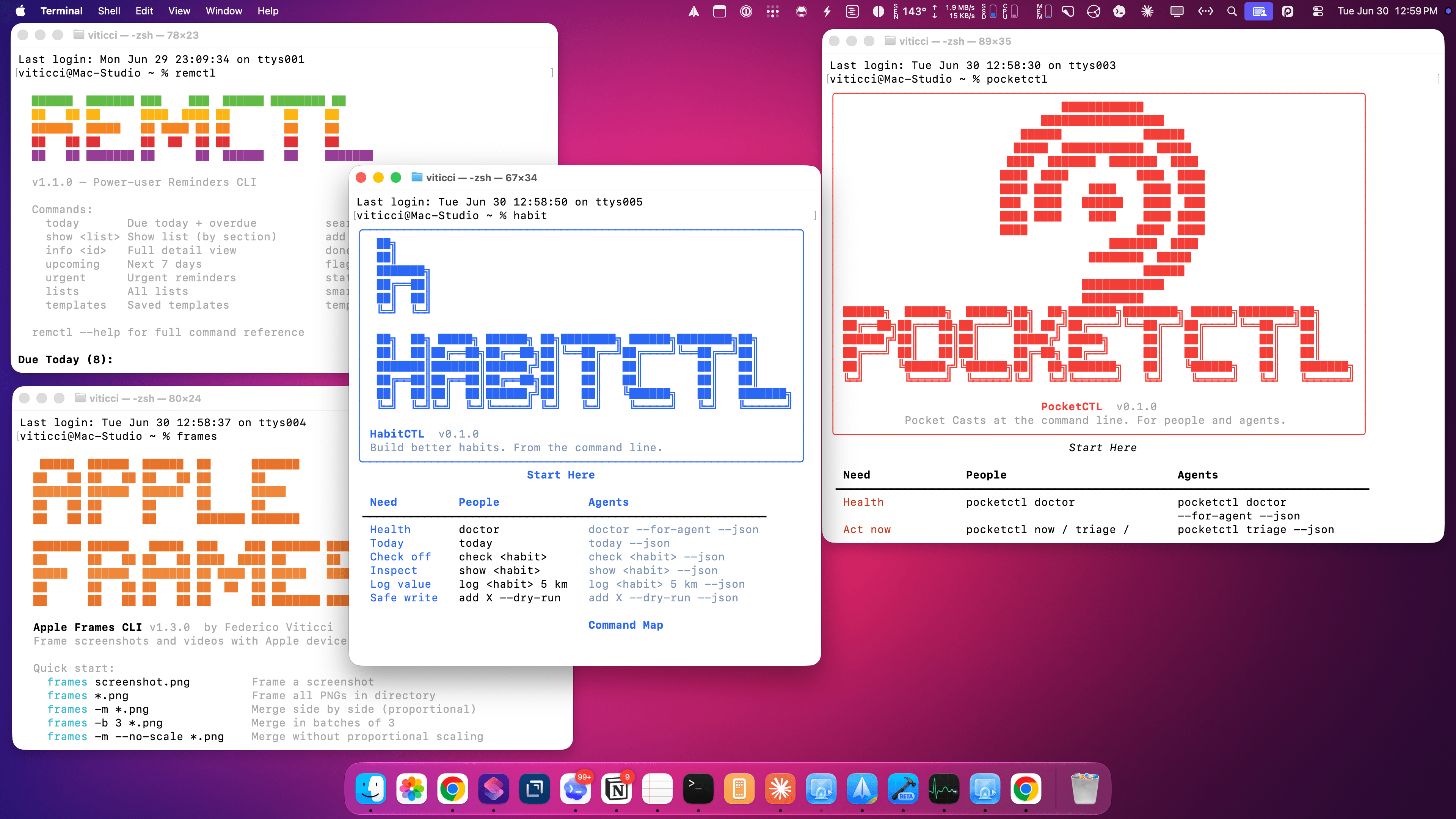
Some of the CLIs I’ve built. Two of them are coming soon.
In all of this, the iPad’s role is to be, once again, an accessory to the Mac – and a rather expensive one at that. I wrote last year about iPadOS’ third-party app problem, and I still think all of it applies today. What’s different in 2026 is that these powerful agentic tools that are redefining coding and knowledge work, and which are centralizing productivity inside so-called “super apps”, aren’t coming to the iPad, but not for political or financial reasons: they’re Mac-only because only macOS is mature and open enough to support them.
In a funny twist of fate, Apple spent years trying to make iPadOS catch up to macOS on the surface, only for macOS’ underlying nature to unlock a new generation of apps that are rewriting the rules of modern software. No amount of windowing and menu bars can change the fact that neither Claude Cowork nor Codex will ever be possible on the current version of iPadOS. From an open filesystem that lets agents poke around anywhere to powerful Accessibility and Screen Recording APIs for developers to features like system-wide hotkeys, dictation, and true background processes, Apple’s oldest operating system is the one that feels the freshest (and the most powerful) in the AI industry today.
In fact, the Mac is so powerful and well-equipped for this new wave of desktop agents, it even yields an amazing experience when used in a “headless” setup with no display attached to it. This may have started as a trend because of OpenClaw, but six months later, I believe that a Mac mini with Codex running on it is the best bang for your buck if you’re building an always-on agentic setup based on a frontier model that can do just about anything you throw at it.
Which brings me to the iPad’s only silver lining in this space right now.
Most of my Codex tasks are running on my Mac Studio server, but I also use Codex on my MacBook Pro. Thanks to Codex’s support for remote connections, I can chat with threads running on the Mac Studio from the Codex app on a different machine, which is a fantastic feature. Alternatively, I can use Apple’s excellent (and, again, Mac-only) Screen Sharing app to log into my headless Mac and interact with macOS with superior performance and image quality to VNC. (I also use this HDMI 2.1 dummy plug to unlock 4K resolution when headless.) Coordinating Codex threads across different projects and machines feels like the sort of thing that shouldn’t be possible, yet here we are.
If the iPad is still relevant to me in this specific new way of working, it’s entirely because of the ChatGPT app and the fact that OpenAI cared enough to design a good remote experience for iPhone and iPad users. The Codex section inside ChatGPT is a solid product and getting better every week; it’s also the only app of this kind that lets you connect to multiple computers at once and manage threads across all of them. With Codex remote on iPad, I can continue my projects from the MacBook Pro or Mac Studio, pin specific threads, and keep an eye on all my agents working in the background. In general, it’s also a way to bridge functionalities that are missing from iPadOS. Without Codex remote, I wouldn’t be able to ask my agent to reschedule my reminders and turn some emails into tasks in the same workflow; I wouldn’t be able to tell my agent to go to the Apple Newsroom, find me a specific press release, extract all images from it, and upload them to our CDN.
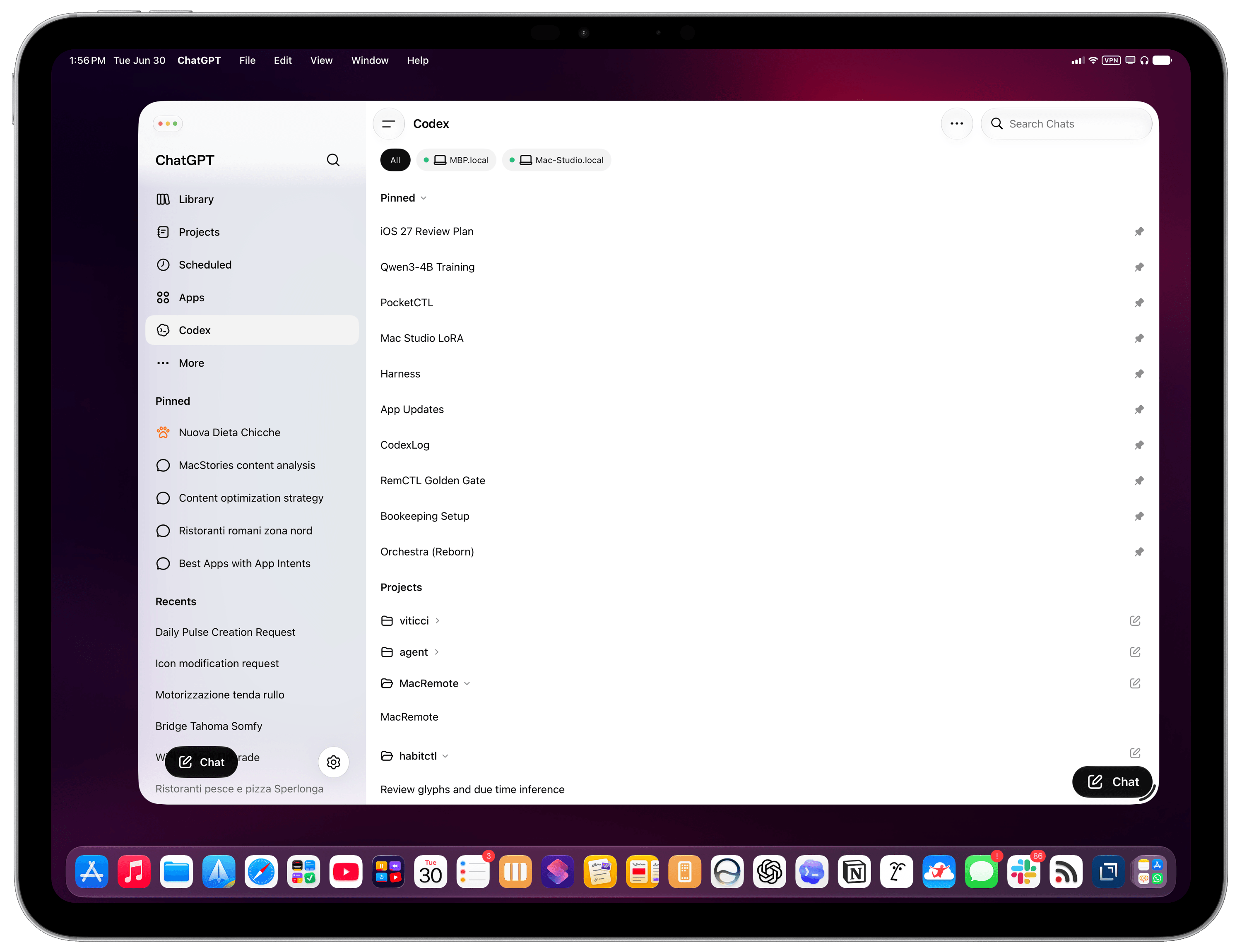
Codex remote on iPad.
Perhaps Siri AI will unlock similar capabilities (although I doubt to the degree of a frontier desktop agent), but it’ll still be limited to apps made by companies that decide to support App Intents. When I’m not using my Mac and I think of something I can’t do on the iPad these days, I instantly reach for Codex inside ChatGPT. I suspect this trend will only grow as more AI companies release similar remote experiences for iOS and iPadOS.
Here’s the issue, though: these are remote companion experiences. It’s great that they exist and that OpenAI cared enough to make them great, but they’re still no substitutes for the real Codex experience on a Mac. It’s ironic if you think about it, isn’t it? A headless Mac is still more flexible and powerful than an iPad hamstrung by the closed nature of its own OS and software gatekeeping.
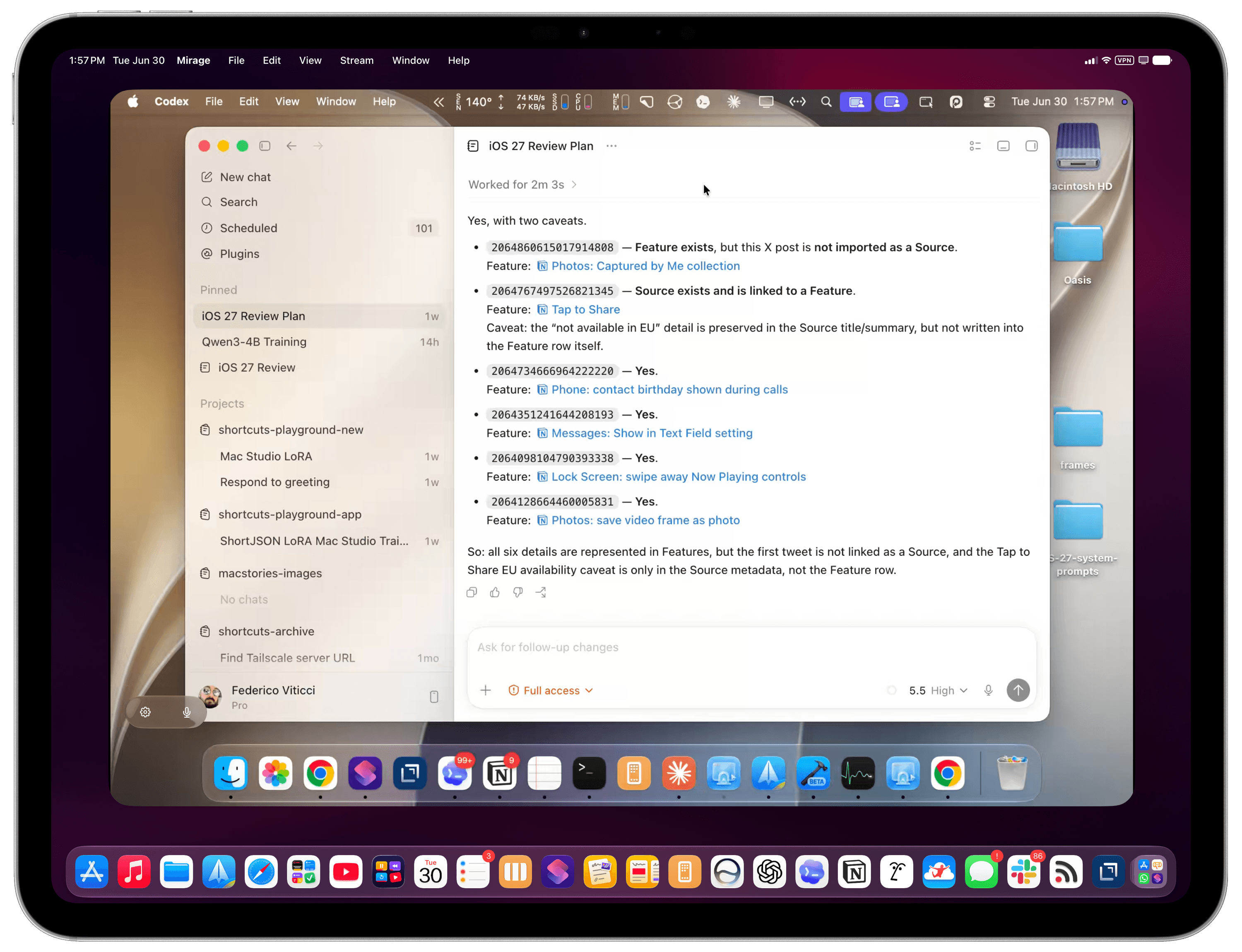
My headless Mac Studio in Mirage for iPad.
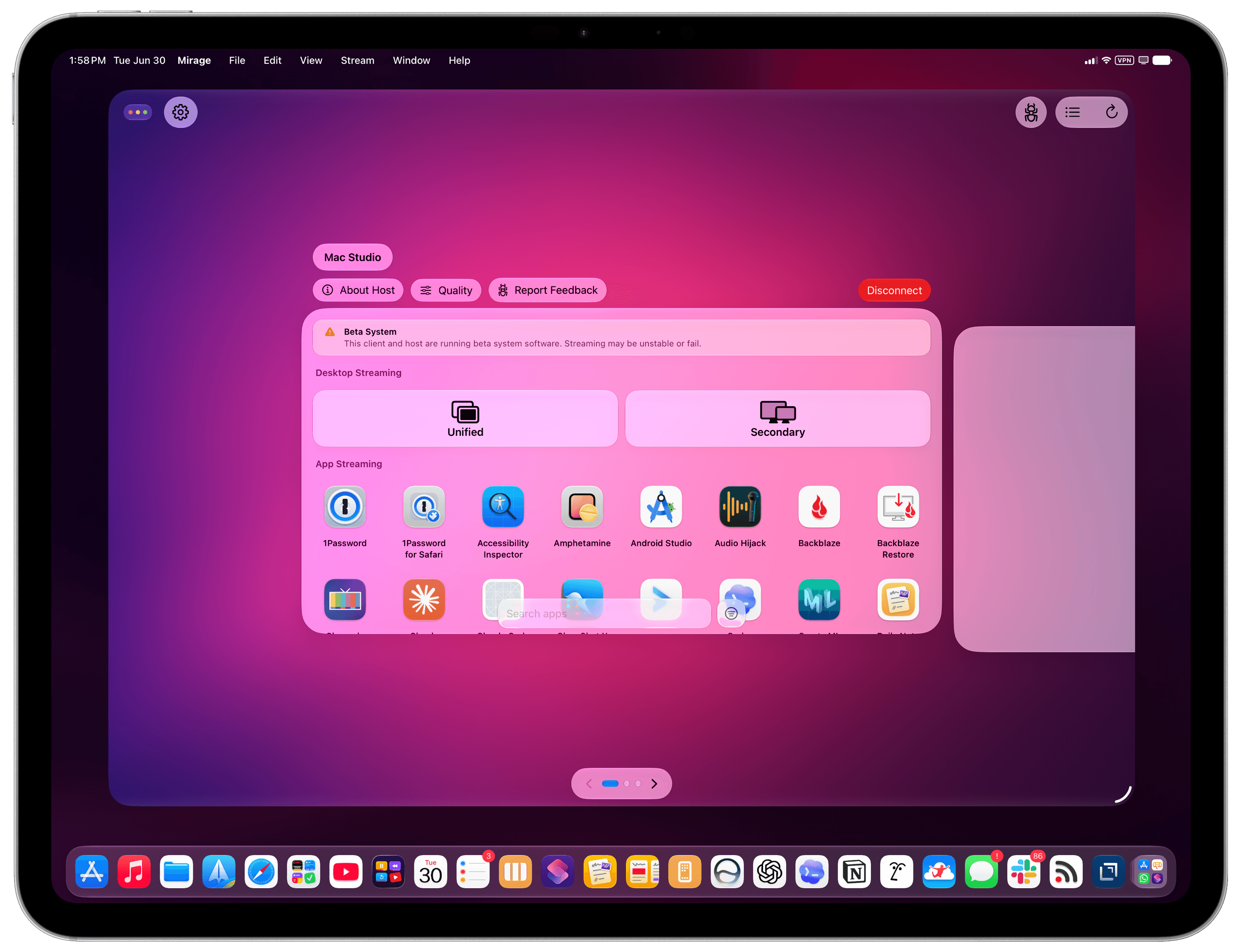
Mirage for iPad’s app launcher.
If you’re among the five million people using Codex on a weekly basis and will be planning your next laptop purchase in a few months, perhaps these considerations will change the calculus for you. Especially in the face of price increases and RAM uncertainty, would you be better served by spending $1,499 on a hybrid laptop that gets work done the old way with 256 GB of storage, or $1,499 on a computer where AI is a first-class citizen with 24 GB of RAM and double the storage? If we accept that power users’ priorities and workflows will be dramatically changing in the near future (if they haven’t already!), all prices being equal, which OS is best positioned for the future?
Of course, I like using both an iPad Pro and a Mac for different tasks. But let’s face it; in this day and age – and especially after last week – not everybody has the budget for two computers that have some overlap between them. Sure, I could argue that an iPad Pro + a headless Mac mini is an insane combo to get the best of both worlds these days: the nimble and delightful nature of iPadOS and the freedom to experiment with AI on a Mac. You can install apps like the latest Jump Desktop beta or the great new screen sharing app Mirage on the iPad and use your Mac mini almost as if it were connected to the iPad’s display. Set up Tailscale on your network, and the Mac’s power can be with you at all times. But that’s a lot of money, and a lot of setup, to achieve an approximation of what a single MacBook Air can handle with more memory, more storage, and a couple of Mac apps.
I’m sure that Apple is aware of the changing nature of this landscape, but in a similar vein to chatbots and Siri, perhaps they were unprepared for the tide of agents to accelerate so quickly. If the idea of putting macOS on an iPad Pro continues to be a non-starter at Apple, and assuming agent-based coding and knowledge work are here to stay, what should the company do to make sure the iPad doesn’t get left behind again? Is a sandboxed Terminal for iPad backed by a dedicated “Agent Framework” the solution? Is working with other companies to build more “remote companion” apps the way forward?
Or, perhaps more obviously: how long until Siri AI can also become a capable agent, connected to App Intents, on par with competing frontier agents?
Until, and if, that happens, the iPad will once again play the role of sidekick to macOS.
When it comes to the bleeding edge of AI and pushing the frontier of agents forward, there’s nothing like the Mac.

Apple raised the prices of Macs and other products across the board today. For entry-level Macs, the increases are mostly $100–$200. However, if you want a MacBook Pro or Mac Studio with lots of memory and storage, it’s going to cost you dearly. Prices were also raised on the iPad, Vision Pro, Apple TV, HomePods, and many items sold through Apple’s refurbished store.
This should come as no surprise to anyone, but it’s painful just the same. Last week, Tim Cook told The Wall Street Journal that price increases were coming without getting into specifics. Apple was able to hold the line on prices for several months, even while smaller gadget and computer makers raised their prices or canceled products altogether.
What’s happening is simple macroeconomics. Demand for memory and storage is vastly outstripping supply, largely due to the insatiable appetite of data centers that power AI services. That demand shows no signs of waning, and supply isn’t as simple as turning a knob to 11. There just aren’t that many makers of memory chips and SSDs, and bringing new plants online to manufacture takes years and billions of dollars.
For now, the price of iPhones has been left alone. Some may see that as a silver lining, but I suspect all it means is that Apple has enough prebuilt inventory to get to September, when new iPhones are announced. Apple Watch and AirPods prices remain the same, too.
Could Apple have avoided this? I doubt it. The magnitude and speed of the price increases and the projected duration are beyond what any reasonable company could or would plan for.
That said, I do think the situation will get better with time, again because of macroeconomics. The increases may preserve Apple’s margins, but it’s going to reduce the number of customers who can afford its products. Margins only equate to profits if you have customers willing to pay for your product. So with time, if the data center demand slackens or new chip capacity comes online, prices will improve. Just don’t expect that anytime before 2027 or 2028 if current projections are to be believed.
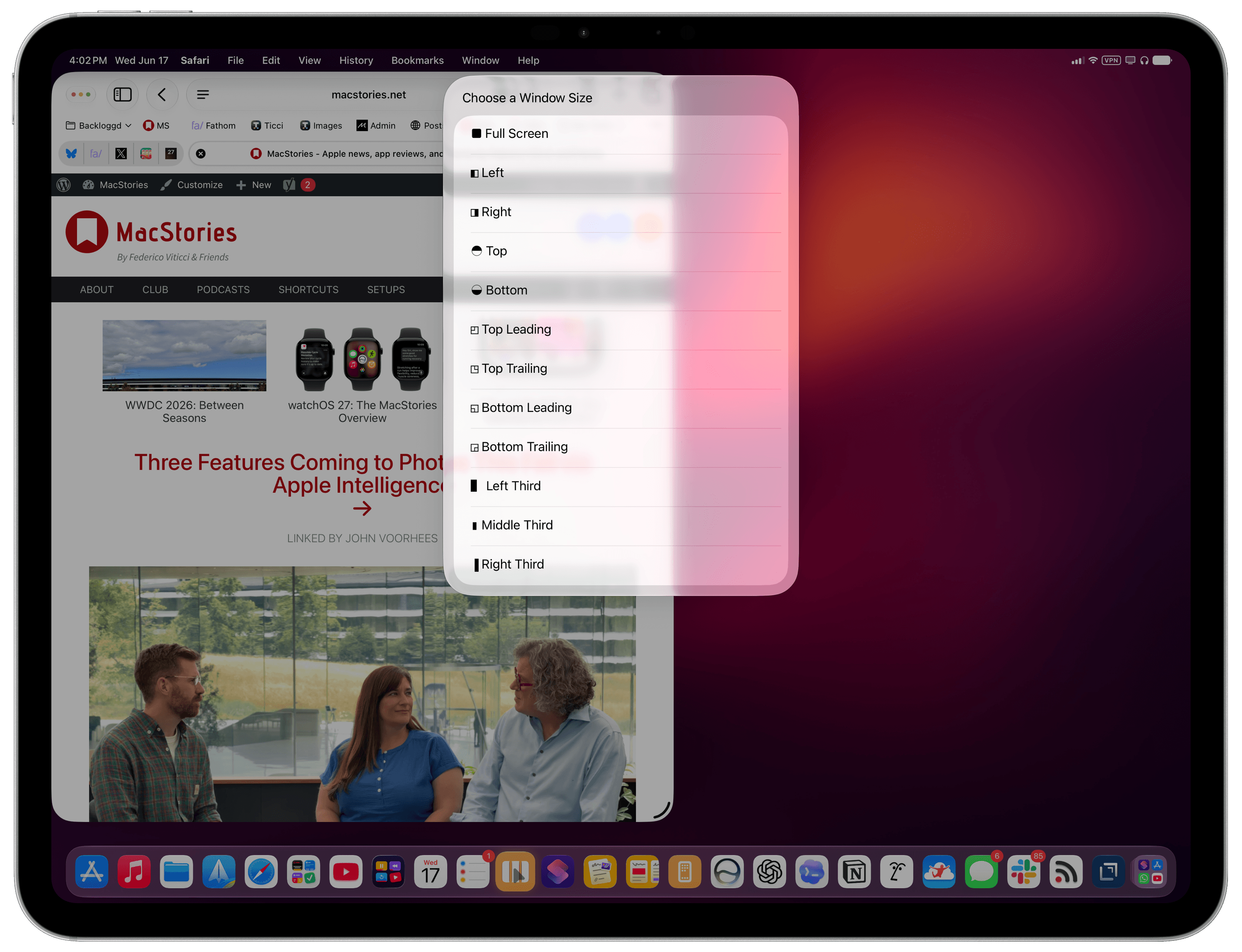
MultiSwitcher for iPadOS.
Update: An earlier version of this article referred to this feature as having been introduced in iPadOS 27, but it was actually introduced in the iPadOS 26 cycle. I missed it. My apologies.
In iPadOS’ Shortcuts app, the existing ‘Open App’ action was recently updated with the ability to launch an app with a specific window placement parameter. This means you can now automate window positions on iPad by opening a bunch of apps and programmatically selecting where their windows be placed.
To find this feature, use the ‘Open App’ action in Shortcuts and expand it to reveal the new ‘Window Location & Size’ field. Here, you can click the default ‘Full Screen’ value to reveal a host of options:
You can play around with these options to open any app and resize any window by choosing from the same presets that are otherwise shown by iPadOS when right-clicking the traffic light controls:
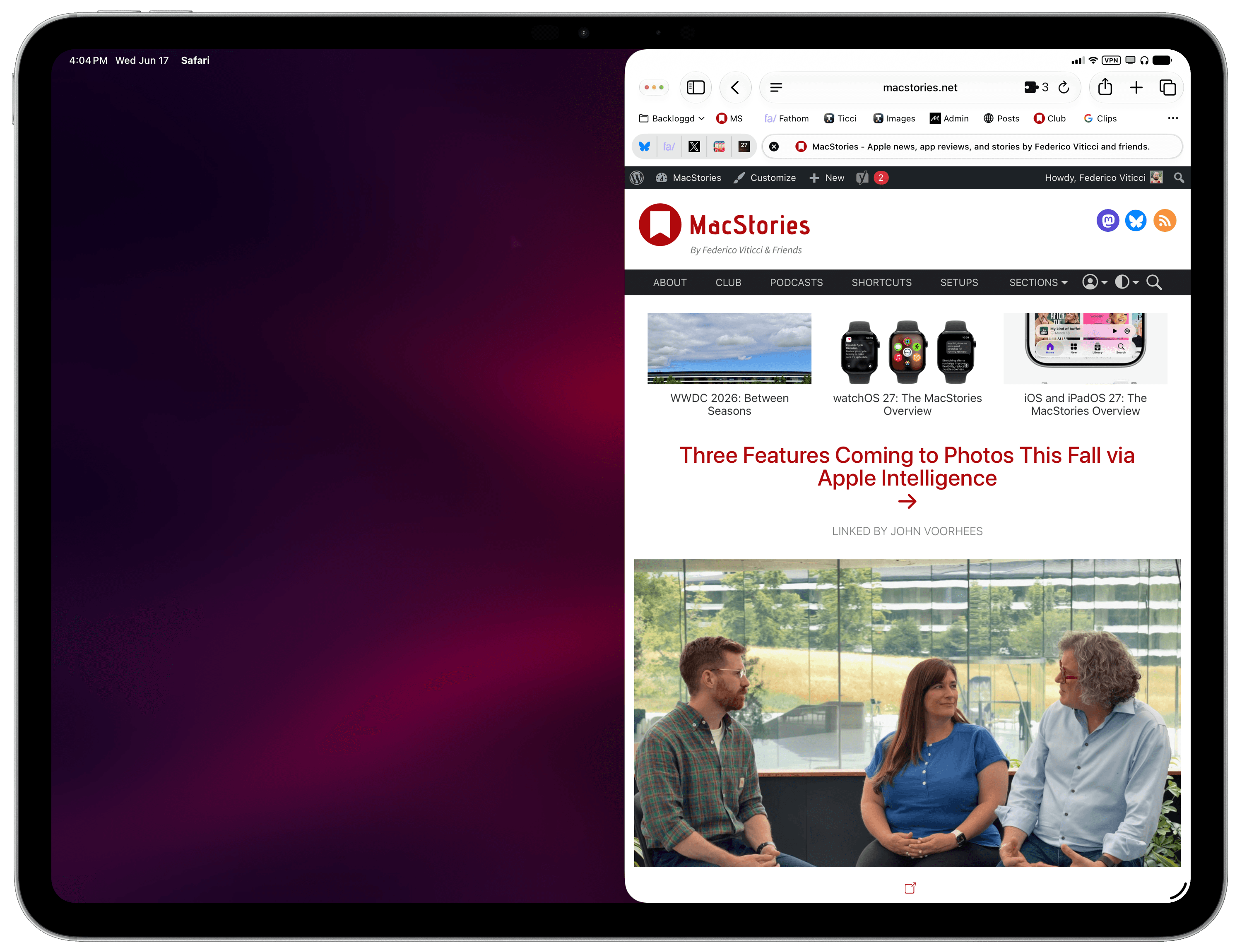
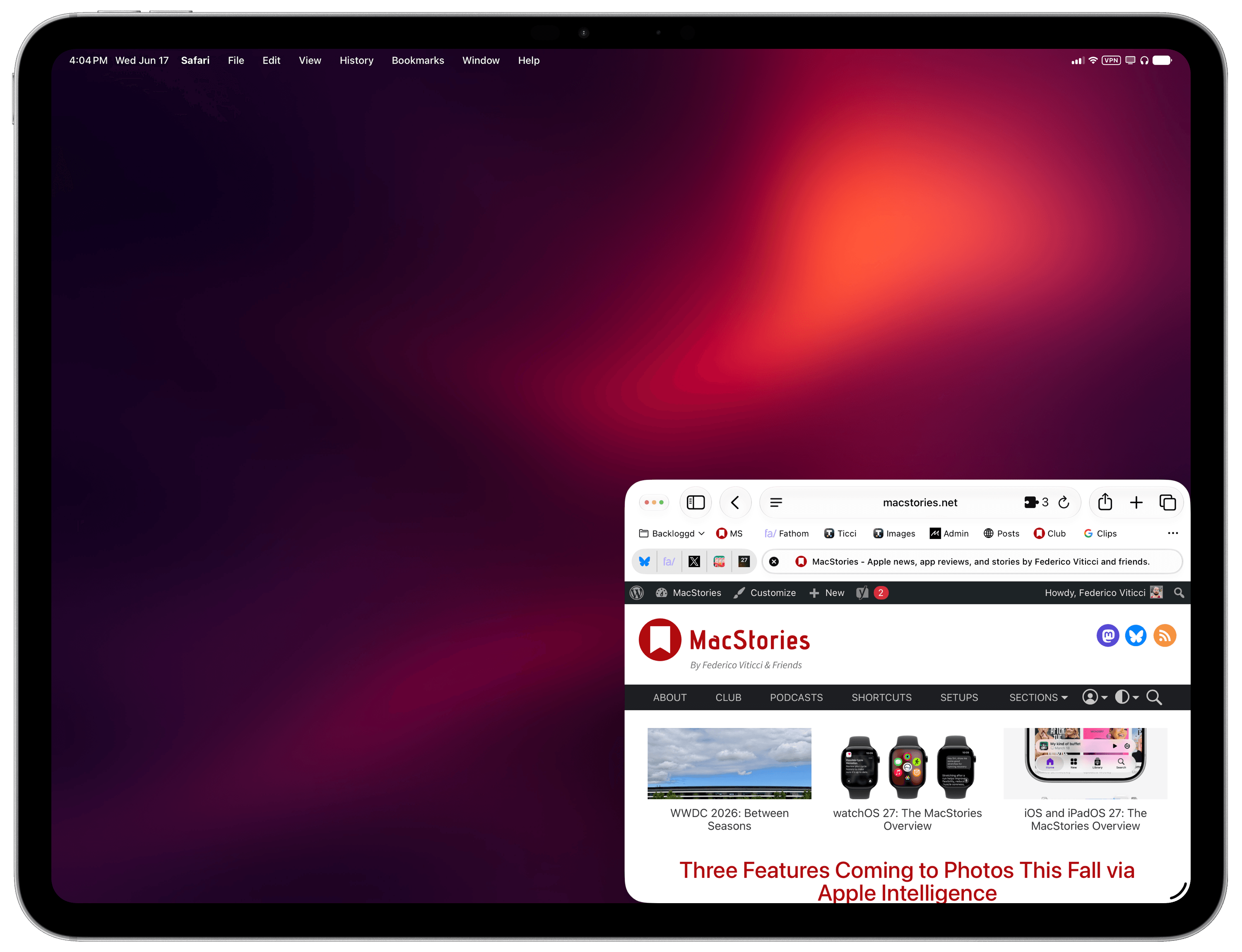
Some of the options supported by the ‘Open App’ action.
That was a neat discovery, but as I was playing around with the action, I realized that its practical utility would be impacted by the fact that you have to manually pre-select the app you want to open as well as its window layout. Wouldn’t it be better if you could turn this Shortcuts action into a reusable technique to programmatically get whichever app is in the foreground with no manual selection upfront, then also give it a pre-selected window preset? As it turns out, you absolutely can.
This is why I created MultiSwitcher, a simple proof-of-concept shortcut for iPadOS users that lets you resize any foreground window to a preset of your choice – no manual input necessary. The idea is fairly straightforward: you can use the ‘Get Current App’ action to get the name of the foreground app, pass it to the ‘Open App’ action, and also pre-configure that action to accept a layout variable.
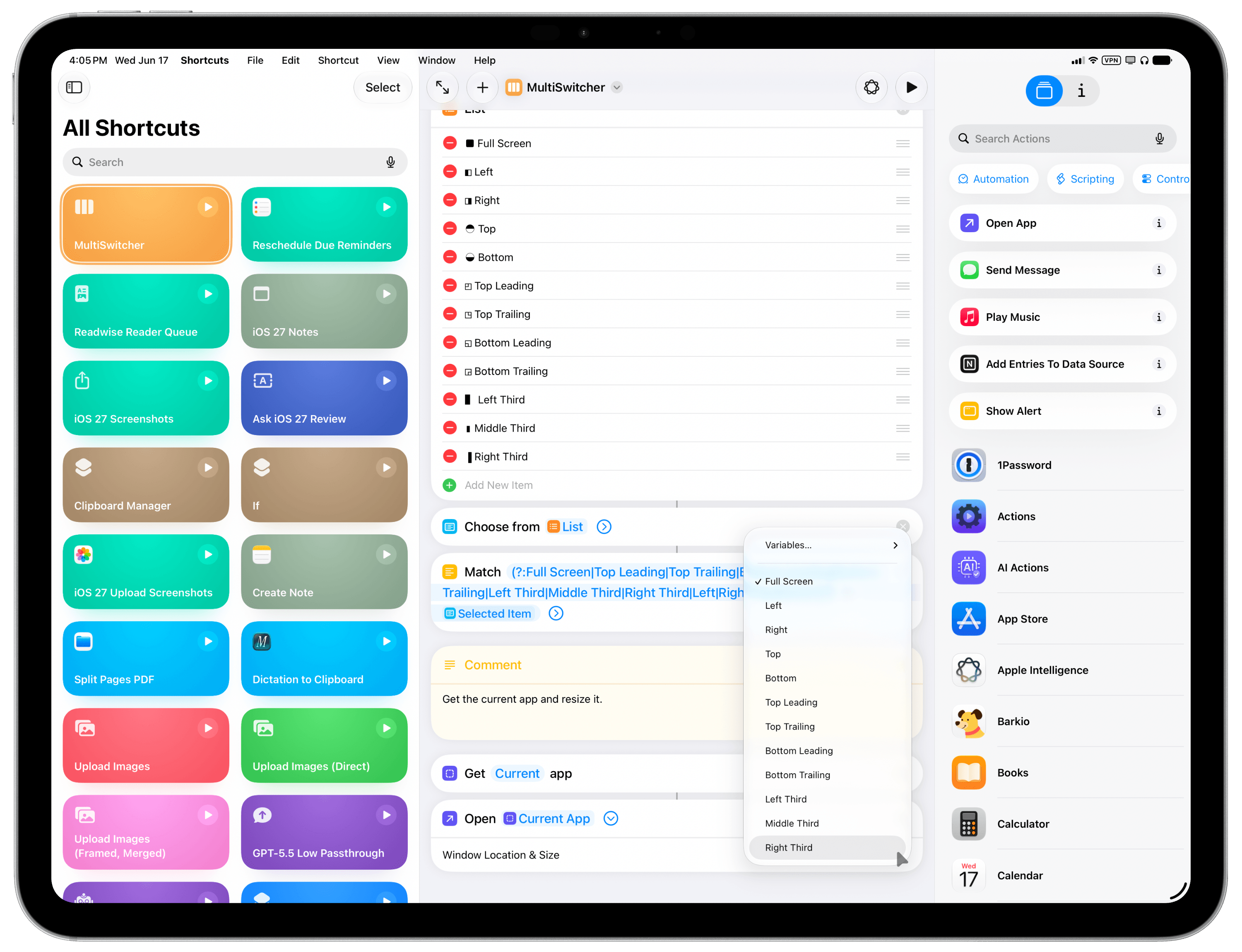
This new parameter of the ‘Open App’ action supports configurable options.
MultiSwitcher is best used as a shortcut added to your iPad’s dock, so you can click it at any time and instantly resize the foreground window. For MultiSwitcher, I designed a visual menu (with some ASCII characters) that lets you preview window layouts, pick one, and resize the currently frontmost window. It doesn’t have to be this way, though: if you’d rather add multiple variations of MultiSwitcher to your dock, each with a specific window size already selected, you can also do that and skip the menu. The choice is up to you.
While these newfound window-control capabilities for iPadOS are still a far cry from the Mac’s breadth of window managers and multitasking tweaks, I find this implementation in Shortcuts to be quite elegant and intuitive for most users to grasp with no need for a third-party app.
You can download MultiSwitcher for iPadOS below.

Control iPadOS window placement by selecting from a list of preset window sizes. The shortcut will resize the currently frontmost window.
