❌

Reading view

Magic Capture is the best feature in the Google Pixel 11 series -- and one of the best camera features in a decade

I've been playing around with a Google Pixel 11 Pro for months, putting all its coolest features through their paces. One of my favorites is Magic Capture, a simple camera feature that lets you focus on shooting video while it handles high-quality still images. Wait, how? Once you're done shooting, Magic Capture analyzes the video, frame by frame and extracts the best still images automatically and intelligently from the moving frames. So you don't even need to do the work.

I have used Magic Capture in a few scenarios, both at home and at different events. While it isn't perfect, it works well enough to convince you use to use the Pixel 11. It solves the problem so many of us have in deciding whether to record a video or photos at your child's school concert, a birthday party, or any other gathering, event, or trip.

How Magic Capture works
Magic Capture in the Google Pixel 11 series phones

(Image credit: Christine Persaud / Android Central)

Magic Capture works on every Google Pixel 11 series phone, including the base model Pixel 11 along with the Pixel 11 Pro, Pixel 11 Pro XL and Pixel 11 Pro Fold.
Magic Capture in the Google Pixel 11 series phones

(Image credit: Christine Persaud / Android Central)

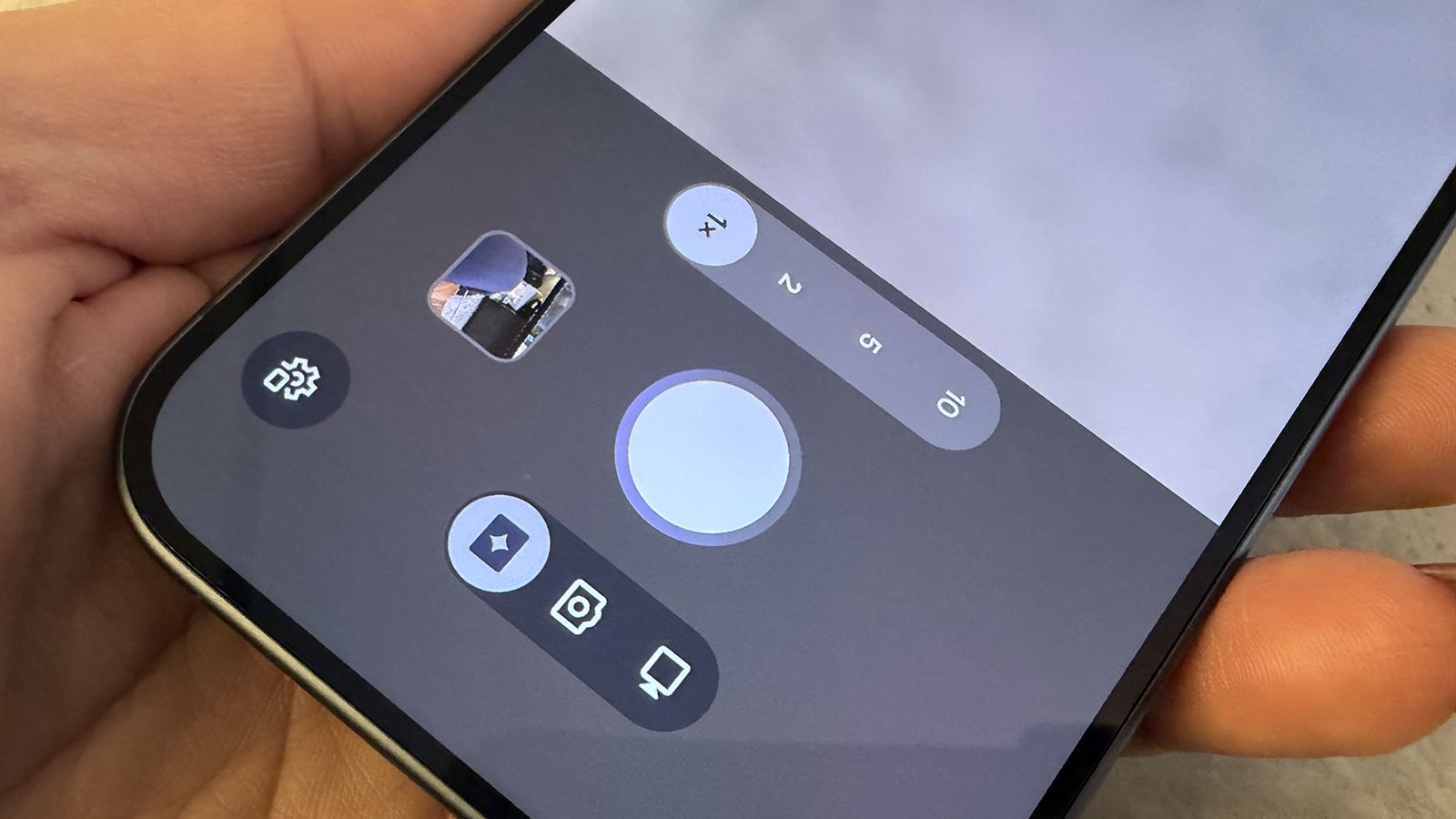
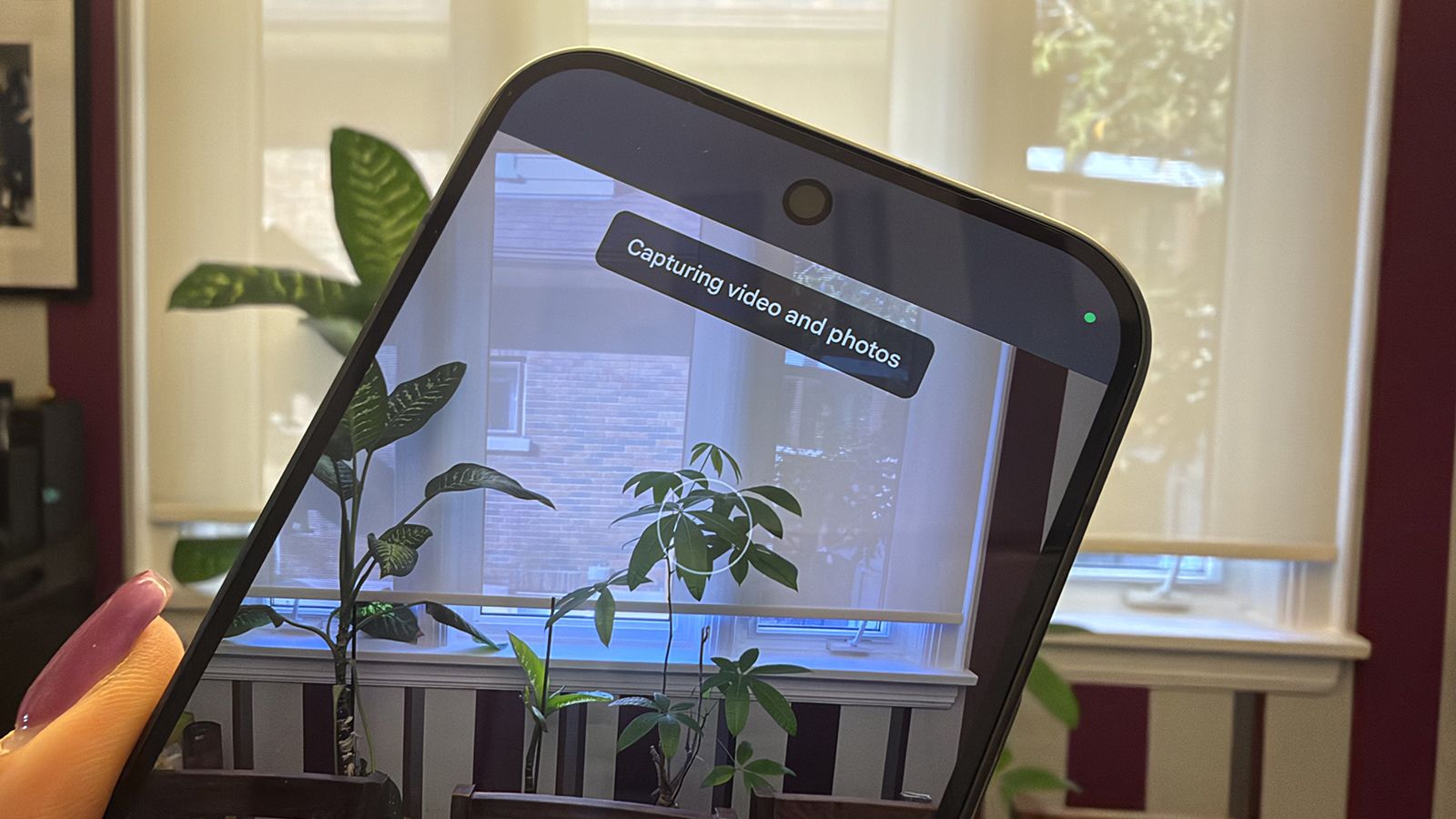
When you open the Google Pixel 11 Pro camera, you'll see the standard photo and video capture icons but also a Magic Capture button. Select Magic Capture and press the shutter to start shooting. Record video as you normally would, without worry about photos. Those will come later. Once you're done, press the shutter again to stop.

Magic Capture in the Google Pixel 11 series phones

(Image credit: Christine Persaud / Android Central)

Once the video saves, the phone will analyze almost 400 frames and extract the best images β€” the one where everyone is laughing, someone has a genuine smile, or a person is in a perfect pose while dancing. These high-quality 12MP stills are automatically saved to your photo gallery. This works even if the phone is offline, though you may only get a few images while others are placed in a queue for processing and downloading once you're connected to the internet.

Magic Capture in the Google Pixel 11 series phones

(Image credit: Christine Persaud / Android Central)

A video of 1-2 minutes will typically generate about four still images. The camera selects great images with flattering poses and expressions. But it doesn't always get it right.

Magic Capture in the Google Pixel 11 series phones

(Image credit: Christine Persaud / Android Central)

I have seen it pull out images when someone's eyes are closed, for example, or that were clearly not the best options. But 80-90 percent of time, it grabs the best photos from the video.

Manually pulling high-quality stills
Magic Capture in the Google Pixel 11 series phones

(Image credit: Christine Persaud / Android Central)

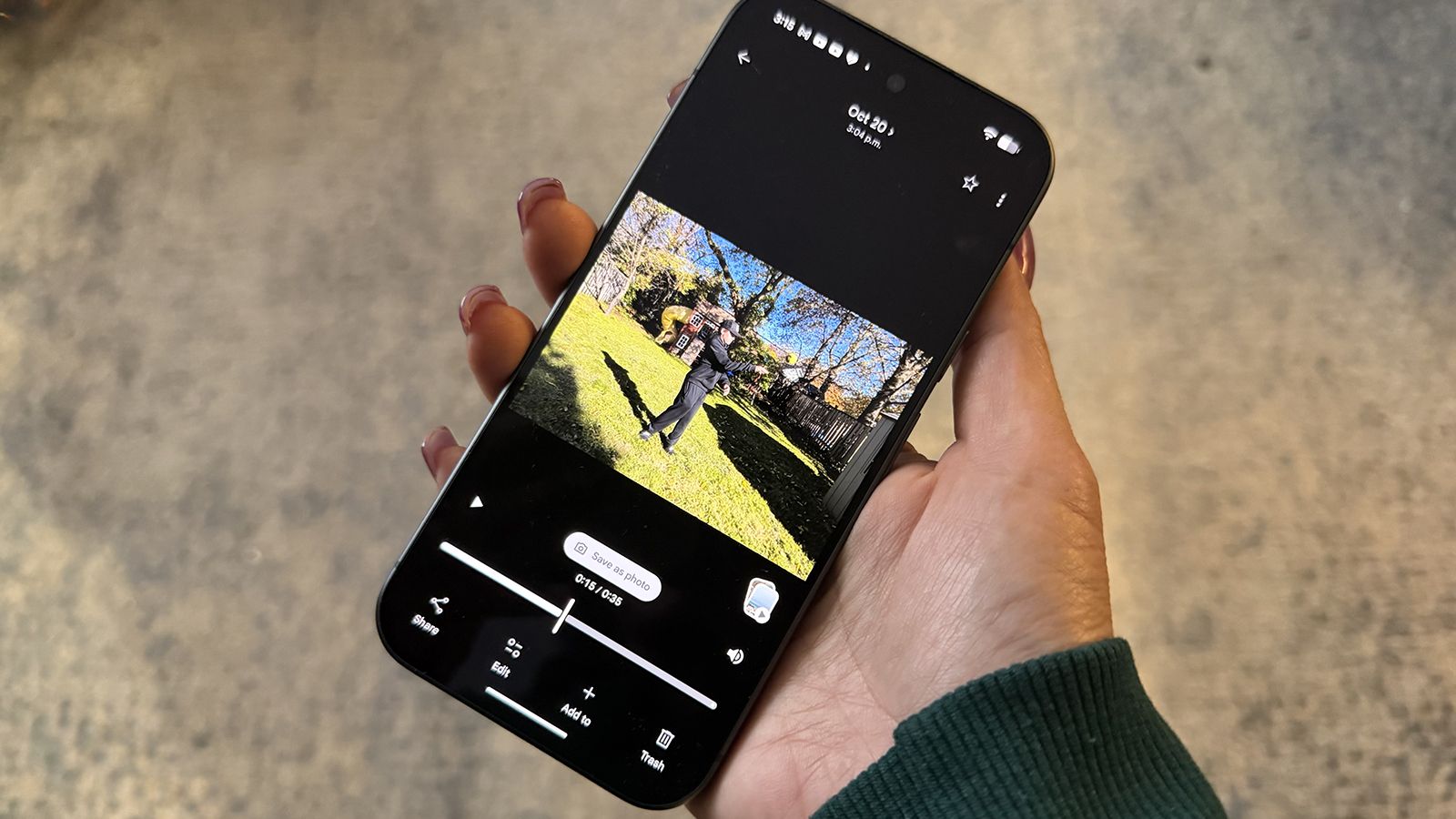
Along with relying on the automatically captured stills that Google chooses, you can pull out your own if you think there are better ones. Scrub through the video timeline, find the frame you like, pause in that spot, then and tap on the pop-up "Save as photo" bubble. I did this with one video I took where the automatically generated stills completely missed a great shot when I was jumping mid-air.
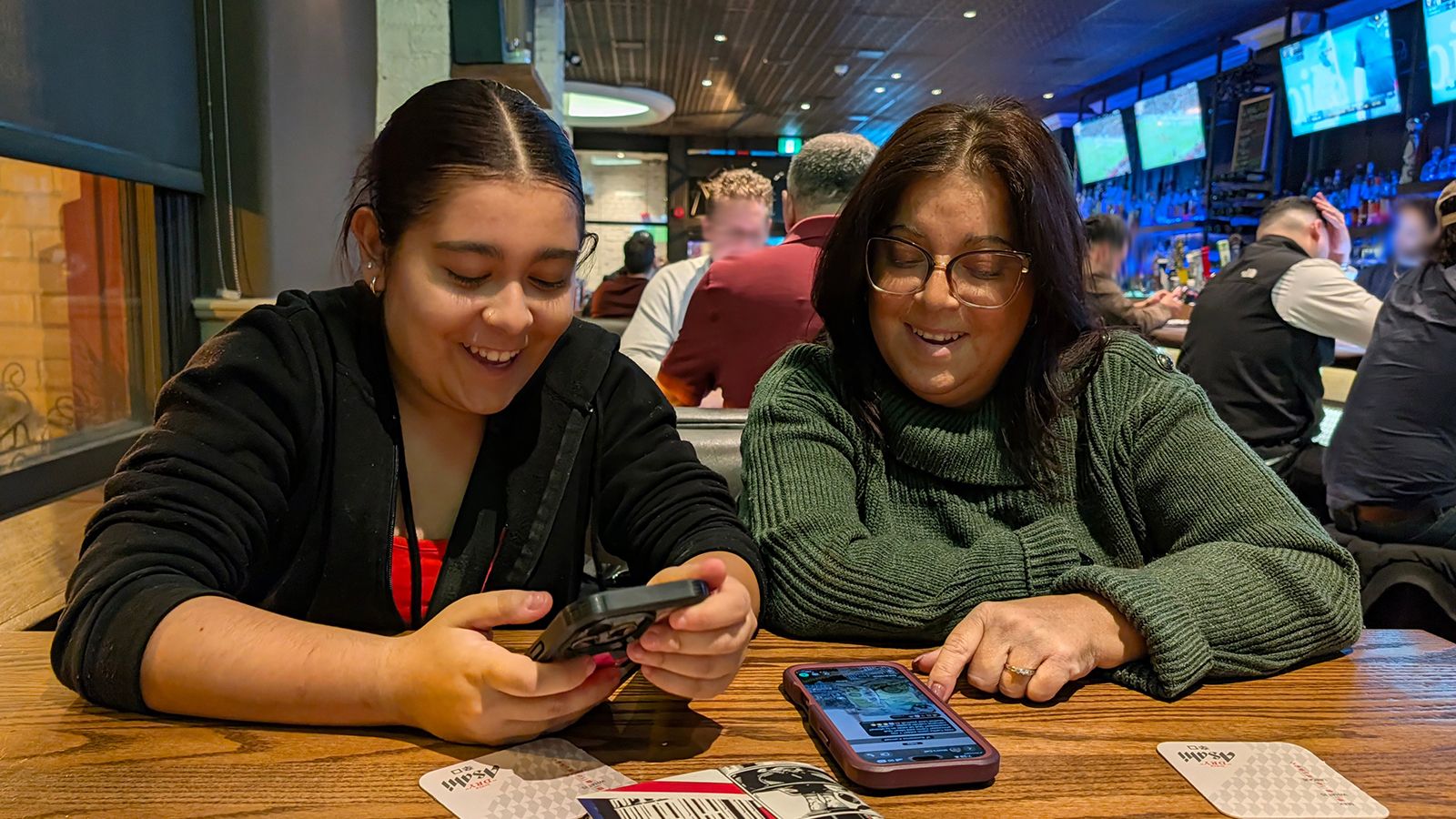
Magic Capture in the Google Pixel 11 series phones

(Image credit: Christine Persaud / Android Central)

Yes, you can technically grab stills from video captured on any phone by taking a screenshot and cropping it. But this feature extracts a 12MP higher-quality image that is usually better than your screenshot. Even if you compare and don't notice much of a quality difference, not having to worry about that whole process makes this feature worthwhile.

You can shoot selfies, too with a workaround

Magic Capture in the Google Pixel 11 series phones

(Image credit: Christine Persaud / Android Central)

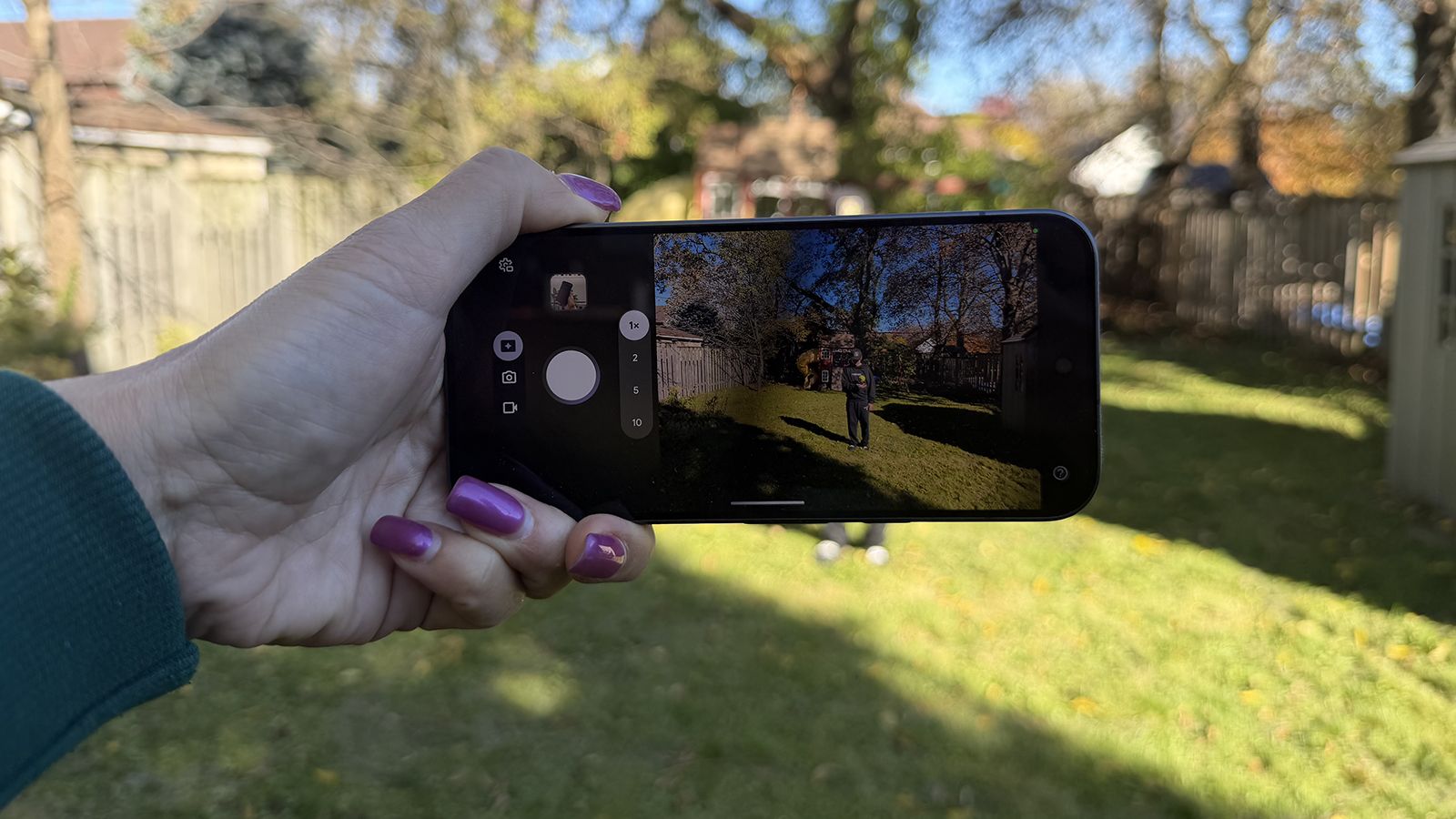
You might be wondering if you can capture selfie videos using this feature. The short answer is yes, but you'd need a workaround since Magic Capture works only with the phone's rear camera. That's because it uses intense computational hardware that the front camera can't handle. To get around this, set the phone on a tripod or prop it against something with its back to you, adjusting the view for framing. Tap record and move into position or use a remote shutter device like a Pixel Watch 5. Then, do your thing.

I tried this by jumping, running, and dancing around in my backyard, even doing some fun runway poses. The camera pulled out some good shots, though it extracted a few weird ones, too. Nonetheless, with the right setup, you can record yourself posing on the beach or in front of a landmark. Instead of hitting the shutter over and over, record a video then let Magic Capture find the best pose.

A few things to remember

Magic Capture in the Google Pixel 11 series phones

(Image credit: Christine Persaud / Android Central)

If you're using Magic Capture – and I promise if you get a Google Pixel 11 phone, you will – there are a few things to keep in mind. First, once you're reviewing the stills in your Photo Gallery, remove the ones you don't want. Otherwise, having four, five, or more photos for every video you shoot will quickly fill up your phone's storage.

Second, Magic Capture works only on footage of up to two minutes. So, if you're recording something longer, like your front row view at a concert, you'll have to shoot in two-minute increments rather than entire songs or even encores. Along with manually extracting stills if you think the phone missed a crucial moment, you can also apply edits to the automatically extracted ones, including cropping, straightening, and unblurring if needed.

Finally, while the default video resolution for Magic Capture is 4:3 at 1080p, you can use Video Boost if you have a Pro model to record in 10-bit 4K quality. To enable this, select the Settings gear icon on the bottom left after you choose Magic Capture in the camera app and turn Video Boost on. Note that you need to be signed into the Google Photos app with backup turned on for Video Boost files to process.

Magic Capture is simple but useful

Magic Capture in the Google Pixel 11 series phones

(Image credit: Christine Persaud / Android Central)

Magic Capture is not only one of the best features of the Pixel 11 series phones, it's arguably one of the best camera features in a decade, period. I think back to my son's grade 8 graduation this summer when I was switching back and forth between capturing videos and stills. I missed getting a video of him walking to get his diploma (his dad luckily got one) because I was focused on getting a photo and couldn't do both at the same time.

I also recall every birthday party when I had to choose between video or still images of the person blowing out the candles. Most notably, there's the time I got to meet actor Alan Ritchson this summer ... they were filming Reacher Season 5 down the street from my house. With Magic Capture, I could have gotten incredible stills instead of a single selfie. The selfie was great, but with this feature and someone to record for me, it might have been even better.
  •  

'Something was thrown out with the bathwater when we moved to modern smartphones': Clicks co-founder Jeff Gadway on bringing physical keyboards back to mobile phones

I fondly remember owning my first BlackBerry, and then my second ... and third. The smartphone was a sign of prestige, a device you could fit in your pocket with both a screen (later also a touchscreen in some models) and a miniature QWERTY keyboard. It was genius. That is, until elongated, touchscreen-only phones started coming to market, namely the first iPhone. Suddenly, BlackBerrys weren't so trendy anymore.

What's old becomes new again, however β€” a statement that fits almost every industry, from fashion to music and even tech. Clicks Technology, a U.K.-based hardware company with team members who previously worked for BlackBerry and within the BlackBerry space, is leaning into this trend. Growing from its first keyboard case, there are two devices coming this year: the Clicks Power Keyboard, which is now shipping, and the hotly anticipated Clicks Communicator, which should launch in December.

"Something was thrown out with the bathwater when we moved to modern smartphones," Jeff Gadway, co-founder of the company (and former marketing director at BlackBerry), explained in a recent interview. His company aims to bring it back β€” and possibly a little magic to a market that could sorely use some fresh ideas.

I saw both devices in prototype form at CES 2026 earlier this year, and in an interview with Gadway, discussed how the company is bringing razzle dazzle back to mobile.

Clicks then and now

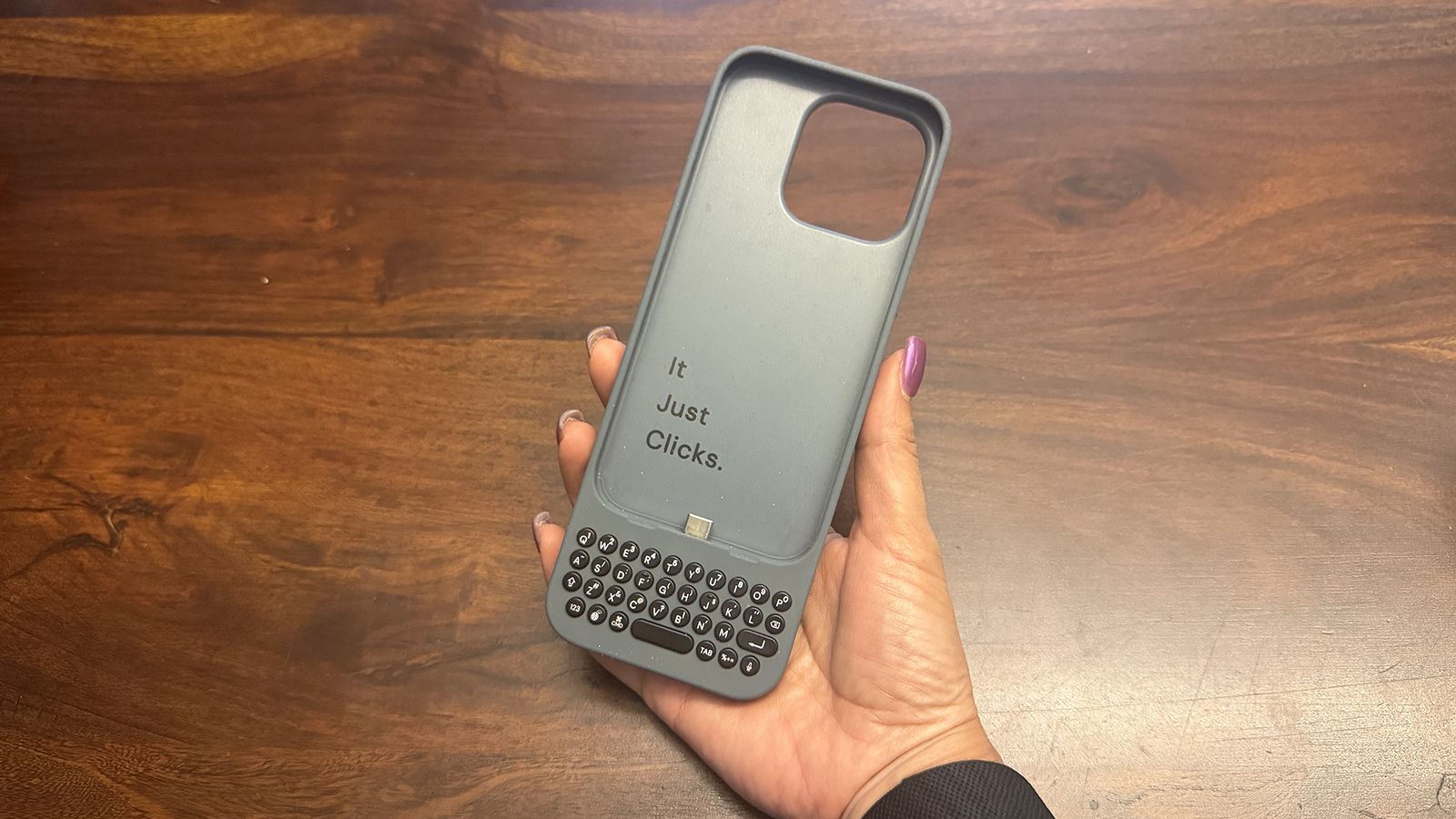
An original Clicks keyboard case in hand.

(Image credit: Christine Persaud / Android Central)

Clicks introduced its first keyboard case for iPhone in 2024, eventually expanding to make cases for select Android phones, too. To say people were excited would be an understatement. "It was like catching lightning in a bottle that first year," Gadway told me during a recent podcast interview.

Interestingly, it wasn't just nostalgia-fueled business executives but also younger folks from the digital native generations who were intrigued. Young adults who had never used anything but a touch- or voice-controlled phone loved the concept as much as they are now learning to love vinyl, CDs, and wired earbuds.

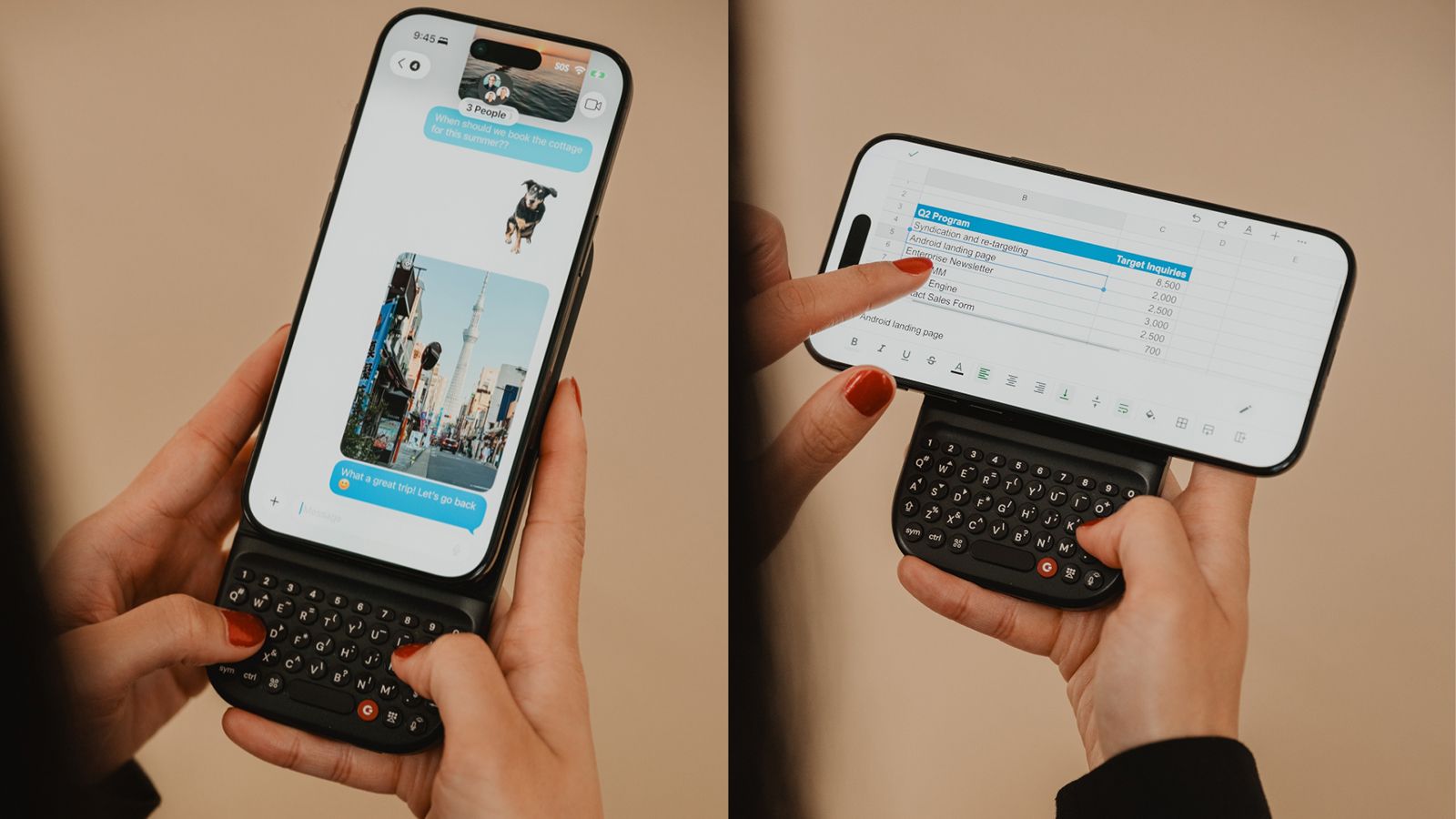
The Clicks Power Keyboard attached to the phone vertically on the left and horizontally on the right

(Image credit: Clicks Technology)

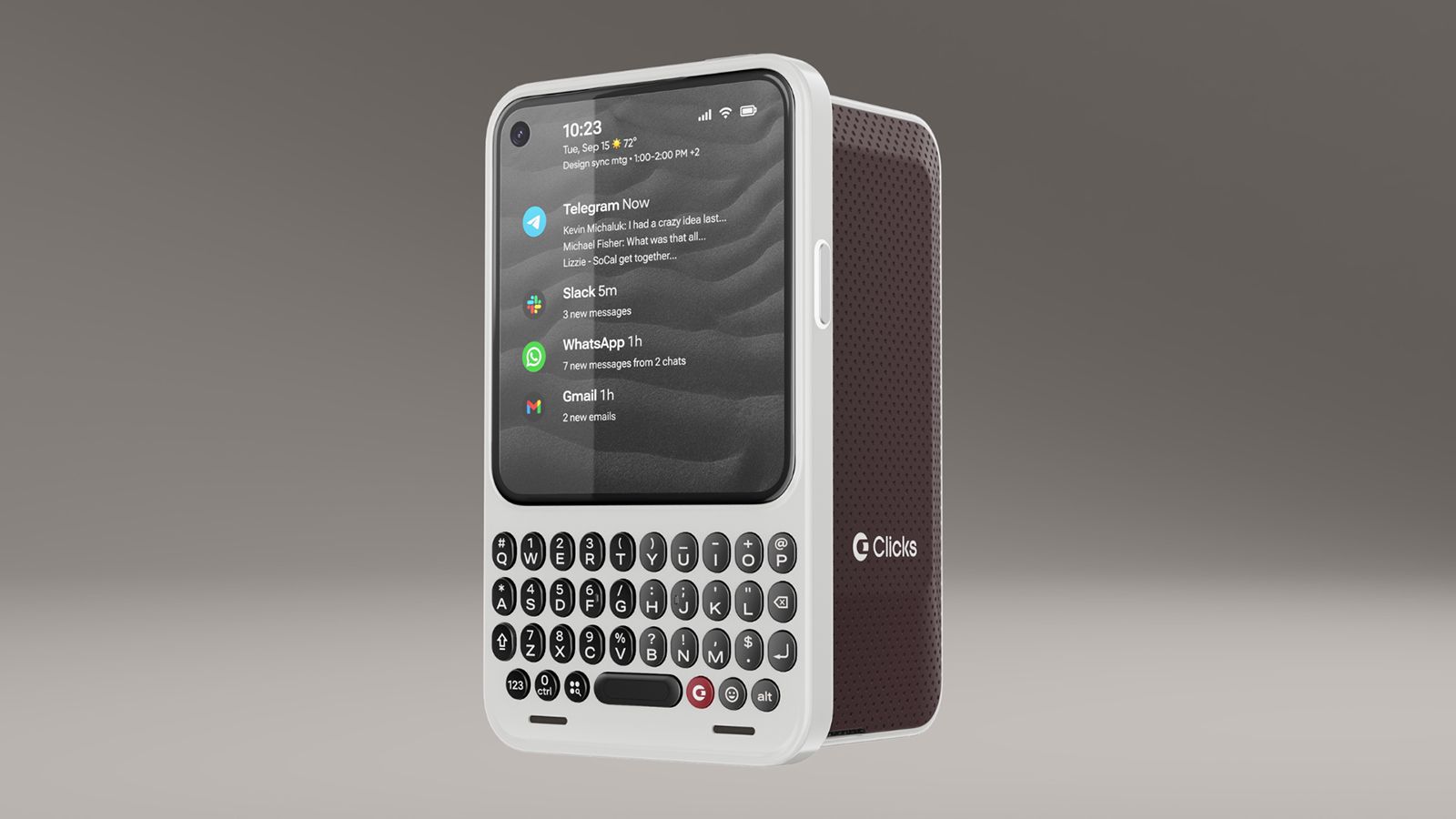
The company has since developed the Power Keyboard, a MagSafe enabled keyboard accessory you can use with any MagSafe-enabled phone or case, or any Bluetooth input device, for that matter. The Communicator is an Android phone reminiscent of a BlackBerry Bold that combines a small screen with a miniature QWERTY keyboard.

The Power Keyboard is universal

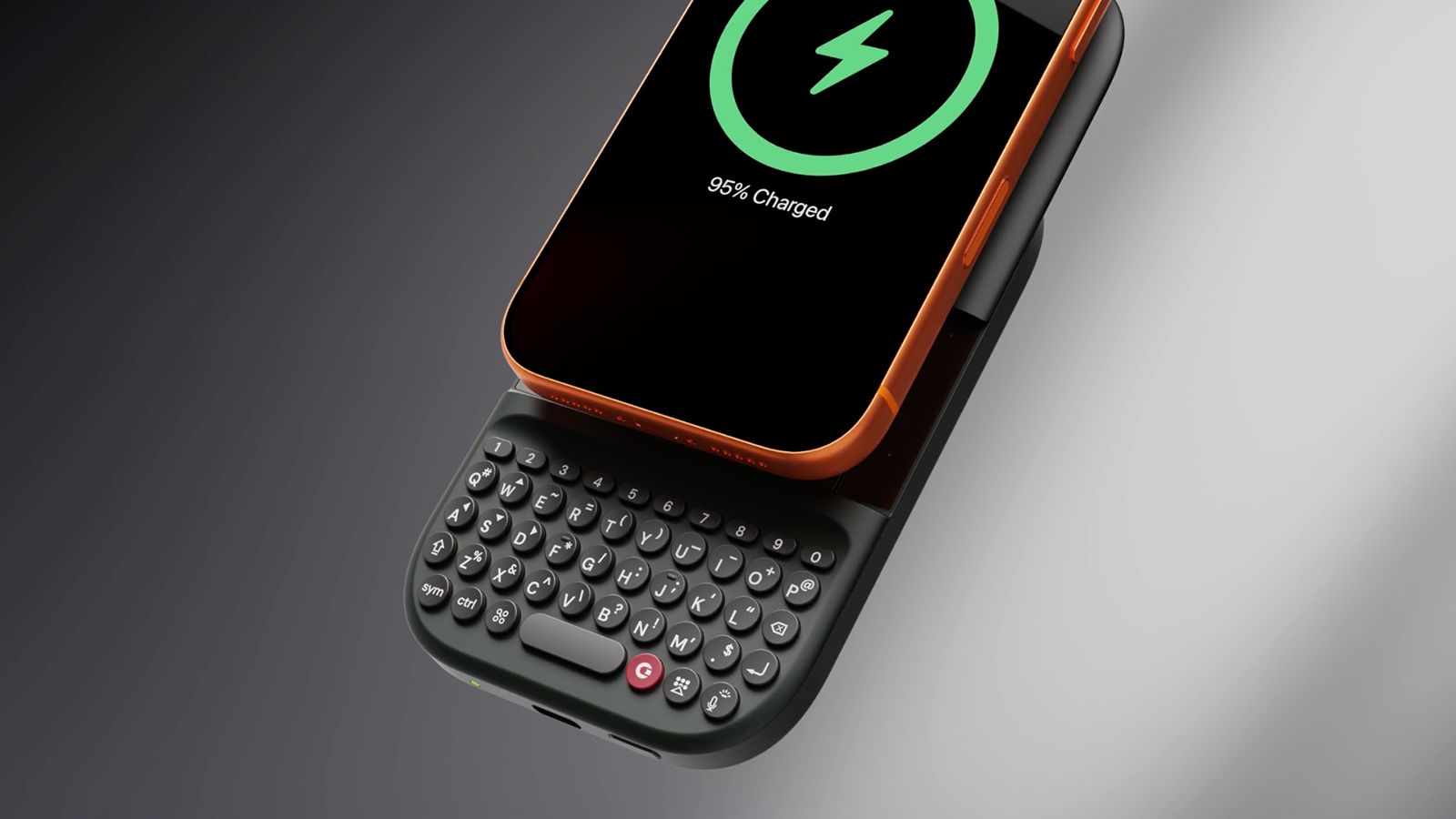
A Clicks Power Keyboard attached to a phone on a grey background.

(Image credit: Clicks Technology)

The Power Keyboard solves the biggest issue with the original Clicks Keyboard Case: needing a fitted case for every model phone. Instead, this version is magnetic, clipping vertically or horizontally onto the back of any MagSafe-enabled phone or phone case and functioning as a power bank with a slide-out keyboard.

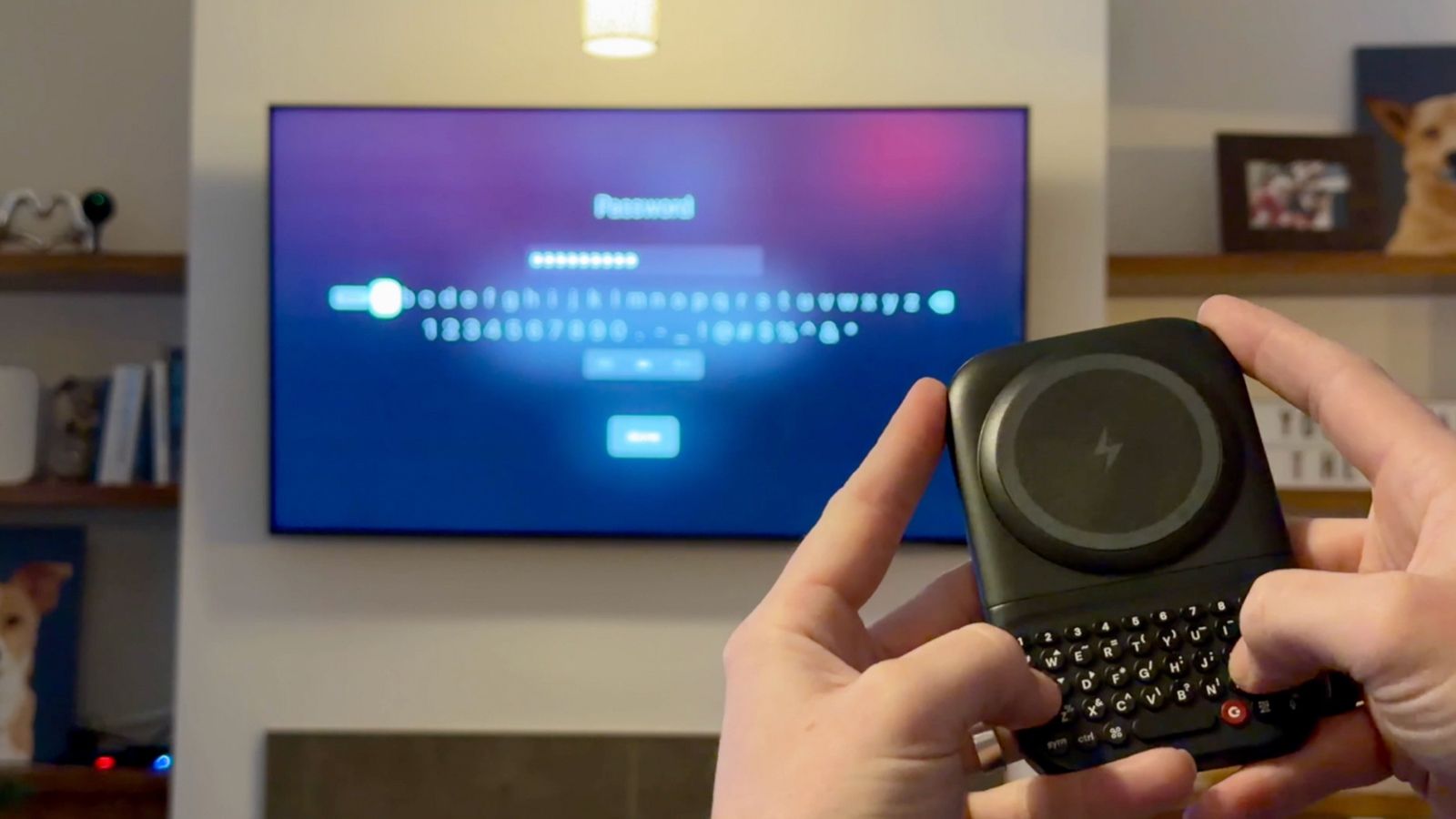
A Clicks Power Keyboard being used with a TV

(Image credit: Clicks Technology)

It isn't limited to phones: Use it handheld with a tablet or even as a Bluetooth mini keyboard for your smart TV. If you've ever attempted to enter a password into an app using your TV's remote and on the on-screen keyboard, you know how frustrating that experience can be. Gadway says the use cases run the gamut, from students using this in class with their phone instead of bringing a laptop, to CEOs, writers, and musicians being productive on the go.

Clicks Communicator reminds you what a phone is for

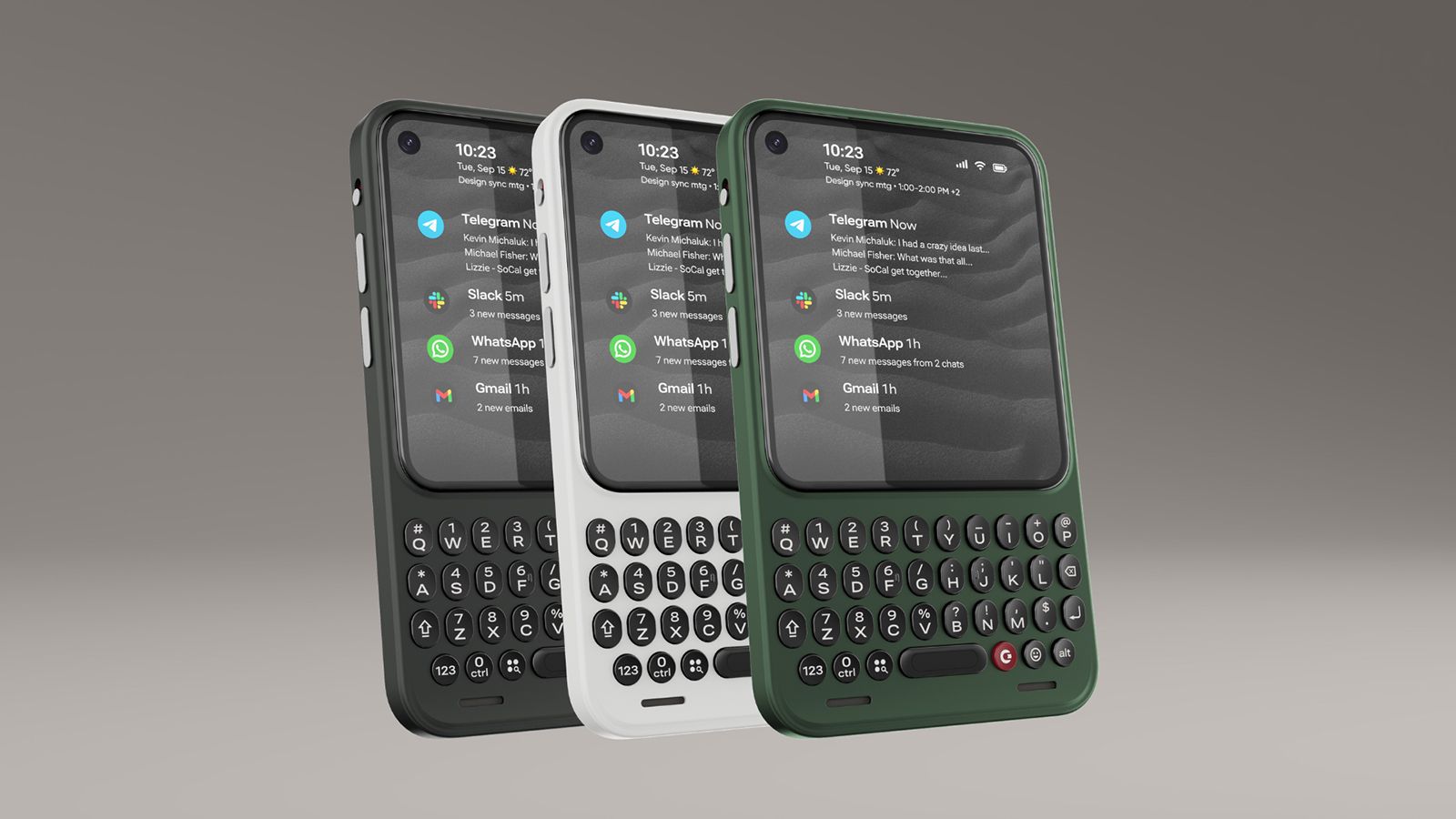
Three Clicks Communicators in a row in different colors.

(Image credit: Clicks Technology)

Taking things a step further, the Clicks Communicator is designed to remind us of the true purpose of a mobile phone: communication. Newer smartphones are designed for content consumption and creation with bigger screens, cameras, processors, and batteries, says Gadway. "What if you could build a phone that was really optimized for communication?"

There are two ways you might use the Communicator. The first is as a secondary phone with its own plan or tethered to your primary device. Maybe you have a company-provided phone on which you aren't permitted to download personal apps. The Communicator can be that secondary device to keep in touch with family, access banking and social media apps, play games, and more. The difference between the Communicator and another smartphone is that the smaller, utility-type screen makes this possible, but it's not optimized for going down the rabbit hole of endless scrolling.

A Clicks Communicator on a grey background

(Image credit: Clicks Technology)

The second is as a primary phone, which Gadway told me is how a lot of pre-order customers have said they want to use it. The Communicator sits between a dumbphone, which eliminates access to distracting apps altogether, paring down the experience to bare bones communication, and a full-featured premium smartphone.

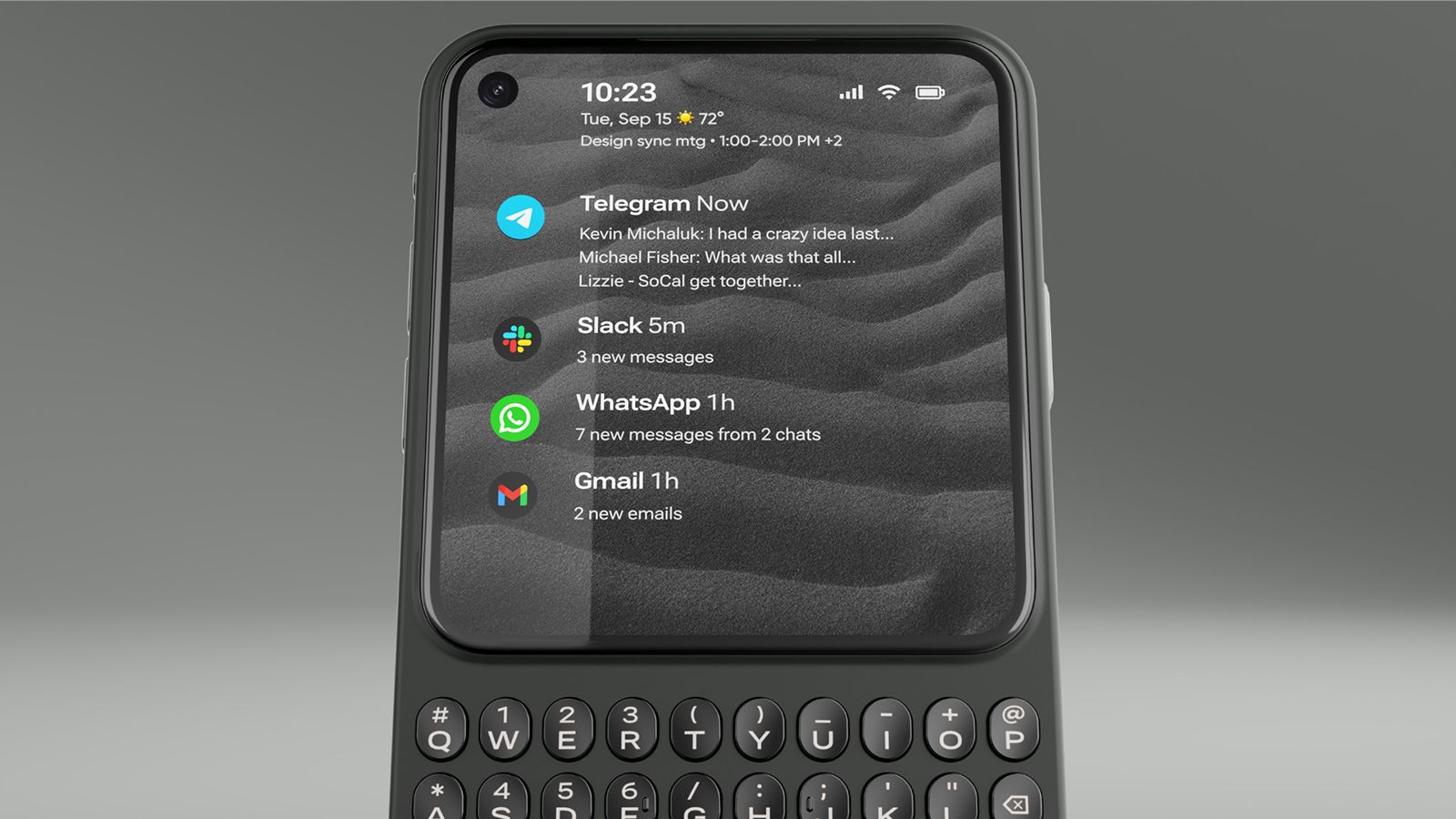
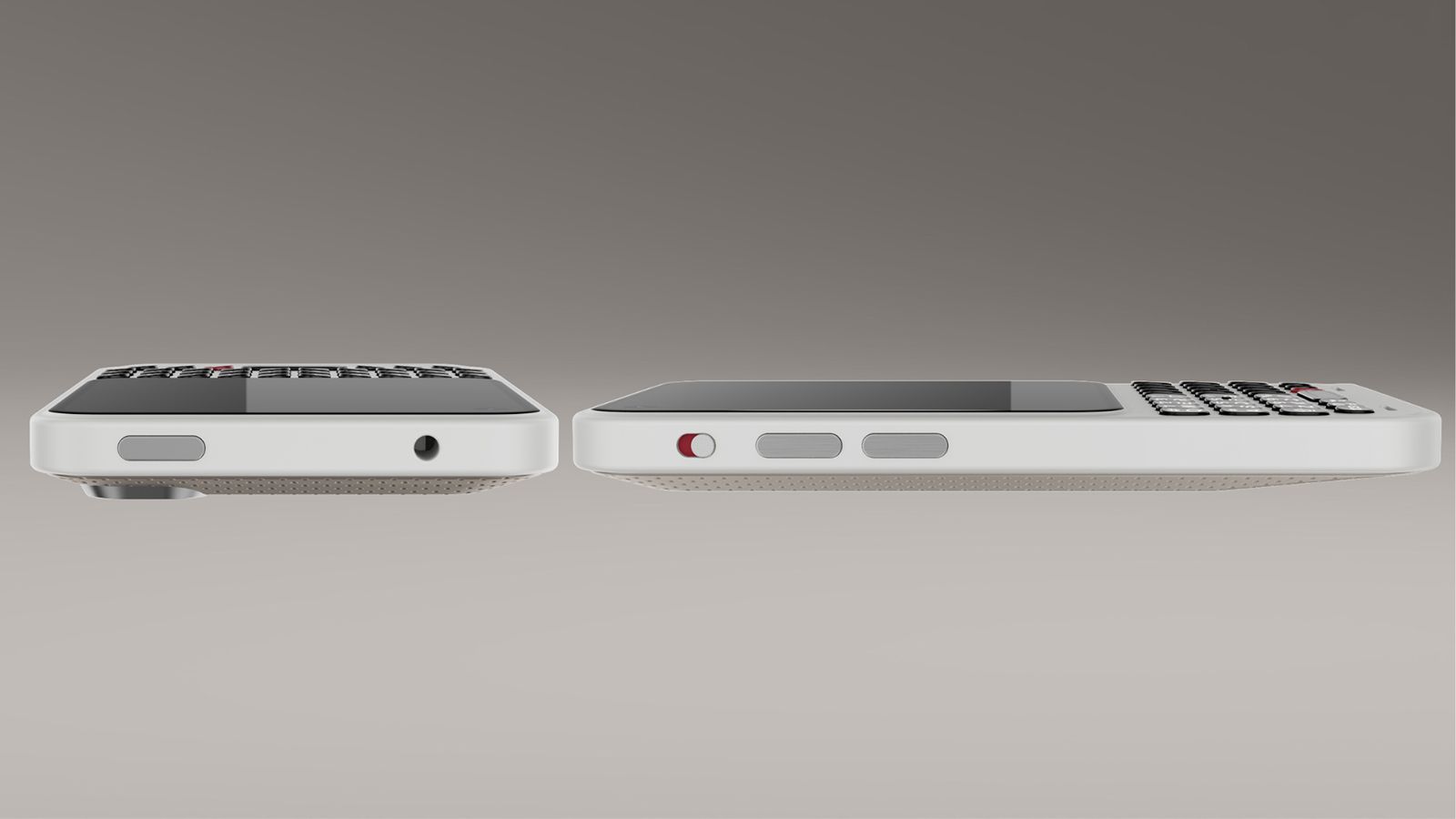
The Communicator is a full Android 17 device, though, with access to the Google Play Store, a MediaTek Dimensity 8300 processor, a 50MP main camera, and a 24MP front-facing camera. Clicks even upgraded the RAM to 12GB prior to the official launch. It has legacy features you won't find in most modern phones, like a 3.5mm headphone jack and microSD card slot to expand the built-in 256GB storage.

The key is in the design: a touchscreen occupying the top three-quarters (4.03 inches, 120Hz) and a bottom keyboard. It's a constant reminder that this isn't a phone to doomscroll TikTok and Instagram or get caught up in mobile games. You can do that. But you won't want to, and that's a good thing.

A side view of the Clicks Communicator

(Image credit: Clicks Technology)

Other simple features are meant to further encourage focus, like a signal light, similar to the HiLight button in the Google Pixel 11 Pro series phones. Customize it with illuminating colors so you know when an incoming call or message is from your mom, child, spouse, or business partner versus a spam call or an old friend you don't have time to chat with right now.

Clicks is working with Niagara to build a custom Android launcher that can curate messages from your favorite apps on the home screen. Triage these apps, Gadway explains, to help prevent you from getting "sucked into side quests."

"What we're doing with Niagara," he explains, "is creating a version of this that taps into the hardware of Communicator using the touch-sensitive keyboard to scroll through your messages, and the keys themselves to delete, reply, forward, or mark as unread right from that home screen without ever having to actually go into the app itself. So, it's a much more purposeful home screen experience."

Clicks represents a return to form

Front and back views of the Clicks Communicator

(Image credit: Clicks Technology)

Modern smartphones do more than ever. But there's something inherently missing from the experience. It stems from nostalgia, for those who grew up using phones with keyboards. But there's also value from a usability perspective for a younger generation who never put their hands on one.

Gadway says that with the original Keyboard Case, 40-45 percent of buyers had never used a BlackBerry before. "They wanted to reshape their relationship with technology, have some tech that was a little more intentional, a little more purposeful, and that allowed them to get their screen real estate back and have a more satisfying tactile experience."

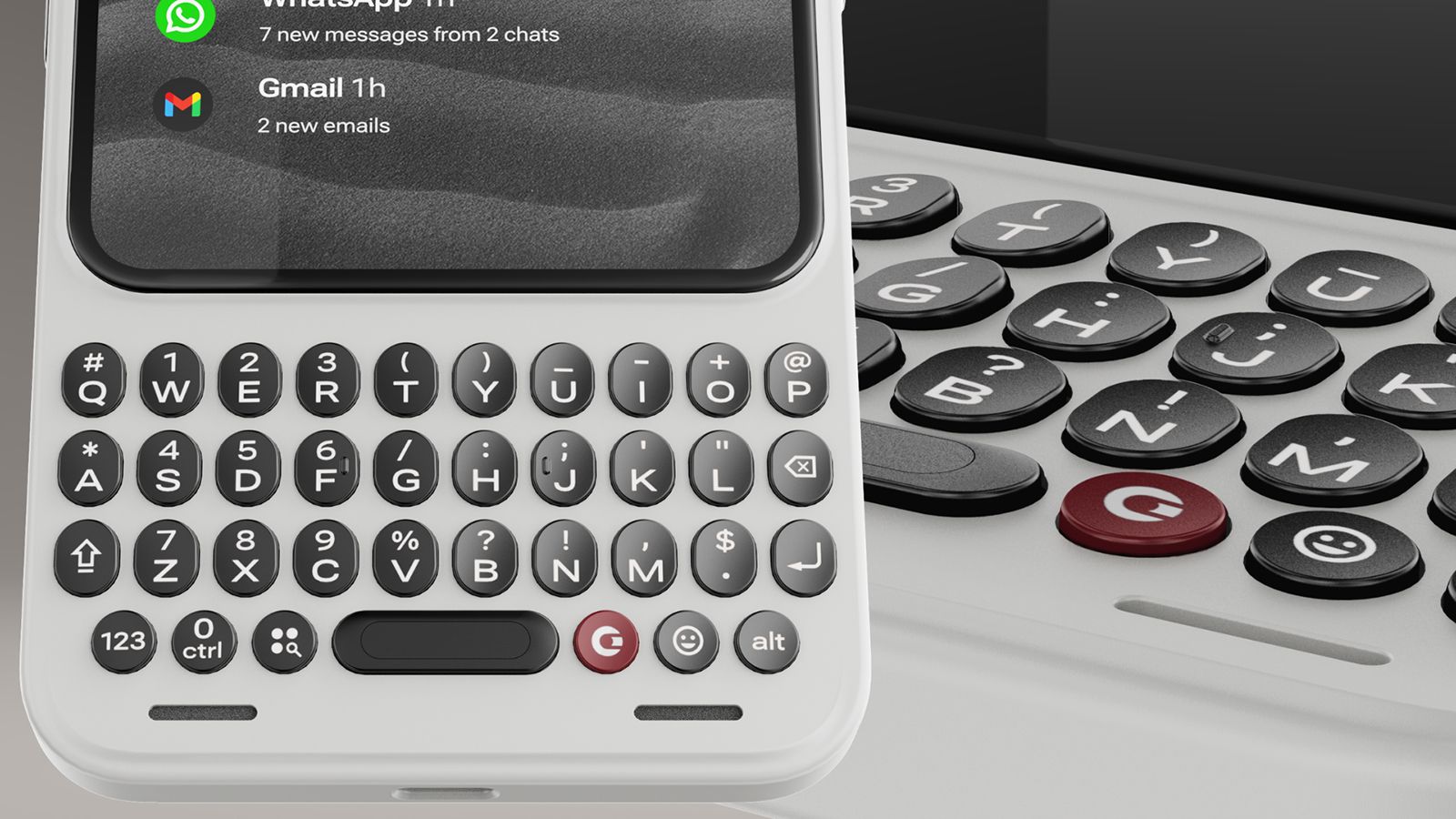
A close-up of the keyboard on a Clicks Communicator

(Image credit: Clicks Technology)

"Touchscreen smartphones are amazing," Gadway said recently. "They do so many things. And yet they lack some of that tactility and the ability to accomplish certain things from your phone that you wait to do back at your desk."

Originally, Clicks was positioned, at least in the minds of those who clamored to get a look at the original case years ago, as a throwback to simpler times. Today, with the latest generation products, it's evident that a physical keyboard is no longer just catering to the BlackBerry faithful. "There is a much bigger audience than we expected," says Gadway. Touchscreens and voice activation aren't going anywhere. But there's something about tactile feel that even the younger generations yearn to experience, too.

  •  
❌