Apple’s upcoming “Pro and Tell” event sparks speculation about new MacBook Pro models, while iPhone Duo preorders raise questions about shipping delays and retail availability. The panel discusses Apple’s $5 trillion valuation, why HomeView won’t launch in the European Union, and the anticipated arrival of Affinity Studio on iPad, including how it could transform creative workflows and provide yet another powerful alternative to Adobe Creative Cloud.
iPhone Preview brings everyday PDF tasks into one built-in app, from rearranging pages to preparing a smaller attachment. Introduced with iOS 26, it remains available in iOS 27, whose user guide provides the instructions used here.
Apple’s Preview app can open PDFs directly, reorganize their pages, rotate or crop individual sheets, delete unwanted pages, insert new ones, complete forms, add signatures, protect documents with passwords and export smaller copies for sharing.
It can also scan paper documents directly into a PDF and combine multiple pages into one file.
That makes Preview surprisingly capable for common workflows such as signing a contract, cleaning up a scanned document, reducing an attachment before emailing it or rearranging pages in a report.
Start with the task your document requires. Rearranging pages, adding a signature and preparing an attachment are different from rewriting an existing paragraph or meeting a publisher’s production requirements. Preview’s documented tools cover many routine changes, while more specialized work may require a separate editor.
Image Credit: AppleMagazine
iPhone Preview Lets You Reorder, Delete and Crop PDF Pages
Page management is particularly useful for scanned documents. A report may contain a sideways sheet, an attachment in the wrong position or an empty page that needs removing before the file is shared.
Open a document in Preview and tap the page count to reveal its thumbnail view.
From there, a page can be moved simply by touching and holding its thumbnail and dragging it above or below another page.
That makes fixing a scanned contract or report straightforward when pages were captured in the wrong order.
To reorganize a document:
Preview > open PDF > tap page count > touch and hold a page thumbnail > drag it into position
The same thumbnail menu can delete a page entirely.
Touch and hold the unwanted thumbnail, then choose Delete Page.
Preview can also insert material into an existing document. The thumbnail menu offers options to add a blank page, import a PDF or image from Files, or scan additional paper pages with the iPhone camera.
That means a form missing one attachment can be repaired without recreating the complete PDF.
Rotation is equally direct.
Open the relevant page, tap the More button and choose Rotate Left or Rotate Right.
Cropping works on a page-by-page basis:
Preview > open PDF > select page > Crop > adjust the blue handles > Crop
This is particularly useful for scanned pages with oversized borders, desk surfaces or other material around the document.
Apple also provides Undo through the More menu, making these edits less intimidating when working on an original file. For documents that cannot easily be replaced, creating a duplicate first remains the safer approach.
Image Credit: AppleMagazine
Fill Forms, Add Signatures and Lock the Finished PDF
Preview also consolidates several document tasks that iPhone users may already recognize from Markup.
Fillable PDF forms can be completed directly inside the app. Text fields, checkboxes and other supported form elements can be selected and edited without converting the file into another format.
Signatures use Apple’s familiar Markup system.
Open the document’s signature controls and choose Add Signature. When using Markup, tap the Add (+) button first, then select Add Signature. Choose a saved signature or draw a new one with your finger; rotating the iPhone gives you more room.
A saved signature can then be positioned and resized on the document.
For recurring paperwork, that makes Preview useful for forms that arrive through Mail or Files and need to be returned quickly.
Preview > open PDF > Actions menu beside filename > Lock
Enter the same password in the Password and Verify fields, then confirm the change.
Apple automatically enables the password requirement when the file is locked.
This protection prevents someone without the password from opening the PDF normally and helps protect completed work from unauthorized access.
There is an important practical step before doing this: duplicate the document if you want to preserve an unprotected copy.
Preview > Actions menu > Duplicate
A password-protected PDF is only useful if the password itself can be recovered later. Losing it can make the document inaccessible, so the credential should be stored somewhere secure.
Preview Can Compress a PDF Before You Send It
Large PDFs are another problem Preview addresses without requiring a separate compression website.
Open the document, tap the Actions menu beside its filename and choose Export.
When PDF is selected as the output format, iOS 27 offers several options that can reduce file size.
Optimize Images for Screen lowers image resolution for documents intended primarily for display rather than high-quality printing.
Save Images as JPEG can reduce the size of embedded images further by using JPEG compression.
Two other export options serve different purposes. Create Linearized PDF optimizes a document for faster web loading, while Embed Text applies optical character recognition, or OCR, to make image-based content searchable.
Choose those options for loading behavior or searchability, rather than assuming they will produce the smallest attachment. For file-size reduction, the image optimization settings are the relevant controls.
The practical workflow for a smaller email attachment is:
Preview > open PDF > Actions menu > Export > PDF > Optimize Images for Screen > Save
Adding Save Images as JPEG can shrink image-heavy files further when maximum image fidelity is unnecessary.
These image-reduction options can sacrifice detail. Lowering resolution or using JPEG compression may affect small text, fine lines and photographs, so compare the exported copy with the original before sending it.
A document containing mostly text may shrink only modestly. A scan filled with high-resolution photographs can show a much larger reduction.
Preview also exports files into formats including HEIC, JPEG, PNG and TIFF when a PDF needs to become an image instead.
When exporting a PDF to an image format, resolution can be selected manually, giving users additional control over the balance between detail and file size.
Image Credit: AppleMagazine
Where Preview Still Falls Short of Adobe Acrobat
Reopen the exported file before sending it. Check the page order, orientation, completed fields and signature placement. Zoom in on small text and diagrams, especially if you reduced image resolution. The useful result is a document that remains readable and complete, not simply the smallest file you can create.
Keep the original under a different filename so you can produce another version if needed. A copy prepared for email may not be the best version for printing or archiving. Names such as “Application — Original” and “Application — Email Copy” help distinguish the files when they appear together in Recents.
If the task involves changing existing document text or satisfying a specific submission requirement, confirm that your chosen tool supports it before proceeding. For routine page organization, form completion and sharing, a checked Preview export may be all you need.
Close to 1 billion meetings take place each day around the world. CEOs spend nearly three-quarters of their workdays in meetings. Planning for and spearheading meetings eats up the lion’s share of managers’ time. In much of the industrialized world, meetings are both the metronomes and menaces of people’s working lives.
Given the enormous time spent in workplace meetings, do we know what they accomplish or how to make them as worthwhile as possible? For decades, the answer was… not really. Meetings weren’t a particularly accessible subject of study. But that has changed. Once a tiny niche area, “meeting science” is a growing specialization among organizational and social psychologists. The field is accelerating as archived virtual meetings provide vast swaths of data. And it is providing a fascinating window into human behavior.
Meeting to talk helps fulfill basic human needs to connect, communicate, and cooperate. People have long come together—in caves, fields, market squares, and town halls—to get something done, share ideas, get on the same page, or just to remark on the weather. But meeting scientists define their subject as gatherings of people “with some goal or structure to the event,” says organizational psychologist Liana Kreamer of the Florida Institute of Technology, who coauthored a review of over three decades of meeting science in the 2026 Annual Review of Organizational Psychology and Organizational Behavior.
This session starts out by reviewing the third-party smart home devices for HomeView, their pricing, capabilities, and how they compare with more established options. TextExpander’s new free tier sparks a discussion of its limitations, business strategy, and competition from TextBlaze, Typinator, and Apple’s built-in text replacement. snippet restrictions, practical applications, and whether the free offering is worthwhile are examined by the panel. They also explore Apple’s HomeView ecosystem, Matter and Thread compatibility, third-party smart home devices, and the importance of privacy.
Document and information manager adds native editing for BibTeX and RIS files as sheets. ($99 new for standard and $199 for Pro new, free update, 101 MB, macOS 13+)
Calendar app adds link detection to invite responses and improves syncing of Microsoft Graph accounts. ($57 annual subscription, free update, 60.8 MB, macOS 12+)
Updates Numbers with a lengthy list of new trigonometry, statistics, and logic functions. ($129.99 annual Apple Creator Studio subscription, various sizes, macOS 26+)
Mike Vardy has spent his career inside the word “productivity.” He built frameworks around it, taught it, made a living off it. And for years the word itself bugged him. But don’t forget “Productivity” started out as a term for measuring the efficiency of factories.
Mike argues the better word is “productiveness”. Not how much you produce, but whether what you produce, and how you go about producing it, actually amounts to something.
That distinction is the subject of Mike’s new book, out now. Nine principles for keeping meaningful work sustainable once the systems around it start to strain. My congratulations to Mike for getting this book published.
My calendar is great at telling me where I need to be. It’s terrible at telling me why. The appointment says “Call with client,” and everything I need for that call lives somewhere else.
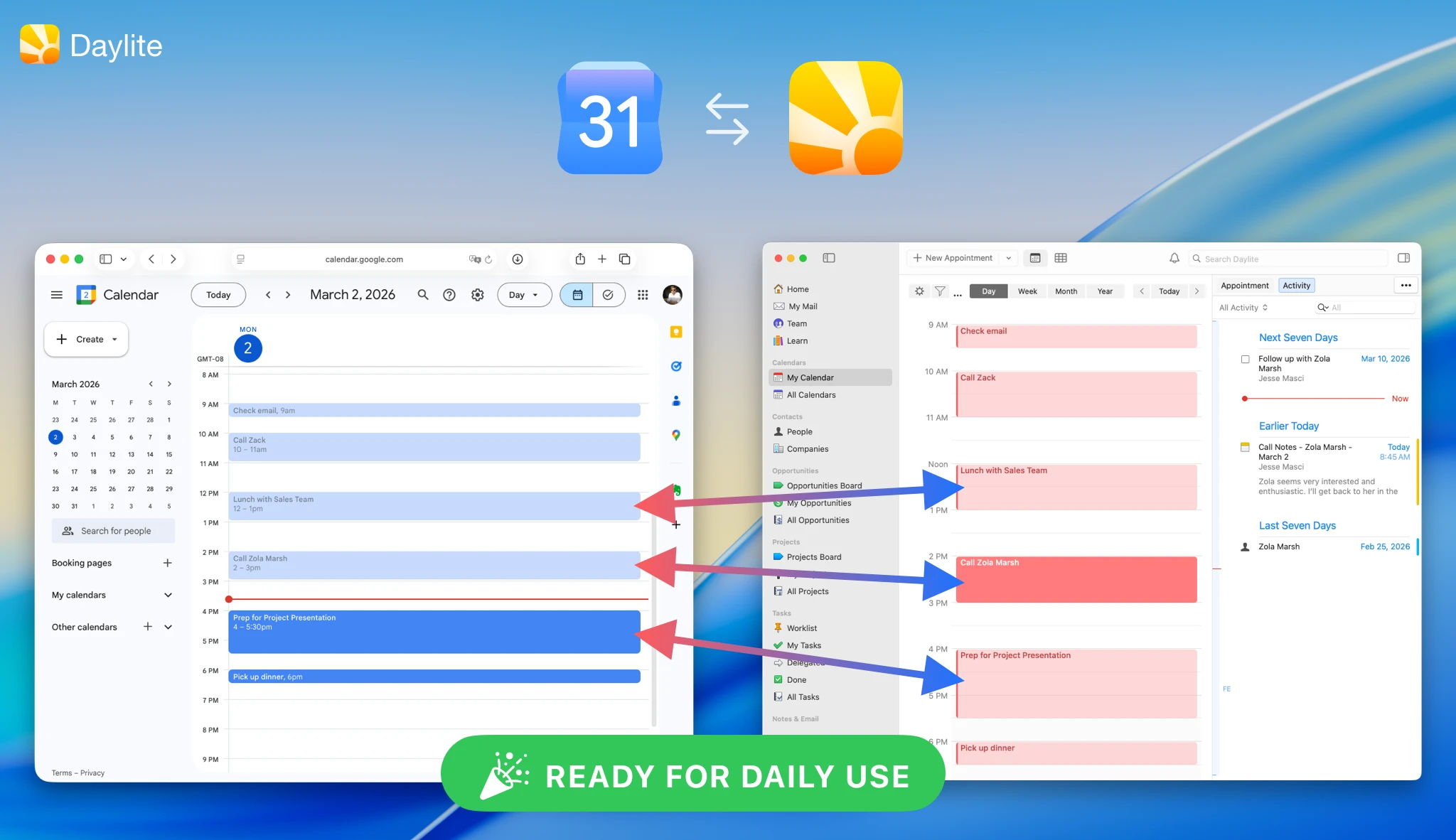
Daylite just fixed that for people who run their day in Google Calendar. The new Google Calendar sync is continuous and two-way. Add or move an appointment in Google Calendar, and Daylite has it. Change it in Daylite, and Google Calendar gets the update. Meetings that Zoom or Gmail drop onto your calendar come along too.
The good part is what happens next. Once an event is in Daylite, you can link it to the people, companies, projects, and opportunities it belongs to. That meeting stops being a block of time and becomes part of the client’s history, sitting right next to the emails and notes.
You can connect your work and personal Google calendars, and there are privacy controls so your team sees you’re busy without seeing the details.
If you live in Apple’s Calendar app, this one isn’t aimed at you. But a lot of consultants and small teams run on Google Calendar, and for them, this is a big deal. Daylite runs on Mac, iPhone, and iPad, and there’s a free 14-day trial. Take a look at Daylite.
Apple’s record stock performance leads into a discussion of Vision Pro and John Ternus’ explanation of its long-term potential. The MacVoices Live! panel considers spatial computing’s growing role in medicine, productivity, and professional workflows, along with whether the technology is ready for broader adoption. They also examine iPhone battery shipping limits, SoftRAID 9's support of RAID 6, and local versus cloud storage.

 Login
Login