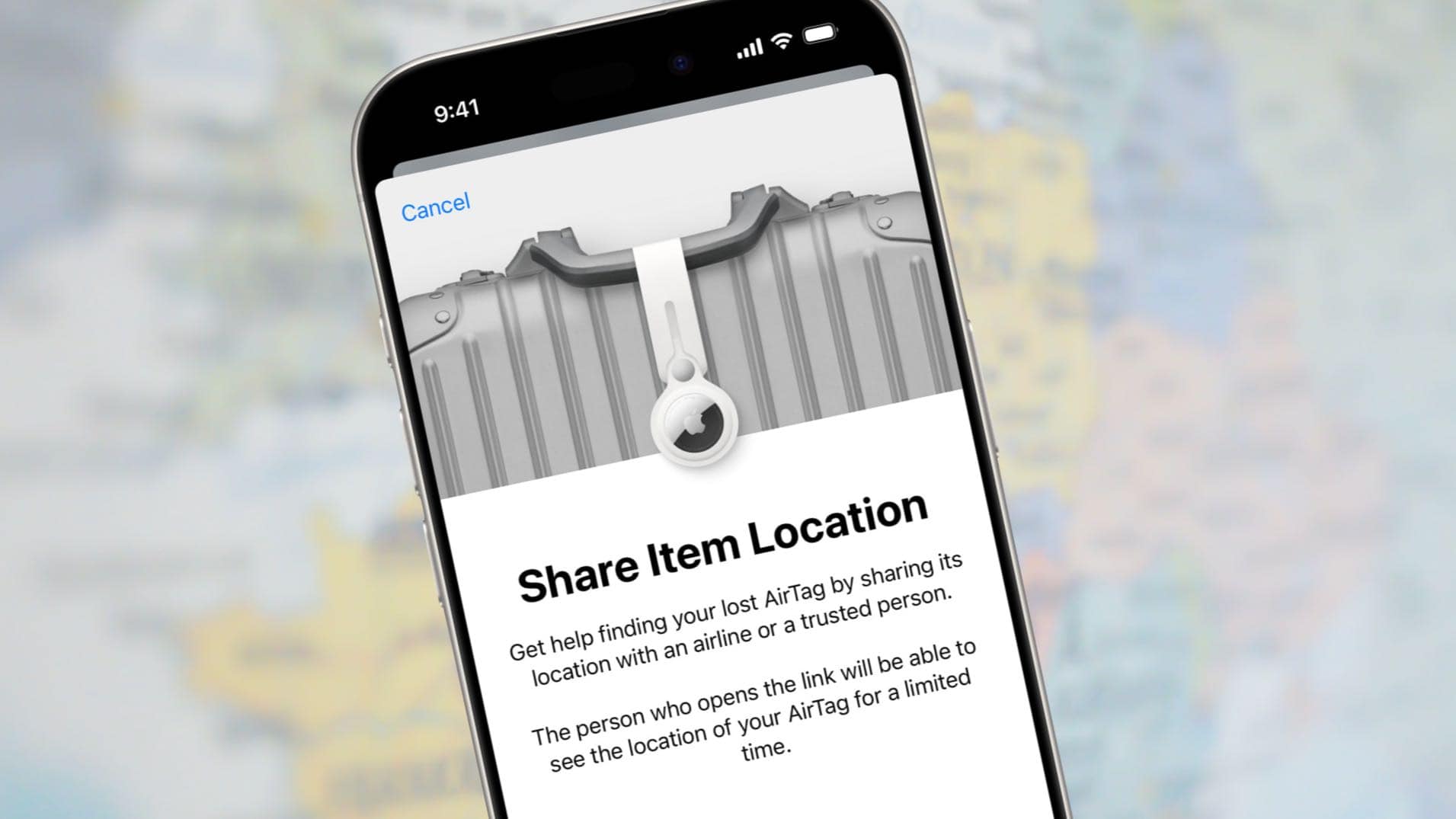
❌

Reading view

Share your location in Messages, now for a custom period

Glenn Fleishman, art by Shafer Brown

Apple stuffs a lot of different kinds of tasks into Messages. It’s a junk drawer for communications with other people. Send photos? Sure. Set up a safety partner for when you are going somewhere? Why not. Pay somebody? Of course! And, yeah, let’s stick in a poll!

But I think the best use beyond text and media of Messages is sharing your location. It’s a convenient way to share your whereabouts with someone else or a group, either indefinitely or for a fixed time period. Starting in the version 27 operating systems, you don’t have to use Apple’s preset periods, either: you can set a custom duration, which can be up to 30 days.

Sharing your location in Messages is an extension of Apple’s Find My service and native apps. You can also share your location within a native Find My app—that’s on an iPhone, iPad, Mac, or Apple Watch, not iCloud.com’s Find My, which only works with devices.

Two screenshots, side by side, showing Location sharing in Messages: left, the person sharing (details blurred for privacy); right, the shared location as it appears on the receiver's side.
When you share your location in Messages (left), it appears as a card within the conversation. Sharing duration is shown as an orange overlay. The recipient sees your current location and the distance to you. (Some details blurred for privacy.)

Like everything with Find My, your current location is locked down except to share with those you explicitly permit, and only for the period you choose, or indefinitely.

Methods of sharing location

Messages offers two different ways to share your location:

  • As continuous access: With iMessage, you can let someone see where you are as you move about for one hour, one day, or a custom period (in version 27 releases), or you can add them indefinitely to the list of people who can see your whereabouts in Find My.
  • As a pinned location: You can share your current location as a pin on a map, sent as an image preview with a link to Apple Maps. You can send this snapshot using SMS/MMS, RCS, or iMessage.

Starting in the version 27 operating systems, you can also hide your location via Messages (in the Info pane, tap or click Hide My Location) or the Find My app without the other person being notified. They’re also not told when you resume sharing.

Share your location via iMessage

Apple still hasn’t unified how location is shared in Messages across its four platforms, so I have to explain two divergent paths to the same result. (This is a bit overdue for Messages non-text/media features in general!)

Here’s how to share your location on an iPhone, iPad, or Apple Watch in Messages:

  1. Select or start a conversation.
  2. Tap the plus (+) button and choose Location.
  3. A Location view appears at the bottom of the conversation showing a preview of your current location. Tap Share and then tap For One Hour, For Today, Always, or Custom. (These names appear slightly differently in releases before the version 27 operating systems.)
  4. If you picked Custom, choose your duration, anywhere from 15 minutes to 30 days, and tap Start Sharing. On an Apple Watch, that starts location sharing; on an iPhone or iPad, proceed to the next step.
  5. Tap the Send (up arrow) button to start sharing your location.
Side by side screenshots: left, the duration you can share a location as a popup menu in Location's Info pane in Messages; right, the maximum 30 day duration for a custom length.
Choose the duration for which you want to share your location from a popup menu (left). Pick Custom in any version 27 operating system, and you can set a period of up to 30 days.

A Request button appears if the other person isn’t sharing their location with you. Tap it to request their location.

If you’re already sharing your location with someone, there’s no duration prompt, and the Share button is labeled Send instead. You’re essentially just sending them a reminder with a link they can tap to open Find My.

On a Mac, follow these steps to share your location:

  1. Open Messages.
  2. Click the profile or profiles at the top of the conversation thread to reveal the Info pane.
  3. Click Share My Location.

Where are you?

Apple determines your location from an iPhone, Apple Watch, or iPad, and shows you which device in the Find My app’s Me view under My Location. If you use Messages to offer your location to someone from another device, you’re alerted “Another Device Used for Your Location” and given an option to Cancel or Continue. With iPhone Handoff, which lets two iPhones share one number, your location follows the currently active phone.

After you send your location, the other person or people have access to it. They see a Location card in the conversation that continuously updates to show where you are.

They can tap Open Find My to see you within the Find My app or, if they’re not already sharing their location with you, tap Share My Location to reciprocate.

Notification in macOS showing Find My offering suggesting you reciprocate in sharing your location after someone has shared theirs.
When someone shares their location with you, you can reciprocate. Here, a notification gives you the available duration options.

Likewise, when someone shares their location with you, it appears in the Info pane of any conversation they’re part of. If their current location is known, this tile adds more details; if it can’t be determined, a message says their current location is unknown.

Inset into the location section, you see their current city or landmark, a label showing how recently their location was updated, and a button. The time label appears as minutes or hours, Now (within the last minute or so), or Live (real time). The button shows the walking or driving time; tap or click it to open Maps with directions. Their location updates in real time as they move, which helps if you’re trying to meet up.

You can’t undo sending your current location, but in the Info pane in Messages, in any version of iOS, iPadOS, or macOS, you can tap or click Stop Sharing My Location to cut off the flow of location data.

Apple’s addition of Hide My Location in the version 27 releases lets you silently stop sending your location without alerting the person you’re sharing with. You can also resume from the same spot in the Info pane (or in Find My). The other person only sees your location is unavailable if they check. The reason to add this feature is both to allow privacy or safety, depending on with whom your location is shared. (Abusive partners or controlling family members often force people to enable location sharing.)

Share a pinned location via SMS/MMS or RCS

SMS/MMS and RCS can’t be used to share ongoing location information, but you can send and receive a pinned location with them via Messages, though only on an iPhone, iPad, or Apple Watch:

  1. Select or start a conversation.
  2. Tap the plus (+) button and choose Location.
  3. A Location view appears at the bottom of the conversation showing a preview of your current location. Tap Send Pin.
  4. A Location link for Apple Maps appears, labeled Dropped Pin, with your current address below it.
  5. Tap the green Send (up arrow) button to send your location.

For further reading

For much more about Find My tracking, location privacy, deflecting stalkers, and AirTags and the Find My network, see my book Take Control of Find My and AirTags. It’s been fully updated for the version 27 releases.

[Got a question for the column? You can email glenn@sixcolors.com or use /glenn in our subscriber-only Discord community.]
  •  

Apple TV 4K 2026

Apple (video, Hacker News, MacRumors, Six Colors):

Apple today announced the next generation of Apple TV 4K, delivering its most immersive home theater experience yet. The new Apple TV 4K features Siri AI, an entirely new version of Siri powered by the next generation of Apple Intelligence, transforming how users search for, discover, and enjoy their favorite movies and TV shows through a full-screen Siri AI experience. With built-in far-field microphones, Apple TV 4K also lets users talk to Siri completely hands-free.

[…]

The A19 chip in the new Apple TV 4K delivers up to 50 percent faster CPU performance and up to 2x faster GPU performance than the previous generation, for greater responsiveness, faster navigation, and smoother animations. The A19 chip also includes a new, dedicated AV1 decoder, enabling more efficient, high-quality streaming while using less bandwidth.

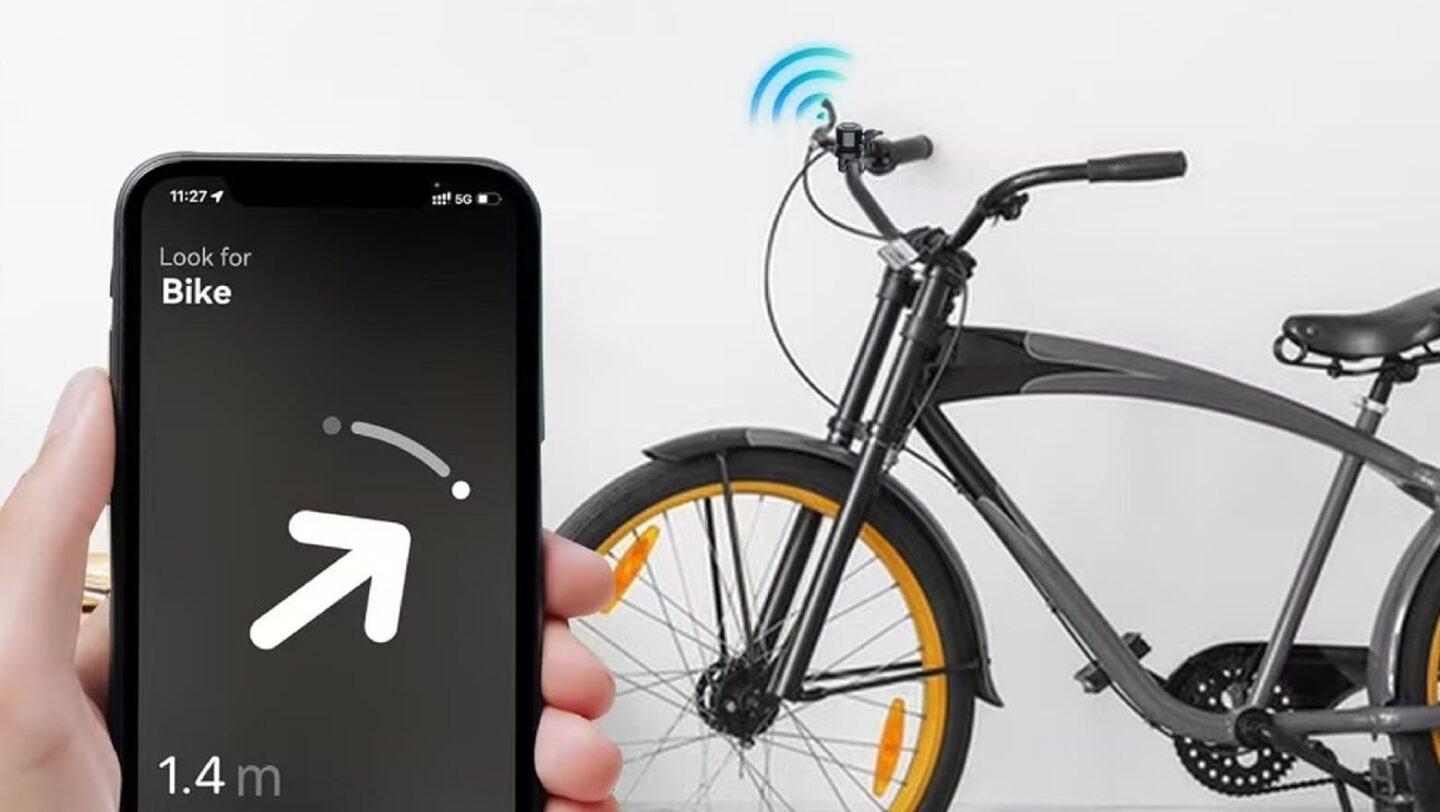
The new Siri Remote keeps its familiar design while adding Find My support with Precision Finding and an option to play a sound on the remote — making it far easier to locate.

The price is now $299. Apple TV doesn’t get updated very often, so if you need one I guess now is the time to buy.

But I’ve really soured on this product. The software design is worse than when I bought it. I just want a basic interface like the iTunes column browser. Instead, we get all this extra stuff so that the text I care about is secondary, truncated, and obscured. It seems designed to hide the content I want to see, and which I am in the middle of watching, while constantly promoting what Apple wants me to watch. The search has always been bad and is still bad. The main thing it’s supposed to do is play video, and lately that’s been failing, too. It either won’t play at all or it’ll play for a while, and then after a commercial break it will switch to a different episode.

I’m considering just getting a $40 Fire TV Stick to see whether things are any better over there. Maybe the privacy is worse, but I have to weigh that against the product actually working. We watch TV to relax in the evening, and instead I keep getting agitated that either it didn’t work at all or we had to go through hassles like logging in again or rebooting. I would miss the screensaver, though.

Previously:

Update (2026-10-14): Joe Rossignol:

Here are 11 changes coming with the new Apple TV[…]

Scott:

Oh, yeah, one more thing: does the $300 Apple TV have a USB C port for UVC cams, for FaceTime/vidconf apps.

If not, why not? Really fucking stupid if it doesn’t, especially at that price. The chipset and OS HAVE the capability.

It does not.

Maynard Handley:

1. There is nothing compelling here for existing owners.

2. The price is so high compared to Roku or Fire that it’s hard to justify telling friends to upgrade for the better experience.

Apple should probably, at the very least, have kept the existing 64GB box at a lower price point, and bundled in a year of Apple TV+, to work with market.

[…]

It’s about “WTF is Apple thinking? Who is this targeted at?” We have three products released today all of which look like flailing.

[…]

I’ve been on team Apple (customer and employee) since 1990. This is the first time (even including the Wired Pray cover days) that I feel genuinely worried that Apple is fumbling the future.

Joe Rosensteel:

I don’t understand the direction the team working on the Apple TV has been given. I know people are excited by it, because they’ve been waiting to buy the best one, and cycle the old ones down to lesser TVs in their homes, but this update is going to be around next year and the year after so it’s worth thinking about it from that point of view. What will you get out of this when it isn’t just “new”? A microphone array? Chip bumps?

Asleep at the jog wheel.

Update (2026-10-16): Andrew Orr:

According to Apple’s footnotes, Precision Finding requires an iPhone Duo, iPhone Air, or iPhone 17 or later, excluding the iPhone 17e. Compatible iPhones must run the latest version of iOS, and availability varies by region.

The restriction is particularly notable because the iPhone 15 lineup and most iPhone 16 models already feature Apple’s second-generation Ultra Wideband chip. Those iPhones support expanded Precision Finding with the AirTag 2, but they can’t use the new Siri Remote’s Precision Finding feature.

John Gruber:

I’m sure the graphics and CPU improvements matter for gaming, but the only mention of gaming in Apple’s own Newsroom announcement is this sentence: “With Apple Fitness+, the living room becomes a workout studio, while Apple Arcade and the App Store’s library of games turn it into a home arcade.” I wish it were otherwise, but gaming is such an afterthought on Apple TV that it only garnered the second half of a sentence that started with Fitness+, a service that has only been in the news this year because Mark Gurman says Apple laid off part of the team.

[…]

The elephant in the room, though, is price.

Adam Engst:

You can pre-order a 128 GB fourth-generation Apple TV 4K with Wi-Fi and gigabit Ethernet for $299, and it ships on 13 November 2026. In comparison, the third-generation model started at $129 for 64 GB with Wi-Fi and $149 for 128 GB with added Ethernet. In June, Apple raised those prices to $199 and $249 (see “Apple Raises Prices for Many Products,” 26 June 2026). Apple eliminated the lower-capacity option, so now we have only the higher-end model at twice its initial price.

Jason Snell:

For the people who do care, who do want something better, the options are more limited. Amazon’s Fire TV Cube is $199. Roku’s “Ultra” is $149. The Google TV streamer, my favorite of all the non-Apple products on the market, is $150.

When you could get an Apple TV starting at $199, you could spot Apple playing its usual game—not the low-price leader, but in the ballpark. At $299, though, it becomes a lot harder for me to convince my relative who is complaining about how slow and terrible their streaming interface is to spring for the Apple one and solve their problems.

[…]

I’ve seen some commentators suggest this is a good thing because it “simplifies the product line.”

I don’t follow that argument at all. Having a cheaper product is good, because not only do some people not need Ethernet or large amounts of storage on a streamer box, but lower prices broaden the market!

Update (2026-10-19): John Gruber:

Inflation adjusted, a $69 Apple TV box today would cost a little under $99. Even if we only consider the $99 price in 2015 dollars, that’s about $137 in today’s dollars. Round that up to $150 and it would still be half the price of the only Apple TV hardware Apple now sells: this week’s new 4th-gen Apple TV 4K.

The new Siri Remote, with precision Find My support (and a speaker), is compatible with all prior generations of Apple TV 4K. So if you just want the new remote you can just buy the new remote. But it costs $59, which is almost as much as an entire Apple TV (with remote, of course) did in 2015.

Glenn Fleishman:

I wondered what the entry-level, initial price of each Apple TV box at introduction was, from the March 2007 original to the Apple TV 4K (4th generation) announced October 13, 2026, adjusted for inflation. So I charted it.

Steve Troughton-Smith:

I was ready to buy three new Apple TVs at the previous price point. At the new price point, I’ve bought zero 🤷‍♂️

John Siracusa says that pause/resume has been broken for him—in Apple’s own TV.app—and that he had to force-quit it several times.

  •  

Unlock or recover your Mac using a special boot volume

Glenn Fleishman, art by Shafer Brown

Several years ago, Apple began hiding disk partitions and volumes on the startup drive. The first was a secret volume with a tiny operating system on it that would let you boot from it, after which you could restore from a Time Machine backup, run First Aid in Disk Utility, or reinstall Mac OS X or macOS. Over the years, Apple has multiplied those hidden locations and added more sophistication to what they offer.

These boot volumes are:

  • recoveryOS: The current name and form of the special volume described above, which boots into the Recovery Assistant “app.” You can run Disk Utility (and First Aid), reinstall macOS, launch Safari to access Apple Support pages, modify startup security settings (rarely required these days), and access Terminal. With Terminal, you can reset your macOS password. If your Mac can’t start up properly, it will try to launch the Recovery process within recoveryOS, which performs automatic repairs that Apple doesn’t document. If successful, you can then restart into macOS.
Screenshot of Activate Mac startup in recoveryOS showing profile photos of four available macOS accounts
recoveryOS has many faces, including these four, here showing Activate Mac after it was unlock following a Find My lock.
  • Fallback recoveryOS: If recoveryOS is damaged—and that can happen—you can press the power button twice, quickly, and then keep holding it the second time. This fallback recovery volume can’t change startup security, but it can help you diagnose what’s going on. This is the duct-tape belt that helps if your pants come unbuttoned (macOS won’t boot) and your suspenders break (regular recoveryOS fails).
  • Repair Assistant: From a powered-down state, press the power button until you hear the startup chime, then press and hold Command-D. (On an Intel Mac, hold the D key at startup.) The Diagnostics app can run hardware tests that might help narrow down a problem before you bring in Apple Support, or they may ask you to boot into that mode and share the results of the tests they have you run. Repair Assistant can fail, too, if its volume is damaged. You may then have to perform a special “revive or restore” operation, which requires another Mac. Or you may need a full reinstall using a bootable macOS installer.
  • macOS: macOS is a sort of hidden boot volume for the last several releases. You don’t boot from the system; instead, a read-only snapshot of the system is mounted, and then booted from. This is part of Apple making system resources immutable through cryptography and at startup.

Besides using recoveryOS for the above tasks, you might also need to use it to unlock your Mac after locking it in Find My and to reset your password using a FileVault Recovery Key. Here’s how.

Unlock your Mac

Screenshot showing two Apple devices with a question mark overlaid indicating they are locked. The MacBook Pro, second device in list, says 'Locked 3 min. ago.'
When you lock devices in Find My, they appear with a question mark overlaying their icon.

While it’s not a common scenario, it could happen to you: you accidentally leave your Mac somewhere, or it’s stolen. Thinking quickly, you launch Find My on another of your devices or go to iCloud.com/find and log in. You then tap or click a few buttons to lock your Mac. If the Mac is connected to the Internet, it restarts and locks immediately. (Despite promising to display the message you entered when you locked it, macOS does not do so.) If it’s not connected, it restarts the next time it has Internet access.

The account used to lock the Mac is the only one that can unlock it, and you must be in front of the Mac to perform that operation. Apple limits each Mac to having Find My enabled from a single account. Here are the steps:

  1. When you see the macOS Recovery title, click the account profile below it. Enter the account’s password and click Continue.
  2. If you entered it correctly, “Authentication succeeded” appears. Click Restart.
  3. The Mac restarts and shows Activate Mac after it boots up. This time, all the active macOS accounts are shown. Click one, and then enter its password. Click Next.
  4. You now can choose to either use your Apple Account or a macOS password to continue. If you opt for the Apple Account, enter the full address or phone number as shown. Then enter the account’s password. Otherwise, you can click to enter the Mac password, which Apple says is the last one used to unlock the Mac in a regular session before it was locked. If you’re the only user on the Mac, that’s easy to figure out. (In testing with Golden Gate public beta 2, I wasn’t able to get the Mac password option to work, and I’ve had it fail in Tahoe, too.) Sometimes neither works. Choose Restart from the Apple menu in that case and try again.
  5. On a successful entry, the Mac restarts yet again after a one-minute countdown. Enter your password when prompted to start up into a regular session.
  6. Apple Pay will have been disabled, and your iCloud sync will probably be paused as well. When prompted after the macOS session starts, enter your Apple Account password (or passwords if you have multiple accounts linked to your macOS account).

If you try this too often, as I did while testing, or for other security reasons only Apple knows, your Apple Account may be locked. At step 6, I was told I had to reset my Apple Account password from one of my other devices; all four linked to the account were shown. I made that change. In the Golden Gate second public beta, clicking Unlock Account did nothing before or after changing. I was able to click Cancel, complete step 4 again with the new Apple Account password, and proceed to step 5 and restart.1

Edit Account Information title appears below a key in a shield icon beneath a label Update Phone Number on a black screen, which shows some other Apple devices in a list
If your Apple Account becomes locked, you have to reset your Apple Account password on a linked device.

Years ago, when you locked your Mac, you had to set a passcode to unlock it. While that isn’t supported on M-series Macs or Intel Macs with the T2 Security Chip, the email Apple sends still shows an image of a screen where you would enter that code and says you can only unlock your Mac with that non-existent passcode.

Image of a Mac laptop with space for a PIN to be entered above the title MacBook Pro has been locked.
Apple’s email after you lock your Mac shows an outdated image and provides outdated information about the unlock procedure.

Unlock via FileVault

If you try to log into your Mac and can’t recall the password or it isn’t accepted, you can use your FileVault Recovery Key to unlock the volume and reset your password. The Recovery Key is a long code that’s a last-ditch way to unlock your startup volume. It’s also a back-door way to help with a post-Find My lock operation if your password won’t work or you’ve forgotten it.

[I’ve described how to set up FileVault and how to deal with the Recovery Key in “FileVault on macOS Tahoe uses iCloud Keychain to store its Recovery Key” and “FileVault keys can’t be escrowed in iCloud anymore.”]

Here’s how to use your Recovery Key to unlock FileVault:

  1. At the login prompt, click the ? icon to the right of Enter Password to bring up the Reset Password link. (This also appears if you enter your password incorrectly a few times.) Click Reset Password.
  2. Your Mac restarts into Recovery Assistant using its Reset Password pathway. Enter your Recovery Key (see articles above). Click Next.
  3. If you entered your Recovery Key correctly, you are prompted to enter a new password for the account you rebooted from, and confirm it. Do so.
  4. When you restart, you can now enter the new password.
FileVault unlock screen: black with an inset icon that reads Recovery Key, plus instructions and a field to enter it
Enter your FileVault Recovery Key to then be able to reset your macOS password.

If you forgot or can’t enter a correct password for unlocking your Mac in step 1 in the previous section, you can click “Forgot all passwords?” This will launch the FileVault-based password reset, let you reset the password for that account, then proceed with unlocking.

For further reading

To learn a lot more about Find My locking and unlocking, consult my book Take Control of Find My and AirTags, which covers the whole ecosystem. For a lot of insight into iOS, iPadOS, and macOS security, including FileVault, check out Take Control of Securing Your Apple Devices.

Revisions of those two titles for the 27 series of operating systems are coming out soon. You can purchase either today and receive a free update to the new version when it’s out.

[Got a question for the column? You can email glenn@sixcolors.com or use /glenn in our subscriber-only Discord community.]


  1. In the screenshot, you’ll notice the title is Update Phone Number, even though I have no opportunity to do so. This may be fixed by Apple later, though I doubt it. ↩
  •  

When Find My doesn’t help with separation anxiety

Glenn Fleishman, art by Shafer Brown

I dispense what might be called valuable insight to my friends, as well as in this public forum. My friends know the danger: they might become the topic of a column, which is true for my buddy Jeff, who left a bag containing his passport behind at a hotel. Fortunately, he had an AirTag in his bag. That was, however, just the beginning of the journey. (Jeff gave me permission to share his story.)1

To avoid suspense, I’ll tell you that Jeff doesn’t have his bag back, but will soon.

Grate news

Jeff was out of town on business for a few days—he’s one of those nearly extinct creatures called a “full-time technology reporter“—and was carrying his passport to Texas not because it’s another country (it hasn’t seceded yet), but because he lacks a Real ID-upgraded driver’s license. He had a small bag with a few items, including the passport and an AirTag, that he didn’t need to carry, so he used the hotel safe. There have been many articles written about how unsafe hotel safes are, but it feels as if you’re in a decent hotel, it’s still another bar for someone to get through to steal your stuff.

Leaving in a bit of a rush, Jeff didn’t retrieve the bag from the safe. When he realized it wasn’t with him, thousands of miles later, he was peeved. Shouldn’t the “left behind” feature in Find My have alerted him? Find My showed the bag’s location, however. For some reason, it appeared as if it were in the hotel parking lot. I catastrophized with him, assuming it was stolen. He called the hotel, which said it wasn’t in lost and found.

Find My image showing list of items at left, and map of area with one item selected. Action sheet revealed.
Jeff’s bag is in the parking lot, according to this map.

A staff member went out, looked in the parking lot, and said the rough location was a grate—perhaps the bag had been stolen and someone had found the AirTag and dropped it through the slats? Which would imply that a hotel employee or a thief had managed to get into Jeff’s room after he left, open the safe, leave the hotel, and rummage through the bag in the parking lot before absconding.

That wasn’t the case (or valise). The hotel called back the next day. The previous staffer didn’t know, for some reason, that valuable left-behind items were tagged and placed in a safe in the basement, presumably below or near the parking lot. His bag, containing his passport and other items, would be sent back to him.

Jeff’s experience reveals several aspects of the Find My tracking system that you can take advantage of in advance or use if you’ve lost something or left it behind.

Don’t leave me!

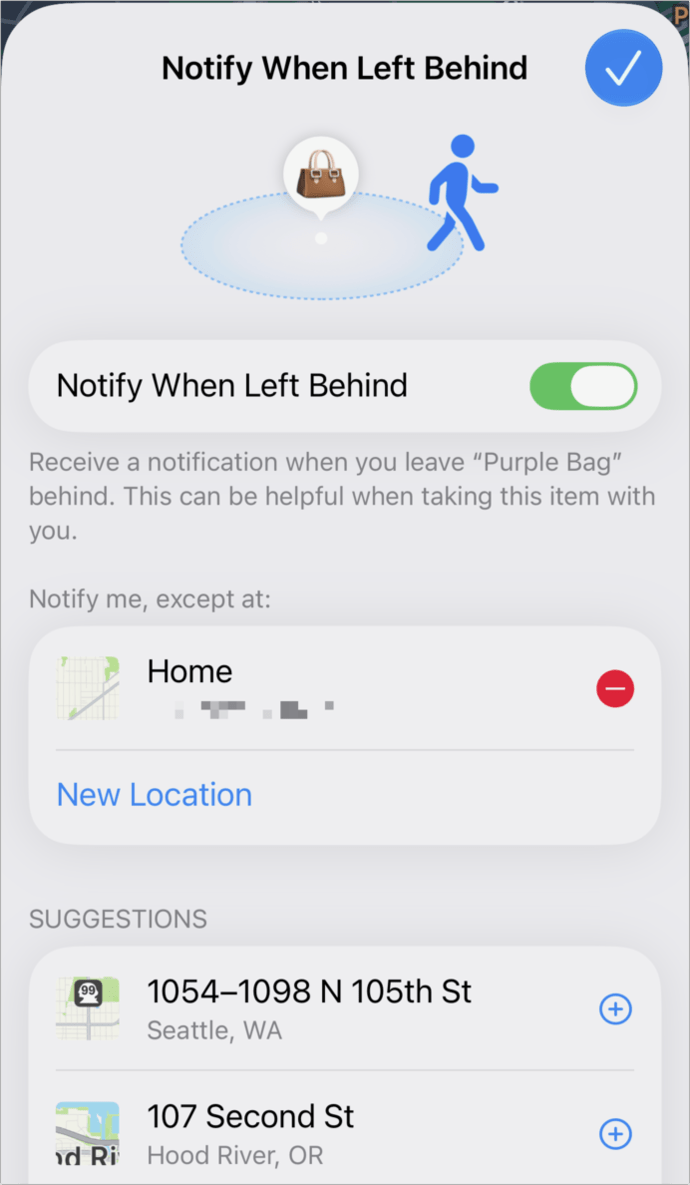
Notify When Left Behind dialog for Find My item
Jeff had the option enabled to know when he left his AirTag-equipped bag behind.

Every device and item you have can be set to alert you when you “leave it behind.” I believe this setting is enabled by default, though Apple’s documentation isn’t clear on this point. All of my devices and items have it enabled, and Jeff found it was turned on for all his gear. Here’s how to check:

  1. In a native Find My app, select the device (like a Mac) or an item (an AirTag or other Find My network item) in the list of such things.
  2. On an iPhone, iPad, or Apple Watch, the action sheet appears. On a Mac, click the info (i) icon next to the item’s name on the map. In the upcoming version 27 operating system releases on all platforms, tap or click the More (…) button that appears when you select the device from the list.
  3. Tap or click Notify When Left Behind, which should already show On. (In the 27 releases, tap or click When Left Behind.)
  4. If disabled, turn it on.

Here’s a crucial detail: examine the “Notify me, except at” list. You can manually add to this set of locations (tap or click New Location). However, it primarily grows when you’re notified by an item or device being left behind, and then you tap or click in the notification to ignore it at that location. You are presented with the option to just exclude that item or device from that location or all of your equipment.

It’s very easy to approve that exclude-all button. (Jeff did not; his list didn’t include the hotel.) This can be convenient when you’re at a hotel, a friend’s house, or another location for a few days or frequently, and sometimes leave Find My-tracked stuff there. But once you ignore the location, you won’t get notified in the future. You can modify the list by hand, too.

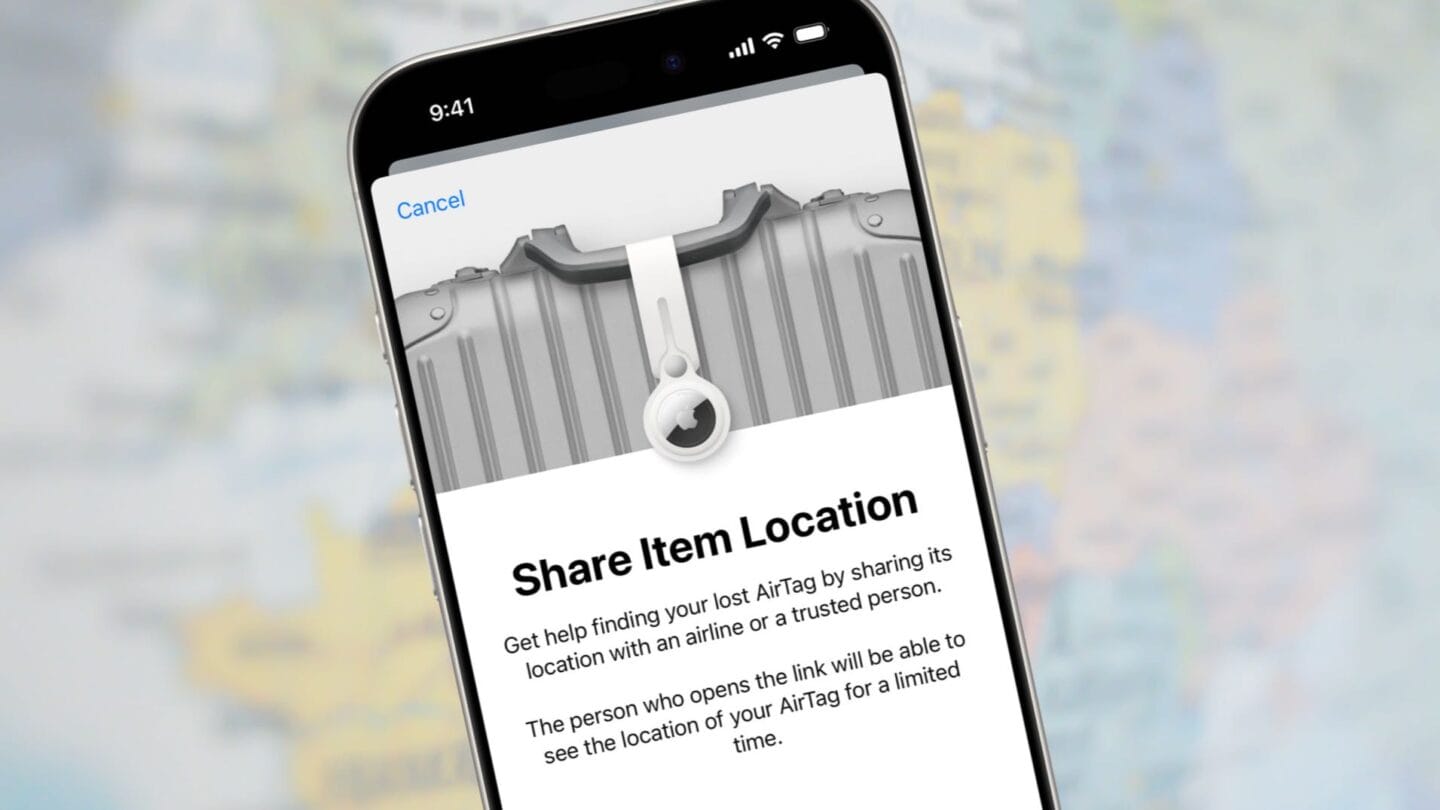
Jeff may instead have been tripped up by the safe acting as a Faraday cage—a metal mesh or box that shields electromagnetic signals from passing through. The AirTag and other Find My items use Bluetooth to broadcast a rotating identifier at regular intervals.2 If the safe blocked that signal, Jeff’s iPhone lost contact with the AirTag the moment the bag went in—a few days before he left. With no fresh separation between the phone and the item at departure time, the alert may have lacked the necessary trigger. Jeff was on the verge of sharing the location with the hotel when they found it.

Find My action sheet with marked as lost enabled and shared.
You can mark an item or device as lost, then share contact information, and a URL that someone else can use for a limited time to also find the hardware.

Apple says this takes longer than the few days Jeff was on his trip: “You can see its last known location for up to seven days in the Find My app.” After seven days, the device or item’s location will appear as “No location found” or “Offline.” Jeff could see the item’s location, which made the lack of notification seem like a bug.

Now for the grate part (not great part): once Jeff’s bag was removed from the safe in his former room, it would have been carried through the hotel and detected by every iPhone, iPad, or Mac nearby. When it reached the hotel’s lost-and-found safe, the rough location would likely still be relatively close before it entered that particular Faraday cage. At which point, when Jeff looked at Find My, he saw it at (or under) the parking lot.

Sack attack

The hotel works with a service that handles the return. Jeff paid both a whopping and reasonable $60 to have it sent two-day air back to him. Fair enough! Unfair enough, days after he paid, the bag is still at the hotel (as I write this). Jeff will, of course, follow its progress via Find My.

[Got a question for the column? You can email glenn@sixcolors.com or use /glenn in our subscriber-only Discord community.]


  1. Just so he doesn’t feel bad, I’ll note the time back in the day of paper airline tickets when I couldn’t find my tickets and had to rush to a United counter (in a hotel!) to get them reissued. When I came home, I put them in the secret place where I keep all my important stuff, where I also found my original “lost” tickets. ↩
  2. The identifier is broadcast as the Bluetooth network name. To avoid being associated with an individual, Apple frequently rotates or changes the name. ↩
  •  
❌