Microsoft is working on a small yet meaningful change to the lock screen and sign-in experience on Windows 11 that will streamline the authentication process that users must go through to log into their desktop.
The current Windows sign-in flow requires the user to manually select the method of authentication they wish to use to login. If you've set up a PIN, face unlock, and fingerprint unlock, the only method of authentication that is active is the one you manually click on to use on the lock screen.
This is a huge gripe of mine, and it's super frustrating when you want to login using your face, but Windows has selected PIN or fingerprint. It means your webcam isn't looking for you in that moment, and you have to manually switch to face unlock to force Windows into checking for your face and logging in.
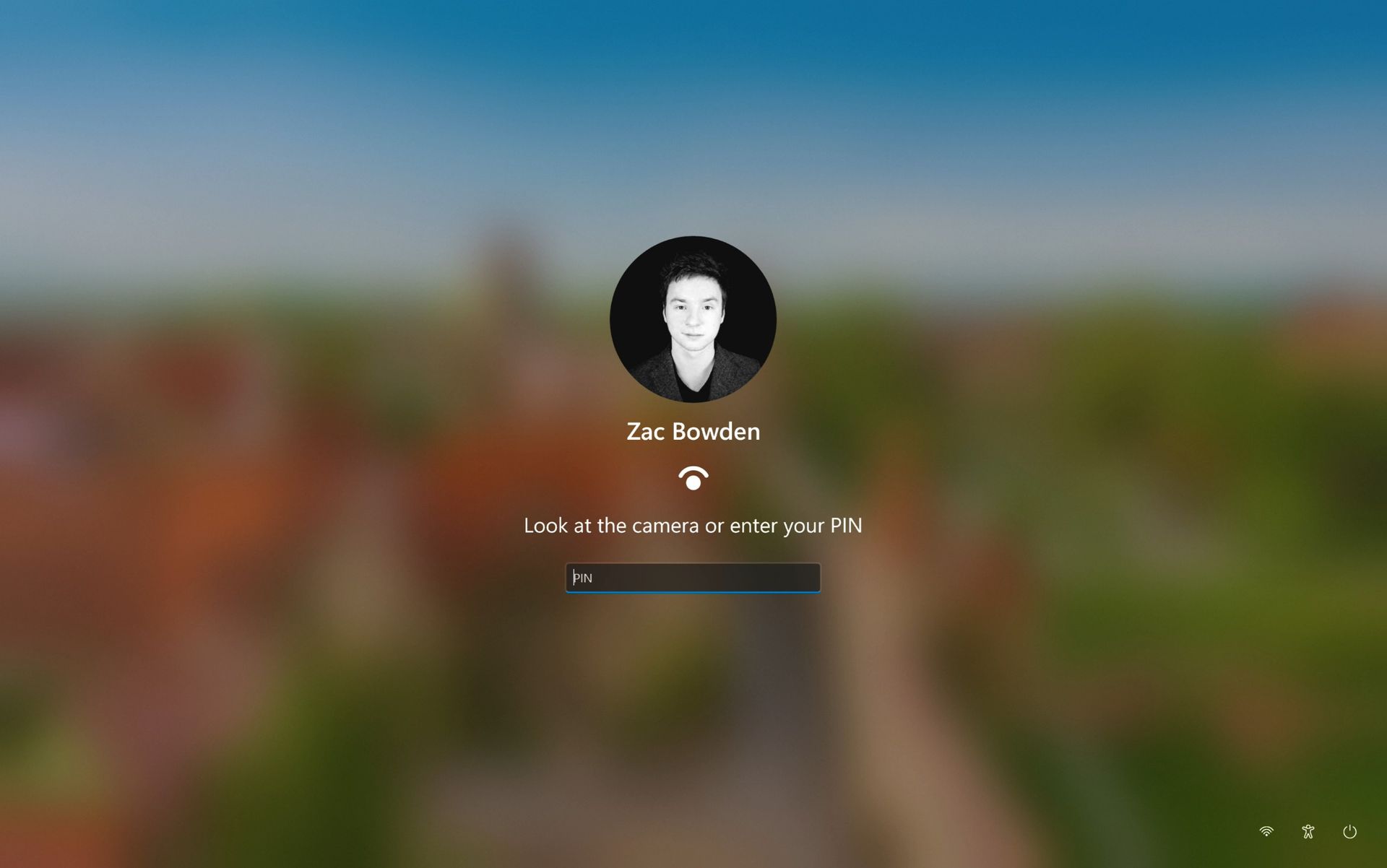
Well, it looks like this is finally changing. In the latest Windows 11 preview builds, a hidden feature ID enables a new experience that automates this. Now, by default, the PIN box is always on show, but face unlock and fingerprint unlock are also active and ready to authenticate at the same time.
No longer does the user need to manually choose their login method. (Image credit: Zac Bowden / Windows Central)
This means users no longer need to manually select the login method of their choice. Windows will automatically capture whichever biometric authentication method is set up, even when the PIN box is on screen. This also means the lock screen looks cleaner as a result, as the options to choose which authentication method you want to use is no longer displays as it's not necessary. It's also faster for those with biometric authentication enabled.
I really like this change, as it encourages Windows to keep trying my face unlock even if it fails the first time. Of course, there's an eventual timeout if it fails too many times, but I find it is able to log me in before it ever reaches that point. Also, being able to just type my PIN without having to manually select the PIN option first is also great.
Microsoft is yet to announce this new sign-in flow, but I suspect it won't be long until it's officially put into testing as it's already very polished and has been in the works for a number of months now. What do you think? Is this a good change for the Windows lock screen? Let us know in the comments.
Join us on Reddit at r/WindowsCentral to share your insights and discuss our latest news, reviews, and more.
In what may be one of the year's least surprising stories, Microsoft's VP of Product Design, Diego Baca, has explained how AI is being used to help designers after being asked whether it's possible to launch a "fleet of viable agents" to address issues in Windows 11.
On AI agents, 100% agree. I’m not the best person to speak to the engineering side, but AI has already helped our design team accelerate significantly. We’re even seeing designers contribute directly to code fixes that improve craft, consistency, and quality. That’s exciting progress, and we’re only getting started.
Microsoft acknowledges Windows 11's longstanding design inconsistencies as AI helps accelerate improvements across the operating system. (Image credit: Microsoft)
“Consistency across Windows is something we all want, and it’s an active workstream we’re continuing to accelerate,” he explained.
And to be fair, I have to agree. Windows 11 is now five years old (that's made me feel so old), yet parts of the operating system still feel like they're lacking the modern stylings, almost as though some of it still belongs in Windows 7, or even earlier, as Windows Latest points out in its own take.
Don't get me wrong, Microsoft has made progress, particularly with its efforts to modernize Windows Search, Run, and other legacy interfaces using WinUI 3. But I do wish these inconsistencies had been addressed before Windows 11 launched, though perhaps I’m wishing for too much.
Baca also acknowledged the criticism, admitting, “Finally, I completely recognize that people expect more from Windows. We expect more from ourselves, too.”
Finally, he added that Microsoft hopes to “earn back your enthusiasm for Windows through what we deliver, not just what we say.” It’s a refreshingly open response, and one I massively appreciate. How do you feel about Diego Baca's comments? Let me know in the comments and be sure to take part in our poll below:
Join us on Reddit at r/WindowsCentral to share your insights and discuss our latest news, reviews, and more.
Microsoft is testing a way to update Edge without forcing a restart, potentially letting you keep working while it switches to a more secure version.
Browser updates can interrupt your work, so you might put off restarting the browser. However, this can delay important security fixes. Microsoft's solution aims to solve both problems by updating Edge in the background while keeping compatible tabs open.
The project is still an early experiment, not a feature you can use today. Microsoft says the prototype isn't part of Edge's production code or the Chromium project.
Microsoft wants Edge updates to be seamless
Currently, browser updates require a restart to safely switch to a newer version. Although Microsoft Edge can restore your open tabs afterward, restarting can still interrupt your work. Microsoft's prototype aims to change that by downloading an update in the background and moving the browser and its supporting processes to the newer version while keeping your work available.
For example, imagine you're filling out a long online form when a security update becomes available. Instead of asking you to restart Edge and interrupt your work, the browser would update in the background while you continue working.
Microsoft demonstrated the prototype in a video, and when the company clicked the "Update" button, the browser switched to the new version while keeping compatible tabs open. Eventually, the goal is to apply updates automatically without requiring users to click anything.
One limitation is that existing tabs can stay open only if they're compatible with the new version. Other tabs will switch to the updated version when you navigate to them.
AI makes faster security updates more important
(Image credit: Future | Daniel Rubino)
The project isn't only about convenience. Microsoft notes that AI is accelerating vulnerability discovery and changing the pace of attacks, increasing the need to roll out security fixes more quickly. The company describes the time between a security fix becoming available and an update being applied as the "patch gap." During this period, users who don't install the fix remain vulnerable.
A security update can only protect you after apply it. Restarts add friction to that gap: people may keep a browser open for days because they are in the middle of something important.
Microsoft
The requirement to restart the browser can also make the problem worse when people postpone updates because they don't want interruptions. As a result, applying security updates faster could reduce the time users remain exposed to known vulnerabilities.
So, when can we use it?
This isn't built into the current version of the browser, so don't go through the settings trying to find the option. Microsoft says that the prototype isn't part of the browser or the Chromium project. Instead, the company is sharing its work early and inviting developers and other organizations to collaborate on this project.
Edge already has an update option for idle devices
(Image credit: Daniel Rubino / Windows Central)
While the company continues developing its new update mechanism, Microsoft Edge already offers a feature called "Restart to update on idle," previously known as "Instant Updates."
The feature restarts Edge when your device is idle, installs the update, and reopens your tabs. It still requires a restart, but the interruption happens when you're not using the browser.
What's next?
For now, Microsoft Edge's existing update options help reduce delays, while the seamless-updates prototype offers a glimpse of what could come next. Microsoft hasn't announced when, or whether, this approach will become available. The company is sharing the prototype early to encourage collaboration with the community.
However, we'll have to wait and see whether the concept will make it into a future version of the browser. What are your thoughts on this new way to update the browser? Let me know in the comments.
More resources
Explore more in-depth how-to guides, troubleshooting advice, and essential tips to get the most out of Windows 11 and 10. Start browsing here:
In this episode of the Windows Central Podcast, Daniel Rubino and Zac Bowden regroup following a week of extensive hands-on hardware testing and benchmarking. The central focus is the initial review wave for the Surface Laptop Ultra and the broader Nvidia RTX Spark mobile platform.
Zac details his full review of the Surface Laptop Ultra, highlighting its MacBook-inspired design improvements, haptic touchpad, outstanding audio, sleep battery efficiency, and magnetic USB-C connector—while contrasting its 2,000-nit Mini-LED display against competing Tandem OLED panels. Daniel shares first impressions of two rival RTX Spark flagships: the ultralight 3.9 lb ASUS ProArt P16 and the robust HP OmniBook Ultra 16.
The hosts dig into real-world local AI and agentic workflows (including tests with Hermes Agent and local LLMs), explain the critical architectural advantage of configurable unified memory allocations for GPUs, discuss gaming performance with DLSS/frame gen, and showcase the newly launched ASUS ROG Xbox Ally X20 handheld console bundle featuring XREAL AR glasses.
This episode of the Windows Central Podcast is sponsored by Surfshark VPN. Unlimited devices, access your content from anywhere, and auto-block malware on Windows, Edge, and other platforms from $2.50/mo, with 3 months extra FREE. Sign up today!
[01:44] – Introduction: Daniel and Zac kick off Episode 407, outlining their week spent benchmarking and testing retail RTX Spark laptops and handhelds.
[05:51] – Surface Laptop Ultra Design & Build: Zac breaks down the chassis aesthetics, MacBook Pro styling parallels, lack of a notch, seamless lid lip design, and weight (4.5 lbs).
[08:00] – The Mini-LED Display: Deep dive into Microsoft’s 2,000-nit Mini-LED panel, evaluating ghosting zones (1,344 dimming zones), glossy reflections, and comparisons to Tandem OLED screens.
[13:09] – Battery Life & Standby Sleep Performance: Real-world longevity on the 92 Wh battery (10–12 hours light use) and standout sleep endurance matching Apple Silicon.
[15:18] – Magnetic Breakaway USB-C: Testing the breakaway angle, data capabilities, and custom charging brick interoperability.
[18:04] – RTX Spark CPU & Gaming Benchmarks: Breakdown of 20-core multi-threaded CPU output versus single-core scores, plus gaming results with DLSS in titles like Cyberpunk 2077 (approaching RTX 4070/5060 laptop levels).
[25:59] – Local AI & Unified Memory Allocation: Why configurable system RAM sharing to the GPU CUDA cores enables large local LLM deployment that traditional gaming laptops cannot match.
[29:11] – Agentic AI Experiments: Practical workflows with Hermes Agent, desktop automation in Photoshop, automatic folder cleanup, and local data safety risks.
[46:00] – Speakers, Haptics & Missing Copilot+ Features: Praise for the class-leading haptic signals and audio alongside the notable delay of Windows Recall and semantic search on RTX Spark.
[53:56] – ASUS ProArt P16 Review Preview: Daniel highlights the 3.9 lb featherweight design, dual-fan thermals, 4K anti-reflective touch options, and port selection.
[58:50] – HP OmniBook Ultra 16 Breakdown: Frame build quality, rear tower exhaust design, Zero-Lattice Gen 2 keyboard, and compact 140W GaN charger.
[01:06:08] – PCIe SSD Speed Shootout: Massive speed discrepancies across devices—Surface’s 14,000 MB/s drive vs. HP's 10,000 MB/s and ASUS’s variable read speeds.
[01:14:55] – ASUS ROG Xbox Ally X20 Handheld Impressions: Translucent chassis, 7.4-inch 120Hz anti-reflective OLED panel, Z2 Extreme performance, and testing the bundle with XREAL AR glasses.
[01:24:02] – Live Audience Q&A: Viewer questions regarding boot/restart bugs, NVMe expansion, OneDrive Microsoft 365 storage allocation backlash, and future low-tier RTX Spark silicon.
Microsoft just celebrated 12 years of the Windows Insider Program by sharing a collection of wallpapers. But the origin of those wallpapers has drawn a bit of criticism. It turns out that they were not made on a Surface Laptop Ultra or, in fact, any Windows 11 device. Instead, they were created using a Mac.
Rafael Rivera checked the properties of the wallpapers and noticed that they were created using the Mac version of Adobe Photoshop.
New Windows Insider email: "we created new backgrounds for all Insiders inspired by 12 years of the Windows Insider Program and the latest Surface design aesthetic"https://t.co/4gzu6wPcWOCreated on a Mac. https://t.co/0d8HgHlvh0October 15, 2026
Rivera noted in a follow-up post on X that the images were made by Microsoft's in-house design team. If accurate, that precludes the possibility of a contracted company happening to use Macs in their normal workflow and being commissioned to make the images.
Even if the images were made by a contracted company, Microsoft would have a little bit of egg on its face because that would indicate that even a creator that works with Microsoft prefers to use an Apple product.
Windows Central take
I don't think this is a big deal, but the situation has emerged at an awkward time. Microsoft is in the middle of refreshing Windows 11. The tech giant just shared a massive blog post positioning Windows 11 as a selling point to buy a new PC.
Having Windows Insider wallpapers created on a Mac opens the door to jokes like "even Microsoft staff prefer Mac."
It's perfectly reasonable for Microsoft to use tools created by another company. It's not as if Microsoft should force its design team to use the new Photos app instead of Photoshop. Creators, and any worker, need to use tools that can get the job done.
But considering Adobe Photoshop is available on Windows 11, it's a bit strange that Microsoft couldn't send a few Windows 11 PCs over to its design team.
Alternatively, Microsoft could call up ASUS and make a deal to get some ProArt P16 laptops to the design team. Our friends at Tom's Guide said "The ASUS ProArt P16 is an outstanding laptop for creativity."
If you thought the Copilot+ PC promise of NPU-powered local AI experiences was dead, I wouldn't blame you. Microsoft has been slow to build out NPU-based AI features on Windows 11, with Click To Do and Semantic Search being the last Copilot+ PC exclusive features to launch over a year ago.
But that seems to be finally changing with "Hybrid intelligence," a part of which is being built directly into the Copilot app on Windows 11 and will intelligently route AI tasks and experiences between on-device processing and the cloud on Copilot+ PCs. Here's what's coming soon to Windows 11:
Local context: With your permission, Copilot can understand relevant content on your PC, including files and recent activity, bringing local context into the flow of work.
Local actions: Copilot can take action on your behalf across Windows, helping complete tasks like organizing files, assessing device diagnostics, troubleshooting issues, coding, and carrying out workflows directly on your device.
Local models: Copilot can tap into AI models running on your PC, using local compute for the right tasks while combining it with cloud intelligence when needed.
Hybrid Intelligence looks to be a natural evolution of Copilot+ PCs. Microsoft is finally giving this AI hardware more to do, with the ability to reach out to the cloud when required for more complex workloads. These Hybrid Intelligence features enhance the new Copilot Home, Code, and Autopilot experiences that were recently announced.
"Copilot understands your PC, takes action with your permission, and uses local models when it makes sense, with you in control at every step," Microsoft says. "Copilot features powered by hybrid intelligence are expected to begin rolling out on Copilot+ PCs in the coming months."
(Image credit: Microsoft)
Microsoft says Hybrid intelligence requires Copilot+ PC compatibility, which naturally implies that these new AI experiences will lean on the NPU for local processing, as that's one of the hardware requirements for meeting the Copilot+ PC feature bar.
Microsoft believes that a hybrid approach to AI will be the way forward for computing. It's important for PCs to have local AI compute power and capabilities to reduce pressure on data centers, and it's also important for privacy and security reasons too.
Agents on Windows are being heavily pushed as a local AI experience, though it requires PCs with powerful GPUs and lots of system memory to really take advantage of. The NPU is not powerful enough to handle most large language models at current, and so is reserved for less power intensive tasks and automations.
The company has also announced Aion Instruct, an on-device AI model that replaces Phi Silica and runs on not just the NPU, but GPU and even CPU in some cases. It's a small language model capable of handling text generation, instruction following, and web tasks.
Microsoft has confirmed that the Copilot+ PC brand is going away as a marketing asset, but it will continue to exist as a feature set. OEMs and Microsoft itself have stopped calling their new Surface PCs Copilot+ PCs, even though they are all Copilot+ PC compatible.
Now, the Copilot+ PC moniker is simply a checkbox on a spec sheet, and it looks like Hybrid intelligence PCs is the new marketing term that Microsoft wants to get in front of as many people as possible.
Join us on Reddit at r/WindowsCentral to share your insights and discuss our latest news, reviews, and more.
Microsoft just celebrated 12 years of the Windows Insider Program by sharing special wallpapers with Insiders. The images are all reminiscent of the Windows Bloom wallpaper that ships with Windows 11 and that has been remixed several times by Microsoft and enthusiasts.
I'm partial toward the blue version, likely because I learned how to use a PC on Windows 95. There are also white, green, orange, and purple variants as well as several dark-theme wallpapers.
This direct download link should get you all of the wallpapers, but you should also see them in an email from Microsoft if you're a Windows Insider.
Microsoft shared the following message alongside the wallpapers:
"Thank you for 12 incredible years, Windows Insiders!
From exciting program changes to meetups that brought us together in the past year, you're at the heart of it all. As a thank-you, we created new backgrounds for all Insiders inspired by 12 years of the Windows Insider Program and the latest Surface design aesthetic."
The Windows Insider Program has been around for 12 years, but it has shifted in structure in that time. I've been an Insider since the beginning, as have many members of our team at Windows Central. In that time, we've seen everything from major Windows features not being tested with Windows Insiders to feedback directly shaping the future of Windows.
Windows Insider meetups also returned this year, giving the community a chance to meet in person and interact with the Windows product team directly. The first Windows Insider meetup was in Seattle, Washington. Later, events took place in New York City (USA), Hyderabad (India), Taipei (Taiwan), San Francisco (USA), and London (UK).
I'm happy to see the Windows Insider Program on the right track. Microsoft is engaging with the community and shaping Windows 11 based on feedback.
Microsoft has shown the positive impact of listening to feedback through its recent changes to Xbox. Sometimes grabbing low-hanging fruit and addressing the top community concerns is exactly what's needed.
The wallpapers shared by Microsoft are a small gesture thanking Windows Insiders, but such gestures can go a long way. Ignored Insiders become Insiders who disengage from the Windows Insider Program, and that hurts all Windows users in the long run.
Join us on Reddit at r/WindowsCentral to share your insights and discuss our latest news, reviews, and more.
Long before Taco Tuesday became part of the pop-culture vernacular, Tuesdays were synonymous with security — and for anyone in the tech world, they still are. Patch Tuesday, as you most likely know, refers to the day each month when Microsoft releases security updates and patches for its software products — everything from Windows to Office to SQL Server, developer tools to browsers.
The practice, which happens on the second Tuesday of the month, was initiated to streamline the patch distribution process and make it easier for users and IT system administrators to manage updates. Like tacos, Patch Tuesday is here to stay.
Patch Tuesday coverage has long been a staple of Computerworld’s commitment to provide critical information to the IT industry. That’s why we’ve gathered together this collection of recent patches, a rolling list we’ll keep updated each month.
In case you missed a recent Patch Tuesday announcement, here are the latest six months of updates.
October Patch Tuesday: 1,408 CVEs, 1 exploited flaw and a SharePoint surprise
Microsoft just shipped 1,408 vulnerabilities in one month, and a SharePoint flaw it marked “not exploited” is actually under attack right now. Our expert recommends a Patch Now scheduling for Windows, Office, Exchange and the developer tooling, and a standard release schedule for SQL Server.
September Patch Tuesday: 963 CVEs, 2 exploited flaws, 1 message
September’s Patch Tuesday is Microsoft’s biggest of 2026, with 963 CVEs, two exploited flaws and a clear message: prioritize Windows, Office and SQL Server.
Two vulnerabilities are already exploited: CVE-2026-81963 in the Windows Update Stack and CVE-2026-85880 in Advanced Local Procedure Call. Nothing in this release was publicly disclosed ahead of the patch. Readiness recommends a Patch Now scheduling for Windows, Office, SQL Server and the developer tooling, and standard patch release for Exchange.
August’s Patch Tuesday is a monster: 751 fixes, with an exploited Windows flaw
Microsoft’s August 2026 Patch Tuesday closes at 751 CVE entries (across all product families), with 108 rated as critical. One flaw is already exploited, CVE-2026-68820, an elevation of privilege in the Windows WinSock driver (afd.sys). Two more were disclosed but not exploited.
This security-only release earns Patch Now for Windows, Office and Exchange; no SQL Server updates this month. Unfortunately, several critical issues affect server roles: Windows DNS Server carries a cluster of critical RCEs; Windows DHCP Server is the most-populated Microsoft product family at 14 entries. Testing should lead with printing and fonts and the Remote Desktop client, then a WinSock smoke test given the exploited afd.sys flaw.
July’s Patch Tuesday sees an end-of-support collision amidst a massive, record-setting patch wave
Microsoft addressed 722 CVEs this month once the 427 Chromium upstream relays are set aside — roughly three times a normal cycle and one of the largest single months in recent memory. Two vulnerabilities arrive under active exploitation: an elevation of privilege in Active Directory Federation Services (CVE-2026-56155), and an elevation of privilege in SharePoint Server (CVE-2026-56164). A third, a BitLocker security feature bypass (CVE-2026-50661) is publicly disclosed but not yet exploited.
The July 2026 Patch Tuesday earns Patch Now recommendations for Windows, Office, Exchange, and SQL Server. SharePoint has two critical RCEs on top of its exploited zero-day, and Exchange Server returns with a critical on-premises spoofing flaw. Adding to our (dear) administrator’s efforts, SharePoint Server 2016/2019 and SQL Server 2016 all reach end of support today.
Microsoft this month released 206 updates affecting Windows, Office, Exchange Server, and its developer tools — including three Windows vulnerabilities already publicly disclosed. That trio includes an elevation of privilege in the Collaborative Translation Framework (CVE-2026-45586), a denial of service in HTTP.sys (CVE-2026-49160), and a BitLocker security feature bypass (CVE-2026-50507). At the moment, none appear to be under active exploitation, but all three are rated “Exploitation More Likely.”
Even without an exploited zero-day, the June 2026 Patch Tuesday release requires Patch Now recommendations for Windows, Office, and Exchange. The latter is back in the patch picture with a consolidated security update that Microsoft recommends installing “as soon as possible.”
For May, Patch Tuesday means 139 updates — but no zero-days
Microsoft this month released 139 updates affecting Windows, Office, .NET, and SQL Server (though there were no updates for Microsoft Exchange Server). Despite the absence of zero-days, the May Patch Tuesday update still requires Patch Now recommendations for Windows and Office.
The combination of three unauthenticated network RCEs (Netlogon, DNS Client, and SSO Plugin for Jira and Confluence), four Word Preview Pane RCEs, the large TCP/IP vulnerability cluster, and the carry-over BitLocker recovery condition (still active on Windows 10 and Windows Server) warrants an accelerated deployment release schedule.
Windows 11 has a new Gaming Task View for XBOX mode that helps users hop back to the desktop or adjust power options for a device. That feature is now in testing among Windows Insiders.
Microsoft released builds in every Windows Insider channel to wrap up the week. I've listed all the changes below except those exclusive to the Release Preview channel since those features have largely been in testing before today.
While the update to XBOX mode is the headline feature of these builds, there are several other welcome changes. For example, Windows Hello can now temporarily brighten your screen to help you sign in when in a dark room.
Gaming (Beta, Experimental)
Gaming Task View has a new navigation bar that makes it easier to exit to desktop and edit power options. (Image credit: Microsoft)
We're introducing a refreshed Gaming Task View experience in XBOX mode, featuring a new navigation bar that provides quick access to Exit to Desktop and Power Options. This update makes key system actions easier to access while gaming.
Magnifier (Beta)
Magnifier now understands each of your displays
More and more of the work people do happens across more than one screen. You draft on one display and keep source material open on another. You fill in a form while a reference document sits beside it. Those extra displays can be more helpful when each one can do its own job, and now Magnifier supports exactly that.
To use this update, set your monitors to Extend in System > Display, not Duplicate, so Windows treats each screen as its own space.
Every screen keeps its own view at its own zoom. In earlier versions of Magnifier, zooming in stretched a single magnified view across all of your displays, so one screen's zoom followed you everywhere and screen edges blurred together. With this update, each monitor's boundary is respected, and each monitor can have its own zoom percentage. Your writing screen can be at 300% while your reference screen stays at 150%, and the magnified view no longer spills from one display into the next. This behavior matters because different tasks and screen resolutions often require different levels of magnification to remain comfortable to read.
Setting the zoom on each screen is easy. Choose whichever method feels natural:
Move your mouse pointer onto the screen you want to adjust, then press Windows key + Plus (+) or Windows key + Minus (-), or hold Ctrl + Alt and rotate your mouse wheel.
Set the percentages directly in Accessibility > Magnifier.
Drag the Magnifier toolbar onto a specific screen to adjust that screen from its on-screen controls.
Per-monitor zoom is turned on by default. If you prefer the classic behavior where a single zoom spans all of your displays, you can turn per-monitor zoom off at any time from either the Magnifier toolbar or Accessibility > Magnifier. You can turn it back on whenever you like.
Keep the view that matters, right where you need it
As you move your mouse from screen to screen, the magnified view naturally follows your pointer. Sometimes this might cause you to lose sight of the content that you're actively working on.
Viewport locking keeps that view in place. For example, you might be drafting an email based on a section of a document open on another display. Position that display so the paragraph you need is in view, press Ctrl + Windows key + K, and the screen holds its view steady while you move your cursor over to write. The locked screen stays fully live and interactive, so you can glance back, click, or copy from it whenever you need to, and its view stays put until you release it.
A message appears on the screen when it's locked, so you always know what's being held. To lock or unlock a screen, point your mouse at that screen and press Ctrl + Windows key + K again. To release everything at once, press Windows key + Esc to dismiss all locks. You can change the lock shortcut to Ctrl + Alt + P in Accessibility > Magnifier.
Settings - Home (Beta)
We're beginning to expand the new Device Info Card experience for Settings Home to additional markets globally. Available for Windows Insiders signed in with their Microsoft account, the Device Info Card provides a quick snapshot of your PC's key specifications and usage. From the card, you can go directly to Settings > System > About to see more detailed information about your PC.
The improved Privacy & security page in Windows Settings helps you find the Camera, Microphone, and Location privacy controls more easily. It groups similar controls across the page and brings usage information from deeper linked pages onto this page.
File Explorer (Beta)
Key file information, such as name, location, and date, now appears in a consistent layout on the File Explorer search results page, making search results easier to scan.
File Explorer (Experimental)
Improved responsiveness of folder views so they update and sort correctly when files and folders are added or renamed.
Family Safety (Beta, Beta (26H1), Experimental (26H1))
Improved family safety messaging when applications are blocked because of age-restricted parental controls.
Other (Beta, Experimental)
Improved shutdown reliability, reducing the chance of a hang on shutdown in certain cases.
The dialog for certain system messages, like low battery and permissions, should use the expected modern design again.
Other (Beta (26H1), Experimental (26H1))
Fixed an issue with msmpeg2ac3dec.dll which was leading to some apps and games crashing recently.
Web sign-in (Experimental)
Web sign-in now works on Microsoft Entra hybrid joined devices. Before this update, it was only available on Microsoft Entra joined devices. You can sign in to Windows at the lock screen with a passwordless credential: a FIDO2 security key, a passkey on your phone, or a Temporary Access Pass (TAP). You don't need a password. Once you're signed in, Windows gets a Kerberos ticket, so on-premises file shares and internal sites keep working. For more information, see Use web sign-in to enable passwordless sign-in in Windows.
Windows Hello (Experimental)
Windows Hello facial recognition can temporarily brighten your screen to help you sign in when you're in a dark or dimly lit room.
To turn on this feature, go to Settings > Accounts > Sign-in options > Facial recognition (Windows Hello) and turn on Automatically adjust screen brightness during face recognition.
Windows Search (Experimental)
Addressed underlying issues that could cause search to appear missing or stop working after the previous update, including if you rapidly clicked the search icon repeatedly.
Search (Experimental (26H1))
Search home has been simplified to reduce visual clutter and make it easier to get back to recent searches quickly.
Search does a better job showing where a result comes from, whether it's an app, setting, file, web result, or Store suggestion, so it's easier to tell what you're looking at and where you'll go before you click.
A new setting in Settings > Privacy & security > Search lets you choose whether web and Microsoft Store suggestions appear alongside local results.
Run (Experimental)
Improved the window position when using an Arabic or Hebrew display language.
Improved performance of the Run dialog when navigating to very large folders.
Fixed an issue where your text might unexpectedly disappear if you started typing too quickly after opening Run.
Made a few other small visual fixes and refinements.
Pointer Indicator (Experimental (26H1))
We're introducing the Pointer Indicator accessibility setting. This feature enables Windows users with low vision to easily locate and use their cursor to increase productivity and efficiency when using a Windows device.
To enable this experience, go to Settings > Accessibility > Mouse pointer and touch, and enable the Pointer indicator setting. You can also search for the setting by name. When the setting is enabled, you can toggle it on or off with the keyboard shortcut, Windows logo key + Ctrl + Shift + X.
Live Captions (Experimental (26H1))
We're improving Live Captions with a new Include Screen Reader audio setting, which is off by default. With the setting off, Live Captions won't transcribe audio from screen readers such as Narrator, JAWS, and NVDA, keeping captions focused on microphone and system audio.
Taskbar
New! This update improves animations of app window previews when you move the mouse across app icons in the taskbar.
This update improves the underlying state persistence of taskbar settings related to multiple monitors across monitor connections and disconnections.
Since revamping the Windows Insider Program earlier this year, Microsoft has sped up its release schedule for builds. As a result, we often end the week with a batch of five or six new builds to check out.
Join us on Reddit at r/WindowsCentral to share your insights and discuss our latest news, reviews, and more.
As part of the Windows Insider Program, Microsoft released several preview builds of Windows 11 in early October, some of which rolled out new features and improvements, while others played catch-up by bringing already announced changes to other channels.
During the first two weeks of October, the software giant made available the first preview of the new Windows Search experience. We also saw the new Battery widgets and more.
Microsoft also revealed a new option to sanitize the hard drive when using the Cloud Rebuild feature, plus improvements to File Explorer, Share, and more.
In the Experimental channel, we've seen builds 28120.3181, 26340.9616, 26340.9596, 28120.3151, 29683, and 29680. In the Beta channel, the company released builds 26220.9606, 28020.3172, 26220.9587, and 28020.3142.
In this recap, I'll highlight the latest and most noteworthy changes available through the Windows Insider Program.
Biggest improvements from the Windows Insider Program in October 2026
In this recap, I'll highlight the latest and most noteworthy changes available through the Windows Insider Program.
Windows Search overhaul
Starting with the release of build 26340.9616 for version 26H2, Microsoft began the gradual rollout of the new Windows Search experience.
(Image credit: Mauro Huculak)
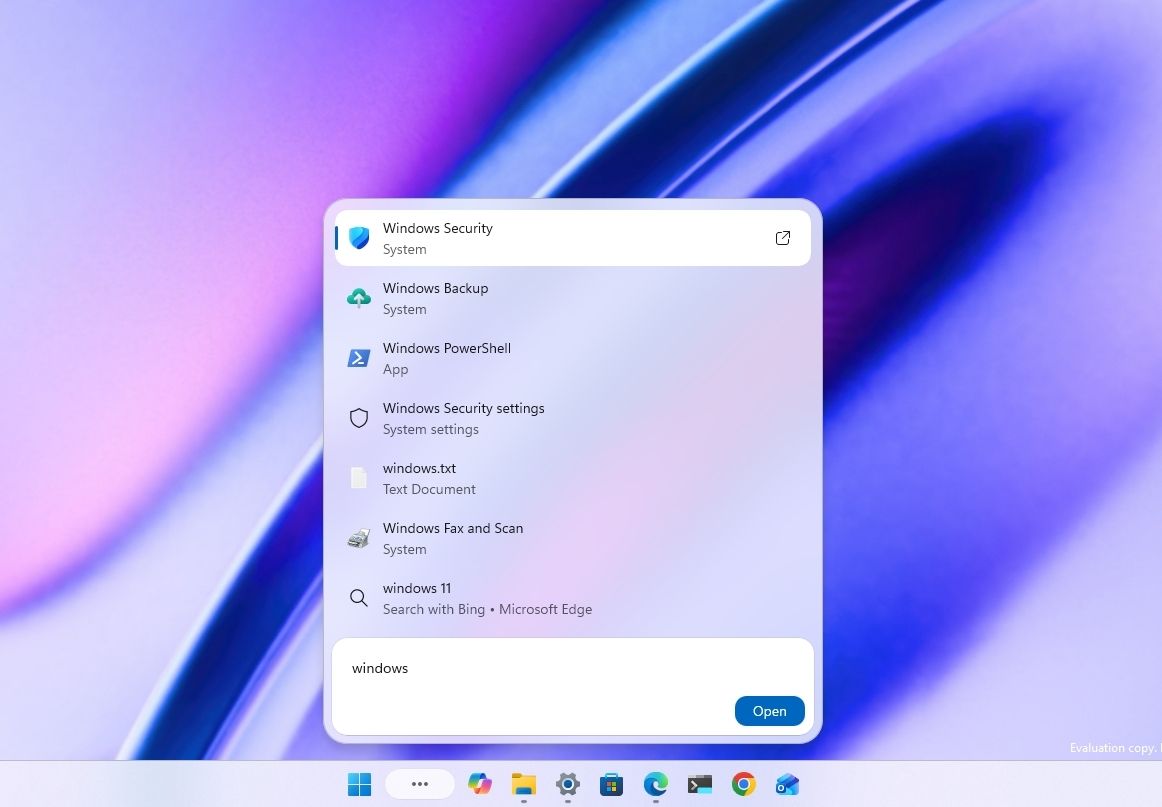
The new experience features an entirely new interface using WinUI 3, designed to make search faster and more efficient while using less memory.
Perhaps the most notable change is the new inline actions that let you perform tasks directly from the Search box. For example, you can switch between the light and dark mode, enable Bluetooth, adjust brightness, arrange windows, and more.
In addition, the company is adding improvements to help Windows Search understand you better, including better handling of typos and synonyms.
The new Search experience is currently available in versions 26H2 and 26H1 as a preview through the Experimental channel.
Battery new widget
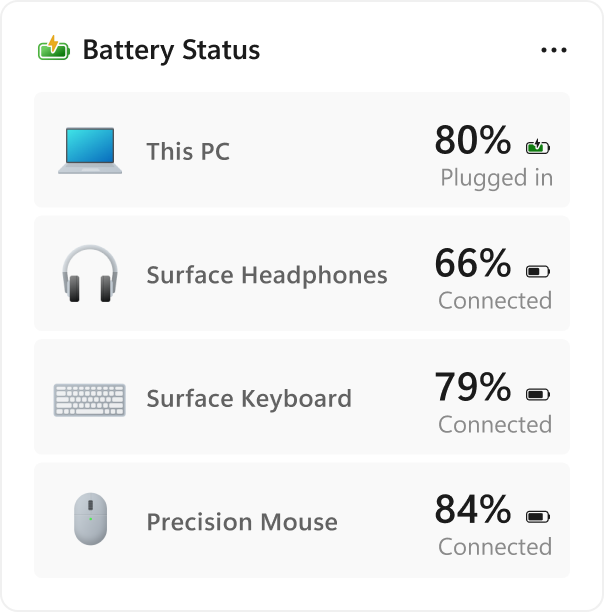
Also, Windows 11 build 26340.9616 ships with the new Battery Status widget, which tracks your computer and peripherals' battery levels without having to resort to third-party tools.
(Image credit: Microsoft)
The widget is available from the Widgets dashboard> Add widgets > Battery Status.
Once the widget is enabled, you'll see the battery level of your laptop as well as your mouse, keyboard, headphones, and more.
Task Manager new processes group
Although Task Manager isn't getting another makeover, an updated version improves how it handles process groups, letting apps combine separate background processes into a single category instead of relying on traditional parent-child process trees.
Microsoft says that this should make it easier to view how an app uses system resources. Currently, this works only in Microsoft Defender.
File Explorer faster navigation
The company has also made small but welcome improvements to File Explorer with the release.
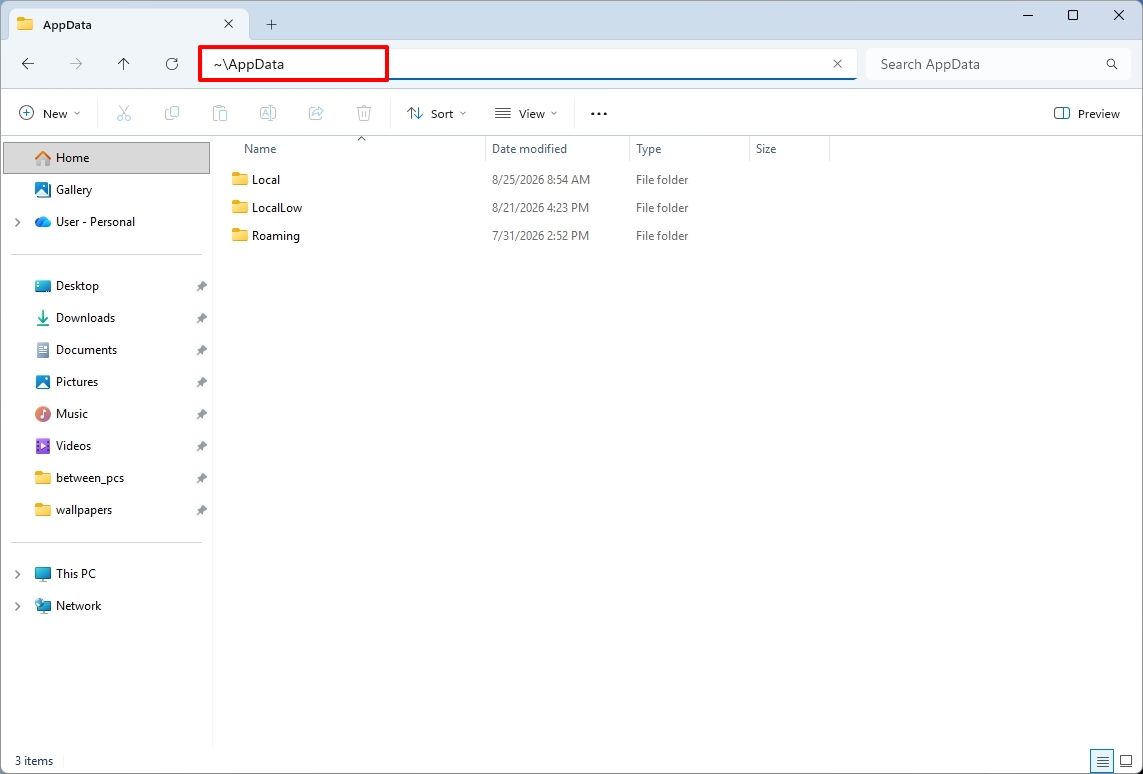
For instance, on build 26340.9596 for version 26H2, you can now use the "~" character to quickly open your profile folder or subfolder, for example, "~\AppData".
(Image credit: Mauro Huculak)
As part of the File Explorer changes, on builds 28120.3151 and 28020.3142 for version 26H1, Microsoft rolled out improvements to keep folder view customizations, such as sorting and icon size preferences, consistent across different access paths and apps.
The update also improves address bar support for paths with double backslashes and quotation marks.
Finally, in this wave of updates, build 29680 for the Future Platforms version, you'll find an updated version of the file manager that now handles previews for downloaded files from the internet.
When using the preview pane, HTML files will show a preview after you acknowledge the warning, while non-HTML files, such as PDFs, will show previews automatically.
Cloud Rebuild improvements
Cloud Rebuild is a new recovery feature that helps you reinstall the operating system when your computer has problems or won't boot.
Unlike other recovery options, this feature uses Windows Update to download installation files and drivers without needing bootable USB media.
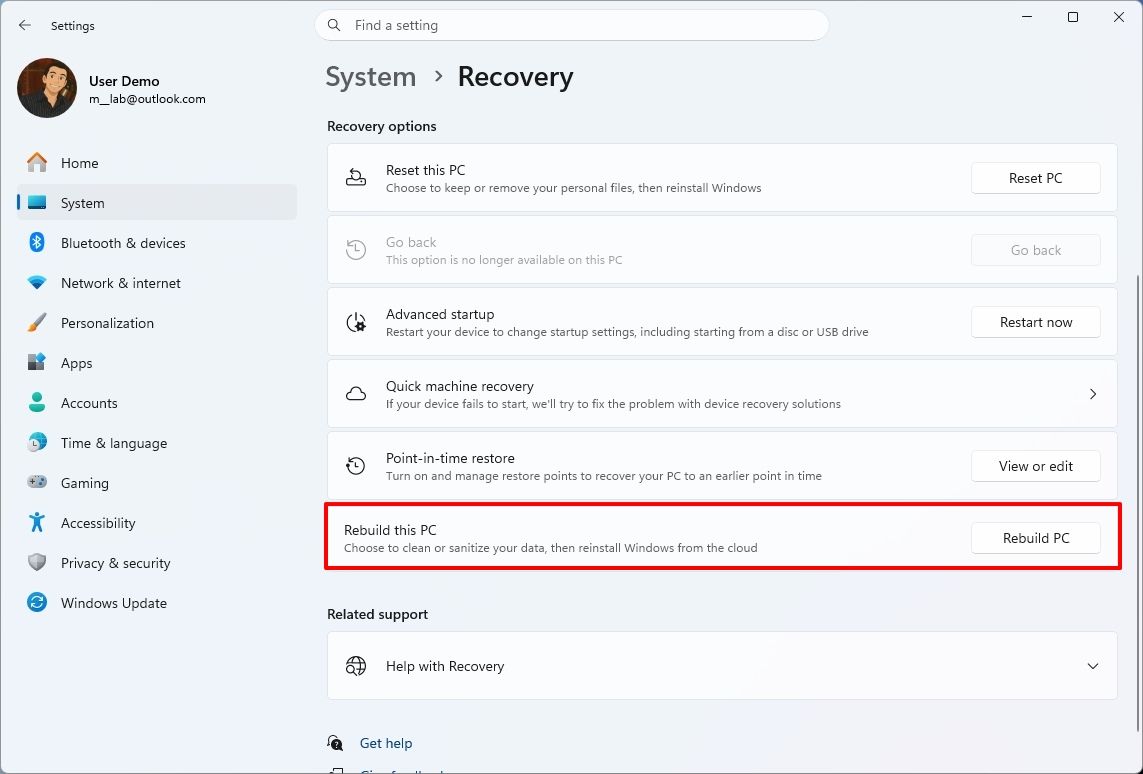
This recovery feature is still in preview, but in build 26340.9596 for version 26H2 and build 26220.9587 for version 25H2, you'll now find a new "Rebuild this PC" option on the Recovery page in Settings, making it easier to access.
(Image credit: Mauro Huculak)
Also, in builds 28120.3151 and 28020.3142 for version 26H1, the Cloud Rebuild feature added a new "Remove & sanitize files" option to securely erase data before reinstalling the operating system, which is useful when recycling or reassigning a computer.
This update also lets admins configure and start a Cloud Rebuild remotely using Recovery CSP.
Narrator's new math reading
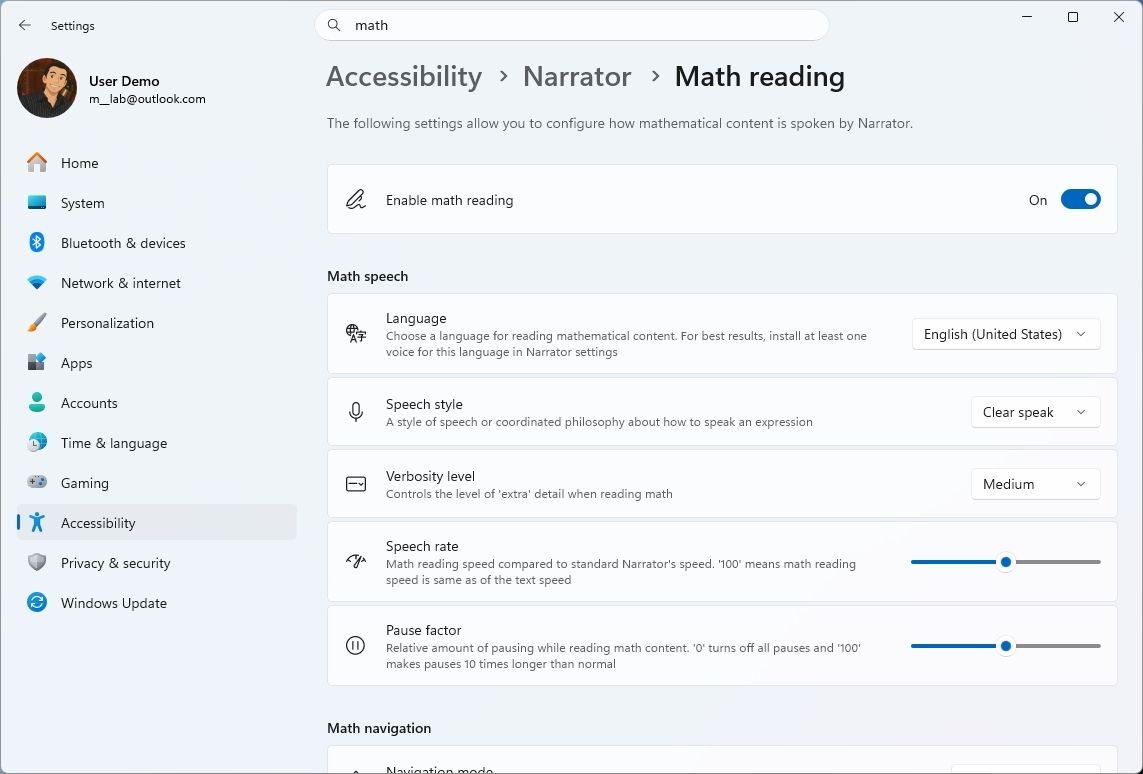
As part of the updates for version 26H1 (builds 28120.3151 and 28020.3142), Microsoft also updated the Windows Narrator feature with a more natural way to read and explore math equations.
According to the company, on supported apps from the Microsoft 365 suite, such as PowerPoint and Word, Windows Narrator can now read equations as structured expressions.
In addition, a new math navigation mode allows you to explore an equation one part at a time.
(Image credit: Mauro Huculak)
You can use the "Narrator key + Alt + N," and then use the arrows to move through fractions, exponents, and roots. You can also use "Esc" to exit the mode.
The new math capability also works on supported web content in Microsoft Edge and Google Chrome.
Magnifier with updated controls
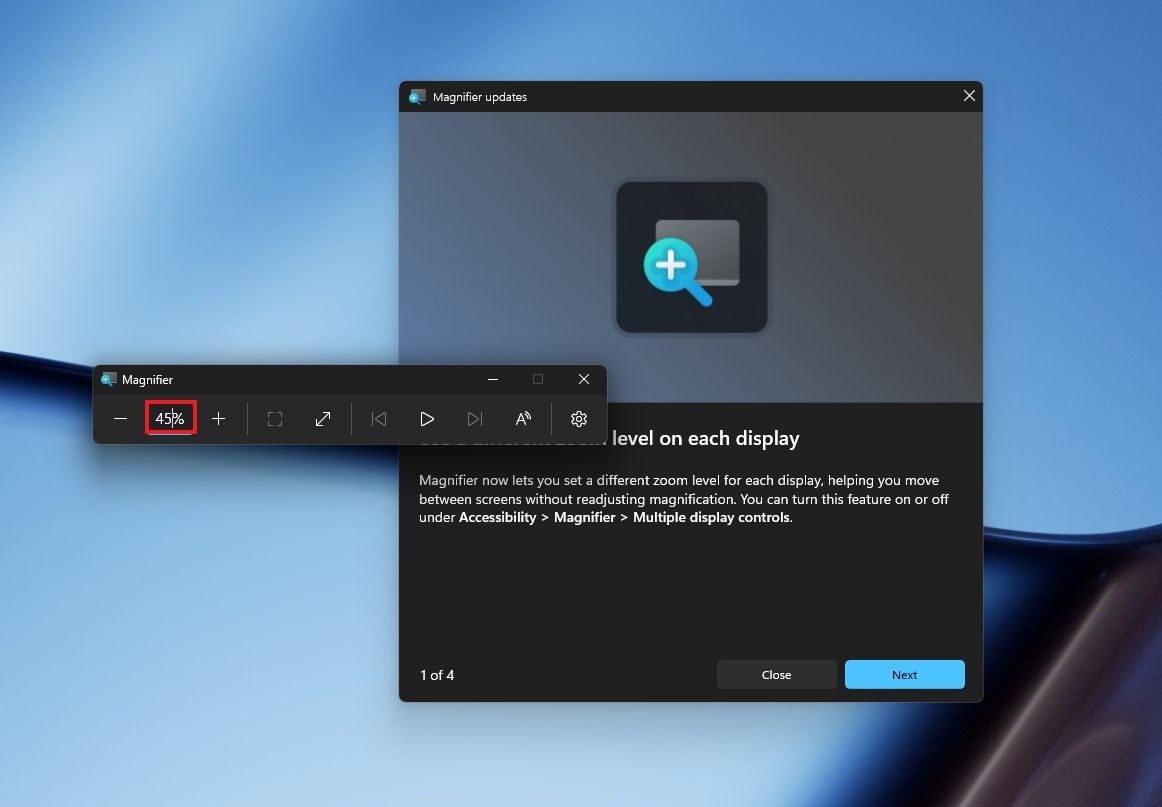
In this wave of updates, the Magnifier lets you enter the exact zoom percentage directly in the toolbar instead of relying on the presets.
(Image credit: Mauro Huculak)
In addition, in the settings, the preset option now includes more increments up to 400 percent.
Windows Share customization
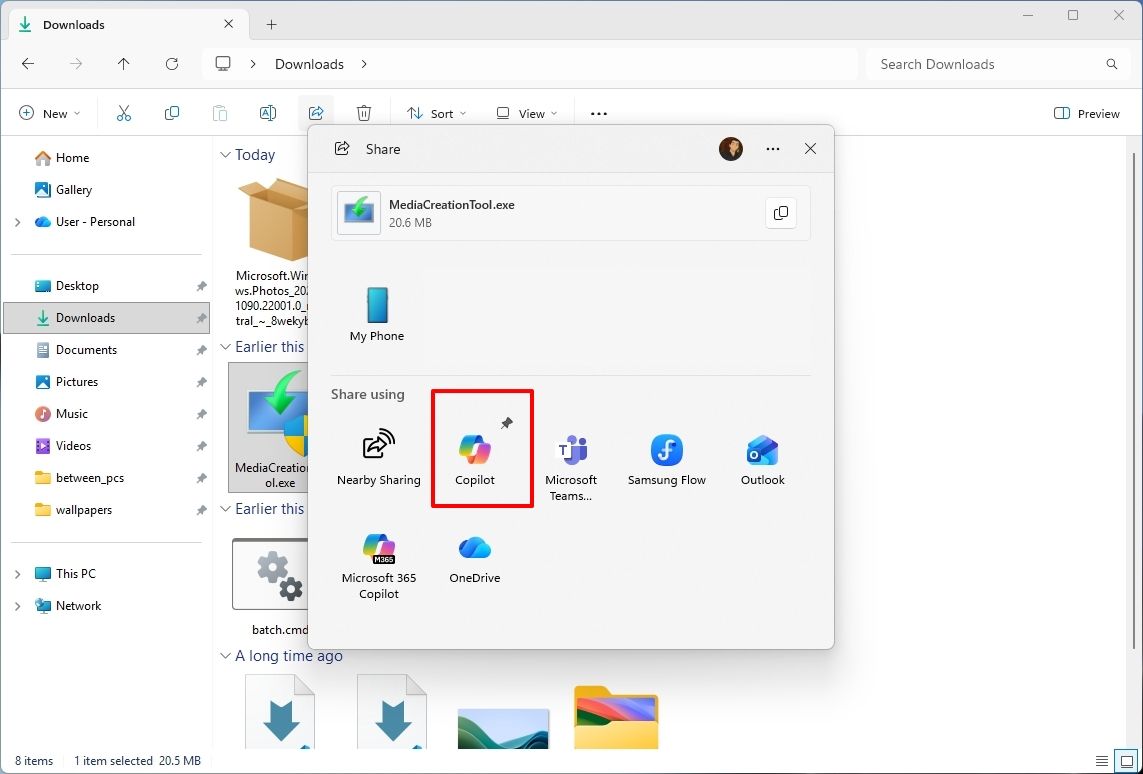
Although the Windows Share experience remains largely the same, Microsoft has added the ability to pin your favorite apps directly in the Share interface in the Experimental channel for Future Platforms.
(Image credit: Mauro Huculak)
This change makes it easier to find your favorite apps that you use often when sharing.
Installed apps page tweak
Finally, starting with build 29680, the "Installed apps" page now shows the version number at the top level under the Apps settings section for package apps.
Windows Central's Take
I'd put the new Windows Search, Cloud Rebuild, and File Explorer improvements at the top of this list. Search is becoming more useful for everyday tasks, Cloud Rebuild is getting better options for recovering a computer and securely erasing its data, and File Explorer is addressing small annoyances that can make file management frustrating.
These changes can make Windows 11 more practical without requiring users to learn an entirely new way of doing things.
I hope Microsoft continues to improve these core features instead of leaving them behind in favor of bigger, flashier additions.
Which of these three improvements would you most like to see arrive on your PC? Let me know in the comments.
More resources
Explore more in-depth how-to guides, troubleshooting advice, and essential tips to get the most out of Windows 11 and 10. Start browsing here:
Plus, Microsoft is also offering a special surprise for PC players during this time in honor of Xbox's 25th anniversary as part of these updates. Starting in November, customers who buy eligible Windows 11 PCs will be able to claim PC versions of 25 Xbox games with a total value of over $500.
This free collection of games (all digital, no discs) will only be valid with the purchase of select Windows devices sold from participating U.S. retailers from November 2, 2026, to December 31, 2026. Microsoft describes in its small print that offers to 'claim this collection' for your eligible device in the Microsoft Store app will be available until November 30, 2026.
You must activate your PC and claim the digital game bundle for your Microsoft account by December 2, 2027. You'll be able to check aka.ms/XBOXbundle on November 2, 2026, for game compatibility, system requirements, ratings, and full offer terms.
When you claim these titles, their PC versions will be linked to your Microsoft account and will become playable on any compatible Windows PC. Plus, some select titles will also be playable on Xbox Series X|S consoles with Xbox Play Anywhere support.
Note that some devices eligible for this giveaway will not be able to play all the games within this collection.
Christmas is coming early for Xbox fans in November
This free Xbox giveaway list is already stacked with some incredible titles from the few confirmed titles alone. We have Gears of War: Reloaded, the HD remaster of the iconic third-person shooter that still holds up today with its brutal gunplay, gritty story, and addictive multiplayer.
There's also Halo: Combat Evolved Anniversary, the first HD remaster of the first Halo that completely retains the gameplay of the original game while improving its graphics. Plus, unlike Halo: Campaign Evolved, Halo: Combat Evolved Anniversary comes with PvP multiplayer modes to keep players busy long after beating the campaign.
Then there's The Elder Scrolls V: Skyrim Special Edition, Bethesda Softworks' magnum opus of an open-world RPG that people still play to this day for its immersive world and lore, engaging gameplay, and near-infinite modding compatibility.
We also have the cutesy Minecraft Dungeons, which is a fun, beginner-friendly ARPG that combines the hack-and-slash and looting gameplay of Diablo with the universe of Minecraft. Finally, we have Age of Empires 2: Definitive Edition, a full-blown remaster of the genre-revolutionizing real-time strategy game that features co-op, competitive multiplayer, mods, and full crossplay.
With such high-profile games, I can't wait to see what the rest of the free Xbox games being given away by Microsoft are as we inch closer to Xbox's 25th anniversary. Needless to say, it's going to be one heck of a birthday party.
Join us on Reddit at r/WindowsCentral to share your insights and discuss our latest news, reviews, and more.
Microsoft just shared a massive blog post recapping major Windows 11 changes, including new Photos app features, an improved Search experience, expanded phone integration, and gaming improvements.
Many of the changes highlighted by Microsoft have already been announced, or even fully detailed elsewhere. But with Windows 11 in the middle of a significant refresh, gathering them all in one place is useful.
While much of the post focuses on previously known improvements, Microsoft also used it to introduce a few genuinely new additions, including the redesigned Photos app and an Xbox anniversary game bundle for eligible PC buyers.
Here's a quick rundown of the features Microsoft highlighted:
New Photos app
Advanced Shader Delivery (ASD)
Windows 11 performance improvements
Faster Start menu
Faster File Explorer
Faster Search
Faster Snipping Tool
Faster Settings
Memory optimizations
Reduced Widgets memory usage
Reduced update times
Bluetooth and AirPods improvements
Windows Hello improvements
A push to improve driver quality
Expanded Phone Link features
Microsoft Ink Canvas
Advanced Haptics
Improved accessibility
One of the biggest changes is the new Search experience that allows you to perform actions from the taskbar. The new Search is faster, supports inline actions, and lets you perform tasks without opening related apps or settings menus. The new Search is already in testing among Windows Insiders.
Microsoft explains that improvements to Windows 11 results in an experience that feels up to 20 percent more responsive. That improvement comes as the result of several efforts from Microsoft, such as optimizing memory management and streamlining in-box apps.
The company also highlights that Windows 11 is more reliable and customizable than before. Over the past year the Widgets Panel has been cleaned, the taskbar has gained the option to be placed on other parts of your screen, and Windows Update has been improved.
Microsoft specifically highlighted Bluetooth improvements, including AirPods pairing that it says is up to 15 seconds faster.
The new Windows Search is faster, more efficient, and supports inline actions. (Image credit: Microsoft)
On the gaming side of things, Advanced Shader Delivery (ASD) reduces the initial load time of games by delivering precompiled shaders. Forza Horizon 6 and Gears of War: E-Day are supported now and more titles should gain support in the future.
The improvements to Windows 11 will help anyone with an up-to-date PC, but it's clear Microsoft is taking the opportunity to suggest people buy a new PC. As part of that effort, the company has an Xbox 25th Anniversary bundle that includes over $500 worth of games. The collection includes several major titles, including Skyrim Special Edition, Halo: Combat Evolved Anniversary, Age of Empires II Definitive Edition, Minecraft Dungeons, and Gears of War: Reloaded.
"A new PC is a meaningful purchase, and the value should show up in more than a spec sheet," says Microsoft. "The reason to upgrade is not just one feature; it is how [experiences] work together to make more of your day feel effortless."
Microsoft shared a commitment to listen to feedback earlier this year. The company followed up with several improvements as part of its Windows K2 initiative. It's taken time for those promises to move from feedback and Insider testing to broader availability, but Windows 11 is now seeing some of its most significant changes in years.
The real question is whether these improvements change buying behavior. Microsoft clearly believes a faster, more reliable Windows experience can help convince people to upgrade.
Join us on Reddit at r/WindowsCentral to share your insights and discuss our latest news, reviews, and more.
Ao contrário dos discos rígidos tradicionais, os SSD podem ser prejudicados pela desfragmentação. Veja porquê e o que deve fazer para manter o seu armazenamento rápido e saudável durante mais tempo.
Microsoft just announced a Windows and Surface event for October 7, 2026. The event will be held in San Francisco and will focus on "how local AI will shape the next chapter of the PC." It will start at 10 AM PT / 1 PM ET.
Microsoft CEO Satya Nadella will be at the event, as will Surface chief Pavan Davuluri. NVIDIA CEO Jensen Huang will also be there, so we can expect to see RTX Spark discussed on stage.
RTX Spark is NVIDIA's new superchip. It powers the Surface Laptop Ultra and Surface RTX Spark Dev Box. Microsoft already announced those devices but has not shared key details yet, including pricing and availability. The event in October could be a chance to share more about the devices and the RTX Spark in general.
Microsoft is also expected to highlight improvements to Windows 11. The tech giant is deep into its Windows K2 initiative that aims to reduce pain points in the operating system and smooth the overall experience. We've seen some early wins from that initiative, such as the option to resize and move the Taskbar on Windows 11.
But Microsoft still has a long way to go before Windows 11 is redeemed in the eyes of many. Windows updates often ship with bugs and the operating system still has mismatching UI elements. Fixing Windows 11 is a large project that will take time, and Microsoft would be wise to show what it's already done to improve the OS and point to what's on the way.
While Microsoft could always surprise us with more hardware announcements, its quote about "how local AI will shape the next chapter of the PC" aligns well with devices we already know are on the way. The Surface Laptop Ultra and Surface RTX Spark Dev Box are designed to run AI locally.
Based solely on that quote, we could see Microsoft discuss Project Zenith at the event. That's the codename of a new class of devices aimed at developers that want to build apps and local AI experiences.
Join us on Reddit at r/WindowsCentral to share your insights and discuss our latest news, reviews, and more.
Microsoft is having a bit of a rough September when it comes to bugs. Another issue has been discovered in Windows 11. This time, it's Excel's copy and paste feature that's been broken by an OS update.
That bug was discovered shortly after Microsoft confirmed issues with Hyper-V Linux folder shares, Remote Desktop, and USB audio. Those have since been fixed through an out-of-band update, but the Excel bug has not been fixed yet.
"In Microsoft Excel 2024, 2021, 2019, and 2016, the paste operation might fail silently. Although users try to paste content, the source remains selected and the destination is unmodified. When this issue occurs, users receive no indication of the failure, such as a beep or error message. Microsoft is researching the issue and will post more information in this article when the information becomes available."
The September Patch Tuesday update has almost 1,000 security fixes, so it is important to install it on PCs. But it may be worth holding off a bit if your workflow would be hindered by lingering bugs.
I don't want to come across as a doomsayer. The sky is not falling because copy and paste in Excel is broken. But it's frustrating to see bugs creep into Windows 11 updates.
Microsoft is aware of negative feelings many users have toward Windows 11. The company has a Windows K2 initiative that aims to reduce pain points and improve the overall Windows 11 experience. Part of that initiative centers around improving Windows updates.
On paper, Microsoft is trying to reduce how many updates people need to install each month. But I've had to install several Windows 11 updates just in September, including the out-of-band update that fixed the audio issue.
Join us on Reddit at r/WindowsCentral to share your insights and discuss our latest news, reviews, and more.
Windows 11 just received an out-of-band update that addresses several issues with the operating system. The September Patch Tuesday update includes almost 1,000 security fixes and other improvements, but it also had bugs that broke folder shares in Hyper-V-based Linux virtual machines, Remote Desktop Services, and certain audio devices.
Microsoft released the out-of-band update shortly after the issues were confirmed. It should download automatically in the background if you're running Windows 11 versions 26H1, 25H2, or 24H2. You can also grab the update through the Microsoft Update Catalog.
For the sake of clarity, Microsoft refers to these types of updates as out-of-band updates, but many people refer to them as emergency updates because installing them is urgent enough to ship the fixes immediately.
Here's a quick summary of the fixes, as outlined by Microsoft:
Out-of-band updates have been released more in 2026 than in previous years. Some bugs in Windows 11 have required multiple patches.
When we publish a piece on Windows Central about a Windows 11 update, it's normal to see comments asking what the update will break. When there are inevitably issues with Windows 11, people ask "what do you expect" or something along those lines.
Obviously, if Microsoft finds issues, it needs to patch them. Emergency updates should be used when needed. My question is: why are they needed more frequently this year?
Microsoft is in the middle of an initiative to improve Windows 11 and reduce pain points in the operating system. But no one will care if they can move the Taskbar to the top of the screen or customize the Start menu if their speakers don't work.
Join us on Reddit at r/WindowsCentral to share your insights and discuss our latest news, reviews, and more.
The latest Windows 11 update gives you plenty of reasons to upgrade, including hundreds of security fixes. But it also includes some bugs that range from frustrating to workflow-breaking.
Microsoft recently confirmed that a bug in Windows security update KB5124008 can cause some audio devices to fail. Affected systems will see one or more of the following issues:
The device displays an error in Device Manager: "This device cannot start (Code 10).”
No audio output.
Volume controls are unresponsive or remain at zero.
Sound settings are unresponsive or unavailable.
Some devices might function in standard stereo configurations but fail when using multichannel audio features, including 8-channel or 3D audio modes. Some customers have reported that they're able to restore audio in these cases by switching to 2-channel mode.
I believe my PC was affected by this bug. After installing the most recent Patch Tuesday updates, my external USB speakers stopped working, and Windows automatically defaulted my audio output back to my docked laptop's built-in speakers.
The problems only affect USB Audio Class 1.0 devices. Just about any operating system or platform that supports USB audio works with USB Audio Class 1.0. That class was the first standard for audio devices and shipped in 1998. There are USB microphones, headsets, speakers, and many other devices that fall into the category.
Because some modern platforms (most notably gaming consoles like the PS5 and Nintendo Switch) do not support newer standards, headsets and other peripherals are often made to be USB Audio Class 1.0 devices so they work everywhere.
The bug affects Windows 11 versions 26H1, 25H2, and 24H2. Microsoft has confirmed the issue but has not released a fix at this time.
You may be able to workaround the bug by switching to 2-channel mode, but that is not a permanent fix. You can also uninstall the KB5124008 update, though it may be better to just wait for an official fix or to find a workaround.
Join us on Reddit at r/WindowsCentral to share your insights and discuss our latest news, reviews, and more.
Long before Taco Tuesday became part of the pop-culture vernacular, Tuesdays were synonymous with security — and for anyone in the tech world, they still are. Patch Tuesday, as you most likely know, refers to the day each month when Microsoft releases security updates and patches for its software products — everything from Windows to Office to SQL Server, developer tools to browsers.
The practice, which happens on the second Tuesday of the month, was initiated to streamline the patch distribution process and make it easier for users and IT system administrators to manage updates. Like tacos, Patch Tuesday is here to stay.
Patch Tuesday coverage has long been a staple of Computerworld’s commitment to provide critical information to the IT industry. That’s why we’ve gathered together this collection of recent patches, a rolling list we’ll keep updated each month.
In case you missed a recent Patch Tuesday announcement, here are the latest six months of updates.
September Patch Tuesday: 963 CVEs, 2 exploited flaws, 1 message
September’s Patch Tuesday is Microsoft’s biggest of 2026, with 963 CVEs, two exploited flaws and a clear message: prioritize Windows, Office and SQL Server.
Two vulnerabilities are already exploited: CVE-2026-81963 in the Windows Update Stack and CVE-2026-85880 in Advanced Local Procedure Call. Nothing in this release was publicly disclosed ahead of the patch. Readiness recommends a Patch Now scheduling for Windows, Office, SQL Server and the developer tooling, and standard patch release for Exchange.
August’s Patch Tuesday is a monster: 751 fixes, with an exploited Windows flaw
Microsoft’s August 2026 Patch Tuesday closes at 751 CVE entries (across all product families), with 108 rated as critical. One flaw is already exploited, CVE-2026-68820, an elevation of privilege in the Windows WinSock driver (afd.sys). Two more were disclosed but not exploited.
This security-only release earns Patch Now for Windows, Office and Exchange; no SQL Server updates this month. Unfortunately, several critical issues affect server roles: Windows DNS Server carries a cluster of critical RCEs; Windows DHCP Server is the most-populated Microsoft product family at 14 entries. Testing should lead with printing and fonts and the Remote Desktop client, then a WinSock smoke test given the exploited afd.sys flaw.
July’s Patch Tuesday sees an end-of-support collision amidst a massive, record-setting patch wave
Microsoft addressed 722 CVEs this month once the 427 Chromium upstream relays are set aside — roughly three times a normal cycle and one of the largest single months in recent memory. Two vulnerabilities arrive under active exploitation: an elevation of privilege in Active Directory Federation Services (CVE-2026-56155), and an elevation of privilege in SharePoint Server (CVE-2026-56164). A third, a BitLocker security feature bypass (CVE-2026-50661) is publicly disclosed but not yet exploited.
The July 2026 Patch Tuesday earns Patch Now recommendations for Windows, Office, Exchange, and SQL Server. SharePoint has two critical RCEs on top of its exploited zero-day, and Exchange Server returns with a critical on-premises spoofing flaw. Adding to our (dear) administrator’s efforts, SharePoint Server 2016/2019 and SQL Server 2016 all reach end of support today.
Microsoft this month released 206 updates affecting Windows, Office, Exchange Server, and its developer tools — including three Windows vulnerabilities already publicly disclosed. That trio includes an elevation of privilege in the Collaborative Translation Framework (CVE-2026-45586), a denial of service in HTTP.sys (CVE-2026-49160), and a BitLocker security feature bypass (CVE-2026-50507). At the moment, none appear to be under active exploitation, but all three are rated “Exploitation More Likely.”
Even without an exploited zero-day, the June 2026 Patch Tuesday release requires Patch Now recommendations for Windows, Office, and Exchange. The latter is back in the patch picture with a consolidated security update that Microsoft recommends installing “as soon as possible.”
For May, Patch Tuesday means 139 updates — but no zero-days
Microsoft this month released 139 updates affecting Windows, Office, .NET, and SQL Server (though there were no updates for Microsoft Exchange Server). Despite the absence of zero-days, the May Patch Tuesday update still requires Patch Now recommendations for Windows and Office.
The combination of three unauthenticated network RCEs (Netlogon, DNS Client, and SSO Plugin for Jira and Confluence), four Word Preview Pane RCEs, the large TCP/IP vulnerability cluster, and the carry-over BitLocker recovery condition (still active on Windows 10 and Windows Server) warrants an accelerated deployment release schedule.
Microsoft’s Patch Tuesday release for April is a whopper
Windows admins are going to be busy this month, dealing with the largest Patch Tuesday cycle in memory. The April release involves 165 updates and roughly 340 unique CVEs from Microsoft — including two zero-days, one of which is already being actively exploited in the wild.
The Readiness team recommends “Patch Now” schedules for nearly every major product family: Windows, Office (with a zero-day), Microsoft Edge (Chromium), SQL Server, and Microsoft Developer Tools (.NET). April also brings Phase 2 of Microsoft’s Kerberos RC4 hardening with full enforcement set for July. There is a lot to cover, so here’s a useful infographic mapping the deployment risk for each platform.
Move over iPhone Duo announcement, the real news is here. Windows 11 will soon feature a few more emojis. Microsoft recently shipped Windows 11 Builds 26100.9539 and 26200.9539 to Insiders in the Release Preview Channel. Among other changes, the update adds support for Emoji 17.0.
Since these are Release Preview builds, many of the included changes have already been seen during earlier Insider testing.
Several changes have been made to File Explorer that should make for a smoother experience. Home within File Explorer now preserves the state of sections, so the next time you open the app things will be expanded or collapsed as before. Thumbnail previews for cloud files should appear more consistently as well following this update.
Emoji lovers will be happy to hear that Emoji 17.0 support comes with this build of Windows 11. Emoji 17.0 adds the distorted face, fight cloud, and hairy creature (Bigfoot) emojis.
Microsoft continues on its recent push to create more widgets. These Insider builds add a Tips widget that provides guidance about Windows features. Microsoft recently announced a battery widget that's in the works as well.
Another welcome change is the update to remap the Copilot key to function as the Right Control key or Context Menu key. Copilot already has a keyboard shortcut (Alt + Space) for those who want to use it, so having a dedicated key for a niche tool felt a bit like overkill.
New! This update adjusts how the preview pane handles files downloaded from the web. For HTML files, a new Preview anyway button lets you acknowledge the warning and preview the file. Non-HTML files, such as PDFs, are now previewed automatically.
New! File Explorer Home now preserves the state of sections (expanded or collapsed), so you can pick up where you left off.
New! This update improves the reliability of thumbnail previews for cloud files in the Details pane. The pane has also been reorganized so file properties are easier to find and review at a glance.
New! This update addresses an issue that could clear the address bar contents when entering edit mode by clicking near the right side of the address bar.
Emoji
New! This update adds support for Emoji 17.0, including new emoji such as distorted face, fight cloud, and hairy creature. To insert them, press Windows key + Period (.) to open the emoji panel.
New! This update also refines the design of several existing emoji for better consistency across platforms, including saluting face, face with peeking eye, goose, lotus, and kissing cat.
Widgets
New! This update introduces the Tips widget, which provides short, helpful guidance about Windows features. To add it to your Widgets board, open the board, select Add widgets, and then choose Tips. To add it to your lock screen, go to Settings > Personalization > Lock screen and add Tips to your lock screen widgets.
Personalization
This update includes a variety of improvements to desktop background experiences:
This update improves the reliability of the Personalization > Background page in Settings.
This update adds support for using DIB image files as desktop backgrounds.
This update improves the reliability of desktop slideshow transitions on newly created accounts.
This update improves the resolution of previews when selecting a desktop background in Personalization > Background.
This update improves the desktop background preview display in Settings for users with portrait mode monitors.
This update improves the reliability of processing desktop wallpaper changes when they happen in quick succession.
This update adds support for using slideshow wallpapers with multiple desktops, so that it won't automatically switch you back to Picture.
Bluetooth
This update contains several enhancements to improve reliability and the experience when connecting to and using Bluetooth devices:
During voice calls, the Windows shell volume flyout now appears when adjusting the volume of a Bluetooth Classic Audio accessory using the volume controls on the accessory, providing visual feedback of the new volume level.
This update improves the accuracy of the connection state displayed by Windows for accessories that have disconnected from the PC.
This update improves the stability of the Bluetooth & devices page in Settings when managing Bluetooth and audio devices.
This update resolves an issue where the Bluetooth radio could be turned off, but the radio control toggle on the Bluetooth & devices page in Settings appeared on.
This update improves Bluetooth audio stability and compatibility.
This update improves microphone compatibility with certain Bluetooth Classic Audio accessories.
This update resolves an issue that could result in a crash (error code 0x139) while streaming Bluetooth audio.
This update improves reliability and performance with LE Audio accessories.
This update improves the reliability of shared audio.
Accessibility
New! This update introduces Open apps maximized, an accessibility setting that automatically maximizes app windows as they open. It removes a bit of everyday friction whether you use a screen reader or magnification, work in tablet mode, or simply prefer a consistent, full-screen workspace. To turn it on, go to Settings > Accessibility > Visual effects and turn on Open apps maximized.
This update improves navigation of the Bluetooth quick settings page when using keyboard input, gamepad input, or Narrator.
Magnifier
New! This update brings a modernized visual refresh to Magnifier on the taskbar:
Updated icons: Magnifier's toolbar icons align with the Windows 11 visual design, giving the tool a cleaner, more modern feel.
Refined spacing and padding: The padding is adjusted with consistent spacing across the toolbar for a more polished layout.
Views, zoom controls, keyboard shortcuts, and Read Aloud all behave exactly as they did in earlier versions.
Settings
This update improves the reliability of Settings when interacting with the contents of the Settings > Bluetooth & devices > Printers & scanners page.
This update updates Settings > Apps > Installed apps to show the version number at the top level for packaged apps, as it already does for other apps.
This update improves the time picker control in Settings so that it reflects your preferred time format when you switch between 12-hour and 24-hour formats. This applies in places such as setting active hours and scheduling night light.
This update improves the persistence of the Allow multiple apps to use camera at the same time option in Settings > Bluetooth & devices > Camera.
Touchpad
New! Additional gesture controls for precision touchpads are available in Settings > Bluetooth & devices > Touchpad:
Single-finger scrolling: Scroll vertically with one finger starting from the left or right side of the touchpad.
Automatic scrolling: Keep scrolling without lifting your fingers by moving them near the edge of your touchpad while scrolling.
Previously, gesture controls for scroll and zoom speed and accelerated scrolling were released in the July 2026 update (KB5101684).
Copilot key
New! This update introduces a new Windows 11 setting that lets you remap the Copilot key to function as the Right Ctrl or Context Menu key, helping preserve familiar keyboard shortcuts and accessibility workflows. For more information, see Understand updates to the Copilot key on Windows devices.
Camera Roll
New! This update introduces Camera Roll Backup in Settings, helping eligible users protect their photos with OneDrive. You can turn on the feature from the Settings Home or Accounts page and complete setup on your mobile phone using a QR code.1
Fonts
New! This update adds support for the Garay and Beria Erfe scripts to the Ebrima font, the first Microsoft font to support both. Garay was encoded in Unicode 16.0 and Beria Erfe in Unicode 17.0.
New! This update also refines the Adlam glyph designs in Ebrima to align with the current Unicode standard and improve consistency.
Windows Recovery Environment (WinRE)
New! This update enables WinRE to automatically reuse eligible Wi-Fi profiles already saved in Windows, including supported certificate-based networks. Devices can now get online automatically during recovery scenarios such as quick machine recovery or cloud rebuild, without preconfiguring Wi-Fi credentials in WinRE. This capability is on by default, and IT admins can disable it. For more information, see Windows Recovery Environment (Windows RE).
New! This update adds a recovery remote management plug-in for extending WinRE management capabilities for mobile device management (MDM) providers. For more information, see Recovery Remote Management Overview.
Kiosk mode
The Windows key + Tab keyboard shortcut is now disabled when using a restricted user experience kiosk.
The Windows key + A and Windows key + C keyboard shortcuts are now disabled when using single-app kiosk mode.
Windows Backup
PC-to-PC Migration is no longer available. This feature, introduced through a phased rollout, previously allowed you to transfer files and settings directly from your previous PC when setting up a new Windows PC. To back up and restore your files, settings, and other supported items when moving to a new PC, use Windows Backup. For more information, see Back up and restore with Windows Backup.
Join us on Reddit at r/WindowsCentral to share your insights and discuss our latest news, reviews, and more.
Windows 11 now includes new family safety features that can reduce how much adult content children are exposed to or able to view. Microsoft has a pair of blog posts on the topic, one that focuses on consumer-facing features and another that covers how APIs and Microsoft accounts are used to make the Windows experience safer.
The first change Microsoft highlighted is not a new feature, but a speed boost to an existing one. Granting parental approval is now faster than before, which allows parents and guardians to quickly approve things like additional screen time, access to specific apps, and purchases.
Speed is important when it comes to family safety. Occasionally children run into blocks when trying to access content that is required for homework or that is otherwise age-appropriate. Delayed approvals leave children sitting around and can cause frustration for kids and parents.
Microsoft has also made it easier for parents to keep track of web activity, app activity, and spending. Managing family groups has been improved as well, including options that make it simpler to add or remove members.
The importance of Microsoft accounts
Some people complain about Microsoft accounts being a requirement to use certain services. Microsoft has budged a bit in this area. For example, it's now possible to sign in to Microsoft Edge with a Google account.
But managing family safety settings relies heavily on a Microsoft account, as explained by the company:
"At Microsoft, we believe safety should be easier for families to understand and easier for developers to build into experiences for children to use. On Windows, that starts with the account. Microsoft account is a trusted foundation through which Windows brings age-appropriate protections and parental choices into more of the digital experiences encountered by children and teens every day."
Setting up accounts for children is a requirement to set parental controls for individuals. Microsoft accounts also allow Windows to know if a user is a child, teen, or adult.
Microsoft has introduced a new API to extend age awareness beyond the OS and across the entire Windows ecosystem. The Windows Age APIs can verify a user's age and then send that verification to an app without sharing personal information. It's a bit like Windows Hello but for age verification.
The new Windows Age APIs are available now to Windows Insiders and should ship to all Windows users soon.
Join us on Reddit at r/WindowsCentral to share your insights and discuss our latest news, reviews, and more.

 Login
Login