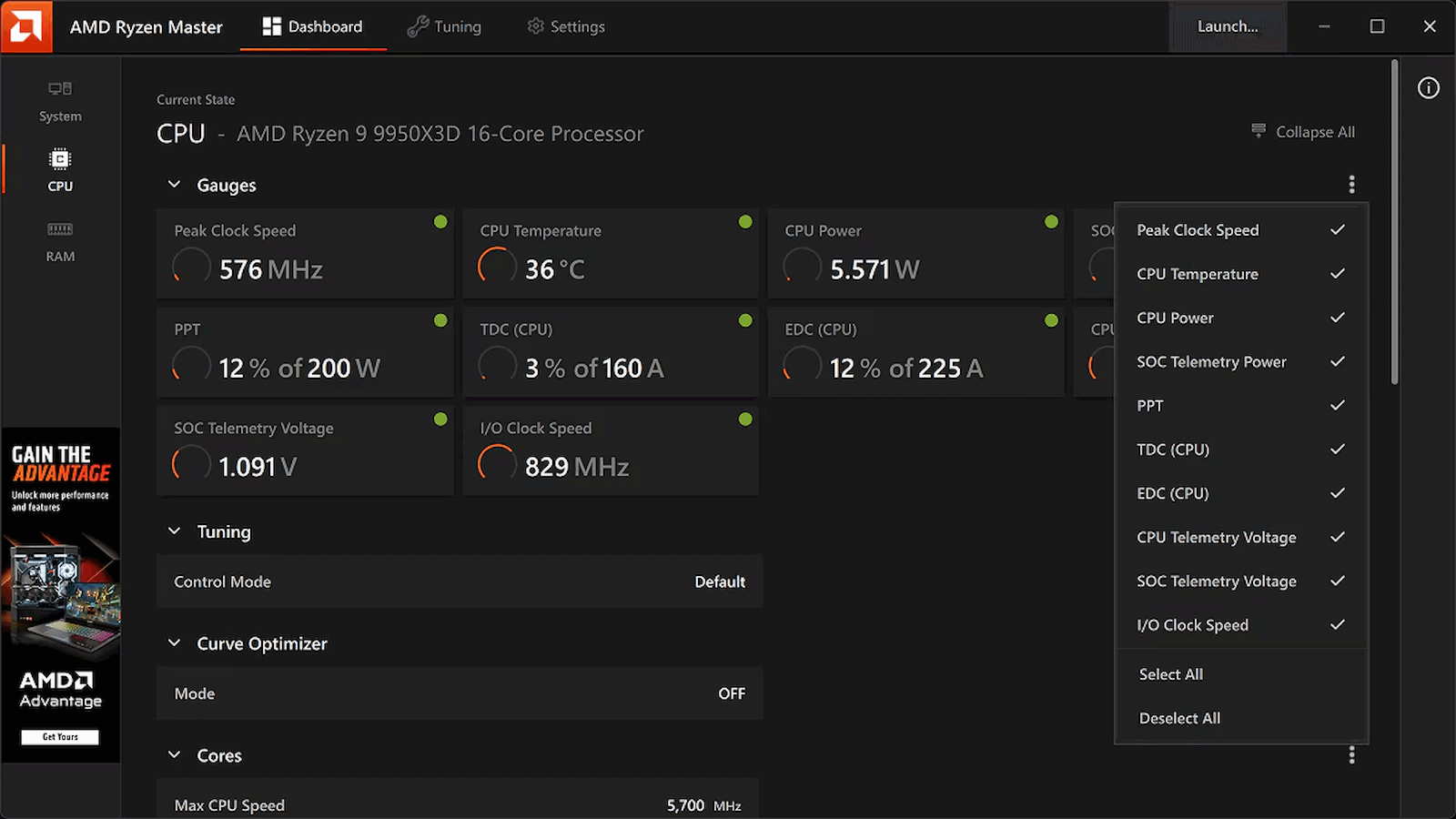
While Windows overclockers have spent years lazily sliding UI controls to adjust frequency curves and tweak voltages inside Ryzen Master, Linux users have largely had to treat their CPU tuning like an archaeological dig into the opaque veil of UEFI/BIOS firmware. Well, rejoice, Linux users, as AMD has officially published a fresh set of patches for the Linux kernel introducing AOD (AMD Overclocking Driver) support for Ryzen processors, Phoronix reports.
Instead of forcing developers to reverse-engineer closed-source firmware hooks or rely on messy, machine-specific ACPI workarounds, this new kernel driver is a direct pipeline to AMD's platform adjustments. By exposing core tuning capabilities straight through the standard sysfs interface, AMD is laying down an official, upstreamed foundation for software-level CPU management.
Right out of the gate, the driver handles platform-level SMT toggling, memory clock visibility, and power tunables. That's right: you can now toggle Simultaneous Multithreading (SMT) dynamically through this driver interface. That works through the CPU hotplugging mechanism and acts as a clean alternative to passing the old 'nosmt' boot parameter to the kernel. The new driver also allows real-time monitoring of memory clocks, and initial power controls are being wired up, too.
This tool isn't available on Linux, and may never be, but at least its functions will be soon. (Image credit: AMD)
Now, if you're expecting a polished, one-click official AMD application equivalent to Ryzen Master for Linux, just pump the brakes. AMD is following its open-source amdgpu graphics driver playbook here, building the kernel plumbing and then leaving the user-space presentation layer entirely up to the community. That means you're going to have to wait for utilities like CoreCtrl to build out interfaces for this new driver, but it shouldn't be long now before that work gets underway in earnest.
This approach is arguably a better fit for the Linux philosophy anyway. Because the controls are being exposed via clean kernel sysfs nodes, it won't be long before independent developers integrate these knobs into powerhouse open-source monitoring and tuning suites, or even write dedicated desktop environment extensions specifically for the purpose of tweaking Ryzen processors.
The new patches are currently winding their way through review on the mailing lists, meaning mainstream kernel integration is on the horizon. For a DIY enthusiast who loves squeezing every last MHz out of silicon while maintaining a fully open-source software stack, this is easily the most exciting hardware-enablement milestone I've seen in a long time.
In a weird way, I’ve been thinking about the idea of a Googlebook for well over a decade now — despite the fact that such a product has only officially existed for a matter of months.
I’m relatively unusual in the world of tech journalism, y’see, in that I’ve been both writing about Android and ChromeOS since the platforms’ earliest days and actively using devices from both ends of those ecosystems in my own day-to-day life that entire time. Most tech writers tend to be iPhone owners and Chromebook skeptics who see this part of the digital world from an outside view — once a year or so, when significant new devices come along for assessment — without having the perspective of someone who’s truly immersed in it day in and day out.
That distinction is always painfully apparent when you read a review that waxes on endlessly with out-of-touch iPhone comparisons and comments about the limiting nature of Google’s ChromeOS concept — positions that simply aren’t accurate for those of us who live in these ecosystems and embrace the philosophies they offer.
This won’t be one of those reviews, and I perhaps more than anyone have been champing at the bit to get my hands on one of Google’s new Android-ChromeOS-combining Googlebooks since the vaguest concept of these devices first appeared on the horizon earlier this year.
So keep that in mind when I tell you, coming from the perspective of someone who very much wanted to love this: Using a Googlebook is an extraordinarily strange experience — especially when you’re treating it like a regular laptop, as it’s being positioned by Google, and relying on it to get real work done.
But amidst all the oddness, there are some true high points along with plenty of intriguing, if unfinished-feeling, potential.
Here’s what it’s been like trying to actually work on a Googlebook — specifically, the Lenovo Googlebook, which sells for $1,149 (and was provided to me as a short-term loaner from Lenovo for the purposes of this article).
The Googlebook groundwork
First things first, let’s back up a minute and set the stage for what we’re even talking about here.
It’s meant to represent an evolution of sorts from the Chromebook, the initially simple laptop Google launched in 2012 and slowly morphed from a barebones web portal into an “everything OS” — a system that runs web apps, Android apps, Linux apps, and even sometimes Windows apps, for businesses that have specific needs that can’t be addressed in any other way.
But while ChromeOS and Android grew closer and more connected over time, Googlebook OS — the awkwardly clunky name of the operating system at the heart of every Googlebook — sets all of that aside to aim for a fresh start. The software here sports Android at its core alongside a variety of optimizations designed to bring in bits of ChromeOS-like elements and make everything seem more suited to a laptop setting.
With that in mind, starting to use a Googlebook is both immediately familiar and vexingly confusing. The interface feels a lot like Android, which is nice, but it also doesn’t quite feel in line with how you expect to work on a desktop computer. It’s a jarring sort of mashup, and it’s tough to wrap your head around to get comfortable working.
That’s true for relatively small touches like having the clock in the upper-left corner of the screen instead of in the lower-right corner, where’d you expect it on most non-Apple-made computers. It’s a little thing, but it keeps throwing me whenever I try to glance at the time during the day. That approach is similar to Android, yes, but it just doesn’t feel right in this environment or with what pretty much all of us who’d be considering this kind of device have been trained for ages to expect with a desktop computer experience.
The Googlebook’s desktop is similar to Android — but that doesn’t immediately feel natural in a desktop computing environment.
JR Raphael / Foundry
It’s true, too, for keyboard shortcuts, which don’t work the same as they did on ChromeOS — even just basic, common things like opening items on the taskbar. (Googlebook OS does have an impressive array of customizable keyboard shortcuts, if you find ’em, but there’s a ton of new combinations and muscle memory to be learned.)
The confusion is probably most prominent, though, on the app front, where Google is really leaning hard into the Play Store and the idea of Android apps being the primary way to get stuff done, despite the fact that Android apps often aren’t ideal — or even available, in some instances — in a productivity-oriented, desktop computing scenario.
The Googlebook app experience revolves primarily around the Play Store — which can be a pro or a con, depending on the moment.
JR Raphael / Foundry
At least one of Google’s own apps addresses this elegantly. Installing Google Calendar from the Play Store basically just gives you an app-like shell around the Calendar website, and you can use the Android app’s widget alongside that, if you want. (The downside is that you can’t use the equivalent Android app in full even if you want to, as there’s no straightforward path to install it — and, strangely, the same web-widget combo is not available with other Google apps, like Gmail or Drive, which give you only the web version and no option to use any associated Android widgets.)
The Google Calendar app on a Googlebook is basically just the Calendar website, though you can still use the Android app’s widget alongside that.
JR Raphael / Foundry
And since the version of Chrome on a Googlebook looks and feels like the full desktop version of the browser — like what you’d expect on a Chromebook or any other desktop computer — relying on this unusual mix of web and Android interfaces for productivity is mostly OK. Mostly.
Working in Docs, with as few as five or six tabs open, I continue encountering an occasional issue where the tab just blanks out for a second or two and then comes back — which, suffice it to say, isn’t exactly optimal for working.
The email app I use, Superhuman, appears to be completely incompatible here. The web version (which is powered by a Chrome extension) errors out anytime I open it, and the Android app is clearly not meant for large-screen, keyboard-and-mouse use and presents an incredibly awkward experience as a result.
The productivity tool Notion, meanwhile, came up for me as one of the Googlebook’s suggested tools that’s optimized for desktop use, so I followed that direction and installed the Notion Android app — only to find that the app is much more awkward and limited on a laptop than the regular Notion web experience, where all the functions are available and the keyboard shortcuts work as expected. So I decided to try to install the Notion web app for easy ongoing access to that, and I encountered a mysterious error.
Trying to install certain common web apps results in a frustrating error.
JR Raphael / Foundry
D’oh.
Then there’s something like Slack, which you can install from the Play Store but with an accurate warning that it’s “better on the website.” So, OK: You go to the website, try to sign in and install the web app version of it from there, and…there’s that blasted “cannot be installed” error again. (Google says it rolled out an update last week that allows any web page to be installed as a web app, but as of this writing — even with that update present on my device — the same error-encountering pattern persists.)
Other apps appear to work fine but then behave in odd and unexpected ways. I tried to install the Android version of Vivaldi, for instance, and it installs and opens without issue — but then returns an error anytime I try to actually open a website within it. That definitely doesn’t happen on a Chromebook, nor do the other aforementioned issues.
There’s just a lot of weird stuff like that, where it feels like a typical Google not-quite-fully-baked product. To be fair, that may be at least in part because of third-party app developers not yet supporting what needs to be supported for full optimization in this new environment — but either way, that’s the experience you get on a Googlebook right now, and it’s an all-too-familiar chicken-and-egg challenge that there’s no telling how long might take to see resolved.
On a somewhat related note: While the ability to install Linux apps is technically present on a Googlebook, it isn’t at all a user-friendly experience. Linux app installation is available only in a limited manner within the confines of a command-line terminal, and any such programs consequently don’t integrate into the launcher or the main Googlebook interface. That means there’s no real way to use them as a part of the standard Googlebook experience — which is a shame, as having those more traditional desktop apps available on ChromeOS went a long way in filling in pertinent function gaps for a lot of people and businesses. (Google says better Linux app support is vaguely “on the roadmap.”)
The various layers Google created to make Windows apps available for businesses in ChromeOS aren’t present in this environment, either. The official line, as relayed to me by a Google spokesperson, is that “Googlebook takes a fundamentally different architectural path than previous platforms” and they “aren’t attempting to patch together legacy PC software layers or rely on Windows emulation to make a laptop functional”:
Instead, Googlebook OS is built directly on the Android tech stack with the desktop foundations of ChromeOS, pairing the world’s largest native app ecosystem with an uncompromised, full desktop Chrome browser.
This makes it easier than ever for developers to build a true desktop-class app experience.
That’s all noble enough in theory — but as a prospective Googlebook owner right now, what good does any of that do when most developers haven’t yet built those “true desktop-class app experiences” for this environment? Or when you’re a business user whose company has the very same sort of “legacy” software requirements that led Google to work so hard on Windows app support for Chromebooks and maintain that option in that arena?
Pros, cons, and more Googlebook confusion
Let’s break from the strange stuff for a minute to focus on some positives — because, again, there is something undeniably cool about experiencing Android in a laptop form and seeing all the ways a Googlebook works hand in hand with an Android phone to make life easier.
First and foremost, Googlebooks stray from the longstanding minimalist Chromebook standard to give you a fully customizable desktop — with the ability to create any arrangement of shortcuts and widgets, just like you can on an Android home screen. That is absolutely a welcome progression from the more limiting ChromeOS approach and something I’d long hoped to see in that domain, and having those familiar forms of interactive info right in front of you while working is an incredibly helpful addition.
Having a fully customizable desktop, with regular Android widgets available, is a significant leap forward for the Googlebook.
JR Raphael / Foundry
Being able to easily access the files on your phone without any extra hoop-jumping is also a nifty touch, for the moments when such a need arises. Once your Googlebook is paired with your Android phone, you simply open the Files app on the laptop, and you can see and interact with any files on your phone right then and there. (That said, the Files app is otherwise much more barebones and limited than its ChromeOS equivalent, unfortunately — so you can’t, for instance, drag and drop directly from the phone to any specific folder on your local or Google Drive storage.)
The Googlebook makes accessing files on your Android phone delightfully easy.
JR Raphael / Foundry
As far as hardware is concerned, Lenovo did a bang-up job with its inaugural Googlebook device. This is one seriously nice laptop — a pleasure to hold, with an almost silky-feeling smooth texture on the top and a thoughtfully ridged bottom for extra grippiness when you carry it. The system has a beautiful (and big!) 15.3″ display, an excellent keyboard and trackpad, and surprisingly great speakers. Those boxes are all checked off.
The Lenovo Googlebook is a sleek and premium laptop with all the right elements in place, as far as hardware is concerned.
Lenovo
But it’s the experience inside the hardware that means the most, here in particular — so, back to that:
Native app installation aside, one key selling point of the Googlebook is how it’s able to stream apps from a connected Android phone — letting you run an app from your phone on the computer, in other words, without having the app installed locally on the Googlebook itself.
It’s a slightly confusing concept to wrap your head around, especially since you can also install most of the same apps from your phone directly onto the Googlebook if you want (and, given that this is a native Android device, installing and running Android apps on it is absolutely smoother and snappier than what you typically experience on a Chromebook). Because of that — just like with the equivalent streaming option that had been available on ChromeOS in recent years — it seems like something that’s bound to be more befuddling than beneficial for most people, most of the time.
Android app streaming presents some perplexing overlap by allowing you to remotely run many of the same apps you could also install directly on the Googlebook.
JR Raphael / Foundry
That being said, I have had a couple of situations come up where it seemed like the feature might be handy. First, I needed to get a two-factor authentication code out of Authy, which is available only as a mobile app. A perfect use-case, right?
Well, not exactly: The Googlebook wouldn’t let me stream the Authy app from my phone and instead gave me an error: “Can’t cast content. This content is restricted.” So then I thought maybe I’d just install Authy directly onto the Googlebook instead, but alas: The app “isn’t available on Google Play on this device.” Bah.
Another time, I tried to open Google Wallet from my phone to get some info off my insurance card, which I have stored in that service. That worked, at first — but then the app kept hanging on a loading screen anytime I tried to open anything.
The one scenario where the app streaming has been helpful is with notifications: Anytime you get a new notification on your connected Android phone, it shows up as a pop-up in the upper-right corner of the Googlebook display. The same actions that’d be present on the notification on your phone, such as marking something as read or replying in-line, are also present on the computer, and you can click on the notification to open the associated app in full on your laptop — just like you would on your phone, only everything happens within a window on the Googlebook.
That’s a clever little sleeper feature and arguably the best part of the app streaming capability, even if you don’t necessarily think about the fact that you’re using app streaming when it happens.
Another key selling point is the addition of AI-oriented features into the Googlebook operating system. This includes a Magic Pointer feature that lets you wiggle your cursor to summon Gemini and ask it about any specific area of text or visual on your screen — which is fine but not something I find myself actually using often. Its most useful-seeming promise is being able to act on information, like creating a calendar event based on a specific area of an email or text message on your screen, but its accuracy in getting the details right in such scenarios has been pretty hit and miss in my experience.
Then there’s the integrated Rambler system for conversational voice-to-text conversion (as seen on Google’s recent Pixel phones). It works well, but by design it isn’t a direct dictation tool; instead, it adjusts and rewrites your rambling speech (hence the name) to make it better, in its view. That makes a lot of sense when you’re spouting off a quick text message while walking or driving, but unless you don’t mind losing your own specific style, intentions, and voice with longer computer-crafted communications, it doesn’t seem like something you’d be using much in a business capacity — though it can certainly be handy to have available on occasion.
As is often the case with Google products and AI features in particular, some of the smaller, less headline-making touches on the Googlebook are much more interesting than the flashy marquee features.
All in all, it’s a perplexing picture.
The Googlebook productivity puzzle
More than anything, the question that keeps coming to my mind — again, as someone who fully embraces Android and frequently works on a Chromebook — is simply: Who is this meant to serve? And, in its current state, for whom will it be a meaningful upgrade and enticement over other existing options?
I keep thinking how this exact setup would make for an absolutely brilliant souped-up Android tablet interface, with the right kind of hardware around it. You’d have the familiar Android-like environment, optimized for a larger screen, and the ability to pair that with a more desktop-like experience in the core Google apps — including Chrome, for a less limiting active web experience when you connect a keyboard (or flip around a convertible device to have one present).
As the Googlebook stands now, though, I just don’t know that it’s a great replacement yet for a Chromebook — or any other laptop — particularly when it comes to getting actual work done. At best, it feels like a fairly linear progression with some awkward adjustments and asterisks. At worst, it’s gonna be a real challenge for some people to use in the way they need a laptop to work. And I’m just not sure what’s being added, from a practical perspective, that makes it all worthwhile.
What we can say is that Google has a history of launching products that are still rough around with the edges, and sometimes, those products evolve over time — sometimes quite quickly! — and end up becoming incredible. Heck, think how much ChromeOS changed from its earliest form to the way it is today.
At the same time, Google also has a pesky habit of pivoting, giving up, and failing to follow through on once-heavily-hyped products. A fair amount of the Googlebook’s early shortcomings come down to convincing third-party developers to buy into the platform and invest the resources in making their apps work well on it, too — which is the exact same chicken-and-egg challenge that’s kept promising Google concepts from blossoming before.
For now, the Googlebook is an awkward start with plenty of potential. Where it goes next is anyone’s guess — and something that, to some degree, may depend on how many people are willing to take the leap with it early and wait for it to evolve.
Microsoft’s October 2026 Patch Tuesday is the year’s largest release, with 1,408 CVEs requiring customer action, 72 of them rated critical. September, the previous high, carried 963. One CVE is already exploited: CVE-2026-96951, a Windows Shell flaw that bypasses Mark of the Web. Two were publicly disclosed before release, in the .NET Framework and the MessagePack-CSharp library. Separately, on 25 September Microsoft reported attacks against CVE-2026-65660, a SharePoint Server flaw fixed in August. Readiness recommends a Patch Now scheduling for Windows, Office, Exchange and the developer tooling, and a standard release schedule for SQL Server. The Readiness team has published an infographic summarising deployment risk by product family.
Known issues
On 14 October, Microsoft added a known issue to this month’s Windows 11 updates, KB5127648 for versions 24H2, 25H2 and 26H2, and KB5127646 for 26H1. Non-admin users might be unable to open Remote Desktop connections to devices that have Administrator protection enabled, with error 0xC000000D. The issue started with September’s non-security preview update. The Windows 11 security baselines enable Administrator protection by default, so test remote access to managed hosts before broad deployment. Microsoft’s mitigation is to turn off Administrator protection temporarily through your policy management tool, and a fix will follow in a future update.
Two issues remain open:
Some USB Audio Class 1.0 devices might fail to start or produce no sound. The 14 September out-of-band update resolved part of this, and for the remaining symptoms Microsoft directs IT administrators to Microsoft Support for Business.
Windows Server Update Services still does not display synchronisation error details on Server 2025 and Server 2022. Microsoft removed the function to address CVE-2025-59287 and offers no workaround.
And three are now closed:
The incorrect “Microsoft Defender Antivirus is turned off” notifications, still open when we published in September, were fixed by Defender Antivirus update 4.18.26080.4, released on 17 September.
On Windows 11, the October update fixes Explorer failing to start after sign-in on multi-user systems such as Azure Virtual Desktop with FSLogix, which left users at a black screen.
On Windows 10, Windows 11 23H2 and Server 2016 and 2019, it fixes File History failing to back up or restore and showing a false “Reconnect your drive” message.
Major revisions and mitigations
Between the September and October releases, from 9 September to 12 October, Microsoft’s Security Update Guide notifications covered 111 entries for Microsoft’s own products, not counting Chromium republications for Edge. Of those 111, 90 are true revisions rather than new entries. September’s window had one.
On 17 September, 84 of September’s CVEs gained Office for Mac updates. Each revision note tells customers running affected Mac software to “install the update for their product to be protected”.
On 16 September, Microsoft corrected the scoring of three critical SQL Server remote code execution flaws from September, CVE-2026-67378, CVE-2026-67631 and CVE-2026-67643. The scores now record that “an attacker does not require any privileges”. Microsoft calls this an informational change.
On 25 September, Microsoft revised CVE-2026-65660, a SharePoint Server remote code execution flaw fixed in August, to state that it “had reliable evidence of observed attacks against exploitation of this vulnerability”. CISA added it to its list of known exploited vulnerabilities the same day. The Security Update Guide still shows “Exploited: No” for this CVE, so a report filtered on that flag will miss it. If any SharePoint server lacks the August update, install it now.
Of the 21 new entries, 18 are critical cloud-side flaws in Azure, Microsoft 365 Copilot, Dataverse and Fabric, all marked “Customer action required: No”. Two are Edge flaws, and one is CVE-2026-96940 in Exchange Server, published on 2 October and covered below.
Microsoft has published no mitigations and no workarounds in the October release.
Windows lifecycle and enforcement updates
These support milestones passed with this release on 13 October, as scheduled:
Windows Server 2022 moved to extended support, which runs to 14 October 2031.
The next milestones fall on 10 November 2026, the date of November’s Patch Tuesday. .NET 8 and .NET 9 reach the end of support, as do PowerShell 7.4 and 7.5. Windows 11 Enterprise and Education 23H2, and IoT Enterprise 23H2, reach the end of updates, and Microsoft says November’s update “will be the last update available for these editions”.
Microsoft also starts or tightens several enforcement changes with this release:
Windows 11 24H2, 25H2 and 26H2, and Windows Server 2025, now restrict NTLMv1-derived credentials for single sign-on by default. Where Credential Guard is off, Microsoft warns this “might affect Wi-Fi, Ethernet and VPN connections that use MS-CHAPv2-based authentication” (KB5066470).
AD FS Distributed Key Manager container permissions move into enforcement mode. Supported servers remediate automatically, but Server 2012 and 2012 R2 need manual remediation (KB5121391).
ReFS volumes on removable media enter an audit phase, and blocking is enabled by default from the January 2027 update (KB5130741).
The Windows Production PCA 2011 Secure Boot certificate, used to sign the Windows boot loader, expires on 19 October. Devices without its replacement, Windows UEFI CA 2023, keep starting and updating normally, but they stop receiving new early-boot protections (KB5062710).
Microsoft’s test guidance for this release runs to 496 Windows entries, 41 of them flagged as high risk, against 466 and 55 in September. Printing, scanning and font rendering account for 31 of the 41. The Readiness team recommends these testing priorities:
Printing. Print documents with mixed fonts from 32-bit and 64-bit applications to physical and virtual printers. Add network printers by discovery and by IP address, and print through a shared print server, a USB printer and a PostScript driver.
Downloaded files. The exploited Shell flaw bypasses Mark of the Web, so open files and shortcuts downloaded from the internet and confirm the SmartScreen and security warnings still appear.
Remote access. Test Remote Desktop with a non-admin account against hosts that have Administrator protection enabled, and test Wi-Fi and VPN connections that use MS-CHAPv2.
Application installs. Install, repair and uninstall a representative set of MSI packages, including packages with script custom actions. Windows Installer takes 38 fixes this month.
Network servers. Run DNS servers (52 fixes) and DHCP servers (18) under load, and confirm leases, zone transfers and conditional forwarders behave as before.
Each month, we break down the update cycle into product families, as defined by Microsoft, with the following groupings.
Browsers
For the third month in a row, Microsoft’s Patch Tuesday release lists no browser CVEs. Edge security fixes arrived between releases instead. Between 9 September and 12 October, Microsoft published 414 CVEs for Microsoft Edge in the Security Update Guide: 409 republished from Chromium and five specific to Edge. None carries an exploited flag, and no Edge release in that period reported an exploit in the wild.
Microsoft Windows
Windows takes 1,122 CVEs this month, 42 of them critical. Elevation of privilege accounts for 617 entries, information disclosure for 200 and remote code execution for 179. Of the 42 critical entries, 31 are remote code execution, nine are elevation of privilege and two are spoofing.
The exploited flaw is CVE-2026-96951, a Windows Shell security feature bypass that evades Mark of the Web defences. An attacker must convince a user to open a crafted file or follow a link. CISA added it to its list of known exploited vulnerabilities on 13 October, with a remediation date of 16 October.
DHCP takes 18 fixes, six of them critical remote code execution: five in DHCP Server and one in the DHCP client. DNS Server takes 52, 10 of them remote code execution, though none is critical. Critical remote code execution also affects Hyper-V, Message Queuing, Microsoft QUIC, the Remote Desktop Gateway, Windows Deployment Services, Active Directory Domain Services, NDES and the multicast transport driver.
In file and image handling, the Raw Image Extension has three critical fixes, one of them a CVE assigned by Cisco Talos, and the PostScript printer driver takes three more. Text shaping takes two, and Media Foundation, the codecs library, the video decoder, GDI+, the graphics component and the Windows PDF component take one each.
The virtualisation-based security enclave takes eight fixes, five of them critical elevation of privilege.
The most-patched areas are DNS Server at 52, Win32k at 48, the Windows Kernel at 46 and Windows Installer at 38.
Add this Windows update to your Patch Now schedule. Every client needs the fix for the exploited Shell flaw, and DHCP servers and Hyper-V hosts need the critical server-side fixes.
Microsoft Office
Microsoft released 180 Office CVEs this month, 26 of them critical, and remote code execution accounts for 107.
Client updates on Windows are Click-to-Run only, for Microsoft 365 Apps, Office LTSC 2021 and Office LTSC 2024. Office for Mac updates ship in the same release this month, rather than nine days later as they did in September. Excel takes 69 fixes, 11 of them critical. Word takes 22, Access 13, Outlook 10 with five critical, PowerPoint nine with four critical, and Visio three, all critical.
SharePoint Server Subscription Edition takes 34 CVEs in KB5002927, two of them critical. SharePoint Server 2016 and 2019 left extended support on 14 July 2026, and two of this month’s flaws list them as affected with no update: CVE-2026-69943 for both versions and CVE-2026-97783 for 2019.
Office Online Server takes 43 CVEs in KB5002928. Skype for Business Server takes three, in KB5132779 for 2015 CU13, KB5131693 for 2019 CU8 and KB5131692 for Subscription Edition CU1.
Add these updates to your Patch Now schedule, because 25 of the 26 critical entries affect Excel, Outlook, PowerPoint, Visio and Word.
Microsoft Exchange and SQL Server
Exchange has one critical entry this month and SQL Server has none.
Exchange Server has seven CVEs across 2016 CU23, 2019 CU14 and CU15, and Subscription Edition: one critical remote code execution, CVE-2026-70571, five elevations of privilege and one spoofing flaw. Six are fixed by the 13 October updates: KB5128895 for Subscription Edition, KB5128896 for 2019 CU15, KB5128897 for 2019 CU14 and KB5128898 for 2016 CU23.
The seventh, CVE-2026-96940, was published on 2 October. Microsoft lists it against a separate set of updates released that day, KB5129955 to KB5129958, not against the 13 October updates, so confirm both sets are installed. Microsoft rates both CVE-2026-96940 and the critical entry as “Exploitation More Likely”..
Exchange goes on the Patch Now list. SQL Server goes on the Schedule list because none of its 22 entries is critical. If September’s SQL Server update is still outstanding, install it first.
Microsoft Developer Tools
Microsoft released 66 CVEs across its developer tooling this month: two critical, 63 important and one moderate. Remote code execution accounts for 18 entries and elevation of privilege for 13.
Both critical entries also affect Windows. CVE-2026-105016 is a remote code execution flaw in Microsoft QUIC that needs no authentication or user interaction, and it affects .NET 8, 9, 10 and 11 on Windows and Visual Studio 2022 and 2026. CVE-2026-96222 is an AD FS certificate validation flaw that Microsoft lists against both the .NET Framework and Windows Server.
Two entries were publicly disclosed before release. CVE-2026-108398 in the .NET Framework lets an authenticated attacker bypass Windows Defender Application Control. CVE-2026-92707, a denial-of-service vulnerability in the MessagePack-CSharp library assigned by GitHub, affects Visual Studio and the ASP.NET Core SignalR MessagePack protocol.
Visual Studio Code has 10 fixes, five of them security feature bypasses, and PowerShell 7.4, 7.5 and 7.6 take two.
Add these updates to your Patch Now schedule, starting with the .NET updates that carry the QUIC fix.
Adobe (and third-party updates)
Adobe published 11 security bulletins on 13 October, covering 175 CVEs across ColdFusion, Experience Manager, Commerce, Photoshop, Bridge, FrameMaker, Dimension, the Substance 3D tools and the Content Credentials SDK. None is rated priority 1, and Adobe is not aware of exploits for any of them. No Acrobat or Reader security update for this month. I mentioned last month that we are in for a few months of extraordinary patch releases. Harking back to 2003 (when I started work on the nascent field of Microsoft patch management), with Microsoft releasing just 51 updates, anything over a 1000, much less 1400 CVE entries would have been unimaginable. I don’t think that we are at a “patch maximum” yet — but I hope that things calm down soon.
Long before Taco Tuesday became part of the pop-culture vernacular, Tuesdays were synonymous with security — and for anyone in the tech world, they still are. Patch Tuesday, as you most likely know, refers to the day each month when Microsoft releases security updates and patches for its software products — everything from Windows to Office to SQL Server, developer tools to browsers.
The practice, which happens on the second Tuesday of the month, was initiated to streamline the patch distribution process and make it easier for users and IT system administrators to manage updates. Like tacos, Patch Tuesday is here to stay.
Patch Tuesday coverage has long been a staple of Computerworld’s commitment to provide critical information to the IT industry. That’s why we’ve gathered together this collection of recent patches, a rolling list we’ll keep updated each month.
In case you missed a recent Patch Tuesday announcement, here are the latest six months of updates.
October Patch Tuesday: 1,408 CVEs, 1 exploited flaw and a SharePoint surprise
Microsoft just shipped 1,408 vulnerabilities in one month, and a SharePoint flaw it marked “not exploited” is actually under attack right now. Our expert recommends a Patch Now scheduling for Windows, Office, Exchange and the developer tooling, and a standard release schedule for SQL Server.
September Patch Tuesday: 963 CVEs, 2 exploited flaws, 1 message
September’s Patch Tuesday is Microsoft’s biggest of 2026, with 963 CVEs, two exploited flaws and a clear message: prioritize Windows, Office and SQL Server.
Two vulnerabilities are already exploited: CVE-2026-81963 in the Windows Update Stack and CVE-2026-85880 in Advanced Local Procedure Call. Nothing in this release was publicly disclosed ahead of the patch. Readiness recommends a Patch Now scheduling for Windows, Office, SQL Server and the developer tooling, and standard patch release for Exchange.
August’s Patch Tuesday is a monster: 751 fixes, with an exploited Windows flaw
Microsoft’s August 2026 Patch Tuesday closes at 751 CVE entries (across all product families), with 108 rated as critical. One flaw is already exploited, CVE-2026-68820, an elevation of privilege in the Windows WinSock driver (afd.sys). Two more were disclosed but not exploited.
This security-only release earns Patch Now for Windows, Office and Exchange; no SQL Server updates this month. Unfortunately, several critical issues affect server roles: Windows DNS Server carries a cluster of critical RCEs; Windows DHCP Server is the most-populated Microsoft product family at 14 entries. Testing should lead with printing and fonts and the Remote Desktop client, then a WinSock smoke test given the exploited afd.sys flaw.
July’s Patch Tuesday sees an end-of-support collision amidst a massive, record-setting patch wave
Microsoft addressed 722 CVEs this month once the 427 Chromium upstream relays are set aside — roughly three times a normal cycle and one of the largest single months in recent memory. Two vulnerabilities arrive under active exploitation: an elevation of privilege in Active Directory Federation Services (CVE-2026-56155), and an elevation of privilege in SharePoint Server (CVE-2026-56164). A third, a BitLocker security feature bypass (CVE-2026-50661) is publicly disclosed but not yet exploited.
The July 2026 Patch Tuesday earns Patch Now recommendations for Windows, Office, Exchange, and SQL Server. SharePoint has two critical RCEs on top of its exploited zero-day, and Exchange Server returns with a critical on-premises spoofing flaw. Adding to our (dear) administrator’s efforts, SharePoint Server 2016/2019 and SQL Server 2016 all reach end of support today.
Microsoft this month released 206 updates affecting Windows, Office, Exchange Server, and its developer tools — including three Windows vulnerabilities already publicly disclosed. That trio includes an elevation of privilege in the Collaborative Translation Framework (CVE-2026-45586), a denial of service in HTTP.sys (CVE-2026-49160), and a BitLocker security feature bypass (CVE-2026-50507). At the moment, none appear to be under active exploitation, but all three are rated “Exploitation More Likely.”
Even without an exploited zero-day, the June 2026 Patch Tuesday release requires Patch Now recommendations for Windows, Office, and Exchange. The latter is back in the patch picture with a consolidated security update that Microsoft recommends installing “as soon as possible.”
For May, Patch Tuesday means 139 updates — but no zero-days
Microsoft this month released 139 updates affecting Windows, Office, .NET, and SQL Server (though there were no updates for Microsoft Exchange Server). Despite the absence of zero-days, the May Patch Tuesday update still requires Patch Now recommendations for Windows and Office.
The combination of three unauthenticated network RCEs (Netlogon, DNS Client, and SSO Plugin for Jira and Confluence), four Word Preview Pane RCEs, the large TCP/IP vulnerability cluster, and the carry-over BitLocker recovery condition (still active on Windows 10 and Windows Server) warrants an accelerated deployment release schedule.

 Login
Login